> ## Documentation Index
> Fetch the complete documentation index at: https://docs.rootly.com/llms.txt
> Use this file to discover all available pages before exploring further.
# Rootly Agent in Web
> Use the Rootly Agent chat panel in the web app to ask questions about an incident, get caught up, and draft updates from the incident page.
## Overview
**Rootly Agent in Web** is a conversational assistant built into the incident page of the
Rootly web app. Open it from any incident to ask questions in natural language and
get answers grounded in that incident's live context—its timeline, severity, status,
roles, alerts, and linked data.
Ask Rootly Agent: it helps you understand and communicate, to take actions (paging, updating status or severity,
managing action items), use Rootly in Slack or the incident page directly.
Looking for the conversational assistant inside your Slack incident channels—the one
that can also take actions on your behalf? See [@Rootly in Slack](/ai/rootly-in-slack/overview).
 ***
## Opening the panel
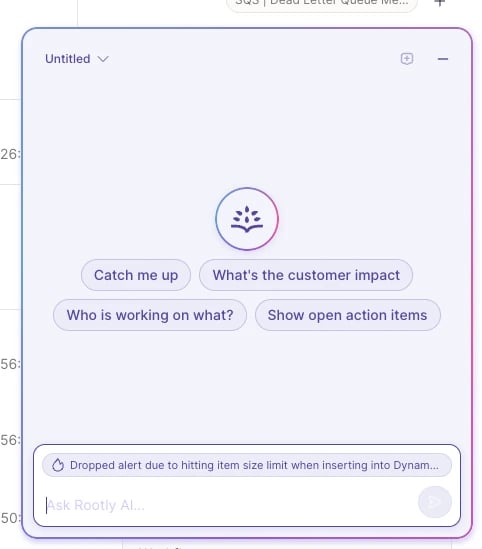
On any incident page, open the **Rootly Agent** launcher in the bottom-right
corner to open the chat panel.
***
## Opening the panel
On any incident page, open the **Rootly Agent** launcher in the bottom-right
corner to open the chat panel.
 The panel is docked alongside the incident—the rest of
the page stays usable while it's open—and you can minimize it at any time without
losing the conversation.
When you first open it, suggested prompts get you started. You can select a suggestion
or type your own question.
## What you can ask
Rootly Agent answers questions about the **current incident** and can look up live
data as it answers. Common uses include:
* **Get caught up** — "Catch me up on this incident" returns where things stand right
now: severity, status, what's working and what isn't, the leading theory, and any
open action items.
* **Find out who's doing what** — "Who is working on what?" or "Who is the commander?"
* **Understand severity** — "Why is this a SEV1?" grounds the answer in your team's
configured severity definitions.
* **Review the response** — "What have we tried so far?" or "What's still outstanding?"
* **Draft communications** — "Draft a customer update" or "Write an executive summary,"
tailored to the audience.
* **Recap the call** — "What was discussed on the bridge?"—available when
[Meeting Scribe](/ai/meeting-scribe) has captured a transcript for the incident.
Example prompts:
* Catch me up on this incident
* Who is working on what?
* Summarize what's happened in the last 30 minutes
* What action items are still open?
* Draft a status update for stakeholders
* Show the timeline in UTC
Rootly Agent keeps the conversation's context, so you can ask follow-up questions
naturally. Times are shown in your team's time zone by default—ask for UTC or another
zone if you need it.
Replies are formatted in **markdown**—headers, bold text, bullet lists, tables, and
clickable links—so they're easy to scan. Select the **copy** icon on a completed reply
to copy it to your clipboard, handy for pasting a drafted update or summary elsewhere.
## Multiple chats and history
You can keep more than one conversation per incident—for example, one to get caught up
and another to draft an update.
The panel is docked alongside the incident—the rest of
the page stays usable while it's open—and you can minimize it at any time without
losing the conversation.
When you first open it, suggested prompts get you started. You can select a suggestion
or type your own question.
## What you can ask
Rootly Agent answers questions about the **current incident** and can look up live
data as it answers. Common uses include:
* **Get caught up** — "Catch me up on this incident" returns where things stand right
now: severity, status, what's working and what isn't, the leading theory, and any
open action items.
* **Find out who's doing what** — "Who is working on what?" or "Who is the commander?"
* **Understand severity** — "Why is this a SEV1?" grounds the answer in your team's
configured severity definitions.
* **Review the response** — "What have we tried so far?" or "What's still outstanding?"
* **Draft communications** — "Draft a customer update" or "Write an executive summary,"
tailored to the audience.
* **Recap the call** — "What was discussed on the bridge?"—available when
[Meeting Scribe](/ai/meeting-scribe) has captured a transcript for the incident.
Example prompts:
* Catch me up on this incident
* Who is working on what?
* Summarize what's happened in the last 30 minutes
* What action items are still open?
* Draft a status update for stakeholders
* Show the timeline in UTC
Rootly Agent keeps the conversation's context, so you can ask follow-up questions
naturally. Times are shown in your team's time zone by default—ask for UTC or another
zone if you need it.
Replies are formatted in **markdown**—headers, bold text, bullet lists, tables, and
clickable links—so they're easy to scan. Select the **copy** icon on a completed reply
to copy it to your clipboard, handy for pasting a drafted update or summary elsewhere.
## Multiple chats and history
You can keep more than one conversation per incident—for example, one to get caught up
and another to draft an update.
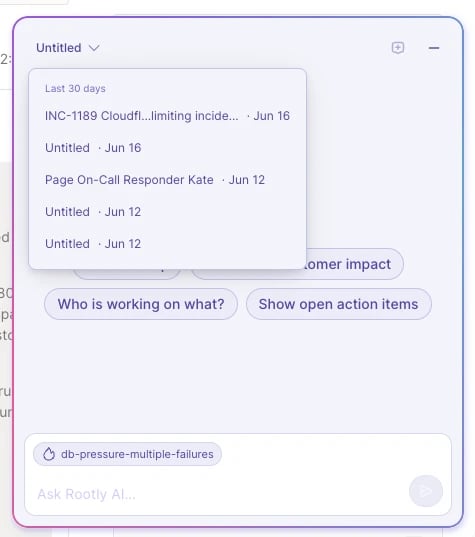 * Select **+** (New chat) in the panel header to start a fresh conversation.
* Open the **history** menu in the header to switch back to an earlier chat for this
incident. Chats are named automatically from your first question, so they're easy to
find later.
Your chats are **private to you**. Conversations are scoped to your user and the
incident—other responders on the incident can't see your chats, and you can't see
theirs.
***
## Configuration
Rootly Agent in Web is available to all customers but must be enabled by an Admin.
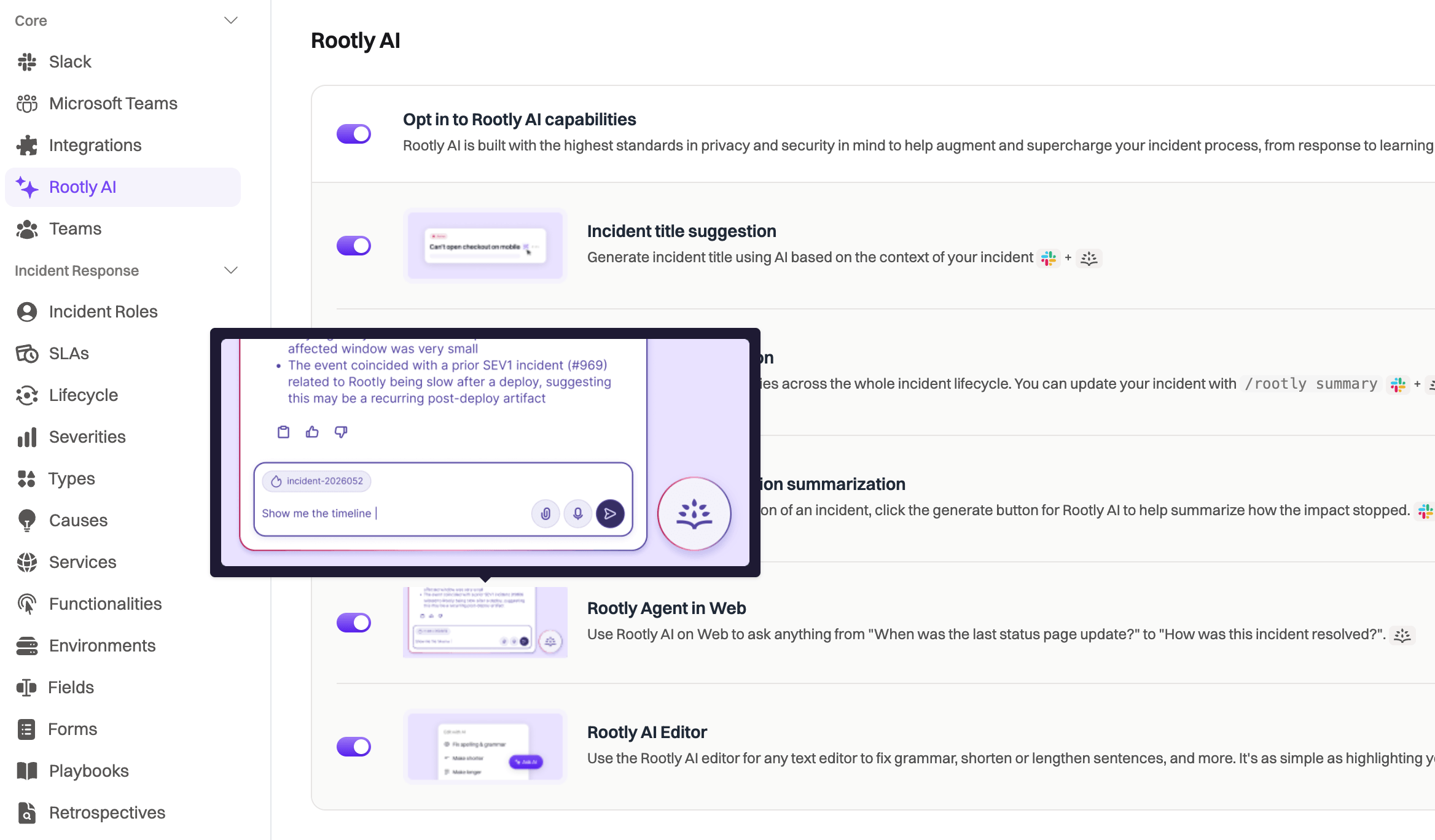
Go to **Rootly AI** in settings and toggle on **Opt in to Rootly AI capabilities**.
Turn on **Rootly Agent in Web**. Only Admins can configure Rootly AI settings.
* Select **+** (New chat) in the panel header to start a fresh conversation.
* Open the **history** menu in the header to switch back to an earlier chat for this
incident. Chats are named automatically from your first question, so they're easy to
find later.
Your chats are **private to you**. Conversations are scoped to your user and the
incident—other responders on the incident can't see your chats, and you can't see
theirs.
***
## Configuration
Rootly Agent in Web is available to all customers but must be enabled by an Admin.
Go to **Rootly AI** in settings and toggle on **Opt in to Rootly AI capabilities**.
Turn on **Rootly Agent in Web**. Only Admins can configure Rootly AI settings.
 Using the panel also requires an **Incident Response seat**.
***
## Troubleshooting
Check that **Rootly Agent in Web** is enabled in Rootly AI settings, that you have
an Incident Response seat, and—if the incident is not **private**—that you have
access to it (see [Data Privacy for AI](/ai/data-privacy-for-ai)).
Replies stream in as they're generated. If you switch chats or close the panel
while a reply is still being written, it finishes in the background—reopen the chat
to see the complete answer.
Rootly Agent on the web is read-only. To page, update status or severity, or manage
action items, use [@Rootly in Slack](/ai/rootly-in-slack/overview) or the incident
page.
Using the panel also requires an **Incident Response seat**.
***
## Troubleshooting
Check that **Rootly Agent in Web** is enabled in Rootly AI settings, that you have
an Incident Response seat, and—if the incident is not **private**—that you have
access to it (see [Data Privacy for AI](/ai/data-privacy-for-ai)).
Replies stream in as they're generated. If you switch chats or close the panel
while a reply is still being written, it finishes in the background—reopen the chat
to see the complete answer.
Rootly Agent on the web is read-only. To page, update status or severity, or manage
action items, use [@Rootly in Slack](/ai/rootly-in-slack/overview) or the incident
page.