> ## Documentation Index
> Fetch the complete documentation index at: https://docs.rootly.com/llms.txt
> Use this file to discover all available pages before exploring further.
# AI Instructions
> Keep Rootly's best practice instructions, or switch to custom and write your own guidance for one AI feature or across all of them.
Instructions are plain language. Write how you want Rootly AI to work, and it
follows. Set them once and they apply to everyone on your team.
Every feature starts on Rootly's best practice set, so Rootly AI follows
considered guidance before you write anything.
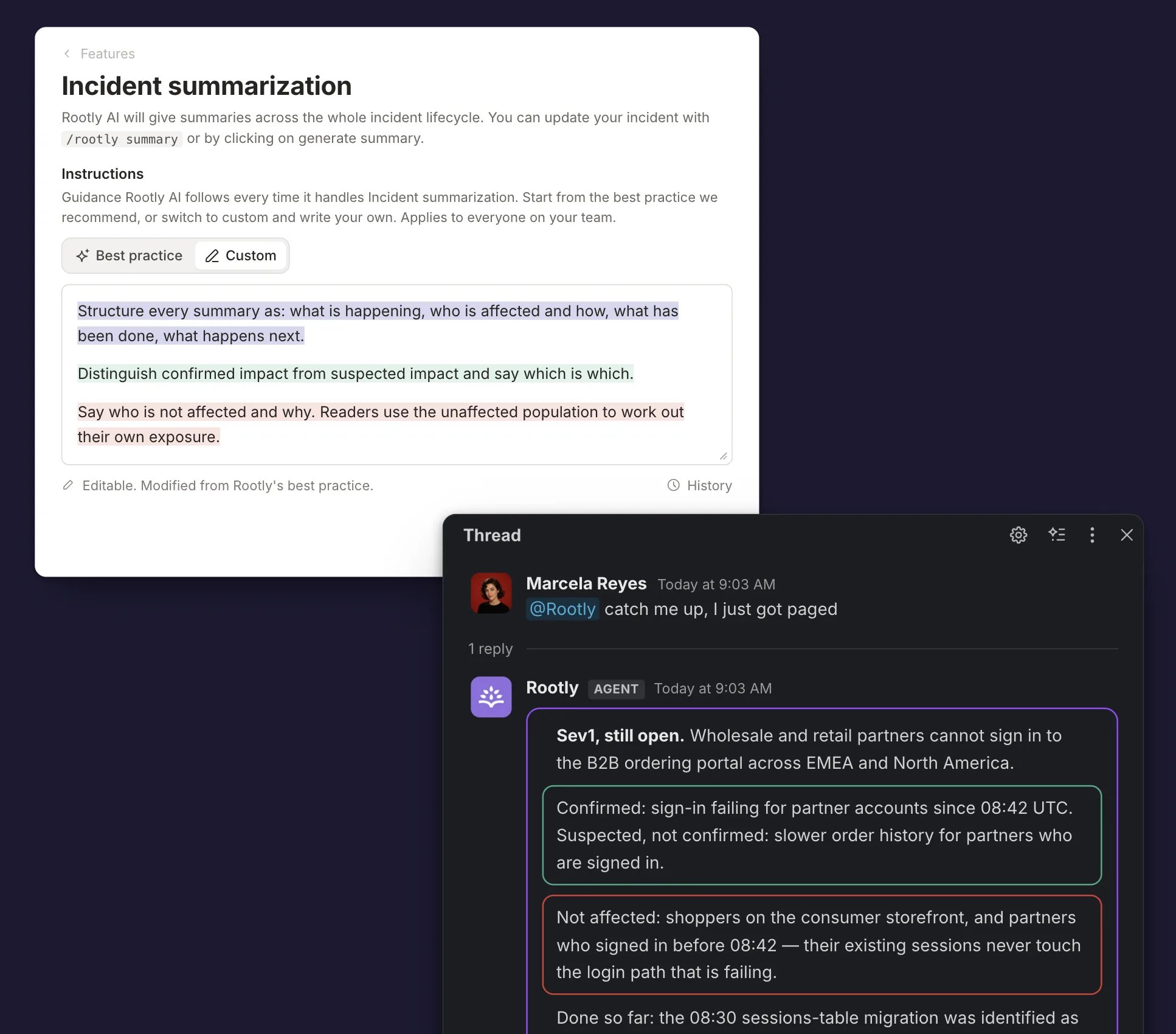 ## Best Practice or Custom
Each Instructions box has two sources. Pick one with the tabs above the box.
Rootly's own set, maintained by Rootly and updated as the product changes.
Read-only, with an expandable panel under the box giving the thinking behind
each rule.
Your own text. Switching to Custom copies Rootly's set into the box as a
starting point, so you edit rather than start from nothing.
Switch back to Best practice at any time. Your custom text is kept, so you can
return to it.
The full best practice text for every feature.
## Where the Best Practice Set Comes From
The best practice instructions are not generic AI guardrails. They are Rootly's opinion about how AI should behave in an incident, encoded as shipped defaults.
They were developed with practitioners from the **resilience engineering community**, the field that studies how complex systems and the people who run them cope with failure, and shaped by patterns across the **millions of incidents managed in Rootly**. The defaults reflect that grounding: contributing factors rather than a single root cause, evidence separated from inference, theories named as theories with owners, blameless framing that asks what people were seeing instead of why someone did something, and a clear line between what is missing from the record and what did not happen.
Every rule was tested against real incidents before shipping, and each feature's set carries an expandable **Why these defaults** panel in the product explaining the reasoning, so the instructions teach good incident practice while they steer the AI. You can read every set in full at [Default AI Instructions](/ai/instruction-defaults).
## Setting Instructions
### Across Every Feature
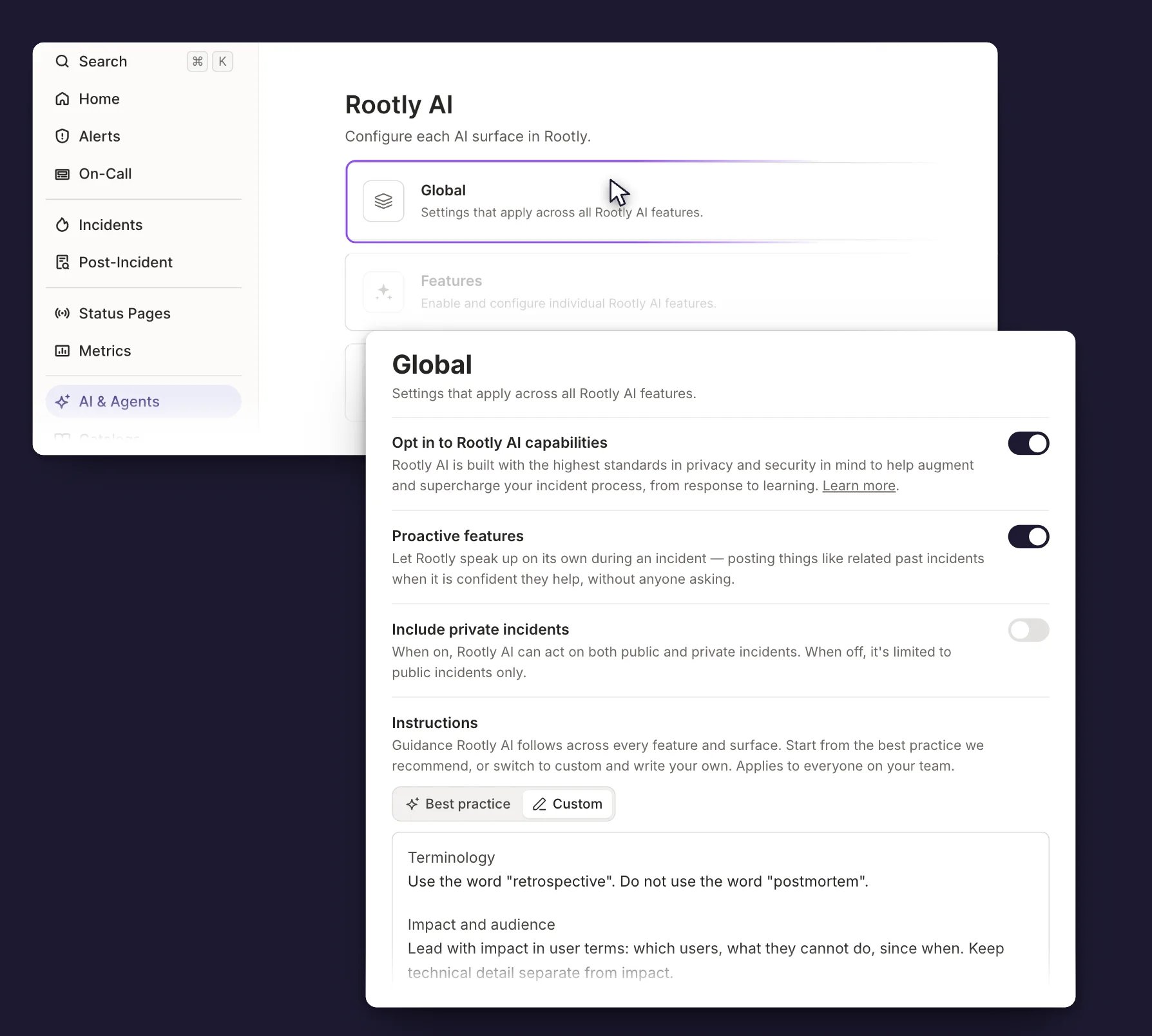
Go to **AI & Agents → Global**.
Select **Custom** above the **Instructions** box. Rootly's set is copied in
for you to edit.
Edit the text, then click outside the box. A confirmation toast appears
when it saves.
## Best Practice or Custom
Each Instructions box has two sources. Pick one with the tabs above the box.
Rootly's own set, maintained by Rootly and updated as the product changes.
Read-only, with an expandable panel under the box giving the thinking behind
each rule.
Your own text. Switching to Custom copies Rootly's set into the box as a
starting point, so you edit rather than start from nothing.
Switch back to Best practice at any time. Your custom text is kept, so you can
return to it.
The full best practice text for every feature.
## Where the Best Practice Set Comes From
The best practice instructions are not generic AI guardrails. They are Rootly's opinion about how AI should behave in an incident, encoded as shipped defaults.
They were developed with practitioners from the **resilience engineering community**, the field that studies how complex systems and the people who run them cope with failure, and shaped by patterns across the **millions of incidents managed in Rootly**. The defaults reflect that grounding: contributing factors rather than a single root cause, evidence separated from inference, theories named as theories with owners, blameless framing that asks what people were seeing instead of why someone did something, and a clear line between what is missing from the record and what did not happen.
Every rule was tested against real incidents before shipping, and each feature's set carries an expandable **Why these defaults** panel in the product explaining the reasoning, so the instructions teach good incident practice while they steer the AI. You can read every set in full at [Default AI Instructions](/ai/instruction-defaults).
## Setting Instructions
### Across Every Feature
Go to **AI & Agents → Global**.
Select **Custom** above the **Instructions** box. Rootly's set is copied in
for you to edit.
Edit the text, then click outside the box. A confirmation toast appears
when it saves.
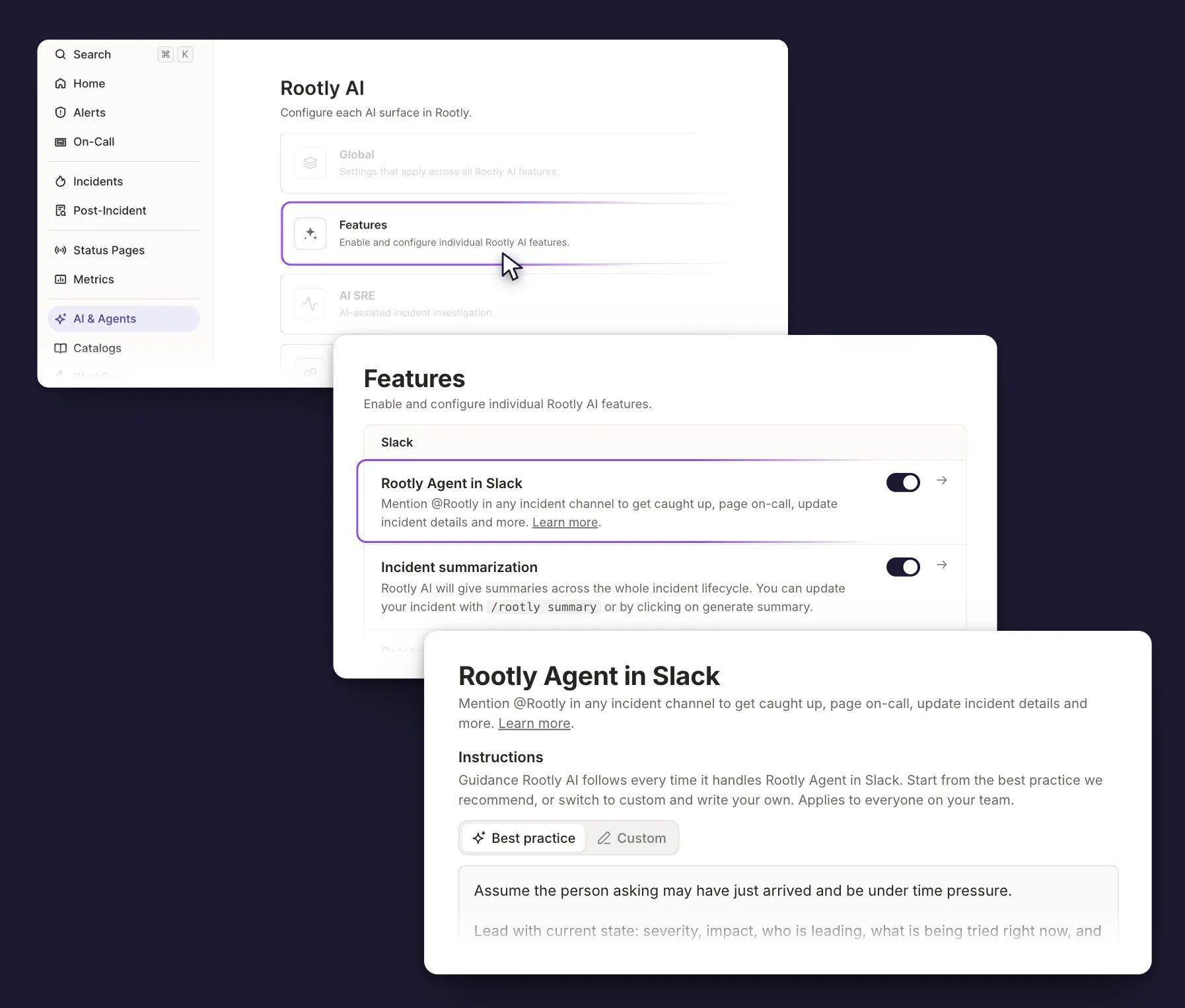
 ### On One Feature
Go to **AI & Agents → Features**.
Select the arrow at the end of the feature row, next to its toggle. The
feature gets a page of its own.
Switch to **Custom**, edit the text, then click outside the box.
### On One Feature
Go to **AI & Agents → Features**.
Select the arrow at the end of the feature row, next to its toggle. The
feature gets a page of its own.
Switch to **Custom**, edit the text, then click outside the box.
 The arrow appears only on features that accept instructions and are turned on.
One feature row lives elsewhere: **Proactive features** sits on **AI &
Agents → Global**, next to the opt-in toggle, rather than in the Features
list. Its arrow opens its Instructions box the same way.
## Where Instructions Apply
Instructions live in two places, both under **AI & Agents**. They apply
together.
| Set it in | Applies to |
| ------------------------ | ------------------------------------------ |
| **Global** | Every AI feature that accepts instructions |
| **Features → *feature*** | One AI feature |
Both are sent whenever the feature runs, and each is labeled so Rootly AI knows
which is which. Where the two conflict, the feature instruction wins, because
it is the more specific of the two.
The arrow appears only on features that accept instructions and are turned on.
One feature row lives elsewhere: **Proactive features** sits on **AI &
Agents → Global**, next to the opt-in toggle, rather than in the Features
list. Its arrow opens its Instructions box the same way.
## Where Instructions Apply
Instructions live in two places, both under **AI & Agents**. They apply
together.
| Set it in | Applies to |
| ------------------------ | ------------------------------------------ |
| **Global** | Every AI feature that accepts instructions |
| **Features → *feature*** | One AI feature |
Both are sent whenever the feature runs, and each is labeled so Rootly AI knows
which is which. Where the two conflict, the feature instruction wins, because
it is the more specific of the two.
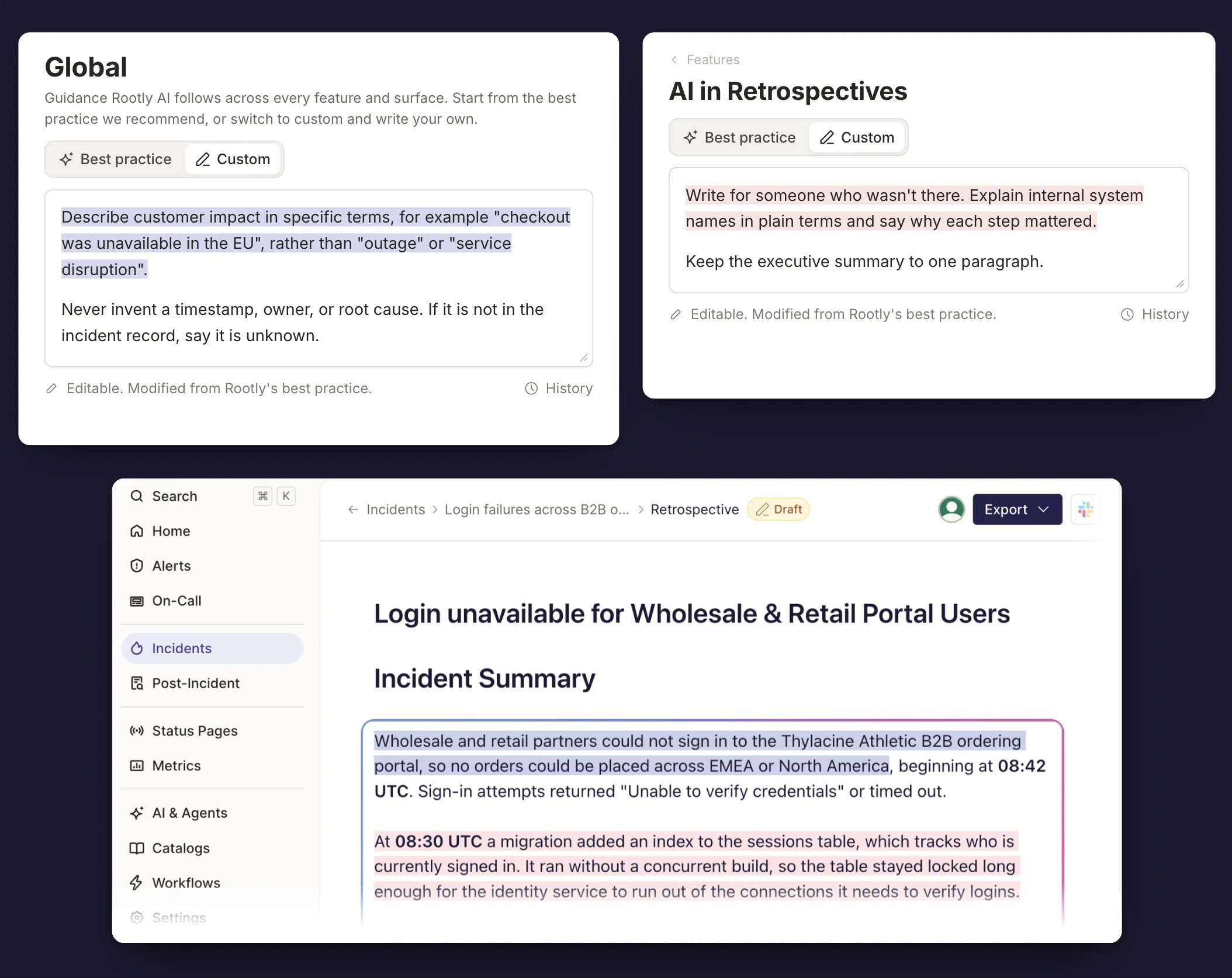 * Global reaches every feature. Keep it to guidance that holds everywhere.
* A feature box only reaches that feature. Write a rule out in full wherever
you want it.
Instructions steer how Rootly AI writes. Anything that has to happen every
time belongs in a template or a workflow.
## Which Features Accept Instructions
In the order they appear under **AI & Agents → Features**:
| Group | Feature |
| ------ | ---------------------- |
| Slack | Rootly Agent in Slack |
| Slack | Incident summarization |
| Retros | AI in Retrospectives |
| Web | Rootly Agent in Web |
| Mobile | Rootly Agent in Mobile |
**Proactive features** also accepts instructions, from its row on the
**Global** page rather than this list.
A feature has to be turned on before its Instructions box appears.
## Writing Your Own
Five things shape a good instruction.
Switching to Custom hands you Rootly's set. Cut what doesn't fit and add
your own rules on top, rather than clearing the box and starting over.
Generate the output first. Add a rule for each thing you'd have changed by
hand.
Rootly AI follows a positive instruction more reliably. It says what to put
in, not just what to leave out.
* ❌ "Don't use acronyms."
* ✅ "Spell out any term a new responder would need to look up."
Keep a prohibition where there's no positive version, like banning a phrase.
A persona narrows what Rootly AI will do without improving the output. Set
the scene instead. Say who's reading and under what pressure.
* ❌ "You are an experienced incident commander."
* ✅ "The reader is joining the incident now and needs to know what to do next."
Write rules someone could grade an output against.
* ❌ "Be clear and professional."
* ✅ "Keep it under 80 characters, in words a new responder would recognize."
Treat your first version as a starting point. Your team's feedback tells you
what to change. Instructions take a moment to edit, so refine as you go.
## Instructions in Retrospectives
A retrospective block can carry three instructions at once. They live in
different places.
Set in **AI & Agents → Features → AI in Retrospectives**. Applies to every AI
block in every retrospective in the account.
Set in the retrospective template builder. Applies to every AI block in that
template.
Set on the block itself. Applies to that block only.
Template and block instructions combine into one field, labeled so you can see
where each part came from.
See [Building AI Templates](/ai/ai-in-retrospectives/building-ai-templates) for
the template-side fields.
## Managing Instructions
Owners and admins edit instructions. Everyone else sees them read-only, so
responders can check what's in effect.
The box saves when you click outside it, and an instruction can run to 10,000
characters.
### History
Select **History** under the box to see every edit: who made it, when, and what
changed, line by line. Switching between Best practice and Custom is recorded
there too.
Clearing the box empties it and stops the instruction applying. The text stays
in History, so you can retrieve it.
Turning a feature off leaves its instruction saved. It applies again when you
turn the feature back on.
## Troubleshooting
Check that the box is set to **Custom**, since Best practice ignores your
text while it is selected. Then check that the feature is turned on under
**AI & Agents → Features**, and that you wrote the instruction on the
feature you meant.
Long instructions are the usual cause. Cut back to the rules that describe
something you'd otherwise fix by hand, then check whether the ones you kept
come through more consistently.
The feature instruction wins. Rewrite one of the two so they agree, rather
than relying on that.
Either the box is set to Best practice, which is read-only by design, or
you aren't an owner or admin. Switch to Custom, or ask an admin to make the
change.
## Frequently Asked Questions
No. Every feature starts on Rootly's best practice set. Switch to Custom
when you want the output to match how your team already writes.
Yes. Instructions are set for the whole account, not per person.
Only the best practice set is maintained by Rootly, and it updates as the
product changes. Custom text is never edited for you.
Save it and generate the output once. Adjust from what you see, not from
what you expect.
* Global reaches every feature. Keep it to guidance that holds everywhere.
* A feature box only reaches that feature. Write a rule out in full wherever
you want it.
Instructions steer how Rootly AI writes. Anything that has to happen every
time belongs in a template or a workflow.
## Which Features Accept Instructions
In the order they appear under **AI & Agents → Features**:
| Group | Feature |
| ------ | ---------------------- |
| Slack | Rootly Agent in Slack |
| Slack | Incident summarization |
| Retros | AI in Retrospectives |
| Web | Rootly Agent in Web |
| Mobile | Rootly Agent in Mobile |
**Proactive features** also accepts instructions, from its row on the
**Global** page rather than this list.
A feature has to be turned on before its Instructions box appears.
## Writing Your Own
Five things shape a good instruction.
Switching to Custom hands you Rootly's set. Cut what doesn't fit and add
your own rules on top, rather than clearing the box and starting over.
Generate the output first. Add a rule for each thing you'd have changed by
hand.
Rootly AI follows a positive instruction more reliably. It says what to put
in, not just what to leave out.
* ❌ "Don't use acronyms."
* ✅ "Spell out any term a new responder would need to look up."
Keep a prohibition where there's no positive version, like banning a phrase.
A persona narrows what Rootly AI will do without improving the output. Set
the scene instead. Say who's reading and under what pressure.
* ❌ "You are an experienced incident commander."
* ✅ "The reader is joining the incident now and needs to know what to do next."
Write rules someone could grade an output against.
* ❌ "Be clear and professional."
* ✅ "Keep it under 80 characters, in words a new responder would recognize."
Treat your first version as a starting point. Your team's feedback tells you
what to change. Instructions take a moment to edit, so refine as you go.
## Instructions in Retrospectives
A retrospective block can carry three instructions at once. They live in
different places.
Set in **AI & Agents → Features → AI in Retrospectives**. Applies to every AI
block in every retrospective in the account.
Set in the retrospective template builder. Applies to every AI block in that
template.
Set on the block itself. Applies to that block only.
Template and block instructions combine into one field, labeled so you can see
where each part came from.
See [Building AI Templates](/ai/ai-in-retrospectives/building-ai-templates) for
the template-side fields.
## Managing Instructions
Owners and admins edit instructions. Everyone else sees them read-only, so
responders can check what's in effect.
The box saves when you click outside it, and an instruction can run to 10,000
characters.
### History
Select **History** under the box to see every edit: who made it, when, and what
changed, line by line. Switching between Best practice and Custom is recorded
there too.
Clearing the box empties it and stops the instruction applying. The text stays
in History, so you can retrieve it.
Turning a feature off leaves its instruction saved. It applies again when you
turn the feature back on.
## Troubleshooting
Check that the box is set to **Custom**, since Best practice ignores your
text while it is selected. Then check that the feature is turned on under
**AI & Agents → Features**, and that you wrote the instruction on the
feature you meant.
Long instructions are the usual cause. Cut back to the rules that describe
something you'd otherwise fix by hand, then check whether the ones you kept
come through more consistently.
The feature instruction wins. Rewrite one of the two so they agree, rather
than relying on that.
Either the box is set to Best practice, which is read-only by design, or
you aren't an owner or admin. Switch to Custom, or ask an admin to make the
change.
## Frequently Asked Questions
No. Every feature starts on Rootly's best practice set. Switch to Custom
when you want the output to match how your team already writes.
Yes. Instructions are set for the whole account, not per person.
Only the best practice set is maintained by Rootly, and it updates as the
product changes. Custom text is never edited for you.
Save it and generate the output once. Adjust from what you see, not from
what you expect.