> ## Documentation Index
> Fetch the complete documentation index at: https://docs.rootly.com/llms.txt
> Use this file to discover all available pages before exploring further.
# Rootly AI Meeting Scribe
> Rootly AI records, transcribes, and summarizes incident bridge calls across Zoom, Meet, Webex, Teams, and GoToMeeting — with built-in privacy protections.
## Overview
Rootly AI Meeting Scribe captures and preserves critical incident context that would otherwise live only in live bridge calls. When enabled, Meeting Scribe automatically joins incident bridge meetings to record, transcribe, and summarize discussions — making incident communication more accessible, auditable, and actionable.
By continuously capturing meeting context, Rootly AI Meeting Scribe ensures responders who join late, stakeholders who weren't on the call, and post-incident reviewers all have access to the same shared source of truth.
Meeting Scribe supports **Zoom, Google Meet, Webex, Microsoft Teams, and GoToMeeting**, and integrates directly with Incident Summarization, Incident Catchup, and retrospectives.
Once enabled, Rootly AI Meeting Scribe automatically joins incident bridges and captures transcripts and summaries.
## Supported Platforms
Meeting Scribe supports the following virtual meeting platforms:
* **Zoom** (optional auto-join support)
* **Google Meet**
* **Webex**
* **Microsoft Teams**
* **GoToMeeting**
Each platform must be integrated with Rootly before Meeting Scribe can be used.
## Configuration
To get started, integrate your meeting platform with Rootly. Refer to the [integration documentation](/integrations) for platform-specific setup instructions.
Once your meeting platform is integrated:
1. Navigate to **Integrations** and select your meeting platform
2. Toggle on **Meeting transcript and summary**
3. For Zoom, optionally enable **Auto-join bot** to allow the bot to join meetings without manual admission
 When enabled, Meeting Scribe is automatically created when a meeting URL is added to an incident.
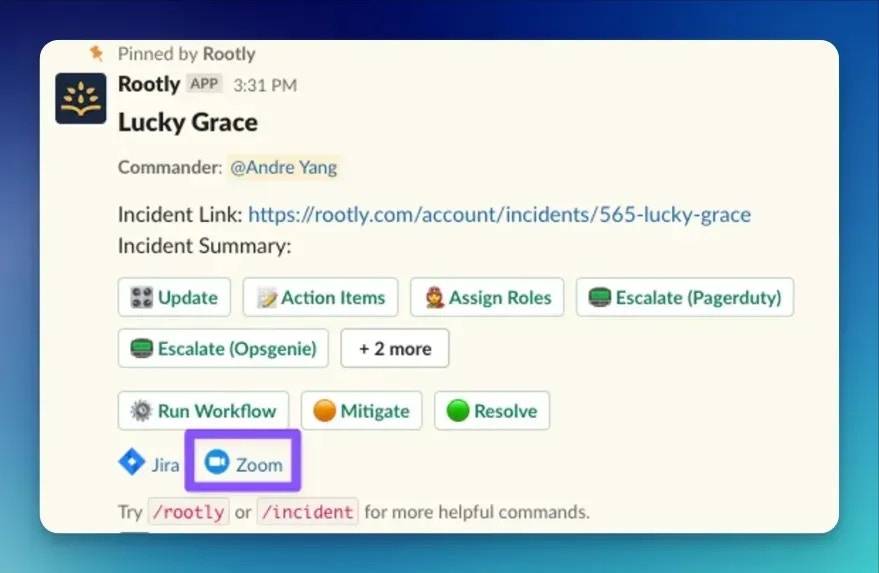
**Important:** Always use the virtual meeting room created by Rootly when an incident starts. This meeting link is pinned at the top of the incident’s Slack channel. Using the Rootly-generated meeting URL ensures the bot can join successfully and associate recordings with the correct incident.
## During Incident Bridges
Once admitted to the incident bridge, Meeting Scribe immediately begins capturing the call.
During the meeting, the bot will:
* Announce its presence to participants
* Begin **live transcription** in real time
* Record audio (and video when supported)
* Identify speakers in the transcript
* Stream transcription updates back to Rootly continuously
* Post **Slack notifications** to the incident channel when recording starts and when the transcript is ready
Live transcription is available during the meeting and is included in Rootly AI features such as [Incident Catchup](/ai/incident-catchup). This allows new responders to quickly understand what has already been discussed without interrupting the bridge.
When enabled, Meeting Scribe is automatically created when a meeting URL is added to an incident.
**Important:** Always use the virtual meeting room created by Rootly when an incident starts. This meeting link is pinned at the top of the incident’s Slack channel. Using the Rootly-generated meeting URL ensures the bot can join successfully and associate recordings with the correct incident.
## During Incident Bridges
Once admitted to the incident bridge, Meeting Scribe immediately begins capturing the call.
During the meeting, the bot will:
* Announce its presence to participants
* Begin **live transcription** in real time
* Record audio (and video when supported)
* Identify speakers in the transcript
* Stream transcription updates back to Rootly continuously
* Post **Slack notifications** to the incident channel when recording starts and when the transcript is ready
Live transcription is available during the meeting and is included in Rootly AI features such as [Incident Catchup](/ai/incident-catchup). This allows new responders to quickly understand what has already been discussed without interrupting the bridge.
 ## After the Incident
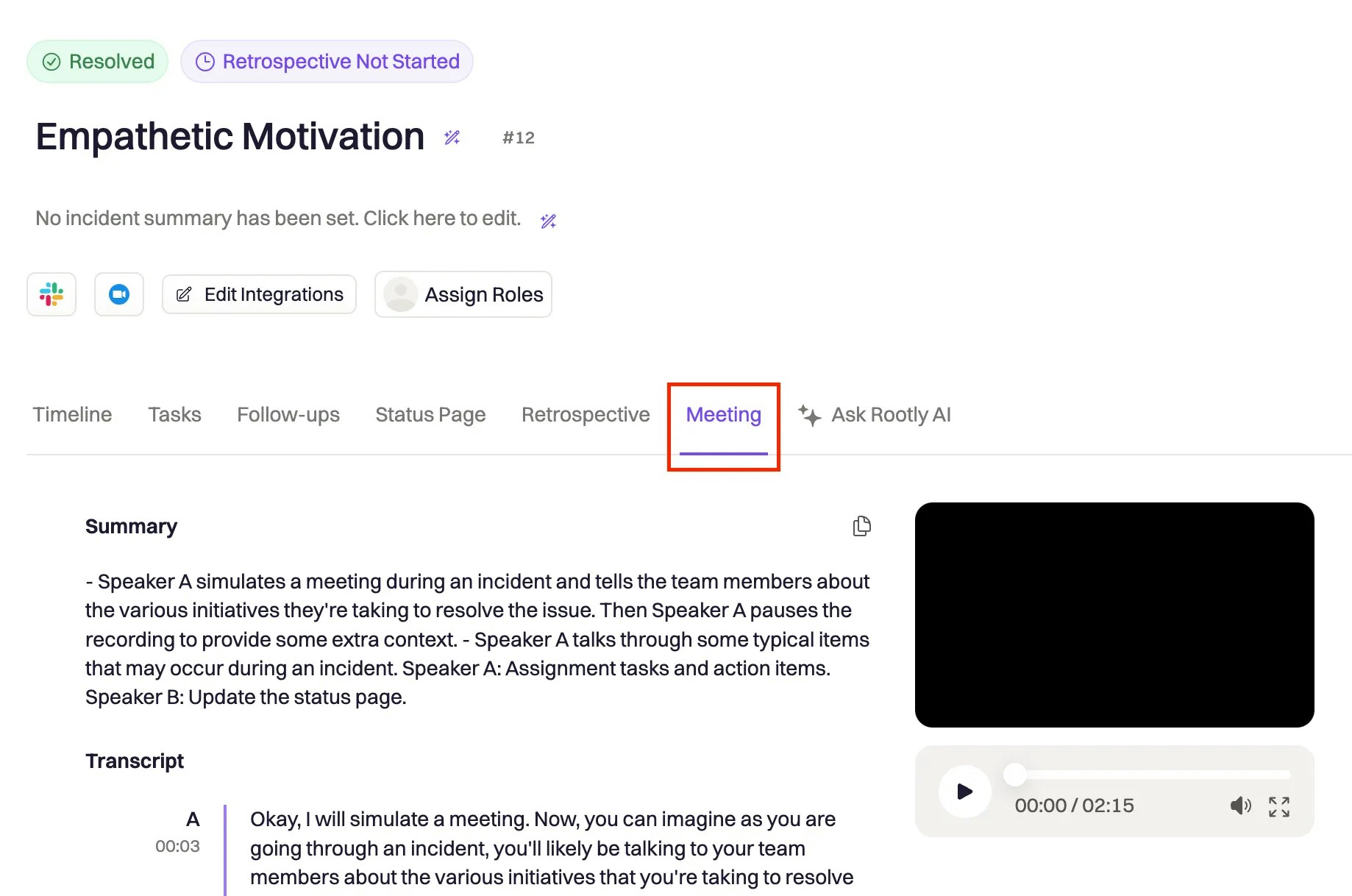
After the meeting ends and the incident is resolved, Meeting Scribe processes the captured data and updates the incident with:
* **Full meeting transcript** with speaker labels
* **Rootly AI meeting summary** highlighting key discussion points and decisions
* **Optional video recording**, when supported by the platform
* **Automatic PII redaction**, removing sensitive data such as emails, phone numbers, passwords, and personal identifiers
All artifacts are stored in the **Meeting** tab of the incident and are automatically incorporated into incident summaries, catchup responses, and retrospectives.
## After the Incident
After the meeting ends and the incident is resolved, Meeting Scribe processes the captured data and updates the incident with:
* **Full meeting transcript** with speaker labels
* **Rootly AI meeting summary** highlighting key discussion points and decisions
* **Optional video recording**, when supported by the platform
* **Automatic PII redaction**, removing sensitive data such as emails, phone numbers, passwords, and personal identifiers
All artifacts are stored in the **Meeting** tab of the incident and are automatically incorporated into incident summaries, catchup responses, and retrospectives.
 ## How It Works
Meeting Scribe uses the Recall.ai platform to manage meeting participation, transcription, and post-meeting analysis.
When a meeting URL is added to an incident:
1. **Bot creation**\
Rootly creates a Meeting Scribe bot scoped to the incident and team.
2. **Bot joins the meeting**\
The bot joins automatically or waits for admission, depending on platform and settings.
3. **Live transcription & recording**\
Real-time transcription is captured during the call, with speaker identification and word-level timing.
4. **Post-meeting analysis**\
After the meeting ends, the bot:
* Generates a full transcript
* Produces a Rootly AI summary
* Applies automatic PII redaction
* Attaches recordings and artifacts to the incident
5. **Incident integration**\
Meeting transcripts are included in Incident Summarization and Incident Catchup, ensuring meeting context is available across Rootly AI features.
The bot may automatically retry joining meetings in certain scenarios (for example, if the meeting has not started yet or the bot is waiting to be admitted), with safeguards in place to prevent excessive retries.
## Recording Sessions
A single incident can have **multiple recording sessions** per platform—up to 10 sessions each. A recording session is created each time the bot joins or rejoins a call, which is distinct from the meeting itself. This is useful when:
* A bridge call is interrupted and the bot needs to rejoin
* The bot is removed and later reinvited to the same meeting
* The bot reconnects after a network disruption
Each session produces its own transcript, summary, and optional video recording. All sessions are displayed chronologically in the **Meeting** tab of the incident.
### Pause and resume
You can **pause** and **resume** a recording mid-call without ending the session. This is useful when sensitive topics arise that should not be captured. Pausing stops transcription and recording; resuming picks up where it left off within the same session.
### Reinviting the bot
If the bot leaves or is removed from a call, you can reinvite it from the **Meeting** tab. Reinviting creates a new session, preserving all prior session data.
Recording sessions can also be managed programmatically via the Meeting Recordings API. Available operations include listing, creating, pausing, resuming, stopping, and deleting sessions.
## Privacy and Security
Meeting Scribe is built with strong privacy and security controls. Meeting data is used only to support your organization’s incident response workflows and is never shared across customers.
### Subprocessors
Meeting Scribe relies on the following third-party subprocessors to deliver recording, transcription, and analysis capabilities:
| Subprocessor | Purpose | Data processed |
| ---------------------------------------------------- | ----------------------------------------------------------------------------------------------------------------- | ------------------------------------------------- |
| [Recall.ai](https://recall.ai) | Meeting orchestration, recording capture, and platform connectivity | Meeting audio/video streams, bot lifecycle events |
| [AssemblyAI](https://assemblyai.com) (via Recall.ai) | Speech-to-text transcription, summarization, PII redaction, and speaker identification | Meeting audio for transcription |
| [Amazon S3](https://aws.amazon.com/s3/) | Encrypted storage of meeting video recordings | Video files |
| [OpenAI](https://openai.com) | Powers classic Rootly AI incident summarization using meeting transcripts ([learn more](/ai/data-privacy-for-ai)) | Redacted transcripts and summaries |
All subprocessors are bound by data processing agreements. Data sent to subprocessors is used solely to provide Rootly services and is not used for model training.
### Data flow
1. **Recording** — When a meeting starts, Rootly dispatches a bot via Recall.ai to join the call on the configured platform (Zoom, Google Meet, Microsoft Teams, Webex, or GoToMeeting).
2. **Live transcription** — During the call, the bot streams real-time transcription back to Rootly. Live transcripts are used by features like [Incident Catchup](/ai/incident-catchup) to keep responders informed in real time.
3. **Post-meeting analysis** — After the meeting ends, the full recording is sent to AssemblyAI (through Recall.ai) for final transcription with automatic PII redaction, speaker labeling, and summarization. The PII-redacted transcript replaces the live version.
4. **Storage** — The redacted transcript and summary are stored in Rootly’s database. Video recordings are stored in Amazon S3 with encryption at rest.
5. **AI analysis** — Redacted transcripts feed into Rootly AI features such as Incident Summarization and Incident Catchup, processed via OpenAI under the same [data privacy safeguards](/ai/data-privacy-for-ai) as all other Rootly AI features.
### Automatic PII redaction
All transcripts are automatically processed through AssemblyAI’s PII redaction engine before storage. The following categories are redacted:
* Account numbers
* Banking information
* Blood type
* Credit card CVV
* Credit card expiration
* Credit card numbers
* Dates
* Dates of birth
* Driver’s license numbers
* Drug references
* Email addresses
* Events
* Gender and sexuality
* Healthcare numbers
* Injuries
* IP addresses
* Languages
* Locations
* Medical conditions
* Medical processes
* Money amounts
* Nationalities
* Number sequences
* Occupations
* Organizations
* Passport numbers
* Passwords
* Person ages
* Person names
* Phone numbers
* Political affiliations
* Religions
* URLs
* US Social Security numbers
* Usernames
* Vehicle IDs
### Data retention and deletion
Meeting data retention varies by storage location. Third-party subprocessors (AssemblyAI, OpenAI) do not retain data after processing. Recall.ai retains media indefinitely by default, with a configurable retention window. Rootly-managed storage (Amazon S3, database) retains data under your organization’s control until explicitly deleted.
**Rootly-managed storage**
| Storage location | What is stored | Default retention | Deletion |
| ------------------- | ------------------------------------ | ------------------------------------------ | ------------------------------------------------------------------------------------------------------------------------- |
| **Amazon S3** | Video recordings (encrypted at rest) | Retained until explicitly deleted by user | Users can delete video files at any time via the Meeting tab or API. Deleted videos are removed from storage immediately. |
| **Rootly database** | Transcripts and summaries | Retained with the incident, scoped to team | Deleted when the associated recording session is removed. |
**Third-party subprocessors**
| Subprocessor | What is processed | Default retention | Deletion |
| ------------------------------ | ---------------------------------------- | ---------------------------------------------------------------------------------------------------------------------------------------------------- | ------------------------------------------------------------------------------------------------------------------------------------------------------------------------------------------------------------------------------------------------------------------------------------------------------------------------------------------- |
| **Recall.ai** | Meeting audio/video media | **Unlimited** by default. Configurable via the Recall.ai retention API parameter. | Media can be deleted at any time via the [Delete Bot Media](https://docs.recall.ai/reference/bot_delete_media_create) endpoint. Once explicitly deleted, data is permanently removed from Recall servers and cannot be recovered. See [Recall.ai Storage and Data Retention](https://docs.recall.ai/docs/storage-and-playback) for details. |
| **AssemblyAI** (via Recall.ai) | Meeting audio (for transcription) | **Not retained after processing.** Audio is sent to AssemblyAI for transcription after the meeting ends and is not stored once processing completes. | AssemblyAI does not retain audio or transcript data after processing. |
| **OpenAI** | Redacted transcripts (for summarization) | **Not retained after processing.** Data is processed and not stored by OpenAI. OpenAI does not use Rootly data for model training. | Covered by Rootly’s [zero-retention API agreement](/ai/data-privacy-for-ai). Organizations can also [bring their own OpenAI API key](https://rootly.com/account/integrations/open_ai_accounts/new) for additional control. |
Recall.ai media retention is managed by Rootly on your behalf. Media is retained indefinitely by default. To adjust the retention window or request immediate deletion of media, contact your Rootly admin or reach out to **[support@rootly.com](mailto:support@rootly.com)**.
### Security controls
* **Encryption at rest** for all stored transcripts, summaries, and video recordings
* **Webhook signature verification** (via Svix) ensures authenticity of all Recall.ai events
* **Encrypted credential storage** for all meeting platform OAuth tokens
* **Incident- and team-scoped access** — meeting data is only accessible within the associated incident and team
* **Audit logging** for credential changes and recording deletions
* **No cross-customer data sharing** — your meeting data is never used to improve results for other customers
## Usage Limits
Teams have monthly usage limits for meeting recording time. Usage is tracked automatically and applies across all supported platforms.
If a usage limit is exceeded, the bot will not join new meetings until usage resets or limits are increased. Your Rootly admin can review usage and limits if this occurs.
## Best Practices
* Use the Rootly-generated meeting URL pinned in the incident Slack channel
* Enable auto-join for Zoom when possible
* Admit the bot promptly when it requests access
* Monitor the **Meeting** tab for bot status and artifacts
* Use Incident Catchup to onboard late responders efficiently
## Troubleshooting
Ensure the meeting URL was generated by Rootly and that your meeting platform integration is enabled with **Meeting transcript and summary** turned on. For Zoom, confirm whether auto-join is enabled or manually admit the bot when prompted.
Transcripts and summaries are generated after the meeting ends. Wait a few minutes, then check the **Meeting** tab of the incident. Confirm the bot successfully joined and recorded the call.
Your team may have exceeded its monthly meeting recording limit. Contact your Rootly admin to review usage or adjust limits.
Retention varies by storage location. Third-party subprocessors (AssemblyAI, OpenAI) do not retain data after processing. Recall.ai retains media indefinitely by default. Rootly-managed storage retains data under your organization's control until explicitly deleted. See [Data retention and deletion](#data-retention-and-deletion) for the full breakdown.
Yes. Video recordings can be deleted from the Meeting tab or via API, and Recall.ai media can be deleted at any time. AssemblyAI and OpenAI do not retain data after processing, so no deletion action is needed. Deleting a recording session in Rootly also removes associated transcripts and summaries. See [Data retention and deletion](#data-retention-and-deletion) for details per storage location.
## How It Works
Meeting Scribe uses the Recall.ai platform to manage meeting participation, transcription, and post-meeting analysis.
When a meeting URL is added to an incident:
1. **Bot creation**\
Rootly creates a Meeting Scribe bot scoped to the incident and team.
2. **Bot joins the meeting**\
The bot joins automatically or waits for admission, depending on platform and settings.
3. **Live transcription & recording**\
Real-time transcription is captured during the call, with speaker identification and word-level timing.
4. **Post-meeting analysis**\
After the meeting ends, the bot:
* Generates a full transcript
* Produces a Rootly AI summary
* Applies automatic PII redaction
* Attaches recordings and artifacts to the incident
5. **Incident integration**\
Meeting transcripts are included in Incident Summarization and Incident Catchup, ensuring meeting context is available across Rootly AI features.
The bot may automatically retry joining meetings in certain scenarios (for example, if the meeting has not started yet or the bot is waiting to be admitted), with safeguards in place to prevent excessive retries.
## Recording Sessions
A single incident can have **multiple recording sessions** per platform—up to 10 sessions each. A recording session is created each time the bot joins or rejoins a call, which is distinct from the meeting itself. This is useful when:
* A bridge call is interrupted and the bot needs to rejoin
* The bot is removed and later reinvited to the same meeting
* The bot reconnects after a network disruption
Each session produces its own transcript, summary, and optional video recording. All sessions are displayed chronologically in the **Meeting** tab of the incident.
### Pause and resume
You can **pause** and **resume** a recording mid-call without ending the session. This is useful when sensitive topics arise that should not be captured. Pausing stops transcription and recording; resuming picks up where it left off within the same session.
### Reinviting the bot
If the bot leaves or is removed from a call, you can reinvite it from the **Meeting** tab. Reinviting creates a new session, preserving all prior session data.
Recording sessions can also be managed programmatically via the Meeting Recordings API. Available operations include listing, creating, pausing, resuming, stopping, and deleting sessions.
## Privacy and Security
Meeting Scribe is built with strong privacy and security controls. Meeting data is used only to support your organization’s incident response workflows and is never shared across customers.
### Subprocessors
Meeting Scribe relies on the following third-party subprocessors to deliver recording, transcription, and analysis capabilities:
| Subprocessor | Purpose | Data processed |
| ---------------------------------------------------- | ----------------------------------------------------------------------------------------------------------------- | ------------------------------------------------- |
| [Recall.ai](https://recall.ai) | Meeting orchestration, recording capture, and platform connectivity | Meeting audio/video streams, bot lifecycle events |
| [AssemblyAI](https://assemblyai.com) (via Recall.ai) | Speech-to-text transcription, summarization, PII redaction, and speaker identification | Meeting audio for transcription |
| [Amazon S3](https://aws.amazon.com/s3/) | Encrypted storage of meeting video recordings | Video files |
| [OpenAI](https://openai.com) | Powers classic Rootly AI incident summarization using meeting transcripts ([learn more](/ai/data-privacy-for-ai)) | Redacted transcripts and summaries |
All subprocessors are bound by data processing agreements. Data sent to subprocessors is used solely to provide Rootly services and is not used for model training.
### Data flow
1. **Recording** — When a meeting starts, Rootly dispatches a bot via Recall.ai to join the call on the configured platform (Zoom, Google Meet, Microsoft Teams, Webex, or GoToMeeting).
2. **Live transcription** — During the call, the bot streams real-time transcription back to Rootly. Live transcripts are used by features like [Incident Catchup](/ai/incident-catchup) to keep responders informed in real time.
3. **Post-meeting analysis** — After the meeting ends, the full recording is sent to AssemblyAI (through Recall.ai) for final transcription with automatic PII redaction, speaker labeling, and summarization. The PII-redacted transcript replaces the live version.
4. **Storage** — The redacted transcript and summary are stored in Rootly’s database. Video recordings are stored in Amazon S3 with encryption at rest.
5. **AI analysis** — Redacted transcripts feed into Rootly AI features such as Incident Summarization and Incident Catchup, processed via OpenAI under the same [data privacy safeguards](/ai/data-privacy-for-ai) as all other Rootly AI features.
### Automatic PII redaction
All transcripts are automatically processed through AssemblyAI’s PII redaction engine before storage. The following categories are redacted:
* Account numbers
* Banking information
* Blood type
* Credit card CVV
* Credit card expiration
* Credit card numbers
* Dates
* Dates of birth
* Driver’s license numbers
* Drug references
* Email addresses
* Events
* Gender and sexuality
* Healthcare numbers
* Injuries
* IP addresses
* Languages
* Locations
* Medical conditions
* Medical processes
* Money amounts
* Nationalities
* Number sequences
* Occupations
* Organizations
* Passport numbers
* Passwords
* Person ages
* Person names
* Phone numbers
* Political affiliations
* Religions
* URLs
* US Social Security numbers
* Usernames
* Vehicle IDs
### Data retention and deletion
Meeting data retention varies by storage location. Third-party subprocessors (AssemblyAI, OpenAI) do not retain data after processing. Recall.ai retains media indefinitely by default, with a configurable retention window. Rootly-managed storage (Amazon S3, database) retains data under your organization’s control until explicitly deleted.
**Rootly-managed storage**
| Storage location | What is stored | Default retention | Deletion |
| ------------------- | ------------------------------------ | ------------------------------------------ | ------------------------------------------------------------------------------------------------------------------------- |
| **Amazon S3** | Video recordings (encrypted at rest) | Retained until explicitly deleted by user | Users can delete video files at any time via the Meeting tab or API. Deleted videos are removed from storage immediately. |
| **Rootly database** | Transcripts and summaries | Retained with the incident, scoped to team | Deleted when the associated recording session is removed. |
**Third-party subprocessors**
| Subprocessor | What is processed | Default retention | Deletion |
| ------------------------------ | ---------------------------------------- | ---------------------------------------------------------------------------------------------------------------------------------------------------- | ------------------------------------------------------------------------------------------------------------------------------------------------------------------------------------------------------------------------------------------------------------------------------------------------------------------------------------------- |
| **Recall.ai** | Meeting audio/video media | **Unlimited** by default. Configurable via the Recall.ai retention API parameter. | Media can be deleted at any time via the [Delete Bot Media](https://docs.recall.ai/reference/bot_delete_media_create) endpoint. Once explicitly deleted, data is permanently removed from Recall servers and cannot be recovered. See [Recall.ai Storage and Data Retention](https://docs.recall.ai/docs/storage-and-playback) for details. |
| **AssemblyAI** (via Recall.ai) | Meeting audio (for transcription) | **Not retained after processing.** Audio is sent to AssemblyAI for transcription after the meeting ends and is not stored once processing completes. | AssemblyAI does not retain audio or transcript data after processing. |
| **OpenAI** | Redacted transcripts (for summarization) | **Not retained after processing.** Data is processed and not stored by OpenAI. OpenAI does not use Rootly data for model training. | Covered by Rootly’s [zero-retention API agreement](/ai/data-privacy-for-ai). Organizations can also [bring their own OpenAI API key](https://rootly.com/account/integrations/open_ai_accounts/new) for additional control. |
Recall.ai media retention is managed by Rootly on your behalf. Media is retained indefinitely by default. To adjust the retention window or request immediate deletion of media, contact your Rootly admin or reach out to **[support@rootly.com](mailto:support@rootly.com)**.
### Security controls
* **Encryption at rest** for all stored transcripts, summaries, and video recordings
* **Webhook signature verification** (via Svix) ensures authenticity of all Recall.ai events
* **Encrypted credential storage** for all meeting platform OAuth tokens
* **Incident- and team-scoped access** — meeting data is only accessible within the associated incident and team
* **Audit logging** for credential changes and recording deletions
* **No cross-customer data sharing** — your meeting data is never used to improve results for other customers
## Usage Limits
Teams have monthly usage limits for meeting recording time. Usage is tracked automatically and applies across all supported platforms.
If a usage limit is exceeded, the bot will not join new meetings until usage resets or limits are increased. Your Rootly admin can review usage and limits if this occurs.
## Best Practices
* Use the Rootly-generated meeting URL pinned in the incident Slack channel
* Enable auto-join for Zoom when possible
* Admit the bot promptly when it requests access
* Monitor the **Meeting** tab for bot status and artifacts
* Use Incident Catchup to onboard late responders efficiently
## Troubleshooting
Ensure the meeting URL was generated by Rootly and that your meeting platform integration is enabled with **Meeting transcript and summary** turned on. For Zoom, confirm whether auto-join is enabled or manually admit the bot when prompted.
Transcripts and summaries are generated after the meeting ends. Wait a few minutes, then check the **Meeting** tab of the incident. Confirm the bot successfully joined and recorded the call.
Your team may have exceeded its monthly meeting recording limit. Contact your Rootly admin to review usage or adjust limits.
Retention varies by storage location. Third-party subprocessors (AssemblyAI, OpenAI) do not retain data after processing. Recall.ai retains media indefinitely by default. Rootly-managed storage retains data under your organization's control until explicitly deleted. See [Data retention and deletion](#data-retention-and-deletion) for the full breakdown.
Yes. Video recordings can be deleted from the Meeting tab or via API, and Recall.ai media can be deleted at any time. AssemblyAI and OpenAI do not retain data after processing, so no deletion action is needed. Deleting a recording session in Rootly also removes associated transcripts and summaries. See [Data retention and deletion](#data-retention-and-deletion) for details per storage location.