> ## Documentation Index
> Fetch the complete documentation index at: https://docs.rootly.com/llms.txt
> Use this file to discover all available pages before exploring further.
# Mitigation & Resolution
> Generate concise AI-powered summaries explaining how an incident was mitigated, resolved, cancelled, or closed using Rootly AI in retrospectives and timelines.
## Overview
Mitigation and Resolution Summary helps responders quickly document *how* an incident was handled at key status transitions. When an incident is marked as **mitigated**, **resolved**, **cancelled**, or **closed**, Rootly AI can generate a short, clear summary describing the actions taken and the outcome.
These summaries are intentionally brief—typically one to two sentences—and are designed to reduce manual write-ups while maintaining accurate incident records for timelines, retrospectives, and reporting.
## How to Generate a Summary
Mitigation and resolution summaries can be generated from both the web application and Slack when updating an incident’s status.
### Via the Web
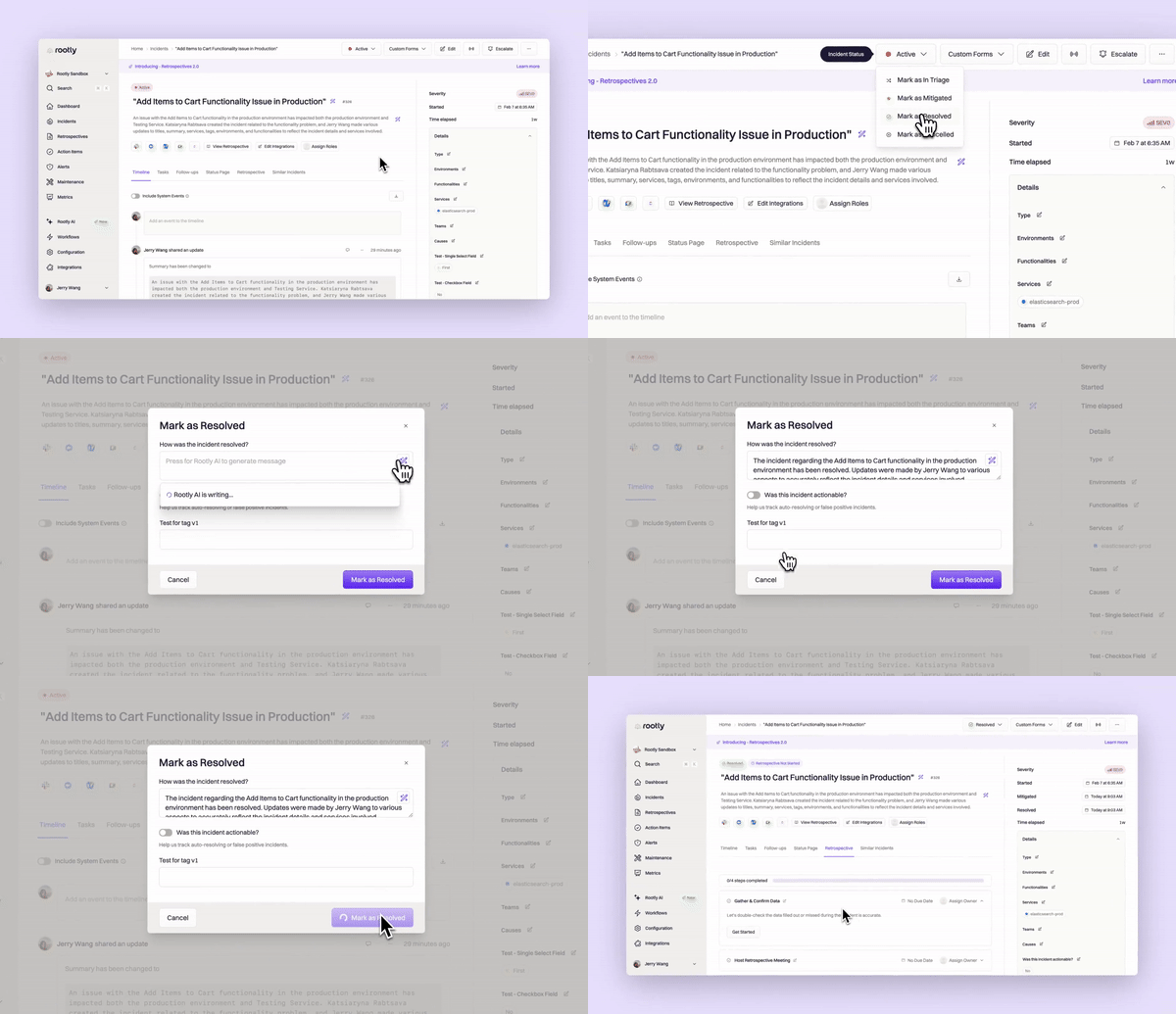
When updating an incident’s status to **mitigated**, **resolved**, **cancelled**, or **closed**, click the **Generate with AI** button (or the genius pen icon) next to the status message field.
 ### Via Slack
In an incident Slack channel, run `/rootly mitigate` or `/rootly resolve` (also accepts `/rootly mitigated` or `/rootly resolved`). This opens a status update dialog where you can click **Generate with AI** to generate the summary.
### Via Slack
In an incident Slack channel, run `/rootly mitigate` or `/rootly resolve` (also accepts `/rootly mitigated` or `/rootly resolved`). This opens a status update dialog where you can click **Generate with AI** to generate the summary.
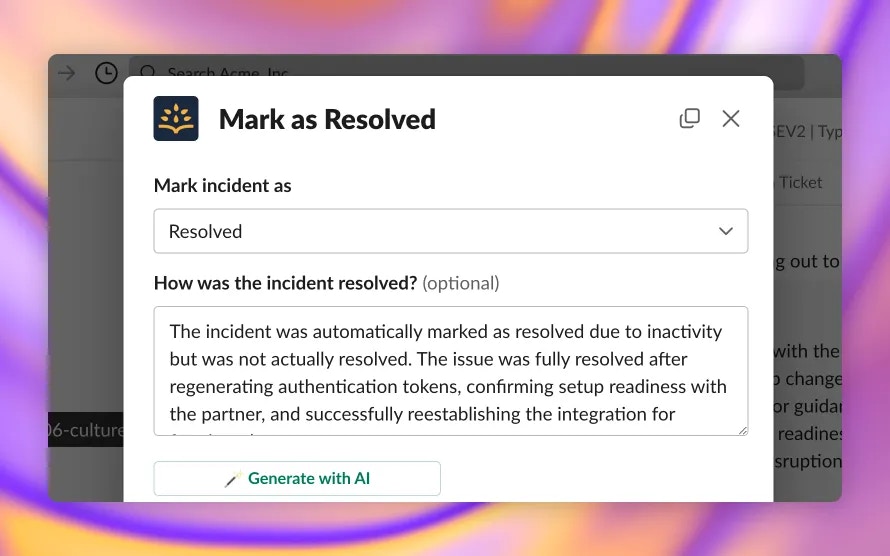 You can review and edit the generated text before submitting the status update.
## What’s Included
Depending on the status transition, Rootly AI generates a concise explanation that focuses on the key actions and outcomes:
* **Mitigated** — What specific actions were taken to reduce impact
* **Resolved** — How the incident was fully resolved
* **Cancelled** — Why the incident was cancelled
* **Closed** — Why the incident was closed
All summaries are limited to one or two sentences and prioritize clarity and relevance over exhaustive detail. The AI identifies the most important actions from the incident timeline and communications to explain the status transition clearly and consistently.
## How It Works
Rootly AI analyzes the incident’s current context at the time of the status update. This may include timeline events, alerts, action items, mitigation or resolution notes, and communications associated with the incident.
Using this context, the AI identifies the most relevant actions taken and generates a concise status summary. If there is not enough information available, Rootly will indicate that *“The incident report does not provide enough information to determine how the incident was \[status]”* and additional incident context is required before a summary can be generated.
## Configuration
Mitigation and resolution summaries are available to all customers but must be explicitly enabled.
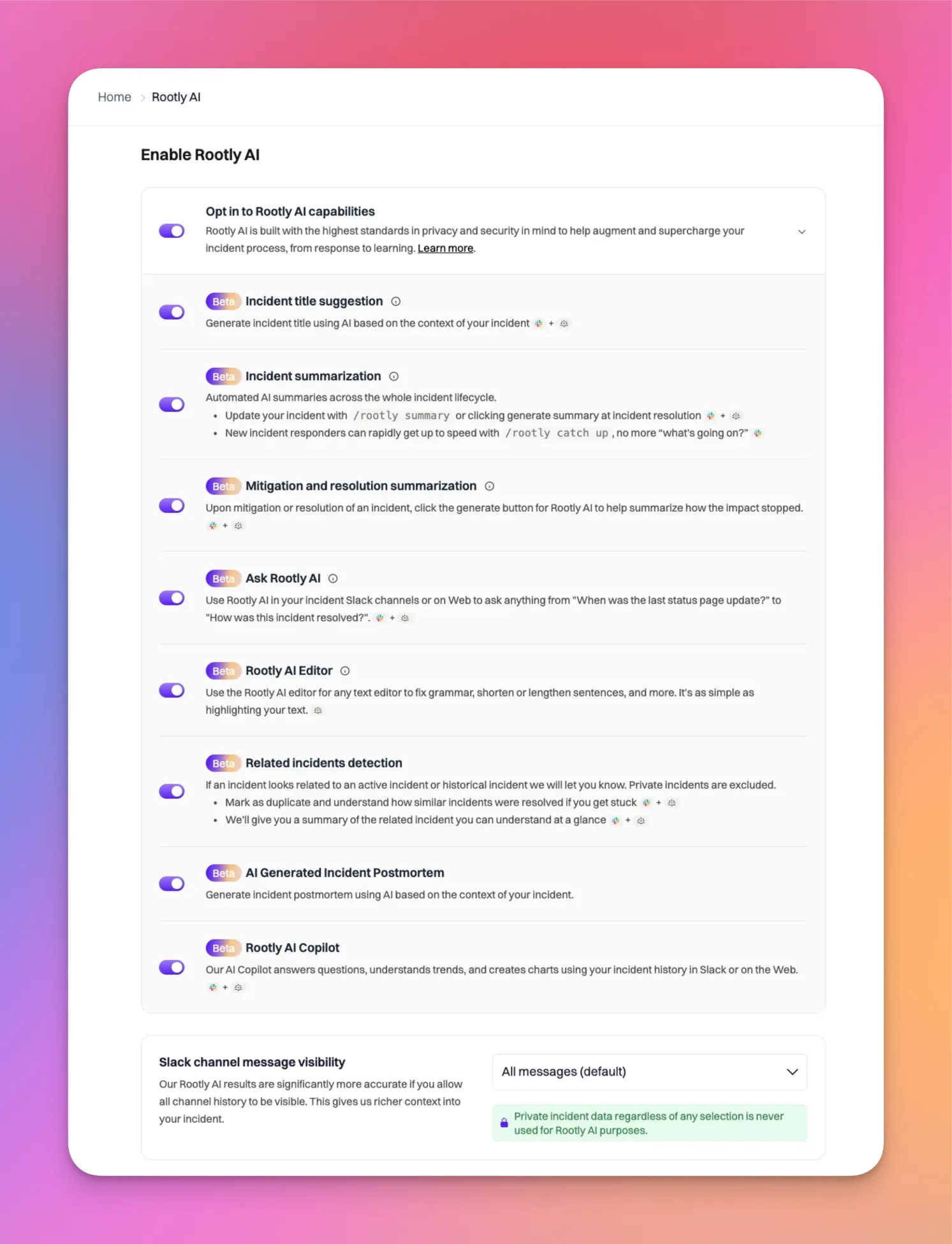
To enable this feature, navigate to **Rootly AI** and toggle on **Enable Rootly AI**, then ensure **Mitigation and resolution summarization** is enabled. Only Admins can configure Rootly AI features.
For best results, configure **Slack channel message visibility** to **All messages** or **All messages in Public + pinned in Private**. This allows Rootly AI to access sufficient context when generating summaries.
You can review and edit the generated text before submitting the status update.
## What’s Included
Depending on the status transition, Rootly AI generates a concise explanation that focuses on the key actions and outcomes:
* **Mitigated** — What specific actions were taken to reduce impact
* **Resolved** — How the incident was fully resolved
* **Cancelled** — Why the incident was cancelled
* **Closed** — Why the incident was closed
All summaries are limited to one or two sentences and prioritize clarity and relevance over exhaustive detail. The AI identifies the most important actions from the incident timeline and communications to explain the status transition clearly and consistently.
## How It Works
Rootly AI analyzes the incident’s current context at the time of the status update. This may include timeline events, alerts, action items, mitigation or resolution notes, and communications associated with the incident.
Using this context, the AI identifies the most relevant actions taken and generates a concise status summary. If there is not enough information available, Rootly will indicate that *“The incident report does not provide enough information to determine how the incident was \[status]”* and additional incident context is required before a summary can be generated.
## Configuration
Mitigation and resolution summaries are available to all customers but must be explicitly enabled.
To enable this feature, navigate to **Rootly AI** and toggle on **Enable Rootly AI**, then ensure **Mitigation and resolution summarization** is enabled. Only Admins can configure Rootly AI features.
For best results, configure **Slack channel message visibility** to **All messages** or **All messages in Public + pinned in Private**. This allows Rootly AI to access sufficient context when generating summaries.
 Mitigation and resolution summary generation in private incidents depends on your Slack channel message visibility settings. For private incidents, AI features are available only when your channel history scope includes private messages.
## Best Practices
* **Generate before finalizing**\
Use the AI-generated summary as a starting point, then review and refine it to match your team’s documentation standards.
* **Add context first**\
Ensure the incident includes sufficient timeline events, action items, or resolution notes before generating a summary for best results.
* **Edit as needed**\
AI-generated summaries are suggestions—customize them as needed to accurately reflect your team’s incident response.
## Troubleshooting
Ensure Rootly AI is enabled and that **Mitigation and resolution summarization** is turned on. Verify that you have permission to update the incident status and that the status you’re selecting is supported (mitigated, resolved, cancelled, or closed).
Summaries are intentionally brief and rely on existing incident context. If you see a message indicating insufficient information, add more detail to the incident—such as timeline events, action items, or resolution notes—and try again. You can always edit the generated summary before submitting it.
Mitigation and resolution summary generation in private incidents depends on your Slack channel message visibility settings. For private incidents, AI features are available only when your channel history scope includes private messages.
## Best Practices
* **Generate before finalizing**\
Use the AI-generated summary as a starting point, then review and refine it to match your team’s documentation standards.
* **Add context first**\
Ensure the incident includes sufficient timeline events, action items, or resolution notes before generating a summary for best results.
* **Edit as needed**\
AI-generated summaries are suggestions—customize them as needed to accurately reflect your team’s incident response.
## Troubleshooting
Ensure Rootly AI is enabled and that **Mitigation and resolution summarization** is turned on. Verify that you have permission to update the incident status and that the status you’re selecting is supported (mitigated, resolved, cancelled, or closed).
Summaries are intentionally brief and rely on existing incident context. If you see a message indicating insufficient information, add more detail to the incident—such as timeline events, action items, or resolution notes—and try again. You can always edit the generated summary before submitting it.