> ## Documentation Index
> Fetch the complete documentation index at: https://docs.rootly.com/llms.txt
> Use this file to discover all available pages before exploring further.
# Alert Fields
> Use Alert Fields to extract, normalize, and store structured alert data for routing, enrichment, automation, and triage across Rootly.
Alert Fields allow you to extract key information from incoming alert payloads and store it in a normalized format that can be used consistently across Rootly. This removes the need to understand every alert provider’s unique payload structure—Rootly handles that translation automatically.
Alert Fields are populated automatically on alert creation or update, depending on the mappings you configure on each Alert Source.
***
### Overview
Different observability tools send alerts in very different formats. Alert Fields standardize this by letting you:
* Normalize metadata such as environment, severity, region, service, or product area
* Route alerts consistently, regardless of which tool sent them
* Enrich alerts with structured information to help responders triage faster
* Build metrics and dashboards using clean, uniform data
* Simplify workflows across multi-tool monitoring environments
Alert Fields become part of the alert record itself and are accessible everywhere Rootly evaluates conditions, displays alert information, or triggers automation.
***
### How Alert Fields Work
When an alert is ingested:
1. Rootly reads the raw payload from the alert source.
2. Each configured mapping is evaluated using Liquid.
3. The results are stored as `alert_field_values`.
4. The normalized fields are then available throughout the platform.
Rootly automatically seeds built-in fields when creating a new Alert Source so you can map values immediately.
For tools without a dedicated Rootly integration, field mappings work the same way through the [Generic Webhook Alert Source](/integrations/generic-webhook-alert-source/generic-webhook-alert-source) — define the Liquid mapping per field, and any JSON payload becomes a normalized alert.
 ***
### Examples
**Route alerts by impacted product area**\
Map a `product_area` field using Liquid, then build routes that send alerts to the correct on-call team.
**Enrich alert details for responders**\
Extract severity, region, deployment ID, customer tier, or any custom metadata.
**Build better metrics and dashboards**\
Use normalized field values to track trends without parsing different payload structures.
**Simplify multi-tool environments**\
Create one `severity` field and map Datadog, PagerDuty, Opsgenie, and Sentry severities into it consistently.
***
### Configuring Alert Fields
To configure Alert Fields:
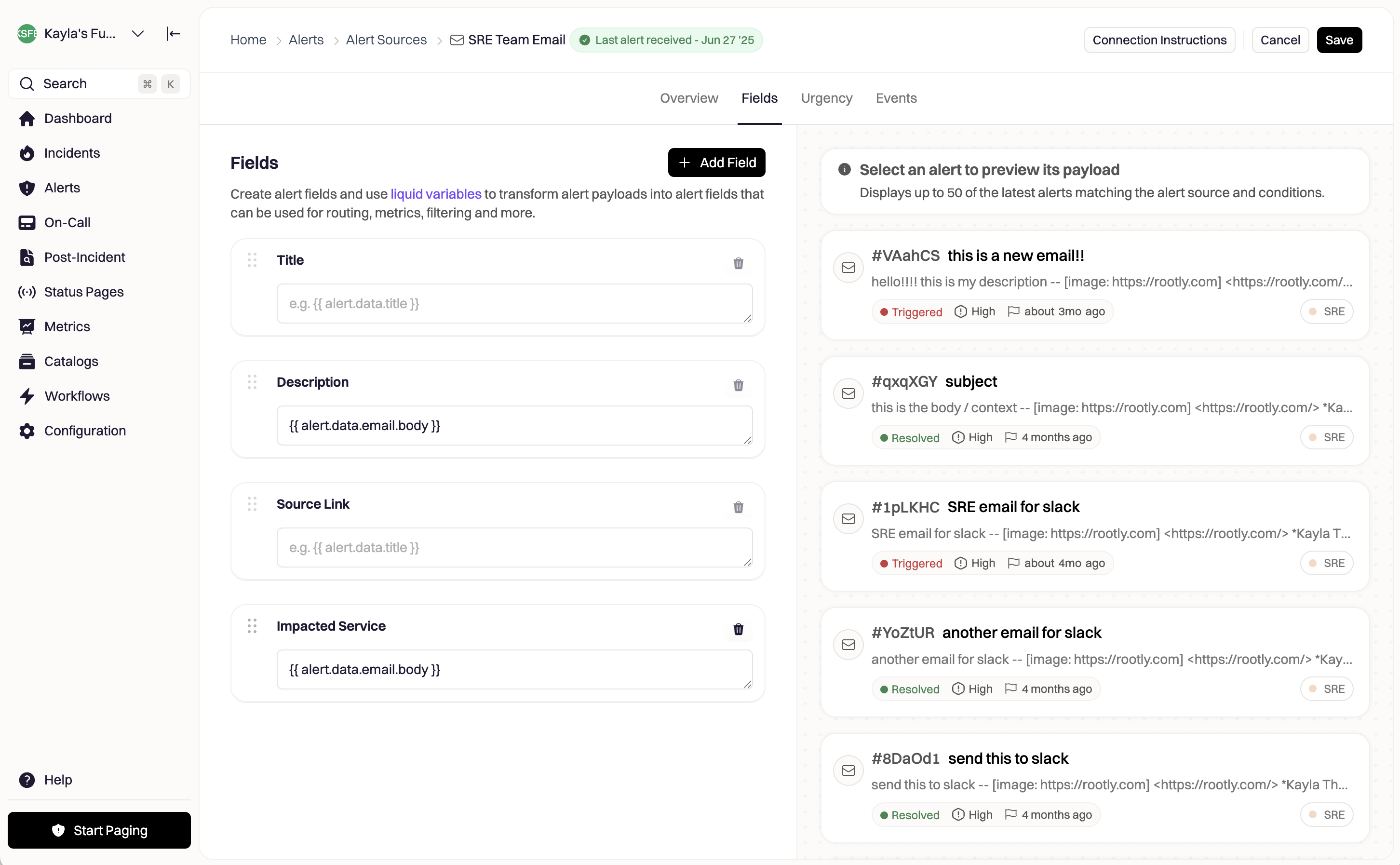
Navigate to the Alert Source and select the Fields tab to view all fields currently mapped.
Click Add Field to select an existing field or create a new one.\
New fields immediately become available across all alert sources.
Specify a Liquid expression that extracts a value from the alert payload.\
Reference recent alerts using the preview on the right.
Click any purple pill in the payload viewer to copy its Liquid expression.
All future alerts from this source will populate the field using your mapping.
If the title or description fields are left blank, Rootly automatically assigns reasonable defaults (for example, using the subject line for email alert sources).
***
### Using Alert Fields in Alert Routes
Alert Fields can be referenced directly in Alert Route conditions.\
This allows your routing logic to be built once and work across all sources, as long as each source maps its payload fields correctly.
Examples:
* Route all `severity = critical` alerts to the primary on-call
* Route `region = EU` alerts to the EMEA team
* Route alerts associated with a specific service or component
* Route customer-impacting alerts differently from internal signals
Learn more on the **[Alert Routes](/alerts/alert-routing)** page.
***
### Using Alert Fields for Auto-Resolution Rules (Email Sources)
Email alert sources support auto-resolution rules based on Alert Fields.
To set this up:
1. Open the email alert source.
2. Define auto-resolution conditions.
3. Reference Alert Fields in those conditions (e.g., subject text, severity, environment).
When a new email alert arrives, Rootly evaluates your conditions and automatically resolves the alert if they match.
***
### Accessing Alert Fields as a Responder
Responders can view alert field values in:
* **Web:** Alert details panel
* **Slack:** Alert details and context blocks
* **Mobile:** Alert details in the Rootly mobile app
This gives responders immediate access to normalized metadata without reviewing raw JSON payloads.
***
### Best Practices
Use shared fields (severity, environment, service, region, etc.) to keep routing behavior consistent across monitoring tools.
Test Liquid mappings with real alerts to avoid mismatches or null values.
Map differences at the Alert Source layer rather than building multiple routing rules for each provider.
Adopt consistent formatting across sources (e.g., PRODUCTION, STAGING, DEV).
Alert Fields make workflow triggers more reliable and much easier to maintain.
***
### Troubleshooting
* Ensure the field is mapped on the correct Alert Source.
* Confirm your Liquid expression returns a value.
* Check that the alert payload changed (fields update when payload changes).
* Verify your team has Alert Fields enabled.
* Confirm the payload path is accurate.
* Use purple-pill copy from the alert payload preview.
* Add default guards in Liquid where necessary.
* Not all providers send uniform payloads.
* Some alerts may lack the field entirely.
* The mapping may require a conditional or fallback.
* Verify the field is correctly populated before routing.
* Compare formatting (case sensitivity, whitespace, arrays).
* Ensure the route condition exactly matches the field value.
***
### Summary
Alert Fields give your organization a unified layer of structured alert data across multiple tools.
They power consistent routing, faster triage, stronger automation, and cleaner reporting—making them one of the most important parts of a scalable alerting setup in Rootly.
Let them do the heavy lifting so your responders don’t have to.
***
### Examples
**Route alerts by impacted product area**\
Map a `product_area` field using Liquid, then build routes that send alerts to the correct on-call team.
**Enrich alert details for responders**\
Extract severity, region, deployment ID, customer tier, or any custom metadata.
**Build better metrics and dashboards**\
Use normalized field values to track trends without parsing different payload structures.
**Simplify multi-tool environments**\
Create one `severity` field and map Datadog, PagerDuty, Opsgenie, and Sentry severities into it consistently.
***
### Configuring Alert Fields
To configure Alert Fields:
Navigate to the Alert Source and select the Fields tab to view all fields currently mapped.
Click Add Field to select an existing field or create a new one.\
New fields immediately become available across all alert sources.
Specify a Liquid expression that extracts a value from the alert payload.\
Reference recent alerts using the preview on the right.
Click any purple pill in the payload viewer to copy its Liquid expression.
All future alerts from this source will populate the field using your mapping.
If the title or description fields are left blank, Rootly automatically assigns reasonable defaults (for example, using the subject line for email alert sources).
***
### Using Alert Fields in Alert Routes
Alert Fields can be referenced directly in Alert Route conditions.\
This allows your routing logic to be built once and work across all sources, as long as each source maps its payload fields correctly.
Examples:
* Route all `severity = critical` alerts to the primary on-call
* Route `region = EU` alerts to the EMEA team
* Route alerts associated with a specific service or component
* Route customer-impacting alerts differently from internal signals
Learn more on the **[Alert Routes](/alerts/alert-routing)** page.
***
### Using Alert Fields for Auto-Resolution Rules (Email Sources)
Email alert sources support auto-resolution rules based on Alert Fields.
To set this up:
1. Open the email alert source.
2. Define auto-resolution conditions.
3. Reference Alert Fields in those conditions (e.g., subject text, severity, environment).
When a new email alert arrives, Rootly evaluates your conditions and automatically resolves the alert if they match.
***
### Accessing Alert Fields as a Responder
Responders can view alert field values in:
* **Web:** Alert details panel
* **Slack:** Alert details and context blocks
* **Mobile:** Alert details in the Rootly mobile app
This gives responders immediate access to normalized metadata without reviewing raw JSON payloads.
***
### Best Practices
Use shared fields (severity, environment, service, region, etc.) to keep routing behavior consistent across monitoring tools.
Test Liquid mappings with real alerts to avoid mismatches or null values.
Map differences at the Alert Source layer rather than building multiple routing rules for each provider.
Adopt consistent formatting across sources (e.g., PRODUCTION, STAGING, DEV).
Alert Fields make workflow triggers more reliable and much easier to maintain.
***
### Troubleshooting
* Ensure the field is mapped on the correct Alert Source.
* Confirm your Liquid expression returns a value.
* Check that the alert payload changed (fields update when payload changes).
* Verify your team has Alert Fields enabled.
* Confirm the payload path is accurate.
* Use purple-pill copy from the alert payload preview.
* Add default guards in Liquid where necessary.
* Not all providers send uniform payloads.
* Some alerts may lack the field entirely.
* The mapping may require a conditional or fallback.
* Verify the field is correctly populated before routing.
* Compare formatting (case sensitivity, whitespace, arrays).
* Ensure the route condition exactly matches the field value.
***
### Summary
Alert Fields give your organization a unified layer of structured alert data across multiple tools.
They power consistent routing, faster triage, stronger automation, and cleaner reporting—making them one of the most important parts of a scalable alerting setup in Rootly.
Let them do the heavy lifting so your responders don’t have to.