> ## Documentation Index
> Fetch the complete documentation index at: https://docs.rootly.com/llms.txt
> Use this file to discover all available pages before exploring further.
# Alert Grouping
> Reduce alert noise by automatically grouping related alerts into a single, leader-driven alert based on time windows, fields, and matching attributes.
### Overview
Alert Grouping reduces noise and alert fatigue by consolidating related alerts into a **single leader alert** with associated **member alerts**.\
Responders are paged for the leader, while subsequent matching alerts join its group silently.
This helps you:
* Avoid duplicate pages from multiple monitors on the same issue
* Keep alert timelines focused on one “source of truth”
* Improve prioritization and reduce cognitive load for on-call responders
**Non-paging alerts** (alerts that do not route to any team, service, or escalation policy) are not grouped. Only alerts that participate in routing and paging can form or join groups.
***
### How Alert Grouping Works
Each **Alert Group** defines *which alerts belong together* based on:
* **Destinations** – what the alert was routed to (team, service, escalation policy)
* **Time Window** – how long alerts are considered part of the same episode
* **Content Matching** – which alert attributes or payload fields must match
When an alert arrives:
1. Rootly finds any **active group** whose rules and time window match.
2. If a match is found:
* The existing alert becomes (or remains) the **group leader**
* The new alert is added as a **member**, and **does not re-page**
3. If no group matches:
* A **new leader alert** and group are created (and the responder is paged according to routing rules)
***
### Group Leaders vs. Members
Within a group:
* The **leader alert**:
* Is the alert that originally caused the page
* Acts as the **source of truth** for the group
* Drives status and noise updates (e.g., acknowledged, resolved)
* **Member alerts**:
* Join silently (no additional pages)
* Inherit status changes from the leader
* Appear on the group timeline for context
You can view an alert’s group on the **Alert details page** under the **Alert Group** tab.
***
### When to Enable Alert Grouping
Alert Grouping is especially useful when:
* A single service has **many monitors** (error rate, latency, CPU, DB health, etc.)
* A failure in one component triggers multiple alarms across:
* APM, logging, metrics, and infrastructure tools
* You want to treat a burst of related alerts as **one incident episode** rather than many independent pages
Example:
> “Service A has 5 monitors. When it goes down, all 5 fire at once. With grouping, responders get **one page** and then see all related alerts attached to that leader.”
***
### Creating an Alert Group
To create a new Alert Group in the web app:
* Go to **Alerts → Grouping**
* Click **+ New Alert Group**
* Enter a **Name** (required) and a **Description** (optional)
Destinations define **which routed alerts** are candidates for this group.
Under **Destinations**, choose one of:
* **All services, teams, and escalation policies**
* **All services**
* **All teams**
* **All escalation policies**
* **Select routes** – only alerts routed to specific:
* Services
* Teams
* Escalation policies
To group only alerts routed to specific targets:
* Choose **Select routes**
* Pick the services, teams, or escalation policies you want to include
Destination scoping ensures you don’t accidentally group unrelated alerts\
(for example, SRE and Security alerts) into the same cluster.
Next, decide how strictly routing must match inside a group.
You can choose:
* **Groups should only contain alerts for the same route**
* Alerts must be routed to the **exact same** service, team, or escalation policy
* Example: alerts routed to Service A group only with other Service A alerts
* **Groups can contain alerts for any selected route**
* Alerts routed to **any** of the selected targets are allowed in the same group
* Example: all alerts routed to any SRE team are grouped together
Internally, Rootly treats this as:
* `same` – route must match exactly
* `any` – any eligible route can join the group
The **Time Window** defines how long alerts should be considered part of the same group.
* Specify the window in **minutes**
* Rootly supports values between:
* **5 minutes (minimum)**
* **7 days (maximum)**
The time window is **rolling** and is anchored to the **last alert** added to the group.
With a **10-minute** window, the group remains open as long as new alerts keep arriving within 10 minutes of the last one.\
Once 10 minutes pass with no new alerts, a **new group** will be created next time a matching alert arrives.
Content Matching defines **what must be similar** between grouped alerts.
You can group on:
* **Alert Title** – matches the alert’s `summary`
* **Alert Description** – the alert’s `description`
* **Alert Urgency** – e.g., High, Medium, Low
* **Source Link** – the `external_url` (e.g., link to Datadog, PagerDuty, etc.)
* **Payload** – any field within the incoming alert payload (via JSONPath)
* **Alert Fields** – normalized fields you’ve configured on the Alert Source
Operators include:
* `is one of` / `is not one of`
* `contains` / `does not contain`
* `starts with` / `ends with`
* `matches regex`
* `is empty`
To group by a payload field, choose **Payload** and provide a **JSONPath**\
(for example `$.alert.feature`).
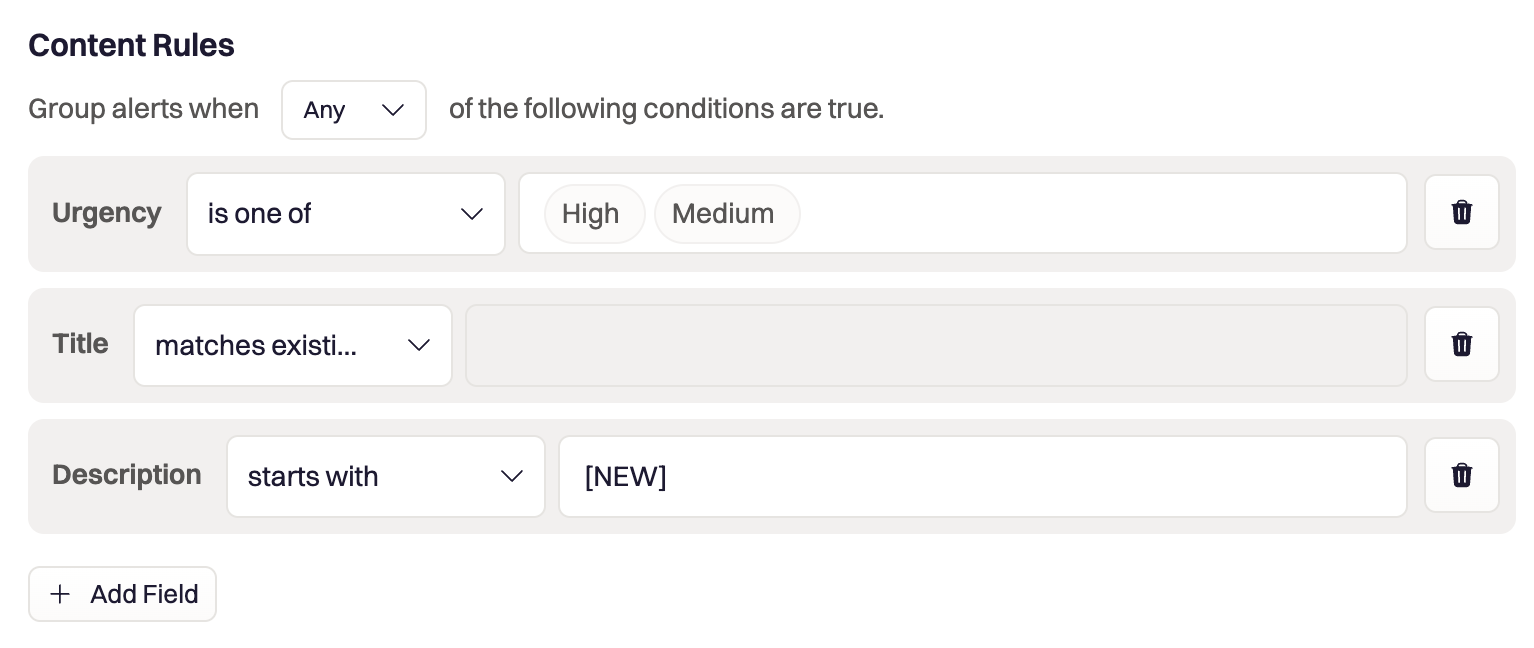 For convenience, Rootly provides quick toggles such as **Group by Title** and **Group by Urgency**, which automatically create the appropriate underlying conditions.
***
### Working with Alert Groups
Once your Alert Groups are configured and active:
* The **first alert** that matches a group becomes the **leader** and triggers paging
* Subsequent alerts that match:
* Are added as **members**
* **Do not** re-page responders
* Update the group’s timeline with additional context
When you change the leader’s status:
* All member alerts’ statuses are updated to match (e.g., resolving the leader resolves its members)
* Noise controls on the leader (e.g., marking as noise) propagate to members as they join
You can inspect group membership by:
* Opening an alert in the web UI
* Navigating to the **Alert Group** tab
***
### Example: Grouping Multiple Monitors for One Service
Suppose you have the following monitors for `checkout-service`:
* Error rate > threshold
* P95 latency > threshold
* CPU saturation
* Database connection errors
If the database experiences a serious issue, **all four monitors** might fire. Without grouping:
* The on-call may receive 4 pages
* Each alert appears as independent noise
With alert grouping:
* Destination condition: **Select routes → Service: checkout-service**
* Route logic: **Groups should only contain alerts for the same route**
* Time window: **10 minutes**
* Content matching: **Group by Service + Urgency** (or only by destination)
Result:
* First alert pages and becomes the **leader**
* Remaining alerts join silently as **members**
* The responder sees one alert with a rich history of related signals
***
### Best Practices
* **Start narrow**
* Group by **route + short time window** first; broaden later if needed
* **Use content carefully**
* Combining **Title + Urgency + Payload** can create very precise groupings
* Avoid overly broad conditions that might lump unrelated incidents together
* **Align with incident semantics**
* Think of an Alert Group as “all signals about the same episode,” not “all alerts about the same service forever”
* **Regularly review grouped alerts**
* Use the Alert Group tab and alert timelines to validate whether groupings still make sense as your monitoring evolves
***
### Troubleshooting
* Verify the **Destination** condition includes those routes
* Check whether the **route logic** is set to “same route” vs “any selected route”
* Confirm the **Time Window** hasn’t expired between alerts
* Make sure content matching conditions (Title, Urgency, Payload, etc.) actually match
* Narrow the **Destination** scope (e.g., from “all teams” to “specific teams/services”)
* Switch from “any selected route” to “same route”
* Add or tighten **Content Matching** conditions (e.g., require matching Title and Urgency)
* Reduce the **Time Window** duration
* The previous group’s time window may have expired
* Conditions may have changed (e.g., different title or urgency)
* Destination may differ (e.g., different service or team)
* This is expected: only alerts that **route to a team, service, or escalation policy** can group
* Convert important non-paging alerts into routed alerts via **Alert Routes** if you want them to participate in grouping
For convenience, Rootly provides quick toggles such as **Group by Title** and **Group by Urgency**, which automatically create the appropriate underlying conditions.
***
### Working with Alert Groups
Once your Alert Groups are configured and active:
* The **first alert** that matches a group becomes the **leader** and triggers paging
* Subsequent alerts that match:
* Are added as **members**
* **Do not** re-page responders
* Update the group’s timeline with additional context
When you change the leader’s status:
* All member alerts’ statuses are updated to match (e.g., resolving the leader resolves its members)
* Noise controls on the leader (e.g., marking as noise) propagate to members as they join
You can inspect group membership by:
* Opening an alert in the web UI
* Navigating to the **Alert Group** tab
***
### Example: Grouping Multiple Monitors for One Service
Suppose you have the following monitors for `checkout-service`:
* Error rate > threshold
* P95 latency > threshold
* CPU saturation
* Database connection errors
If the database experiences a serious issue, **all four monitors** might fire. Without grouping:
* The on-call may receive 4 pages
* Each alert appears as independent noise
With alert grouping:
* Destination condition: **Select routes → Service: checkout-service**
* Route logic: **Groups should only contain alerts for the same route**
* Time window: **10 minutes**
* Content matching: **Group by Service + Urgency** (or only by destination)
Result:
* First alert pages and becomes the **leader**
* Remaining alerts join silently as **members**
* The responder sees one alert with a rich history of related signals
***
### Best Practices
* **Start narrow**
* Group by **route + short time window** first; broaden later if needed
* **Use content carefully**
* Combining **Title + Urgency + Payload** can create very precise groupings
* Avoid overly broad conditions that might lump unrelated incidents together
* **Align with incident semantics**
* Think of an Alert Group as “all signals about the same episode,” not “all alerts about the same service forever”
* **Regularly review grouped alerts**
* Use the Alert Group tab and alert timelines to validate whether groupings still make sense as your monitoring evolves
***
### Troubleshooting
* Verify the **Destination** condition includes those routes
* Check whether the **route logic** is set to “same route” vs “any selected route”
* Confirm the **Time Window** hasn’t expired between alerts
* Make sure content matching conditions (Title, Urgency, Payload, etc.) actually match
* Narrow the **Destination** scope (e.g., from “all teams” to “specific teams/services”)
* Switch from “any selected route” to “same route”
* Add or tighten **Content Matching** conditions (e.g., require matching Title and Urgency)
* Reduce the **Time Window** duration
* The previous group’s time window may have expired
* Conditions may have changed (e.g., different title or urgency)
* Destination may differ (e.g., different service or team)
* This is expected: only alerts that **route to a team, service, or escalation policy** can group
* Convert important non-paging alerts into routed alerts via **Alert Routes** if you want them to participate in grouping