> ## Documentation Index
> Fetch the complete documentation index at: https://docs.rootly.com/llms.txt
> Use this file to discover all available pages before exploring further.
# Alert Urgency
> Learn how Alert Urgencies determine alert priority across Alert Sources, Heartbeats, Live Call Routing, and Escalation Policies for paging rules.
### Overview
Alert Urgency controls **how quickly responders must act** when an alert is triggered.\
It’s the core signal Rootly uses to decide:
* How aggressively to page on-call responders
* Whether notifications should be **audible** (wake people up) or **quiet**
* Which escalation paths apply during or outside of **working hours**
Configured well, urgency ensures true incidents get immediate attention, while low-impact noise stays non-disruptive.
***
### Understanding Alert Urgency
Rootly ships with three urgency levels by default:
* **High**
* **Medium**
* **Low**
You can:
* Add new urgencies
* Rename existing ones
* Reorder them to change their relative priority
Rootly automatically interprets order as:
* **Top** → high urgency
* **Middle** → medium urgency
* **Bottom** → low urgency
Urgency influences:
* Escalation behavior (which paths run, what channels are used)
* Whether notifications bypass **Do Not Disturb**
* Dynamic Escalation Paths (e.g., only wake people up on High)
* Heartbeat severity
* Live Call Routing behavior
* Analytics on alert volume & response behavior
The **team’s top urgency** becomes the default urgency for **new Alert Sources**.\
This is usually “High”, but it’s fully controlled by how you order your urgencies.
***
### How Rootly Determines Urgency
When an alert is created, Rootly applies urgency in this order:
1. **Urgency Rules on the Alert Source**
* If any rule matches, its urgency wins.
2. **Default Urgency on the Alert Source**
* If no rule matches, we use the source’s default urgency.
3. **Team Default Urgency**
* If the source has no default, Rootly falls back to your **team’s top urgency**.
The **Alert** model also enforces a fallback: if no urgency is set by the source or rules, it assigns the team’s default urgency automatically.
***
### Configuring Alert Urgency Definitions
Alert Urgency definitions live under the **Alerts → Urgency** tab and are shared across:
* Alert Sources
* Heartbeats
* Live Call Routing
* Escalation Policies
- Go to **Alerts → Urgency**
- Click **+ New Alert Urgency** or select an existing one to edit
- Provide a **Name** and a **Description** (e.g., “Critical – Wake up on-call immediately”)
- Drag and drop urgencies to reorder them
Reordering urgencies automatically updates their internal “high / medium / low” semantics and color coding.
Heartbeats generate alerts when a periodic signal is missing. Assign an urgency so these alerts escalate correctly.
* Go to **On-Call → Heartbeats**
* Edit an existing heartbeat or click **+ New Heartbeat**
* Set the **Alert Urgency** for that heartbeat
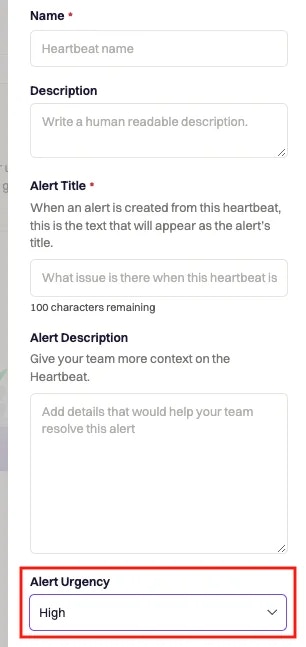 Use **High** urgency for critical production heartbeats, and lower urgencies for less critical environments (e.g., staging).
Live Call Routing creates alerts when someone dials your on-call phone number.
* Go to **On-Call → Live Call Routing**
* Edit a **Routing Number** or create a new one
* In **Routing Rules**, set the **Alert Urgency**
Use **High** urgency for critical production heartbeats, and lower urgencies for less critical environments (e.g., staging).
Live Call Routing creates alerts when someone dials your on-call phone number.
* Go to **On-Call → Live Call Routing**
* Edit a **Routing Number** or create a new one
* In **Routing Rules**, set the **Alert Urgency**
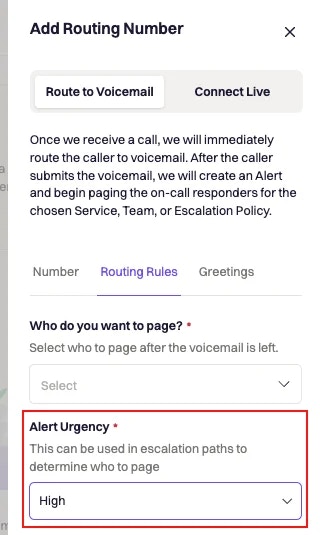 An Alert Urgency is **required** for Live Call Routing **unless** you’re using a **Calling Tree**.\
With a Calling Tree, urgency is set per mapping instead.
Alert Sources control how urgency is derived from incoming payloads.
* Go to **Alerts → Alert Sources**
* Click the pencil icon next to a source
* Open the **Configure** or **Urgency** section
* Click **+ Add Condition**
An Alert Urgency is **required** for Live Call Routing **unless** you’re using a **Calling Tree**.\
With a Calling Tree, urgency is set per mapping instead.
Alert Sources control how urgency is derived from incoming payloads.
* Go to **Alerts → Alert Sources**
* Click the pencil icon next to a source
* Open the **Configure** or **Urgency** section
* Click **+ Add Condition**
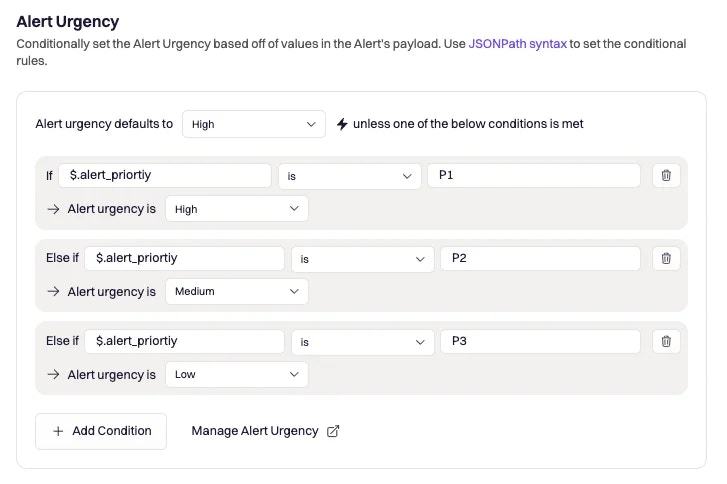 For each rule:
* Choose whether to evaluate:
* **Payload (JSONPath)**
* **Alert Field** (recommended for long-term stability)
* Select an **operator**:
* `is`
* `is_not`
* `contains`
* `does_not_contain`
* Provide a comparison **value**
* Select which **Alert Urgency** to set when the rule matches
New Alert Sources inherit your **team’s top urgency** as their default.\
Urgency rules override this default when they match.
A common pattern:
* **High** urgency → always audible, 24/7
* **Medium** urgency → audible only during working hours
* **Low** urgency → quiet notifications or no after-hours paging
To configure this:
* Go to **On-Call → Escalation Policies**
* Edit the relevant policy
* Configure **Working Hours**
* Under **Dynamic Escalation Paths**, click **+ New Path**
* Set conditions such as:
* `Alert Urgency includes High`
* `Within working hours is false`
* Choose **Audible** or **Quiet** notification behavior
* Configure targets (teams or users) for that path
For each rule:
* Choose whether to evaluate:
* **Payload (JSONPath)**
* **Alert Field** (recommended for long-term stability)
* Select an **operator**:
* `is`
* `is_not`
* `contains`
* `does_not_contain`
* Provide a comparison **value**
* Select which **Alert Urgency** to set when the rule matches
New Alert Sources inherit your **team’s top urgency** as their default.\
Urgency rules override this default when they match.
A common pattern:
* **High** urgency → always audible, 24/7
* **Medium** urgency → audible only during working hours
* **Low** urgency → quiet notifications or no after-hours paging
To configure this:
* Go to **On-Call → Escalation Policies**
* Edit the relevant policy
* Configure **Working Hours**
* Under **Dynamic Escalation Paths**, click **+ New Path**
* Set conditions such as:
* `Alert Urgency includes High`
* `Within working hours is false`
* Choose **Audible** or **Quiet** notification behavior
* Configure targets (teams or users) for that path
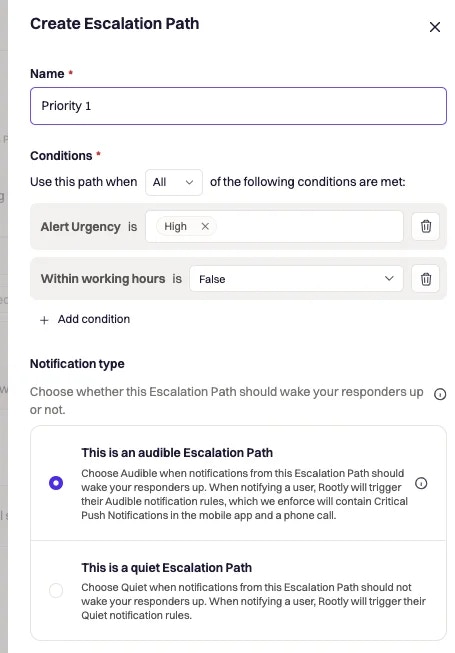 Dynamic Escalation Paths can match **one or many** urgencies, enabling nuanced routing such as “High or Medium after hours, Low during working hours only”.
Each responder controls *how* urgency translates to alerts on their devices.
* Go to **Account Settings → Notifications → On-Call Notifications**
* Configure notification rules for **Audible** and **Quiet** alerts
Behavior:
* **Audible alerts** override device Do Not Disturb and will attempt higher-impact channels (e.g., Rootly app push + phone call)
* **Quiet alerts** respect Do Not Disturb and are better suited for non-urgent noise
We recommend setting **at least two** channels for Audible alerts\
(e.g., Push + SMS, or Push + Phone).
***
### Using Alert Fields for Dynamic Urgency Assignment
[Alert Fields](/alerts/alert-fields) normalize data across different alert payloads (e.g., severity, environment, customer tier).\
Urgency rules can use these fields instead of brittle JSONPaths.
#### Example Patterns
* If `Alert Field: Severity is Critical` → set urgency to **High**
* If `Alert Field: Environment is staging` → set urgency to **Low**
* If `Alert Field: Customer Tier contains "Enterprise"` → set urgency to **High**
#### How to Configure
1. Open your **Alert Source** and go to the **Urgency** or **Configure** tab
2. Click **+ Add Condition**
3. Choose **Alert Field** as the kind
4. Pick the desired field (only fields configured on this source will appear)
5. Select an operator (`is`, `is_not`, `contains`, `does_not_contain`)
6. Provide the comparison value
7. Choose which **Alert Urgency** to assign
When alerts arrive, Rootly evaluates field-based urgency rules first.\
This keeps your urgency logic stable even if the underlying payload schema changes.
***
### Where You’ll See Alert Urgency
Once configured, urgency surfaces throughout Rootly:
* **Alerts list & details** – visually highlighted urgency labels
* **Heartbeats** – each heartbeat alert inherits its configured urgency
* **Live Call Routing** – phone-originated alerts carry urgency into escalation
* **Escalation Policies** – Dynamic paths filtered by urgency
* **Notifications** – audible vs. quiet delivery based on urgency + path
* **Analytics** – filter and analyze alert volume by urgency level
***
### Best Practices
* **Drive behavior, not just labels**
* Name urgencies by the action they imply (e.g., “Critical – Page Immediately”)
* **Use Alert Fields where possible**
* Avoid tightly coupling urgency rules to a specific tool’s payload schema
* **Keep the number of urgencies small**
* Three to five well-defined levels are easier to reason about than many granular ones
* **Align urgency with business impact**
* “High” should always mean “wake someone up”, not “interesting metric blip”
* **Regularly review usage**
* Use analytics and retrospectives to adjust urgencies if too many alerts are High or too many critical issues are Low
***
### Troubleshooting
* Confirm you added rules on the **correct Alert Source**
* Check whether the rule is using **Payload (JSONPath)** or **Alert Field**
* Ensure the operator is one of: `is`, `is_not`, `contains`, `does_not_contain`
* Verify the payload or field value actually matches the condition
* Remember: if no rules match, the **source default** or **team default** will be used
* The Alert Source may not have urgency rules configured
* The Source default may be set to a single urgency for all alerts
* The team’s top urgency will apply if no other urgency is set
* Check whether multiple sources are pointing to the same urgency configuration
* Urgency is required on Live Call Routing **unless** a **Calling Tree** is configured
* If using a Calling Tree, confirm mappings are set there instead
* Confirm the **Alert Urgency** condition matches exactly (e.g., High vs. HIGH)
* Double-check **Working Hours** definitions
* Ensure your personal **On-Call Notification** settings allow Audible or Quiet alerts for that path
* Verify that multiple paths aren’t overlapping in unexpected ways
Dynamic Escalation Paths can match **one or many** urgencies, enabling nuanced routing such as “High or Medium after hours, Low during working hours only”.
Each responder controls *how* urgency translates to alerts on their devices.
* Go to **Account Settings → Notifications → On-Call Notifications**
* Configure notification rules for **Audible** and **Quiet** alerts
Behavior:
* **Audible alerts** override device Do Not Disturb and will attempt higher-impact channels (e.g., Rootly app push + phone call)
* **Quiet alerts** respect Do Not Disturb and are better suited for non-urgent noise
We recommend setting **at least two** channels for Audible alerts\
(e.g., Push + SMS, or Push + Phone).
***
### Using Alert Fields for Dynamic Urgency Assignment
[Alert Fields](/alerts/alert-fields) normalize data across different alert payloads (e.g., severity, environment, customer tier).\
Urgency rules can use these fields instead of brittle JSONPaths.
#### Example Patterns
* If `Alert Field: Severity is Critical` → set urgency to **High**
* If `Alert Field: Environment is staging` → set urgency to **Low**
* If `Alert Field: Customer Tier contains "Enterprise"` → set urgency to **High**
#### How to Configure
1. Open your **Alert Source** and go to the **Urgency** or **Configure** tab
2. Click **+ Add Condition**
3. Choose **Alert Field** as the kind
4. Pick the desired field (only fields configured on this source will appear)
5. Select an operator (`is`, `is_not`, `contains`, `does_not_contain`)
6. Provide the comparison value
7. Choose which **Alert Urgency** to assign
When alerts arrive, Rootly evaluates field-based urgency rules first.\
This keeps your urgency logic stable even if the underlying payload schema changes.
***
### Where You’ll See Alert Urgency
Once configured, urgency surfaces throughout Rootly:
* **Alerts list & details** – visually highlighted urgency labels
* **Heartbeats** – each heartbeat alert inherits its configured urgency
* **Live Call Routing** – phone-originated alerts carry urgency into escalation
* **Escalation Policies** – Dynamic paths filtered by urgency
* **Notifications** – audible vs. quiet delivery based on urgency + path
* **Analytics** – filter and analyze alert volume by urgency level
***
### Best Practices
* **Drive behavior, not just labels**
* Name urgencies by the action they imply (e.g., “Critical – Page Immediately”)
* **Use Alert Fields where possible**
* Avoid tightly coupling urgency rules to a specific tool’s payload schema
* **Keep the number of urgencies small**
* Three to five well-defined levels are easier to reason about than many granular ones
* **Align urgency with business impact**
* “High” should always mean “wake someone up”, not “interesting metric blip”
* **Regularly review usage**
* Use analytics and retrospectives to adjust urgencies if too many alerts are High or too many critical issues are Low
***
### Troubleshooting
* Confirm you added rules on the **correct Alert Source**
* Check whether the rule is using **Payload (JSONPath)** or **Alert Field**
* Ensure the operator is one of: `is`, `is_not`, `contains`, `does_not_contain`
* Verify the payload or field value actually matches the condition
* Remember: if no rules match, the **source default** or **team default** will be used
* The Alert Source may not have urgency rules configured
* The Source default may be set to a single urgency for all alerts
* The team’s top urgency will apply if no other urgency is set
* Check whether multiple sources are pointing to the same urgency configuration
* Urgency is required on Live Call Routing **unless** a **Calling Tree** is configured
* If using a Calling Tree, confirm mappings are set there instead
* Confirm the **Alert Urgency** condition matches exactly (e.g., High vs. HIGH)
* Double-check **Working Hours** definitions
* Ensure your personal **On-Call Notification** settings allow Audible or Quiet alerts for that path
* Verify that multiple paths aren’t overlapping in unexpected ways