> ## Documentation Index
> Fetch the complete documentation index at: https://docs.rootly.com/llms.txt
> Use this file to discover all available pages before exploring further.
# Alerts
> Learn how Rootly ingests, deduplicates, and links alerts from monitoring tools to incidents, including alert sources, urgency, and routing.
# How Alerts Work
Alerts represent events generated by your users or monitoring and operational tools when something needs attention—like a firing Datadog monitor, a PagerDuty incident, or a Zendesk ticket.
In Rootly:
* Each alert has a **status**:
* `open`
* `triggered`
* `acknowledged`
* `resolved`
* Alerts can be **linked to incidents**, so responders see the right telemetry and tickets in context.
* Alert records track a **request count** and **last received time**, so you can see how often a condition has fired.
Rootly supports two different kinds of alerts: programmatic and manual.
Programmatic alerts are automatically ingested into Rootly via your Alert Sources, and connected to incidents via workflows, mappings, or manual linking. Manual alerts however are manually created by your users: either to escalate an incident, or page someone adhoc. This can be done in Rootly's web application, Slack, or the mobile app.
***
# Programmatic Alerts
## Supported Alert Sources
Rootly integrates with many alerting and ticketing tools. Some of the most common include:
| Integration | Trigger |
| --------------------------------------------------------------------------------------------------------- | ----------------------------------------------- |
| [PagerDuty](/integrations/pagerduty) | When a PagerDuty Incident is created |
| [Opsgenie](/integrations/opsgenie) | When an Opsgenie Incident is created |
| [Splunk On-Call](https://docs.rootly.com/integrations/victor-ops) ([VictorOps](/integrations/victor-ops)) | When a VictorOps Incident is created |
| [Datadog](/integrations/datadog) | When a Datadog alert is triggered |
| [Zendesk](/integrations/zendesk) | When a Zendesk ticket is created (customizable) |
| [Nobl9](/integrations/nobl9) | When an SLO is not satisfied |
| [Sentry](/integrations/sentry) | When a Sentry alert is triggered |
Additional alert sources include tools like **Asana, ClickUp, Rollbar, Jira, Honeycomb, ServiceNow, Linear, Grafana, Alertmanager, Google Cloud, CloudWatch, Azure, Splunk, Chronosphere, New Relic, GitLab**, and more—usually via a dedicated integration or generic webhooks.
If your provider is not listed, Rootly can ingest alerts through:
* [**Generic Webhook Alert Sources**](/integrations/generic-webhook-alert-source)
Alert ingestion is rate limited to **50 alerts per minute per source/API key** by default.\
This limit is **configurable per team**, and higher limits are available for Enterprise customers upon request.
***
## Alert Deduplication
Monitoring systems often keep sending alerts while a condition remains unhealthy. Instead of flooding responders with multiple identical alerts, Rootly provides **two layers of deduplication**:
1. **Configurable per–Alert Source dedupe** (by unique identifier)
2. **Payload-based suppression** (ignored duplicate requests)
Together, these keep your alert list clean while preserving a full history of how often a condition has fired.
***
### Combining Alerts by Unique Identifier
At the **Alert Source** level, you can tell Rootly to **combine duplicate alerts into one alert** using a stable identifier from the payload or alert fields.
To configure:
1. Open an **Alert Source** in Rootly Web.
2. Go to the **Events** tab.
3. Toggle on **Combine duplicate alerts into one alert**.
4. Choose where the identifier comes from:
* **Payload** – use a JSONPath into the raw payload (recommended for most cases)
* **Alert field** – use a specific alert attribute
5. Provide the **deduplication key path** (e.g., a JSONPath value).
6. Optionally apply a **regular expression** to normalize the value before matching.
If deduplication is enabled, Rootly requires a valid **unique identifier**; the UI will block saves until you configure one.
In the Alert Source UI, you can preview sample alerts.\
Clicking a **purple pill** in the payload viewer copies its JSONPath—use this directly as your deduplication key path.
When a new alert arrives:
* If its deduplication key **matches an existing alert**, Rootly:
* **Does not create a new alert**
* Adds a **duplicate/ignored request event** to the original alert
* Increments the alert’s **requests count**
* Updates **last\_request\_at**
This behavior shows up in the UI as:
* A **badge** like `×3` next to the alert
* A tooltip indicating how many matching requests have been received and when the last one arrived
***
### Payload-Based Duplicate Suppression
In addition to key-based dedupe, Rootly can also suppress **exact payload duplicates** at the team level.
When enabled, if Rootly sees another alert with the exact same **request body** as a previous “ignored” event for that alert:
* The request is **counted** against the same alert
* Rootly records an internal event (e.g., `"ignored_alert_request"`)
* **No new alert is created**
Duplicate alerts are **not silently discarded**.\
They are tracked as additional requests on the original alert and reflected in the alert’s counter and timeline events.
***
## Linking Alerts to Incidents
Alerts become most useful when tied directly to incidents.
In Rootly, alerts can be associated with incidents via:
* **Integration mappings and workflows**
* e.g., “When a PagerDuty incident is created, attach the alert to the corresponding Rootly incident.”
* **Automation logic**
* e.g., based on service, environment, or alert attributes
* **Manual linking** from the incident or alert views
Once linked, responders can:
* Jump from the incident to the underlying alert(s)
* See how many times the alert fired (via the requests count)
* Use alert details to drive mitigation and follow-up tasks
***
## Best Practices
* **Choose a stable deduplication key**\
Use identifiers like monitor IDs, incident keys, or ticket IDs—avoid full message text or highly variable fields.
* **Start narrow, then broaden if needed**\
Begin with conservative dedup rules and relax them as you gain confidence, to avoid accidentally merging unrelated alerts.
* **Link alerts to incidents early**\
Use workflows to automatically attach alerts to incidents as soon as they are ingested.
* **Watch the request count**\
A high `×N` count on an alert is a strong signal of ongoing or flapping conditions and can inform severity and prioritization.
* **Tune rate limits for noisy environments**\
If you know a source can spike, consider increasing the per-source rate limit for that team.
***
# Manual Alerts
Manual alerts are created by users to page other users, teams, services, functionalities or escalation policies. These are usually created when someone is escalating an incident to another person, or needs support from another subject matter expert on a different team.
If you manually page a team or service, Rootly will kick off that team or service's escalation policy (similar to how programmatic paging works).
## Customizing escalation targets
Rootly allows you and your users to page other users, teams, services, functionalities, and escalation policies. However, sometimes your users are only ever going to page a team or a service (for example): seeing all the other options can lead to decision paralysis and slow them down in urgent situations.
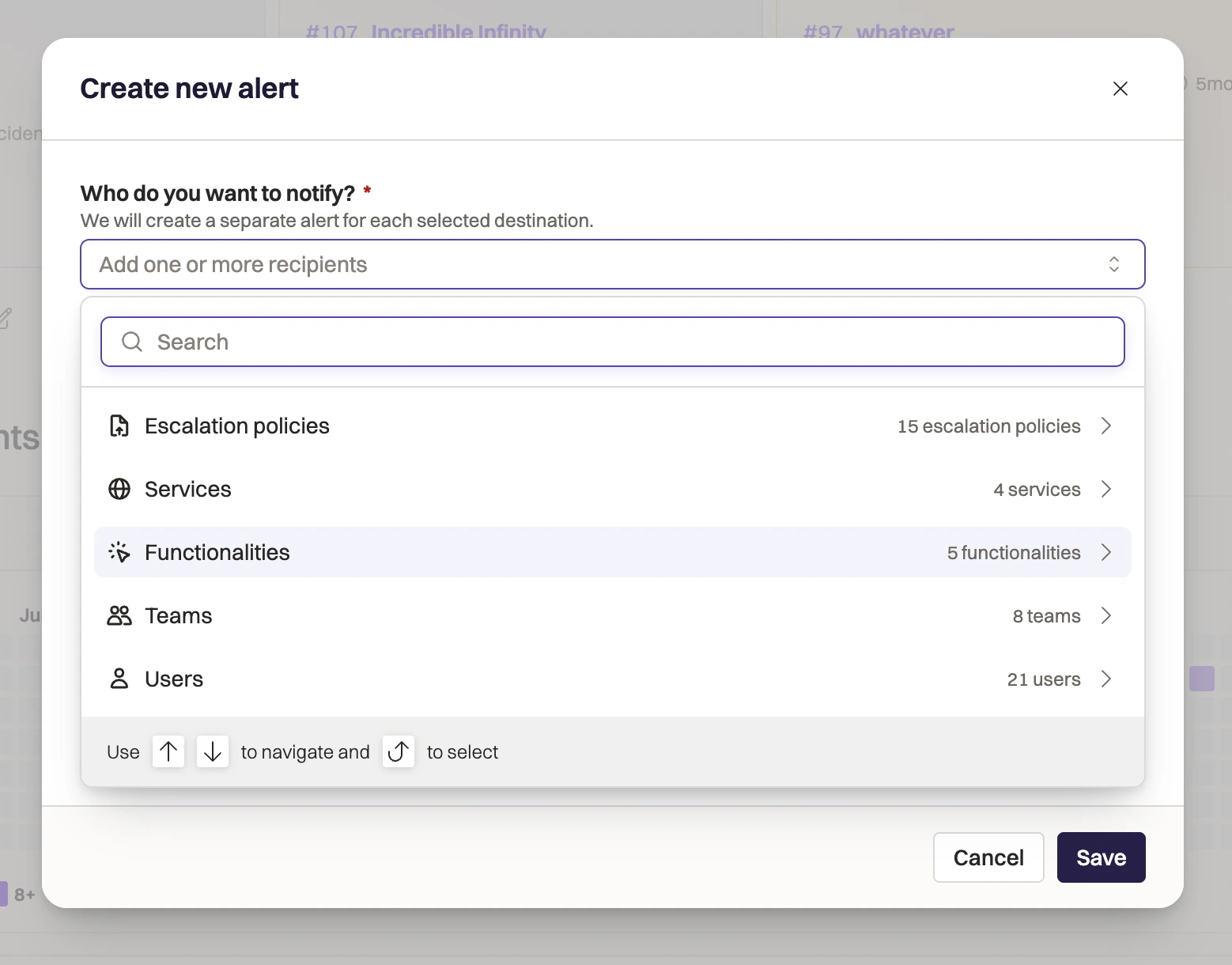 You can customize which types of targets your users are able to pick from to save them time! To do so:
1. Navigate to the Alerts page in Rootly Web.
2. Click **Settings** in the top right corner, then the **Manual Paging Options** tab.
3. From here, toggle on or off the types of targets you'd like your users to choose from.
You can customize which types of targets your users are able to pick from to save them time! To do so:
1. Navigate to the Alerts page in Rootly Web.
2. Click **Settings** in the top right corner, then the **Manual Paging Options** tab.
3. From here, toggle on or off the types of targets you'd like your users to choose from.
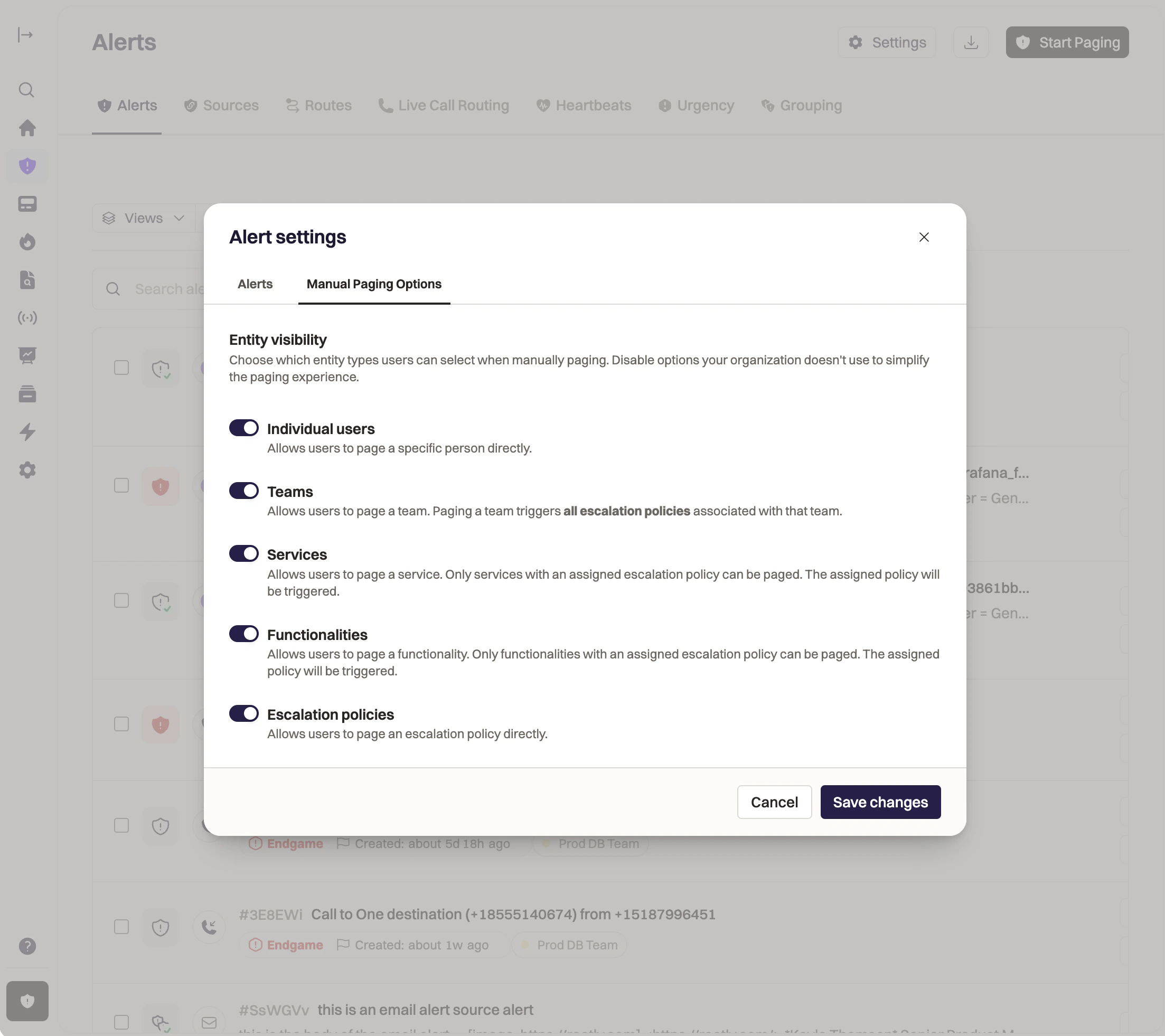 **Note**: You must have at least one paging option enabled at all times. Which ever targets you leave enabled will be the targets your users choose from when escalating from Rootly Web or Slack!
## Manual paging in Slack
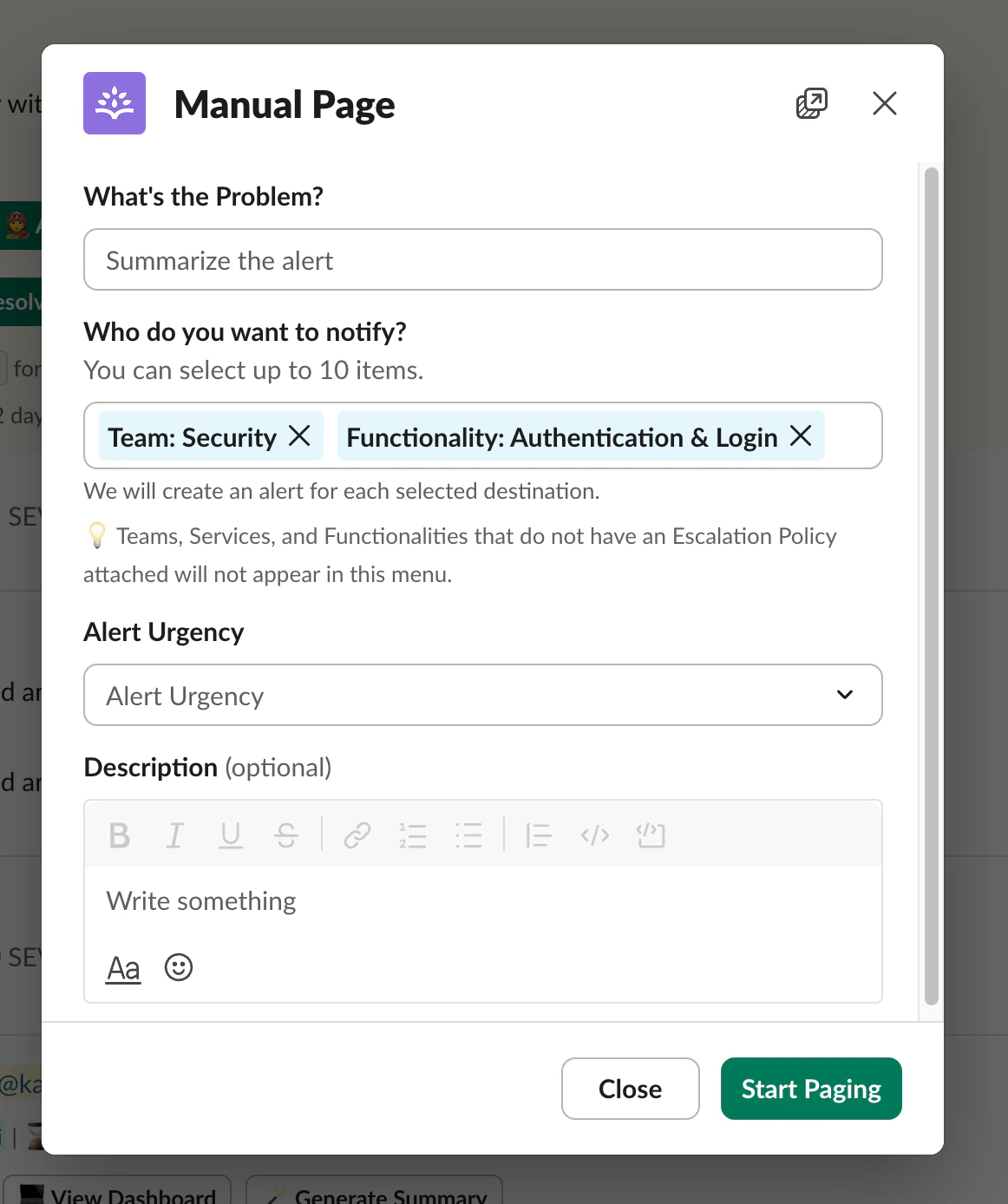
You can manually page another person with two Slack commands: `/rootly escalate` (which works in an incident Slack channel), and `/rootly page` (which works in any channel shared with the Rootly bot).
Once you've run these commands, fill out the information in the form to begin paging your notification target.
**Note**: You must have at least one paging option enabled at all times. Which ever targets you leave enabled will be the targets your users choose from when escalating from Rootly Web or Slack!
## Manual paging in Slack
You can manually page another person with two Slack commands: `/rootly escalate` (which works in an incident Slack channel), and `/rootly page` (which works in any channel shared with the Rootly bot).
Once you've run these commands, fill out the information in the form to begin paging your notification target.
 ## Manual paging in Web
You can manually page directly on web through the left-hand navigation at anytime by clicking the `Start Paging` button.
## Manual paging in Web
You can manually page directly on web through the left-hand navigation at anytime by clicking the `Start Paging` button.
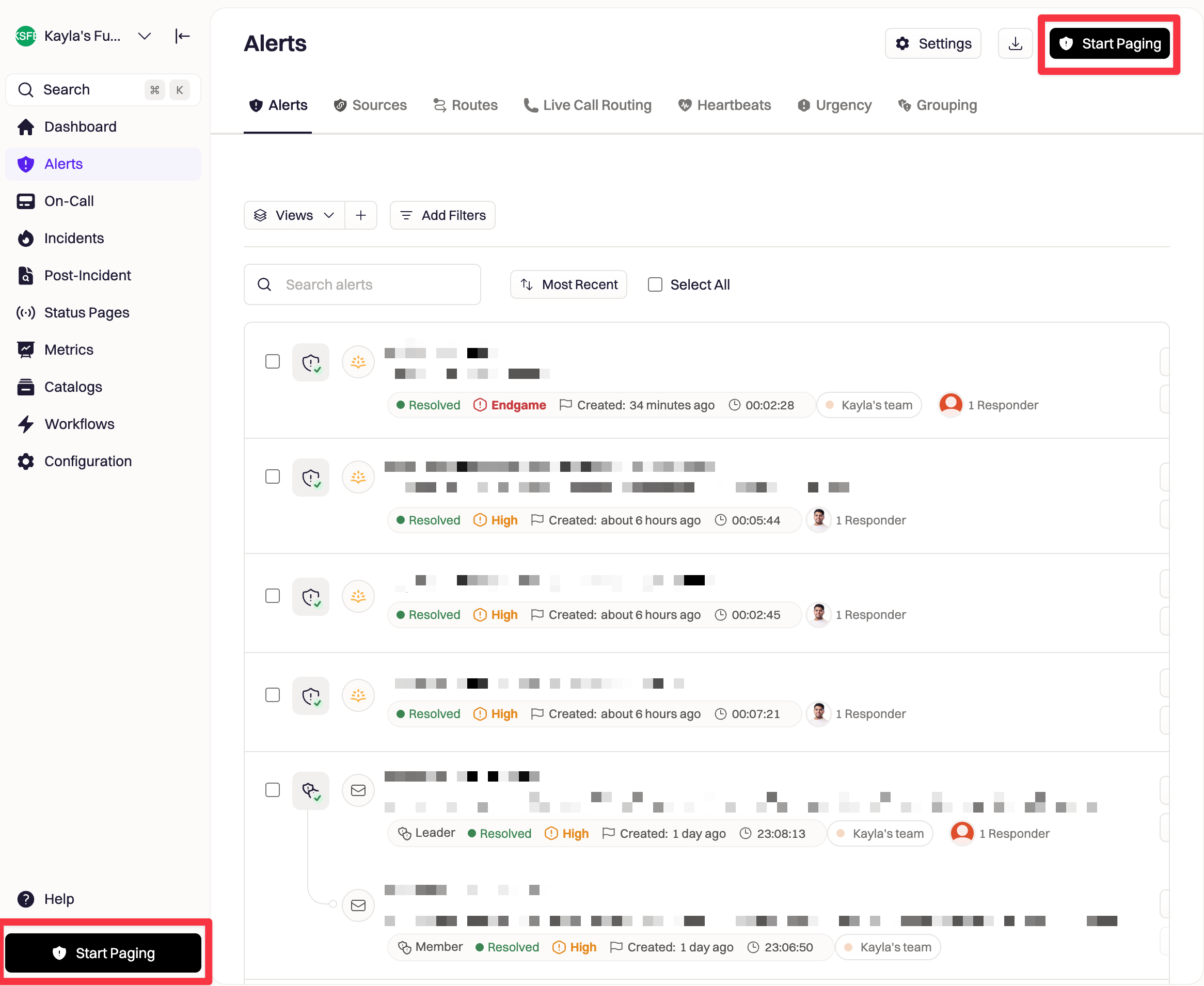 You can also manually page at anytime on the Alert page, as well as through any incident by clicking the `Escalate` button.
Fill out the necessary information in the form to give the user context on why they're being paged, then click `Start paging` to begin paging.
## Best Practices
* **Give the person you're paging as much context as possible to help them respond quickly.** We recommend using a description template to make sure you and your users know exactly what to add into your alert descriptions every time.
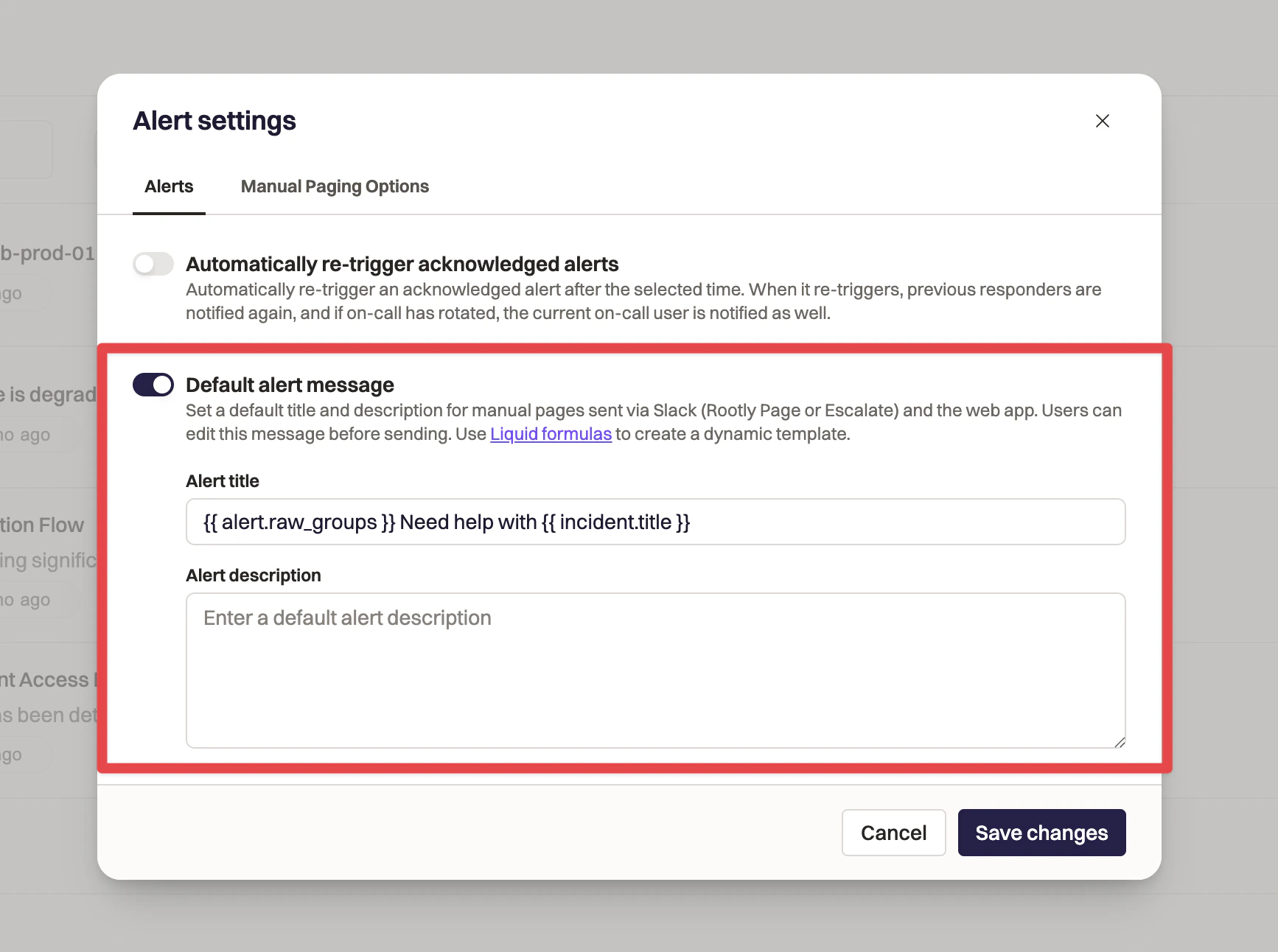
* Create a title and description template on the Alert details page by clicking `Settings` in the top right, then toggle on `Default alert message`. You can use liquid templating here to dynamically populate the alert's title and description every time: your users will be able to make any edits if necessary.
You can also manually page at anytime on the Alert page, as well as through any incident by clicking the `Escalate` button.
Fill out the necessary information in the form to give the user context on why they're being paged, then click `Start paging` to begin paging.
## Best Practices
* **Give the person you're paging as much context as possible to help them respond quickly.** We recommend using a description template to make sure you and your users know exactly what to add into your alert descriptions every time.
* Create a title and description template on the Alert details page by clicking `Settings` in the top right, then toggle on `Default alert message`. You can use liquid templating here to dynamically populate the alert's title and description every time: your users will be able to make any edits if necessary.
 ***
# Troubleshooting
Confirm that **Combine duplicate alerts into one alert** is enabled on the Alert Source and that the **deduplication key path** points to a stable, consistent value.\
If the key changes between alerts, Rootly treats them as separate alerts.
Often this means deduplication is working as designed.\
Multiple provider alerts may be mapped to a single Rootly alert, with extra occurrences recorded as **ignored/duplicate requests** on the original alert.
Make sure:
* Deduplication is configured correctly, **or** payload-based suppression is enabled
* Incoming payloads actually match the configured dedup key or body\
If the identifier or body differs, Rootly will create separate alerts instead of incrementing the existing one.
Rootly enforces a per-team, per-source/API key rate limit (default **50 alerts/minute**).\
For high-throughput environments, increase the **alerts rate limit per minute** in team settings or contact support for higher Enterprise limits.
Check:
* The integration is installed and authenticated
* The mapping points to the right team or alert source
* The webhook or outbound configuration is using the correct URL
* The payload contains all required fields for that integration\
Also review integration error logs in Rootly for more details.
***
# Troubleshooting
Confirm that **Combine duplicate alerts into one alert** is enabled on the Alert Source and that the **deduplication key path** points to a stable, consistent value.\
If the key changes between alerts, Rootly treats them as separate alerts.
Often this means deduplication is working as designed.\
Multiple provider alerts may be mapped to a single Rootly alert, with extra occurrences recorded as **ignored/duplicate requests** on the original alert.
Make sure:
* Deduplication is configured correctly, **or** payload-based suppression is enabled
* Incoming payloads actually match the configured dedup key or body\
If the identifier or body differs, Rootly will create separate alerts instead of incrementing the existing one.
Rootly enforces a per-team, per-source/API key rate limit (default **50 alerts/minute**).\
For high-throughput environments, increase the **alerts rate limit per minute** in team settings or contact support for higher Enterprise limits.
Check:
* The integration is installed and authenticated
* The mapping points to the right team or alert source
* The webhook or outbound configuration is using the correct URL
* The payload contains all required fields for that integration\
Also review integration error logs in Rootly for more details.