> ## Documentation Index
> Fetch the complete documentation index at: https://docs.rootly.com/llms.txt
> Use this file to discover all available pages before exploring further.
# Custom incident fields configuration
> Create organization-specific incident fields with custom data types, validation rules, and integration mappings to meet unique incident management requirements.
## Overview
Rootly carefully selected the built-in properties based on common attributes used to characterize incidents. However, not all organizations are built the same and sometimes the built-in properties are not enough to meet everyone's requirements.
To enable a fully bespoke experience, Rootly introduced custom properties that can be set up to meet the exact specifications of your organization's incident management requirements.
## Managing Custom Fields
### Create Field
Select the Create New Form Field button to create a new custom field. The following details can be edited on a field:
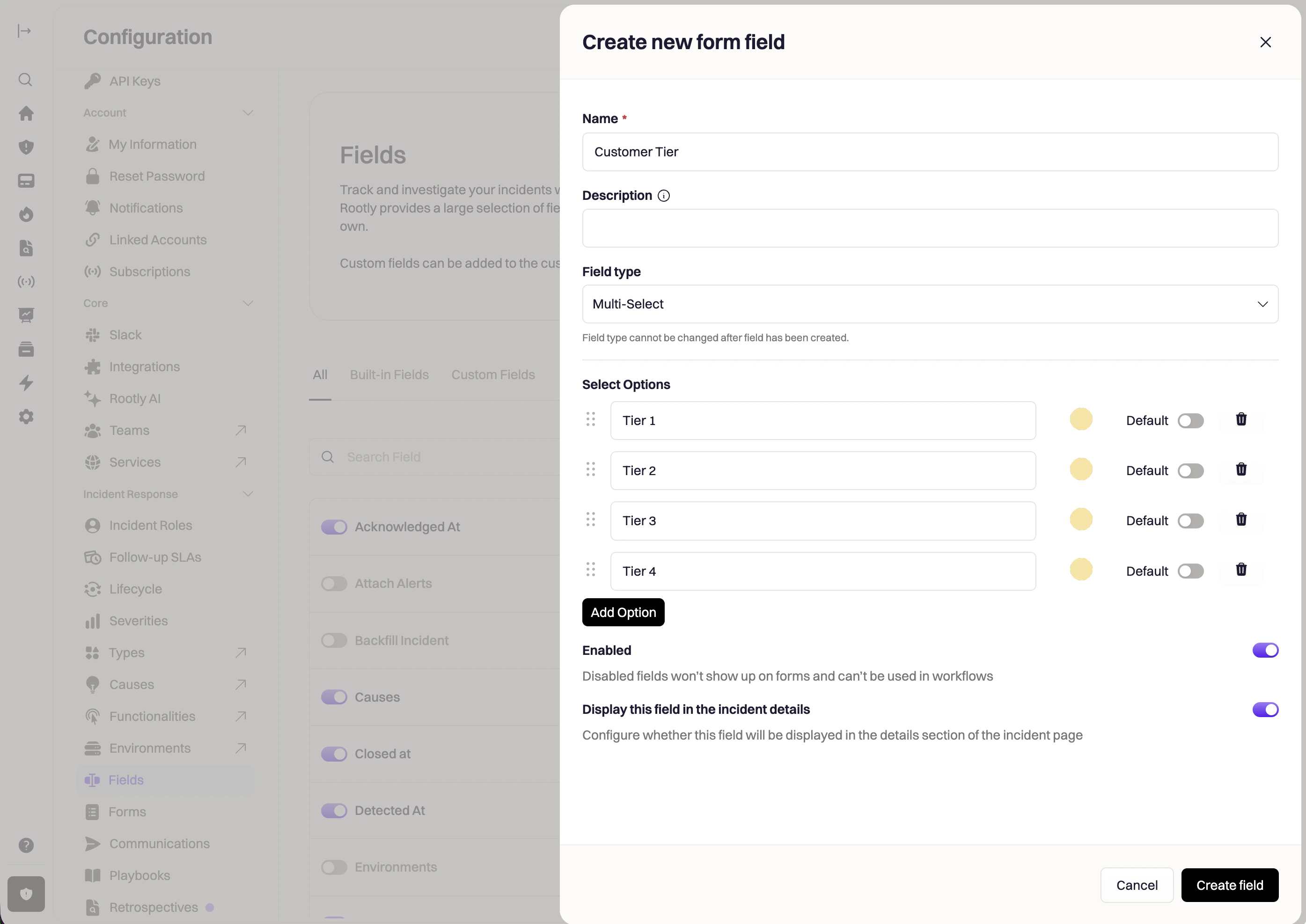 This is a unique identifier for the form field. It is automatically generated for you upon field creation and cannot be edited. This ID will be used to reference the specific form field in API calls and Liquid syntax.
This field can be edited. The value entered here will be the value that appears on user-facing forms.
Renaming a custom field will change the slug of the field, which in turn **WILL** break any Liquid references that use the previous slug. This is because, unlike built-in fields, a custom field's slug is mutable. Each time the field is renamed, its slug is regenerated from the new name, lower-cased and hyphenated. \
\
Existing references that use the custom field's ID instead of its slug will not be affected.
`{{ incident.custom_fields | find: 'custom_field.slug', 'your-custom-field-slug' | get: 'value' }}`
This field can be used to display a description for the custom field. This is particularly helpful if you want to give your users some instruction on how to fill in the custom field.
This field allows you to select the field type, which will dictate how the user interacts with this field. For example, a checkbox type will be a boolean field while a select type will ask the user to select one out of many options.
For more details on the available field types, please scroll down to the [Supported Field Types](/configuration/custom-fields) section.
This field allows you to define selectable options for Select and Multiple Select field types when the 'Custom text' field value is selected.
1. Enter the **value of the option.**
2. Select the **color of the option.** This is reflected on metrics graphs.
3. Drag and drop to **re-order the options** as they appear in dropdowns.
4. **Delete** an option.
5. **Copy** the `form_field_option_id`. This is used in API calls and Liquid syntax
6. **Add** more options.
Custom fields can be configured to have a default value. For example, if you want all your incidents to default to Zone 1 for the Zone custom field, then you can set it here.
This is the same setting as the toggle described in the **Enable/Disable Field** section above.
Only enabled fields are considered to be live fields - meaning they can appear on UI screens and be updated during incidents. Disabled fields are NOT usable during incidents and cannot be updated by workflows either.
You can use the toggle switch next to the field name to enable/disable it.
This switch allows you to display or hide the specific field on the **Details** section of the **Incident Details** page.
**Hiding a field** from being displayed in the **Details** section **does not mean this field is turned off**. It just means users cannot edit it from the UI.
This is typically used when teams want to configure a custom flag that gets systematically set by workflows, not manually by users.
This field allows you to select the value type for select and multiple select fields. The following Value types are available: Custom text, Teams, Services, Users, Functionalities, and Catalog.
* **Custom text** allows user input to determine what values are available for selection.
* **Teams, Services, Users, Functionalities, or Catalog** allow the custom field to pull from one of the existing fields populated in Rootly.
For example, an organization may want to identify both an 'Owning Team' as well as a set of 'Impacted Teams.' A new custom field could be created for 'Impacted Teams' and the existing 'Teams' field could be renamed to 'Owning Team.'
### Delete Field
Custom fields can be deleted by clicking the trash symbol.
Deleted fields cannot be recovered. It is highly recommended that you disable unused custom fields instead of deleting them.
Deletion should be reserved for only when you're sure that it won't be used in the response process anymore.
Custom fields can be referenced in Liquid using either the field **slug** or **ID**.\
The `find` filter returns a custom field object, from which you can access different attributes depending on the field type and configured Value Type.
***
## Supported Field Types
Below are all supported custom field types and the recommended Liquid syntax for each.
### Text
A single-line free-form text field that allows users to enter short text values such as names, identifiers, or brief descriptions. This field type is ideal for capturing simple, unstructured text data.
This Liquid syntax retrieves the text value stored in the custom field:
```liquid theme={null}
# By SLUG
{{ incident.custom_fields
| find: 'custom_field.slug', 'your-custom-field-slug'
| get: 'value'
}}
# By ID
{{ incident.custom_fields
| find: 'custom_field.id', 'your-field-uuid'
| get: 'value'
}}
```
### Textarea
A multi-line free-form text field that allows users to enter longer text content such as detailed descriptions, notes, or comments. Unlike the Text field, Textarea supports multiple lines of text input.
This Liquid syntax retrieves the multi-line text value stored in the custom field:
```liquid theme={null}
# By SLUG
{{ incident.custom_fields
| find: 'custom_field.slug', 'your-custom-field-slug'
| get: 'value'
}}
# By ID
{{ incident.custom_fields
| find: 'custom_field.id', 'your-field-uuid'
| get: 'value'
}}
```
### Rich Text
A formatted text field that supports rich text formatting (bold, italic, lists, links, etc.) using HTML markup. This field type is stored as an HTML string and is ideal for formatted content that needs to preserve styling.
This Liquid syntax retrieves the HTML-formatted text value stored in the custom field:
```liquid theme={null}
# By SLUG
{{ incident.custom_fields
| find: 'custom_field.slug', 'your-custom-field-slug'
| get: 'value'
}}
# By ID
{{ incident.custom_fields
| find: 'custom_field.id', 'your-field-uuid'
| get: 'value'
}}
```
Rich text values may contain HTML markup. Be mindful when rendering these values in notifications or external systems.
### Tags
**Tags is no longer available in the field type dropdown when you create a custom field in the UI.** To create a Tags field, use the API: send a `POST` to `/api/v1/form_fields` with `"input_kind": "tags"` (see the [form field API reference](/api-reference/formfields/creates-a-form-field)). To stay in the UI, create a **Multiple Select** field instead — you define the allowed options upfront, so it suits a known set of values rather than free-form tags. Existing Tags fields keep working and use the Liquid syntax below.
A multi-value tag field that allows users to add multiple tags or labels to an incident. Tags are stored as a JSON array string, making them useful for categorization, filtering, or labeling incidents with multiple attributes.
This Liquid syntax retrieves the JSON array string containing all tags:
```liquid theme={null}
# By SLUG
{{ incident.custom_fields
| find: 'custom_field.slug', 'your-custom-field-slug'
| get: 'value'
}}
# By ID
{{ incident.custom_fields
| find: 'custom_field.id', 'your-field-uuid'
| get: 'value'
}}
```
Tags values are stored as a JSON array string (e.g., `["tag1", "tag2", "tag3"]`). You may need to parse this JSON string depending on your use case.
### Number
A numeric input field that enforces numeric values only. This field type is useful for capturing quantities, counts, percentages, or any numeric data. The value is stored as a string representation of the number.
This Liquid syntax retrieves the numeric value stored in the custom field:
```liquid theme={null}
# By SLUG
{{ incident.custom_fields
| find: 'custom_field.slug', 'your-custom-field-slug'
| get: 'value'
}}
# By ID
{{ incident.custom_fields
| find: 'custom_field.id', 'your-field-uuid'
| get: 'value'
}}
```
Number values may be stored as strings. Use Liquid math filters if numeric operations are required.
### Checkbox
A boolean field that stores a checked ("1") or unchecked ("0") state. This field type is ideal for yes/no questions, flags, or binary choices that need to be tracked.
This Liquid syntax retrieves the checkbox value and checks whether it's checked:
```liquid theme={null}
# By SLUG
{% assign v = incident.custom_fields
| find: 'custom_field.slug', 'your-custom-field-slug'
| get: 'value' %}
# By ID
{% assign v = incident.custom_fields
| find: 'custom_field.id', 'your-field-uuid'
| get: 'value' %}
{% if v == "1" %}
true
{% else %}
false
{% endif %}
```
### Date
A date picker field that allows users to select a specific date. The value is stored as an ISO date string, making it easy to format and use in date calculations or comparisons.
This Liquid syntax retrieves the date value stored in the custom field:
```liquid theme={null}
# By SLUG
{{ incident.custom_fields
| find: 'custom_field.slug', 'your-custom-field-slug'
| get: 'value'
}}
# By ID
{{ incident.custom_fields
| find: 'custom_field.id', 'your-field-uuid'
| get: 'value'
}}
```
This Liquid syntax formats the date value for display:
```liquid theme={null}
# By SLUG
{{ incident.custom_fields
| find: 'custom_field.slug', 'your-custom-field-slug'
| get: 'value'
| date: '%B %d, %Y'
}}
# By ID
{{ incident.custom_fields
| find: 'custom_field.id', 'your-field-uuid'
| get: 'value'
| date: '%B %d, %Y'
}}
```
### Datetime
A date and time picker field that allows users to select both a date and a specific time. The value is stored as an ISO datetime string, making it suitable for scheduling, timestamps, or any scenario requiring precise date and time tracking.
This Liquid syntax retrieves the datetime value stored in the custom field:
```liquid theme={null}
# By SLUG
{{ incident.custom_fields
| find: 'custom_field.slug', 'your-custom-field-slug'
| get: 'value'
}}
# By ID
{{ incident.custom_fields
| find: 'custom_field.id', 'your-field-uuid'
| get: 'value'
}}
```
This Liquid syntax formats the datetime value for display:
```liquid theme={null}
# By SLUG
{{ incident.custom_fields
| find: 'custom_field.slug', 'your-custom-field-slug'
| get: 'value'
| date: '%B %d, %Y at %I:%M %p'
}}
# By ID
{{ incident.custom_fields
| find: 'custom_field.id', 'your-field-uuid'
| get: 'value'
| date: '%B %d, %Y at %I:%M %p'
}}
```
### Catalog
A Catalog field only accepts the entities configured in the related Catalog. Use this field type when you want to track the impact of an incident against one of your business entities configured as a Catalog, like Teams, Services, or any custom Catalogs.
**Note**: Catalog Fields can be automatically set based on properties in your Catalog. For example, any `Services` Catalog field could be automatically set by a `Team` Catalog field, as long as the Team Catalog has a Services property. This would allow you to automatically track the Services an incident is impacting as your users add teams to the incident.
### Select
A single-choice field that allows users to select one value from a predefined list of options.
### Multiple Select
A multi-choice field that allows users to select one or more values from a predefined list of options. Storage follows the same pattern as Select, but may contain multiple values. The storage format and available attributes depend on the configured **Value Type**.
## Best Practices
* Prefer referencing custom fields by **ID** in Liquid to avoid breaking changes when field names change.
* Use field **Descriptions** to guide responders toward consistent data entry.
* Hide workflow-managed fields from the Incident Details UI to reduce manual edits.
* Ensure you reference the correct `selected_*` attribute based on the field’s **Value Type**.
This is a unique identifier for the form field. It is automatically generated for you upon field creation and cannot be edited. This ID will be used to reference the specific form field in API calls and Liquid syntax.
This field can be edited. The value entered here will be the value that appears on user-facing forms.
Renaming a custom field will change the slug of the field, which in turn **WILL** break any Liquid references that use the previous slug. This is because, unlike built-in fields, a custom field's slug is mutable. Each time the field is renamed, its slug is regenerated from the new name, lower-cased and hyphenated. \
\
Existing references that use the custom field's ID instead of its slug will not be affected.
`{{ incident.custom_fields | find: 'custom_field.slug', 'your-custom-field-slug' | get: 'value' }}`
This field can be used to display a description for the custom field. This is particularly helpful if you want to give your users some instruction on how to fill in the custom field.
This field allows you to select the field type, which will dictate how the user interacts with this field. For example, a checkbox type will be a boolean field while a select type will ask the user to select one out of many options.
For more details on the available field types, please scroll down to the [Supported Field Types](/configuration/custom-fields) section.
This field allows you to define selectable options for Select and Multiple Select field types when the 'Custom text' field value is selected.
1. Enter the **value of the option.**
2. Select the **color of the option.** This is reflected on metrics graphs.
3. Drag and drop to **re-order the options** as they appear in dropdowns.
4. **Delete** an option.
5. **Copy** the `form_field_option_id`. This is used in API calls and Liquid syntax
6. **Add** more options.
Custom fields can be configured to have a default value. For example, if you want all your incidents to default to Zone 1 for the Zone custom field, then you can set it here.
This is the same setting as the toggle described in the **Enable/Disable Field** section above.
Only enabled fields are considered to be live fields - meaning they can appear on UI screens and be updated during incidents. Disabled fields are NOT usable during incidents and cannot be updated by workflows either.
You can use the toggle switch next to the field name to enable/disable it.
This switch allows you to display or hide the specific field on the **Details** section of the **Incident Details** page.
**Hiding a field** from being displayed in the **Details** section **does not mean this field is turned off**. It just means users cannot edit it from the UI.
This is typically used when teams want to configure a custom flag that gets systematically set by workflows, not manually by users.
This field allows you to select the value type for select and multiple select fields. The following Value types are available: Custom text, Teams, Services, Users, Functionalities, and Catalog.
* **Custom text** allows user input to determine what values are available for selection.
* **Teams, Services, Users, Functionalities, or Catalog** allow the custom field to pull from one of the existing fields populated in Rootly.
For example, an organization may want to identify both an 'Owning Team' as well as a set of 'Impacted Teams.' A new custom field could be created for 'Impacted Teams' and the existing 'Teams' field could be renamed to 'Owning Team.'
### Delete Field
Custom fields can be deleted by clicking the trash symbol.
Deleted fields cannot be recovered. It is highly recommended that you disable unused custom fields instead of deleting them.
Deletion should be reserved for only when you're sure that it won't be used in the response process anymore.
Custom fields can be referenced in Liquid using either the field **slug** or **ID**.\
The `find` filter returns a custom field object, from which you can access different attributes depending on the field type and configured Value Type.
***
## Supported Field Types
Below are all supported custom field types and the recommended Liquid syntax for each.
### Text
A single-line free-form text field that allows users to enter short text values such as names, identifiers, or brief descriptions. This field type is ideal for capturing simple, unstructured text data.
This Liquid syntax retrieves the text value stored in the custom field:
```liquid theme={null}
# By SLUG
{{ incident.custom_fields
| find: 'custom_field.slug', 'your-custom-field-slug'
| get: 'value'
}}
# By ID
{{ incident.custom_fields
| find: 'custom_field.id', 'your-field-uuid'
| get: 'value'
}}
```
### Textarea
A multi-line free-form text field that allows users to enter longer text content such as detailed descriptions, notes, or comments. Unlike the Text field, Textarea supports multiple lines of text input.
This Liquid syntax retrieves the multi-line text value stored in the custom field:
```liquid theme={null}
# By SLUG
{{ incident.custom_fields
| find: 'custom_field.slug', 'your-custom-field-slug'
| get: 'value'
}}
# By ID
{{ incident.custom_fields
| find: 'custom_field.id', 'your-field-uuid'
| get: 'value'
}}
```
### Rich Text
A formatted text field that supports rich text formatting (bold, italic, lists, links, etc.) using HTML markup. This field type is stored as an HTML string and is ideal for formatted content that needs to preserve styling.
This Liquid syntax retrieves the HTML-formatted text value stored in the custom field:
```liquid theme={null}
# By SLUG
{{ incident.custom_fields
| find: 'custom_field.slug', 'your-custom-field-slug'
| get: 'value'
}}
# By ID
{{ incident.custom_fields
| find: 'custom_field.id', 'your-field-uuid'
| get: 'value'
}}
```
Rich text values may contain HTML markup. Be mindful when rendering these values in notifications or external systems.
### Tags
**Tags is no longer available in the field type dropdown when you create a custom field in the UI.** To create a Tags field, use the API: send a `POST` to `/api/v1/form_fields` with `"input_kind": "tags"` (see the [form field API reference](/api-reference/formfields/creates-a-form-field)). To stay in the UI, create a **Multiple Select** field instead — you define the allowed options upfront, so it suits a known set of values rather than free-form tags. Existing Tags fields keep working and use the Liquid syntax below.
A multi-value tag field that allows users to add multiple tags or labels to an incident. Tags are stored as a JSON array string, making them useful for categorization, filtering, or labeling incidents with multiple attributes.
This Liquid syntax retrieves the JSON array string containing all tags:
```liquid theme={null}
# By SLUG
{{ incident.custom_fields
| find: 'custom_field.slug', 'your-custom-field-slug'
| get: 'value'
}}
# By ID
{{ incident.custom_fields
| find: 'custom_field.id', 'your-field-uuid'
| get: 'value'
}}
```
Tags values are stored as a JSON array string (e.g., `["tag1", "tag2", "tag3"]`). You may need to parse this JSON string depending on your use case.
### Number
A numeric input field that enforces numeric values only. This field type is useful for capturing quantities, counts, percentages, or any numeric data. The value is stored as a string representation of the number.
This Liquid syntax retrieves the numeric value stored in the custom field:
```liquid theme={null}
# By SLUG
{{ incident.custom_fields
| find: 'custom_field.slug', 'your-custom-field-slug'
| get: 'value'
}}
# By ID
{{ incident.custom_fields
| find: 'custom_field.id', 'your-field-uuid'
| get: 'value'
}}
```
Number values may be stored as strings. Use Liquid math filters if numeric operations are required.
### Checkbox
A boolean field that stores a checked ("1") or unchecked ("0") state. This field type is ideal for yes/no questions, flags, or binary choices that need to be tracked.
This Liquid syntax retrieves the checkbox value and checks whether it's checked:
```liquid theme={null}
# By SLUG
{% assign v = incident.custom_fields
| find: 'custom_field.slug', 'your-custom-field-slug'
| get: 'value' %}
# By ID
{% assign v = incident.custom_fields
| find: 'custom_field.id', 'your-field-uuid'
| get: 'value' %}
{% if v == "1" %}
true
{% else %}
false
{% endif %}
```
### Date
A date picker field that allows users to select a specific date. The value is stored as an ISO date string, making it easy to format and use in date calculations or comparisons.
This Liquid syntax retrieves the date value stored in the custom field:
```liquid theme={null}
# By SLUG
{{ incident.custom_fields
| find: 'custom_field.slug', 'your-custom-field-slug'
| get: 'value'
}}
# By ID
{{ incident.custom_fields
| find: 'custom_field.id', 'your-field-uuid'
| get: 'value'
}}
```
This Liquid syntax formats the date value for display:
```liquid theme={null}
# By SLUG
{{ incident.custom_fields
| find: 'custom_field.slug', 'your-custom-field-slug'
| get: 'value'
| date: '%B %d, %Y'
}}
# By ID
{{ incident.custom_fields
| find: 'custom_field.id', 'your-field-uuid'
| get: 'value'
| date: '%B %d, %Y'
}}
```
### Datetime
A date and time picker field that allows users to select both a date and a specific time. The value is stored as an ISO datetime string, making it suitable for scheduling, timestamps, or any scenario requiring precise date and time tracking.
This Liquid syntax retrieves the datetime value stored in the custom field:
```liquid theme={null}
# By SLUG
{{ incident.custom_fields
| find: 'custom_field.slug', 'your-custom-field-slug'
| get: 'value'
}}
# By ID
{{ incident.custom_fields
| find: 'custom_field.id', 'your-field-uuid'
| get: 'value'
}}
```
This Liquid syntax formats the datetime value for display:
```liquid theme={null}
# By SLUG
{{ incident.custom_fields
| find: 'custom_field.slug', 'your-custom-field-slug'
| get: 'value'
| date: '%B %d, %Y at %I:%M %p'
}}
# By ID
{{ incident.custom_fields
| find: 'custom_field.id', 'your-field-uuid'
| get: 'value'
| date: '%B %d, %Y at %I:%M %p'
}}
```
### Catalog
A Catalog field only accepts the entities configured in the related Catalog. Use this field type when you want to track the impact of an incident against one of your business entities configured as a Catalog, like Teams, Services, or any custom Catalogs.
**Note**: Catalog Fields can be automatically set based on properties in your Catalog. For example, any `Services` Catalog field could be automatically set by a `Team` Catalog field, as long as the Team Catalog has a Services property. This would allow you to automatically track the Services an incident is impacting as your users add teams to the incident.
### Select
A single-choice field that allows users to select one value from a predefined list of options.
### Multiple Select
A multi-choice field that allows users to select one or more values from a predefined list of options. Storage follows the same pattern as Select, but may contain multiple values. The storage format and available attributes depend on the configured **Value Type**.
## Best Practices
* Prefer referencing custom fields by **ID** in Liquid to avoid breaking changes when field names change.
* Use field **Descriptions** to guide responders toward consistent data entry.
* Hide workflow-managed fields from the Incident Details UI to reduce manual edits.
* Ensure you reference the correct `selected_*` attribute based on the field’s **Value Type**.