> ## Documentation Index
> Fetch the complete documentation index at: https://docs.rootly.com/llms.txt
> Use this file to discover all available pages before exploring further.
# Dynamic Forms
> Configure form variations that adapt based on incident properties like type, team, or severity to collect contextually relevant information.
Rootly's dynamic forms allow for more granularity based on different incident types, different teams, or different severities that require different versions of the same forms. You can access the dynamic forms by navigating to **Configuration >** [**Forms**](https://rootly.com/account/forms).
The Dynamic Forms feature is not enabled out-of-box, but if you’d like to try it out, reach out to your Rootly point of contact or support team. [Video Example of Use Case](https://www.loom.com/share/11b9503c6bd94043bfafc6cdd5166021?sid=35cd9955-d742-45f3-b99f-b2840b3e0a74)
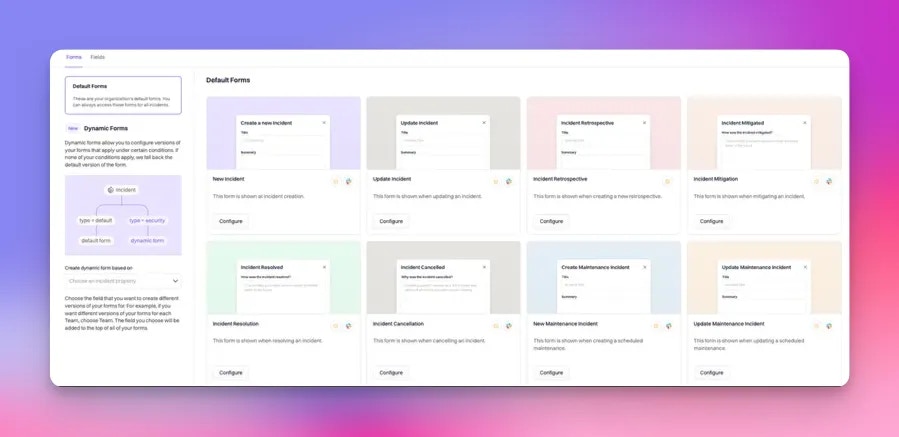 ## Incident Property Field
The incident property is what is used to **base** the dynamic forms from. The options include Incident Type, Team, or Severity.
> This field is important as it drives the property in which you build your dynamic forms from
## Incident Property Field
The incident property is what is used to **base** the dynamic forms from. The options include Incident Type, Team, or Severity.
> This field is important as it drives the property in which you build your dynamic forms from
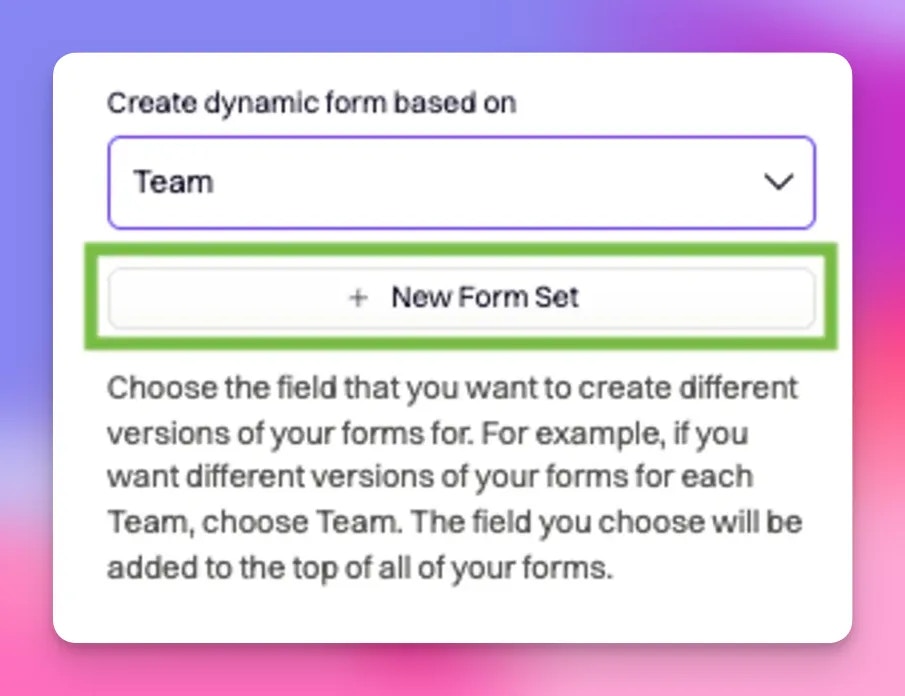
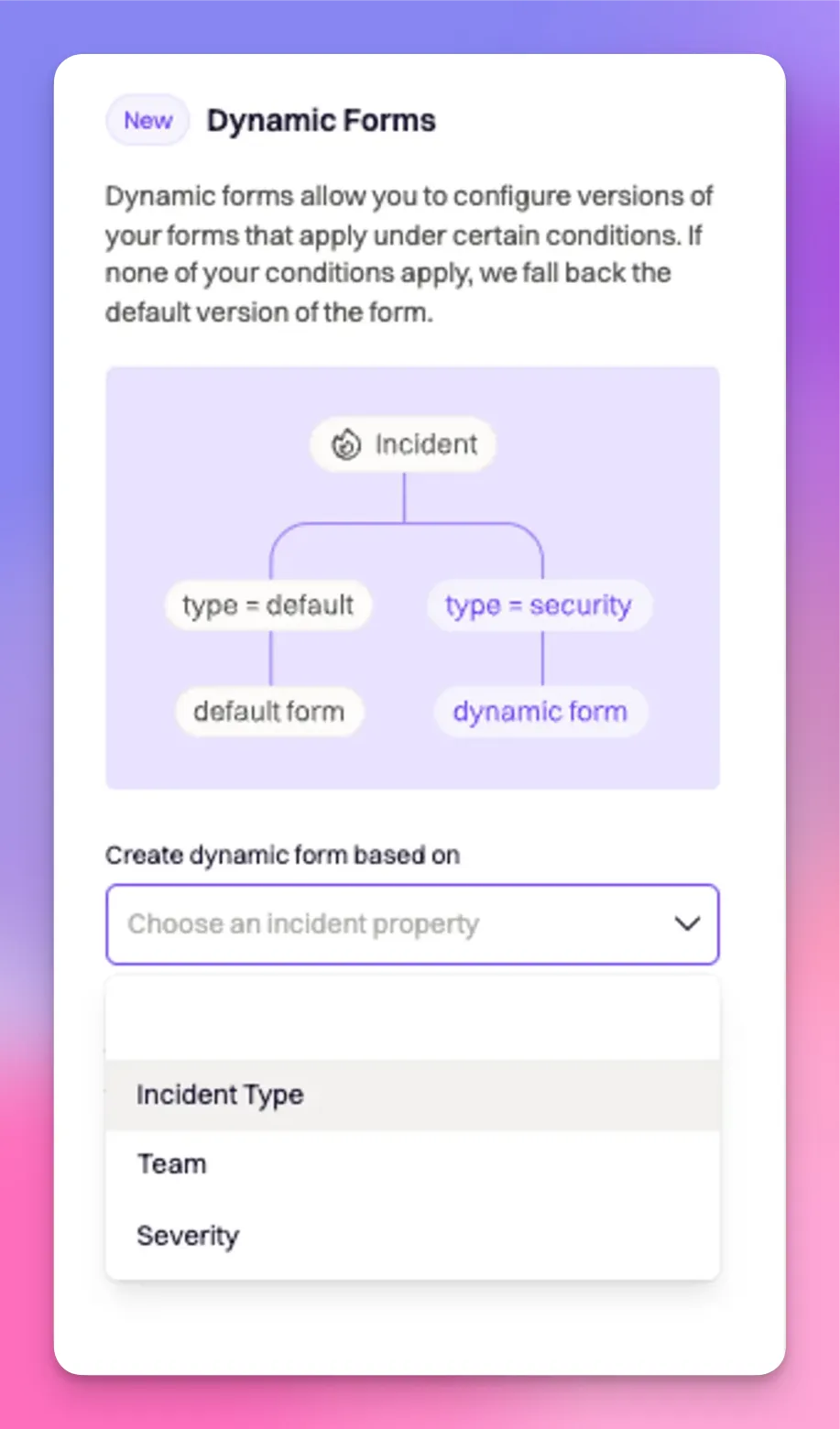 Once an incident property is selected, click `+ New Form Set` to create a dynamic form.
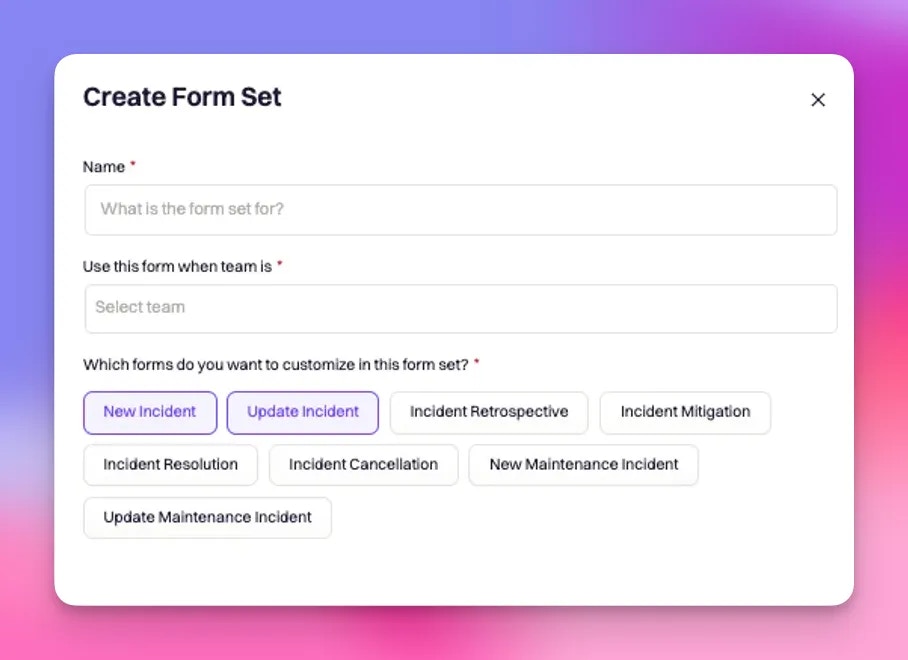
 ## **Creating Form Set**
* Name: Choose a unique name
* Use this form when \[incident type / team / severity]
* Then choose which default forms you would like to customize.
## **Creating Form Set**
* Name: Choose a unique name
* Use this form when \[incident type / team / severity]
* Then choose which default forms you would like to customize.
 ### Example Use Case
One of the main use cases for this is when you want to give more granularity on different teams, incident types, or severities, but you want them to have different versions of the same form. For example, when the information I want to collect for the `security teams` incidents is different than the information I want to collect for the `infrastructure teams` incidents. But within that, within the `security teams` forms, I actually want certain fields different based on if it’s a SEV0 incident.
### Example Use Case
One of the main use cases for this is when you want to give more granularity on different teams, incident types, or severities, but you want them to have different versions of the same form. For example, when the information I want to collect for the `security teams` incidents is different than the information I want to collect for the `infrastructure teams` incidents. But within that, within the `security teams` forms, I actually want certain fields different based on if it’s a SEV0 incident.
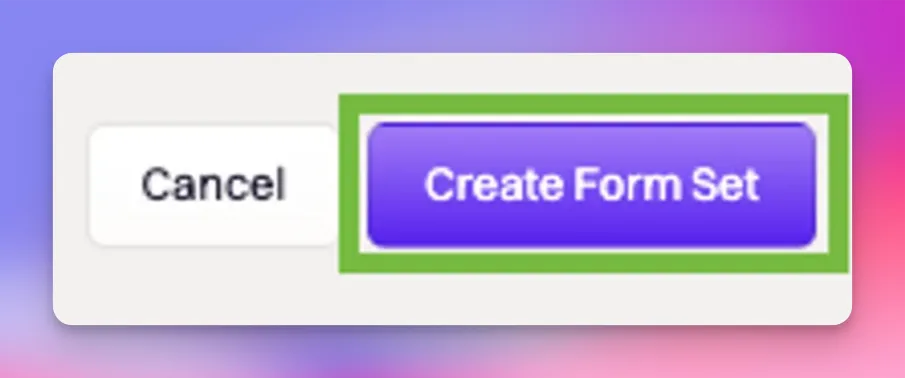
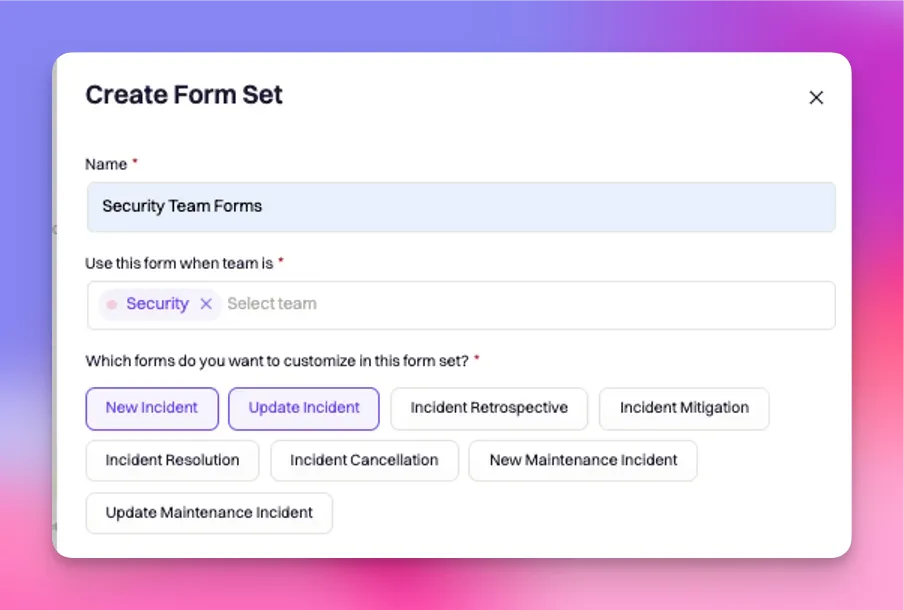 Click 'Create Form Set'
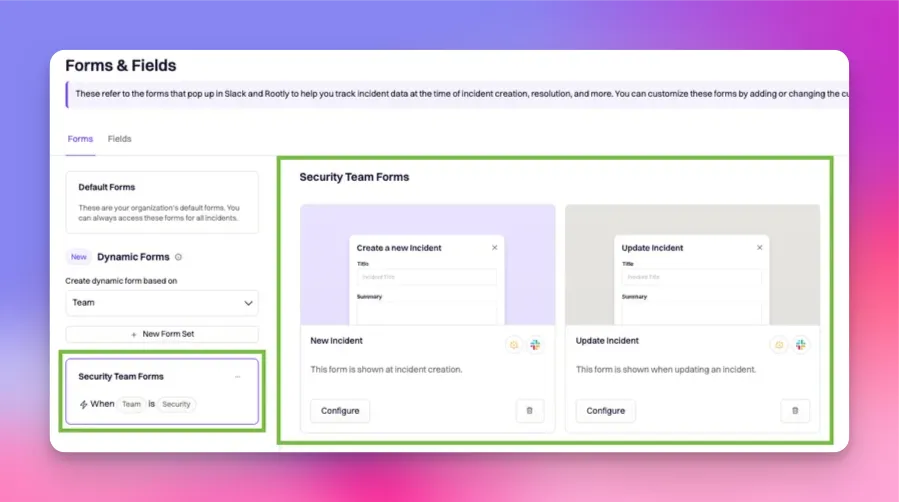
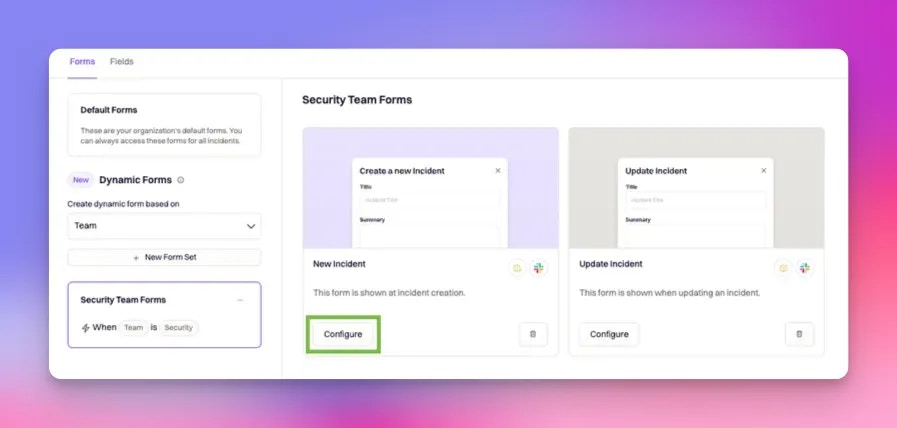
 Once created, you'll see the newly built 'Security Team Forms' on the left and the form types you wish to customize.
These new forms will only show when `Team` is `Security`
Once created, you'll see the newly built 'Security Team Forms' on the left and the form types you wish to customize.
These new forms will only show when `Team` is `Security`
 Next, we need to get more granular and only show these forms when the `Team` is `Security` **AND** the `Severity` is a `SEV0`. To do this, click 'Configure' on the form type you would like to edit.
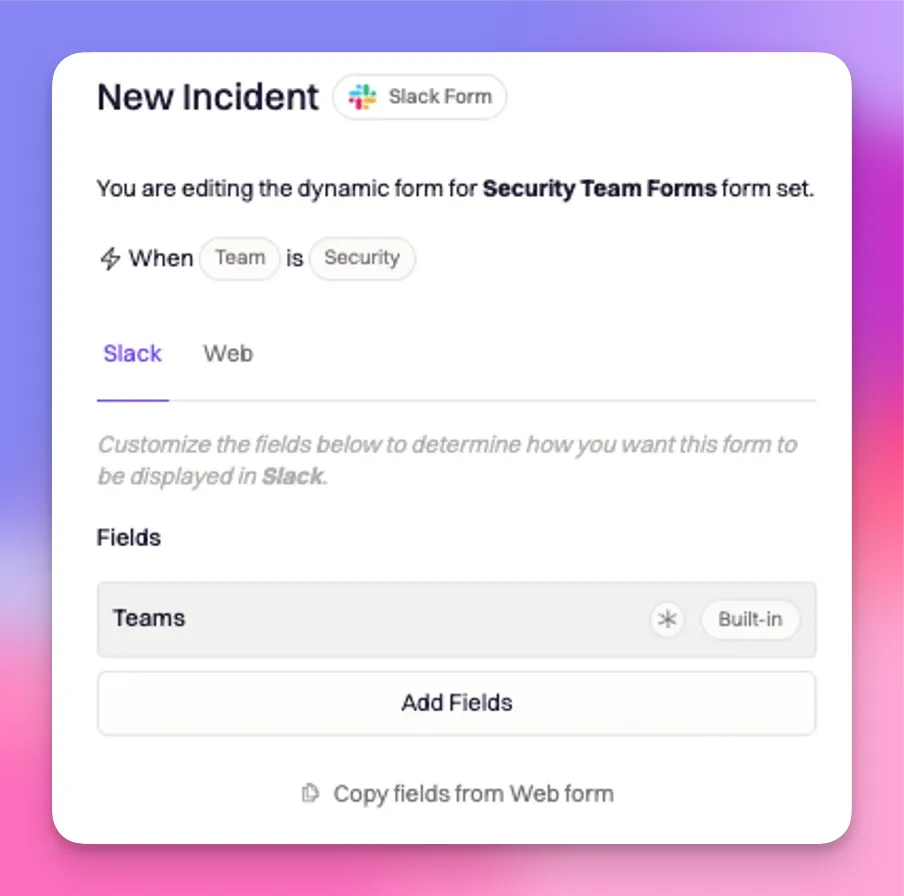
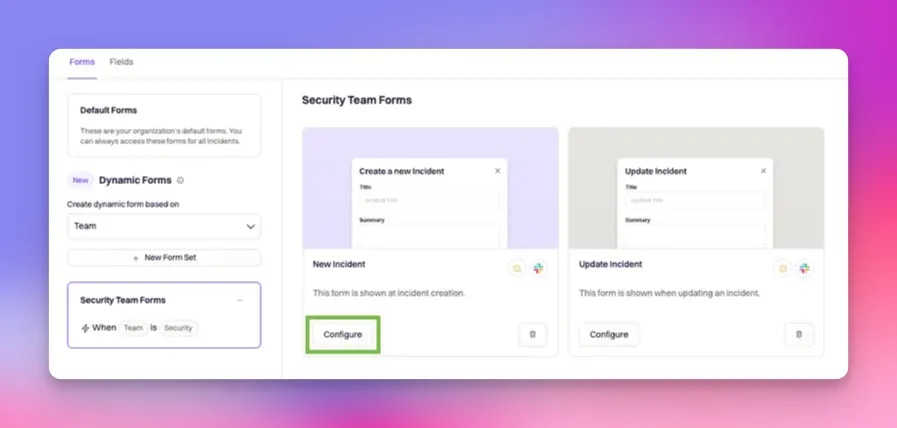 The form will start empty, minus your incident property field, which in this case is `Teams`.
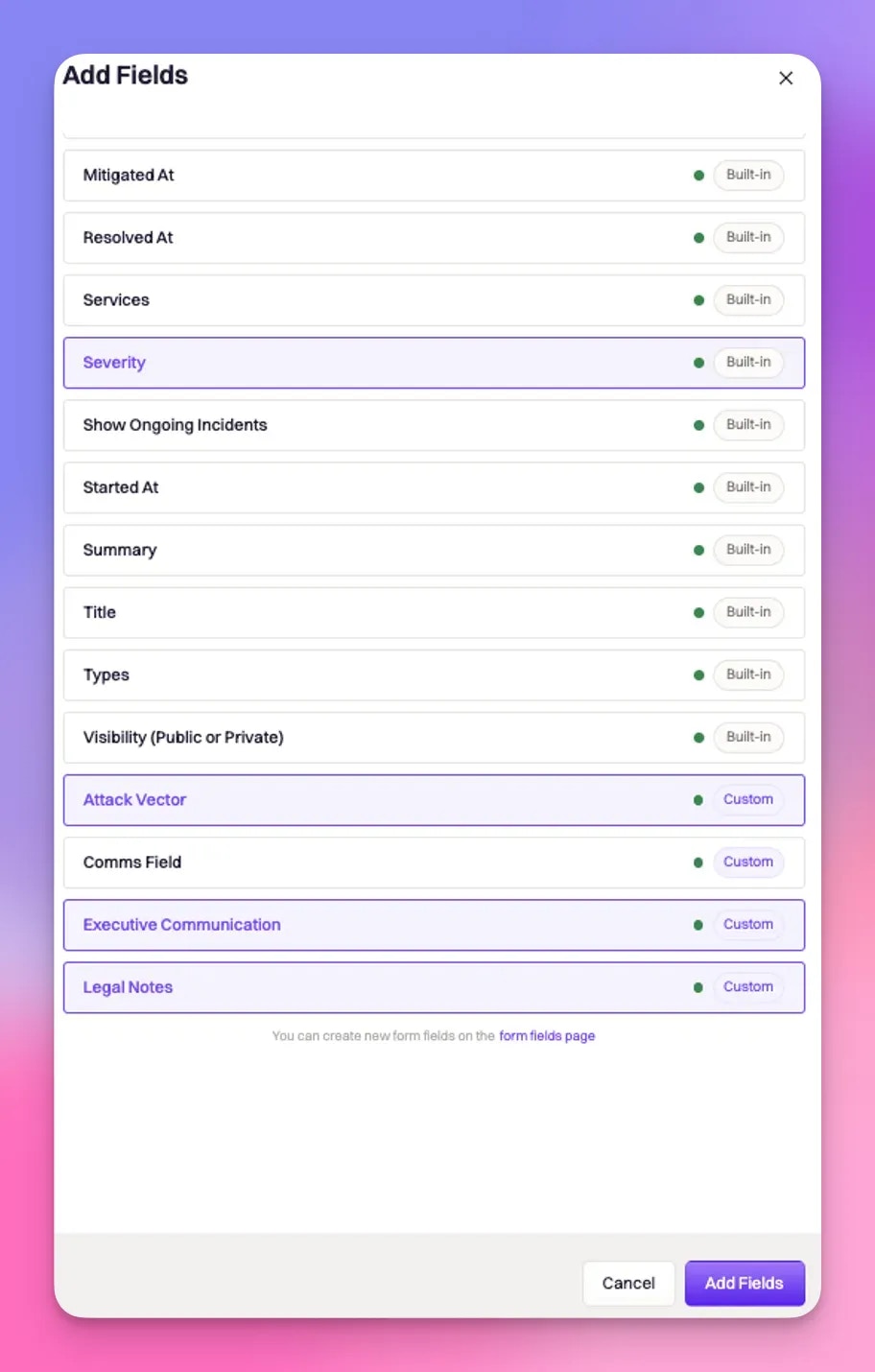
 Add any custom or built-in fields by clicking 'Add Fields'
 When the required fields are selected, click 'Add Fields'.
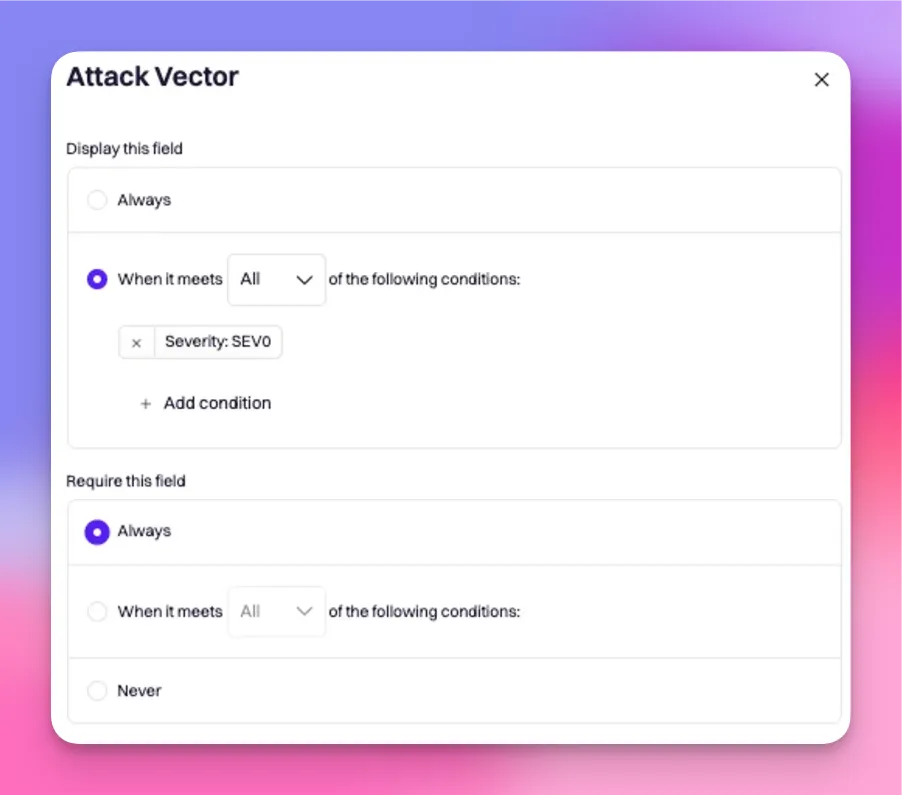
 Edit each field and choose when to display and/or require this field, at this stage you can add conditions.
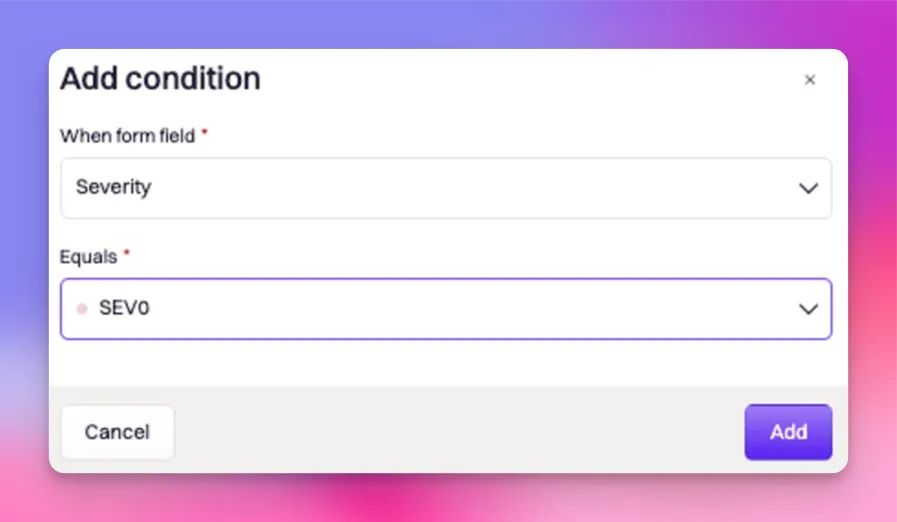 Set the field to only display when the incident is a `SEV0`, and **REQUIRE** the field. Click Save once the conditions are defined.
 ### To Test
Create a new incident and set the team to `Security`
### To Test
Create a new incident and set the team to `Security`
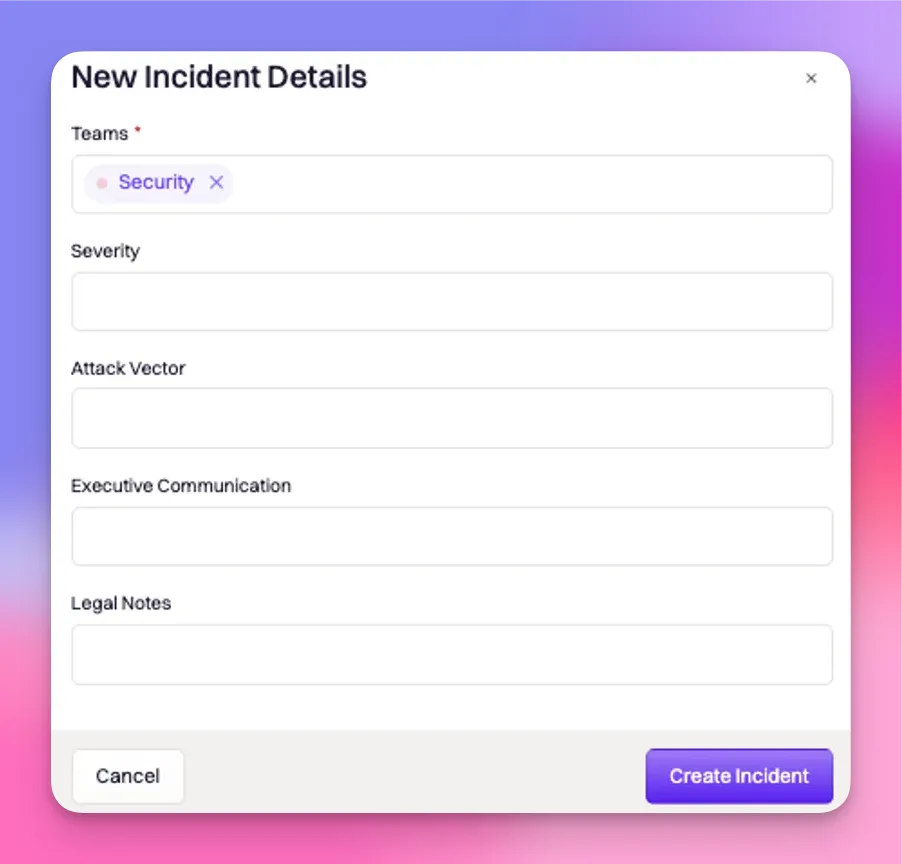
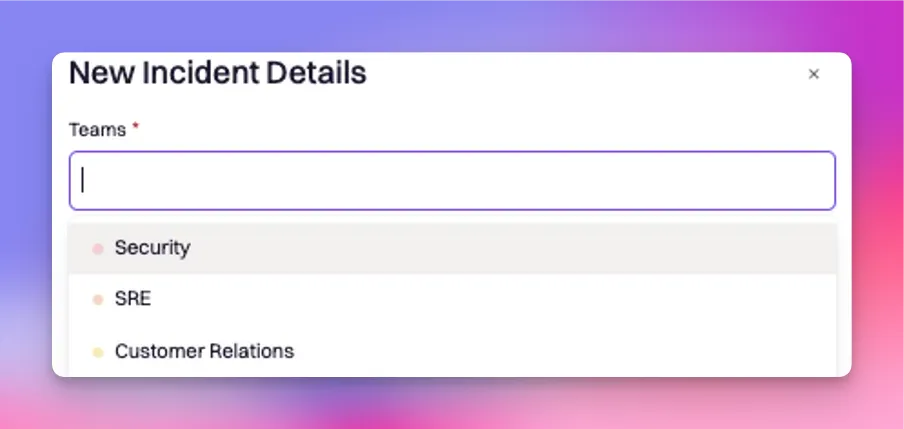 Once `` is selected, the form will auto-refresh with the dynamic 'Security Team Form'
 ### Removing An Existing Dynamic Form
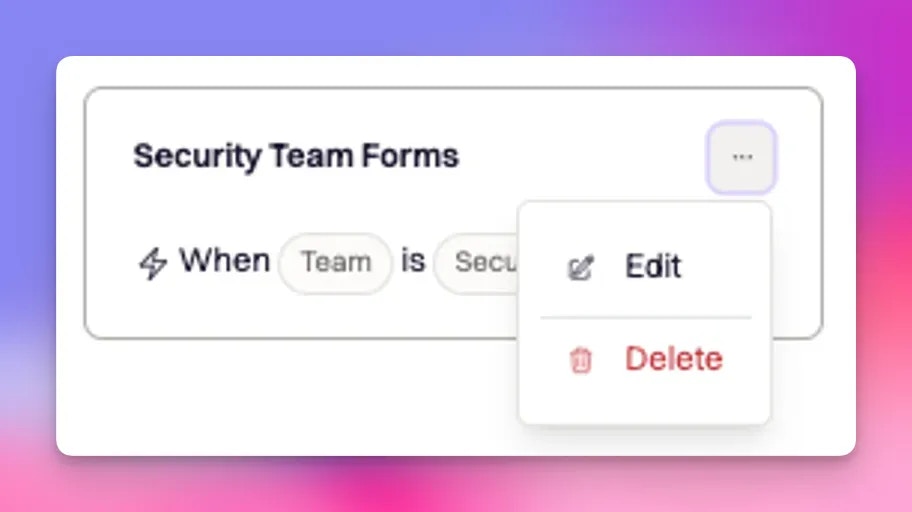
Editing and deleting can be done by clicking on the ellipsis.
### Removing An Existing Dynamic Form
Editing and deleting can be done by clicking on the ellipsis.
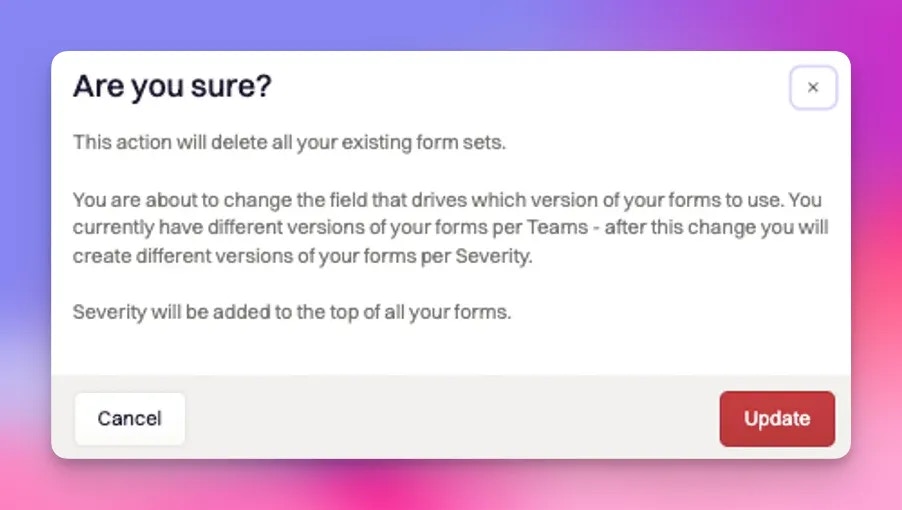
 Only one property can be selected at a time. Removing the existing incident property selection will delete all existing dynamic forms. You will be prompted with a warning message prior.
 ### Want to use dynamic forms?
Yay! We can't wait! Please reach out to your Rootly point of contact or support team to request access.
### Want to use dynamic forms?
Yay! We can't wait! Please reach out to your Rootly point of contact or support team to request access.