> ## Documentation Index
> Fetch the complete documentation index at: https://docs.rootly.com/llms.txt
> Use this file to discover all available pages before exploring further.
# Services
> Configure services to identify impacted components during incidents, manage responders, and integrate with status pages and external tools.
# Overview
*Service* allows you to specify the impacted component during an incident. This can help you with identifying which responders to bring in, which on-call to page, which customers to inform, etc. Individual services can be mapped to your status pages.
 # Adding Services in Rootly
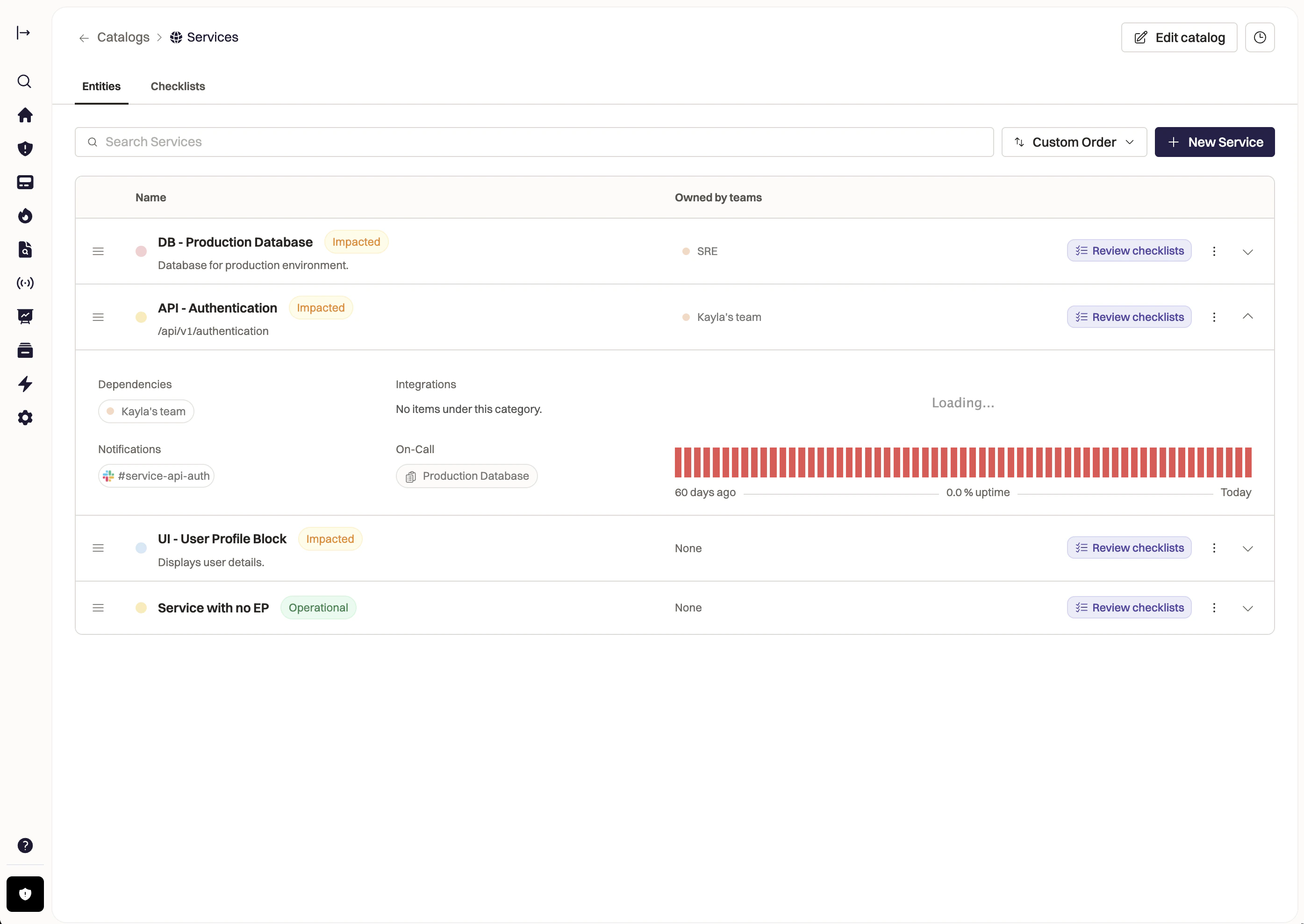
To add a new Service via the Rootly Web UI, navigate to **Configuration > Services** then click **New Service**.
Assign your new Service with a description Title and Description to help the rest of your team know what the Service represents.
# Editing Services
Services are made up of a number of properties. Each property can be referenced via Liquid syntax and can be set in the Rootly Web UI, [API](https://docs.rootly.com/api-reference/services/list-services), or [imported from Opsgenie and PagerDuty](https://docs.rootly.com/configuration/services#import-services). This section outlines how to edit the Services in the Rootly Web UI.
# Adding Services in Rootly
To add a new Service via the Rootly Web UI, navigate to **Configuration > Services** then click **New Service**.
Assign your new Service with a description Title and Description to help the rest of your team know what the Service represents.
# Editing Services
Services are made up of a number of properties. Each property can be referenced via Liquid syntax and can be set in the Rootly Web UI, [API](https://docs.rootly.com/api-reference/services/list-services), or [imported from Opsgenie and PagerDuty](https://docs.rootly.com/configuration/services#import-services). This section outlines how to edit the Services in the Rootly Web UI.
 ## Adding properties
While Services in Rootly comes with built-in properties, additional properties can be added. This allows you to build automations and workflows for your incident response processes using this information: for example, quickly identifying the customer impact of an incident based on the related service.
To add custom properties, open **Services**, click **Edit catalog**, and click **Add Property**. You can choose from several property types, including text, boolean, and importantly references to other Catalogs.
For each Service, you'll be able to find the values of these properties in the **Custom Properties** tab.
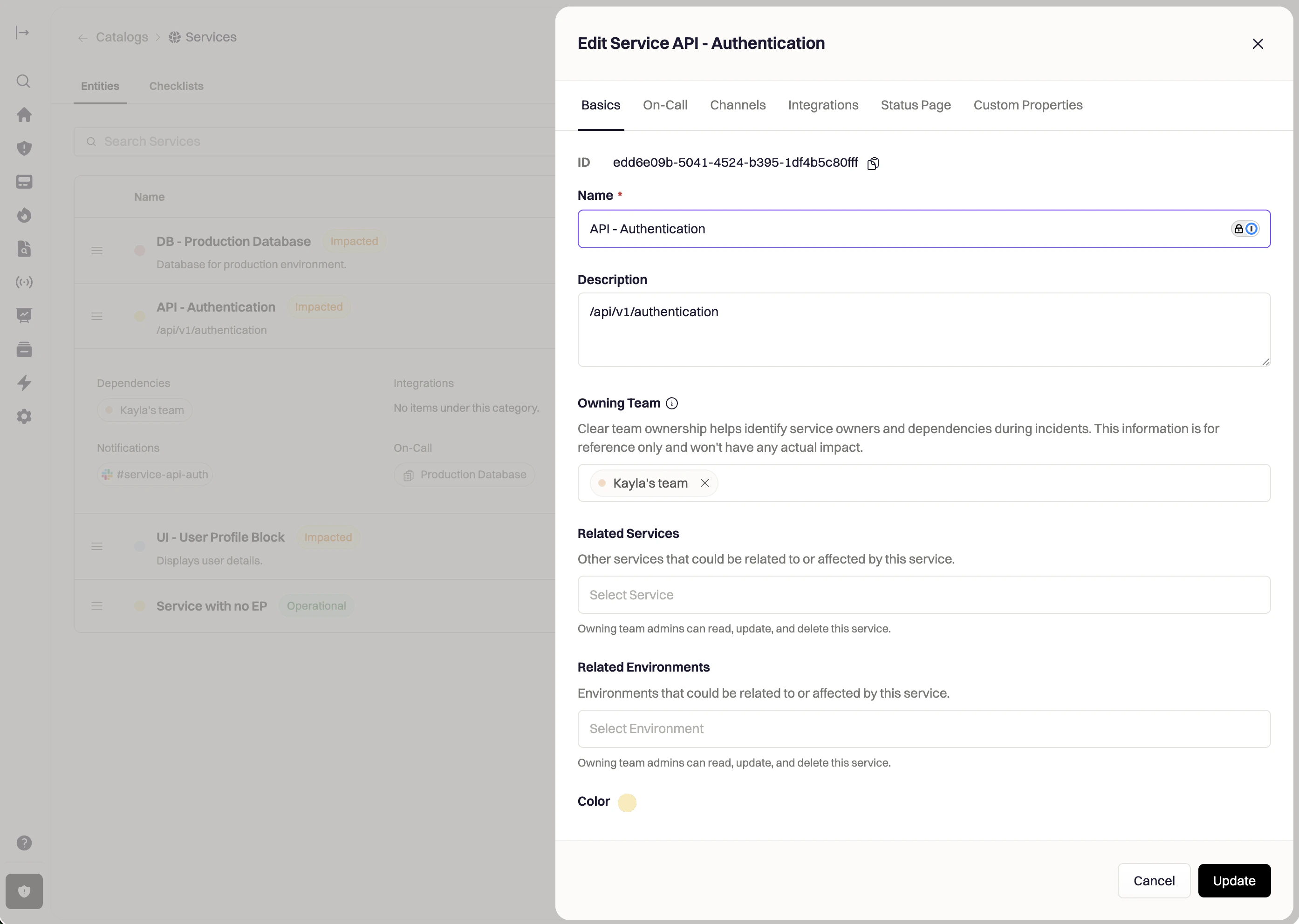
## Basics
Configure the basic details of your Service here.
This is the unique identifier of the service. This field **cannot be customized**. Rootly will auto assign the *ID* upon creation. It is typically used in Liquid references and API calls.
The following Liquid syntax will allow you to list out the service *ID*(s) that are selected for an incident:
`{{ incident.services }}`
OR
`{{ incident.raw_services | get: 'id'}}` for select field type
`{{ incident.raw_services[index] | get: 'id' }}` for multi-select field type
This is the value that is displayed on the UI for the service. This field is customizable.
The following Liquid syntax will allow you to list out the service *name*(s) that are selected for an incident:
`{{ incident.services }}`
OR
`{{ incident.raw_services | get: 'name'}}` for select field type
`{{ incident.raw_services[index] | get: 'name' }}` for multi-select field type
This value is displayed on the UI to further explain each service. This field is customizable.
The following Liquid syntax will allow you to list out the service *description*(s) that are selected for an incident:
`{{ incident.raw_services | get: 'description'}}` for select field type
`{{ incident.raw_services[index] | get: 'description' }}` for multi-select field type
Clear team ownership helps identify service owners and dependencies during incidents. The Owning Team's admins will be able to make changes to the Service.
Add any services that may be related or affected by this service. This is for reference only and won't have any actual impact.
Each service can be assigned a color, which will be used for color-coding on metrics graphs.
Rootly uses **color-hex codes**. E.g. #000000 is black, #ffffff is white. Use [this page](https://www.color-hex.com/) to help you find the exact hex code for the color you want.
The following Liquid syntax will allow you to list out the service *color*(s) that are selected for an incident:
`{{ incident.raw_services | get: 'color'}}` for select field type
`{{ incident.raw_services[index] | get: 'color' }}` for multi-select field type
## On-Call
Configure what happens when this Service is paged in Rootly On-Call. When this Service is paged either manually by a user, or through an Alert Source, the Escalation Policy selected here will fire.
## Channels
Configure the Channels section to reference the Service's related Slack properties. These Slack properties (like Slack Channel and User Group) can be used in Rootly's Workflows to build powerful Slack automations off of the Service.
Each service can be linked to one or more Slack channels. By default, Rootly does not notify the linked channel(s) when a service is selected for an incident. Notification needs to be explicitly called out as Attached Service Channels in workflow configurations.
Systematically, each Slack channel is stored as an object containing an id and name.
The following Liquid syntax will allow you to list out the service *Slack Channel*(s) that are selected for an incident:
`{{ incident.raw_services | get: 'slack_channels'}}` for select field type
`{{ incident.raw_services[index] | get: 'slack_channels' }}` for multi-select field type
Each service can be linked to one or more Slack user groups (aka aliases). By default, Rootly does not invite users in the linked user group(s) when a service is selected for an incident. Invitations need to be explicitly called out as Attached Service Aliases in workflow configurations.
The following Liquid syntax will allow you to list out the service *Slack Alias*(es) that are selected for an incident:
`{{ incident.raw_services | get: 'slack_aliases'}}` for select field type
`{{ incident.raw_services[index] | get: 'slack_aliases' }}` for multi-select field type
Each service can be linked to one or more emails. By default, Rootly does not send emails to the linked address(es) when a service is selected for an incident. Notification needs to be explicitly called out as `{{ incident.raw_services | map: 'notify_emails' | flatten | join: ',' }}` in workflow configurations.
The following Liquid syntax will allow you to list out the service *Notify Email*(s) that are selected for an incident:
`{{ incident.raw_services | get: 'notify_emails'}}` for select field type
`{{ incident.raw_services[index] | get: 'notify_emails' }}` for multi-select field type
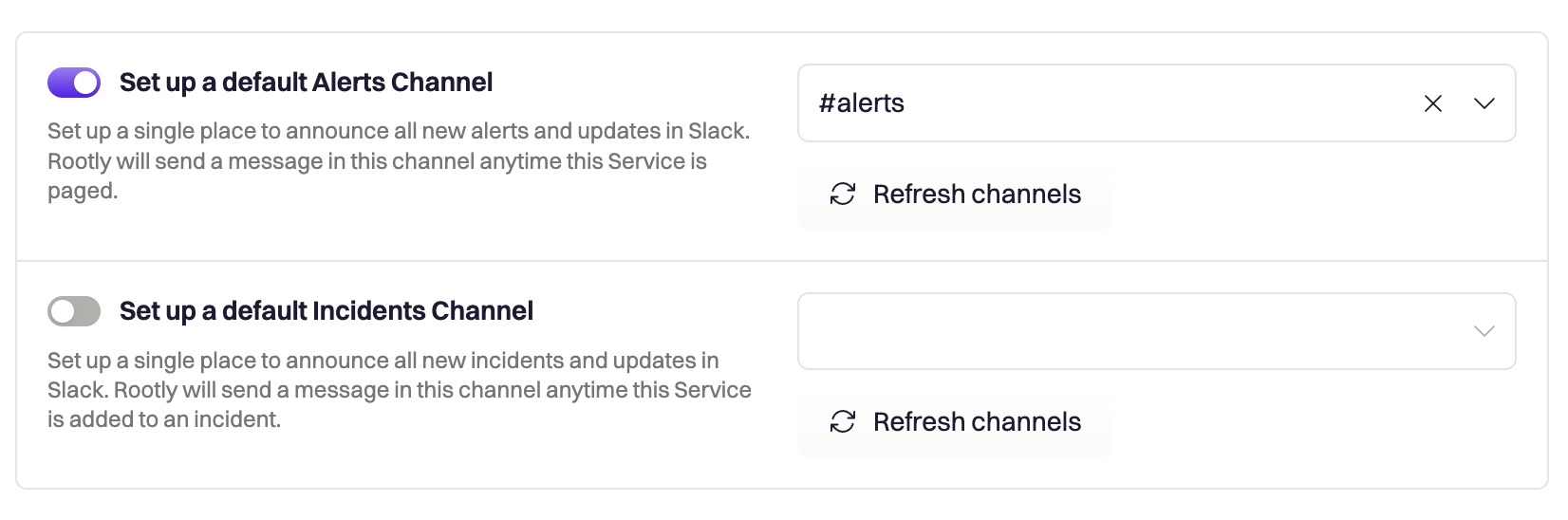
You can also set up default broadcast channels for when the service is either paged, or added to an incident on this page.
Toggle **Set up a default Alerts Channel** On when you want Rootly to automatically post an update to Slack when the service is paged. Toggle **Set up a default Incidents Channel** when you want to post once the service has been added to an incident.
## Adding properties
While Services in Rootly comes with built-in properties, additional properties can be added. This allows you to build automations and workflows for your incident response processes using this information: for example, quickly identifying the customer impact of an incident based on the related service.
To add custom properties, open **Services**, click **Edit catalog**, and click **Add Property**. You can choose from several property types, including text, boolean, and importantly references to other Catalogs.
For each Service, you'll be able to find the values of these properties in the **Custom Properties** tab.
## Basics
Configure the basic details of your Service here.
This is the unique identifier of the service. This field **cannot be customized**. Rootly will auto assign the *ID* upon creation. It is typically used in Liquid references and API calls.
The following Liquid syntax will allow you to list out the service *ID*(s) that are selected for an incident:
`{{ incident.services }}`
OR
`{{ incident.raw_services | get: 'id'}}` for select field type
`{{ incident.raw_services[index] | get: 'id' }}` for multi-select field type
This is the value that is displayed on the UI for the service. This field is customizable.
The following Liquid syntax will allow you to list out the service *name*(s) that are selected for an incident:
`{{ incident.services }}`
OR
`{{ incident.raw_services | get: 'name'}}` for select field type
`{{ incident.raw_services[index] | get: 'name' }}` for multi-select field type
This value is displayed on the UI to further explain each service. This field is customizable.
The following Liquid syntax will allow you to list out the service *description*(s) that are selected for an incident:
`{{ incident.raw_services | get: 'description'}}` for select field type
`{{ incident.raw_services[index] | get: 'description' }}` for multi-select field type
Clear team ownership helps identify service owners and dependencies during incidents. The Owning Team's admins will be able to make changes to the Service.
Add any services that may be related or affected by this service. This is for reference only and won't have any actual impact.
Each service can be assigned a color, which will be used for color-coding on metrics graphs.
Rootly uses **color-hex codes**. E.g. #000000 is black, #ffffff is white. Use [this page](https://www.color-hex.com/) to help you find the exact hex code for the color you want.
The following Liquid syntax will allow you to list out the service *color*(s) that are selected for an incident:
`{{ incident.raw_services | get: 'color'}}` for select field type
`{{ incident.raw_services[index] | get: 'color' }}` for multi-select field type
## On-Call
Configure what happens when this Service is paged in Rootly On-Call. When this Service is paged either manually by a user, or through an Alert Source, the Escalation Policy selected here will fire.
## Channels
Configure the Channels section to reference the Service's related Slack properties. These Slack properties (like Slack Channel and User Group) can be used in Rootly's Workflows to build powerful Slack automations off of the Service.
Each service can be linked to one or more Slack channels. By default, Rootly does not notify the linked channel(s) when a service is selected for an incident. Notification needs to be explicitly called out as Attached Service Channels in workflow configurations.
Systematically, each Slack channel is stored as an object containing an id and name.
The following Liquid syntax will allow you to list out the service *Slack Channel*(s) that are selected for an incident:
`{{ incident.raw_services | get: 'slack_channels'}}` for select field type
`{{ incident.raw_services[index] | get: 'slack_channels' }}` for multi-select field type
Each service can be linked to one or more Slack user groups (aka aliases). By default, Rootly does not invite users in the linked user group(s) when a service is selected for an incident. Invitations need to be explicitly called out as Attached Service Aliases in workflow configurations.
The following Liquid syntax will allow you to list out the service *Slack Alias*(es) that are selected for an incident:
`{{ incident.raw_services | get: 'slack_aliases'}}` for select field type
`{{ incident.raw_services[index] | get: 'slack_aliases' }}` for multi-select field type
Each service can be linked to one or more emails. By default, Rootly does not send emails to the linked address(es) when a service is selected for an incident. Notification needs to be explicitly called out as `{{ incident.raw_services | map: 'notify_emails' | flatten | join: ',' }}` in workflow configurations.
The following Liquid syntax will allow you to list out the service *Notify Email*(s) that are selected for an incident:
`{{ incident.raw_services | get: 'notify_emails'}}` for select field type
`{{ incident.raw_services[index] | get: 'notify_emails' }}` for multi-select field type
You can also set up default broadcast channels for when the service is either paged, or added to an incident on this page.
Toggle **Set up a default Alerts Channel** On when you want Rootly to automatically post an update to Slack when the service is paged. Toggle **Set up a default Incidents Channel** when you want to post once the service has been added to an incident.
 # Services in Fields
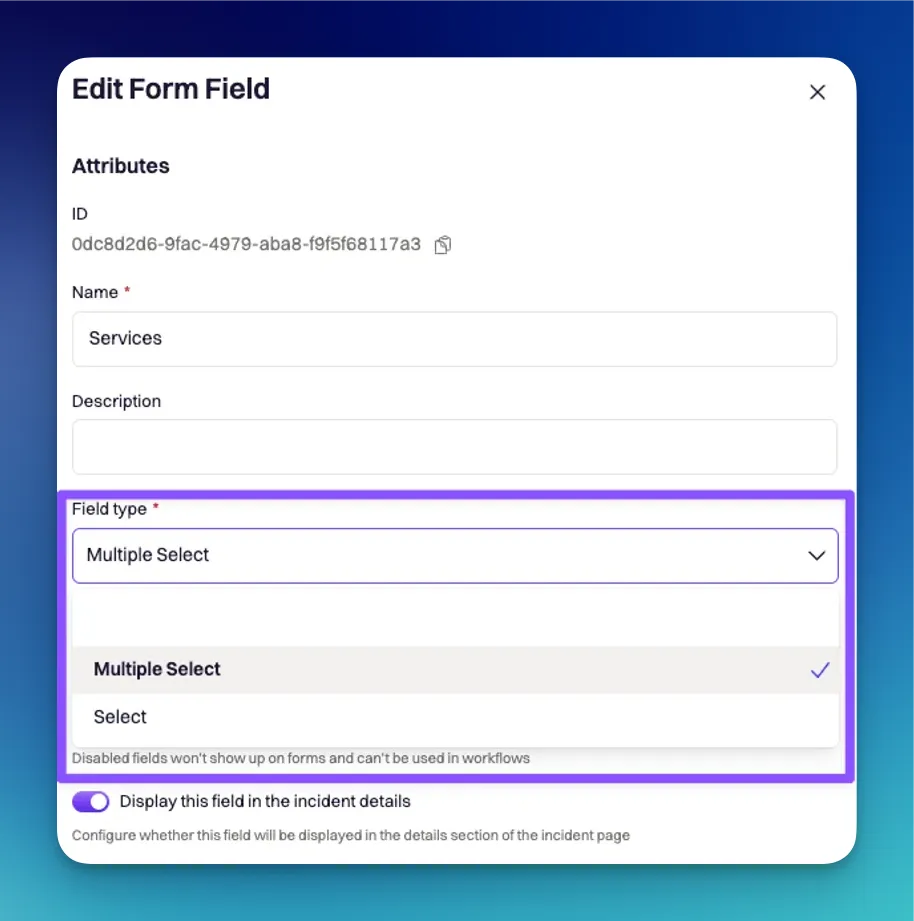
*Service* can be customized to be either a **select** or **multi-select** field type. This means you can configure it to allow only one service value to be selected per incident or allow multiple service values to be selected for a single incident.
# Services in Fields
*Service* can be customized to be either a **select** or **multi-select** field type. This means you can configure it to allow only one service value to be selected per incident or allow multiple service values to be selected for a single incident.
 Since the service field can be either a **select** or **multi-select** field type, the Liquid syntax to reference each field type will differ.
Select will follow a single-value syntax
`{{incident.raw_services | get: ''}}`
Multi-select will follow an array syntax. Where i references the specific service object in the list of services.
`{{incident.raw_services[index] | get: ''}}`
# Import Services
Instead of creating services from scratch, Rootly allows you to import services from **PagerDuty** or **Opsgenie**. Imported services will be automatically kept in sync on a daily basis.
The ability to import teams will only become available once you have PagerDuty or Opsgenie installed on the [integrations page](https://rootly.com/account/integrations).
The following Liquid syntax will allow you to list out the corresponding ids from each of the external paging applications:
**PagerDuty**
`{{ incident.raw_services | get: 'pagerduty_id' }}` for select field type
`{{ incident.raw_services\[0\] | get: 'pagerduty_id' }}`for multi-select field type
**Opsgenie**
`{{ incident.raw_services | get: 'opsgenie_id' }}` for select field type
`{{ incident.raw_services\[0\] | get: 'opsgenie_id' }}`for multi-select field type
Since the service field can be either a **select** or **multi-select** field type, the Liquid syntax to reference each field type will differ.
Select will follow a single-value syntax
`{{incident.raw_services | get: ''}}`
Multi-select will follow an array syntax. Where i references the specific service object in the list of services.
`{{incident.raw_services[index] | get: ''}}`
# Import Services
Instead of creating services from scratch, Rootly allows you to import services from **PagerDuty** or **Opsgenie**. Imported services will be automatically kept in sync on a daily basis.
The ability to import teams will only become available once you have PagerDuty or Opsgenie installed on the [integrations page](https://rootly.com/account/integrations).
The following Liquid syntax will allow you to list out the corresponding ids from each of the external paging applications:
**PagerDuty**
`{{ incident.raw_services | get: 'pagerduty_id' }}` for select field type
`{{ incident.raw_services\[0\] | get: 'pagerduty_id' }}`for multi-select field type
**Opsgenie**
`{{ incident.raw_services | get: 'opsgenie_id' }}` for select field type
`{{ incident.raw_services\[0\] | get: 'opsgenie_id' }}`for multi-select field type