> ## Documentation Index
> Fetch the complete documentation index at: https://docs.rootly.com/llms.txt
> Use this file to discover all available pages before exploring further.
# Creating Action Items in Slack
> Create tasks and follow-ups in Slack using slash commands, emoji reactions, or message menus to convert incident discussions into actionable items.
### How Action Item Creation Works in Slack
Slack is where most real-time incident collaboration occurs, which makes it the perfect place to quickly capture tasks and follow-ups as they emerge. Rootly lets you turn conversations directly into structured action items so nothing is missed.
You can create action items using:
* **Slash commands**
* **Emoji reactions**
* **Slack’s More Actions message menu**
All of these features require that you are inside a **Rootly incident channel** and have permission to create or manage action items.\
For private incidents, you must also have access to the incident itself.
***
### Slash Commands
Slash commands are the fastest and most flexible way to create or update action items.
Run these commands **inside an incident channel**:
#### Create new items
**`/rootly task`**\
Creates a new task for the current incident.
**`/rootly followup`**\
Creates a new follow-up item intended for post-incident improvement work.
Slash-command creation opens a Slack modal, allowing you to set priority, assignee, description, reminders, and more before submitting.
#### Manage or review items
**`/rootly action`**\
Opens the action-item management menu, allowing you to:
* View all action items for the incident
* Create a new task or follow-up
* Change the status
* Assign or reassign a user or group
* Edit descriptions or details
* Delete action items
* Convert between task ↔ follow-up
**`/rootly todo`**\
Displays tasks assigned **specifically to you**, making personal follow-up easy.
The `/rootly todo` command is especially helpful for engineers rotating through on-call — it ensures no assigned work is forgotten after the incident.
***
### Emoji Reactions
Emoji reactions turn Slack messages directly into action items with minimal interruption to the conversation.
When enabled under **Configuration → Integrations → Slack**, reacting to a message triggers auto-creation:
#### Task creation
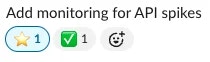
React with a ⭐️ **star emoji** to turn the message into a task.
 #### Follow-up creation
React with a 🔧 **wrench emoji** to convert the message into a follow-up.
#### Follow-up creation
React with a 🔧 **wrench emoji** to convert the message into a follow-up.
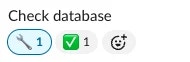 Rootly will add a **white check mark emoji** on success.
Emoji used for tasks and follow-ups must not overlap with emojis configured for:\
**timeline events**, **incident follow-ups**, or **task creation**.\
Rootly enforces this to ensure each emoji has a single clear purpose.
***
### Slack “More Actions” Menu
You can also create action items using Slack’s built-in message menu:
1. Hover over any message in the incident channel.
2. Click **More actions** (•••).
3. Select **Add Action Item**.
4. A modal opens with the message text pre-filled as the summary.
This option is ideal when turning longer discussions, decisions, or troubleshooting notes into structured work without retyping.
***
### What Happens When an Action Item Is Created
Action items created from Slack:
* Appear immediately on the **incident timeline**
* Include the original Slack message text when created from a message
* Support Markdown formatting in descriptions
* May trigger workflows (e.g., create Jira tickets, notify owners)
* Sync with retrospectives and analytics
* Can be assigned to users or groups
Some organizations restrict task creation after incidents are resolved or closed.\
Follow-ups, however, typically remain available for use in post-incident improvement.
***
### Best Practices
* **Capture tasks early**\
Adding tasks in real time prevents important work from getting lost in conversation.
* **Assign owners immediately**\
Tasks without owners are often forgotten — assignment drives accountability.
* **Use follow-ups for long-term improvements**\
These items support durable reliability gains after the incident.
* **Use priorities intentionally**\
High-priority items should be reviewed in retrospectives, weekly ops syncs, or technical leadership meetings.
* **Keep emoji intuitive**\
Choose emojis your team naturally reaches for during conversations.
* **Leverage `/rootly todo`**\
Helps responders keep track of what’s on their plate throughout and after the incident.
* **Automate recurring work**\
Use workflows to auto-create tasks like “Prepare retrospective document” or “Notify customer support.”
The strongest incident programs treat action items as part of a continuous improvement loop — not just a list of things to do.
***
### Troubleshooting
Check the following:
* You reacted **inside an incident channel**
* The emoji is configured in the Slack integration settings
* Emoji aren’t conflicting with other trigger types
* Emoji ingestion is enabled for your Slack workspace
This usually means:
* You don’t have permission to create or modify action items
* The incident is in a state where new tasks are restricted
* You're not inside a valid incident channel
* Confirm you created it in the **correct** incident channel
* Ensure the Slack message wasn’t deleted
* Verify the Rootly Slack app has permission to read and react to messages
Often caused by:
* Slack integration not fully installed
* You're not in an incident channel
* Your Slack role/user permissions limit access to message actions
The checkmark is Rootly’s confirmation reaction, letting you know your task or follow-up was created successfully.
This depends on your workspace settings. Some organizations disable new task creation after resolution to preserve process discipline, but follow-ups remain available.
Rootly will add a **white check mark emoji** on success.
Emoji used for tasks and follow-ups must not overlap with emojis configured for:\
**timeline events**, **incident follow-ups**, or **task creation**.\
Rootly enforces this to ensure each emoji has a single clear purpose.
***
### Slack “More Actions” Menu
You can also create action items using Slack’s built-in message menu:
1. Hover over any message in the incident channel.
2. Click **More actions** (•••).
3. Select **Add Action Item**.
4. A modal opens with the message text pre-filled as the summary.
This option is ideal when turning longer discussions, decisions, or troubleshooting notes into structured work without retyping.
***
### What Happens When an Action Item Is Created
Action items created from Slack:
* Appear immediately on the **incident timeline**
* Include the original Slack message text when created from a message
* Support Markdown formatting in descriptions
* May trigger workflows (e.g., create Jira tickets, notify owners)
* Sync with retrospectives and analytics
* Can be assigned to users or groups
Some organizations restrict task creation after incidents are resolved or closed.\
Follow-ups, however, typically remain available for use in post-incident improvement.
***
### Best Practices
* **Capture tasks early**\
Adding tasks in real time prevents important work from getting lost in conversation.
* **Assign owners immediately**\
Tasks without owners are often forgotten — assignment drives accountability.
* **Use follow-ups for long-term improvements**\
These items support durable reliability gains after the incident.
* **Use priorities intentionally**\
High-priority items should be reviewed in retrospectives, weekly ops syncs, or technical leadership meetings.
* **Keep emoji intuitive**\
Choose emojis your team naturally reaches for during conversations.
* **Leverage `/rootly todo`**\
Helps responders keep track of what’s on their plate throughout and after the incident.
* **Automate recurring work**\
Use workflows to auto-create tasks like “Prepare retrospective document” or “Notify customer support.”
The strongest incident programs treat action items as part of a continuous improvement loop — not just a list of things to do.
***
### Troubleshooting
Check the following:
* You reacted **inside an incident channel**
* The emoji is configured in the Slack integration settings
* Emoji aren’t conflicting with other trigger types
* Emoji ingestion is enabled for your Slack workspace
This usually means:
* You don’t have permission to create or modify action items
* The incident is in a state where new tasks are restricted
* You're not inside a valid incident channel
* Confirm you created it in the **correct** incident channel
* Ensure the Slack message wasn’t deleted
* Verify the Rootly Slack app has permission to read and react to messages
Often caused by:
* Slack integration not fully installed
* You're not in an incident channel
* Your Slack role/user permissions limit access to message actions
The checkmark is Rootly’s confirmation reaction, letting you know your task or follow-up was created successfully.
This depends on your workspace settings. Some organizations disable new task creation after resolution to preserve process discipline, but follow-ups remain available.