> ## Documentation Index
> Fetch the complete documentation index at: https://docs.rootly.com/llms.txt
> Use this file to discover all available pages before exploring further.
# Converting Existing Slack Channels to Incidents
> A step-by-step guide to converting an existing Slack channel into a Rootly incident channel without losing message history, members, or context.
### Overview
If your team begins investigating an issue in Slack before formally declaring an incident, you can convert that existing conversation into a Rootly incident channel.\
This ensures:
* No message history is lost
* All responders stay in the same channel
* Automated timelines, workflows, and notifications still run
* The incident is created with full context from the existing discussion
The `/incident convert` command transforms any standard Slack channel into a full Rootly incident channel.
### Convert an Existing Slack Channel
In the Slack channel you want to convert, type:
```
/incident convert
```
Then press **Enter**.
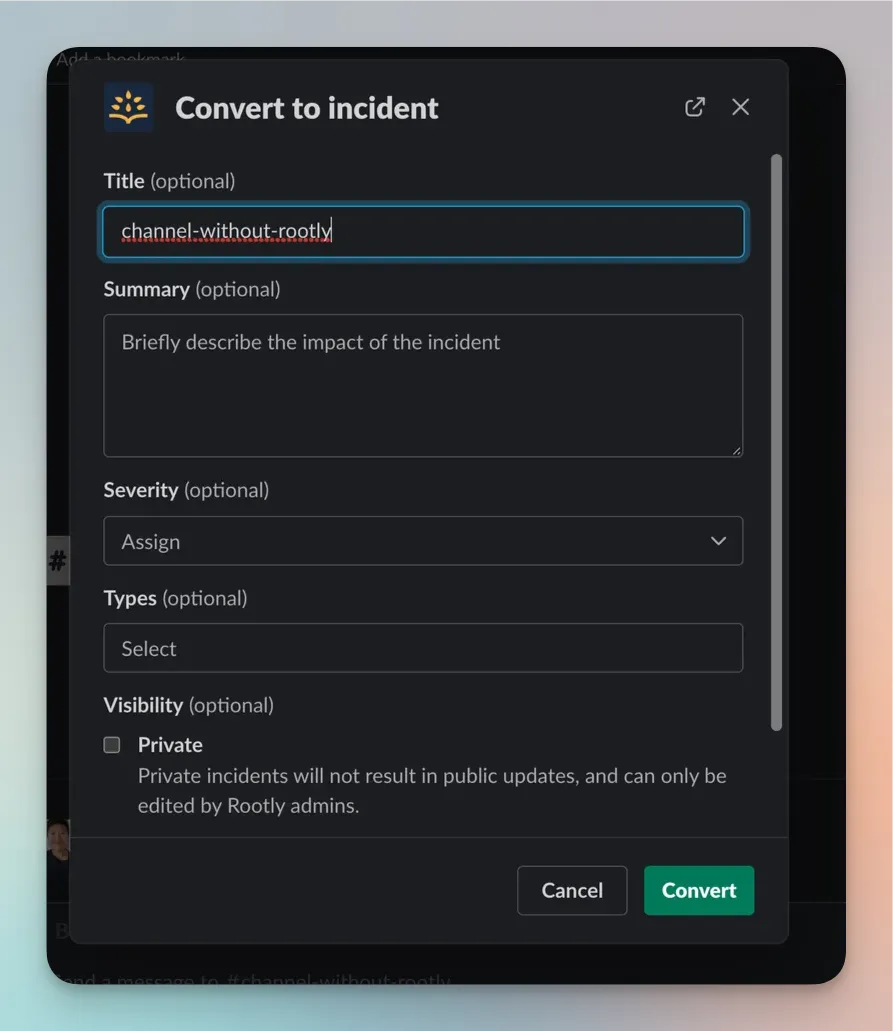
This opens the **Convert to Incident** modal.
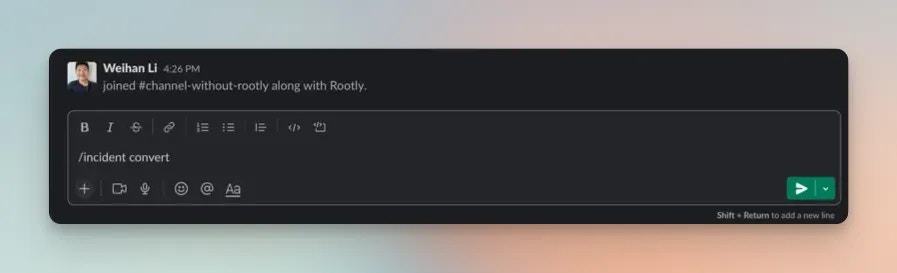 You must run the command inside the channel you want to convert — it cannot be used from other channels or DMs.
The modal includes the same configurable fields you see when creating a new incident:
* **Title**
* **Summary**
* **Severity**
* **Incident Type**
* **Private Incident (optional)**
* Any custom fields your workspace has configured
You must run the command inside the channel you want to convert — it cannot be used from other channels or DMs.
The modal includes the same configurable fields you see when creating a new incident:
* **Title**
* **Summary**
* **Severity**
* **Incident Type**
* **Private Incident (optional)**
* Any custom fields your workspace has configured
 ### What Happens After Conversion
Once submitted, Rootly will:
* Create a new incident in the Rootly platform
* Link the Slack channel to the incident
* Preserve **all** prior messages in the channel
* Generate initial timeline entries
* Trigger any incident-creation workflows
* Assign default roles or responders (if configured)
* Enable Slack commands such as `/rootly status`, `/rootly resolve`, etc.
From here, the channel behaves like any other incident channel created through Slack or the Web UI.
Conversion never deletes or archives the channel — all previous activity remains intact.
### When to Use Conversion
Use `/incident convert` when:
* Responders start troubleshooting informally in Slack
* An issue escalates from a conversation into a true incident
* You want to preserve all investigative context without creating a new channel
* You want workflows, timelines, and notifications to begin after discussion has already started
### Troubleshooting
Ensure:
* You ran `/incident convert` **inside the Slack channel** to be converted
* The Rootly Slack app has permission to access that channel
* You are a user with permission to create incidents
Your workspace may enforce creation requirements.\
Open **Configuration → Forms** to confirm what fields must be included.
Confirm Slack channel conversions are enabled in your Rootly Slack Integration settings.
### Best Practices
* Convert as soon as a conversation becomes operational or time-sensitive
* Provide a clear incident title and summary to help responders ramp quickly
* Use severity to trigger correct workflows and escalation
* Avoid converting channels that contain unrelated historical content
* Use private incidents when the discussion involves sensitive data
### What Happens After Conversion
Once submitted, Rootly will:
* Create a new incident in the Rootly platform
* Link the Slack channel to the incident
* Preserve **all** prior messages in the channel
* Generate initial timeline entries
* Trigger any incident-creation workflows
* Assign default roles or responders (if configured)
* Enable Slack commands such as `/rootly status`, `/rootly resolve`, etc.
From here, the channel behaves like any other incident channel created through Slack or the Web UI.
Conversion never deletes or archives the channel — all previous activity remains intact.
### When to Use Conversion
Use `/incident convert` when:
* Responders start troubleshooting informally in Slack
* An issue escalates from a conversation into a true incident
* You want to preserve all investigative context without creating a new channel
* You want workflows, timelines, and notifications to begin after discussion has already started
### Troubleshooting
Ensure:
* You ran `/incident convert` **inside the Slack channel** to be converted
* The Rootly Slack app has permission to access that channel
* You are a user with permission to create incidents
Your workspace may enforce creation requirements.\
Open **Configuration → Forms** to confirm what fields must be included.
Confirm Slack channel conversions are enabled in your Rootly Slack Integration settings.
### Best Practices
* Convert as soon as a conversation becomes operational or time-sensitive
* Provide a clear incident title and summary to help responders ramp quickly
* Use severity to trigger correct workflows and escalation
* Avoid converting channels that contain unrelated historical content
* Use private incidents when the discussion involves sensitive data