> ## Documentation Index
> Fetch the complete documentation index at: https://docs.rootly.com/llms.txt
> Use this file to discover all available pages before exploring further.
# Incident lifecycle stages and status transitions
> Understand each Rootly incident lifecycle stage from triage through closure, including status transitions, timestamps, and default fields.
### Overview
Rootly models every incident using a sequence of lifecycle stages that reflect how teams actually discover, assess, respond to, and close out operational issues. Each stage corresponds to an **incident status**, and Rootly automatically records timestamps as incidents progress. These statuses power automation, analytics, retrospectives, and help teams maintain a clean, consistent operational process.
Each lifecycle transition can be made from the web UI or via Slack commands such as `/rootly mitigate`, `/rootly resolve`, and `/rootly cancel`. Rootly automatically records the appropriate timestamp with every status change.
### Triage
Incidents frequently begin with incomplete or ambiguous signals.\
The **Triage** status is designed for these early situations where something may be wrong, but responders are not yet certain. Entering Triage keeps notifications limited so teams can investigate without alarming broader stakeholders.
**How to enter Triage:**
* When creating an incident, select the **Mark as In Triage** checkbox
* Or update the status from Slack or the web UI
**Data value:** `in_triage`\
**Timestamp:** `in_triage_at` (only recorded if the incident actually enters Triage)
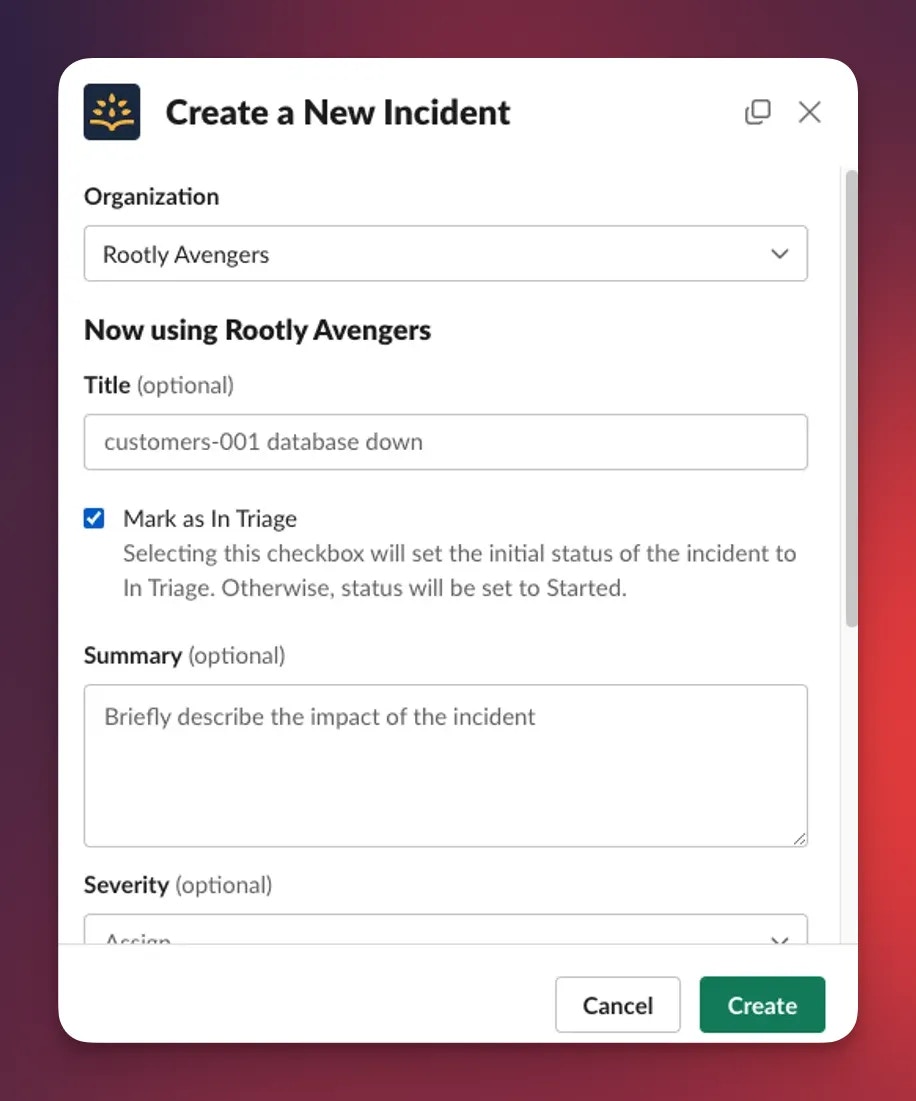 Triage helps contain blast radius and ensures only key responders are involved before an issue is fully confirmed.
### Started
Once responders confirm the issue is real, the incident progresses to the **Started** status. This is the point where coordinated response begins—roles are assigned, communication channels open, and early hypotheses are formed.
**How to enter Started:**
* Leave **Mark as In Triage** **unchecked** during incident creation
* Or move from Triage → Started in the UI or via Slack
**Data value:** `started`\
**Timestamp:** `started_at`
Triage helps contain blast radius and ensures only key responders are involved before an issue is fully confirmed.
### Started
Once responders confirm the issue is real, the incident progresses to the **Started** status. This is the point where coordinated response begins—roles are assigned, communication channels open, and early hypotheses are formed.
**How to enter Started:**
* Leave **Mark as In Triage** **unchecked** during incident creation
* Or move from Triage → Started in the UI or via Slack
**Data value:** `started`\
**Timestamp:** `started_at`
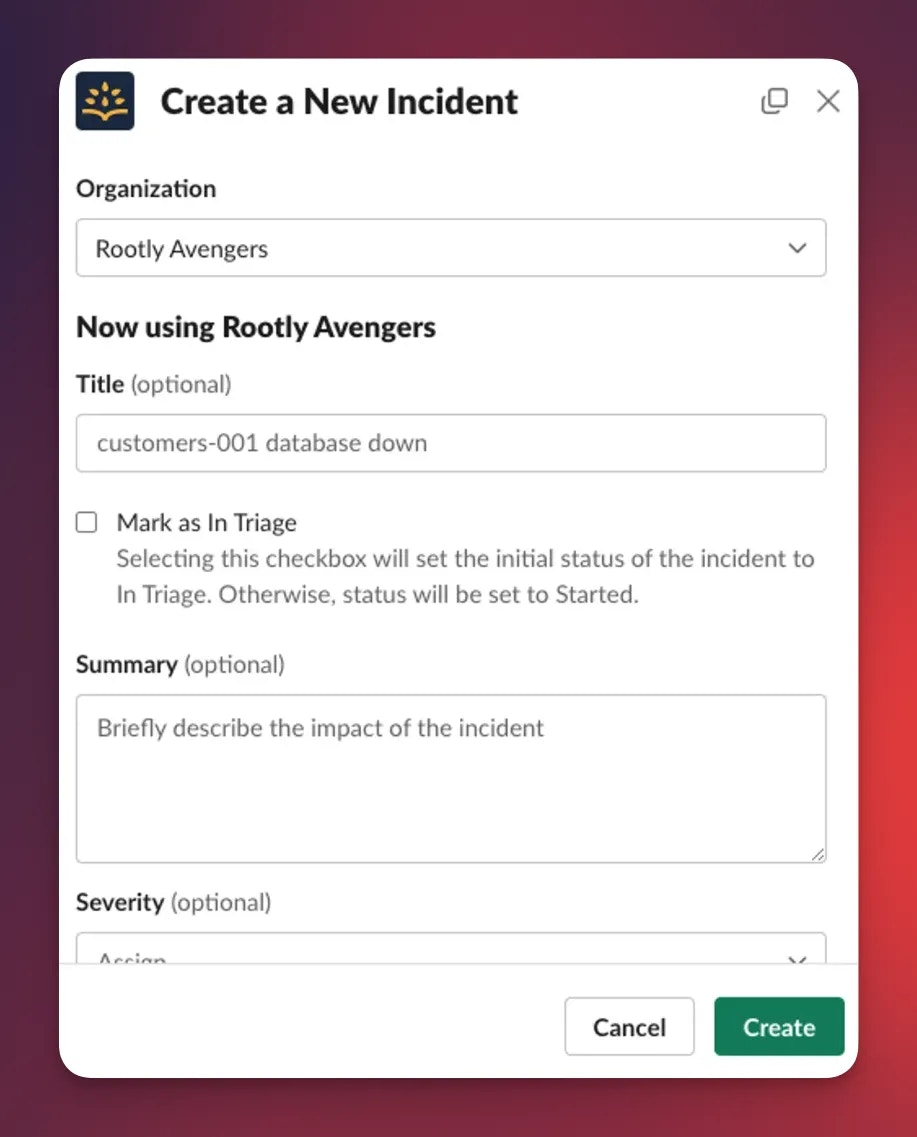 If you skip Triage during creation, Rootly sets the incident directly to Started.
### Detected *(Optional)*
Some teams track the moment an issue was first **noticed**, separate from when response formally began.
**Data value:** `detected`\
**Timestamp:** `detected_at`
Captured detection time supports metrics like MTTD (Mean Time To Detect).
### Acknowledged *(Optional)*
Acknowledgement indicates a specific responder has taken ownership, which pauses escalations and clarifies responsibility even before major status transitions occur.
**Data value:** `acknowledged`\
**Timestamp:** `acknowledged_at`
### Mitigated
An incident becomes **Mitigated** when the immediate impact has been contained. Users may still be affected, but the issue is no longer actively worsening. This is common when temporary fixes, failovers, or emergency controls are applied.
**How to enter Mitigated:**
* Use the **Mitigate** button
* Or run `/rootly mitigate` in Slack
**Data value:** `mitigated`\
**Timestamp:** `mitigated_at`
If you skip Triage during creation, Rootly sets the incident directly to Started.
### Detected *(Optional)*
Some teams track the moment an issue was first **noticed**, separate from when response formally began.
**Data value:** `detected`\
**Timestamp:** `detected_at`
Captured detection time supports metrics like MTTD (Mean Time To Detect).
### Acknowledged *(Optional)*
Acknowledgement indicates a specific responder has taken ownership, which pauses escalations and clarifies responsibility even before major status transitions occur.
**Data value:** `acknowledged`\
**Timestamp:** `acknowledged_at`
### Mitigated
An incident becomes **Mitigated** when the immediate impact has been contained. Users may still be affected, but the issue is no longer actively worsening. This is common when temporary fixes, failovers, or emergency controls are applied.
**How to enter Mitigated:**
* Use the **Mitigate** button
* Or run `/rootly mitigate` in Slack
**Data value:** `mitigated`\
**Timestamp:** `mitigated_at`
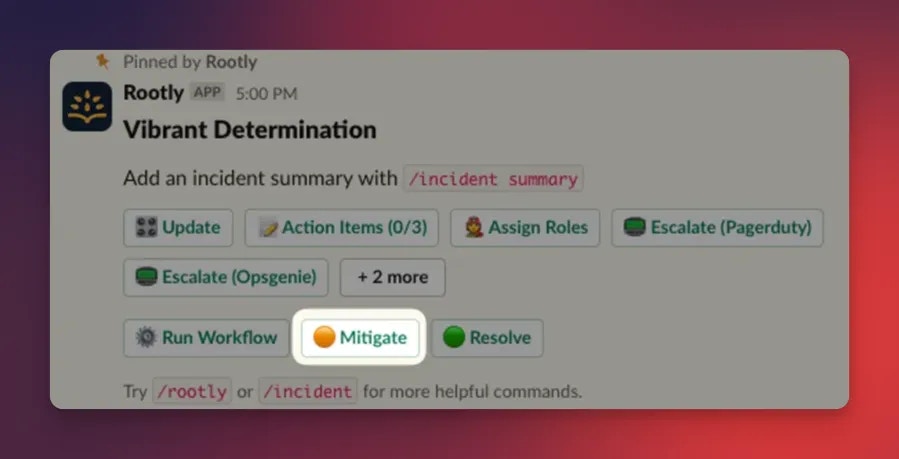 If the incident moves straight to Resolved without entering Mitigated, Rootly automatically sets `mitigated_at` equal to `resolved_at` so analytics remain accurate.
### Resolved
An incident is **Resolved** when the underlying issue has been fixed and service impact is no longer present.\
This moment typically triggers stakeholder updates and begins the retrospective process.
**How to enter Resolved:**
* Click **Resolve**
* Or run `/rootly resolve` in Slack
**Data value:** `resolved`\
**Timestamp:** `resolved_at`
If the incident moves straight to Resolved without entering Mitigated, Rootly automatically sets `mitigated_at` equal to `resolved_at` so analytics remain accurate.
### Resolved
An incident is **Resolved** when the underlying issue has been fixed and service impact is no longer present.\
This moment typically triggers stakeholder updates and begins the retrospective process.
**How to enter Resolved:**
* Click **Resolve**
* Or run `/rootly resolve` in Slack
**Data value:** `resolved`\
**Timestamp:** `resolved_at`
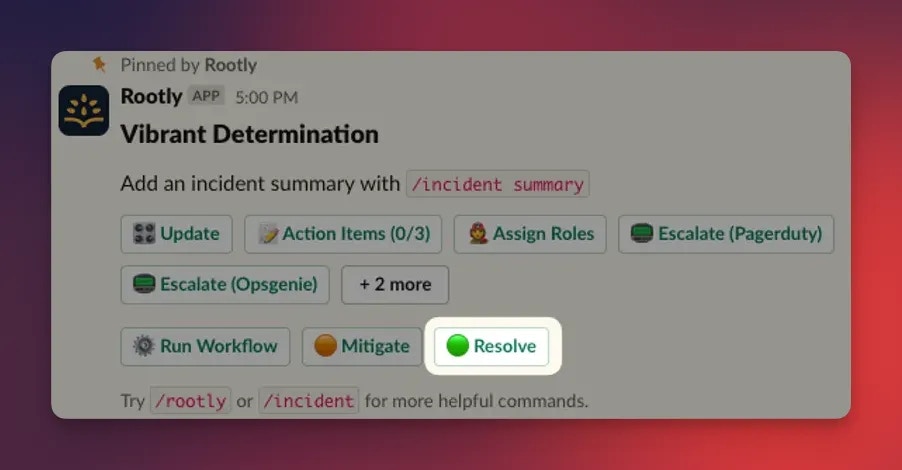 Many teams configure workflows that automatically generate a Retrospective when an incident reaches Resolved.
### Closed
While **Resolved** means “the system is fixed,” **Closed** means “all follow-up work is complete.”\
This includes finishing retrospectives, verifying action items, and closing out communications.
**Data value:** `closed`\
**Timestamp:** `closed_at`
Use Closed to separate **technical completion** from **process completion**.
### Cancelled
A **Cancelled** incident represents a false positive or the identification of a duplicate.\
It prevents unnecessary responder work and keeps analytics clean.
**How to enter Cancelled:**
* Use the **Cancel Incident** button
* Or run `/rootly cancel`
* **Available only when the incident is in Triage**
**Data value:** `cancelled`\
**Timestamp:** `cancelled_at`
Many teams configure workflows that automatically generate a Retrospective when an incident reaches Resolved.
### Closed
While **Resolved** means “the system is fixed,” **Closed** means “all follow-up work is complete.”\
This includes finishing retrospectives, verifying action items, and closing out communications.
**Data value:** `closed`\
**Timestamp:** `closed_at`
Use Closed to separate **technical completion** from **process completion**.
### Cancelled
A **Cancelled** incident represents a false positive or the identification of a duplicate.\
It prevents unnecessary responder work and keeps analytics clean.
**How to enter Cancelled:**
* Use the **Cancel Incident** button
* Or run `/rootly cancel`
* **Available only when the incident is in Triage**
**Data value:** `cancelled`\
**Timestamp:** `cancelled_at`
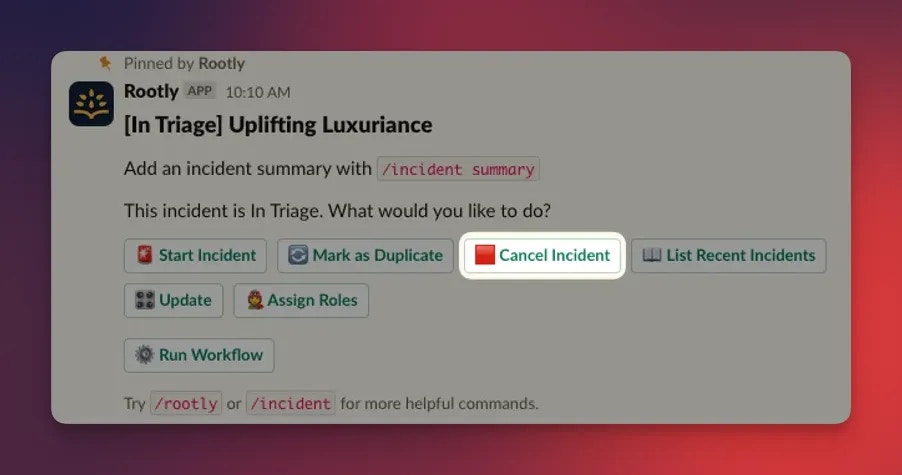 Cancelled incidents do not continue through the lifecycle. Only cancel when the event is truly non-actionable or duplicated.
### Planned Maintenance *(Optional)*
Rootly can model planned or controlled [operational work.](https://rootly.com/changelog/planned-maintenance-made-easier)\
Scheduled incident lifecycle values include:
* **planning** — defining scope
* **scheduled** — approved window (`scheduled_for`, `scheduled_until`)
* **in\_progress** — work underway
* **completed** — work finished
* **verifying** — final checks
This allows scheduled maintenance to be tracked with the same rigor as unplanned incidents.
### Timeline
Every incident includes a **Timeline**, which organizes all key moments—status changes, role assignments, workflow actions, Slack updates, alerts, and manual entries—into a coherent narrative.
Timeline entries can be added via Slack, the Rootly web UI, email-to-incident, or automations. This makes retrospectives dramatically easier.
### Status Overview
| Status | Data Value | Timestamp Field |
| :------------- | :------------- | :---------------: |
| Triage | `in_triage` | `in_triage_at` |
| Started | `started` | `started_at` |
| Detected\* | `detected` | `detected_at` |
| Acknowledged\* | `acknowledged` | `acknowledged_at` |
| Mitigated | `mitigated` | `mitigated_at` |
| Resolved | `resolved` | `resolved_at` |
| Closed | `closed` | `closed_at` |
| Cancelled | `cancelled` | `cancelled_at` |
\*Optional depending on workflow usage.
### FAQ
Use **Triage**. It limits notifications and keeps early investigation to a small responder group.\
Use **Started** only once you are confident the issue is real.
Yes. If you leave **Mark as In Triage** **unchecked** during creation, Rootly will set the incident directly to **Started**.
No. Mitigated is optional, but recommended. If you skip it and go straight to **Resolved**, Rootly will automatically set `mitigated_at = resolved_at` to preserve accurate analytics.
* **Resolved** = the technical issue is fixed
* **Closed** = all follow-up work (retrospectives, action items, communication, cleanup) is complete
Teams often resolve incidents quickly but close them later.
Yes—Rootly supports additional operational statuses such as **Detected**, **Acknowledged**, and **Scheduled Maintenance** states (`planning`, `scheduled`, `in_progress`, etc.). These are optional and configurable based on your workflow.
Use **Action Items** or attach tasks directly from the incident.\
Once these are complete, set the incident to **Closed**.
| |
| - |
Cancelled incidents do not continue through the lifecycle. Only cancel when the event is truly non-actionable or duplicated.
### Planned Maintenance *(Optional)*
Rootly can model planned or controlled [operational work.](https://rootly.com/changelog/planned-maintenance-made-easier)\
Scheduled incident lifecycle values include:
* **planning** — defining scope
* **scheduled** — approved window (`scheduled_for`, `scheduled_until`)
* **in\_progress** — work underway
* **completed** — work finished
* **verifying** — final checks
This allows scheduled maintenance to be tracked with the same rigor as unplanned incidents.
### Timeline
Every incident includes a **Timeline**, which organizes all key moments—status changes, role assignments, workflow actions, Slack updates, alerts, and manual entries—into a coherent narrative.
Timeline entries can be added via Slack, the Rootly web UI, email-to-incident, or automations. This makes retrospectives dramatically easier.
### Status Overview
| Status | Data Value | Timestamp Field |
| :------------- | :------------- | :---------------: |
| Triage | `in_triage` | `in_triage_at` |
| Started | `started` | `started_at` |
| Detected\* | `detected` | `detected_at` |
| Acknowledged\* | `acknowledged` | `acknowledged_at` |
| Mitigated | `mitigated` | `mitigated_at` |
| Resolved | `resolved` | `resolved_at` |
| Closed | `closed` | `closed_at` |
| Cancelled | `cancelled` | `cancelled_at` |
\*Optional depending on workflow usage.
### FAQ
Use **Triage**. It limits notifications and keeps early investigation to a small responder group.\
Use **Started** only once you are confident the issue is real.
Yes. If you leave **Mark as In Triage** **unchecked** during creation, Rootly will set the incident directly to **Started**.
No. Mitigated is optional, but recommended. If you skip it and go straight to **Resolved**, Rootly will automatically set `mitigated_at = resolved_at` to preserve accurate analytics.
* **Resolved** = the technical issue is fixed
* **Closed** = all follow-up work (retrospectives, action items, communication, cleanup) is complete
Teams often resolve incidents quickly but close them later.
Yes—Rootly supports additional operational statuses such as **Detected**, **Acknowledged**, and **Scheduled Maintenance** states (`planning`, `scheduled`, `in_progress`, etc.). These are optional and configurable based on your workflow.
Use **Action Items** or attach tasks directly from the incident.\
Once these are complete, set the incident to **Closed**.
| |
| - |