> ## Documentation Index
> Fetch the complete documentation index at: https://docs.rootly.com/llms.txt
> Use this file to discover all available pages before exploring further.
# Scheduling Maintenance Incidents
> Learn how to schedule and manage maintenance incidents for planned service interruptions, including Slack channel creation and status page integration.
Maintenance incidents allow your teams to plan, coordinate, and communicate progress of your planned downtime and maintenance windows.
Create a Maintenance Incident in the Rootly web app under **Incidents** > **Maintenance**.
Rootly does not automatically generate a Slack channel for Maintenance Incidents. Create one by selecting the Slack icon under the incident title in the web app.
After the maintenance incident has been created, share it on your [Status Pages](https://docs.rootly.com/configuration/status-pages).
# Schedule a Maintenance Incident from the web app
Go to **Incidents > Maintenance** and click **Schedule Maintenance** in the top-right corner.
 Fill in the *Maintenance Incident* form. If you want to gather more details, the form can be completely customized in the **Configuration** > **Forms** section of the web application.
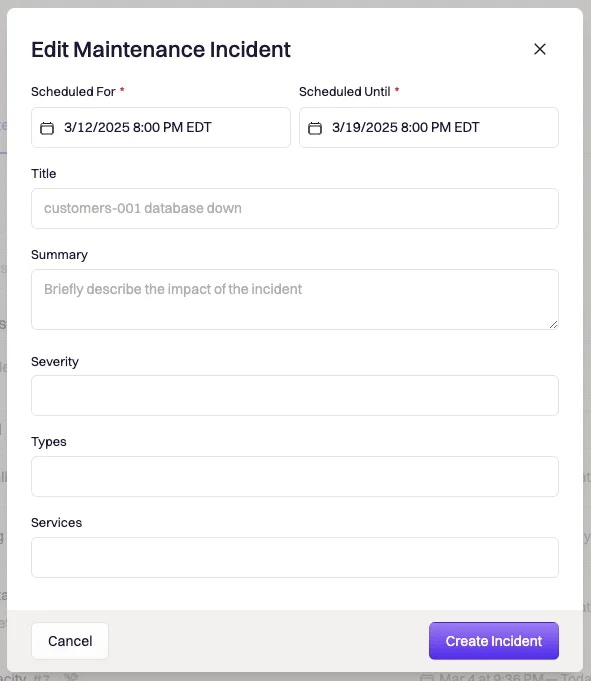 The default *Maintenance Incident* form includes:
| Field | Content |
| ------------------------------------------------------------------- | -------------------------------------------------------------------------------------------- |
| Title | Title of the incident. This will be used to create the channel name along with today's date. |
| Summary | A summary of the incident. |
| [Severity](https://docs.rootly.com/configuration/severities) | Defaults: Severity level from SEV3 to SEV0. |
| [Type](https://docs.rootly.com/configuration/incident-types) | The type of incident. Defaults: Cloud, Security, Customer facing, Default. |
| [Services](https://docs.rootly.com/configuration/services#services) | The service or services impacted. |
Click **Create Incident** to save.
The default *Maintenance Incident* form includes:
| Field | Content |
| ------------------------------------------------------------------- | -------------------------------------------------------------------------------------------- |
| Title | Title of the incident. This will be used to create the channel name along with today's date. |
| Summary | A summary of the incident. |
| [Severity](https://docs.rootly.com/configuration/severities) | Defaults: Severity level from SEV3 to SEV0. |
| [Type](https://docs.rootly.com/configuration/incident-types) | The type of incident. Defaults: Cloud, Security, Customer facing, Default. |
| [Services](https://docs.rootly.com/configuration/services#services) | The service or services impacted. |
Click **Create Incident** to save.
 # Schedule a Maintenance Incident from Slack
Enter the Slack command **/rootly maintenance**. Press *enter* or click *the paper plane icon* to run the command and open the *maintenance incident* form.
Fill in the *maintenance incident* form. *Scheduled for* and *Scheduled until* dates and times are required.
# Schedule a Maintenance Incident from Slack
Enter the Slack command **/rootly maintenance**. Press *enter* or click *the paper plane icon* to run the command and open the *maintenance incident* form.
Fill in the *maintenance incident* form. *Scheduled for* and *Scheduled until* dates and times are required.
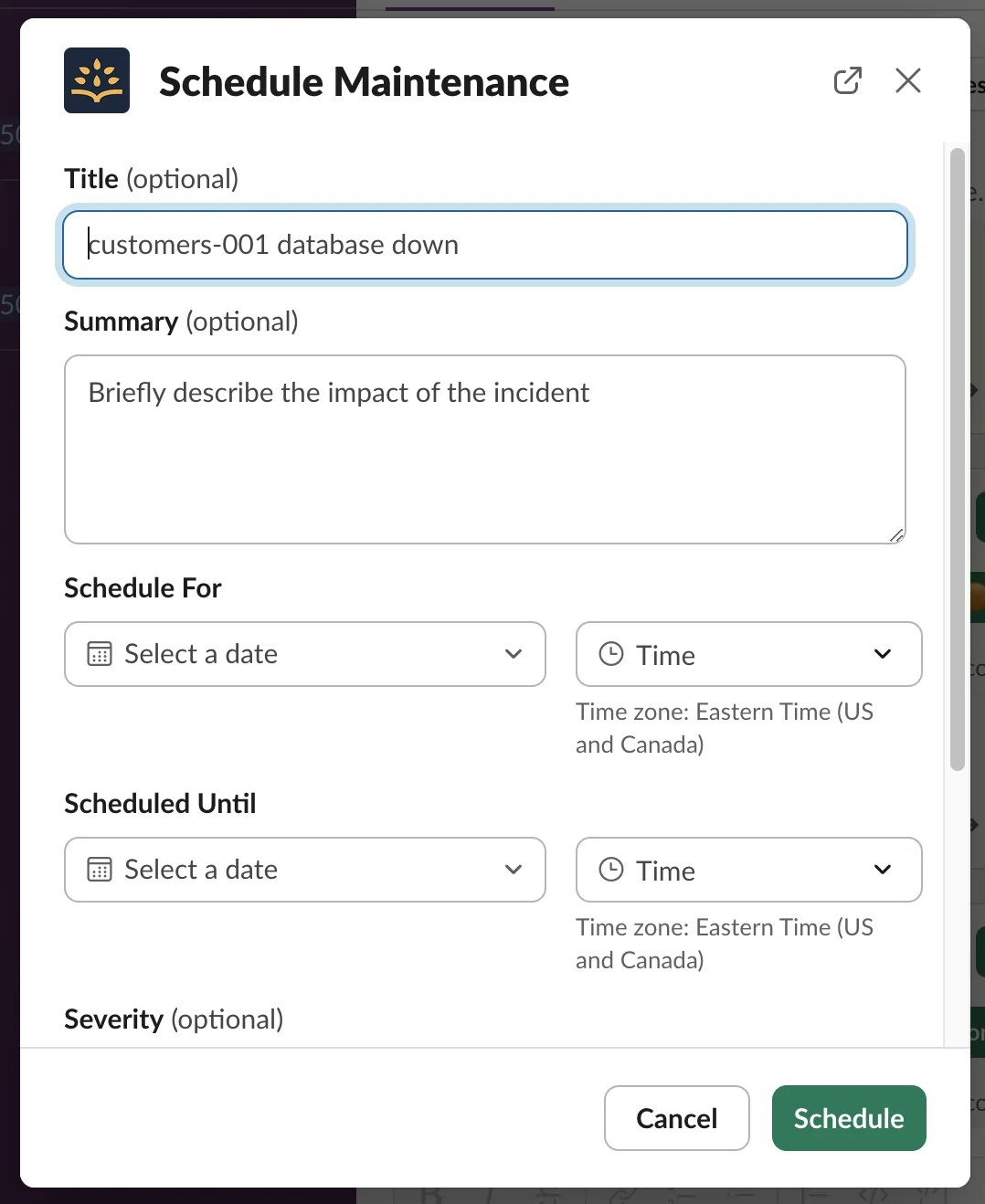 Most of the fields in the *maintenance incident* form can be customized and new fields can be added. If you want to gather more details, the form can be completely customized in the **Configuration** > **Forms** section of the web application.
The default *maintenance incident* form includes:
| Field | Content |
| ------------------------------------------------------------------- | -------------------------------------------------------------------------------------------- |
| Title | Title of the incident. This will be used to create the channel name along with today's date. |
| Summary | A summary of the incident. |
| [Severity](https://docs.rootly.com/configuration/severities) | Defaults: Severity level from SEV3 to SEV0. |
| [Type](https://docs.rootly.com/configuration/incident-types) | The type of incident. Defaults: Cloud, Security, Customer facing, Default. |
| [Services](https://docs.rootly.com/configuration/services#services) | The service or services impacted. |
Click **Schedule** to save.
Most of the fields in the *maintenance incident* form can be customized and new fields can be added. If you want to gather more details, the form can be completely customized in the **Configuration** > **Forms** section of the web application.
The default *maintenance incident* form includes:
| Field | Content |
| ------------------------------------------------------------------- | -------------------------------------------------------------------------------------------- |
| Title | Title of the incident. This will be used to create the channel name along with today's date. |
| Summary | A summary of the incident. |
| [Severity](https://docs.rootly.com/configuration/severities) | Defaults: Severity level from SEV3 to SEV0. |
| [Type](https://docs.rootly.com/configuration/incident-types) | The type of incident. Defaults: Cloud, Security, Customer facing, Default. |
| [Services](https://docs.rootly.com/configuration/services#services) | The service or services impacted. |
Click **Schedule** to save.
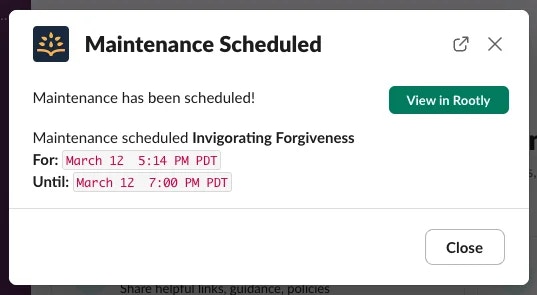 The maintenance incident is now available in the Rootly web app. To manage the incident in Slack, select *View in Rootly,* then click the Slack icon under the incident title.
# Update a maintenance incident
## **Change the status**
The maintenance incident is now available in the Rootly web app. To manage the incident in Slack, select *View in Rootly,* then click the Slack icon under the incident title.
# Update a maintenance incident
## **Change the status**
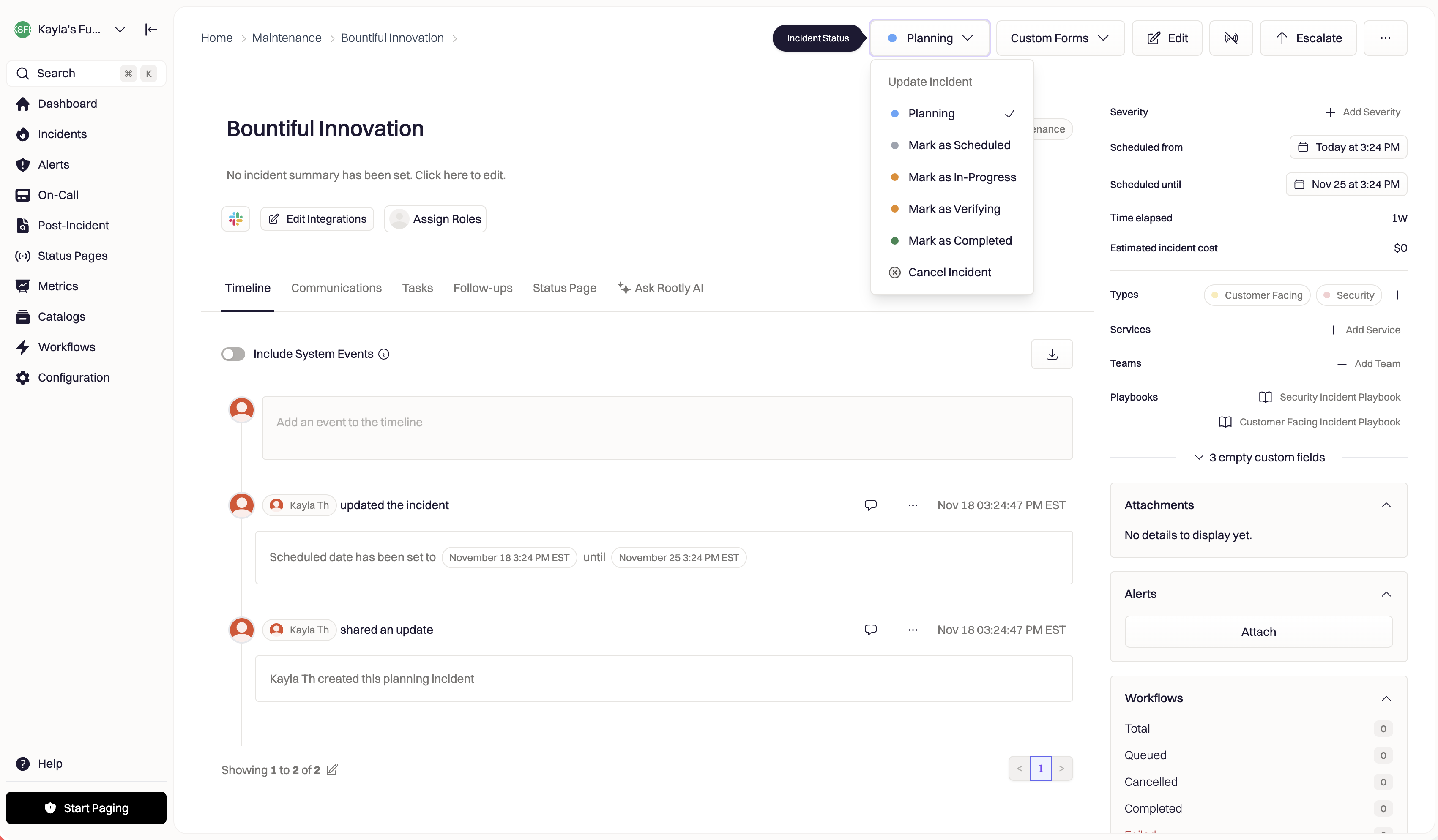 Maintenance incidents can have the following statuses:
* Planning
* Scheduled
* In Progress
* Verifying
* Completed
* Cancelled
Change the status by clicking **Incident Status** in the top-right corner, or in Slack using the `/rootly status` command.
## **Update details**
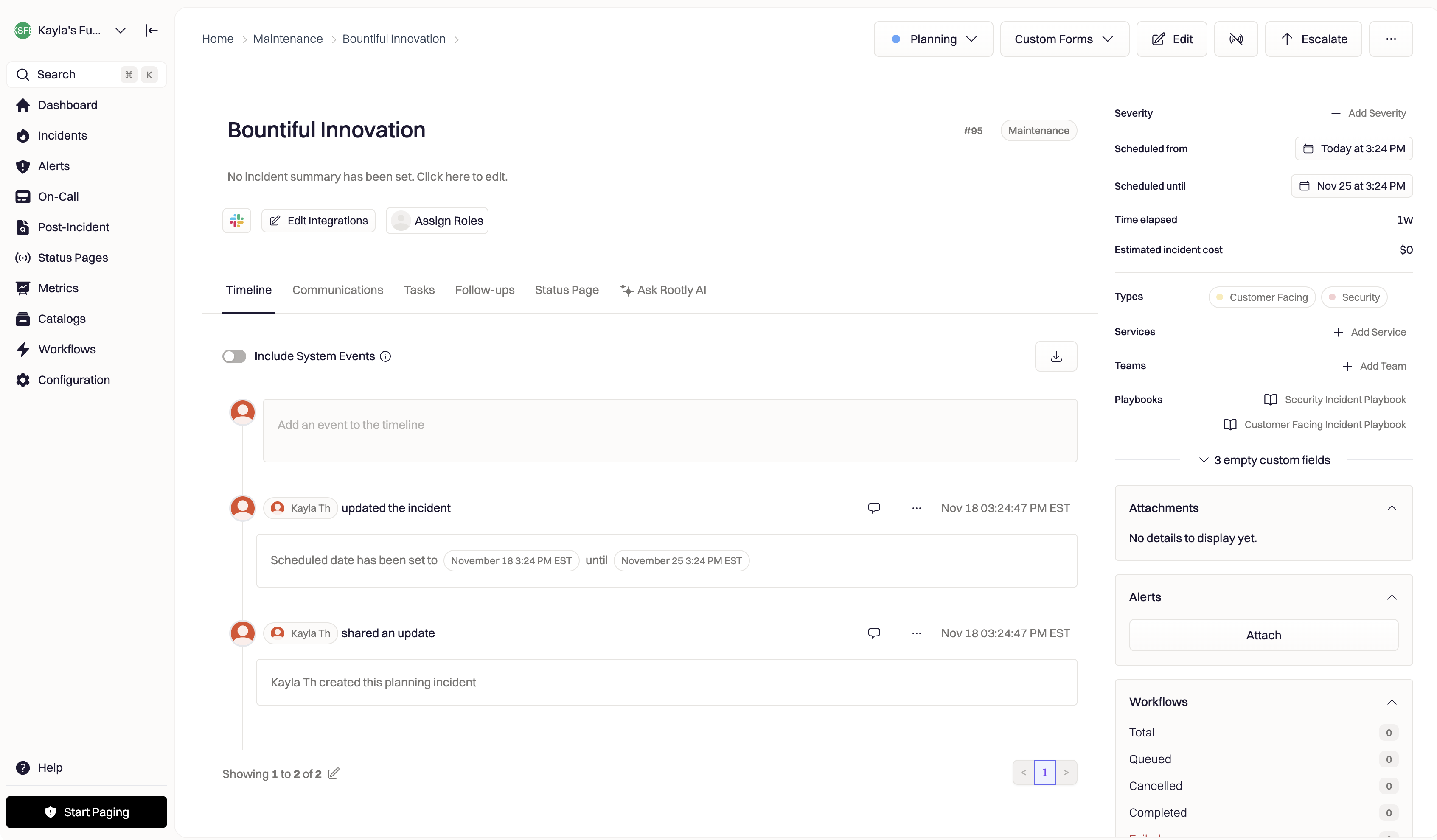
Click **Edit** in the top-right corner to update the incident.
Default fields include:
| Field | Content |
| ---------------------------------------------------------------------------------------- | ------------------------------------------------------------------------------------------------------------------------------------- |
| Scheduled start and end time | The planned time for the maintenance to take place. |
| Title | The title of the maintenance incident. This will only be visible in the Rootly web app or the incident Slack channel (if applicable). |
| [Severity](https://docs.rootly.com/configuration/severities) | Defaults: Severity level from SEV3 to SEV0. |
| [Type](https://docs.rootly.com/configuration/incident-types) | The type of incident. Defaults: Cloud, Security, Customer facing, Default. |
| [Services](https://docs.rootly.com/configuration/services#services) | The service or services impacted. |
| [Environments](https://docs.rootly.com/configuration/environments) | The environment the incident will impact. E.g. Dev or Production. |
| [Functionalities](https://docs.rootly.com/configuration/functionalities#functionalities) | Specific functionalities impacted. E.g. Checkout or Search. |
| [Teams](https://docs.rootly.com/configuration/teams#teams) | The relevant teams involved in this maintenance incident. |
The form can be edited from **Configuration** > **Forms & Fields** > **Update Maintenance Incident.**
## **Assign Roles**
Pre-assign roles to this maintenance incident by selecting "Assign Roles" under the incident title.
Maintenance incidents can have the following statuses:
* Planning
* Scheduled
* In Progress
* Verifying
* Completed
* Cancelled
Change the status by clicking **Incident Status** in the top-right corner, or in Slack using the `/rootly status` command.
## **Update details**
Click **Edit** in the top-right corner to update the incident.
Default fields include:
| Field | Content |
| ---------------------------------------------------------------------------------------- | ------------------------------------------------------------------------------------------------------------------------------------- |
| Scheduled start and end time | The planned time for the maintenance to take place. |
| Title | The title of the maintenance incident. This will only be visible in the Rootly web app or the incident Slack channel (if applicable). |
| [Severity](https://docs.rootly.com/configuration/severities) | Defaults: Severity level from SEV3 to SEV0. |
| [Type](https://docs.rootly.com/configuration/incident-types) | The type of incident. Defaults: Cloud, Security, Customer facing, Default. |
| [Services](https://docs.rootly.com/configuration/services#services) | The service or services impacted. |
| [Environments](https://docs.rootly.com/configuration/environments) | The environment the incident will impact. E.g. Dev or Production. |
| [Functionalities](https://docs.rootly.com/configuration/functionalities#functionalities) | Specific functionalities impacted. E.g. Checkout or Search. |
| [Teams](https://docs.rootly.com/configuration/teams#teams) | The relevant teams involved in this maintenance incident. |
The form can be edited from **Configuration** > **Forms & Fields** > **Update Maintenance Incident.**
## **Assign Roles**
Pre-assign roles to this maintenance incident by selecting "Assign Roles" under the incident title.
 ## **Create a Slack channel**
Select the Slack icon under the incident title to create a Slack channel for this maintenance incident.
## **Create a Slack channel**
Select the Slack icon under the incident title to create a Slack channel for this maintenance incident.
 # Publish your maintenance incident to a status page
Communicate your upcoming and active maintenance windows to your stakeholders through the Rootly Status Page.
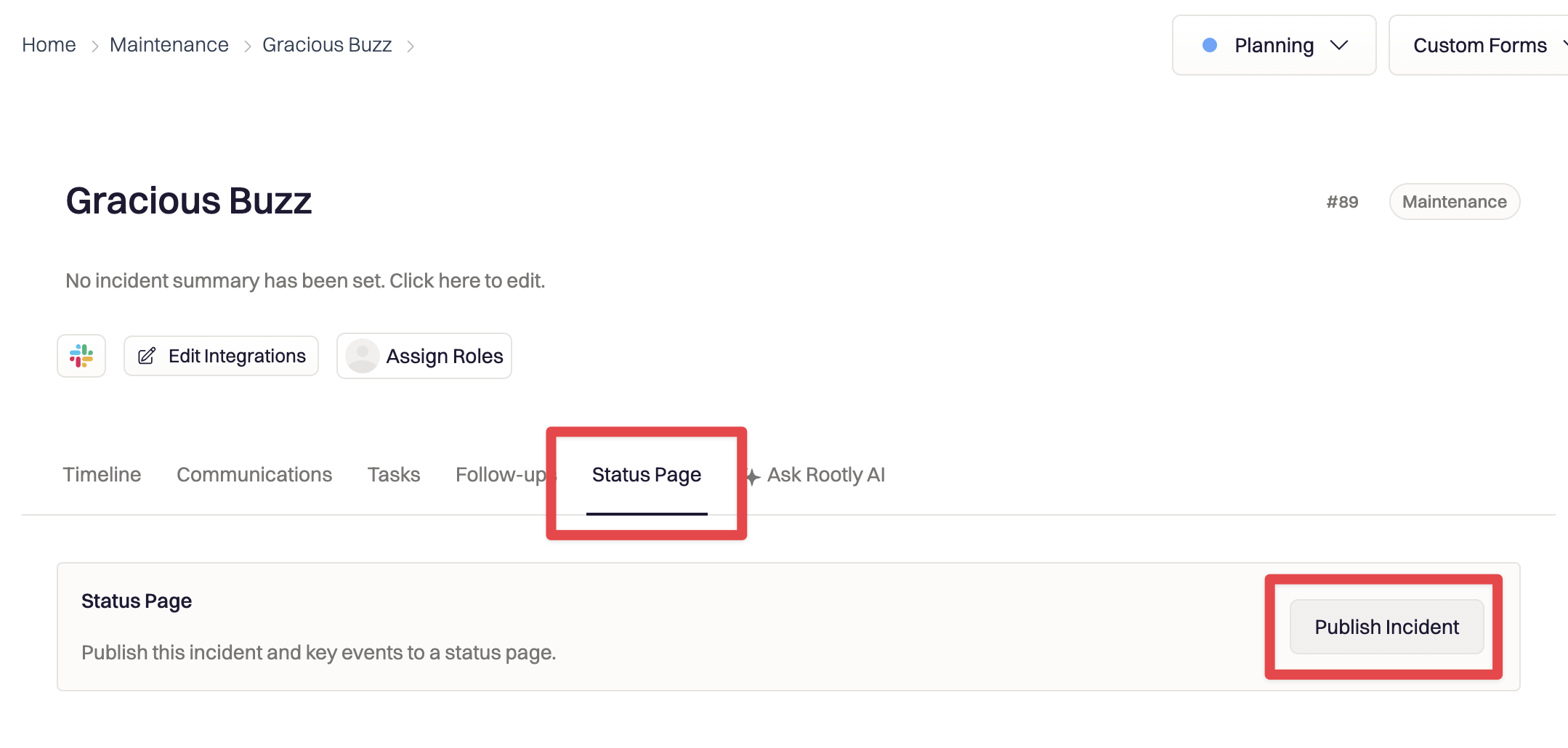
Navigate to your maintenance window, select the **Status Page** tab, then **Publish Incident**.
# Publish your maintenance incident to a status page
Communicate your upcoming and active maintenance windows to your stakeholders through the Rootly Status Page.
Navigate to your maintenance window, select the **Status Page** tab, then **Publish Incident**.
 Select the status page you'd like to publish an update to and fill in the subsequent information to include in the update.
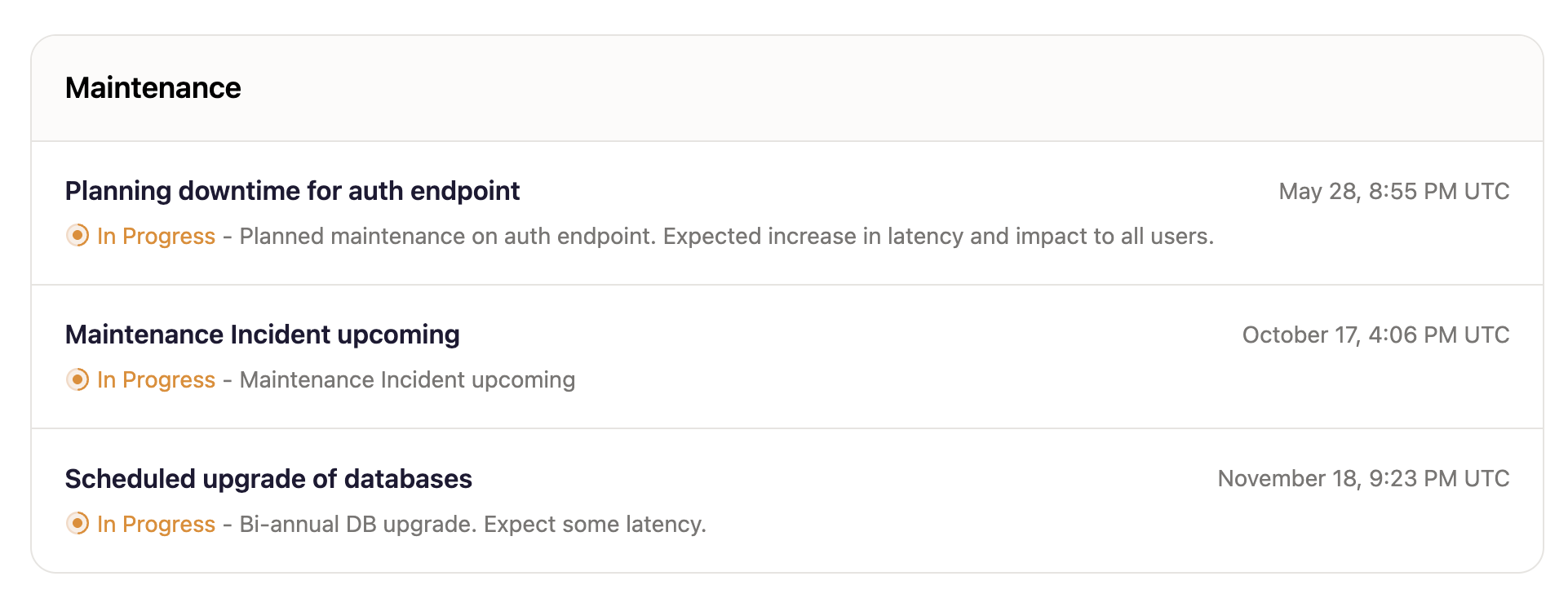
Rootly will automatically surface any Maintenance Windows at the top of the status page.
Select the status page you'd like to publish an update to and fill in the subsequent information to include in the update.
Rootly will automatically surface any Maintenance Windows at the top of the status page.
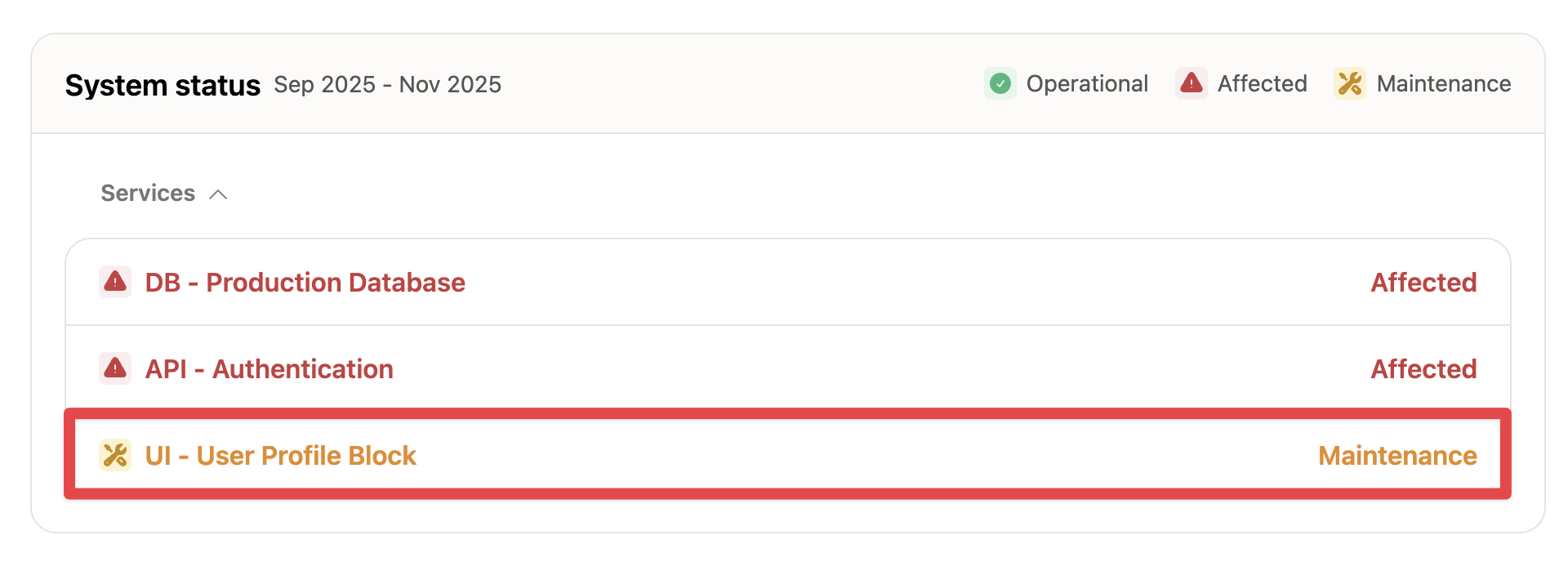
 Further, any services attached to your Maintenance Window will automatically be shown as **In Maintenance** if the update published to the status page is either **In Progress** or **Verifying.**
 To give you full control over how maintenance windows are communicated to your stakeholder, Rootly will not automatically update your status page based on the maintenance incident's current status: updates must be manually published to the status page.
# Building workflows for maintenance incidents
You can build automations for your Maintenance Incidents using [Rootly's Workflow builder](/workflows/incident-workflows). Follow the instructions to create a workflow in the linked documentation.
To create a workflow specific to Maintenance Windows, ensure your workflow has a **Kind** condition set to **Scheduled Maintenance** so that the workflow will only fire on your maintenance incidents.
To give you full control over how maintenance windows are communicated to your stakeholder, Rootly will not automatically update your status page based on the maintenance incident's current status: updates must be manually published to the status page.
# Building workflows for maintenance incidents
You can build automations for your Maintenance Incidents using [Rootly's Workflow builder](/workflows/incident-workflows). Follow the instructions to create a workflow in the linked documentation.
To create a workflow specific to Maintenance Windows, ensure your workflow has a **Kind** condition set to **Scheduled Maintenance** so that the workflow will only fire on your maintenance incidents.
 # Converting a maintenance incident
Sometimes, unexpected complexity might occur during your maintenance incident, and it requires a regular incident to be declared.
Rootly lets you convert an existing maintenance incident into a regular incident directly in Rootly Web, or via Slack.
## Converting to a regular incident on web
While viewing your Maintenance Incident on web, select (...), then **Convert to incident**.
# Converting a maintenance incident
Sometimes, unexpected complexity might occur during your maintenance incident, and it requires a regular incident to be declared.
Rootly lets you convert an existing maintenance incident into a regular incident directly in Rootly Web, or via Slack.
## Converting to a regular incident on web
While viewing your Maintenance Incident on web, select (...), then **Convert to incident**.
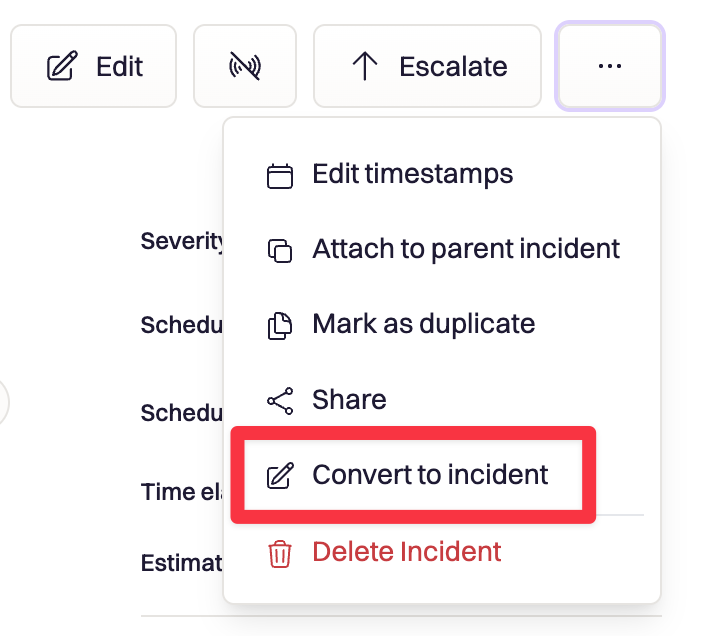 Clicking on this button will trigger your Rootly **Create Incident** form, as well as a 'Reason for conversion' field for your commanders to fill out to give additional context for why the incident is being converted. The information provided in this field will be added to the incident's timeline.
## Converting to a regular incident on Slack
To convert your maintenance incident on Slack, in your maintenance incident's Slack channel use the `/rootly convert maintenance` command.
Clicking on this button will trigger your Rootly **Create Incident** form, as well as a 'Reason for conversion' field for your commanders to fill out to give additional context for why the incident is being converted. The information provided in this field will be added to the incident's timeline.
## Converting to a regular incident on Slack
To convert your maintenance incident on Slack, in your maintenance incident's Slack channel use the `/rootly convert maintenance` command.
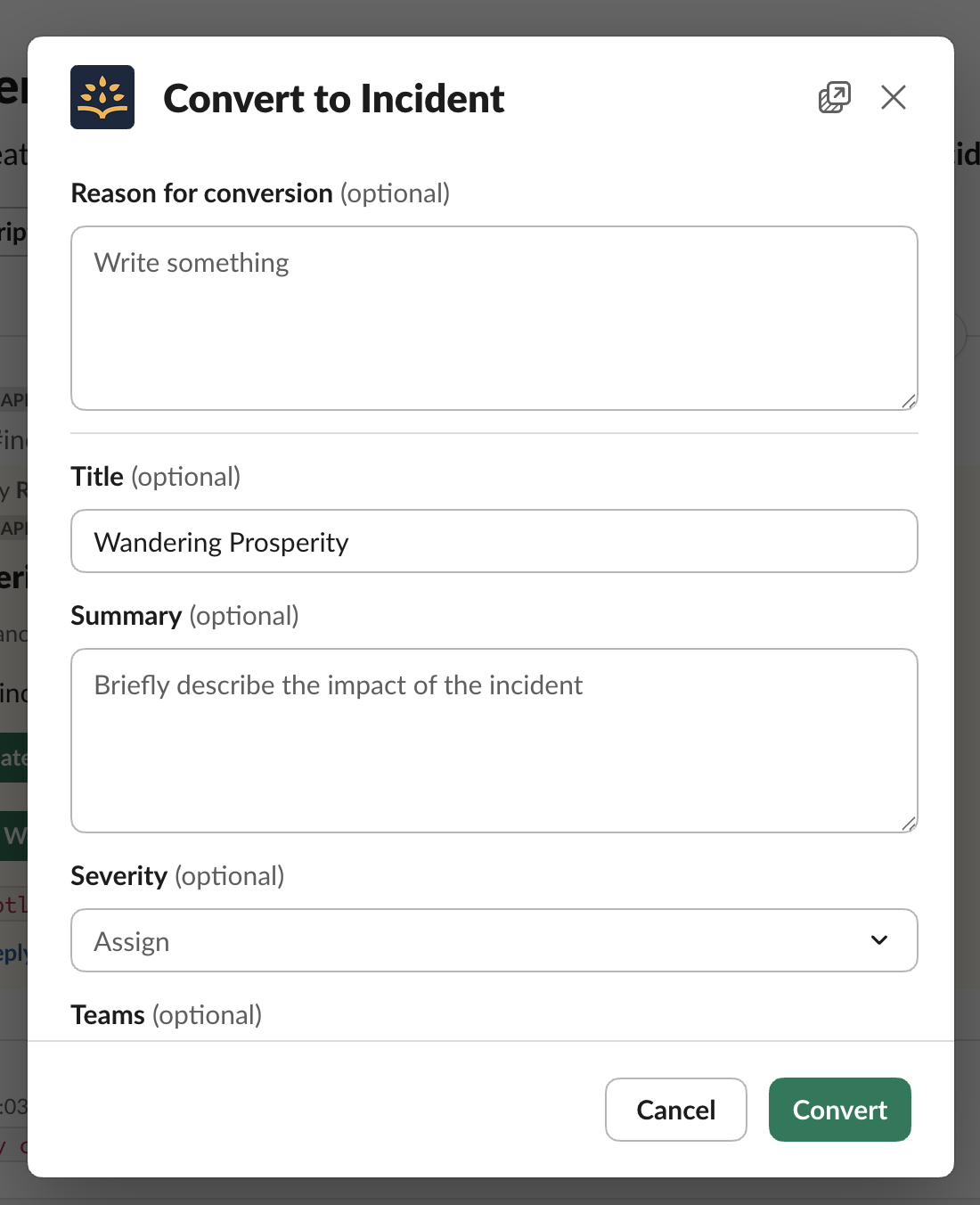 This will trigger your Rootly **Create Incident** form, as well as a 'Reason for conversion' field for your commanders to fill out to give additional context for why the incident is being converted. The information provided in this field will be added to the incident's timeline.
Once your maintenance incident is converted to a regular incident, all of your related automations and workflows will trigger much like they do when a new incident is created.
This will trigger your Rootly **Create Incident** form, as well as a 'Reason for conversion' field for your commanders to fill out to give additional context for why the incident is being converted. The information provided in this field will be added to the incident's timeline.
Once your maintenance incident is converted to a regular incident, all of your related automations and workflows will trigger much like they do when a new incident is created.