> ## Documentation Index
> Fetch the complete documentation index at: https://docs.rootly.com/llms.txt
> Use this file to discover all available pages before exploring further.
# Marking Incidents as Duplicate via Web Interface
> Learn how to mark incidents as duplicates in the Rootly web interface, including selecting the primary incident and optional auto-cancellation.
Marking an incident as a duplicate helps consolidate response efforts when multiple responders report the same issue. The Web UI provides a simple modal to link the current incident to its canonical incident and optionally auto-cancel it.
Duplicate incidents use a dedicated **duplicate\_incident\_id** relationship and are separate from sub-incidents, which use **parent\_incident\_id**.
***
## Mark a Duplicate via the Web UI
In the top-right corner of the incident page, click the **⋯** menu and select **Mark as Duplicate**.
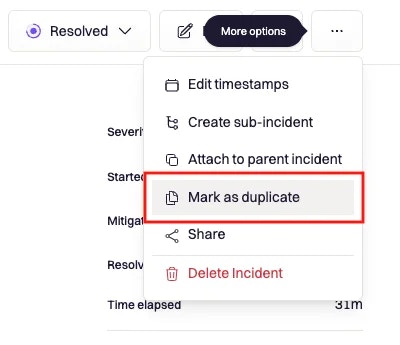 This option appears only when the incident is not already a duplicate and you have permission to update the incident.
In the modal, search for and select the **original (canonical)** incident.\
This is the incident the current one will be linked to.
You can also:
* **Auto-cancel** the duplicate (enabled by default)
* Provide a **reason for cancellation**, which appears in the timeline
This option appears only when the incident is not already a duplicate and you have permission to update the incident.
In the modal, search for and select the **original (canonical)** incident.\
This is the incident the current one will be linked to.
You can also:
* **Auto-cancel** the duplicate (enabled by default)
* Provide a **reason for cancellation**, which appears in the timeline
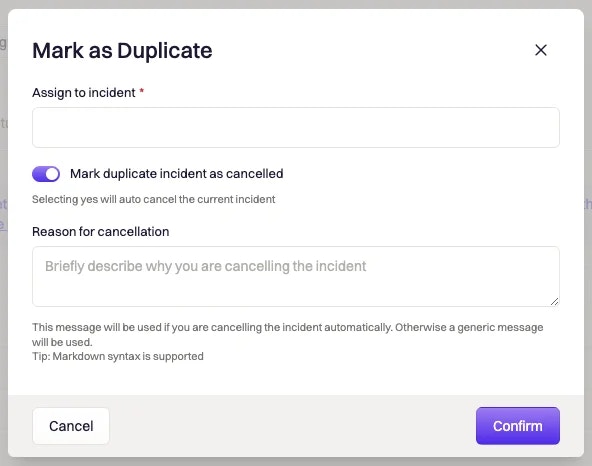 Click **Confirm** to save your changes.
Rootly will:
* Link the incident as a duplicate
* Add a timeline entry
* Post a notification to the duplicate’s Slack channel (if Slack is connected)
* Cancel the duplicate (if enabled)
* Redirect you to the original incident
***
## What Happens After Marking a Duplicate
* The duplicate incident displays **“Duplicate of …”** at the top of the page
* A non-editable timeline entry records who performed the action and why
* Auto-cancel will:
* Move the incident to **Cancelled**
* Resolve all attached alerts automatically
* Slack responders are notified if the Slack integration is active
Auto-cancel is recommended to reduce noise in reports and Slack channels, but you may disable it when the duplicate incident still contains useful investigation context.
***
## Best Practices
* **Use “Mark as Duplicate” early**\
Consolidating incidents right away helps reduce confusion across teams and channels.
* **Always designate a canonical incident**\
The canonical incident should contain the most accurate timeline and central communication thread.
* **Provide a clear cancellation reason**\
This helps responders understand why context moved and ensures retrospectives remain accurate.
* **Auto-cancel duplicate incidents when appropriate**\
This prevents “ghost incidents” from appearing unresolved in dashboards or workflow triggers.
* **Avoid marking scheduled maintenance incidents as duplicates**\
Maintenance windows follow different lifecycle logic and should remain separate.
* **Review duplicate frequency**\
Frequent duplicates may indicate alerting issues, unclear runbooks, or multiple teams raising incidents for the same symptom.
***
## Troubleshooting
* You may not have **update permission** for the incident.
* The incident may already be marked as a duplicate.
* Scheduled maintenance incidents cannot be marked as duplicates.
* The incident you're looking for may be private and you may not have permission to view it.
* The selector excludes the current incident automatically.
* Try searching by title or ID.
* The auto-cancel toggle may have been turned off.
* The incident may have already been cancelled.
* Workflow restrictions or permissions may prevent auto-cancel in rare cases.
* Slack may not be integrated for your team.
* The duplicate incident may not have a Slack channel.
* Notification settings may restrict posting confirmations.
Auto-cancel removes the duplicate from most active incident metrics.\
If auto-cancel was disabled, manually cancel or close the duplicate to prevent clutter.
Click **Confirm** to save your changes.
Rootly will:
* Link the incident as a duplicate
* Add a timeline entry
* Post a notification to the duplicate’s Slack channel (if Slack is connected)
* Cancel the duplicate (if enabled)
* Redirect you to the original incident
***
## What Happens After Marking a Duplicate
* The duplicate incident displays **“Duplicate of …”** at the top of the page
* A non-editable timeline entry records who performed the action and why
* Auto-cancel will:
* Move the incident to **Cancelled**
* Resolve all attached alerts automatically
* Slack responders are notified if the Slack integration is active
Auto-cancel is recommended to reduce noise in reports and Slack channels, but you may disable it when the duplicate incident still contains useful investigation context.
***
## Best Practices
* **Use “Mark as Duplicate” early**\
Consolidating incidents right away helps reduce confusion across teams and channels.
* **Always designate a canonical incident**\
The canonical incident should contain the most accurate timeline and central communication thread.
* **Provide a clear cancellation reason**\
This helps responders understand why context moved and ensures retrospectives remain accurate.
* **Auto-cancel duplicate incidents when appropriate**\
This prevents “ghost incidents” from appearing unresolved in dashboards or workflow triggers.
* **Avoid marking scheduled maintenance incidents as duplicates**\
Maintenance windows follow different lifecycle logic and should remain separate.
* **Review duplicate frequency**\
Frequent duplicates may indicate alerting issues, unclear runbooks, or multiple teams raising incidents for the same symptom.
***
## Troubleshooting
* You may not have **update permission** for the incident.
* The incident may already be marked as a duplicate.
* Scheduled maintenance incidents cannot be marked as duplicates.
* The incident you're looking for may be private and you may not have permission to view it.
* The selector excludes the current incident automatically.
* Try searching by title or ID.
* The auto-cancel toggle may have been turned off.
* The incident may have already been cancelled.
* Workflow restrictions or permissions may prevent auto-cancel in rare cases.
* Slack may not be integrated for your team.
* The duplicate incident may not have a Slack channel.
* Notification settings may restrict posting confirmations.
Auto-cancel removes the duplicate from most active incident metrics.\
If auto-cancel was disabled, manually cancel or close the duplicate to prevent clutter.