> ## Documentation Index
> Fetch the complete documentation index at: https://docs.rootly.com/llms.txt
> Use this file to discover all available pages before exploring further.
# Managing Incident Roles Through Slack
> Assign, update, and manage incident roles like Incident Commander and Comms Lead directly from Slack using slash commands and dialogs.
### Overview
Slack is often where incident response actually happens, so Rootly lets you assign and manage incident roles **directly inside the incident channel**, without switching back to the web interface.
This includes:
* Assigning yourself to a role
* Assigning or removing other responders
* Editing all incident roles in one modal
* Adding roles that aren't yet part of this incident
* Managing multi-user and single-user roles
* Enforcing permission checks for private incidents
To use these Slack capabilities, make sure the [Slack integration is installed](/integrations/slack).
Role management in Slack only works inside an **incident channel** and requires permission to assign incident roles.\
For private incidents, users must also have update permission for private incidents.
***
### Manage Roles via Slack
Navigate to the Slack channel for the incident.\
Slack commands and buttons rely on the channel’s mapping to an active incident.
You can open the Assign Roles modal in two ways:
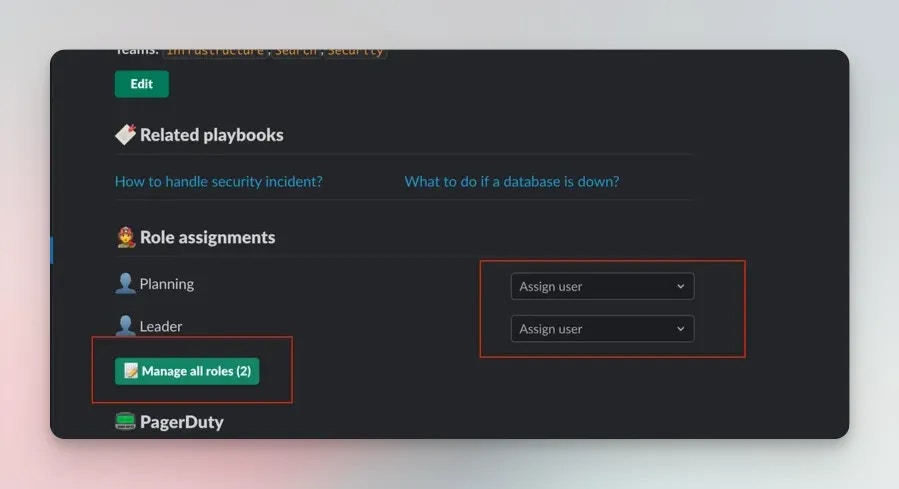
**Option A: Use the Assign Roles button**
When an incident is created, the pinned incident summary includes an **:firefighter: Assign Roles** button.
 **Option B: Use the slash command**
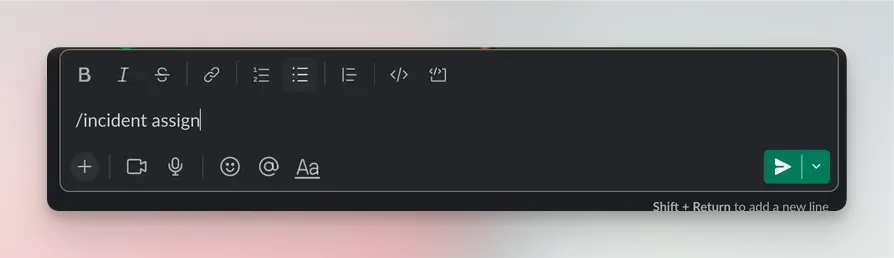
Run the command inside the incident channel:
```
/rootly assign
```
You may also use the aliases:
* `/rootly role`
* `/rootly roles`
**Option B: Use the slash command**
Run the command inside the incident channel:
```
/rootly assign
```
You may also use the aliases:
* `/rootly role`
* `/rootly roles`
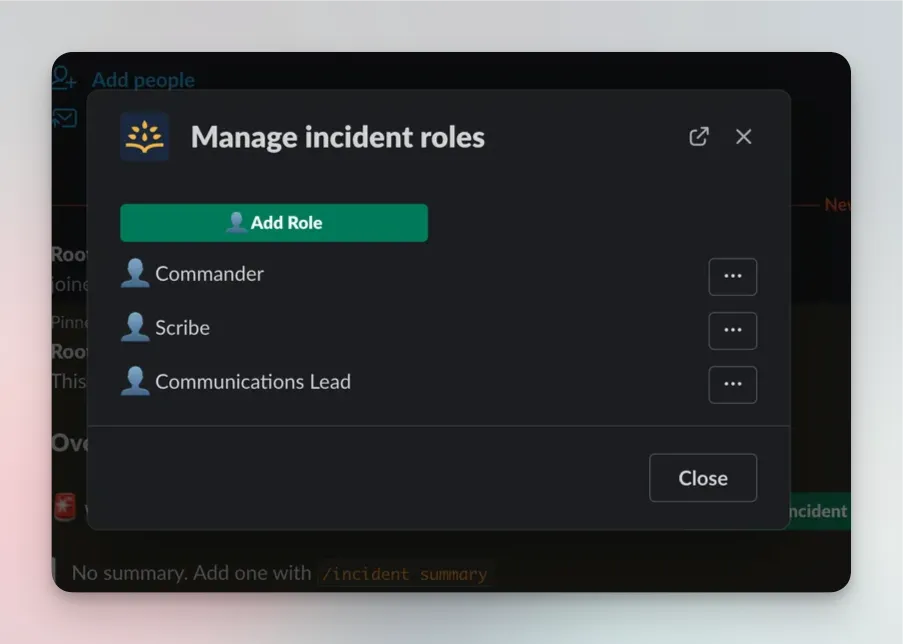
 The modal displays every role available for this incident.\
Each role has an associated menu or selector depending on how it was configured.
Common actions include:
* **Assign Myself**\
Quickly take ownership of a role.
* **Edit Assigned Users**\
Add or remove specific responders.
* **Remove Myself**\
Step out of a role you previously held.
The modal displays every role available for this incident.\
Each role has an associated menu or selector depending on how it was configured.
Common actions include:
* **Assign Myself**\
Quickly take ownership of a role.
* **Edit Assigned Users**\
Add or remove specific responders.
* **Remove Myself**\
Step out of a role you previously held.
 If the role supports multiple assignees, you’ll see a **multi-select**.\
If the role only allows one assignee, you’ll see a **single-select** dropdown.
Some roles may display a notice like:\
**“Only users with an Incident Response seat can be assigned.”**\
This appears when your organization enforces seat restrictions.
If your team has defined incident roles that are **not yet added to this specific incident**, you’ll see an **Add Roles** banner.
These roles must be added before responders can be assigned to them.
Click **Update** to apply all role assignments.\
Rootly updates the incident immediately and posts relevant timeline entries.
***
### Best Practices
* **Assign roles early in the incident**\
Clear ownership improves coordination and communication.
* **Use multi-assignee roles intentionally**\
For example, an “On-call Engineer” role may allow multiple users, while “Incident Commander” should be single-assignee.
* **Review roles during major status transitions**\
As the incident escalates, mitigation begins, or communications ramp up, ensure the right responders are assigned.
* **Use role automation where appropriate**\
Workflows can auto-assign on-call responders, service owners, or leadership roles when an incident begins or severity increases.
* **Keep roles aligned with your process**\
Customize roles in the web UI to match how your incident response team operates.
***
### Troubleshooting
Make sure you’re running it **inside an incident channel**.\
Running the command in DMs or non-incident channels will fail.
You may not have permission to assign incident roles.\
Check your incident role or RBAC configuration.
Roles are configured by your team.\
If a role only allows one user, Slack will display a single-select field.
Your organization enforces seat restrictions for role holders.\
Only users with an available seat can be assigned.
The role may not be added to this incident yet.\
Use the “Add Roles” option if available.
If the role supports multiple assignees, you’ll see a **multi-select**.\
If the role only allows one assignee, you’ll see a **single-select** dropdown.
Some roles may display a notice like:\
**“Only users with an Incident Response seat can be assigned.”**\
This appears when your organization enforces seat restrictions.
If your team has defined incident roles that are **not yet added to this specific incident**, you’ll see an **Add Roles** banner.
These roles must be added before responders can be assigned to them.
Click **Update** to apply all role assignments.\
Rootly updates the incident immediately and posts relevant timeline entries.
***
### Best Practices
* **Assign roles early in the incident**\
Clear ownership improves coordination and communication.
* **Use multi-assignee roles intentionally**\
For example, an “On-call Engineer” role may allow multiple users, while “Incident Commander” should be single-assignee.
* **Review roles during major status transitions**\
As the incident escalates, mitigation begins, or communications ramp up, ensure the right responders are assigned.
* **Use role automation where appropriate**\
Workflows can auto-assign on-call responders, service owners, or leadership roles when an incident begins or severity increases.
* **Keep roles aligned with your process**\
Customize roles in the web UI to match how your incident response team operates.
***
### Troubleshooting
Make sure you’re running it **inside an incident channel**.\
Running the command in DMs or non-incident channels will fail.
You may not have permission to assign incident roles.\
Check your incident role or RBAC configuration.
Roles are configured by your team.\
If a role only allows one user, Slack will display a single-select field.
Your organization enforces seat restrictions for role holders.\
Only users with an available seat can be assigned.
The role may not be added to this incident yet.\
Use the “Add Roles” option if available.