> ## Documentation Index
> Fetch the complete documentation index at: https://docs.rootly.com/llms.txt
> Use this file to discover all available pages before exploring further.
# Managing Incident Roles Through the Web Interface
> Configure, assign, and manage incident response roles like Incident Commander and Comms Lead using the Rootly web interface for clear ownership.
### Overview
The Rootly web interface provides a full-featured way to configure and manage incident roles.\
From the **Incident Roles** settings page, you can create new roles, edit existing ones, define responsibilities, and control which users can perform specific actions during an incident.
These role definitions become available across your organization and determine which roles appear in Slack and in the incident detail page.
Role configuration is a workspace-level setting. Any changes you make here apply to all incidents going forward.
***
### Manage Roles in the Web Interface
Navigate to:
**Configuration → Incident Roles**
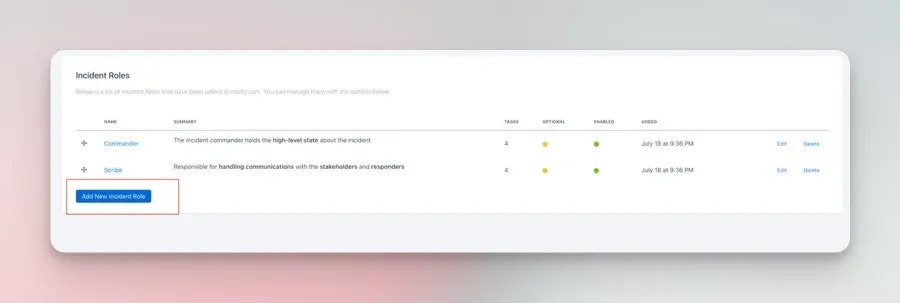
This page lists all existing roles in your workspace.
Click:
* **New Incident Role** to create a new role, or
* The **edit (pencil)** icon next to an existing role to modify it.
You’ll be taken to the role editor, where you can configure the role’s name, summary, responsibilities, and permissions.
 Within the role editor, you can set:
* **Name** – The title of the role (e.g., “Incident Commander”).
* **Summary** – A short description shown in lists.
* **Responsibilities** – A longer description outlining expectations for this role.
* **Optional Role** – Specify whether this role must be assigned for every incident.
* **Allow Multiple Assignees** – Enable if more than one user can hold this role at the same time.
* **Permission Set** – Determine what actions assignees are allowed to perform on an incident (e.g., update status, manage roles, modify properties).
These configuration options shape how the role behaves in both the web interface and Slack.
Click **Save** to apply your updates.
Your new or updated role will now appear across all incident workflows and Slack role assignment modals.
***
### Best Practices
* **Use clear, action-oriented role names**\
Roles like *Incident Commander*, *Communications Lead*, or *Ops Owner* help responders quickly understand responsibilities.
* **Limit multi-assignee roles**\
Multi-user roles can be useful, but restricting some roles to a single owner helps maintain accountability.
* **Document responsibilities thoroughly**\
Clear written expectations improve consistency across incidents and make onboarding easier.
* **Review role definitions periodically**\
As your response process matures, update roles to reflect clearer responsibilities or new workflows.
* **Keep roles aligned with permissions**\
Ensure each role’s permission set reflects what responders actually need to do during an incident.
***
### Troubleshooting
You may not have access to configuration settings.\
Only workspace admins or users with the appropriate configuration permissions can view this page.
Roles that are referenced by workflows or required by the workspace cannot be deleted until dependencies are removed.
The role must have **Allow Multiple Assignees** enabled in the role configuration.
Slack surfaces the latest role definitions, but cached pinned blocks may refresh only after certain lifecycle actions.\
Running `/rootly assign` will always fetch updated roles.
Within the role editor, you can set:
* **Name** – The title of the role (e.g., “Incident Commander”).
* **Summary** – A short description shown in lists.
* **Responsibilities** – A longer description outlining expectations for this role.
* **Optional Role** – Specify whether this role must be assigned for every incident.
* **Allow Multiple Assignees** – Enable if more than one user can hold this role at the same time.
* **Permission Set** – Determine what actions assignees are allowed to perform on an incident (e.g., update status, manage roles, modify properties).
These configuration options shape how the role behaves in both the web interface and Slack.
Click **Save** to apply your updates.
Your new or updated role will now appear across all incident workflows and Slack role assignment modals.
***
### Best Practices
* **Use clear, action-oriented role names**\
Roles like *Incident Commander*, *Communications Lead*, or *Ops Owner* help responders quickly understand responsibilities.
* **Limit multi-assignee roles**\
Multi-user roles can be useful, but restricting some roles to a single owner helps maintain accountability.
* **Document responsibilities thoroughly**\
Clear written expectations improve consistency across incidents and make onboarding easier.
* **Review role definitions periodically**\
As your response process matures, update roles to reflect clearer responsibilities or new workflows.
* **Keep roles aligned with permissions**\
Ensure each role’s permission set reflects what responders actually need to do during an incident.
***
### Troubleshooting
You may not have access to configuration settings.\
Only workspace admins or users with the appropriate configuration permissions can view this page.
Roles that are referenced by workflows or required by the workspace cannot be deleted until dependencies are removed.
The role must have **Allow Multiple Assignees** enabled in the role configuration.
Slack surfaces the latest role definitions, but cached pinned blocks may refresh only after certain lifecycle actions.\
Running `/rootly assign` will always fetch updated roles.