> ## Documentation Index
> Fetch the complete documentation index at: https://docs.rootly.com/llms.txt
> Use this file to discover all available pages before exploring further.
# Adding Events to Timeline via Slack
> Add timeline events from Slack using the /rootly timeline command, message actions, or emoji reactions to capture key moments during incident response.
### Overview
Slack is one of the fastest ways to record timeline events during an incident.\
Rootly supports multiple Slack-based methods so responders can capture actions, observations, and decisions without leaving the incident channel.
You can add events using:
* The `/rootly timeline` slash command
* Message actions (the Slack **hamburger menu**)
* Configurable **pin or emoji reactions**
All Slack-created events appear instantly in the incident timeline.
***
### Methods for Adding Timeline Events
In the incident Slack channel, type:
**`/rootly timeline `**
This opens the Add Event modal pre-filled with your text, allowing you to set visibility and optional details before submitting.
You can capture any message directly into the timeline:
1. Hover over a message
2. Click the **hamburger icon**
3. Select **Add event**
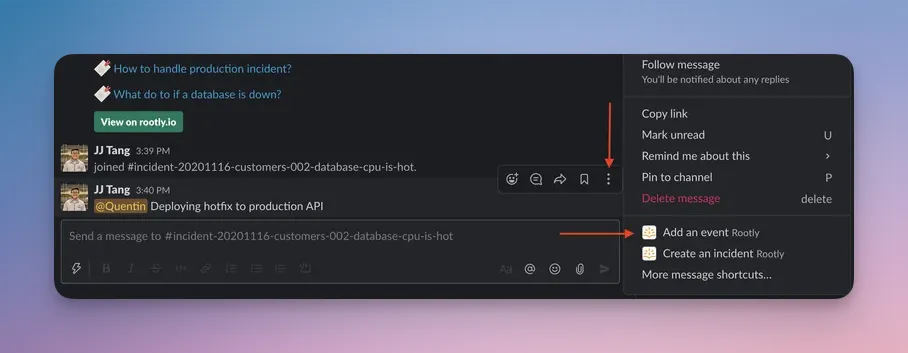 The modal will auto-fill the message content and attach a permalink back to Slack.
Rootly can automatically create timeline entries whenever specific reactions are added to a message.
* **Pin reactions** (📌)
* **Any custom emoji** your team configures for timeline ingestion
The modal will auto-fill the message content and attach a permalink back to Slack.
Rootly can automatically create timeline entries whenever specific reactions are added to a message.
* **Pin reactions** (📌)
* **Any custom emoji** your team configures for timeline ingestion
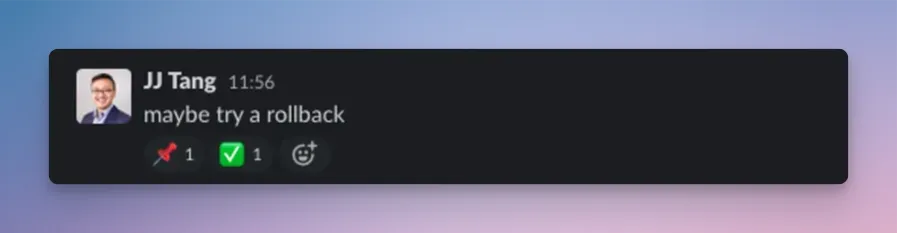 You can configure which emoji should create events in **Slack Integration Settings**.
***
### How Slack-Captured Events Behave
* Events created from a command or message action open a modal so you can review details
* Events created from pin/emoji reactions are added automatically — *no modal*
* Reaction-based events use the **original Slack message timestamp** as the event’s `occurred_at` value
* All entries include a Slack permalink and optional user-attribution
* Deduplication prevents duplicate events from repeat reactions
Emoji triggers, follow-up creation, and task creation each use separate emoji lists and **cannot overlap**. Configure them in *Integrations → Slack*.
***
### Troubleshooting
Make sure you ran the command **inside the incident channel**.\
Running it anywhere else will result in a non-incident error.
Verify that:
* Emoji ingestion is enabled
* The emoji is included in the **Add to Timeline** emoji list
* You are in a recognized incident channel
For emoji/pin reactions, occurred\_at is taken from the **Slack message timestamp**, not the moment you reacted.
You may not have permission to update the incident timeline, especially for private incidents.
If you're on Slack Enterprise Grid and pinning messages to the incident timeline isn't working, this is a sign that your Slack integration was installed as a **non-Grid** (single-workspace) installation rather than at the organization level. \
\
**Solutions:**
* Disconnect the Slack integration from Rootly
* Reconnect it, making sure to select **Slack Enterprise Grid** during installation and authorize at the **organization level** (not a single workspace)
You can configure which emoji should create events in **Slack Integration Settings**.
***
### How Slack-Captured Events Behave
* Events created from a command or message action open a modal so you can review details
* Events created from pin/emoji reactions are added automatically — *no modal*
* Reaction-based events use the **original Slack message timestamp** as the event’s `occurred_at` value
* All entries include a Slack permalink and optional user-attribution
* Deduplication prevents duplicate events from repeat reactions
Emoji triggers, follow-up creation, and task creation each use separate emoji lists and **cannot overlap**. Configure them in *Integrations → Slack*.
***
### Troubleshooting
Make sure you ran the command **inside the incident channel**.\
Running it anywhere else will result in a non-incident error.
Verify that:
* Emoji ingestion is enabled
* The emoji is included in the **Add to Timeline** emoji list
* You are in a recognized incident channel
For emoji/pin reactions, occurred\_at is taken from the **Slack message timestamp**, not the moment you reacted.
You may not have permission to update the incident timeline, especially for private incidents.
If you're on Slack Enterprise Grid and pinning messages to the incident timeline isn't working, this is a sign that your Slack integration was installed as a **non-Grid** (single-workspace) installation rather than at the organization level. \
\
**Solutions:**
* Disconnect the Slack integration from Rootly
* Reconnect it, making sure to select **Slack Enterprise Grid** during installation and authorize at the **organization level** (not a single workspace)