> ## Documentation Index
> Fetch the complete documentation index at: https://docs.rootly.com/llms.txt
> Use this file to discover all available pages before exploring further.
# Adding Incident Feedback
> Learn how to submit and manage incident feedback through both the Rootly web interface and Slack. Each user may submit feedback once per incident.
### Overview
Incident feedback helps teams capture what went smoothly during response and where improvements can be made.\
Rootly allows each user to submit **one feedback entry per incident**, either through Slack or the web interface, once the incident reaches **Mitigated** or **Resolved**.
Feedback becomes part of the incident record and is used in retrospectives, follow-up planning, and reliability improvements.
You can only submit feedback once per incident. If you need to update it, you may edit your existing entry through the web interface.
***
### When Feedback Can Be Submitted
Feedback is available only after an incident has reached:
* **Mitigated** — customer impact has stopped
* **Resolved** — the root cause has been fixed
If you attempt to submit feedback before the incident is Mitigated or Resolved, Rootly will block the submission and prompt you to try again later.
***
### Add Feedback Through the Web Interface
Navigate to the incident where you want to leave feedback.
Scroll to the **Feedback** section on the incident page.\
If no feedback exists yet, you will see an option to **Leave Feedback**.\
If you have already submitted feedback, you can select **Edit**.
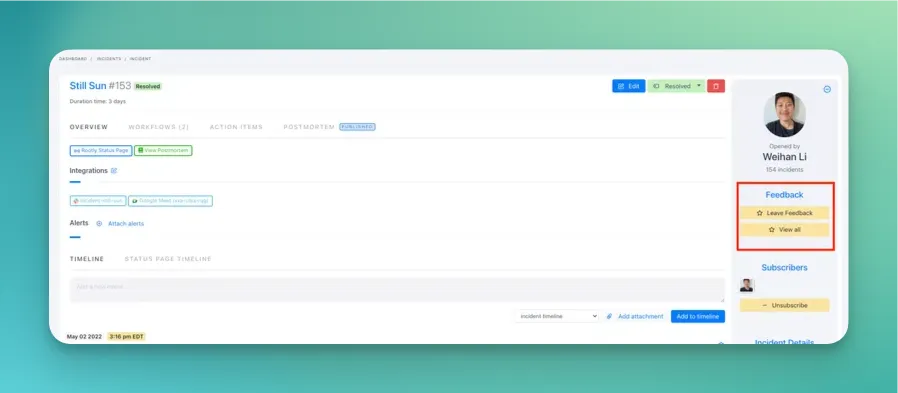 Provide your:
* Rating
* Written comments
* Optional anonymity setting
Click **Submit** to finalize your feedback.
***
### Add Feedback Through Slack
Responders can also submit feedback directly in the incident’s Slack channel.
In the incident channel, type:
`/incident feedback`
or
`/rootly feedback`
Rootly will open a feedback submission modal.
Enter:
* A rating
* Written comments
* Optional anonymity preference
Provide your:
* Rating
* Written comments
* Optional anonymity setting
Click **Submit** to finalize your feedback.
***
### Add Feedback Through Slack
Responders can also submit feedback directly in the incident’s Slack channel.
In the incident channel, type:
`/incident feedback`
or
`/rootly feedback`
Rootly will open a feedback submission modal.
Enter:
* A rating
* Written comments
* Optional anonymity preference
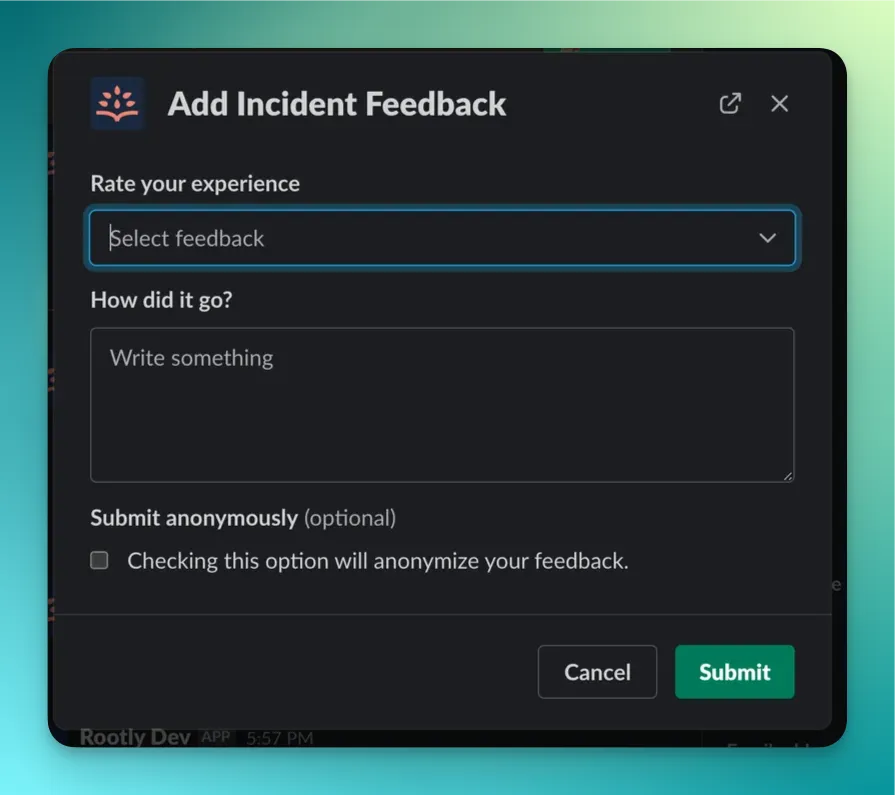 Once submitted, your feedback is saved and can be viewed from the web interface.
Slack feedback commands must be run **inside the incident channel**, as Rootly identifies the incident using the channel ID.
***
### What Happens After Feedback Is Submitted
After your feedback is recorded:
* It is linked to your user and the incident
* You cannot submit a second feedback entry
* You *can* edit your existing feedback through the web interface
* Anonymous feedback hides your identity from other responders and stakeholders
* Feedback becomes available for retrospectives and process improvement reviews
***
### Troubleshooting
The incident may still be active.\
Feedback is only available after **Mitigated** or **Resolved**.
Ensure you ran the command **inside the incident channel**.\
Commands executed elsewhere cannot be mapped to an incident.
You can edit feedback at any time from the **web interface**.\
Slack does not support editing after submission.
Verify whether the **anonymous** checkbox was selected during submission.\
You can change this setting by editing the feedback on the web.
Confirm:
* The incident is Mitigated or Resolved
* You have permission to submit feedback
* The Rootly Slack app has access to the channel
* You are running the command in the correct incident channel
***
### Best Practices
* **Submit feedback as close to resolution as possible**\
Context fades quickly; timely feedback is more accurate.
* **Be specific and actionable**\
Comments such as “unclear ownership during triage” or “alert was noisy” help teams make targeted improvements.
* **Use anonymity when necessary**\
Anonymous submissions can encourage more candid insights.
* **Incorporate feedback into retrospectives**\
Reviewing user feedback alongside incident timelines provides richer context.
* **Automate reminders to leave feedback**\
Many teams configure workflows that prompt responders to submit feedback immediately after the incident transitions to Resolved.
* **Encourage all responders to participate**\
Broader participation leads to more comprehensive insights across teams and roles.
Once submitted, your feedback is saved and can be viewed from the web interface.
Slack feedback commands must be run **inside the incident channel**, as Rootly identifies the incident using the channel ID.
***
### What Happens After Feedback Is Submitted
After your feedback is recorded:
* It is linked to your user and the incident
* You cannot submit a second feedback entry
* You *can* edit your existing feedback through the web interface
* Anonymous feedback hides your identity from other responders and stakeholders
* Feedback becomes available for retrospectives and process improvement reviews
***
### Troubleshooting
The incident may still be active.\
Feedback is only available after **Mitigated** or **Resolved**.
Ensure you ran the command **inside the incident channel**.\
Commands executed elsewhere cannot be mapped to an incident.
You can edit feedback at any time from the **web interface**.\
Slack does not support editing after submission.
Verify whether the **anonymous** checkbox was selected during submission.\
You can change this setting by editing the feedback on the web.
Confirm:
* The incident is Mitigated or Resolved
* You have permission to submit feedback
* The Rootly Slack app has access to the channel
* You are running the command in the correct incident channel
***
### Best Practices
* **Submit feedback as close to resolution as possible**\
Context fades quickly; timely feedback is more accurate.
* **Be specific and actionable**\
Comments such as “unclear ownership during triage” or “alert was noisy” help teams make targeted improvements.
* **Use anonymity when necessary**\
Anonymous submissions can encourage more candid insights.
* **Incorporate feedback into retrospectives**\
Reviewing user feedback alongside incident timelines provides richer context.
* **Automate reminders to leave feedback**\
Many teams configure workflows that prompt responders to submit feedback immediately after the incident transitions to Resolved.
* **Encourage all responders to participate**\
Broader participation leads to more comprehensive insights across teams and roles.