> ## Documentation Index
> Fetch the complete documentation index at: https://docs.rootly.com/llms.txt
> Use this file to discover all available pages before exploring further.
# Managing Incident Status via Slack
> Step-by-step guide to updating incident lifecycle status directly from an incident's Slack channel using Rootly slash commands and interactive status modals.
### Overview
Slack lets responders update incident status in real time—without switching to the web interface.\
Using `/rootly status` (and related quick actions), you can move an incident through its lifecycle, capture required context, and keep all Timeline entries accurate and audit-ready.
Use Slack status updates when your team needs fast, in-channel lifecycle changes during active response.
### Prerequisites
Before updating an incident via Slack:
* You **must run commands inside the incident’s Slack channel**\
(Commands do not work from random channels or DMs.)
* You must have **permission to update incidents** based on your workspace’s roles and access settings.
* The Slack integration must be installed and Rootly must have access to the channel.
If a command “does nothing,” you are likely not in an incident channel. Try again inside the correct channel.
### Updating Status with `/rootly status`
In the incident’s Slack channel, type:
```
/rootly status
```
This opens a modal showing the available incident lifecycle statuses your team has enabled (Triage, Started, Mitigated, Resolved, Cancelled, etc.).
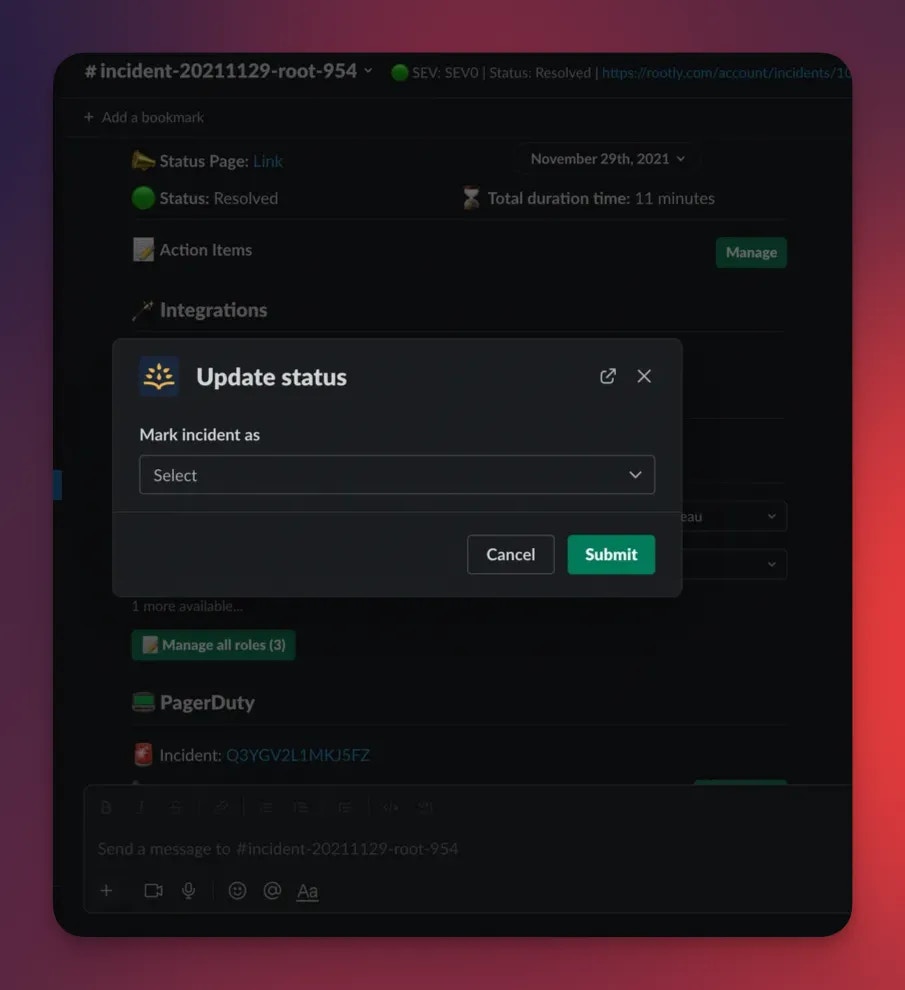 Choose the appropriate status for the incident, then click **Submit**.
Rootly will:
* Update the Incident Status
* Record the change in the Timeline
* Trigger any associated workflows (notifications, role assignment, stakeholder updates, etc.)
* Sync the new status back to the web interface
### Supported Quick Actions
Slack also supports shortcut commands for common lifecycle operations:
| Command | Description | Where It Works |
| :----------------------------------- | :-------------------------------------- | :------------------------------------- |
| `/rootly resolve` | Resolve the incident | Must be inside incident channel |
| `/rootly cancel` | Cancel the incident | Must be inside incident channel |
| `/rootly mitigate` | Mark mitigated | May be blocked if sub-statuses enabled |
| `/rootly status` | Open modal to choose any allowed status | Must be inside incident channel |
| `/rootly new` / `create` / `declare` | Create a new incident | Works in any channel |
If your workspace uses **Sub-Statuses**, `/rootly mitigate` will be blocked. Rootly will prompt you to use your sub-status flow instead.
### Important Behavior & Guardrails
**Required Fields Enforcement**
If your workspace enforces required fields for lifecycle transitions, you may see an error when attempting to update status through Slack.
For example:
* Moving from Started → Resolved may require a Severity or Impact Summary
* Moving out of Triage may require Service or Environment
The Slack modal will clearly indicate what is missing.
**Sub-Statuses and Mitigation**
If your organization has Sub-Statuses enabled, Rootly disables `/rootly mitigate` to prevent conflicts.\
You’ll see a message indicating mitigation must be performed through the sub-status workflow.
**Scheduled Incidents**
Slack lifecycle commands (mitigate/resolve/cancel) are **not supported for scheduled incidents**.\
You must use the Web UI to update scheduled maintenance lifecycle states.
### Troubleshooting
* You are likely not inside an incident channel.
* Use `/rootly status` **inside the incident’s Slack channel**.
Check your incident role or team permissions:
* Only authorized users may update incident status.
Your workspace is enforcing **required fields** for the next lifecycle status.\
Fill the missing fields in the Slack modal or in the Web UI.
Your workspace uses **Sub-Statuses**, so mitigation must be done via the sub-status flow.
### Best Practices
* Use `/rootly status` during response to maintain clean, accurate lifecycle transitions.
* Add short notes when submitting the modal—these appear in the Timeline and help with retrospective analysis.
* Use `/rootly resolve` when service is restored; complete post-incident tasks later in the Web UI.
* Keep lifecycle updates in Slack concise and consistent so responders always understand the current state.
Choose the appropriate status for the incident, then click **Submit**.
Rootly will:
* Update the Incident Status
* Record the change in the Timeline
* Trigger any associated workflows (notifications, role assignment, stakeholder updates, etc.)
* Sync the new status back to the web interface
### Supported Quick Actions
Slack also supports shortcut commands for common lifecycle operations:
| Command | Description | Where It Works |
| :----------------------------------- | :-------------------------------------- | :------------------------------------- |
| `/rootly resolve` | Resolve the incident | Must be inside incident channel |
| `/rootly cancel` | Cancel the incident | Must be inside incident channel |
| `/rootly mitigate` | Mark mitigated | May be blocked if sub-statuses enabled |
| `/rootly status` | Open modal to choose any allowed status | Must be inside incident channel |
| `/rootly new` / `create` / `declare` | Create a new incident | Works in any channel |
If your workspace uses **Sub-Statuses**, `/rootly mitigate` will be blocked. Rootly will prompt you to use your sub-status flow instead.
### Important Behavior & Guardrails
**Required Fields Enforcement**
If your workspace enforces required fields for lifecycle transitions, you may see an error when attempting to update status through Slack.
For example:
* Moving from Started → Resolved may require a Severity or Impact Summary
* Moving out of Triage may require Service or Environment
The Slack modal will clearly indicate what is missing.
**Sub-Statuses and Mitigation**
If your organization has Sub-Statuses enabled, Rootly disables `/rootly mitigate` to prevent conflicts.\
You’ll see a message indicating mitigation must be performed through the sub-status workflow.
**Scheduled Incidents**
Slack lifecycle commands (mitigate/resolve/cancel) are **not supported for scheduled incidents**.\
You must use the Web UI to update scheduled maintenance lifecycle states.
### Troubleshooting
* You are likely not inside an incident channel.
* Use `/rootly status` **inside the incident’s Slack channel**.
Check your incident role or team permissions:
* Only authorized users may update incident status.
Your workspace is enforcing **required fields** for the next lifecycle status.\
Fill the missing fields in the Slack modal or in the Web UI.
Your workspace uses **Sub-Statuses**, so mitigation must be done via the sub-status flow.
### Best Practices
* Use `/rootly status` during response to maintain clean, accurate lifecycle transitions.
* Add short notes when submitting the modal—these appear in the Timeline and help with retrospective analysis.
* Use `/rootly resolve` when service is restored; complete post-incident tasks later in the Web UI.
* Keep lifecycle updates in Slack concise and consistent so responders always understand the current state.