> ## Documentation Index
> Fetch the complete documentation index at: https://docs.rootly.com/llms.txt
> Use this file to discover all available pages before exploring further.
# Resolving Incidents via Slack
> Resolve incidents directly from Slack using Rootly's /rootly resolve command and status update modal to capture resolution context and trigger retrospectives.
### Overview
Slack allows responders to resolve incidents directly from the incident channel—no need to switch to the web interface.\
Using **`/rootly resolve`**, you can mark an incident as fully resolved, provide a short summary of the fix, and trigger any workflows your team has configured for this stage.
All actions performed in Slack are captured in the Timeline, synchronized to the web UI, and used for analytics and retrospectives.
***
### Prerequisites
Before resolving an incident through Slack:
* You must run commands **inside the incident’s Slack channel**.\
Rootly identifies the incident by the channel ID; commands run in other channels or DMs won’t work.
* You must have permission to update incidents.\
Organizations may restrict who can transition lifecycle states.
* Slack lifecycle commands are **not supported for scheduled incidents**.\
Scheduled maintenance must be updated in the web interface.
If `/rootly resolve` appears unresponsive, you are likely not inside an active incident channel.
***
### Resolving an Incident with `/rootly resolve`
In the incident’s Slack channel, type:
**`/rootly resolve`**
Rootly will display a confirmation dialog prompting you to provide a resolution summary and finalize the update.
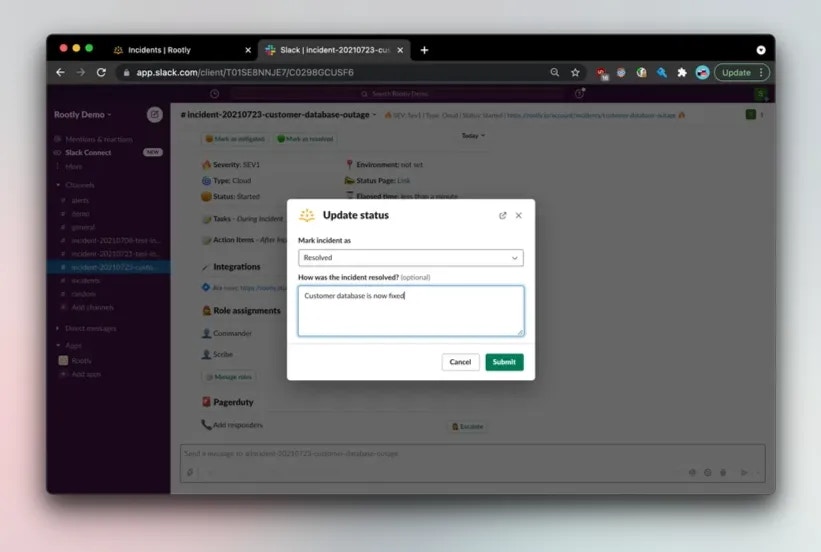 Enter a concise explanation of the final fix or corrective action.
This summary becomes part of the permanent Timeline and is often used in:
* Retrospectives
* Stakeholder communications
* Status page updates (if configured)
* Internal reporting
Clear and direct resolution notes help responders and stakeholders understand what restored service.
Click **Submit** to finalize.
Once submitted, Rootly will:
* Update the incident status to **Resolved**
* Add a Timeline entry with your resolution note
* Trigger any configured “on-resolve” workflows
* Update analytics timestamps
* Automatically set a mitigation timestamp if one was never recorded
* Sync the new status back to the web interface and API
***
### Other Ways to Resolve via Slack
If you prefer a modal-based workflow—or need to review available lifecycle states—you can also resolve an incident using the full status picker.
**Using the Status Modal**
Run:
**`/rootly status`**
This opens the incident lifecycle dialog.\
Select **Resolved**, add any optional notes, and submit.
Both methods—`/rootly resolve` and selecting **Resolved** inside `/rootly status`—perform the same lifecycle transition.
***
### Troubleshooting
* You are likely not inside the incident’s Slack channel.
* Run the command again **inside the correct channel**, where Rootly can match the channel ID to an incident.
You may not have sufficient role or team permissions to modify incident status.\
Check with your Rootly administrator to confirm your permissions.
Your workspace may enforce **required fields** before moving to Resolved.\
The Slack modal clearly lists any fields that must be completed.
Slack lifecycle commands do **not** support scheduled maintenance incidents.\
Use the web interface to update scheduled incident lifecycle states.
Rootly resolves linked PagerDuty incidents only if:
* The incident is linked to a PagerDuty incident
* The PagerDuty integration has **auto-resolve** enabled
Resolving an incident directly in PagerDuty does **not** update or resolve the incident in Rootly.
***
### Best Practices
* **Add informative resolution notes.**\
These appear in timelines, retrospectives, stakeholder notifications, and status pages.
* **Use Slack to move quickly during active response.**\
Fast, in-channel updates help keep everyone aligned.
* **Resolve incidents through Rootly—not PagerDuty.**\
Rootly syncs to PagerDuty, but PagerDuty does not sync back.
* **Automate repetitive actions.**\
Use workflows to send final updates, publish status page events, initiate retrospectives, or archive Slack channels.
* **Check required fields early.**\
Completing required information during the incident avoids blockers at resolution time.
Enter a concise explanation of the final fix or corrective action.
This summary becomes part of the permanent Timeline and is often used in:
* Retrospectives
* Stakeholder communications
* Status page updates (if configured)
* Internal reporting
Clear and direct resolution notes help responders and stakeholders understand what restored service.
Click **Submit** to finalize.
Once submitted, Rootly will:
* Update the incident status to **Resolved**
* Add a Timeline entry with your resolution note
* Trigger any configured “on-resolve” workflows
* Update analytics timestamps
* Automatically set a mitigation timestamp if one was never recorded
* Sync the new status back to the web interface and API
***
### Other Ways to Resolve via Slack
If you prefer a modal-based workflow—or need to review available lifecycle states—you can also resolve an incident using the full status picker.
**Using the Status Modal**
Run:
**`/rootly status`**
This opens the incident lifecycle dialog.\
Select **Resolved**, add any optional notes, and submit.
Both methods—`/rootly resolve` and selecting **Resolved** inside `/rootly status`—perform the same lifecycle transition.
***
### Troubleshooting
* You are likely not inside the incident’s Slack channel.
* Run the command again **inside the correct channel**, where Rootly can match the channel ID to an incident.
You may not have sufficient role or team permissions to modify incident status.\
Check with your Rootly administrator to confirm your permissions.
Your workspace may enforce **required fields** before moving to Resolved.\
The Slack modal clearly lists any fields that must be completed.
Slack lifecycle commands do **not** support scheduled maintenance incidents.\
Use the web interface to update scheduled incident lifecycle states.
Rootly resolves linked PagerDuty incidents only if:
* The incident is linked to a PagerDuty incident
* The PagerDuty integration has **auto-resolve** enabled
Resolving an incident directly in PagerDuty does **not** update or resolve the incident in Rootly.
***
### Best Practices
* **Add informative resolution notes.**\
These appear in timelines, retrospectives, stakeholder notifications, and status pages.
* **Use Slack to move quickly during active response.**\
Fast, in-channel updates help keep everyone aligned.
* **Resolve incidents through Rootly—not PagerDuty.**\
Rootly syncs to PagerDuty, but PagerDuty does not sync back.
* **Automate repetitive actions.**\
Use workflows to send final updates, publish status page events, initiate retrospectives, or archive Slack channels.
* **Check required fields early.**\
Completing required information during the incident avoids blockers at resolution time.