> ## Documentation Index
> Fetch the complete documentation index at: https://docs.rootly.com/llms.txt
> Use this file to discover all available pages before exploring further.
# Resolving Incidents via Web Interface
> Move incidents through the Mitigated and Resolved stages using the Rootly web interface to capture timestamps, mitigation notes, and resolution details.
### Overview
The Rootly web interface provides a guided, reliable way to move an incident toward closure. Whether you are stabilizing an issue or fully resolving it, the web UI ensures each lifecycle transition is documented, timestamped, and tied to the workflows and notifications your team depends on.
Status updates made through the interface become part of the incident’s permanent timeline, reinforcing transparency, improving retrospective accuracy, and standardizing how your organization reports and closes incidents.
***
### Marking an Incident as Mitigated
Mitigation communicates that the **immediate impact has been contained**, even if longer-term remediation is still underway.
Teams often use this step when a temporary fix, rollback, or workaround restores functionality while engineers continue to diagnose or implement a permanent solution.
Navigate to the incident’s detail page in the Rootly web interface.\
The status action buttons are displayed prominently in the incident toolbar.
Select **Mark as Mitigated** when customer impact has ended or stabilized.
 Use Mitigated as soon as impact stops—even if engineering work continues behind the scenes.\
This helps stakeholders understand that conditions have improved.
A dialog will appear prompting you to describe what actions were taken to stabilize the situation.
These notes will appear in:
* Incident timelines
* Retrospectives
* Status updates
* Stakeholder notifications (if configured)
Use Mitigated as soon as impact stops—even if engineering work continues behind the scenes.\
This helps stakeholders understand that conditions have improved.
A dialog will appear prompting you to describe what actions were taken to stabilize the situation.
These notes will appear in:
* Incident timelines
* Retrospectives
* Status updates
* Stakeholder notifications (if configured)
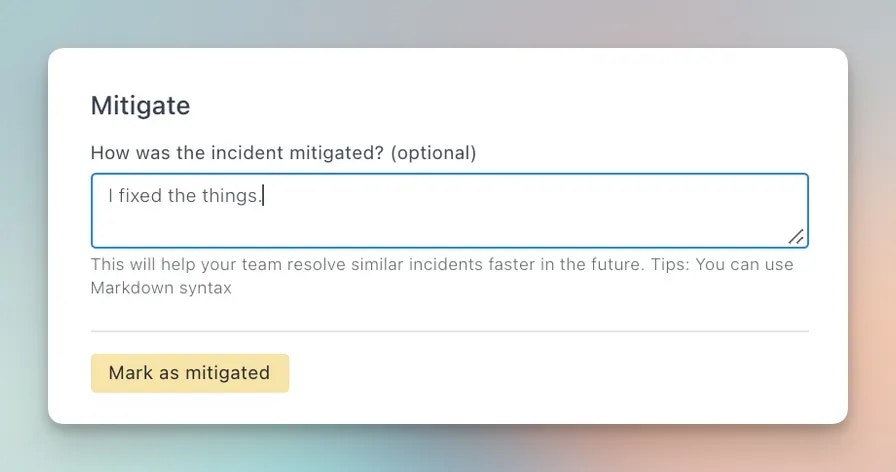 Clear mitigation notes help downstream teams—support, customer success, leadership—understand when and how conditions improved.
Click **Mark as Mitigated** again to finalize the update.
Rootly will:
* Record the mitigation timestamp
* Add a timeline entry
* Trigger any mitigation workflows, such as Slack announcements or status page updates
* Sync the change back to Slack and API clients
Mitigating an incident is optional. If your workflow does not require this intermediate state, you may proceed directly to resolution.
***
### Marking an Incident as Resolved
Resolution indicates that the **underlying cause has been fully addressed** and no further customer impact is expected.\
This is the final lifecycle stage for most incidents before retrospective work begins.
When the fix or corrective action is complete, click **Mark as Resolved** in the toolbar.
Clear mitigation notes help downstream teams—support, customer success, leadership—understand when and how conditions improved.
Click **Mark as Mitigated** again to finalize the update.
Rootly will:
* Record the mitigation timestamp
* Add a timeline entry
* Trigger any mitigation workflows, such as Slack announcements or status page updates
* Sync the change back to Slack and API clients
Mitigating an incident is optional. If your workflow does not require this intermediate state, you may proceed directly to resolution.
***
### Marking an Incident as Resolved
Resolution indicates that the **underlying cause has been fully addressed** and no further customer impact is expected.\
This is the final lifecycle stage for most incidents before retrospective work begins.
When the fix or corrective action is complete, click **Mark as Resolved** in the toolbar.
 It’s best to resolve only when the team is confident the issue will not recur under the current conditions.
A dialog will prompt you to summarize the final fix or corrective action.\
This explanation becomes a key part of the incident’s historical record.
It’s best to resolve only when the team is confident the issue will not recur under the current conditions.
A dialog will prompt you to summarize the final fix or corrective action.\
This explanation becomes a key part of the incident’s historical record.
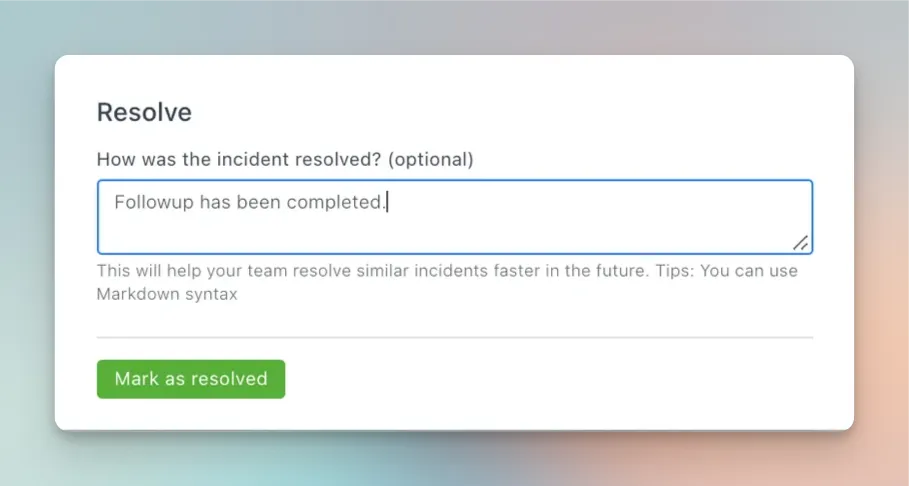 Resolution notes should briefly describe *what was done*, *why it worked*, and *any remaining follow-up*.
Click **Mark as Resolved** again to close the incident.
Rootly will:
* Record the resolution timestamp
* Log a timeline entry
* Trigger “on-resolve” workflows such as stakeholder announcements, ticket closures, or retrospective creation
* Update any connected systems such as Slack or Status Pages
If an incident is resolved without being mitigated first, Rootly automatically assigns a mitigation time equal to the resolution time.\
This keeps analytics—especially MTTR and phase durations—accurate and consistent.
***
### Troubleshooting
This typically means:
* Required fields have not been completed
* You do not have permission to update lifecycle status
The interface will highlight any missing fields.
Your workspace may enforce structured lifecycle transitions.\
You may need to advance through statuses in order or return to a previously visited state.
Resolution syncing requires:
* A linked PagerDuty incident
* Auto-resolve enabled in the integration settings
When configured, Rootly resolves both the PD incident and its alerts.
If you resolve without mitigating, Rootly automatically sets the mitigation time to match the resolution time.\
This ensures consistent and meaningful analytics.
***
### Best Practices
* **Write clear, concise mitigation and resolution notes**\
These notes appear in timelines, retrospectives, Slack updates, and status pages. They help responders and stakeholders quickly understand what changed and why.
* **Use mitigation to separate “impact ended” from “work completed”**\
This distinction improves customer communication, stakeholder clarity, and metrics.
* **Always resolve incidents through Rootly**\
If PagerDuty auto-resolve is enabled, Rootly will update the PD incident automatically.\
Resolving directly in PagerDuty does **not** update Rootly.
* **Automate repetitive closure activities**\
Many teams use workflows to:
* Send final Slack updates
* Publish status page messages
* Create retrospectives
* Archive Slack channels
* Notify leadership or customers
* **Complete required fields early**\
Some organizations require specific information (e.g., customer impact, affected services, root cause category) before resolution.\
Filling these fields earlier avoids blockers late in the incident.
* **Review the timeline after resolving**\
Ensuring all key actions, decisions, and updates are recorded helps support strong retrospectives.
Resolution notes should briefly describe *what was done*, *why it worked*, and *any remaining follow-up*.
Click **Mark as Resolved** again to close the incident.
Rootly will:
* Record the resolution timestamp
* Log a timeline entry
* Trigger “on-resolve” workflows such as stakeholder announcements, ticket closures, or retrospective creation
* Update any connected systems such as Slack or Status Pages
If an incident is resolved without being mitigated first, Rootly automatically assigns a mitigation time equal to the resolution time.\
This keeps analytics—especially MTTR and phase durations—accurate and consistent.
***
### Troubleshooting
This typically means:
* Required fields have not been completed
* You do not have permission to update lifecycle status
The interface will highlight any missing fields.
Your workspace may enforce structured lifecycle transitions.\
You may need to advance through statuses in order or return to a previously visited state.
Resolution syncing requires:
* A linked PagerDuty incident
* Auto-resolve enabled in the integration settings
When configured, Rootly resolves both the PD incident and its alerts.
If you resolve without mitigating, Rootly automatically sets the mitigation time to match the resolution time.\
This ensures consistent and meaningful analytics.
***
### Best Practices
* **Write clear, concise mitigation and resolution notes**\
These notes appear in timelines, retrospectives, Slack updates, and status pages. They help responders and stakeholders quickly understand what changed and why.
* **Use mitigation to separate “impact ended” from “work completed”**\
This distinction improves customer communication, stakeholder clarity, and metrics.
* **Always resolve incidents through Rootly**\
If PagerDuty auto-resolve is enabled, Rootly will update the PD incident automatically.\
Resolving directly in PagerDuty does **not** update Rootly.
* **Automate repetitive closure activities**\
Many teams use workflows to:
* Send final Slack updates
* Publish status page messages
* Create retrospectives
* Archive Slack channels
* Notify leadership or customers
* **Complete required fields early**\
Some organizations require specific information (e.g., customer impact, affected services, root cause category) before resolution.\
Filling these fields earlier avoids blockers late in the incident.
* **Review the timeline after resolving**\
Ensuring all key actions, decisions, and updates are recorded helps support strong retrospectives.