> ## Documentation Index
> Fetch the complete documentation index at: https://docs.rootly.com/llms.txt
> Use this file to discover all available pages before exploring further.
# Updating Incident Integration Links
> View, edit, and update external integration links for incidents through both the Rootly web interface and Slack to keep Jira, ticketing, and docs in sync.
### Overview
Many incidents rely on external systems—ticketing tools, documentation platforms, notebooks, meeting links, and on-call providers.\
Rootly centralizes these external references by allowing teams to store and update integration links directly on the incident.
These links may be:
* Automatically created by integrations
* Generated through workflows
* Manually added or corrected by responders
You can update integration links through both the Rootly web interface and the Rootly Slack bot.
The list of editable links depends on which integrations your workspace has enabled. Only integrations your team has configured will appear in the editor.
***
### Editing Integration Links via the Web UI
Navigate to the incident whose integration links you want to modify.
In the **Integrations** section of the incident page, click **Edit Integrations**.
This opens a modal listing all editable integration link fields—for example, Jira, Asana, PagerDuty, Google Drive, Zoom, Confluence, and others.
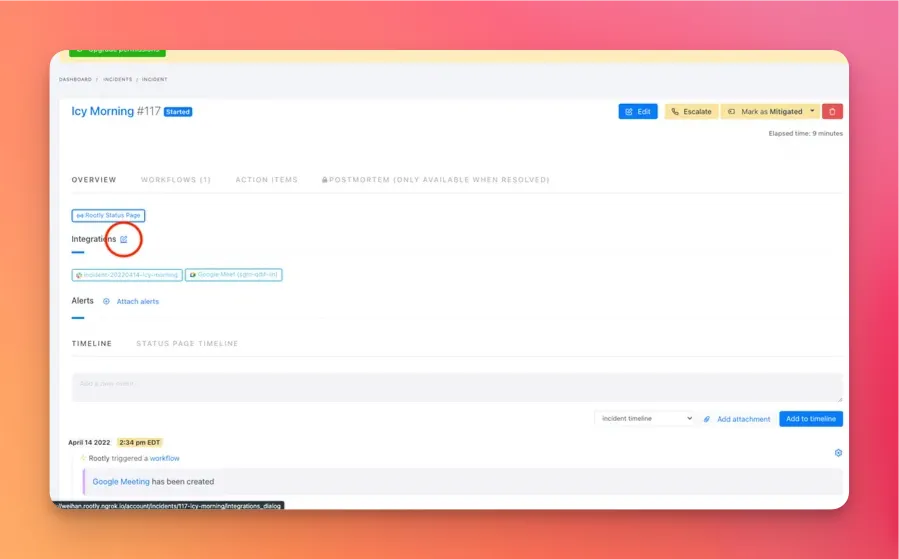 Each field represents an external system link. You may:
* Replace an existing URL
* Add a missing link
* Leave the field blank to remove it
All links require a valid URL format.
Each field represents an external system link. You may:
* Replace an existing URL
* Add a missing link
* Leave the field blank to remove it
All links require a valid URL format.
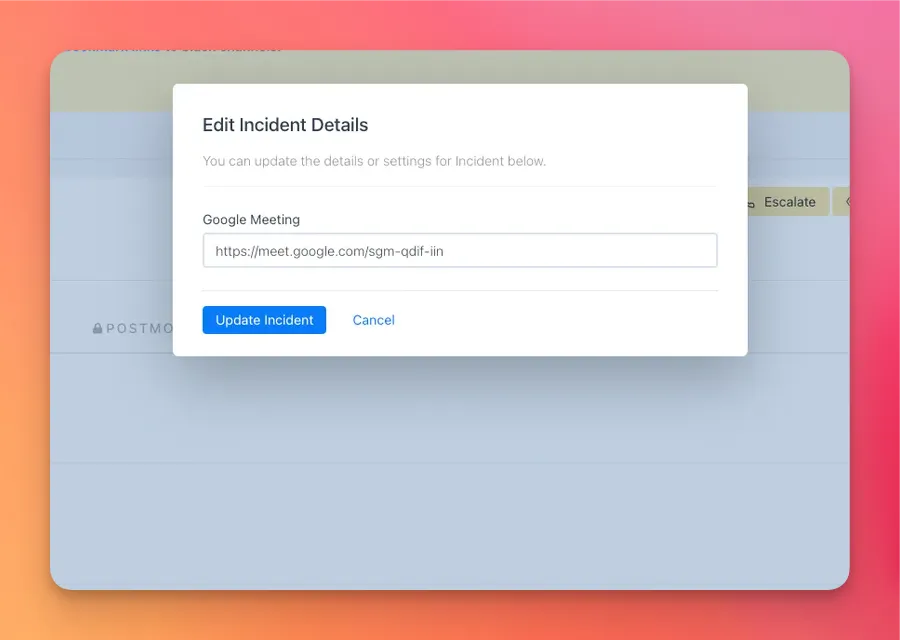 Click **Update** to apply your changes.
Your updated links will immediately appear in the Integrations section of the incident.
Use the web interface when updating multiple links at once or when cleaning up links after workflows or automations.
***
### Editing Integration Links via Slack
You can also update integration links without leaving Slack.\
This is useful during active response when responders are working primarily in the incident channel.
There are two ways to open the integration editor in Slack.
***
#### Option 1: Use the Pinned Incident Overview
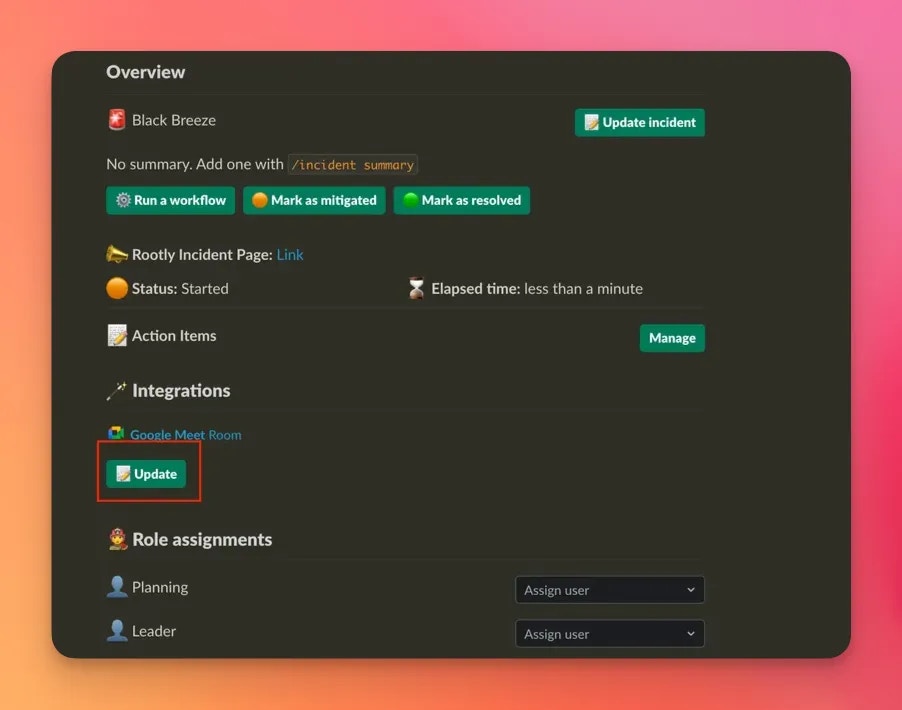
When viewing an incident channel, the pinned incident summary includes an **Integrations** section with an **Edit** button.
Clicking **Edit** opens the same integration editor modal used in the web interface.
Click **Update** to apply your changes.
Your updated links will immediately appear in the Integrations section of the incident.
Use the web interface when updating multiple links at once or when cleaning up links after workflows or automations.
***
### Editing Integration Links via Slack
You can also update integration links without leaving Slack.\
This is useful during active response when responders are working primarily in the incident channel.
There are two ways to open the integration editor in Slack.
***
#### Option 1: Use the Pinned Incident Overview
When viewing an incident channel, the pinned incident summary includes an **Integrations** section with an **Edit** button.
Clicking **Edit** opens the same integration editor modal used in the web interface.
 ***
#### Option 2: Use the Slash Command
You can also open the integration editor by typing:
***
#### Option 2: Use the Slash Command
You can also open the integration editor by typing:
/incident integration
inside the incident channel.
Rootly will open a modal where you can update any of the available integration links.
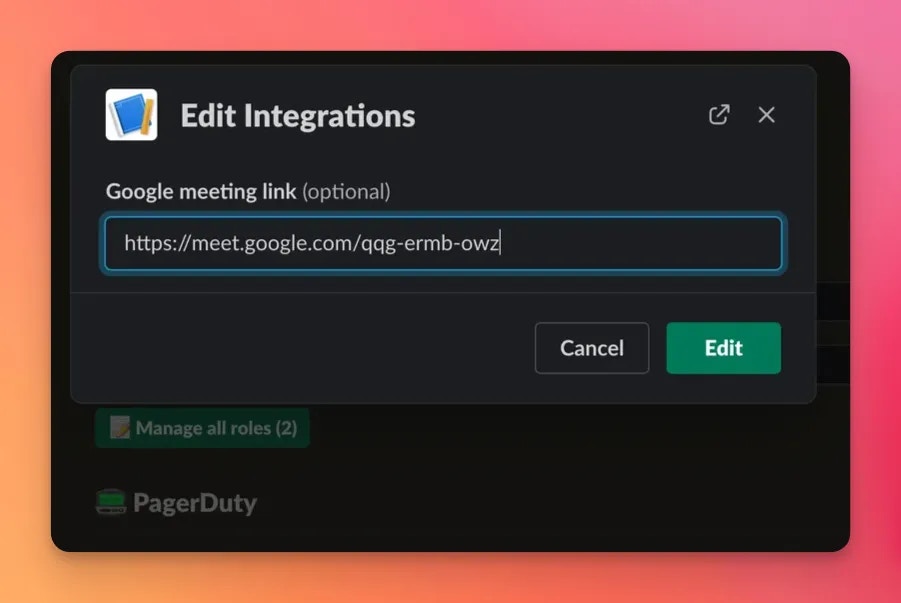 Slack commands must be run inside the **incident channel**.\
Rootly identifies the incident based on the channel ID.
***
### Which Integrations Can Be Edited?
The integrations editor displays only the links that apply to the integrations your team has enabled.\
Common examples include:
* Jira
* Asana
* PagerDuty
* ServiceNow
* Zendesk
* GitHub
* Linear
* Confluence
* Google Drive / Google Docs / Google Meet / Google Calendar
* Zoom / Webex / GoToMeeting
* Trello
* Notion
* Shortcut
* Coda
* Airtable
* Datadog Notebook
If an integration is installed but a link was not automatically created, you can manually add it here.
***
### Troubleshooting
Your workspace may not have any integrations enabled for this incident type.\
Only integrations your team has configured will appear.
Make sure you are running the command **inside the incident channel**.\
Commands sent from other channels or DMs cannot be mapped to an incident.
Integration links must be valid URLs.\
Invalid or improperly formatted URLs will cause a validation error.
You may not have permission to update incidents.\
Check your incident role or workspace access settings.
Only integrations with active workspace configuration appear.\
Ensure the integration is fully set up under **Configuration → Integrations**.
***
### Best Practices
* **Use workflows to automatically generate links**\
For example, create Jira issues or PagerDuty incidents automatically and populate the link fields.
* **Maintain consistency across incident types**\
Standardizing where each system’s link is stored makes retrospectives and auditing much easier.
* **Remove outdated or incorrect links**\
Leaving fields blank clears stale or incorrect values to avoid confusion later.
* **Encourage responders to update links early**\
Accurate integration links ensure the right systems stay connected throughout the lifecycle.
* **Use Slack for quick updates, Web UI for bulk editing**\
Slack is ideal during active response; the web interface is better for comprehensive cleanup.
Slack commands must be run inside the **incident channel**.\
Rootly identifies the incident based on the channel ID.
***
### Which Integrations Can Be Edited?
The integrations editor displays only the links that apply to the integrations your team has enabled.\
Common examples include:
* Jira
* Asana
* PagerDuty
* ServiceNow
* Zendesk
* GitHub
* Linear
* Confluence
* Google Drive / Google Docs / Google Meet / Google Calendar
* Zoom / Webex / GoToMeeting
* Trello
* Notion
* Shortcut
* Coda
* Airtable
* Datadog Notebook
If an integration is installed but a link was not automatically created, you can manually add it here.
***
### Troubleshooting
Your workspace may not have any integrations enabled for this incident type.\
Only integrations your team has configured will appear.
Make sure you are running the command **inside the incident channel**.\
Commands sent from other channels or DMs cannot be mapped to an incident.
Integration links must be valid URLs.\
Invalid or improperly formatted URLs will cause a validation error.
You may not have permission to update incidents.\
Check your incident role or workspace access settings.
Only integrations with active workspace configuration appear.\
Ensure the integration is fully set up under **Configuration → Integrations**.
***
### Best Practices
* **Use workflows to automatically generate links**\
For example, create Jira issues or PagerDuty incidents automatically and populate the link fields.
* **Maintain consistency across incident types**\
Standardizing where each system’s link is stored makes retrospectives and auditing much easier.
* **Remove outdated or incorrect links**\
Leaving fields blank clears stale or incorrect values to avoid confusion later.
* **Encourage responders to update links early**\
Accurate integration links ensure the right systems stay connected throughout the lifecycle.
* **Use Slack for quick updates, Web UI for bulk editing**\
Slack is ideal during active response; the web interface is better for comprehensive cleanup.