> ## Documentation Index
> Fetch the complete documentation index at: https://docs.rootly.com/llms.txt
> Use this file to discover all available pages before exploring further.
# Updating Incident Timestamps
> Update incident timestamps in Rootly for accurate event documentation, compliance tracking, retrospective analysis, and SLA reporting after the fact.
### Overview
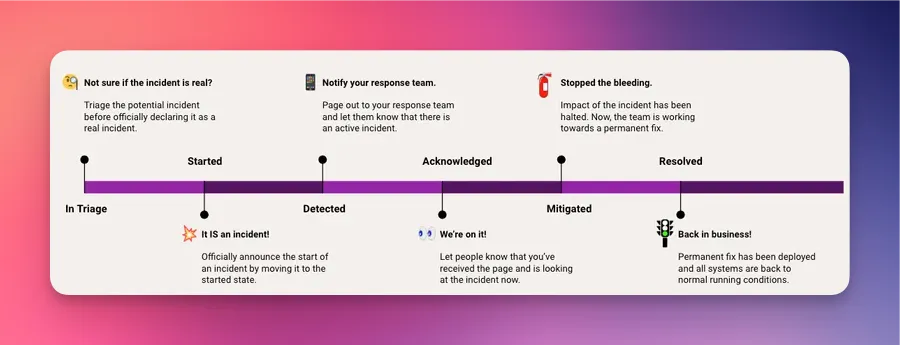
Incident timestamps are crucial for accurately documenting events, enabling precise tracking and analysis of occurrences. Not only are incident timestamps essential for legal and compliance purposes, they are also the foundation to tracking the quality and efficiency of your incident response process.
 ***
### Available Timestamps
Each Rootly incident comes default with the following timestamps:
| Name | Required? | Description | Liquid Variable |
| ------------ | --------- | ---------------------------------------------------------------------------------------------------------------------------------------------------------------------------------------------------------------------------------------------------------------------------------------------------------------------------------------------------------------------------------------------------------------------------------------------- | -------------------------------- |
| In Triage | No | Before an incident starts, it can go through a triage state. This timestamp is automatically logged when the incident enters the `in_triage` state. | `{{ incident.in_triage_at }}` |
| Started | Yes | This marks the official start of an incident. This timestamp is automatically logged when the incident enters the `started` state. | `{{ incident.started_at }}` |
| Detected | No | This marks the time when the response team is informed. For many teams, the time in which the incident starts is also the time in which their responder team is informed. There is no "detected" state, so this timestamp is NOT automatically logged out of box. Teams can manually set it OR automatically set it through workflows. | `{{ incident.detected_at }}` |
| Acknowledged | No | This marks the time when the response team acknowledges that they are looking into the incident. For many teams, this timestamp is often tied to when the first responder acknowledges the page through an on-call solution (e.g. Rootly On-Call, PagerDuty, Opsgenie, etc.). There is no "acknowledged" state, so this timestamp is NOT automatically logged out of box. Teams can manually set it OR automatically set it through workflows. | `{{ incident.acknowledged_at }}` |
| Mitigated | Yes | This marks the time in which the impact of the incident is halted. This does NOT signify the end of an incident. This timestamp is automatically logged when the incident enters the `mitigated` state. | `{{ incident.mitigated_at }}` |
| Resolved | Yes | This marks the time in which the incident is resolved and all systems are running as normal. This timestamp is automatically logged when the incident enters the `resolved` state. | `{{ incident.resolved_at }}` |
| Cancelled | No | This marks the time in which the incident is cancelled. This timestamp is automatically logged when the incident enters the `cancelled` state. | `{{ incident.cancelled_at }}` |
***
### Updating Timestamps
#### Manually Via Slack
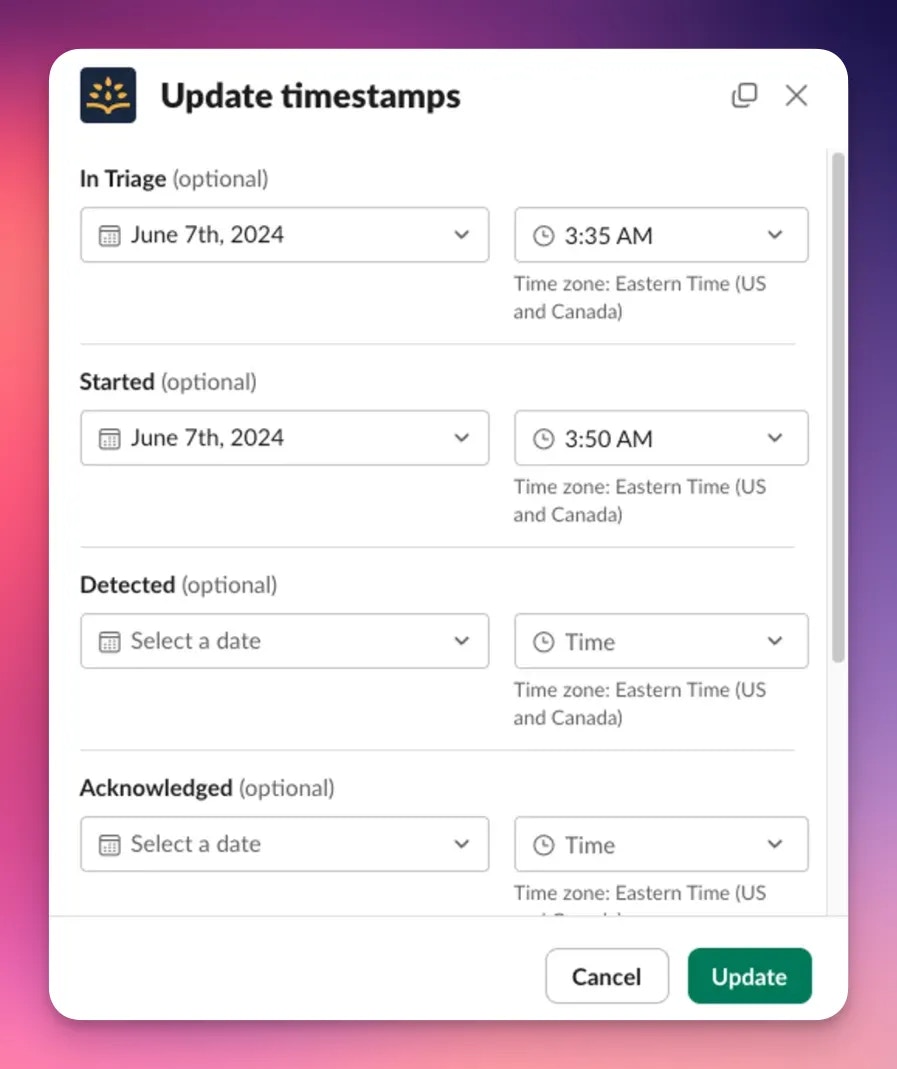
Timestamps can be updated through the Rootly Slack bot by using the /incident timestamps Slack command.
***
### Available Timestamps
Each Rootly incident comes default with the following timestamps:
| Name | Required? | Description | Liquid Variable |
| ------------ | --------- | ---------------------------------------------------------------------------------------------------------------------------------------------------------------------------------------------------------------------------------------------------------------------------------------------------------------------------------------------------------------------------------------------------------------------------------------------- | -------------------------------- |
| In Triage | No | Before an incident starts, it can go through a triage state. This timestamp is automatically logged when the incident enters the `in_triage` state. | `{{ incident.in_triage_at }}` |
| Started | Yes | This marks the official start of an incident. This timestamp is automatically logged when the incident enters the `started` state. | `{{ incident.started_at }}` |
| Detected | No | This marks the time when the response team is informed. For many teams, the time in which the incident starts is also the time in which their responder team is informed. There is no "detected" state, so this timestamp is NOT automatically logged out of box. Teams can manually set it OR automatically set it through workflows. | `{{ incident.detected_at }}` |
| Acknowledged | No | This marks the time when the response team acknowledges that they are looking into the incident. For many teams, this timestamp is often tied to when the first responder acknowledges the page through an on-call solution (e.g. Rootly On-Call, PagerDuty, Opsgenie, etc.). There is no "acknowledged" state, so this timestamp is NOT automatically logged out of box. Teams can manually set it OR automatically set it through workflows. | `{{ incident.acknowledged_at }}` |
| Mitigated | Yes | This marks the time in which the impact of the incident is halted. This does NOT signify the end of an incident. This timestamp is automatically logged when the incident enters the `mitigated` state. | `{{ incident.mitigated_at }}` |
| Resolved | Yes | This marks the time in which the incident is resolved and all systems are running as normal. This timestamp is automatically logged when the incident enters the `resolved` state. | `{{ incident.resolved_at }}` |
| Cancelled | No | This marks the time in which the incident is cancelled. This timestamp is automatically logged when the incident enters the `cancelled` state. | `{{ incident.cancelled_at }}` |
***
### Updating Timestamps
#### Manually Via Slack
Timestamps can be updated through the Rootly Slack bot by using the /incident timestamps Slack command.
 #### Manually Via Web UI
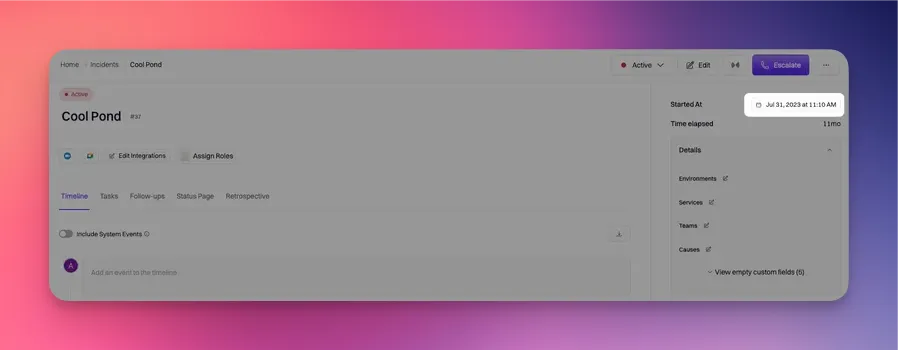
Timestamps can also be updated through the Rootly web UI from the Incident Details page.
Click on any timestamp at the top right hand corner of a specific incident.
#### Manually Via Web UI
Timestamps can also be updated through the Rootly web UI from the Incident Details page.
Click on any timestamp at the top right hand corner of a specific incident.
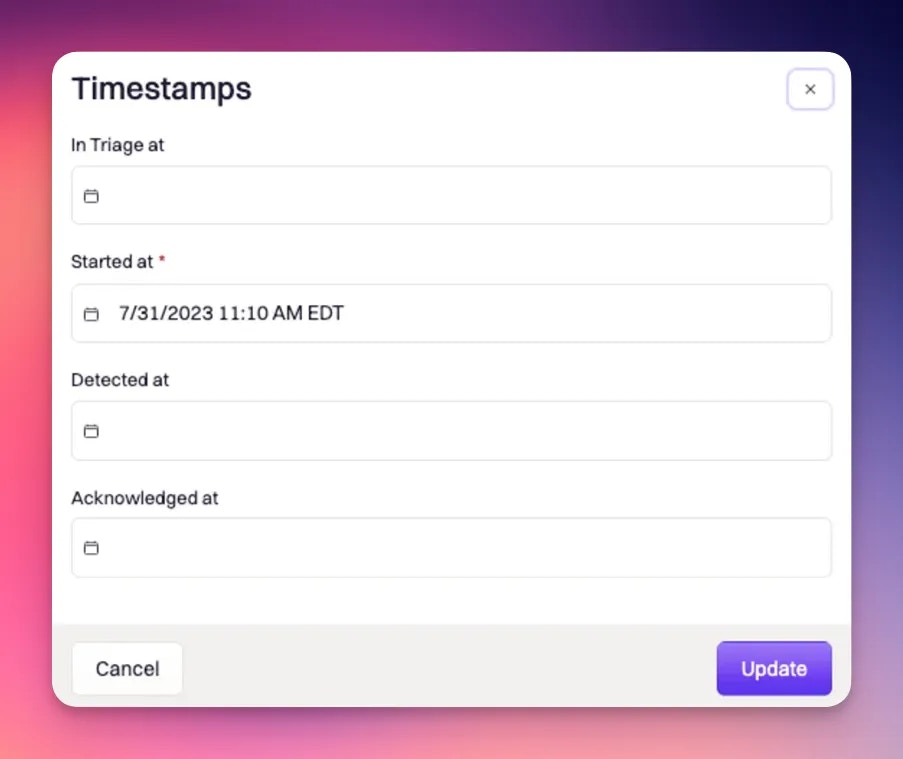
 A modal will pop up to allow you to edit each timestamp.
 ***
#### Automatically Via Workflow
By default, Rootly will automatically log the *In Triage*, *Started*, *Mitigated*, and *Resolved* timestamps when the incident cycle enters those corresponding states. For the timestamps that Rootly do not automatically log out of box (*Detected* and *Acknowledged*), you can use a workflow to automate the logging. This method will work with all timestamps.
To automate via workflow, you'll want to trigger a workflow following a specific event that updates the timestamp using the **Update Incident** workflow action
***
#### Automatically Via Workflow
By default, Rootly will automatically log the *In Triage*, *Started*, *Mitigated*, and *Resolved* timestamps when the incident cycle enters those corresponding states. For the timestamps that Rootly do not automatically log out of box (*Detected* and *Acknowledged*), you can use a workflow to automate the logging. This method will work with all timestamps.
To automate via workflow, you'll want to trigger a workflow following a specific event that updates the timestamp using the **Update Incident** workflow action
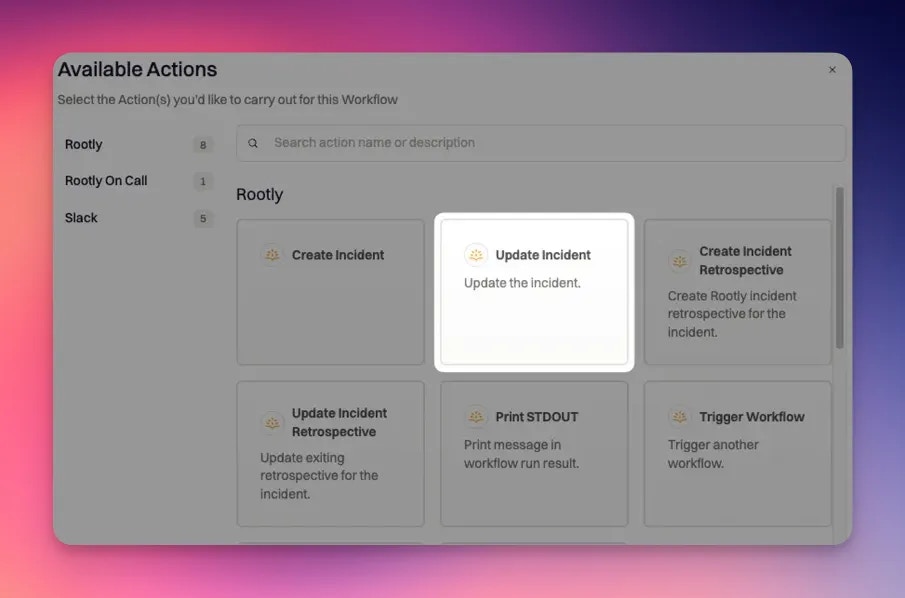 Then, use the following syntax in the Custom Field Mapping input textarea to systematically update the acknowledged timestamp.
```txt Custom Field Mapping theme={null}
{ "acknowledged_at": "" }
```
**ISO 8601 Format:** YYYY-MM-DD HH:MM:ss +/-0X00
Example:
* 2024-07-26 16:07:46 -0400 means July 26, 2024 at 4:07PM in a timezone that is 4 hours behind UTC
Liquid syntax is supported in this input text area so you can dynamically set the time by referencing a Liquid variable.
***
### Metrics Calculations
Each timestamp plays an important role in calculating the metrics of an incident across the overall organization. The following are the math behind each calculated value:
| Value | Format | Formula |
| ---------------------------------------------------------- | ------------------ | -------------------------------------------------------------------------------------------------------------------------------- |
| Time to Mitigation `{{ incident.time_to_mitigation }}` | Integer in hours | `{{ incident.mitigated_at }}` - `{{ incident.started_at }}` |
| Mitigation Duration `{{ incident.mitigation_duration }}` | Integer in seconds | `{{ incident.mitigated_at }}` - `{{ incident.started_at }}` |
| Time to Detection `{{ incident.time_to_detection }}` | Integer in hours | `{{ incident.detected_at }}` - `{{ incident.started_at }}` |
| Detection Duration `{{ incident.detection_duration }}` | Integer in seconds | `{{ incident.detected_at }}` - `{{ incident.started_at }}` |
| Time to Acknowledge `{{ incident.time_to_acknowledge }}` | Integer in hours | `{{ incident.acknowledged_at }}` - `{{ incident.started_at }}` |
| Acknowledge Duration `{{ incident.acknowledge_duration }}` | Integer in seconds | `{{ incident.acknowledged_at }}` - `{{ incident.started_at }}` |
| Time to Resolution `{{ incident.time_to_resolution }}` | Integer in hours | `{{ incident.resolved_at }}` - `{{ incident.started_at }}` |
| Incident Duration `{{ incident.duration }}` | Integer in seconds | If resolved, `{{ incident.resolved_at }}` - `{{ incident.started_at }}`
Then, use the following syntax in the Custom Field Mapping input textarea to systematically update the acknowledged timestamp.
```txt Custom Field Mapping theme={null}
{ "acknowledged_at": "" }
```
**ISO 8601 Format:** YYYY-MM-DD HH:MM:ss +/-0X00
Example:
* 2024-07-26 16:07:46 -0400 means July 26, 2024 at 4:07PM in a timezone that is 4 hours behind UTC
Liquid syntax is supported in this input text area so you can dynamically set the time by referencing a Liquid variable.
***
### Metrics Calculations
Each timestamp plays an important role in calculating the metrics of an incident across the overall organization. The following are the math behind each calculated value:
| Value | Format | Formula |
| ---------------------------------------------------------- | ------------------ | -------------------------------------------------------------------------------------------------------------------------------- |
| Time to Mitigation `{{ incident.time_to_mitigation }}` | Integer in hours | `{{ incident.mitigated_at }}` - `{{ incident.started_at }}` |
| Mitigation Duration `{{ incident.mitigation_duration }}` | Integer in seconds | `{{ incident.mitigated_at }}` - `{{ incident.started_at }}` |
| Time to Detection `{{ incident.time_to_detection }}` | Integer in hours | `{{ incident.detected_at }}` - `{{ incident.started_at }}` |
| Detection Duration `{{ incident.detection_duration }}` | Integer in seconds | `{{ incident.detected_at }}` - `{{ incident.started_at }}` |
| Time to Acknowledge `{{ incident.time_to_acknowledge }}` | Integer in hours | `{{ incident.acknowledged_at }}` - `{{ incident.started_at }}` |
| Acknowledge Duration `{{ incident.acknowledge_duration }}` | Integer in seconds | `{{ incident.acknowledged_at }}` - `{{ incident.started_at }}` |
| Time to Resolution `{{ incident.time_to_resolution }}` | Integer in hours | `{{ incident.resolved_at }}` - `{{ incident.started_at }}` |
| Incident Duration `{{ incident.duration }}` | Integer in seconds | If resolved, `{{ incident.resolved_at }}` - `{{ incident.started_at }}`
If not resolved, `now - {{ incident.started_at }}` |
### Troubleshooting
The timestamp may conflict with another field. For example, a mitigation time cannot occur before the incident starts. Update related timestamps to maintain chronological order.
You may not have run the command inside the incident’s Slack channel. Slack commands outside the incident channel cannot be mapped to an incident.
Certain timestamps only appear when the incident is in the corresponding lifecycle state. For example, Mitigated and Resolved timestamps appear only after those transitions occur.
The incident is a scheduled maintenance event. Scheduled incidents use Scheduled From and Scheduled Until instead of lifecycle fields.
Refresh the page and verify that all timestamps follow chronological order. Incorrect ordering may cause metrics to appear inconsistent.
***
### Best Practices
* **Align on timestamp definitions** to avoid interpretation differences across teams.
* **Use automation whenever possible** to promote consistent and reliable data.
* **Review timestamps during retrospectives** to ensure accuracy before finalizing the incident.
* **Maintain chronological order** so that insights and dashboards remain accurate.
* **Prefer the Web UI for bulk adjustments**, especially when updating several timestamps.
* **Update timestamps promptly** to avoid confusion around when key actions occurred.