> ## Documentation Index
> Fetch the complete documentation index at: https://docs.rootly.com/llms.txt
> Use this file to discover all available pages before exploring further.
# Managing Private Incident Access via Slack
> Learn how to manage and control access to private incident channels directly through Slack using Rootly’s access management commands and modal.
### Overview
Private incidents allow teams to restrict who can see sensitive discussions, customer details, or internal system information.\
Using Rootly’s Slack integration, you can add or remove authorized responders directly from the incident’s Slack channel—without switching to the web interface.
The Slack access modal mirrors the same controls available in the Rootly UI and ensures only approved users can view or participate in private incident channels.
These actions only work inside a **private incident channel**, and require appropriate permissions to manage access.
***
### Manage Access via Slack
Navigate to the private incident channel in Slack.\
Access controls only work from within the correct incident channel.
You can open the access modal in two ways:
**Option A: Slash command**
Type one of the following commands and press Enter:
* `/rootly manage`
* `/rootly access`
* `/rootly users`
**Option B: Button in the pinned incident summary**
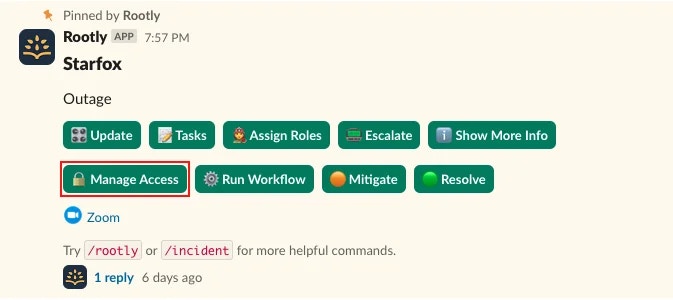
Click **Manage Access** in the pinned Rootly block at the top of the channel.
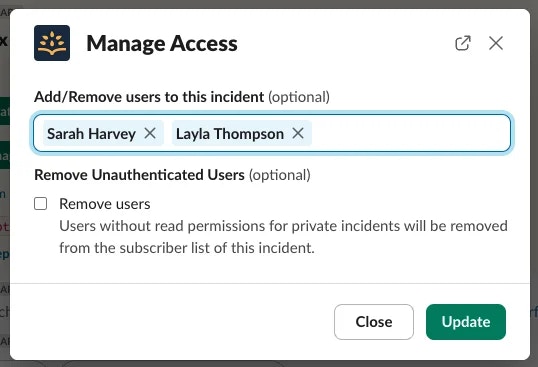
 The access modal displays:
* A **multi-select list** showing all users who currently have access
* A **search box** to add additional users
* A **checkbox** titled **Remove Unauthenticated Users**
**To add users:**\
Start typing a name and select any user to grant them access immediately.
**To remove users:**\
Click the **×** next to their name in the selected users list.
The access modal displays:
* A **multi-select list** showing all users who currently have access
* A **search box** to add additional users
* A **checkbox** titled **Remove Unauthenticated Users**
**To add users:**\
Start typing a name and select any user to grant them access immediately.
**To remove users:**\
Click the **×** next to their name in the selected users list.
 The checkbox **“Remove Unauthenticated Users”** does **not** remove all users you didn’t select.\
Instead, it automatically removes *anyone who does not have permission to view private incidents* based on RBAC.
Click **Update** to apply the changes.\
Rootly will add or remove Slack channel members accordingly.
***
### What Happens After Updating Access
When you save changes:
* Users added gain access to the private incident immediately
* Users removed are removed from the Slack channel
* Removed users *may* receive a Slack notification depending on workspace settings
* Rootly updates the list of authorized incident subscribers
* Any user who lacks private-incident read permission can be automatically removed if the checkbox was selected
Slack may prevent automatic removal if your workspace restricts channel membership management.\
In those cases, Rootly attempts removal but Slack may reject the action.
The checkbox **“Remove Unauthenticated Users”** does **not** remove all users you didn’t select.\
Instead, it automatically removes *anyone who does not have permission to view private incidents* based on RBAC.
Click **Update** to apply the changes.\
Rootly will add or remove Slack channel members accordingly.
***
### What Happens After Updating Access
When you save changes:
* Users added gain access to the private incident immediately
* Users removed are removed from the Slack channel
* Removed users *may* receive a Slack notification depending on workspace settings
* Rootly updates the list of authorized incident subscribers
* Any user who lacks private-incident read permission can be automatically removed if the checkbox was selected
Slack may prevent automatic removal if your workspace restricts channel membership management.\
In those cases, Rootly attempts removal but Slack may reject the action.
 ***
### Best Practices
* **Use the checkbox when cleaning up access**\
It ensures only users with the correct private incident permissions remain in the channel.
* **Be intentional about adding observers**\
Private incidents often involve sensitive operational or customer data.\
Grant access sparingly.
* **Review access during major incident transitions**\
For example, as roles shift or when incident severity changes.
* **Use workflows for structured access management**\
Workflows can automatically add on-call engineers, service owners, or leadership groups.
* **Keep private incidents small and focused**\
The fewer people involved, the faster and more aligned your response tends to be.
***
### Troubleshooting
Make sure you ran the command **inside the private incident channel**.\
Rootly identifies the incident by the Slack channel ID.
You may not have permission to manage private incident access.\
Only users with the required RBAC permissions will see the button.
The **Remove Unauthenticated Users** checkbox removes *anyone* who lacks private-incident read permission—even if you had selected them previously.
Some Slack workspaces restrict who can remove members from channels.\
Rootly attempts removal, but Slack may reject it based on workspace policies.
The user must be a Slack workspace member and must have Rootly access in your organization.
***
### Best Practices
* **Use the checkbox when cleaning up access**\
It ensures only users with the correct private incident permissions remain in the channel.
* **Be intentional about adding observers**\
Private incidents often involve sensitive operational or customer data.\
Grant access sparingly.
* **Review access during major incident transitions**\
For example, as roles shift or when incident severity changes.
* **Use workflows for structured access management**\
Workflows can automatically add on-call engineers, service owners, or leadership groups.
* **Keep private incidents small and focused**\
The fewer people involved, the faster and more aligned your response tends to be.
***
### Troubleshooting
Make sure you ran the command **inside the private incident channel**.\
Rootly identifies the incident by the Slack channel ID.
You may not have permission to manage private incident access.\
Only users with the required RBAC permissions will see the button.
The **Remove Unauthenticated Users** checkbox removes *anyone* who lacks private-incident read permission—even if you had selected them previously.
Some Slack workspaces restrict who can remove members from channels.\
Rootly attempts removal, but Slack may reject it based on workspace policies.
The user must be a Slack workspace member and must have Rootly access in your organization.