> ## Documentation Index
> Fetch the complete documentation index at: https://docs.rootly.com/llms.txt
> Use this file to discover all available pages before exploring further.
# Managing Private Incident Access via Web Interface
> Manage and control access to private incidents in Rootly directly through the web interface, including viewer lists, RBAC overrides, and audit history.
### Overview
Private incidents restrict visibility to only the responders who need to see sensitive operational details, customer information, or internal system context.\
Using the Rootly web interface, you can add or remove authorized users from a private incident—without requiring Slack or modifying RBAC roles.
The **Manage Access** dialog provides full control over incident-level access, matching the functionality available in Slack.
Managing access requires the appropriate permissions.\
Users with *private-incident read* permissions automatically have access; all others must be explicitly added as incident subscribers.
***
### Manage Access via the Web Interface
Navigate to the private incident you want to manage in the Rootly web application.
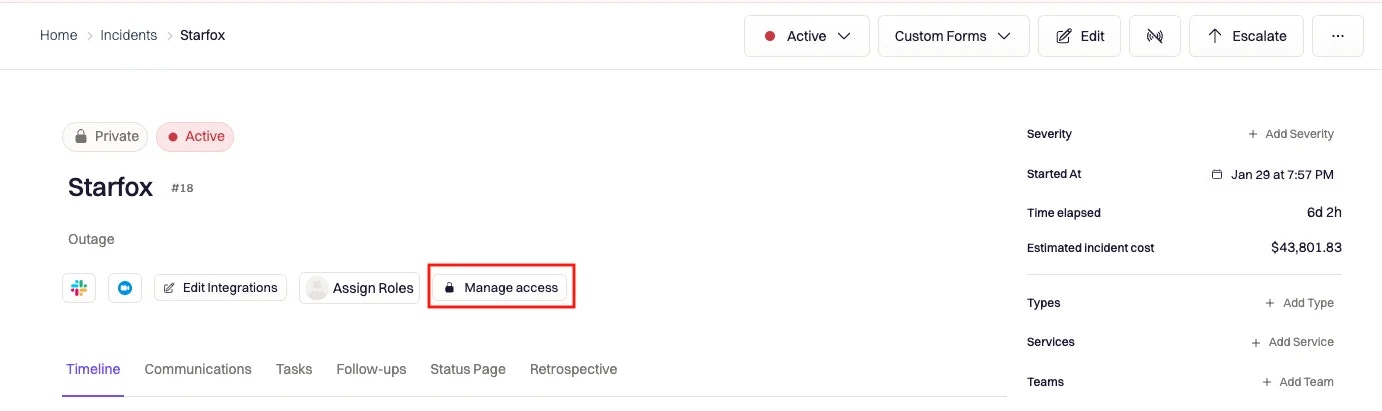
Click **Manage access**, located directly beneath the incident title.
 The access modal includes:
* A **multi-select list** showing all users who currently have access
* A **search field** to add new users
* A **checkbox** titled **Remove users**
**To add users:**\
Begin typing a user’s name. Select a user to immediately grant them access.
**To remove users:**\
Click the **×** beside a user’s name to remove their access.
The access modal includes:
* A **multi-select list** showing all users who currently have access
* A **search field** to add new users
* A **checkbox** titled **Remove users**
**To add users:**\
Begin typing a user’s name. Select a user to immediately grant them access.
**To remove users:**\
Click the **×** beside a user’s name to remove their access.
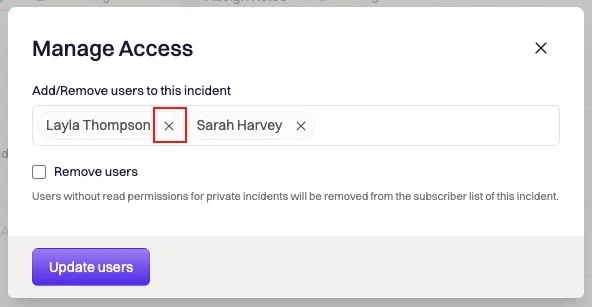 The checkbox **“Remove users”** does **not** simply remove everyone you didn’t select.\
It removes *any subscriber who does not have private-incident read permission* according to RBAC.
Click **Update users** to apply the changes.\
Rootly will immediately grant or revoke incident-level access based on your selections.
***
### What Happens After Updating Access
After saving your changes:
* Newly added users gain access to the private incident immediately
* Removed users lose access to the incident in Rootly
* If Slack is connected, Rootly attempts to update channel membership accordingly
* Users lacking private-incident read permission may be automatically removed if the checkbox was used
* Access updates apply consistently across Rootly and any connected systems
If Slack workspace permissions prevent Rootly from removing a user from the channel, Rootly still revokes their access within the platform.
***
### Best Practices
* **Use the Remove Users checkbox to clean up access**\
This keeps private incidents restricted to only those with the correct RBAC permissions.
* **Limit access to essential responders**\
Private incidents often contain sensitive or high-impact information; keep the participant list tight.
* **Review access as roles shift**\
During long-running or high-severity incidents, revisit access when responsibilities change.
* **Automate access via workflows**\
Workflows can automatically add on-call responders, service owners, or leadership when private incidents are created.
* **Ensure users have Rootly access first**\
Only Rootly-enabled users can be added as private incident subscribers.
***
### Troubleshooting
You may not have permission to manage private-incident access.\
Only users with the required RBAC permissions or incident roles will see the button.
If the **Remove users** checkbox was selected, Rootly removes all subscribers who lack private-incident read permission—even if they previously had access.
They must be a member of your Rootly organization.\
If they were recently added to Slack or your IdP, they may need to log into Rootly first.
Some Slack workspaces restrict channel member removal.\
Rootly will try to remove them, but Slack may block the action.
Yes—if your workspace has parent→child sync enabled.\
Access changes propagate automatically when this feature is turned on.
The checkbox **“Remove users”** does **not** simply remove everyone you didn’t select.\
It removes *any subscriber who does not have private-incident read permission* according to RBAC.
Click **Update users** to apply the changes.\
Rootly will immediately grant or revoke incident-level access based on your selections.
***
### What Happens After Updating Access
After saving your changes:
* Newly added users gain access to the private incident immediately
* Removed users lose access to the incident in Rootly
* If Slack is connected, Rootly attempts to update channel membership accordingly
* Users lacking private-incident read permission may be automatically removed if the checkbox was used
* Access updates apply consistently across Rootly and any connected systems
If Slack workspace permissions prevent Rootly from removing a user from the channel, Rootly still revokes their access within the platform.
***
### Best Practices
* **Use the Remove Users checkbox to clean up access**\
This keeps private incidents restricted to only those with the correct RBAC permissions.
* **Limit access to essential responders**\
Private incidents often contain sensitive or high-impact information; keep the participant list tight.
* **Review access as roles shift**\
During long-running or high-severity incidents, revisit access when responsibilities change.
* **Automate access via workflows**\
Workflows can automatically add on-call responders, service owners, or leadership when private incidents are created.
* **Ensure users have Rootly access first**\
Only Rootly-enabled users can be added as private incident subscribers.
***
### Troubleshooting
You may not have permission to manage private-incident access.\
Only users with the required RBAC permissions or incident roles will see the button.
If the **Remove users** checkbox was selected, Rootly removes all subscribers who lack private-incident read permission—even if they previously had access.
They must be a member of your Rootly organization.\
If they were recently added to Slack or your IdP, they may need to log into Rootly first.
Some Slack workspaces restrict channel member removal.\
Rootly will try to remove them, but Slack may block the action.
Yes—if your workspace has parent→child sync enabled.\
Access changes propagate automatically when this feature is turned on.