> ## Documentation Index
> Fetch the complete documentation index at: https://docs.rootly.com/llms.txt
> Use this file to discover all available pages before exploring further.
# Installation
> Install and configure the Rootly Asana integration to automatically create and update tasks from incidents and action items in your Asana workspace.
## Introduction
The Asana integration connects Rootly with your Asana workspace so teams can automatically create and update tasks through Genius workflows. Tasks can be assigned, linked to projects, given due dates, and populated with custom fields — all driven by incident data.
With the Asana integration, you can:
* Automatically create Asana tasks when incidents are declared or reach a certain state
* Create subtasks under an existing Asana task to track action items
* Update task title, completion status, assignee, and custom fields as incidents evolve
* Set task dependencies to model blocking relationships between tasks
## Before You Begin
Before setting up the integration, make sure you have:
* A Rootly account with admin permission to manage integrations
* An Asana account with access to the workspace you want to use
We recommend installing with a dedicated Asana service account so the integration does not break if an individual user leaves your organization.
## Installation
Navigate to the integrations page in Rootly and select **Asana**.
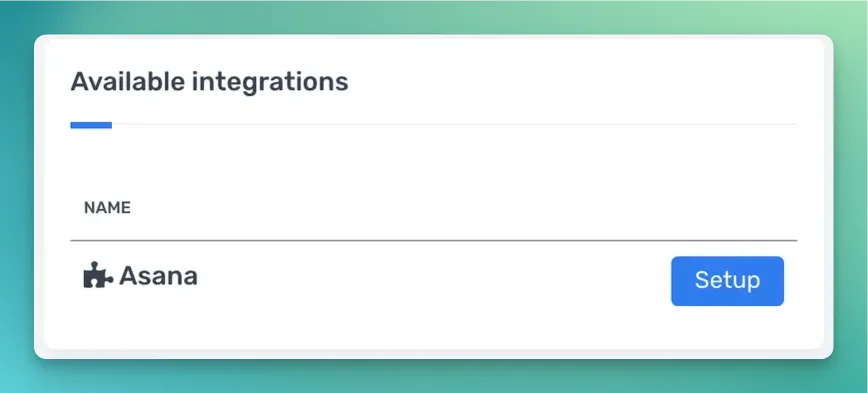 You will be redirected to Asana to sign in and grant Rootly permission to access your workspace. Once authorized, the installation is complete.
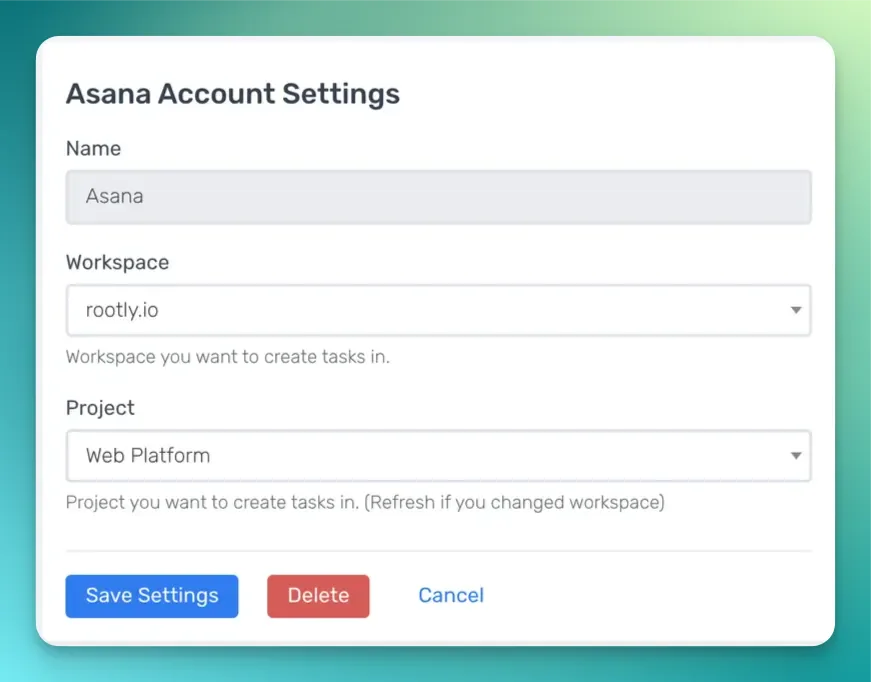 After authorization, the **Create an Asana Task**, **Create an Asana Subtask**, and **Update an Asana Task** workflow actions are available in your Genius workflows.
## Uninstall
To remove the Asana integration, open the integrations panel in Rootly and select **Configure > Delete**.
After authorization, the **Create an Asana Task**, **Create an Asana Subtask**, and **Update an Asana Task** workflow actions are available in your Genius workflows.
## Uninstall
To remove the Asana integration, open the integrations panel in Rootly and select **Configure > Delete**.