> ## Documentation Index
> Fetch the complete documentation index at: https://docs.rootly.com/llms.txt
> Use this file to discover all available pages before exploring further.
# Workflows
> Configure Coda workflows in Rootly to automatically generate retrospective pages, manage document creation, and apply incident-aware templates.
## Overview
Our Coda integration leverages workflows to automatically generate retrospective pages in Coda. If you are unfamiliar with how Workflows function please visit our [Workflows](/workflows "Workflows") documentation first.
 ## Available Workflow Actions
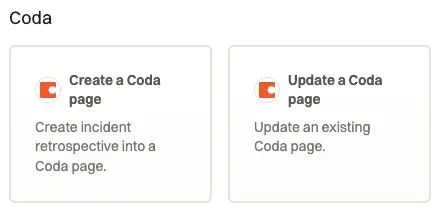
### Create a Coda Page
This action allows you to create an incident retrospective into a Coda Doc.
## Available Workflow Actions
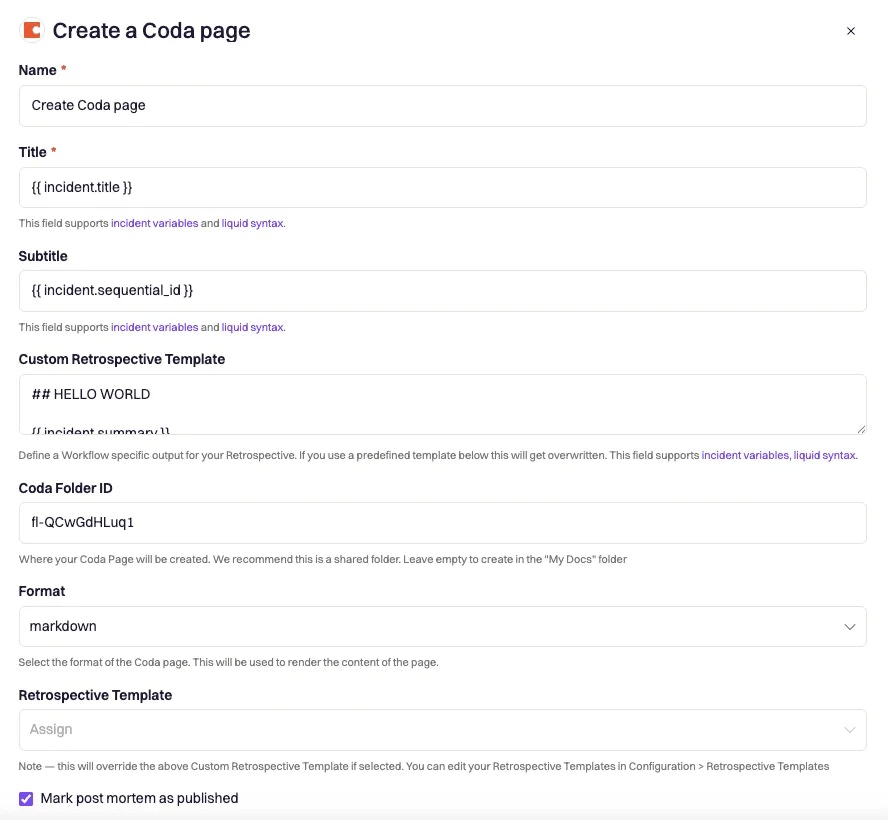
### Create a Coda Page
This action allows you to create an incident retrospective into a Coda Doc.
 #### Title
This field is automatically set for you. You can rename this field to whatever best describes your action. The value in this field does not affect how the workflow action behaves.
#### Subtitle
This field is automatically set for you. You can rename this field to whatever best describes your action. The value in this field does not affect how the workflow action behaves.
#### Page ID
This field allows you to enter the Coda `Page ID` under which the retrospective will be created. The Page ID can be found in the URL when viewing a specific page in your Coda doc.
#### Title
This field allows you to define the title of the Coda page. You can use `{{ incident.title }}` to match the title of your incident. This field supports Liquid syntax.
**TIP:** You can use the [Incident Variable Explorer](https://rootly.com/account/help/liquid-explorer "Incident Variable Explorer") to test out what value each liquid variable returns.
#### Custom Retrospective Template
This field allows you to define the body content of the Coda page. You can use `{{ incident.summary }}` to match the summary of your incident. This field supports Liquid syntax.
**TIP:** You can use the [Incident Variable Explorer](https://rootly.com/account/help/liquid-explorer "Incident Variable Explorer") to test out what value each liquid variable returns.
#### Retrospective Template
This field allows you to use a predefined retrospective template to create the body content of the Coda page. The list of selectable templates can be defined in the [Retrospective Templates page](https://rootly.com/account/retrospective-steps?tab=documents "Retrospective Templates page").
If a template is selected in this field, the content defined in the `Custom Retrospective Template` field will be overridden.
#### Mark Post Mortem as Published
This field allows you to define the status of the retrospective. A retrospective can be in either a `draft` or `published` status. This is typically used if you have automated notification workflows that are only triggered when the retrospective status is `published`.
#### Coda Template
This field allows you to select a predefined template from your Coda Doc. Please see [Setting Up Retro Templates in Coda](/integrations/coda/installation "Setting Up Retro Templates in Coda") to learn how to set up a retrospective template in Coda.
If a template is selected in this field, the content defined in the `Custom Retrospective Template` field and `Retrospective Template` field will be overridden.
### Update a Coda Page
This action allows you to create an incident retrospective into a Coda Doc.
#### Title
This field is automatically set for you. You can rename this field to whatever best describes your action. The value in this field does not affect how the workflow action behaves.
#### Subtitle
This field is automatically set for you. You can rename this field to whatever best describes your action. The value in this field does not affect how the workflow action behaves.
#### Page ID
This field allows you to enter the Coda `Page ID` under which the retrospective will be created. The Page ID can be found in the URL when viewing a specific page in your Coda doc.
#### Title
This field allows you to define the title of the Coda page. You can use `{{ incident.title }}` to match the title of your incident. This field supports Liquid syntax.
**TIP:** You can use the [Incident Variable Explorer](https://rootly.com/account/help/liquid-explorer "Incident Variable Explorer") to test out what value each liquid variable returns.
#### Custom Retrospective Template
This field allows you to define the body content of the Coda page. You can use `{{ incident.summary }}` to match the summary of your incident. This field supports Liquid syntax.
**TIP:** You can use the [Incident Variable Explorer](https://rootly.com/account/help/liquid-explorer "Incident Variable Explorer") to test out what value each liquid variable returns.
#### Retrospective Template
This field allows you to use a predefined retrospective template to create the body content of the Coda page. The list of selectable templates can be defined in the [Retrospective Templates page](https://rootly.com/account/retrospective-steps?tab=documents "Retrospective Templates page").
If a template is selected in this field, the content defined in the `Custom Retrospective Template` field will be overridden.
#### Mark Post Mortem as Published
This field allows you to define the status of the retrospective. A retrospective can be in either a `draft` or `published` status. This is typically used if you have automated notification workflows that are only triggered when the retrospective status is `published`.
#### Coda Template
This field allows you to select a predefined template from your Coda Doc. Please see [Setting Up Retro Templates in Coda](/integrations/coda/installation "Setting Up Retro Templates in Coda") to learn how to set up a retrospective template in Coda.
If a template is selected in this field, the content defined in the `Custom Retrospective Template` field and `Retrospective Template` field will be overridden.
### Update a Coda Page
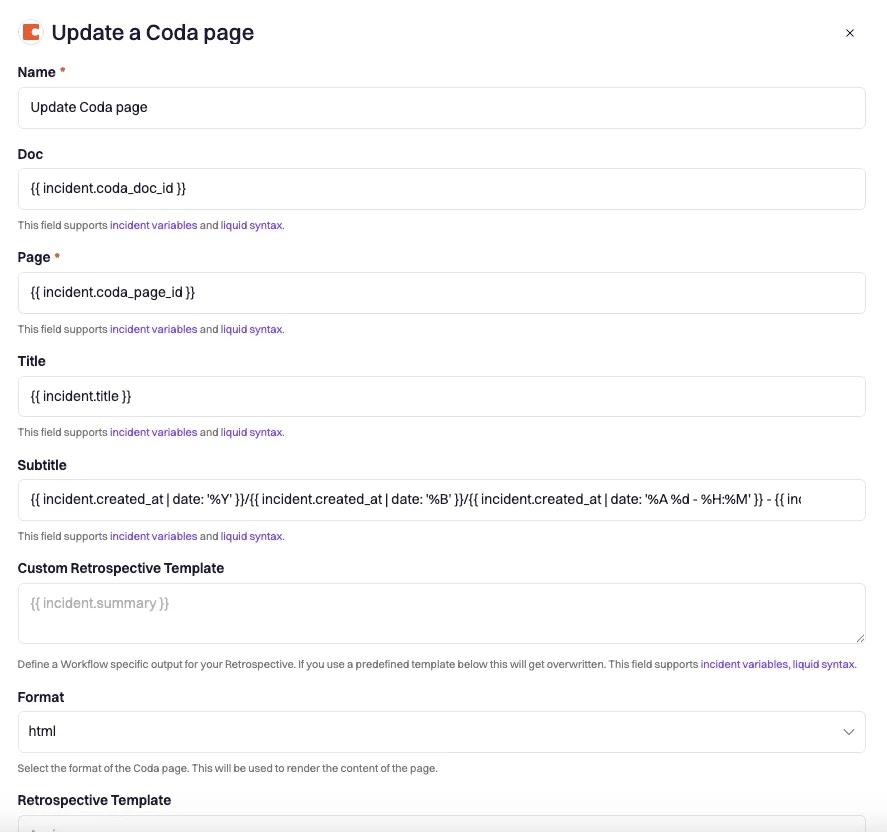
This action allows you to create an incident retrospective into a Coda Doc.
 #### Doc ID
This field is automatically set for you. You can rename this field to whatever best describes your action. The value in this field does not affect how the workflow action behaves.
#### Page ID
This field allows you to enter the Coda `Page ID` under which the retrospective will be created. The Page ID can be found in the URL when viewing a specific page in your Coda doc.
#### Title
This field allows you to define the title of the Coda page. You can use `{{ incident.title }}` to match the title of your incident. This field supports Liquid syntax.
#### Subtitle
This field is automatically set for you. You can rename this field to whatever best describes your action. The value in this field does not affect how the workflow action behaves.
**TIP:** You can use the [Incident Variable Explorer](https://rootly.com/account/help/liquid-explorer "Incident Variable Explorer") to test out what value each liquid variable returns.
#### Custom Retrospective Template
This field allows you to define the body content of the Coda page. You can use `{{ incident.summary }}` to match the summary of your incident. This field supports Liquid syntax.
**TIP:** You can use the [Incident Variable Explorer](https://rootly.com/account/help/liquid-explorer "Incident Variable Explorer") to test out what value each liquid variable returns.
#### Retrospective Template
This field allows you to use a predefined retrospective template to create the body content of the Coda page. The list of selectable templates can be defined in the [Retrospective Templates page](https://rootly.com/account/retrospective-steps?tab=documents "Retrospective Templates page").
If a template is selected in this field, the content defined in the `Custom Retrospective Template` field will be overridden.
#### Mark Post Mortem as Published
This field allows you to define the status of the retrospective. A retrospective can be in either a `draft` or `published` status. This is typically used if you have automated notification workflows that are only triggered when the retrospective status is `published`.
#### Coda Template
This field allows you to select a predefined template from your Coda Doc. Please see [Setting Up Retro Templates in Coda](/integrations/coda/installation "Setting Up Retro Templates in Coda") to learn how to set up a retrospective template in Coda.
If a template is selected in this field, the content defined in the `Custom Retrospective Template` field and `Retrospective Template` field will be overridden.
#### Doc ID
This field is automatically set for you. You can rename this field to whatever best describes your action. The value in this field does not affect how the workflow action behaves.
#### Page ID
This field allows you to enter the Coda `Page ID` under which the retrospective will be created. The Page ID can be found in the URL when viewing a specific page in your Coda doc.
#### Title
This field allows you to define the title of the Coda page. You can use `{{ incident.title }}` to match the title of your incident. This field supports Liquid syntax.
#### Subtitle
This field is automatically set for you. You can rename this field to whatever best describes your action. The value in this field does not affect how the workflow action behaves.
**TIP:** You can use the [Incident Variable Explorer](https://rootly.com/account/help/liquid-explorer "Incident Variable Explorer") to test out what value each liquid variable returns.
#### Custom Retrospective Template
This field allows you to define the body content of the Coda page. You can use `{{ incident.summary }}` to match the summary of your incident. This field supports Liquid syntax.
**TIP:** You can use the [Incident Variable Explorer](https://rootly.com/account/help/liquid-explorer "Incident Variable Explorer") to test out what value each liquid variable returns.
#### Retrospective Template
This field allows you to use a predefined retrospective template to create the body content of the Coda page. The list of selectable templates can be defined in the [Retrospective Templates page](https://rootly.com/account/retrospective-steps?tab=documents "Retrospective Templates page").
If a template is selected in this field, the content defined in the `Custom Retrospective Template` field will be overridden.
#### Mark Post Mortem as Published
This field allows you to define the status of the retrospective. A retrospective can be in either a `draft` or `published` status. This is typically used if you have automated notification workflows that are only triggered when the retrospective status is `published`.
#### Coda Template
This field allows you to select a predefined template from your Coda Doc. Please see [Setting Up Retro Templates in Coda](/integrations/coda/installation "Setting Up Retro Templates in Coda") to learn how to set up a retrospective template in Coda.
If a template is selected in this field, the content defined in the `Custom Retrospective Template` field and `Retrospective Template` field will be overridden.