> ## Documentation Index
> Fetch the complete documentation index at: https://docs.rootly.com/llms.txt
> Use this file to discover all available pages before exploring further.
# Installation
> Connect your Confluence account to Rootly to automate incident documentation, retrospective page creation, and runbook linking from Slack and workflows.
## Before You Begin
We recommend performing the installation with a **service account** to ensure the integration does not break if the installing user leaves the company. Ensure you are logged in as an **Admin** in Rootly.
Rootly supports two Confluence deployment types:
| Type | Authentication |
| ----------------------------------- | ----------------------------------------- |
| **Confluence Cloud** | OAuth 2.0 (recommended) |
| **Confluence Server / Data Center** | Basic auth or Personal Access Token (PAT) |
## Confluence Cloud
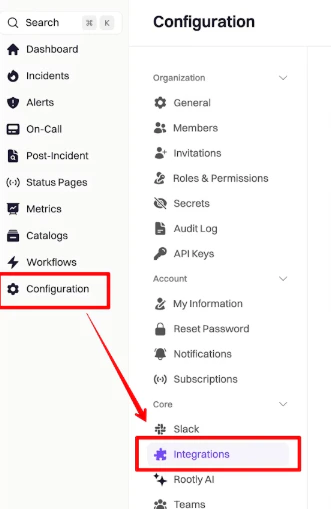
Navigate to **Configuration → Integrations** in your Rootly dashboard.
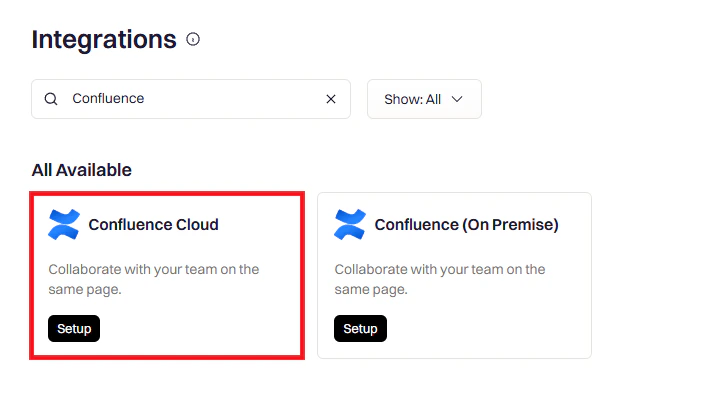
 Search for **Confluence** and click **Setup**.
 You will be redirected to Confluence to grant Rootly permission. Rootly requests the following OAuth scopes:
* `read:user:confluence` — Read your user profile
* `read:content-details:confluence` — Read page content
* `write:content:confluence` — Create and update pages
* `read:template:confluence` — Read Confluence templates
* `read:space:confluence` — Read spaces
* `write:page:confluence` — Create pages
You will be redirected to Confluence to grant Rootly permission. Rootly requests the following OAuth scopes:
* `read:user:confluence` — Read your user profile
* `read:content-details:confluence` — Read page content
* `write:content:confluence` — Create and update pages
* `read:template:confluence` — Read Confluence templates
* `read:space:confluence` — Read spaces
* `write:page:confluence` — Create pages
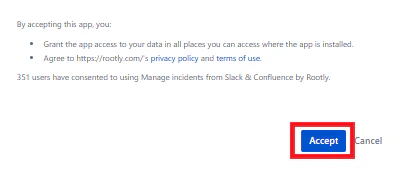
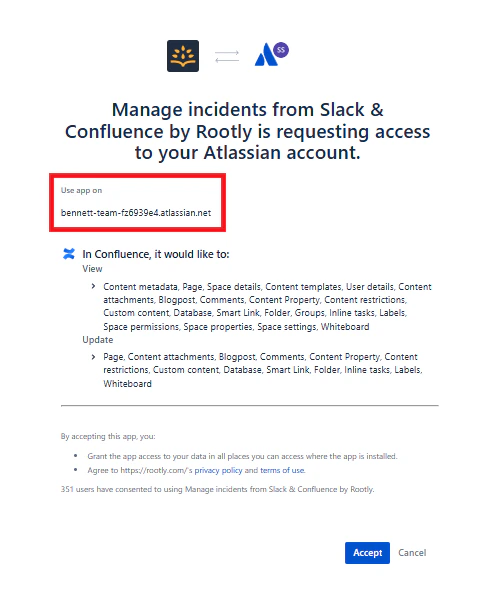 Click **Accept** to authorize Rootly.
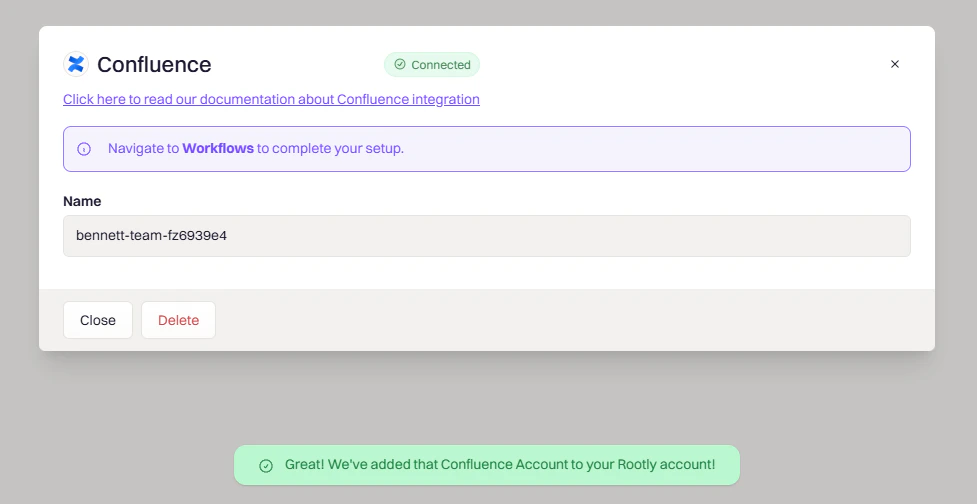
 You will be redirected back to Rootly with a confirmation message. The integration status will show **Connected**.
 ## Confluence Server / Data Center
For on-premise deployments, Rootly supports authentication via **Basic auth** or a **Personal Access Token (PAT)**.
1. Navigate to **Configuration → Integrations** and search for **Confluence Server**.
2. Click **Setup** and enter your Confluence Server URL (e.g. `https://confluence.yourcompany.com`).
3. Enter your credentials:
* **Basic auth**: Username and password
* **PAT**: Generate a token in Confluence under **Profile → Personal Access Tokens** and paste it into the Token field
4. Click **Save** and **Test Connection** to verify.
Personal Access Tokens expire after 90 days by default. Rootly will notify you when a token is approaching expiry. Rotate the token in Confluence and update it in Rootly to avoid workflow failures.
## Setting Up Retrospective Templates in Confluence
You can create custom templates in Confluence that Rootly will apply when generating retrospective pages. Rootly fetches available templates from your Confluence space via the API.
Navigate to the Space in which you want to create the template and open **Space Settings**.
Under **Look and Feel**, select **Templates**.
Click **Create New Template** and build out your template content. Liquid syntax is fully supported — use the [Liquid Variable Explorer](https://rootly.com/account/help/liquid-explorer) to test variables.
Save the template. It will appear in the Confluence Template dropdown when configuring a Create Confluence Page workflow action.
## Uninstall
To remove the Confluence integration:
1. Go to **Configuration → Integrations** and find **Confluence**
2. Click the **Connected** button to reveal the disconnect option
3. Click **Delete**
## Confluence Server / Data Center
For on-premise deployments, Rootly supports authentication via **Basic auth** or a **Personal Access Token (PAT)**.
1. Navigate to **Configuration → Integrations** and search for **Confluence Server**.
2. Click **Setup** and enter your Confluence Server URL (e.g. `https://confluence.yourcompany.com`).
3. Enter your credentials:
* **Basic auth**: Username and password
* **PAT**: Generate a token in Confluence under **Profile → Personal Access Tokens** and paste it into the Token field
4. Click **Save** and **Test Connection** to verify.
Personal Access Tokens expire after 90 days by default. Rootly will notify you when a token is approaching expiry. Rotate the token in Confluence and update it in Rootly to avoid workflow failures.
## Setting Up Retrospective Templates in Confluence
You can create custom templates in Confluence that Rootly will apply when generating retrospective pages. Rootly fetches available templates from your Confluence space via the API.
Navigate to the Space in which you want to create the template and open **Space Settings**.
Under **Look and Feel**, select **Templates**.
Click **Create New Template** and build out your template content. Liquid syntax is fully supported — use the [Liquid Variable Explorer](https://rootly.com/account/help/liquid-explorer) to test variables.
Save the template. It will appear in the Confluence Template dropdown when configuring a Create Confluence Page workflow action.
## Uninstall
To remove the Confluence integration:
1. Go to **Configuration → Integrations** and find **Confluence**
2. Click the **Connected** button to reveal the disconnect option
3. Click **Delete**
 Disconnecting the integration does not delete existing Confluence pages created by Rootly. Those pages remain in your Confluence space.
## Troubleshooting
Ensure you have **Create** or **Edit** permissions in the Confluence spaces you want Rootly to use. Ask an admin to check **Space Settings → Permissions**. If the issue persists, disconnect and reconnect the integration to refresh permissions.
Check if your organization restricts external apps under **Atlassian Admin → Security → App Access**. Confirm the installing user is not limited to read-only access. Retry the installation in an incognito window to avoid stale credentials.
Verify the Confluence Server URL is reachable from Rootly's servers — check any firewall or allowlist rules. Confirm SSL certificates are valid. For PAT authentication, ensure the token has not expired and has the required permissions.
Disconnecting the integration does not delete existing Confluence pages created by Rootly. Those pages remain in your Confluence space.
## Troubleshooting
Ensure you have **Create** or **Edit** permissions in the Confluence spaces you want Rootly to use. Ask an admin to check **Space Settings → Permissions**. If the issue persists, disconnect and reconnect the integration to refresh permissions.
Check if your organization restricts external apps under **Atlassian Admin → Security → App Access**. Confirm the installing user is not limited to read-only access. Retry the installation in an incognito window to avoid stale credentials.
Verify the Confluence Server URL is reachable from Rootly's servers — check any firewall or allowlist rules. Confirm SSL certificates are valid. For PAT authentication, ensure the token has not expired and has the required permissions.