> ## Documentation Index
> Fetch the complete documentation index at: https://docs.rootly.com/llms.txt
> Use this file to discover all available pages before exploring further.
# Forward Datadog monitor alerts to Rootly via webhook
> Configure Datadog webhook contact points to forward monitor alerts to Rootly for on-call paging, automated incident creation, and bidirectional resolution.
## Overview
Once Datadog is connected to Rootly, you can forward monitor alerts to Rootly via a webhook. Alerts received in Rootly can be routed to a Slack channel, used to page on-call responders, or trigger incident workflows automatically.
Complete the [Installation](/integrations/datadog/installation) before configuring alerts. You must have Datadog connected to Rootly before webhooks will authenticate.
## Step 1: Set Up the Webhook in Datadog
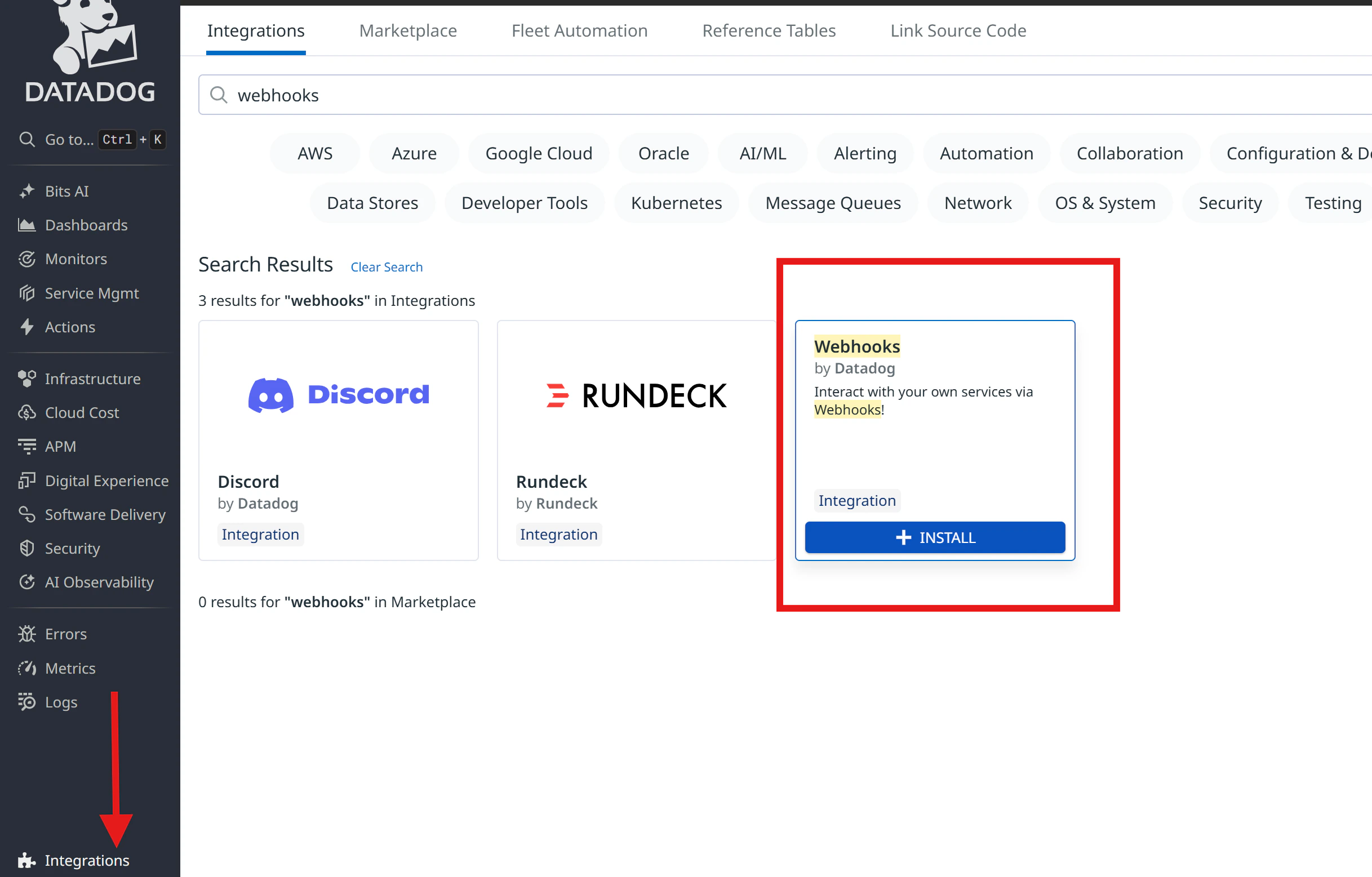
In Datadog, navigate to **Integrations**, search for **Webhooks**, and click **Install**.
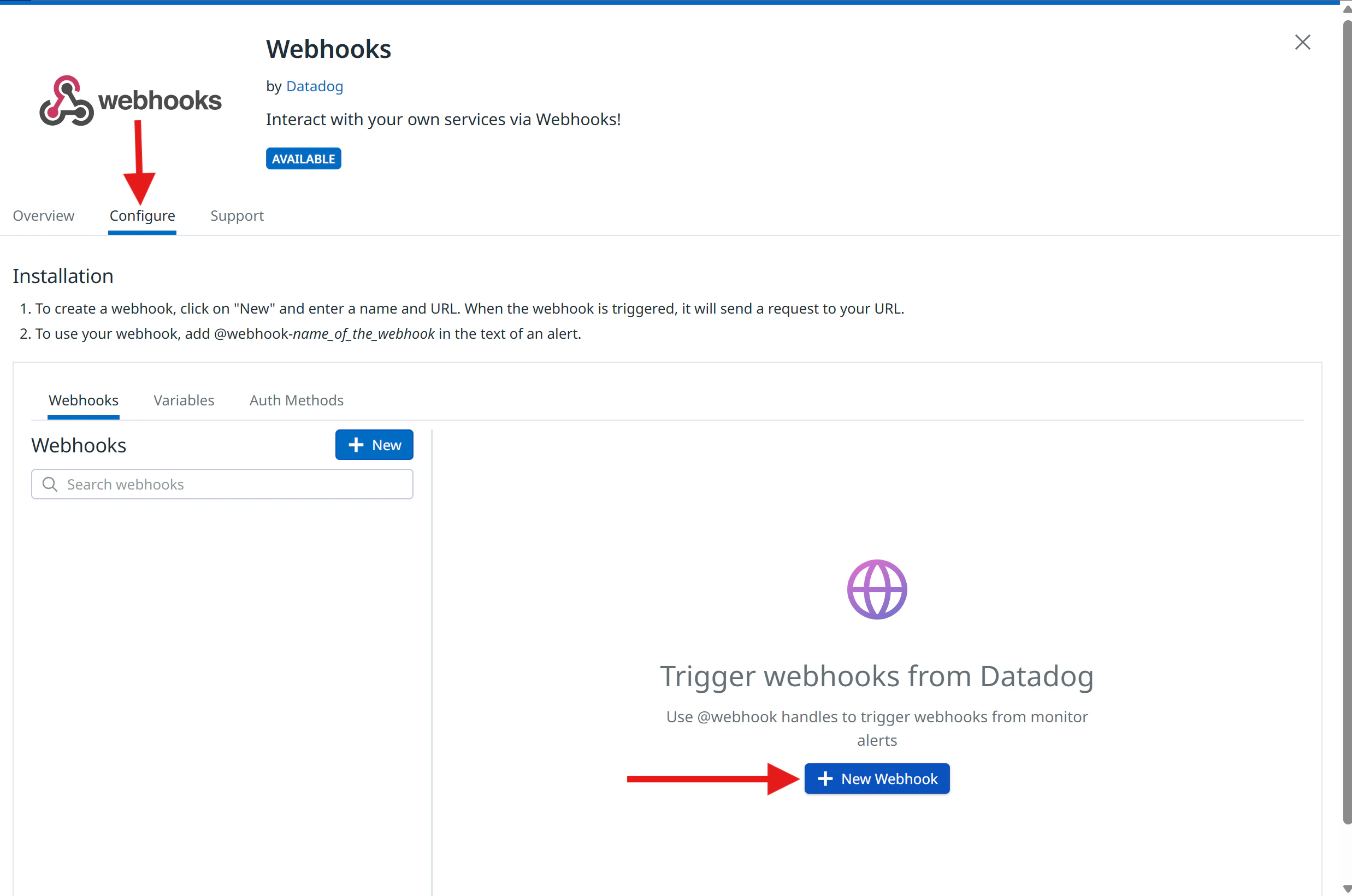
 Switch to the **Configuration** tab and click **+ New** to add a webhook.
 Fill in the following fields:
**Name** — give the webhook a descriptive name (e.g., `Rootly_Alerts`)
**URL** — enter:
```text theme={null}
https://webhooks.rootly.com/webhooks/incoming/datadog_webhooks
```
**Payload** — choose based on your use case:
Use this payload for standard alerts that appear in Rootly's Alerts page without paging anyone.
```json theme={null}
{
"id": "$ID",
"body": "$EVENT_MSG",
"last_updated": "$LAST_UPDATED",
"event_type": "$EVENT_TYPE",
"title": "$EVENT_TITLE",
"alert_id": "$ALERT_ID",
"alert_metric": "$ALERT_METRIC",
"alert_priority": "$ALERT_PRIORITY",
"alert_query": "$ALERT_QUERY",
"alert_scope": "$ALERT_SCOPE",
"alert_status": "$ALERT_STATUS",
"alert_title": "$ALERT_TITLE",
"alert_transition": "$ALERT_TRANSITION",
"alert_type": "$ALERT_TYPE",
"date": "$DATE",
"org": {"id": "$ORG_ID", "name": "$ORG_NAME"}
}
```
Use this payload to page a specific user, team, escalation policy, or service when the alert fires. Replace `` and `` with your target resource.
```json theme={null}
{
"id": "$ID",
"body": "$EVENT_MSG",
"last_updated": "$LAST_UPDATED",
"event_type": "composite_monitor",
"title": "Datadog webhook alert",
"alert_id": "$ALERT_ID",
"alert_metric": "$ALERT_METRIC",
"alert_priority": "$ALERT_PRIORITY",
"alert_query": "$ALERT_QUERY",
"alert_scope": "$ALERT_SCOPE",
"alert_status": "$ALERT_STATUS",
"alert_title": "$ALERT_TITLE",
"alert_transition": "$ALERT_TRANSITION",
"alert_type": "$ALERT_TYPE",
"date": "$DATE",
"org": {"id": "$ORG_ID", "name": "$ORG_NAME"},
"rootly": {
"notification_target": {
"type": "",
"id": ""
}
}
}
```
| Field | Values |
| ------ | --------------------------------------------------------- |
| `type` | `User`, `Group`, `EscalationPolicy`, or `Service` |
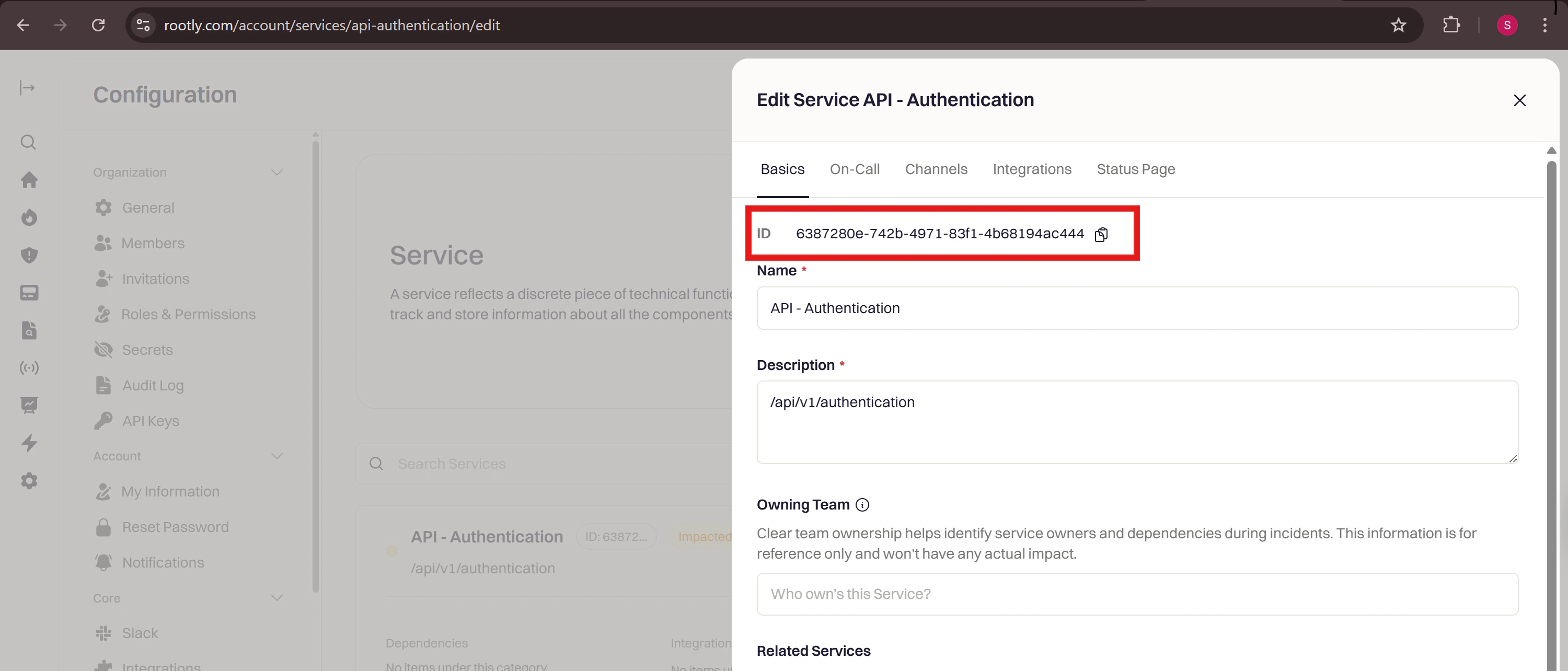
| `id` | The resource ID — found by editing the resource in Rootly |
Fill in the following fields:
**Name** — give the webhook a descriptive name (e.g., `Rootly_Alerts`)
**URL** — enter:
```text theme={null}
https://webhooks.rootly.com/webhooks/incoming/datadog_webhooks
```
**Payload** — choose based on your use case:
Use this payload for standard alerts that appear in Rootly's Alerts page without paging anyone.
```json theme={null}
{
"id": "$ID",
"body": "$EVENT_MSG",
"last_updated": "$LAST_UPDATED",
"event_type": "$EVENT_TYPE",
"title": "$EVENT_TITLE",
"alert_id": "$ALERT_ID",
"alert_metric": "$ALERT_METRIC",
"alert_priority": "$ALERT_PRIORITY",
"alert_query": "$ALERT_QUERY",
"alert_scope": "$ALERT_SCOPE",
"alert_status": "$ALERT_STATUS",
"alert_title": "$ALERT_TITLE",
"alert_transition": "$ALERT_TRANSITION",
"alert_type": "$ALERT_TYPE",
"date": "$DATE",
"org": {"id": "$ORG_ID", "name": "$ORG_NAME"}
}
```
Use this payload to page a specific user, team, escalation policy, or service when the alert fires. Replace `` and `` with your target resource.
```json theme={null}
{
"id": "$ID",
"body": "$EVENT_MSG",
"last_updated": "$LAST_UPDATED",
"event_type": "composite_monitor",
"title": "Datadog webhook alert",
"alert_id": "$ALERT_ID",
"alert_metric": "$ALERT_METRIC",
"alert_priority": "$ALERT_PRIORITY",
"alert_query": "$ALERT_QUERY",
"alert_scope": "$ALERT_SCOPE",
"alert_status": "$ALERT_STATUS",
"alert_title": "$ALERT_TITLE",
"alert_transition": "$ALERT_TRANSITION",
"alert_type": "$ALERT_TYPE",
"date": "$DATE",
"org": {"id": "$ORG_ID", "name": "$ORG_NAME"},
"rootly": {
"notification_target": {
"type": "",
"id": ""
}
}
}
```
| Field | Values |
| ------ | --------------------------------------------------------- |
| `type` | `User`, `Group`, `EscalationPolicy`, or `Service` |
| `id` | The resource ID — found by editing the resource in Rootly |
 The only difference between these payloads is the `notification_target` object. Including it tells Rootly who to page when the alert is received.
Check the **Custom Headers** box and add the following, replacing the value with your Rootly webhook secret:
```json theme={null}
{
"secret": ""
}
```
To find your secret:
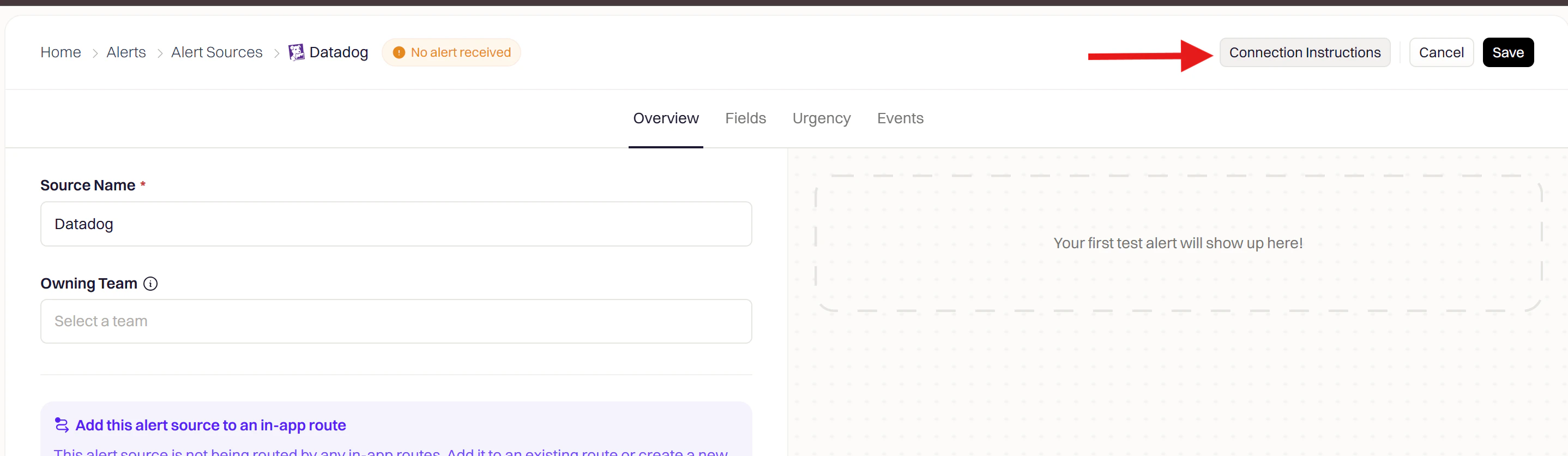
1. In Rootly, go to **Alerts → Sources → Datadog** and click **Configure**
The only difference between these payloads is the `notification_target` object. Including it tells Rootly who to page when the alert is received.
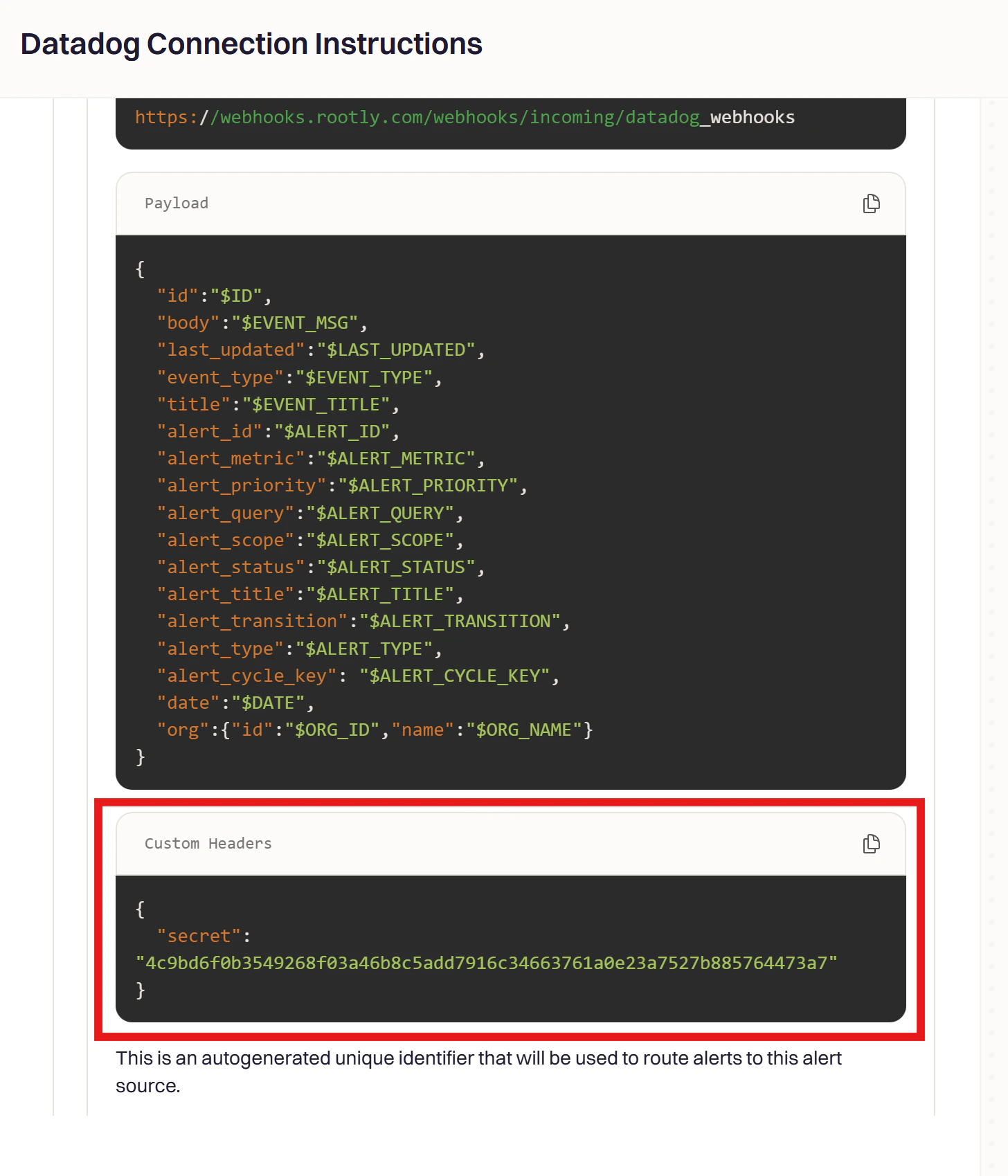
Check the **Custom Headers** box and add the following, replacing the value with your Rootly webhook secret:
```json theme={null}
{
"secret": ""
}
```
To find your secret:
1. In Rootly, go to **Alerts → Sources → Datadog** and click **Configure**
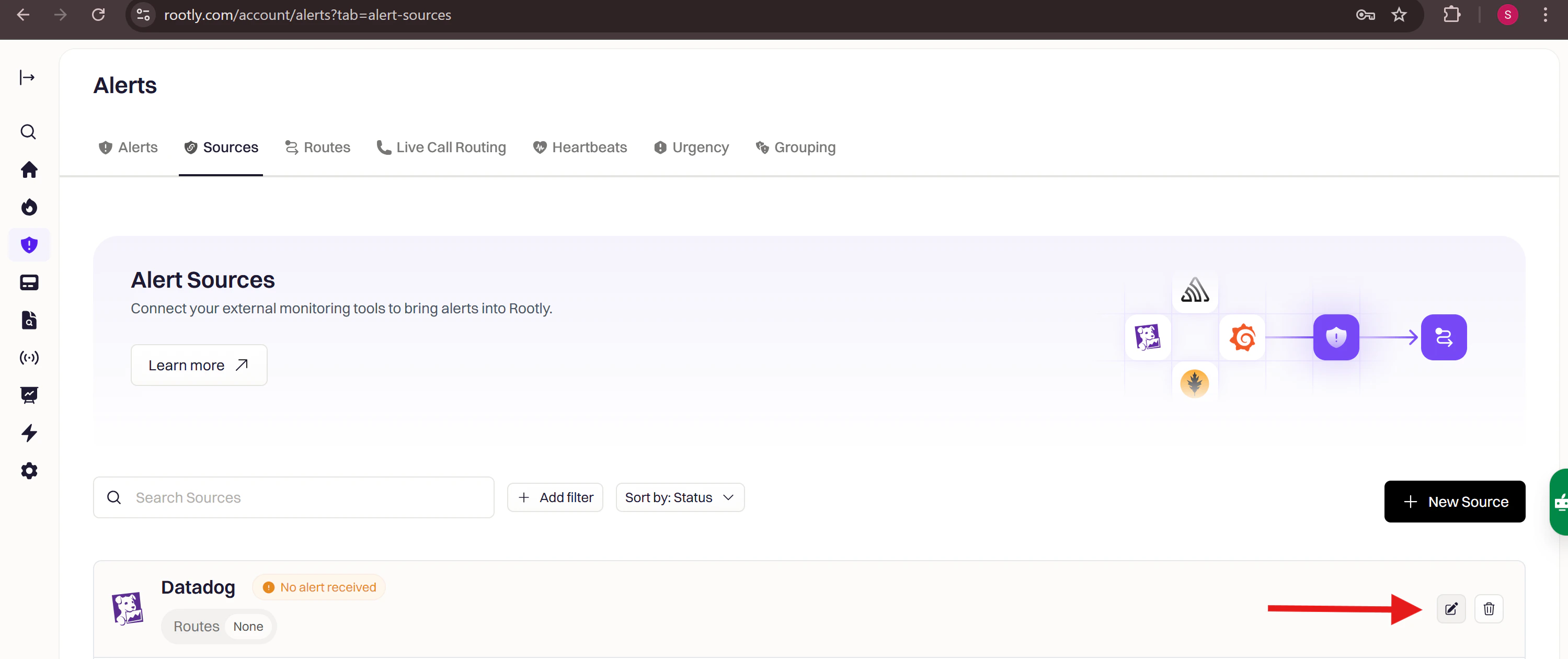 2. Find the **Connection Instructions** panel on the right
 3. Copy the **secret** value from the Custom Headers section
 Click **Save**.
## Step 2: Attach the Webhook to a Monitor
In Datadog, navigate to **Monitors → New Monitor** and choose a monitor type, or open an existing monitor to edit it.
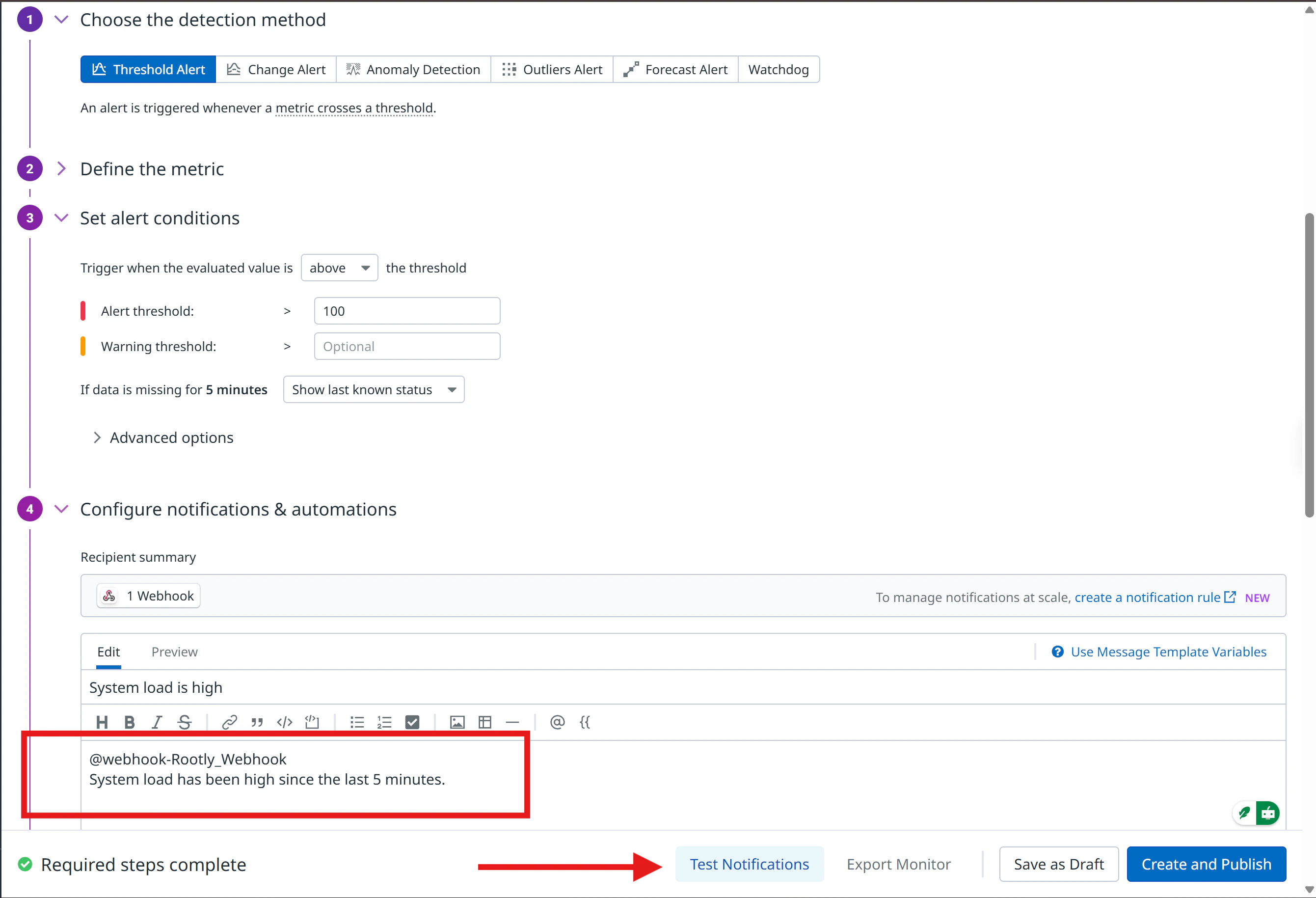
In the **Configure notifications and automations** section, reference your webhook using `@webhook-` syntax (e.g., `@webhook-Rootly_Alerts`).
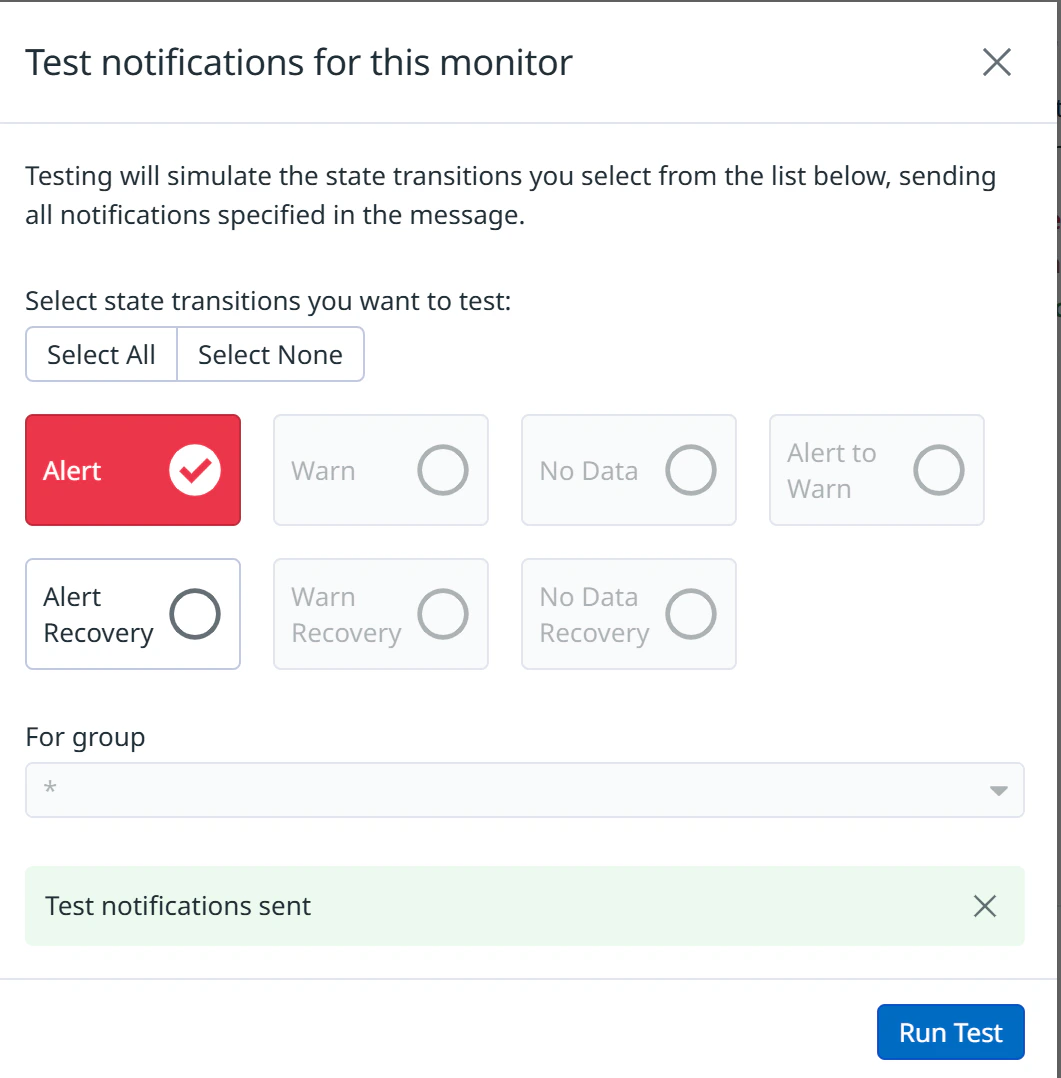
Click **Test Notifications** to confirm the alert reaches Rootly, then save the monitor.
Click **Save**.
## Step 2: Attach the Webhook to a Monitor
In Datadog, navigate to **Monitors → New Monitor** and choose a monitor type, or open an existing monitor to edit it.
In the **Configure notifications and automations** section, reference your webhook using `@webhook-` syntax (e.g., `@webhook-Rootly_Alerts`).
Click **Test Notifications** to confirm the alert reaches Rootly, then save the monitor.
 Verify the alert appeared on the [Alerts page](https://rootly.com/account/alerts) in Rootly.
## Step 3: Build Alert Workflows in Rootly
With alerts flowing into Rootly, create a workflow that reacts to them. Alert workflows let you check alert fields, apply conditions, and trigger automated actions like creating an incident or notifying responders.
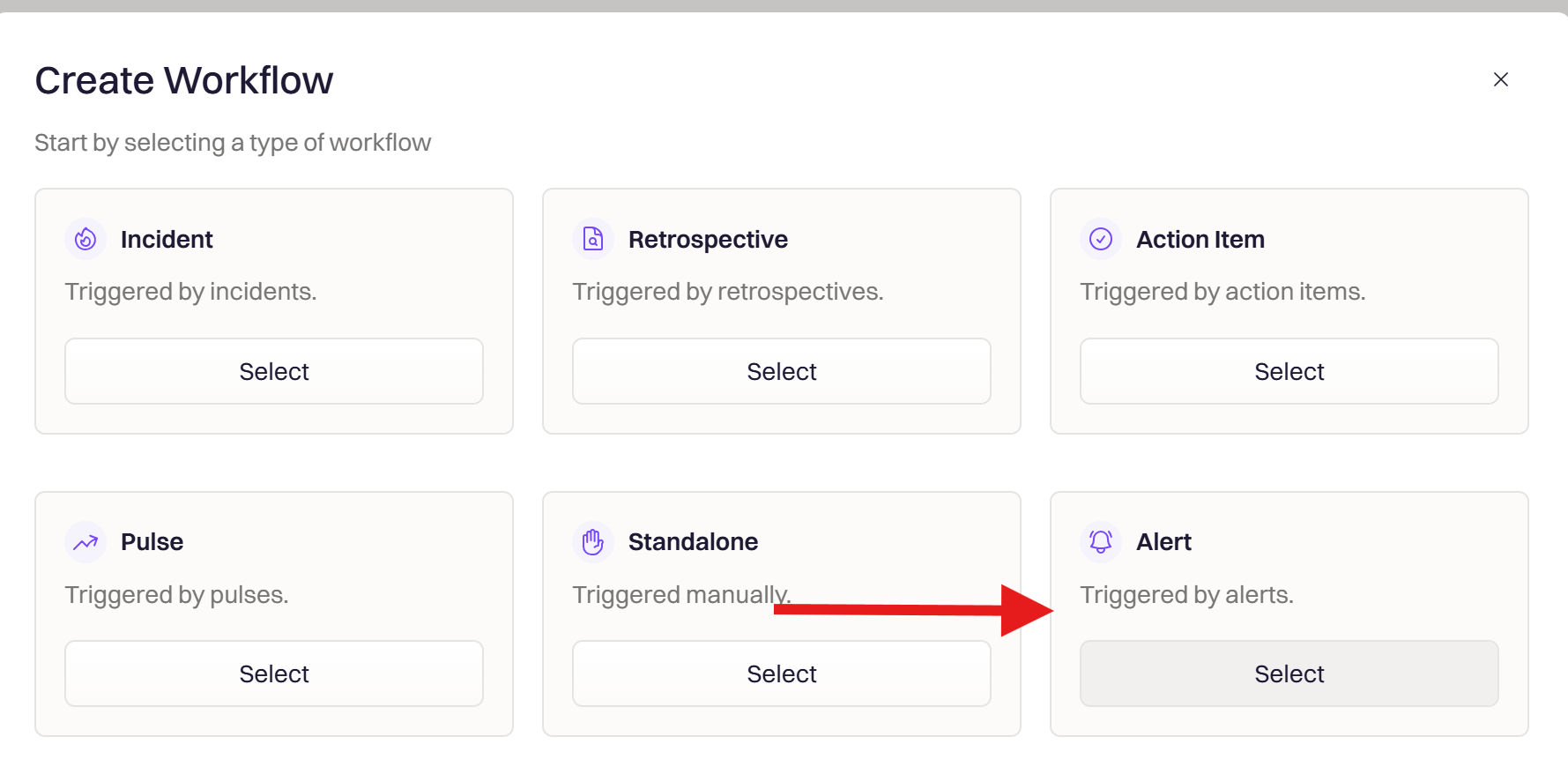
Navigate to **Workflows** in Rootly and click **Create Workflow**.

Select **Alert** as the workflow type. This workflow triggers whenever Rootly receives an alert from Datadog.
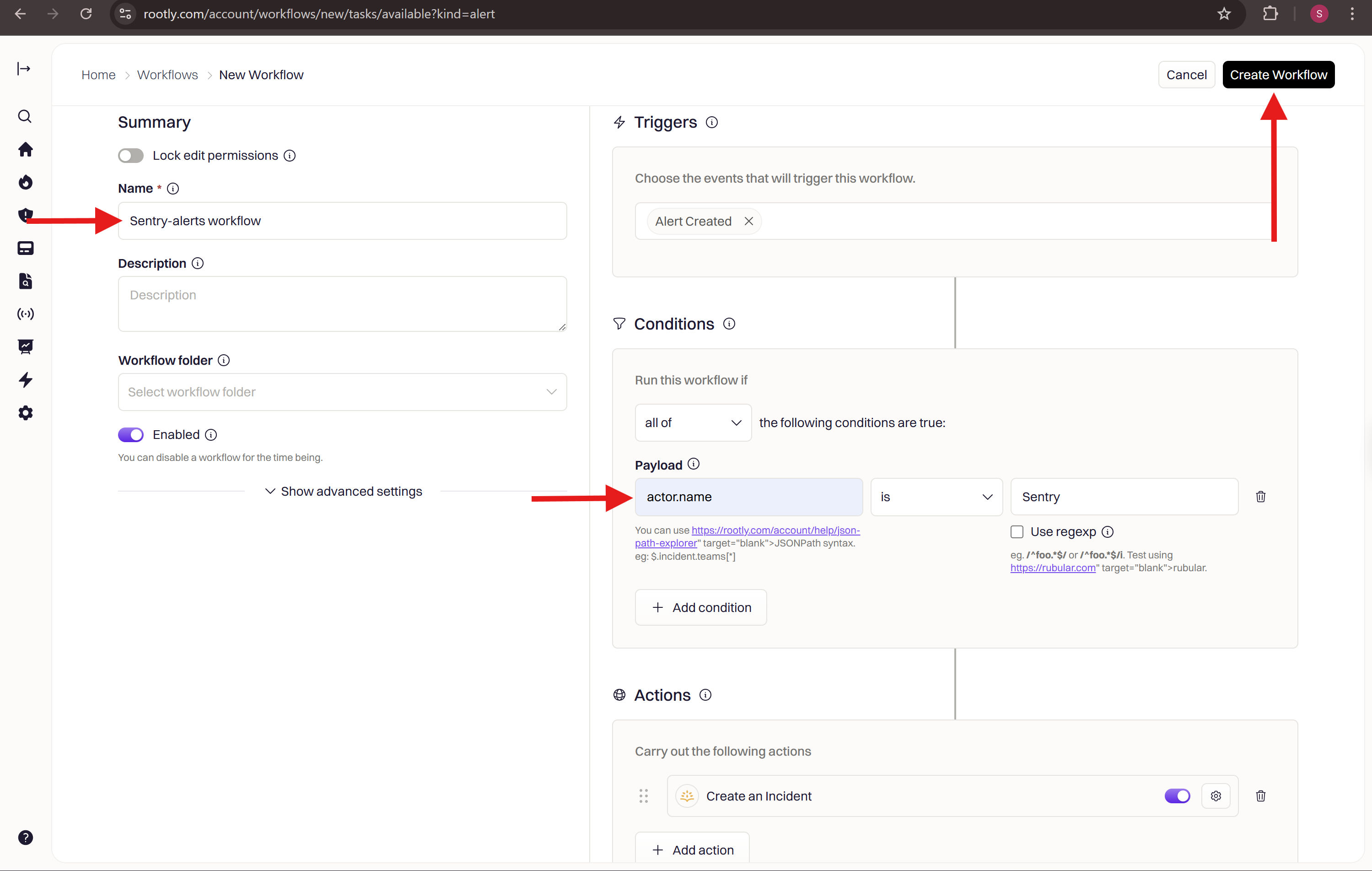
Select **Alert Created** to fire on new alerts, or **Alert Status Updated** to react when an existing alert changes.
Available triggers: **Alert Created** fires when a new alert is received. **Alert Status Updated** fires when an existing alert changes state.
Filter which alerts should trigger this workflow. Common patterns:
Add a condition where **Source is Datadog** to scope the workflow to Datadog alerts only.
Use payload field conditions to filter further — for example:
* `alert_priority` equals `P1`
* `alert_title` contains `CRITICAL`
* `alert_transition` equals `Triggered`
Use Datadog payload fields like `alert_priority`, `alert_status`, `alert_type`, and `alert_title` to build precise conditions.
Add one or more actions to execute when the workflow fires:
| Action | Use case |
| ----------------------- | ---------------------------------------------- |
| **Create Incident** | Auto-create an incident from the alert |
| **Page Rootly On-Call** | Page the responsible team or escalation policy |
| **Send Slack Message** | Notify a channel about the alert |
| **Send SMS or Email** | Alert responders directly |
You can chain multiple actions for a complete response process — for example, create an incident and then send a Slack message in the same workflow.
Name the workflow (e.g., `Create Incident from Datadog P1 Alert`) and click **Create Workflow**.
## Verify the Workflow
After saving the workflow:
1. Return to Datadog and trigger a test alert from your monitor by clicking **Test Notifications**
2. Confirm the workflow activates in Rootly and performs the expected actions
3. View the run log under **Workflows → History** in Rootly
You have successfully built a Datadog alert workflow in Rootly!
## Frequently Asked Questions
Verify the webhook URL is exactly `https://webhooks.rootly.com/webhooks/incoming/datadog_webhooks`. Confirm the Custom Headers `secret` value matches what is shown in **Alerts → Sources → Datadog → Configure** in Rootly. Check that the Datadog integration is still connected under **Configuration → Integrations**.
Open the resource (User, Team, Escalation Policy, or Service) in Rootly and click **Edit**. The resource ID appears in the URL or in the edit form. Copy it and paste it into the `id` field of the paging payload.
Yes. Create one webhook and attach it to as many monitors as needed by adding `@webhook-` to each monitor's notification body. Each alert will appear separately in Rootly's Alerts page.
Alert workflows in Rootly support **Alert Created** (fires on new alerts) and **Alert Status Updated** (fires when an existing alert changes). Use conditions to filter by source (Datadog), payload fields like `alert_priority` or `alert_title`, or alert status.
By default, Rootly only pages for CRITICAL alerts from Datadog. WARNING vs. CRITICAL is the monitor's `alert_status` field in the webhook payload — not `alert_priority` (which is your monitor's P1–P5 importance and is independent of state). To extend paging to WARNING alerts, either configure your monitor to fire on the threshold you want treated as paging-eligible, or build an alert workflow that matches `alert_status` equals `Warn` (or `Warning`, depending on the value Datadog sends) and routes to the same target as CRITICAL.
Verify the alert appeared on the [Alerts page](https://rootly.com/account/alerts) in Rootly.
## Step 3: Build Alert Workflows in Rootly
With alerts flowing into Rootly, create a workflow that reacts to them. Alert workflows let you check alert fields, apply conditions, and trigger automated actions like creating an incident or notifying responders.
Navigate to **Workflows** in Rootly and click **Create Workflow**.

Select **Alert** as the workflow type. This workflow triggers whenever Rootly receives an alert from Datadog.

Select **Alert Created** to fire on new alerts, or **Alert Status Updated** to react when an existing alert changes.
Available triggers: **Alert Created** fires when a new alert is received. **Alert Status Updated** fires when an existing alert changes state.
Filter which alerts should trigger this workflow. Common patterns:
Add a condition where **Source is Datadog** to scope the workflow to Datadog alerts only.
Use payload field conditions to filter further — for example:
* `alert_priority` equals `P1`
* `alert_title` contains `CRITICAL`
* `alert_transition` equals `Triggered`
Use Datadog payload fields like `alert_priority`, `alert_status`, `alert_type`, and `alert_title` to build precise conditions.
Add one or more actions to execute when the workflow fires:
| Action | Use case |
| ----------------------- | ---------------------------------------------- |
| **Create Incident** | Auto-create an incident from the alert |
| **Page Rootly On-Call** | Page the responsible team or escalation policy |
| **Send Slack Message** | Notify a channel about the alert |
| **Send SMS or Email** | Alert responders directly |
You can chain multiple actions for a complete response process — for example, create an incident and then send a Slack message in the same workflow.
Name the workflow (e.g., `Create Incident from Datadog P1 Alert`) and click **Create Workflow**.

## Verify the Workflow
After saving the workflow:
1. Return to Datadog and trigger a test alert from your monitor by clicking **Test Notifications**
2. Confirm the workflow activates in Rootly and performs the expected actions
3. View the run log under **Workflows → History** in Rootly
You have successfully built a Datadog alert workflow in Rootly!
## Frequently Asked Questions
Verify the webhook URL is exactly `https://webhooks.rootly.com/webhooks/incoming/datadog_webhooks`. Confirm the Custom Headers `secret` value matches what is shown in **Alerts → Sources → Datadog → Configure** in Rootly. Check that the Datadog integration is still connected under **Configuration → Integrations**.
Open the resource (User, Team, Escalation Policy, or Service) in Rootly and click **Edit**. The resource ID appears in the URL or in the edit form. Copy it and paste it into the `id` field of the paging payload.
Yes. Create one webhook and attach it to as many monitors as needed by adding `@webhook-` to each monitor's notification body. Each alert will appear separately in Rootly's Alerts page.
Alert workflows in Rootly support **Alert Created** (fires on new alerts) and **Alert Status Updated** (fires when an existing alert changes). Use conditions to filter by source (Datadog), payload fields like `alert_priority` or `alert_title`, or alert status.
By default, Rootly only pages for CRITICAL alerts from Datadog. WARNING vs. CRITICAL is the monitor's `alert_status` field in the webhook payload — not `alert_priority` (which is your monitor's P1–P5 importance and is independent of state). To extend paging to WARNING alerts, either configure your monitor to fire on the threshold you want treated as paging-eligible, or build an alert workflow that matches `alert_status` equals `Warn` (or `Warning`, depending on the value Datadog sends) and routes to the same target as CRITICAL.