> ## Documentation Index
> Fetch the complete documentation index at: https://docs.rootly.com/llms.txt
> Use this file to discover all available pages before exploring further.
# Dropbox Paper
> Connect Dropbox Paper to Rootly to automatically create and update retrospective documents from incidents using Liquid templates.
The Dropbox Paper integration connects Rootly with your Dropbox account so teams can automatically create and update retrospective documents during and after incidents through Genius workflows.
With the Dropbox Paper integration, you can:
* Automatically create retrospective documents in Dropbox Paper from incident workflows
* Populate documents using Rootly retrospective templates or custom Liquid templates
* Update existing Paper documents as an incident progresses
* Attach created documents directly to the incident record
## Before You Begin
Before setting up the integration, make sure you have:
* A Rootly account with admin permission to manage integrations
* A Dropbox or Dropbox Business account
Rootly recommends installing the integration with a **service account** so it does not break if the installing user leaves your organization.
Access level depends on your Dropbox account type:
* **Dropbox Paper** (personal) — non-admin access is sufficient, but you will only have access to your personal folders
* **Dropbox Paper Business** — admin-level access is required to access team folders and namespaces
## Installation
Navigate to the integrations page in Rootly and select **Dropbox Paper**.
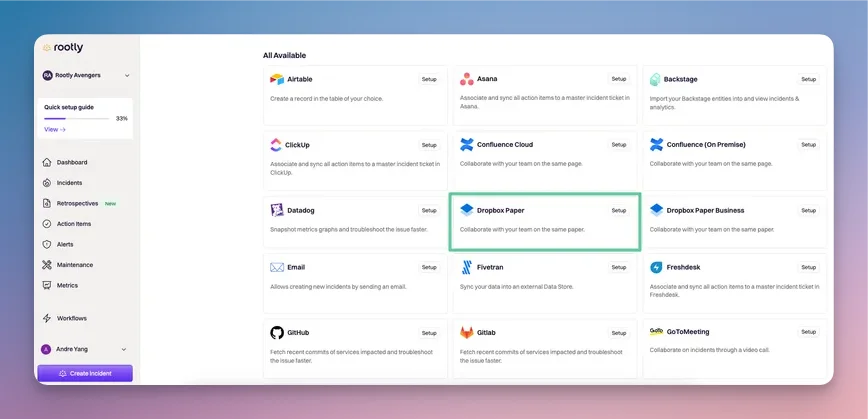 You will be prompted to sign in to Dropbox and grant Rootly permission to access your account.
Once confirmed, the installation is complete and Dropbox Paper workflow actions become available.
After authorization, the **Create a Dropbox Paper** and **Update a Dropbox Paper** workflow actions are immediately available in your Genius workflows.
## Workflow Actions
The Dropbox Paper integration provides two workflow actions for creating and updating Paper documents from incidents. If you are unfamiliar with how workflows function, see the [Workflows](/workflows/workflows) documentation first.
You will be prompted to sign in to Dropbox and grant Rootly permission to access your account.
Once confirmed, the installation is complete and Dropbox Paper workflow actions become available.
After authorization, the **Create a Dropbox Paper** and **Update a Dropbox Paper** workflow actions are immediately available in your Genius workflows.
## Workflow Actions
The Dropbox Paper integration provides two workflow actions for creating and updating Paper documents from incidents. If you are unfamiliar with how workflows function, see the [Workflows](/workflows/workflows) documentation first.
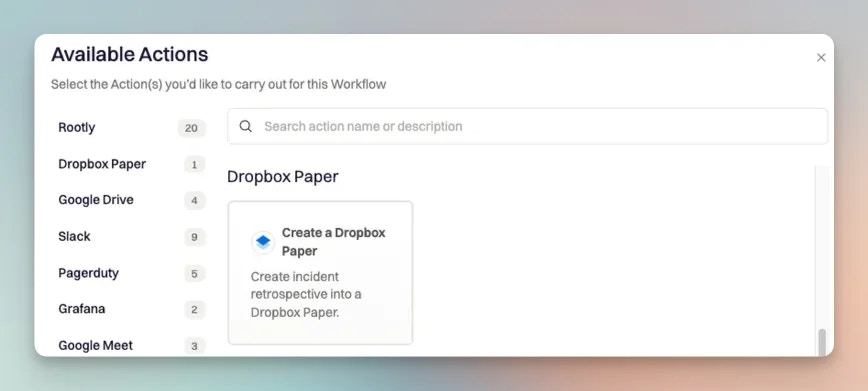 ### Create a Dropbox Paper Document
This action creates a new Paper document in a specified Dropbox folder.
### Create a Dropbox Paper Document
This action creates a new Paper document in a specified Dropbox folder.
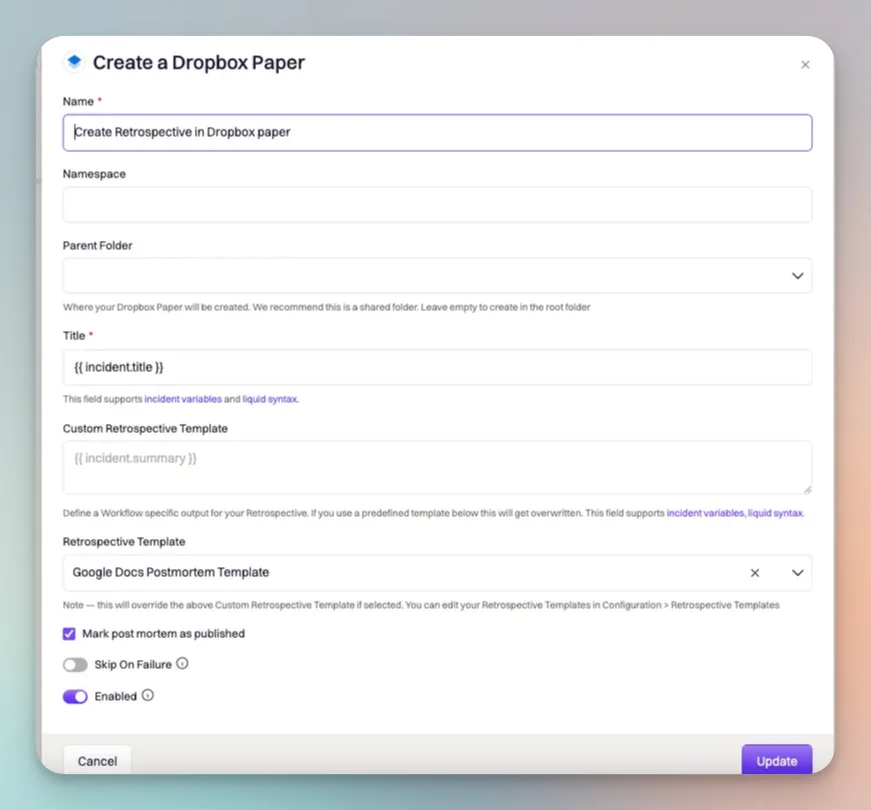 **Name**
The display name for this workflow action. Rename it to describe what the action does — the value does not affect behavior.
**Namespace**
Only available when integrated with **Dropbox Paper Business**. Selects the team namespace from which the parent folder list is populated.
If you integrated with personal Dropbox Paper, the Namespace field is not shown and folders are limited to your personal folders.
**Parent Folder**
The folder in which the Paper document will be created.
* **Dropbox Paper** (personal) — shows your personal folders
* **Dropbox Paper Business** — shows folders within the selected Namespace
**Title**
The title of the Paper document. Defaults to `{{ incident.title }}`. Supports Liquid syntax.
Use the [Incident Variable Explorer](https://rootly.com/account/help/liquid-explorer) to preview what Liquid variables return for your incidents.
**Retrospective Template**
Select a predefined retrospective template to populate the document body. Templates are managed on the [Retrospective Templates page](https://rootly.com/account/retrospective-steps?tab=documents).
If a Retrospective Template is selected, it overrides any content defined in the Custom Retrospective Template field.
**Custom Retrospective Template**
Define the body content of the Paper document manually. Supports Liquid syntax. Used only when no Retrospective Template is selected.
**Mark Post Mortem as Published**
When enabled, marks the retrospective status as `published` after the document is created. Use this when you have follow-up notification workflows that trigger on published retrospectives.
### Update a Dropbox Paper Document
This action updates an existing Paper document with new content.
**Name**
The display name for this workflow action.
**File ID**
The Dropbox file ID of the Paper document to update. Supports Liquid syntax. Use `{{ incident.retrospective_url }}` or a stored file ID variable to reference the document created earlier in the workflow.
When a **Create a Dropbox Paper** action runs, Rootly stores the resulting document URL and file ID on the incident record. You can reference the file ID in subsequent update actions using Liquid variables.
**Title**
The updated title for the document. Supports Liquid syntax. Leave blank to keep the existing title.
**Content**
Additional HTML content to append to the document. Supports Liquid syntax.
**Retrospective Template**
Select a predefined retrospective template to re-render the document body.
## Uninstall
To remove the Dropbox Paper integration, open the integrations panel in Rootly and select **Configure > Delete**.
## Related Resources
* [Workflows](/workflows/workflows)
* [Retrospectives](/retrospectives/retrospectives)
* [Integrations overview](/integrations/overview)
**Name**
The display name for this workflow action. Rename it to describe what the action does — the value does not affect behavior.
**Namespace**
Only available when integrated with **Dropbox Paper Business**. Selects the team namespace from which the parent folder list is populated.
If you integrated with personal Dropbox Paper, the Namespace field is not shown and folders are limited to your personal folders.
**Parent Folder**
The folder in which the Paper document will be created.
* **Dropbox Paper** (personal) — shows your personal folders
* **Dropbox Paper Business** — shows folders within the selected Namespace
**Title**
The title of the Paper document. Defaults to `{{ incident.title }}`. Supports Liquid syntax.
Use the [Incident Variable Explorer](https://rootly.com/account/help/liquid-explorer) to preview what Liquid variables return for your incidents.
**Retrospective Template**
Select a predefined retrospective template to populate the document body. Templates are managed on the [Retrospective Templates page](https://rootly.com/account/retrospective-steps?tab=documents).
If a Retrospective Template is selected, it overrides any content defined in the Custom Retrospective Template field.
**Custom Retrospective Template**
Define the body content of the Paper document manually. Supports Liquid syntax. Used only when no Retrospective Template is selected.
**Mark Post Mortem as Published**
When enabled, marks the retrospective status as `published` after the document is created. Use this when you have follow-up notification workflows that trigger on published retrospectives.
### Update a Dropbox Paper Document
This action updates an existing Paper document with new content.
**Name**
The display name for this workflow action.
**File ID**
The Dropbox file ID of the Paper document to update. Supports Liquid syntax. Use `{{ incident.retrospective_url }}` or a stored file ID variable to reference the document created earlier in the workflow.
When a **Create a Dropbox Paper** action runs, Rootly stores the resulting document URL and file ID on the incident record. You can reference the file ID in subsequent update actions using Liquid variables.
**Title**
The updated title for the document. Supports Liquid syntax. Leave blank to keep the existing title.
**Content**
Additional HTML content to append to the document. Supports Liquid syntax.
**Retrospective Template**
Select a predefined retrospective template to re-render the document body.
## Uninstall
To remove the Dropbox Paper integration, open the integrations panel in Rootly and select **Configure > Delete**.
## Related Resources
* [Workflows](/workflows/workflows)
* [Retrospectives](/retrospectives/retrospectives)
* [Integrations overview](/integrations/overview)