> ## Documentation Index
> Fetch the complete documentation index at: https://docs.rootly.com/llms.txt
> Use this file to discover all available pages before exploring further.
# Email
> Create incidents by sending emails to your team's Rootly inbound alias, and send templated email notifications from workflows with Liquid and CC support.
## Overview
Rootly's Email integration works in both directions. Inbound emails to your team's generated alias automatically open new incidents, while the **Send an email** workflow action lets you notify stakeholders at any point during an incident.
Send an email to your Rootly alias to instantly create an incident — no login required.
Rootly automatically maps severity from the email subject line using tags like `[SEV0]` or `sev1`.
Reply to an incident notification email and Rootly adds your reply to the incident timeline.
Send fully templated emails to any address from a workflow, with Liquid variables, CC, BCC, and custom branding.
## Installation
The Email integration provisions automatically — there are no API keys or OAuth flows to complete.
Go to **Configuration → Integrations**, find **Email**, and click **Setup**.
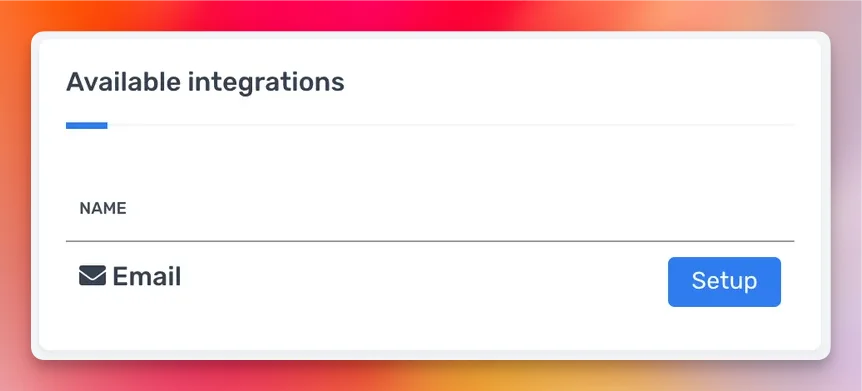 Rootly immediately generates a unique email alias for your team.
After connecting, click **Settings** to view your team's alias. It looks like:
```
incidents-{secret}@email.rootly.io
```
Rootly immediately generates a unique email alias for your team.
After connecting, click **Settings** to view your team's alias. It looks like:
```
incidents-{secret}@email.rootly.io
```
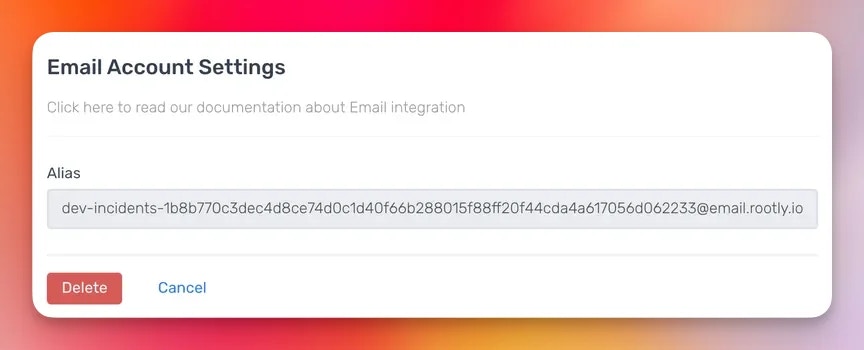 Copy this address — you'll send incident-creating emails to it and can share it with monitoring tools or on-call rotation scripts.
## Creating Incidents via Email
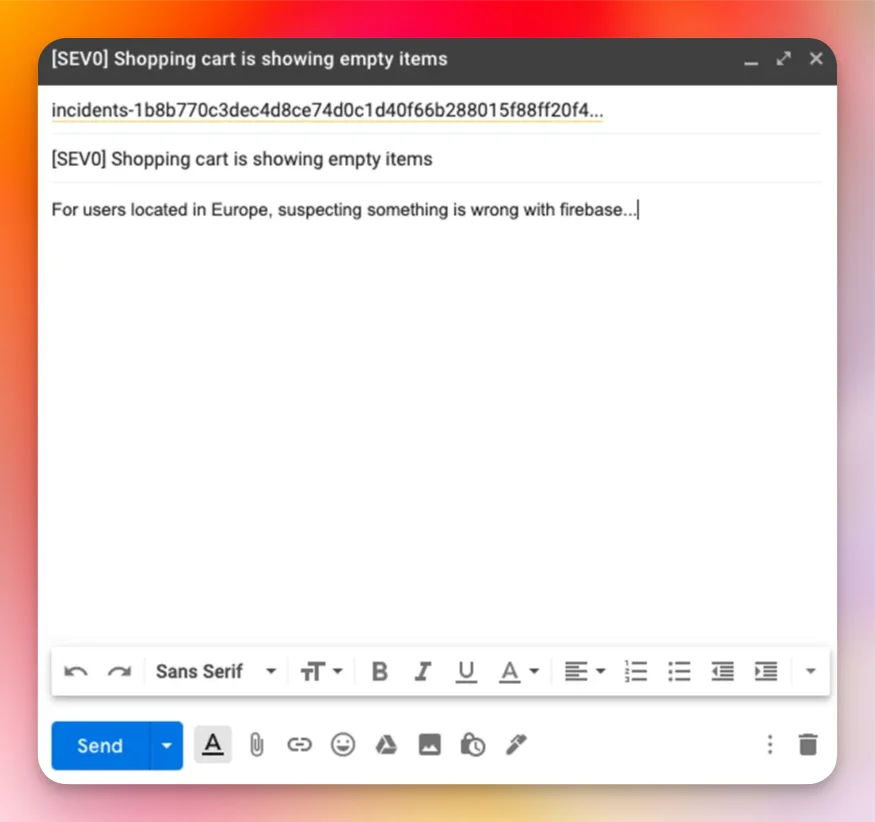
To open an incident, send an email to your alias. The email subject becomes the incident title and the body becomes the initial description.
Copy this address — you'll send incident-creating emails to it and can share it with monitoring tools or on-call rotation scripts.
## Creating Incidents via Email
To open an incident, send an email to your alias. The email subject becomes the incident title and the body becomes the initial description.
 ### Automatic Severity Detection
Rootly parses the subject line for severity tags and maps them to your configured severities. Supported formats:
| Subject format | Mapped severity |
| ------------------------------------------------------ | --------------------- |
| `[SEV0] Shopping cart is showing empty items` | SEV0 |
| `Shopping cart is showing empty items [SEV1]` | SEV1 |
| `Shopping cart is showing empty items, this is a sev1` | SEV1 |
| `Shopping cart is showing empty items` | *(none — not mapped)* |
Severity tags are only matched if the corresponding severity exists in your Rootly configuration. If no match is found, the incident is created without a severity.
## Replying to Incidents via Email
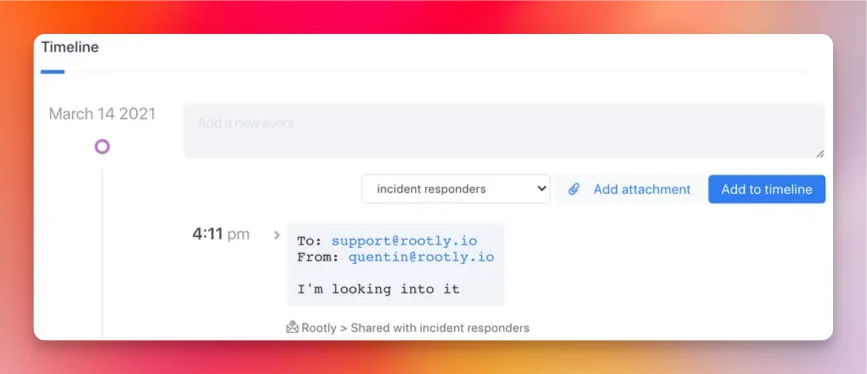
When Rootly sends an email notification for an incident, you can reply to it directly. Rootly detects the reply and appends it to the incident timeline.
### Automatic Severity Detection
Rootly parses the subject line for severity tags and maps them to your configured severities. Supported formats:
| Subject format | Mapped severity |
| ------------------------------------------------------ | --------------------- |
| `[SEV0] Shopping cart is showing empty items` | SEV0 |
| `Shopping cart is showing empty items [SEV1]` | SEV1 |
| `Shopping cart is showing empty items, this is a sev1` | SEV1 |
| `Shopping cart is showing empty items` | *(none — not mapped)* |
Severity tags are only matched if the corresponding severity exists in your Rootly configuration. If no match is found, the incident is created without a severity.
## Replying to Incidents via Email
When Rootly sends an email notification for an incident, you can reply to it directly. Rootly detects the reply and appends it to the incident timeline.
 ## Workflow Action
### Send an Email
Sends a fully templated email from a workflow. All text fields support [Liquid variables](/liquid/incident-variables).
The sender address displayed to recipients. Defaults to `Rootly `. You can override this with a custom address.
One or more recipient email addresses. Supports Liquid — for example, `{{ incident.commander.email }}` to notify the incident commander.
Email addresses to copy on the message.
Email addresses to blind-copy. Maximum 10 BCC recipients on trial plans.
The email subject line. Defaults to `{{ incident.title }} is on fire`. Supports Liquid.
The email body. Supports Markdown formatting and Liquid variables.
Short preview text that appears in the recipient's inbox next to the subject line. Supports Liquid.
A URL pointing to an image to use as the email header logo. Overrides the default Rootly logo.
Whether to include the email header section. Defaults to `true`.
Whether to include the email footer section. Defaults to `true`.
Set the **To** field to `{{ incident.commander.email }}` or `{{ incident.subscribers | map: 'email' | join: ',' }}` to dynamically address emails based on who is assigned to the incident.
## Uninstall
To remove the Email integration:
1. Go to **Configuration → Integrations** and find **Email**
2. Click **Settings**
3. Click **Delete**
Deleting the integration permanently removes your alias. Any monitoring tools or scripts sending emails to the old alias will stop creating incidents. You will receive a new alias if you reconnect.
## Frequently Asked Questions
No. The inbound alias is always on Rootly's domain (`email.rootly.io`). If you need to route from your own domain, set up email forwarding from your mail provider to the Rootly alias.
Yes. Any email sent to your alias creates an incident, regardless of the sender. You can configure as many tools as needed to send alerts to the same address.
The workflow action is skipped and a log entry is recorded. No email is sent. This can happen if a Liquid expression resolves to an empty value — double-check your template variables if emails aren't being delivered.
On trial plans, BCC is capped at 10 recipients and total recipients (To + CC + BCC) at 50. Paid plans do not have these restrictions.
## Workflow Action
### Send an Email
Sends a fully templated email from a workflow. All text fields support [Liquid variables](/liquid/incident-variables).
The sender address displayed to recipients. Defaults to `Rootly `. You can override this with a custom address.
One or more recipient email addresses. Supports Liquid — for example, `{{ incident.commander.email }}` to notify the incident commander.
Email addresses to copy on the message.
Email addresses to blind-copy. Maximum 10 BCC recipients on trial plans.
The email subject line. Defaults to `{{ incident.title }} is on fire`. Supports Liquid.
The email body. Supports Markdown formatting and Liquid variables.
Short preview text that appears in the recipient's inbox next to the subject line. Supports Liquid.
A URL pointing to an image to use as the email header logo. Overrides the default Rootly logo.
Whether to include the email header section. Defaults to `true`.
Whether to include the email footer section. Defaults to `true`.
Set the **To** field to `{{ incident.commander.email }}` or `{{ incident.subscribers | map: 'email' | join: ',' }}` to dynamically address emails based on who is assigned to the incident.
## Uninstall
To remove the Email integration:
1. Go to **Configuration → Integrations** and find **Email**
2. Click **Settings**
3. Click **Delete**
Deleting the integration permanently removes your alias. Any monitoring tools or scripts sending emails to the old alias will stop creating incidents. You will receive a new alias if you reconnect.
## Frequently Asked Questions
No. The inbound alias is always on Rootly's domain (`email.rootly.io`). If you need to route from your own domain, set up email forwarding from your mail provider to the Rootly alias.
Yes. Any email sent to your alias creates an incident, regardless of the sender. You can configure as many tools as needed to send alerts to the same address.
The workflow action is skipped and a log entry is recorded. No email is sent. This can happen if a Liquid expression resolves to an empty value — double-check your template variables if emails aren't being delivered.
On trial plans, BCC is capped at 10 recipients and total recipients (To + CC + BCC) at 50. Paid plans do not have these restrictions.