> ## Documentation Index
> Fetch the complete documentation index at: https://docs.rootly.com/llms.txt
> Use this file to discover all available pages before exploring further.
# Install and configure a Generic Webhook Alert Source
> Set up a Generic Webhook Alert Source to ingest alerts from any tool that sends webhooks, with authentication, payload mapping, and routing.
Use the Generic Webhook Alert Source when your monitoring or observability tool can send webhook events to Rootly but does not have a dedicated Rootly integration.
## Before You Begin
Before creating a Generic Webhook Alert Source, make sure you have:
* Access to create alert sources in Rootly
* A tool that can send `POST` requests with a JSON body
* A plan for how alerts should be routed after ingestion
* The fields you want Rootly to extract, such as:
* Alert title
* Description
* External identifier
* Alert state
* Routing target
For best results, send requests with `Content-Type: application/json`.
In production, the Generic Webhook Alert Source uses these endpoint patterns:
* Base endpoint: `POST https://webhooks.rootly.com/webhooks/incoming/generic_webhooks`
* Fixed target endpoint: `POST https://webhooks.rootly.com/webhooks/incoming/generic_webhooks/notify//`
Use the **base endpoint** when routing will be determined from the incoming payload. Use the **notify** endpoint only when both the target type and target ID are included in the URL.
## Create and Configure the Source
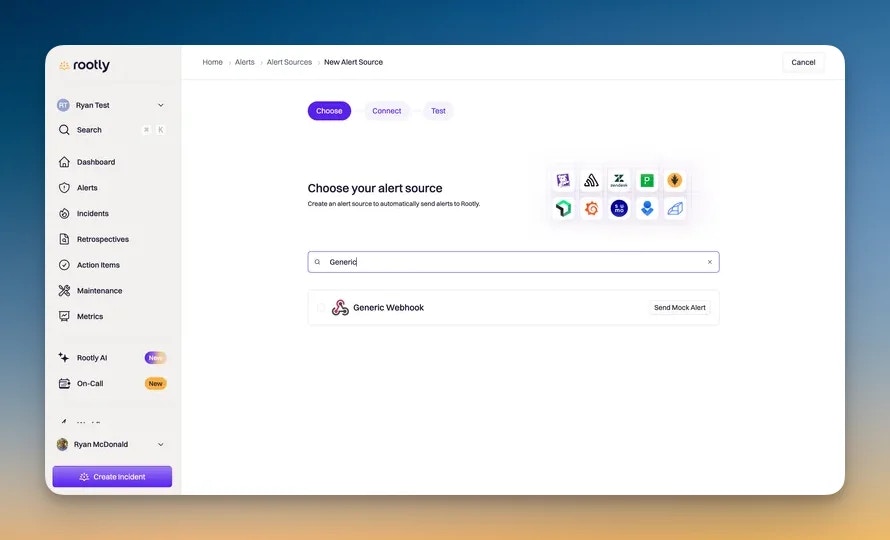
Go to the [new alert source page](https://rootly.com/account/integrations) and locate **Generic Webhook Alert Source**.
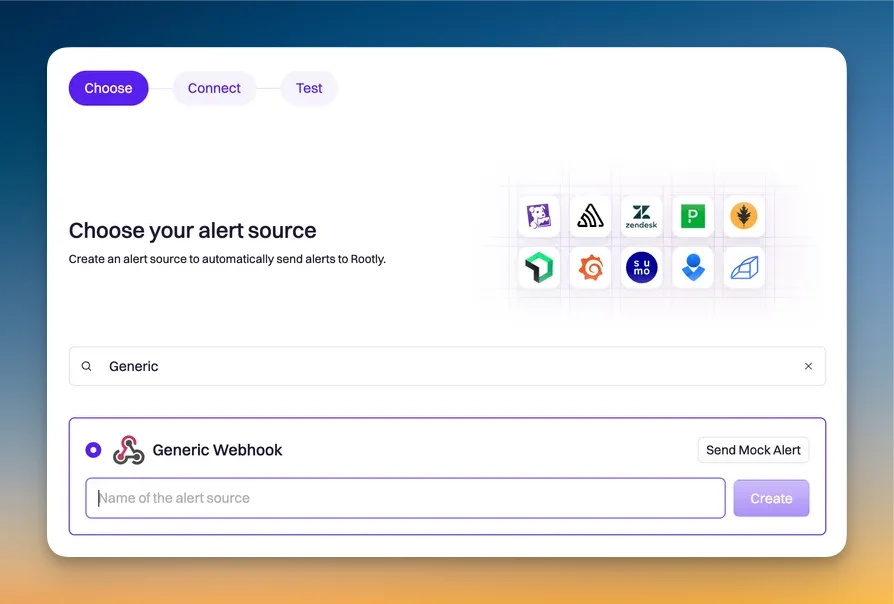
 You will be prompted to name the source.
 Rootly verifies inbound generic webhook requests using a **Bearer Token** — a static secret you provide in either of these forms:
* `Authorization: Bearer `
* `secret` as a query string or request parameter
If the secret is missing or invalid, Rootly rejects the request with a `401 Unauthorized` response. Prefer the header form when your sending tool supports it — query parameters tend to be captured in proxy and load-balancer access logs.
**Example request** (header form, recommended):
```bash theme={null}
curl -X POST \
-H "Authorization: Bearer " \
-H "Content-Type: application/json" \
-d '{
"title": "High CPU on web-01",
"description": "CPU > 90% for 5 minutes",
"external_id": "monitor-12345",
"state": "triggered"
}' \
https://webhooks.rootly.com/webhooks/incoming/generic_webhooks
```
**Example request** (query-parameter form):
```bash theme={null}
curl -X POST \
-H "Content-Type: application/json" \
-d '{ "title": "High CPU on web-01", "external_id": "monitor-12345", "state": "triggered" }' \
"https://webhooks.rootly.com/webhooks/incoming/generic_webhooks?secret="
```
Generic webhook sources do not require a strict vendor-specific payload shape. Instead, you configure how Rootly should interpret the incoming JSON by mapping fields from the webhook payload.
At a minimum, you should map a field for the alert title so alerts are easy to identify in Rootly.
Depending on your use case, you may also want to map:
* Alert description
* External URL
* External identifier
* Alert state
* Notification target type
* Notification target ID
Follow the instructions shown on the Generic Webhook creation page to configure these mappings.
## Configure Routing Targets
There are two main ways to tell Rootly where an alert should route.
This is the simplest option when each webhook should always route to the same target.
With this approach, you include the target type and target ID in the webhook URL. This is useful when alerts from a given source should always be associated with the same service, team, escalation policy, or other supported target.
Common target types include:
* `service`
* `group` or `team`
* `escalationPolicy`
Rootly verifies inbound generic webhook requests using a **Bearer Token** — a static secret you provide in either of these forms:
* `Authorization: Bearer `
* `secret` as a query string or request parameter
If the secret is missing or invalid, Rootly rejects the request with a `401 Unauthorized` response. Prefer the header form when your sending tool supports it — query parameters tend to be captured in proxy and load-balancer access logs.
**Example request** (header form, recommended):
```bash theme={null}
curl -X POST \
-H "Authorization: Bearer " \
-H "Content-Type: application/json" \
-d '{
"title": "High CPU on web-01",
"description": "CPU > 90% for 5 minutes",
"external_id": "monitor-12345",
"state": "triggered"
}' \
https://webhooks.rootly.com/webhooks/incoming/generic_webhooks
```
**Example request** (query-parameter form):
```bash theme={null}
curl -X POST \
-H "Content-Type: application/json" \
-d '{ "title": "High CPU on web-01", "external_id": "monitor-12345", "state": "triggered" }' \
"https://webhooks.rootly.com/webhooks/incoming/generic_webhooks?secret="
```
Generic webhook sources do not require a strict vendor-specific payload shape. Instead, you configure how Rootly should interpret the incoming JSON by mapping fields from the webhook payload.
At a minimum, you should map a field for the alert title so alerts are easy to identify in Rootly.
Depending on your use case, you may also want to map:
* Alert description
* External URL
* External identifier
* Alert state
* Notification target type
* Notification target ID
Follow the instructions shown on the Generic Webhook creation page to configure these mappings.
## Configure Routing Targets
There are two main ways to tell Rootly where an alert should route.
This is the simplest option when each webhook should always route to the same target.
With this approach, you include the target type and target ID in the webhook URL. This is useful when alerts from a given source should always be associated with the same service, team, escalation policy, or other supported target.
Common target types include:
* `service`
* `group` or `team`
* `escalationPolicy`
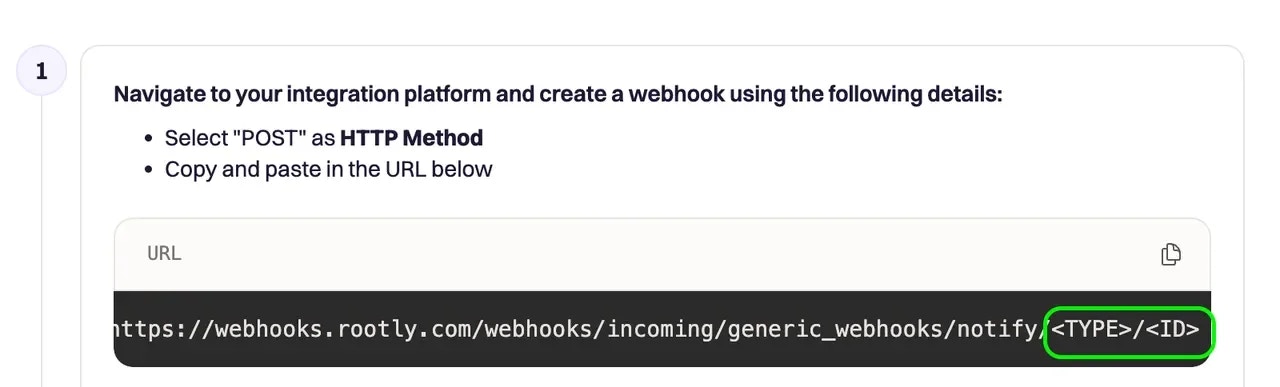 When the target is defined in the webhook URL, you do not need to separately map the target type and target ID in the payload mapping step.
This option is more flexible when the same webhook source may need to route alerts to different targets.
With this approach, your external system sends the target information in the webhook JSON body, and Rootly extracts it using your configured field mappings.
Use this option when:
* A single source may route alerts to different services or teams
* Your observability tool already includes routing metadata in the webhook body
* You want the routing decision to come from the event payload itself
Advanced payloads can also include a Rootly notification target object directly in the JSON body when needed.
## Test the Source
After setup, send a test alert from your observability provider and confirm that Rootly receives and processes it as expected.
When the target is defined in the webhook URL, you do not need to separately map the target type and target ID in the payload mapping step.
This option is more flexible when the same webhook source may need to route alerts to different targets.
With this approach, your external system sends the target information in the webhook JSON body, and Rootly extracts it using your configured field mappings.
Use this option when:
* A single source may route alerts to different services or teams
* Your observability tool already includes routing metadata in the webhook body
* You want the routing decision to come from the event payload itself
Advanced payloads can also include a Rootly notification target object directly in the JSON body when needed.
## Test the Source
After setup, send a test alert from your observability provider and confirm that Rootly receives and processes it as expected.
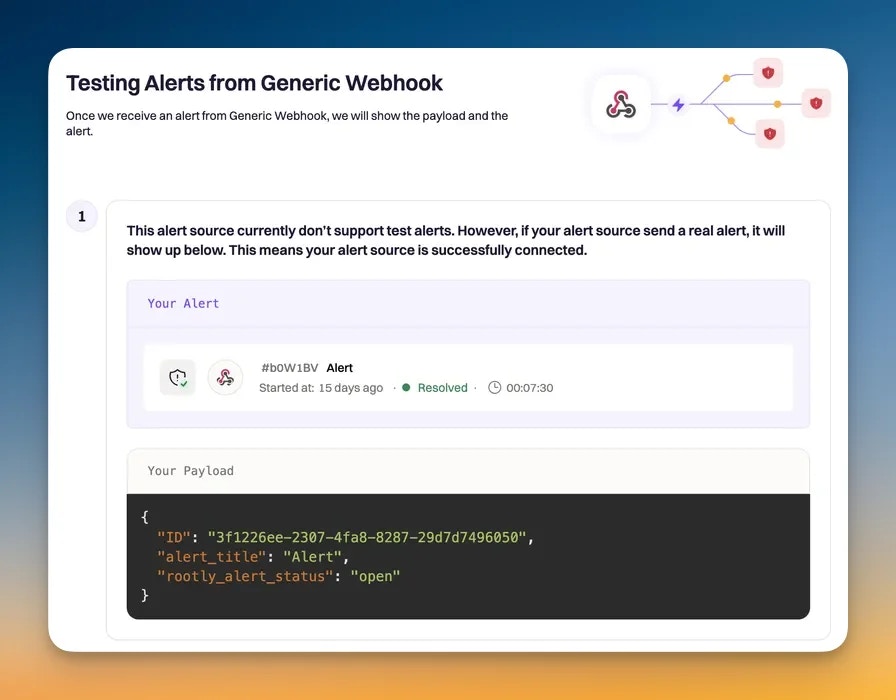 A successful test should confirm that:
* The webhook request reaches Rootly
* The payload is parsed correctly
* The alert title and other mapped fields are populated as expected
* The alert routes to the correct target
* The alert appears in Rootly
Rootly processes webhook events asynchronously, so the alert may appear shortly after a successful request.
If the request is authenticated correctly but the payload is missing expected fields, Rootly may still ingest the event, but the alert may not contain the data you intended.
## Next Steps
Configure Rootly to resolve alerts automatically when your source sends recovery events.
Automate incidents, notifications, and follow-up actions for alerts created through this source.
A successful test should confirm that:
* The webhook request reaches Rootly
* The payload is parsed correctly
* The alert title and other mapped fields are populated as expected
* The alert routes to the correct target
* The alert appears in Rootly
Rootly processes webhook events asynchronously, so the alert may appear shortly after a successful request.
If the request is authenticated correctly but the payload is missing expected fields, Rootly may still ingest the event, but the alert may not contain the data you intended.
## Next Steps
Configure Rootly to resolve alerts automatically when your source sends recovery events.
Automate incidents, notifications, and follow-up actions for alerts created through this source.