> ## Documentation Index
> Fetch the complete documentation index at: https://docs.rootly.com/llms.txt
> Use this file to discover all available pages before exploring further.
# GitHub
> Track deployments, create and update issues, fetch commits, and enrich PR links with automatic status tracking for incident management.
Connect GitHub to Rootly to automate issue tracking, surface commit context during incidents, and capture deployment signals as they happen.
**This integration allows you to:**
* Create and update GitHub issues from incident workflows
* Fetch recent commits across repositories during an incident
* Receive push, pull request, and issue events as Rootly pulses
* Automatically enrich GitHub PR links shared in Slack with live status updates
## Before You Begin
You must be an **Owner** of your GitHub organization and an **Admin** of your Rootly account to complete this installation.
We recommend using a **service account** so the integration continues to work if a user leaves your organization.
This integration uses a two-step process:
1. Install the **rootlyhq** GitHub App from the GitHub Marketplace
2. Connect GitHub to Rootly via OAuth
## Permissions
The following GitHub App permissions are required:
| Permission | Access Level |
| ------------- | ------------ |
| Checks | Read |
| Code | Read |
| Deployments | Read |
| Metadata | Read |
| Pull Requests | Read |
| Issues | Read + Write |
## Installation
### Step 1: Install the GitHub Marketplace App
Navigate to the GitHub Apps page for your organization. Replace `` with your organization's name:
```
https://github.com/organizations//settings/installations
```
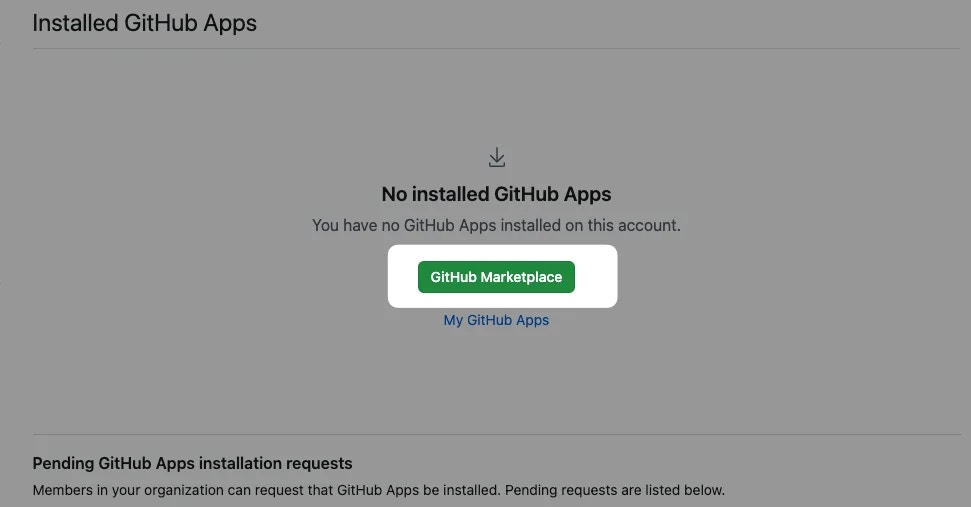
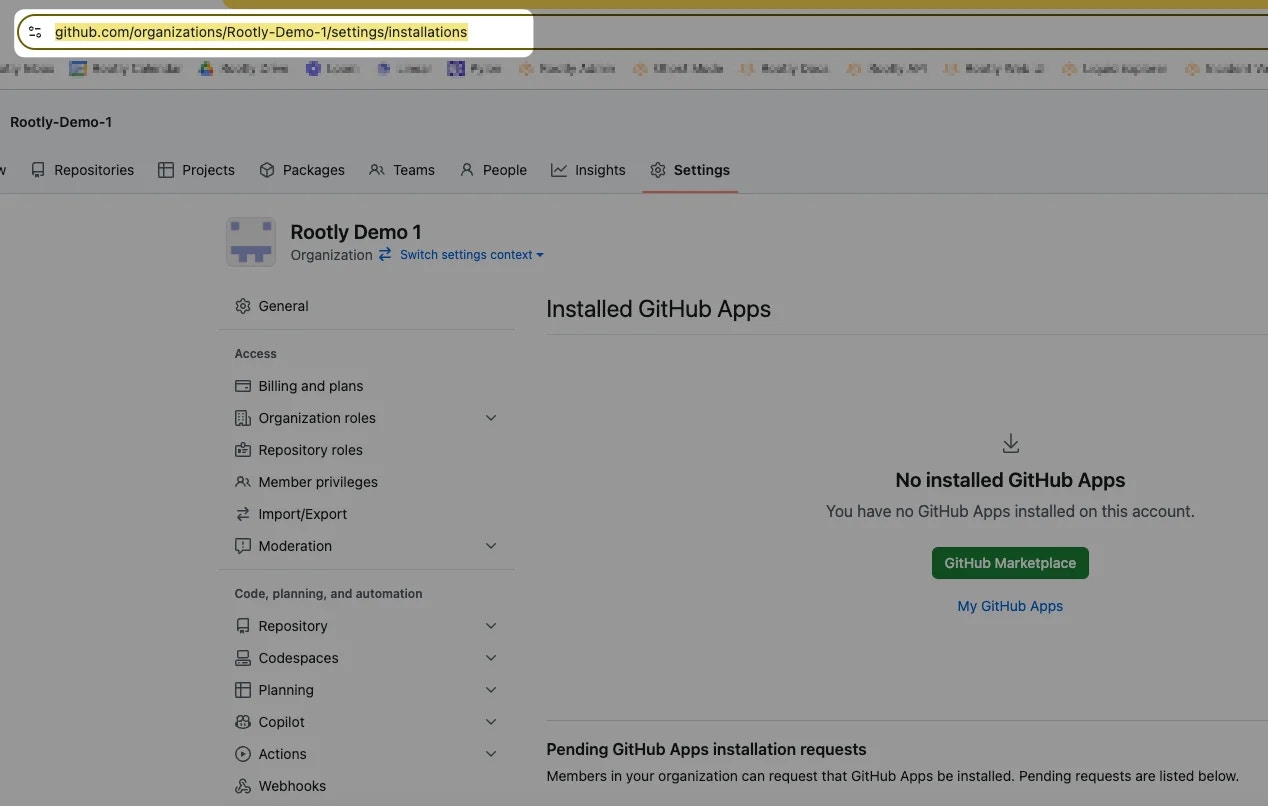 Click **GitHub Marketplace**.
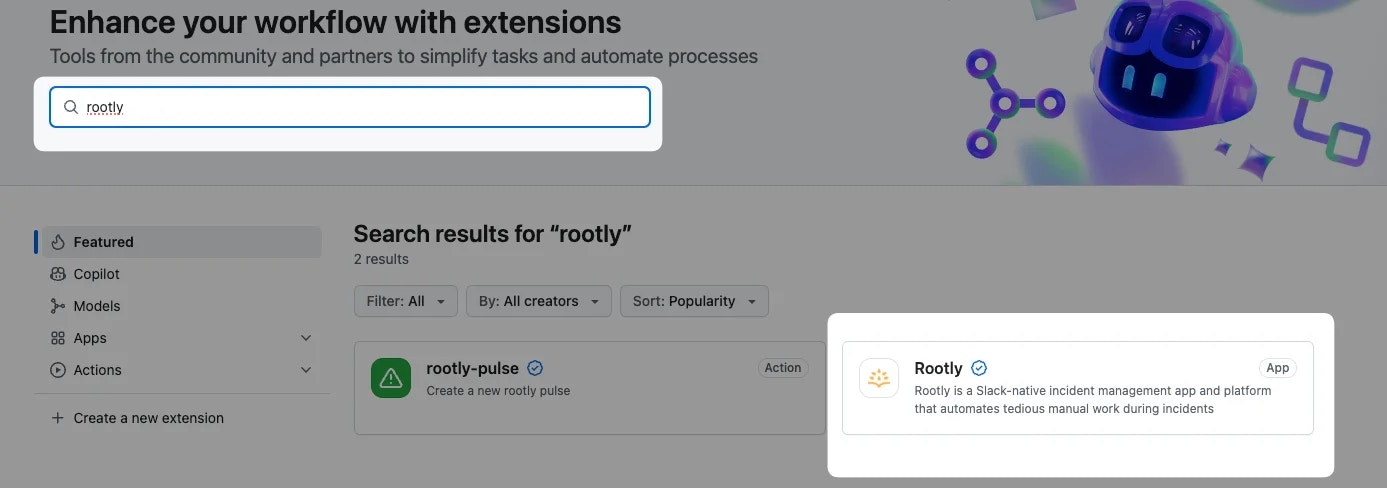
 Search for **rootly** and click on the Rootly app.
 Click **Add** to begin the installation.
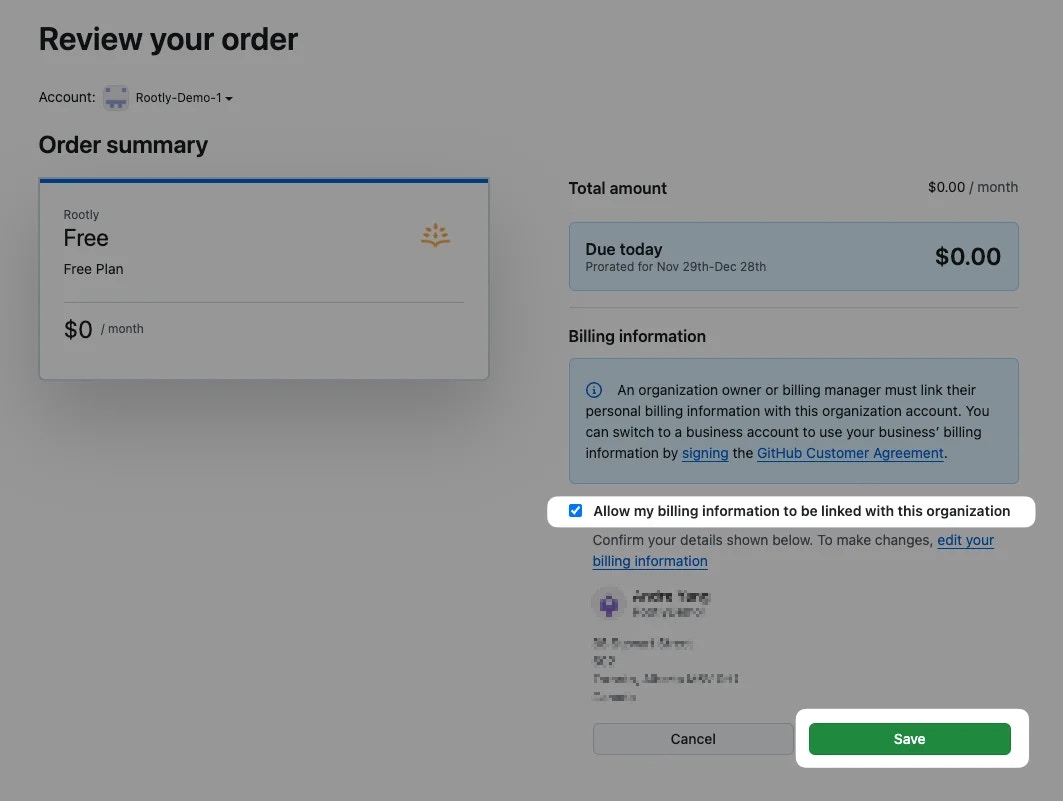
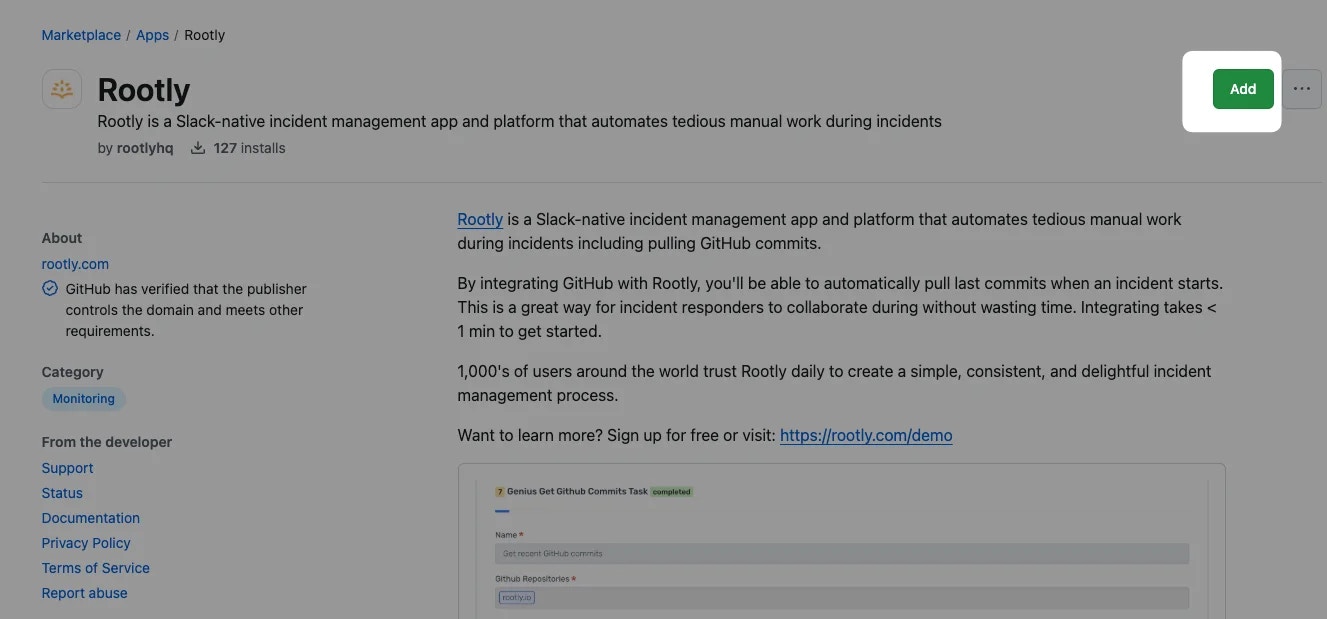 If you belong to multiple GitHub organizations, select the correct one and click **Install it for free**.
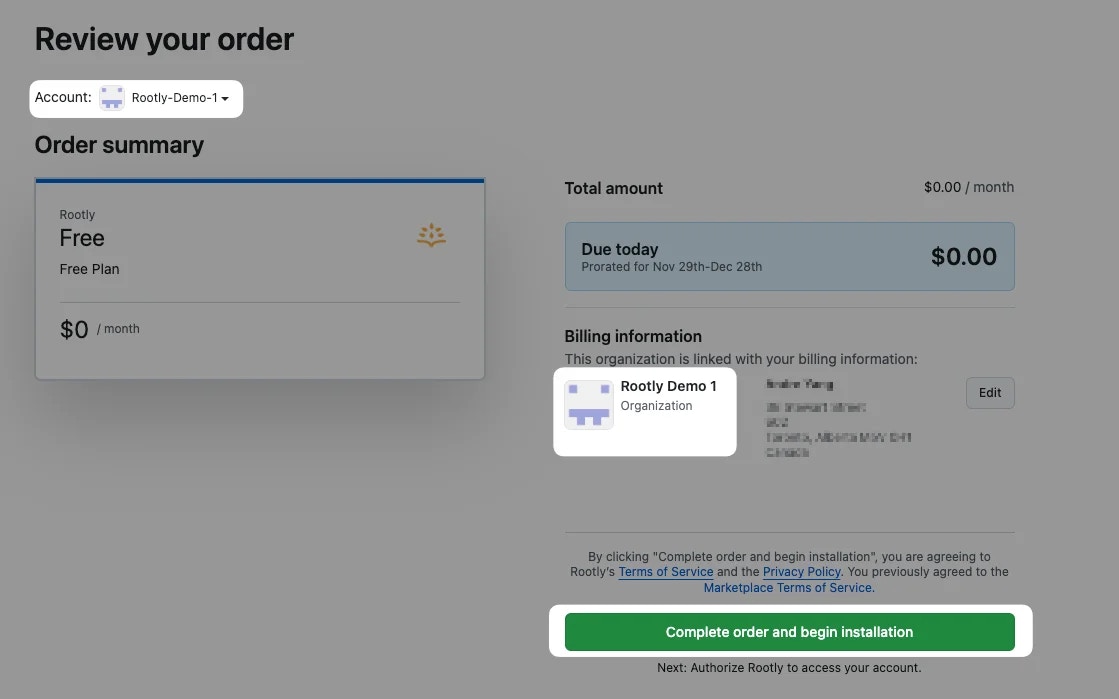
 Confirm the correct organization is selected. Check **Allow my billing information to be linked with this organization** and click **Save**.
 Click **Complete order and begin installation**.
 Select the desired **scope of access** (all repositories or specific repositories) and click **Install**.
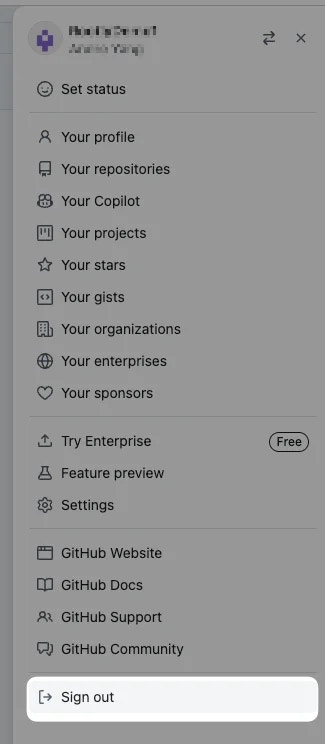
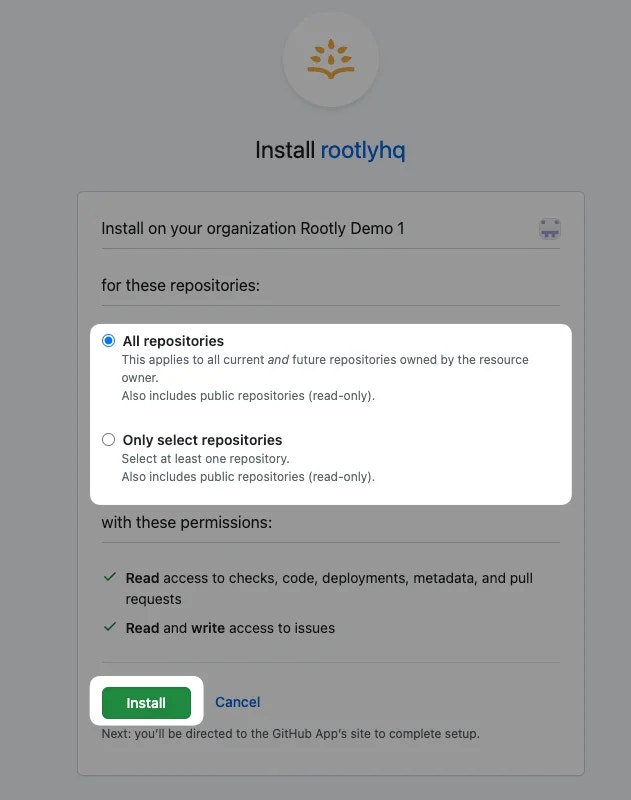 Log out of your GitHub account before proceeding. This is required so Rootly can re-establish the connection under the correct account.
 ### Step 2: Connect GitHub to Rootly
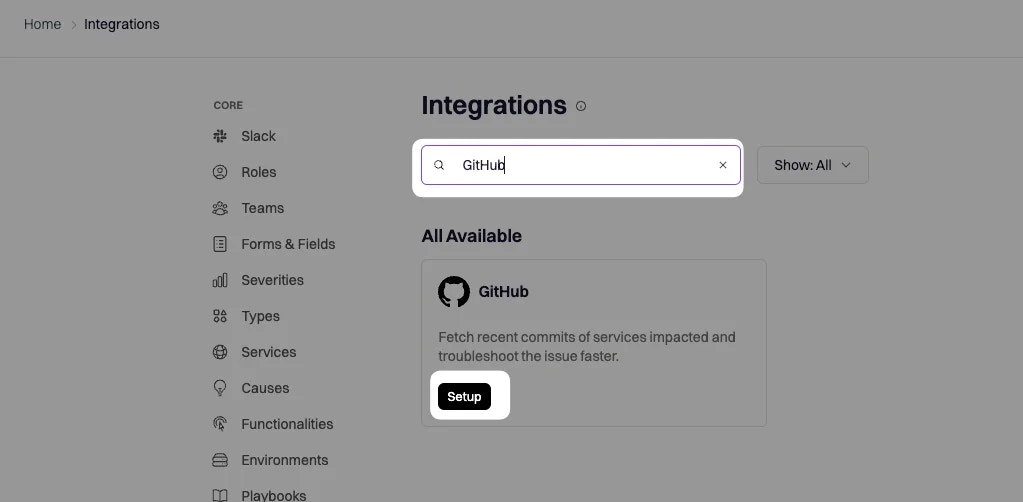
Navigate to the [Integrations](https://rootly.com/account/integrations) page in Rootly and search for **github**.
### Step 2: Connect GitHub to Rootly
Navigate to the [Integrations](https://rootly.com/account/integrations) page in Rootly and search for **github**.
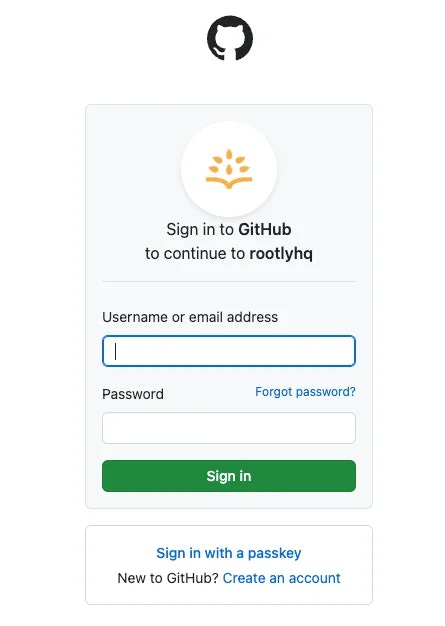
 You'll be prompted to sign in to GitHub to authorize the connection to your organization.
 Click **Save** to complete the setup.
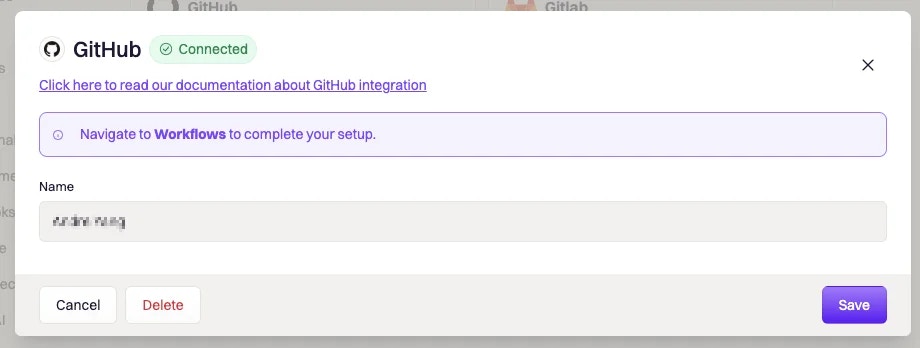 GitHub is now connected. You can use the **Create Issue**, **Update Issue**, and **Get Commits** workflow actions, and GitHub events will begin flowing in as pulses.
## Uninstall
Uninstalling requires two steps — removing the integration from Rootly and uninstalling the GitHub App.
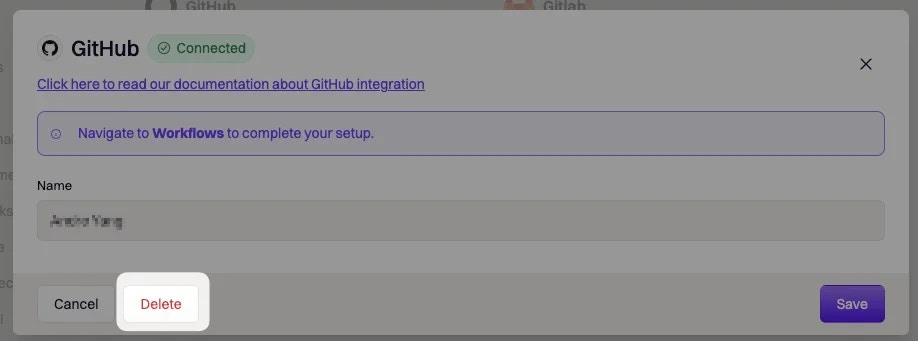
Delete the GitHub integration from Rootly via the **Integrations** page.
GitHub is now connected. You can use the **Create Issue**, **Update Issue**, and **Get Commits** workflow actions, and GitHub events will begin flowing in as pulses.
## Uninstall
Uninstalling requires two steps — removing the integration from Rootly and uninstalling the GitHub App.
Delete the GitHub integration from Rootly via the **Integrations** page.
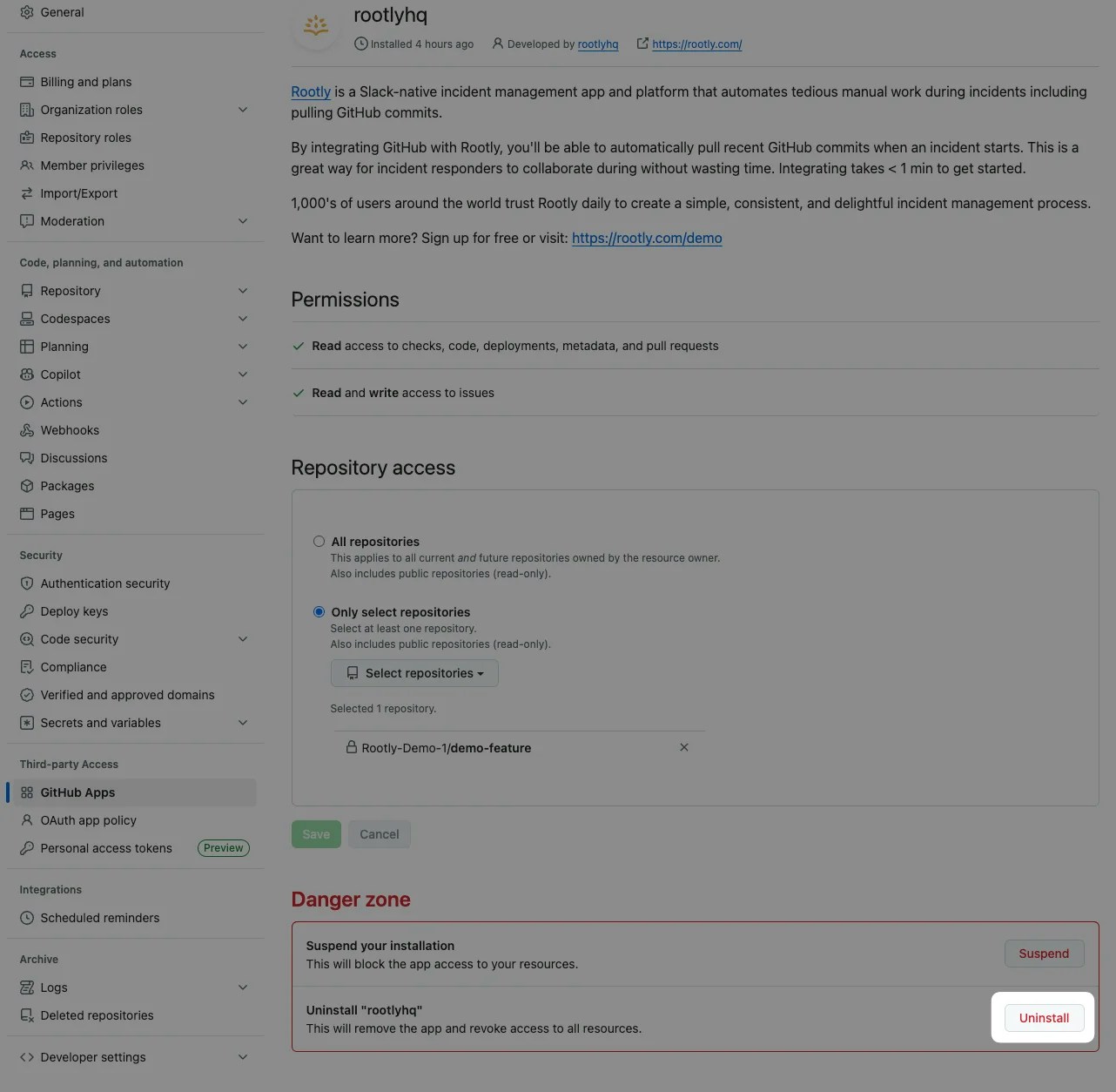
 Uninstall the **rootlyhq** app from your organization's GitHub Apps page.