> ## Documentation Index
> Fetch the complete documentation index at: https://docs.rootly.com/llms.txt
> Use this file to discover all available pages before exploring further.
# GitLab
> Connect GitLab to Rootly to track deployments and merge requests as pulses, create issues from incidents, and enrich GitLab links in Slack.
## Introduction
The GitLab integration connects Rootly with GitLab through OAuth so your team can surface engineering context during incidents and automate issue tracking across both platforms.
With the GitLab integration, you can:
* Fetch recent commits from GitLab repositories through incident workflows
* Automatically track push events, merged merge requests, and deployment events as Rootly pulses
* Create and update GitLab issues directly from incident and action item workflows
* Enrich GitLab merge request links pasted into incident Slack channels with live status cards
* Connect to self-hosted GitLab instances in addition to gitlab.com
GitLab issues can be created from both incident workflows and action item workflows, making it easy to turn follow-up work into trackable GitLab tasks automatically.
## Before You Begin
Before setting up the GitLab integration, make sure you have:
* A Rootly account with permission to manage integrations
* A GitLab account with **admin access** to create OAuth applications
* The GitLab instance URL if you are using a self-hosted GitLab instance (must use HTTPS)
This integration uses OAuth 2.0. You will need to create an OAuth application in GitLab and paste the credentials into Rootly. Keep your application secret secure — it is encrypted at rest in Rootly.
## Installation
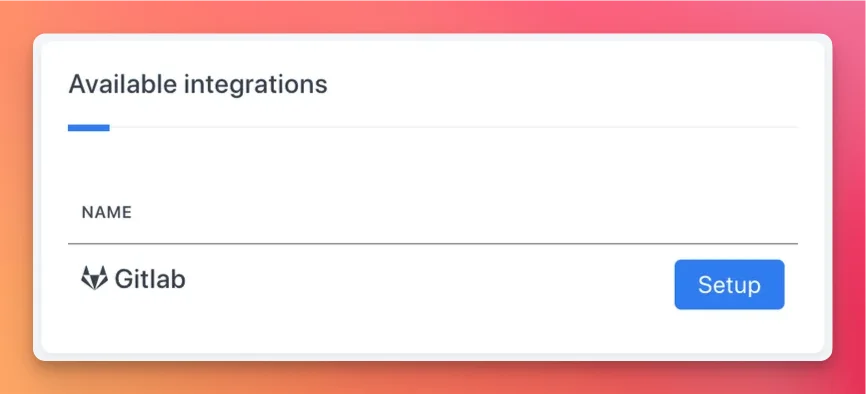
Navigate to the integrations page in your Rootly workspace and select **GitLab**.
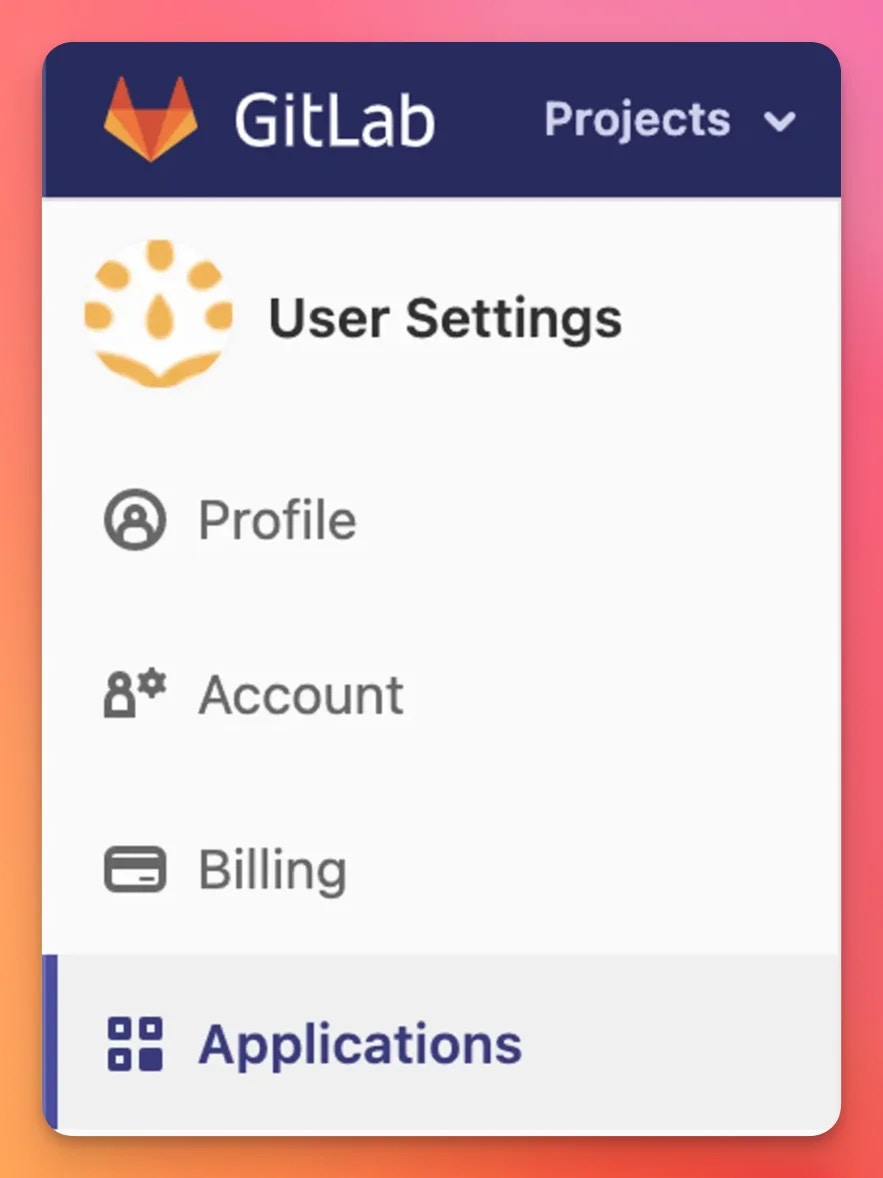
 In GitLab, go to **User Settings → Applications** (or **Admin Area → Applications** for instance-wide access) and create a new OAuth application.
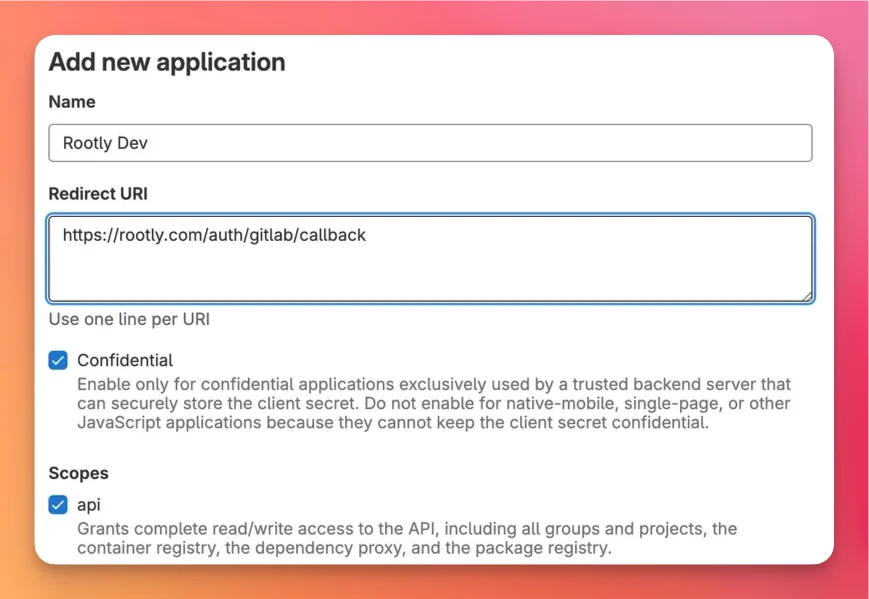
 Enter the following values:
| Field | Value |
| ------------ | ----------------------------------------- |
| Redirect URI | `https://rootly.com/auth/gitlab/callback` |
| Scopes | `api` or `read_api` |
Use the `api` scope to let Rootly automatically create webhooks on your repositories. If you prefer to manage webhooks yourself, use `read_api` instead.
Enter the following values:
| Field | Value |
| ------------ | ----------------------------------------- |
| Redirect URI | `https://rootly.com/auth/gitlab/callback` |
| Scopes | `api` or `read_api` |
Use the `api` scope to let Rootly automatically create webhooks on your repositories. If you prefer to manage webhooks yourself, use `read_api` instead.
 After saving your GitLab application, copy the **Application ID** and **Secret** and paste them into Rootly.
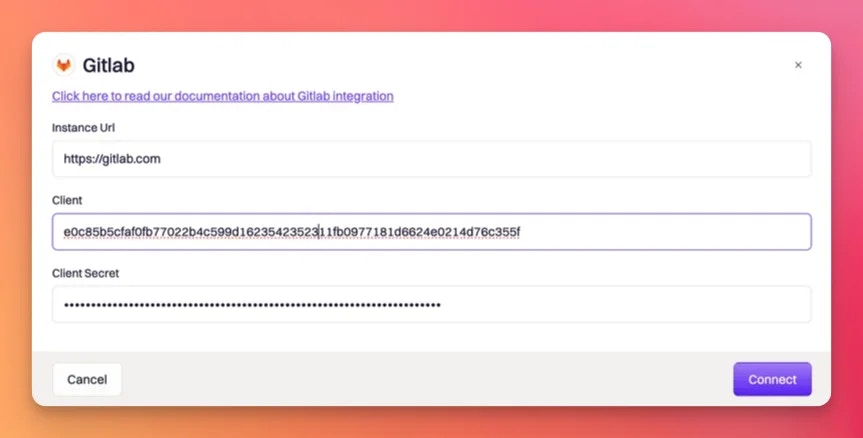 If you are using a self-hosted GitLab instance, enter your instance URL (must start with `https://`). The default is `https://gitlab.com`.
Optionally, specify the repository names you want Rootly to track for pulse events. If you leave this blank, Rootly will track all repositories accessible to the connected account.
Limiting tracked repositories reduces noise. Only pushes, merge requests, and deployments from listed repositories will appear as Rootly pulses.
Your GitLab integration is live. Rootly will begin tracking events from your repositories and the workflow actions below will be available in your incident and action item workflows.
## Pulse Events
Rootly automatically ingests the following GitLab webhook events and records them as pulses on the incident timeline and service activity feed.
### Push Events
When a commit is pushed to any tracked repository, Rootly creates a pulse with:
* **Summary:** `[GitLab][Push] Commit: {commit message}`
* **Labels:** repository name, action (push)
* **Refs:** commit SHA, short SHA, branch ref
### Merge Request Events
When a merge request is merged, Rootly creates a pulse and posts an enriched card to any linked incident Slack channel with merge request details and status.
* **Summary:** `[GitLab][MR] Merged: {source branch}`
* **Labels:** repository name, action (pr\_merged)
* **Refs:** merge commit SHA, base branch
Even if an MR is not merged during an active incident, Rootly will enrich any GitLab merge request URL pasted into an incident Slack channel with a live status card showing the MR title, author, and current state.
### Deployment Events
When a deployment event is received, Rootly creates a pulse tied to the associated environment.
* **Summary:** `[GitLab][Deploy] Commit: {title} | {status}`
* **Labels:** repository name, action (deploy)
* **Refs:** short commit SHA
### Issue Events
GitLab issue events are also ingested and converted to Rootly alerts with severity, state, and a link back to the GitLab issue.
## Workflow Actions
GitLab workflow actions are available in both incident workflows and action item workflows.
### Create a GitLab Issue
Creates a new issue in a specified GitLab repository. Available in incident and action item workflows.
| Field | Description | Required |
| ----------- | ---------------------------------------------------------------------- | -------- |
| Repository | The GitLab repository to create the issue in | Yes |
| Issue Type | Type of issue: `issue`, `incident`, `test_case`, or `task` | No |
| Title | Issue title — supports Liquid templating (e.g. `{{ incident.title }}`) | Yes |
| Description | Issue body — supports Liquid templating | No |
| Labels | Comma-separated labels to apply | No |
| Due Date | Due date — supports Liquid templating | No |
Use Liquid variables like `{{ incident.title }}`, `{{ incident.severity }}`, and `{{ incident.url }}` in the title and description to automatically populate issues with live incident context.
### Update a GitLab Issue
Updates an existing GitLab issue. Commonly used to close or reopen issues when an incident changes state.
| Field | Description | Required |
| ----------- | ---------------------------------------------------------------------------------- | -------- |
| Issue ID | ID of the GitLab issue to update — supports Liquid templating | Yes |
| Issue Type | Type of issue to update | No |
| Title | Updated title | No |
| Description | Updated body | No |
| Labels | Updated labels | No |
| Due Date | Updated due date | No |
| Completion | Whether to close or reopen the issue — can be set to auto-map from incident status | Yes |
Set **Completion** to auto-map from incident status so GitLab issues close automatically when the linked Rootly incident is resolved, and reopen if the incident is reopened.
### Get GitLab Commits
Fetches recent commits from one or more repositories and posts them to a Slack channel. Useful for surfacing recent code changes during incident investigation.
| Field | Description | Required |
| ---------------------- | -------------------------------------------------------------------- | -------- |
| Services | Services to fetch commits for (uses the service's linked repository) | No\* |
| Repository Names | Specific GitLab repository names to query | No\* |
| Branch | Branch to fetch commits from | Yes |
| Past Duration | How far back to look (e.g. `2 hours`, `1 day`) | Yes |
| Post to Slack Channels | Slack channels to post results to | No |
\* At least one of **Services** or **Repository Names** is required.
## Default Workflows
When GitLab is connected, Rootly can create the following default workflows to get you started:
* **Create a GitLab issue when an incident is declared** — automatically opens a GitLab issue tied to the incident
* **Update the GitLab issue when the incident is resolved** — closes the linked issue when the incident closes
* **Create a GitLab issue for each action item** — turns follow-up tasks into GitLab issues automatically
* **Update the GitLab issue when an action item is completed** — keeps GitLab in sync as action items are closed
Review and customize these workflows after installation to match your team's process.
## Troubleshooting
Rootly automatically creates webhooks when you add repository names to the integration settings. If webhooks are not appearing in GitLab, confirm that the OAuth application was created with the `api` scope. The `read_api` scope does not allow Rootly to create webhooks on your behalf — you will need to create them manually if you use `read_api`.
Check that the repository name is listed in the integration's **Repository Names** field. Only events from listed repositories are tracked. Also verify that the GitLab webhook is active by checking **Repository → Settings → Webhooks** in GitLab and confirming the Rootly webhook URL appears there with recent delivery history.
Link enrichment applies to merge request URLs pasted into incident Slack channels. Confirm that the GitLab integration is connected and that the URL format matches a GitLab merge request (the path should contain `/merge_requests/`). Personal or group access tokens are not supported — the integration must be connected via OAuth.
The OAuth token must have access to the repository you are targeting. If the repository is in a group or namespace the connected user cannot access, the action will fail. Re-authenticate with a user or service account that has the appropriate permissions.
GitLab OAuth tokens are tied to the user who authorized the application. If that user is removed from your GitLab instance, the token becomes invalid. Reconnect the integration using a GitLab service account or bot user to avoid this in the future.
Make sure your instance URL starts with `https://` and does not have a trailing slash. Rootly does not support HTTP-only GitLab instances. Also confirm that your GitLab instance is reachable from the public internet, as Rootly needs to send webhook deliveries to it.
## Uninstall
To remove the GitLab integration, go to the integrations page in Rootly, find the GitLab account, and select **Configure → Delete**. This will disconnect the account and remove all Rootly-managed webhooks from your repositories.
## Related Pages
Automate GitLab issue creation and updates using incident workflow triggers.
Automatically create and close GitLab issues as action items move through their lifecycle.
Learn how deployment and commit events appear as pulses in Rootly.
If you are using a self-hosted GitLab instance, enter your instance URL (must start with `https://`). The default is `https://gitlab.com`.
Optionally, specify the repository names you want Rootly to track for pulse events. If you leave this blank, Rootly will track all repositories accessible to the connected account.
Limiting tracked repositories reduces noise. Only pushes, merge requests, and deployments from listed repositories will appear as Rootly pulses.
Your GitLab integration is live. Rootly will begin tracking events from your repositories and the workflow actions below will be available in your incident and action item workflows.
## Pulse Events
Rootly automatically ingests the following GitLab webhook events and records them as pulses on the incident timeline and service activity feed.
### Push Events
When a commit is pushed to any tracked repository, Rootly creates a pulse with:
* **Summary:** `[GitLab][Push] Commit: {commit message}`
* **Labels:** repository name, action (push)
* **Refs:** commit SHA, short SHA, branch ref
### Merge Request Events
When a merge request is merged, Rootly creates a pulse and posts an enriched card to any linked incident Slack channel with merge request details and status.
* **Summary:** `[GitLab][MR] Merged: {source branch}`
* **Labels:** repository name, action (pr\_merged)
* **Refs:** merge commit SHA, base branch
Even if an MR is not merged during an active incident, Rootly will enrich any GitLab merge request URL pasted into an incident Slack channel with a live status card showing the MR title, author, and current state.
### Deployment Events
When a deployment event is received, Rootly creates a pulse tied to the associated environment.
* **Summary:** `[GitLab][Deploy] Commit: {title} | {status}`
* **Labels:** repository name, action (deploy)
* **Refs:** short commit SHA
### Issue Events
GitLab issue events are also ingested and converted to Rootly alerts with severity, state, and a link back to the GitLab issue.
## Workflow Actions
GitLab workflow actions are available in both incident workflows and action item workflows.
### Create a GitLab Issue
Creates a new issue in a specified GitLab repository. Available in incident and action item workflows.
| Field | Description | Required |
| ----------- | ---------------------------------------------------------------------- | -------- |
| Repository | The GitLab repository to create the issue in | Yes |
| Issue Type | Type of issue: `issue`, `incident`, `test_case`, or `task` | No |
| Title | Issue title — supports Liquid templating (e.g. `{{ incident.title }}`) | Yes |
| Description | Issue body — supports Liquid templating | No |
| Labels | Comma-separated labels to apply | No |
| Due Date | Due date — supports Liquid templating | No |
Use Liquid variables like `{{ incident.title }}`, `{{ incident.severity }}`, and `{{ incident.url }}` in the title and description to automatically populate issues with live incident context.
### Update a GitLab Issue
Updates an existing GitLab issue. Commonly used to close or reopen issues when an incident changes state.
| Field | Description | Required |
| ----------- | ---------------------------------------------------------------------------------- | -------- |
| Issue ID | ID of the GitLab issue to update — supports Liquid templating | Yes |
| Issue Type | Type of issue to update | No |
| Title | Updated title | No |
| Description | Updated body | No |
| Labels | Updated labels | No |
| Due Date | Updated due date | No |
| Completion | Whether to close or reopen the issue — can be set to auto-map from incident status | Yes |
Set **Completion** to auto-map from incident status so GitLab issues close automatically when the linked Rootly incident is resolved, and reopen if the incident is reopened.
### Get GitLab Commits
Fetches recent commits from one or more repositories and posts them to a Slack channel. Useful for surfacing recent code changes during incident investigation.
| Field | Description | Required |
| ---------------------- | -------------------------------------------------------------------- | -------- |
| Services | Services to fetch commits for (uses the service's linked repository) | No\* |
| Repository Names | Specific GitLab repository names to query | No\* |
| Branch | Branch to fetch commits from | Yes |
| Past Duration | How far back to look (e.g. `2 hours`, `1 day`) | Yes |
| Post to Slack Channels | Slack channels to post results to | No |
\* At least one of **Services** or **Repository Names** is required.
## Default Workflows
When GitLab is connected, Rootly can create the following default workflows to get you started:
* **Create a GitLab issue when an incident is declared** — automatically opens a GitLab issue tied to the incident
* **Update the GitLab issue when the incident is resolved** — closes the linked issue when the incident closes
* **Create a GitLab issue for each action item** — turns follow-up tasks into GitLab issues automatically
* **Update the GitLab issue when an action item is completed** — keeps GitLab in sync as action items are closed
Review and customize these workflows after installation to match your team's process.
## Troubleshooting
Rootly automatically creates webhooks when you add repository names to the integration settings. If webhooks are not appearing in GitLab, confirm that the OAuth application was created with the `api` scope. The `read_api` scope does not allow Rootly to create webhooks on your behalf — you will need to create them manually if you use `read_api`.
Check that the repository name is listed in the integration's **Repository Names** field. Only events from listed repositories are tracked. Also verify that the GitLab webhook is active by checking **Repository → Settings → Webhooks** in GitLab and confirming the Rootly webhook URL appears there with recent delivery history.
Link enrichment applies to merge request URLs pasted into incident Slack channels. Confirm that the GitLab integration is connected and that the URL format matches a GitLab merge request (the path should contain `/merge_requests/`). Personal or group access tokens are not supported — the integration must be connected via OAuth.
The OAuth token must have access to the repository you are targeting. If the repository is in a group or namespace the connected user cannot access, the action will fail. Re-authenticate with a user or service account that has the appropriate permissions.
GitLab OAuth tokens are tied to the user who authorized the application. If that user is removed from your GitLab instance, the token becomes invalid. Reconnect the integration using a GitLab service account or bot user to avoid this in the future.
Make sure your instance URL starts with `https://` and does not have a trailing slash. Rootly does not support HTTP-only GitLab instances. Also confirm that your GitLab instance is reachable from the public internet, as Rootly needs to send webhook deliveries to it.
## Uninstall
To remove the GitLab integration, go to the integrations page in Rootly, find the GitLab account, and select **Configure → Delete**. This will disconnect the account and remove all Rootly-managed webhooks from your repositories.
## Related Pages
Automate GitLab issue creation and updates using incident workflow triggers.
Automatically create and close GitLab issues as action items move through their lifecycle.
Learn how deployment and commit events appear as pulses in Rootly.