> ## Documentation Index
> Fetch the complete documentation index at: https://docs.rootly.com/llms.txt
> Use this file to discover all available pages before exploring further.
# GoToMeeting
> Automatically create GoToMeeting sessions for Rootly incidents and share meeting links in Slack channels for quick responder collaboration during outages.
## Overview
Rootly's GoToMeeting integration automatically creates a meeting bridge for each incident via a workflow action. Meeting links are shared directly to Slack channels so responders can join immediately.
Spin up a GoToMeeting session the moment an incident is declared — no manual setup required.
Choose from PSTN, free conference call, hybrid, or VoIP audio depending on your team's setup.
Meeting links are automatically posted to incident Slack channels so responders can join without leaving Slack.
Attach the meeting link to the incident timeline to keep a record of collaboration during the response.
## Before You Begin
* You must be a Rootly admin to set up the integration
* You need a GoTo developer account to create an OAuth application at [developer.goto.com](https://developer.goto.com/)
* Use a **service account** rather than a personal account to prevent the integration from breaking if a user leaves
## Installation
Setting up GoToMeeting requires creating an OAuth application at GoTo's developer portal and connecting it to Rootly.
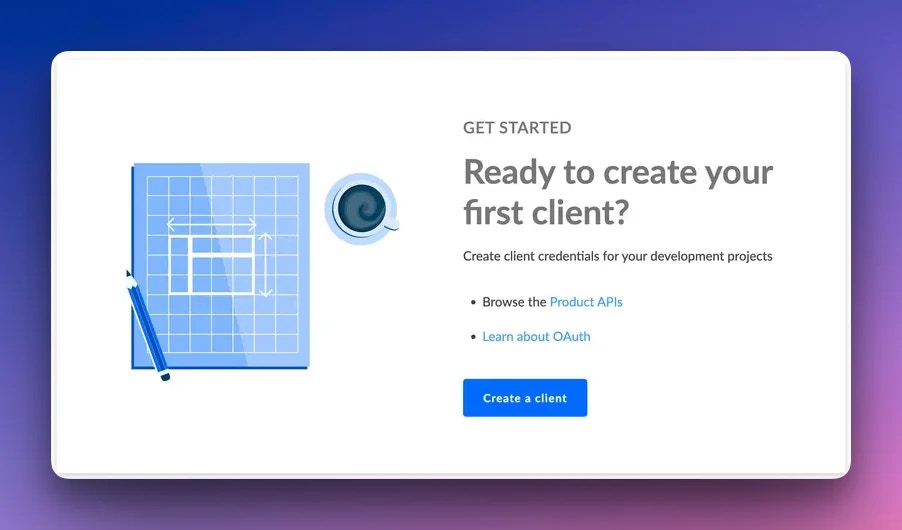
Go to [developer.goto.com](https://developer.goto.com/) and create a new OAuth application.
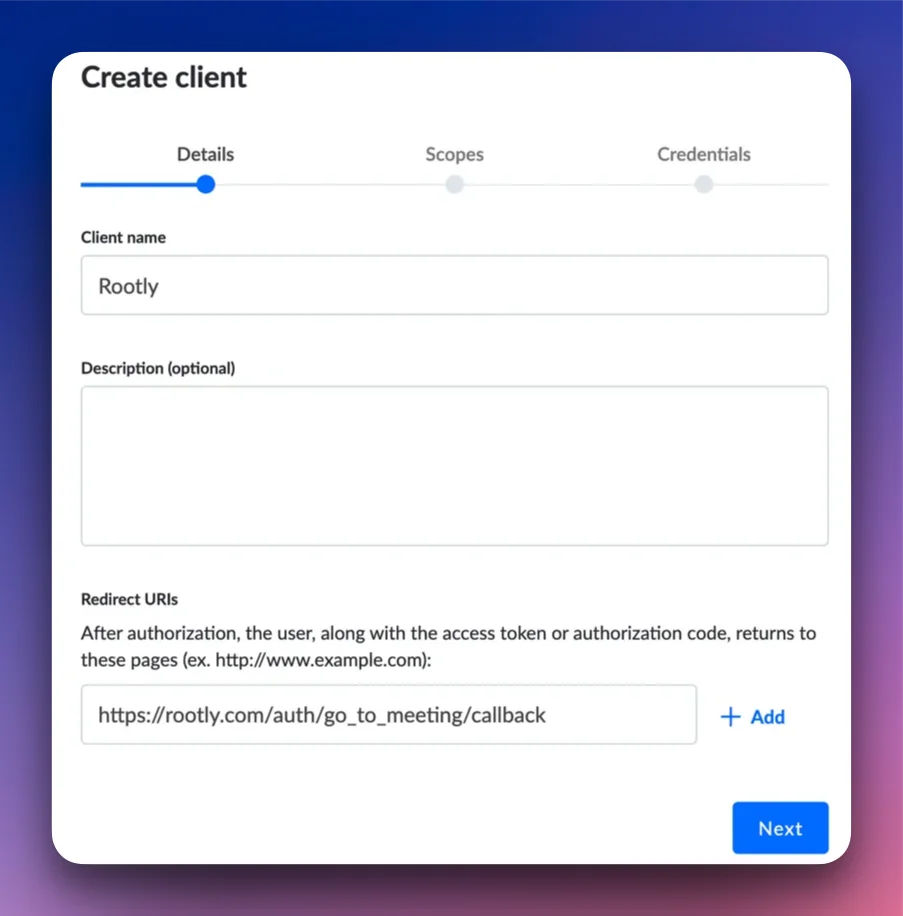
 Set the **Redirect URI** to:
```
https://rootly.com/auth/go_to_meeting/callback
```
Set the **Redirect URI** to:
```
https://rootly.com/auth/go_to_meeting/callback
```
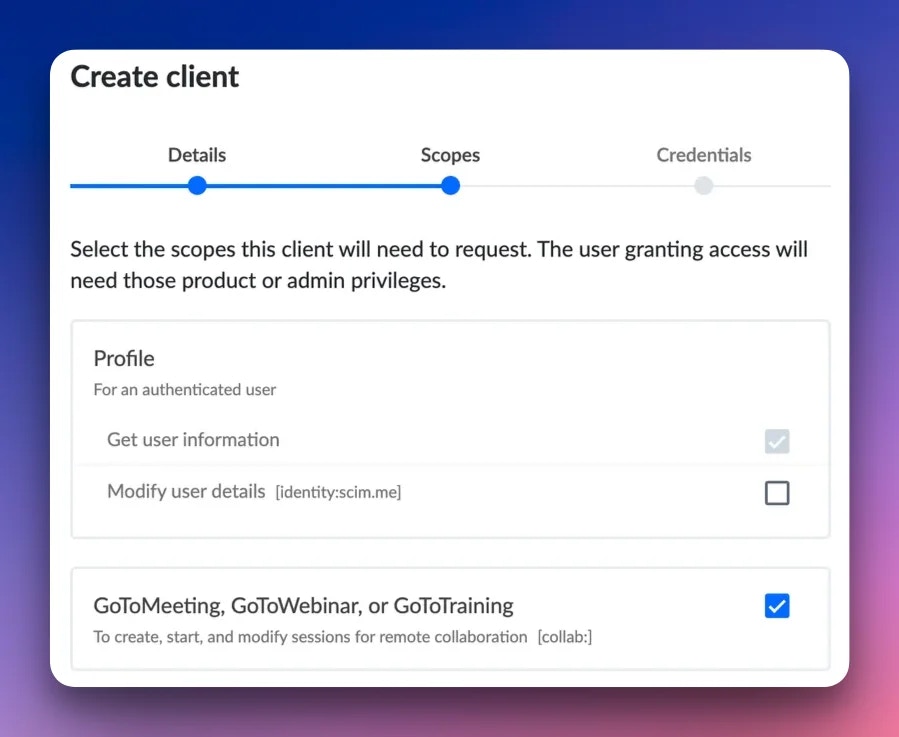
 In the OAuth app settings, enable at least one of the following product scopes:
* **GoToMeeting**
* **GoToWebinar**
* **GoToTraining**
In the OAuth app settings, enable at least one of the following product scopes:
* **GoToMeeting**
* **GoToWebinar**
* **GoToTraining**
 In Rootly, go to **Configuration → Integrations** and find **GoToMeeting**. Click **Connect**, then enter your **Client ID** and **Client Secret** from the GoTo developer portal and authorize.
After connecting, Rootly automatically creates a default workflow that triggers on incident creation (status: **Started**, priority: **High**) and creates a GoToMeeting session linked to the incident.
## Joining a Meeting
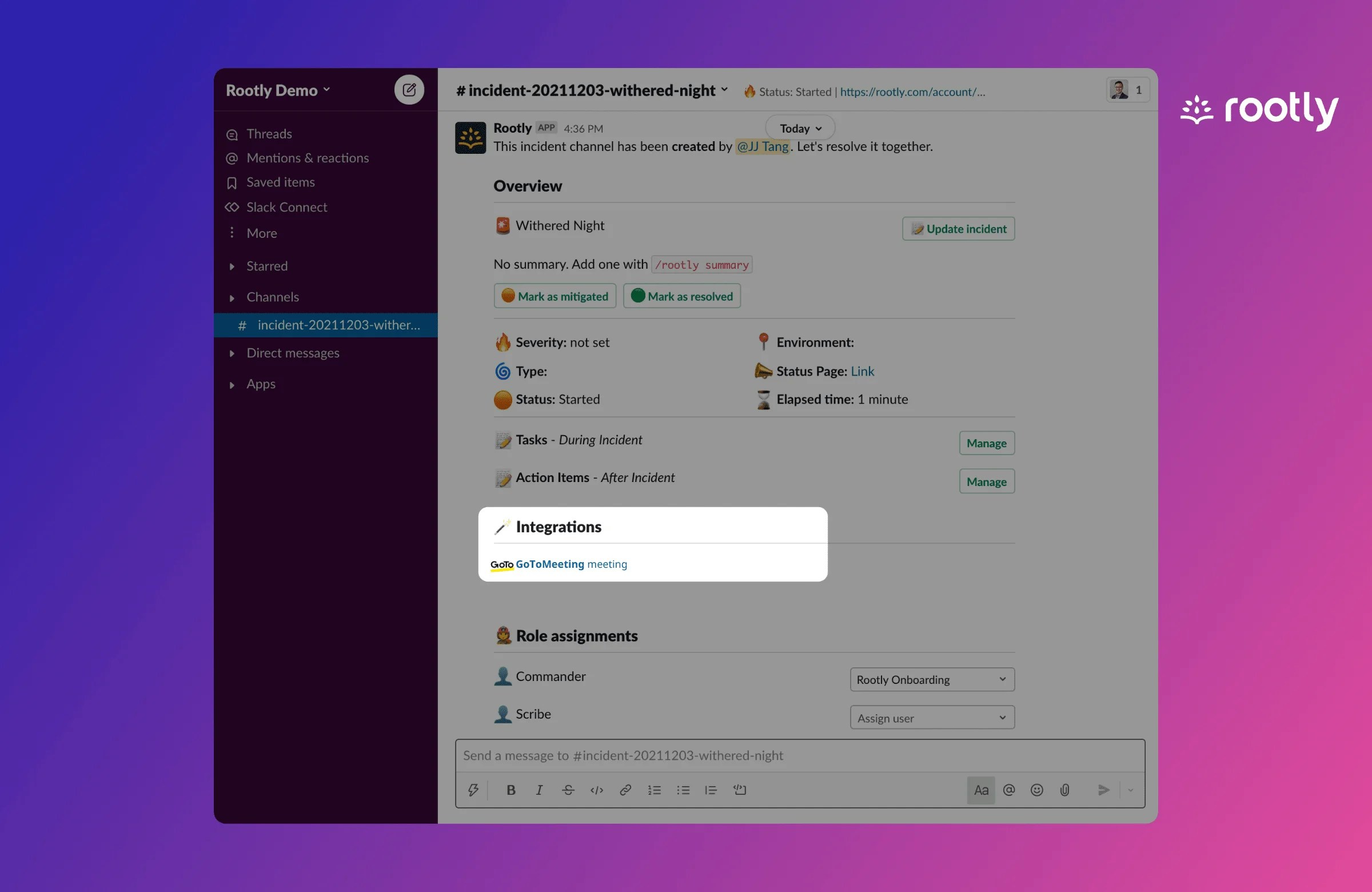
Once a GoToMeeting session is created for an incident, the meeting link appears in the **Integrations** section of the Rootly Slack bot message in the incident channel. Responders can click it to join without leaving Slack.
In Rootly, go to **Configuration → Integrations** and find **GoToMeeting**. Click **Connect**, then enter your **Client ID** and **Client Secret** from the GoTo developer portal and authorize.
After connecting, Rootly automatically creates a default workflow that triggers on incident creation (status: **Started**, priority: **High**) and creates a GoToMeeting session linked to the incident.
## Joining a Meeting
Once a GoToMeeting session is created for an incident, the meeting link appears in the **Integrations** section of the Rootly Slack bot message in the incident channel. Responders can click it to join without leaving Slack.
 ## Workflow Action
### Create GoToMeeting
Creates a GoToMeeting session for the incident and optionally shares the link to Slack or the incident timeline.
The meeting title. Supports [Liquid variables](/liquid/incident-variables) — for example, `{{ incident.title }}`. Maximum 200 characters.
The audio conferencing mode for the meeting:
* `ptsn` — PSTN dial-in number
* `free` — Free conference call number
* `hybrid` — Both PSTN and VoIP
* `voip` — VoIP only
When enabled, GoToMeeting will require a password to join the session.
Attaches the meeting link to the incident timeline as a logged event.
One or more Slack channels to share the meeting link to. Use `{{ incident.slack_channel_id }}` to target the incident's dedicated channel.
## Uninstall
To remove the GoToMeeting integration:
1. Go to **Configuration → Integrations** and find **GoToMeeting**
2. Click **Connected** to reveal the disconnect option
3. Click **Disconnect**
## Workflow Action
### Create GoToMeeting
Creates a GoToMeeting session for the incident and optionally shares the link to Slack or the incident timeline.
The meeting title. Supports [Liquid variables](/liquid/incident-variables) — for example, `{{ incident.title }}`. Maximum 200 characters.
The audio conferencing mode for the meeting:
* `ptsn` — PSTN dial-in number
* `free` — Free conference call number
* `hybrid` — Both PSTN and VoIP
* `voip` — VoIP only
When enabled, GoToMeeting will require a password to join the session.
Attaches the meeting link to the incident timeline as a logged event.
One or more Slack channels to share the meeting link to. Use `{{ incident.slack_channel_id }}` to target the incident's dedicated channel.
## Uninstall
To remove the GoToMeeting integration:
1. Go to **Configuration → Integrations** and find **GoToMeeting**
2. Click **Connected** to reveal the disconnect option
3. Click **Disconnect**
 ## Frequently Asked Questions
No. Rootly stores one GoToMeeting session per incident — once a meeting has been created for an incident, subsequent **Create GoToMeeting** workflow actions will be skipped. If you need a new session, disconnect and reconnect the integration or create the meeting manually.
Choose **hybrid** if your team has a mix of office and remote participants — it provides both dial-in and VoIP options. Use **voip** for fully remote teams to avoid dial-in costs.
Rootly automatically refreshes the OAuth token in the background. If refresh fails (e.g., the connected account is deactivated), the integration will stop working. Use a service account to minimize this risk.
Any of the three GoTo product scopes (GoToMeeting, GoToWebinar, GoToTraining) are supported. The workflow action creates a standard GoToMeeting session regardless of which scope is enabled.
## Frequently Asked Questions
No. Rootly stores one GoToMeeting session per incident — once a meeting has been created for an incident, subsequent **Create GoToMeeting** workflow actions will be skipped. If you need a new session, disconnect and reconnect the integration or create the meeting manually.
Choose **hybrid** if your team has a mix of office and remote participants — it provides both dial-in and VoIP options. Use **voip** for fully remote teams to avoid dial-in costs.
Rootly automatically refreshes the OAuth token in the background. If refresh fails (e.g., the connected account is deactivated), the integration will stop working. Use a service account to minimize this risk.
Any of the three GoTo product scopes (GoToMeeting, GoToWebinar, GoToTraining) are supported. The workflow action creates a standard GoToMeeting session regardless of which scope is enabled.