> ## Documentation Index
> Fetch the complete documentation index at: https://docs.rootly.com/llms.txt
> Use this file to discover all available pages before exploring further.
# Installation
> Connect Google Calendar to Rootly via OAuth or service account JSON credentials to enable event-based workflow actions, meeting creation, and calendar reads.
## Installing Google Calendar on Rootly
We recommend you perform the installation with a **service account** to ensure the integration doesn't break, should the installing user leave the company.
Ensure that you are **logged in as an Admin user** in Rootly.
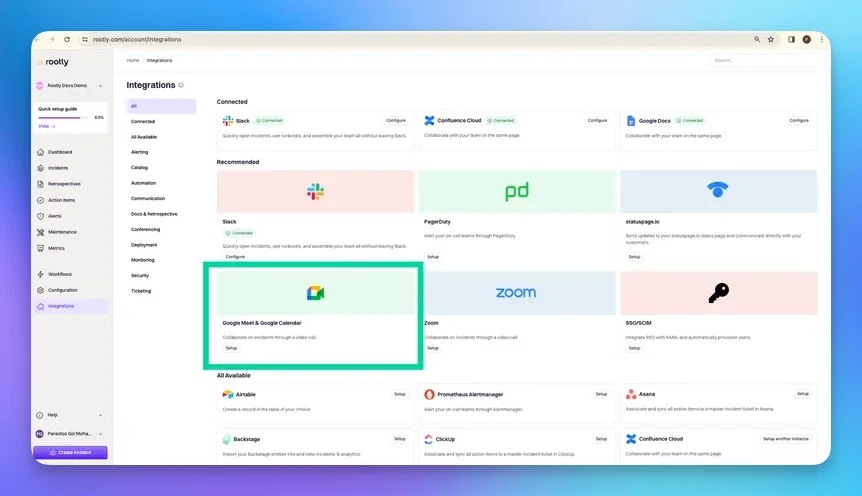
Locate **Google Calendar** on the [Integrations catalog](https://rootly.com/account/integrations "Integrations catalog") and click on Setup.
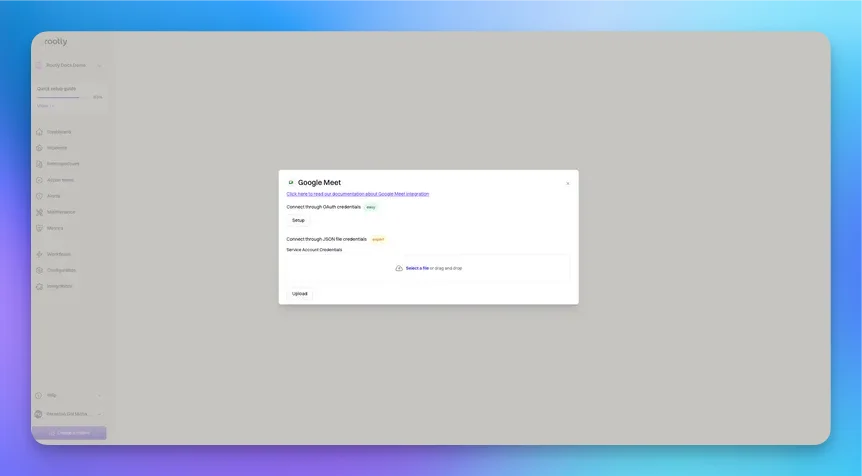
 You'll be prompted to **choose a connection method** to your Google Meet:
* Connect through OAuth credentials
* Connect through JSON file credentials
You'll be prompted to **choose a connection method** to your Google Meet:
* Connect through OAuth credentials
* Connect through JSON file credentials
 ### Integrating via OAuth
This integration method is used for **non-GCP service accounts**. This is the simplest and the recommended approach to integrating with Google Meet.
1. You can first create a Google account with a generic email (e.g. `acme_rootly@company.com`).
2. Then log into that Google account on your browser.
3. Add `acme_rootly@company.com` as a member in your Rootly organization.
4. Follow the instructions below to integrate as `acme_rootly@company.com`.
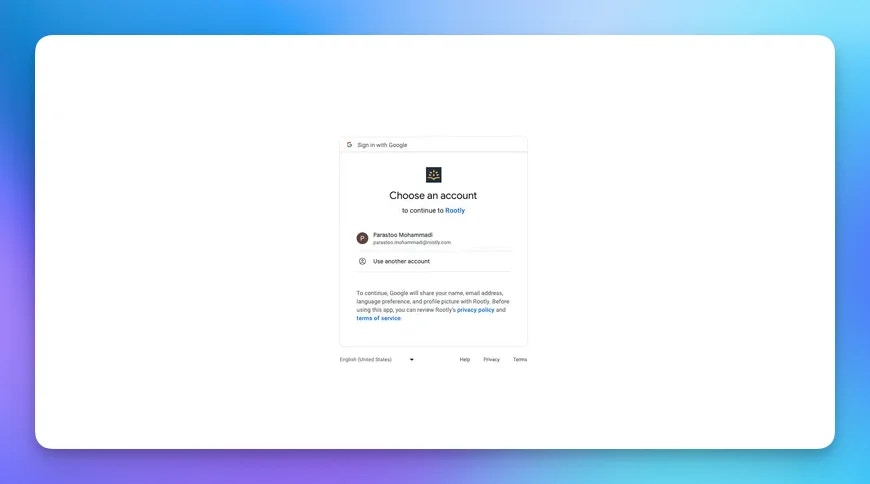
Click on `Setup` to start the integration process. You'll be prompted to select a Google account.
### Integrating via OAuth
This integration method is used for **non-GCP service accounts**. This is the simplest and the recommended approach to integrating with Google Meet.
1. You can first create a Google account with a generic email (e.g. `acme_rootly@company.com`).
2. Then log into that Google account on your browser.
3. Add `acme_rootly@company.com` as a member in your Rootly organization.
4. Follow the instructions below to integrate as `acme_rootly@company.com`.
Click on `Setup` to start the integration process. You'll be prompted to select a Google account.
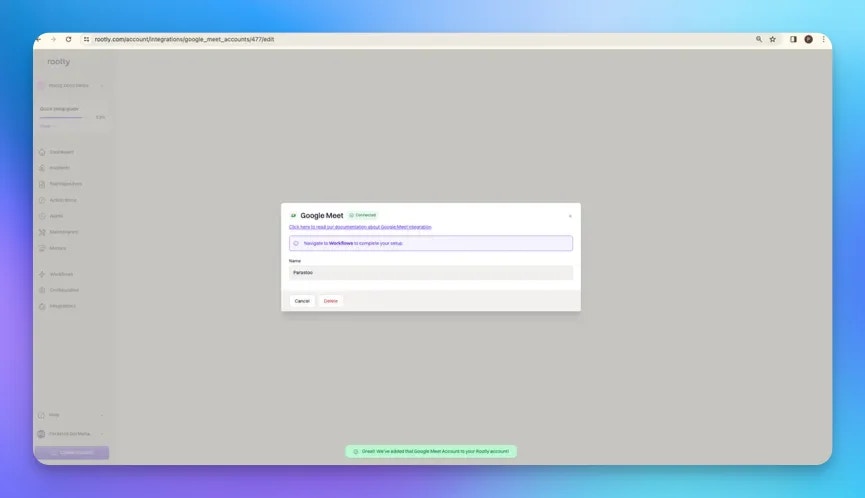
 After selecting a Google account, you'll be prompted to **grant Rootly permission** to integrate with your Google account.
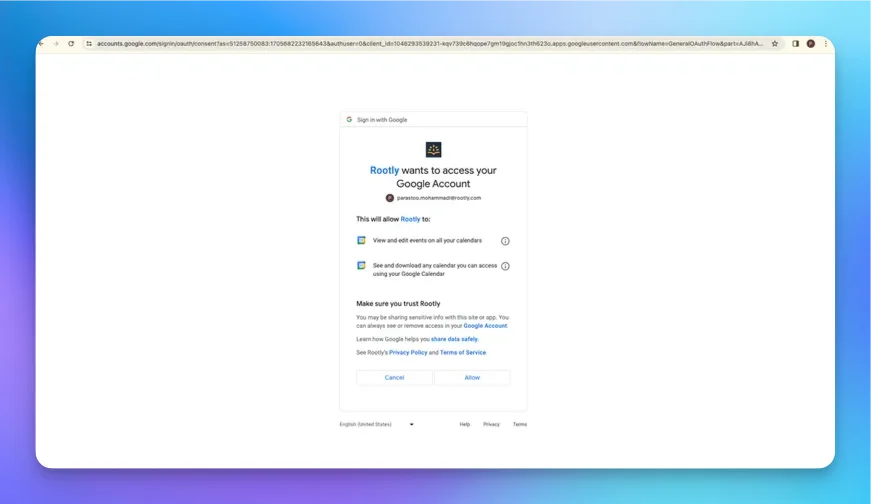 Select `Allow` and you'll be redirected back to Rootly and the installation is considered complete!
 ### Integrating via GCP Service Account
This integration method is used for **GCP Service Accounts**. You can click [here](https://cloud.google.com/iam/docs/service-account-overview "here") to learn more about GCP Service Accounts.
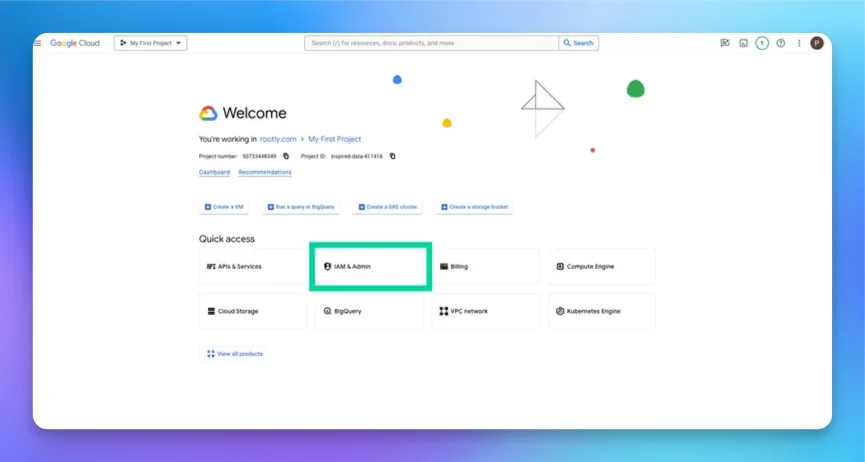
Navigate to your [Google Cloud](https://console.cloud.google.com/ "Google Cloud") Console, and click on `IAM & Admin`.
### Integrating via GCP Service Account
This integration method is used for **GCP Service Accounts**. You can click [here](https://cloud.google.com/iam/docs/service-account-overview "here") to learn more about GCP Service Accounts.
Navigate to your [Google Cloud](https://console.cloud.google.com/ "Google Cloud") Console, and click on `IAM & Admin`.
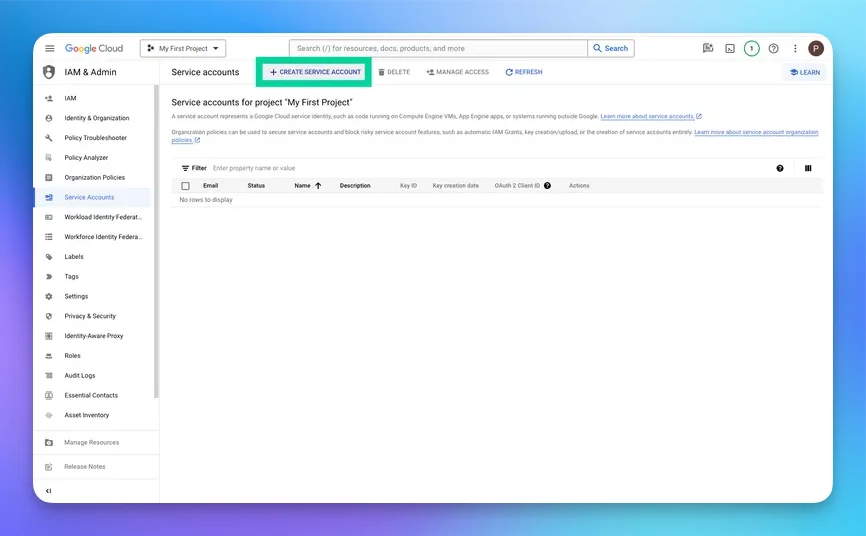
 Next, navigate to `Service Accounts` and create a new service account by clicking on `Create Service Account`.
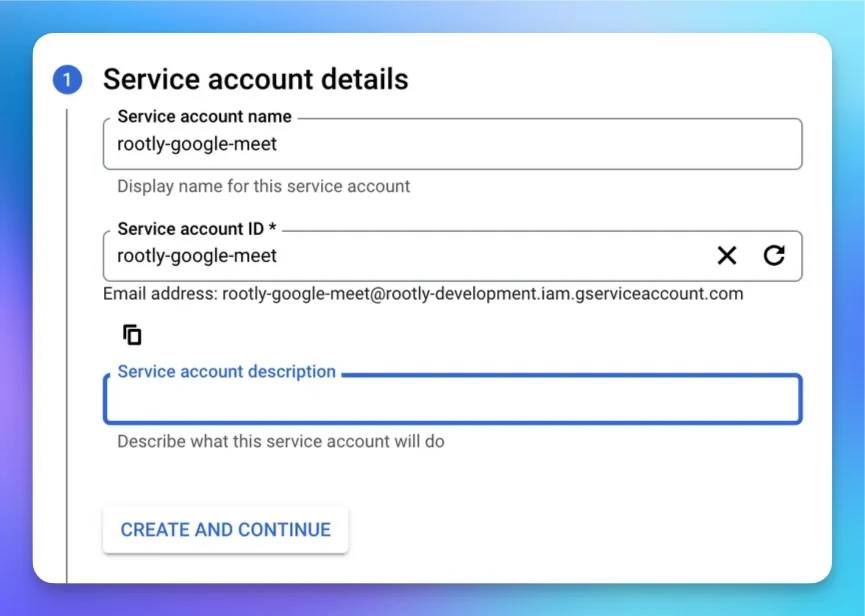
 Fill in the Service account details, your `Service Account ID` will be automatically generated. Click on `Done` when you have completed the form.
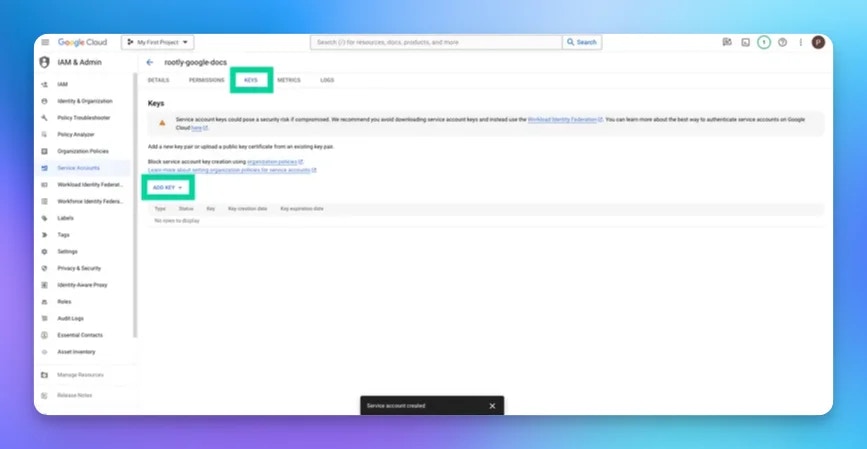
 Next, navigate to the `Keys` tab and click on `Add a Key`.
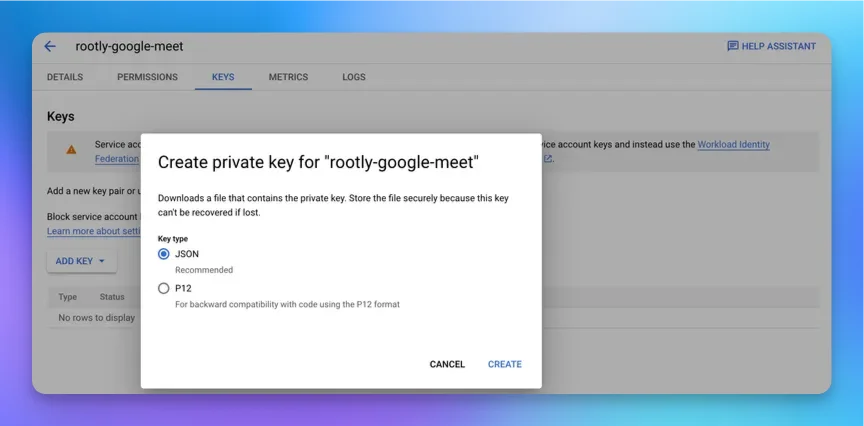
 Create a key and download the JSON format.
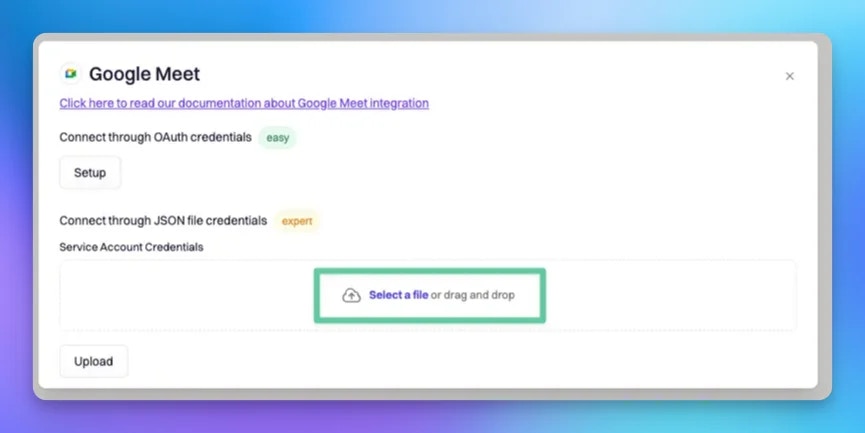
 Next, navigate back to the Rootly integration page and upload the JSON file.
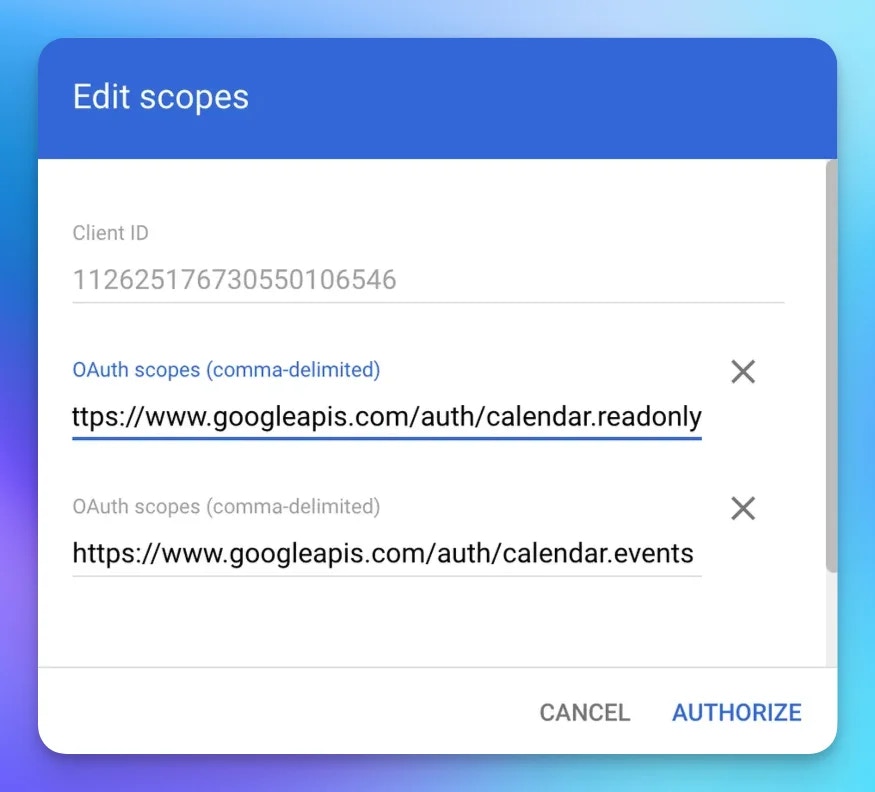
 Now in [https://admin.google.com](https://admin.google.com/ "https://admin.google.com") > Security > [Api Controls](https://admin.google.com/ac/owl "Api Controls") > [Domain Wide Delegation](https://admin.google.com/ac/owl/domainwidedelegation "Domain Wide Delegation")
Select your service account and add the scope below:
* [https://www.googleapis.com/auth/calendar.readonly](https://www.googleapis.com/auth/calendar.readonly "https://www.googleapis.com/auth/calendar.readonly")
* [https://www.googleapis.com/auth/calendar.events](https://www.googleapis.com/auth/calendar.events "https://www.googleapis.com/auth/calendar.events")
Now in [https://admin.google.com](https://admin.google.com/ "https://admin.google.com") > Security > [Api Controls](https://admin.google.com/ac/owl "Api Controls") > [Domain Wide Delegation](https://admin.google.com/ac/owl/domainwidedelegation "Domain Wide Delegation")
Select your service account and add the scope below:
* [https://www.googleapis.com/auth/calendar.readonly](https://www.googleapis.com/auth/calendar.readonly "https://www.googleapis.com/auth/calendar.readonly")
* [https://www.googleapis.com/auth/calendar.events](https://www.googleapis.com/auth/calendar.events "https://www.googleapis.com/auth/calendar.events")
 Now in [https://admin.google.com](https://admin.google.com/ "https://admin.google.com") > Google Workspace > [Core Google Workspace.](https://admin.google.com/ac/appslist/core "Core Google Workspace.")
Select Google Calendar.
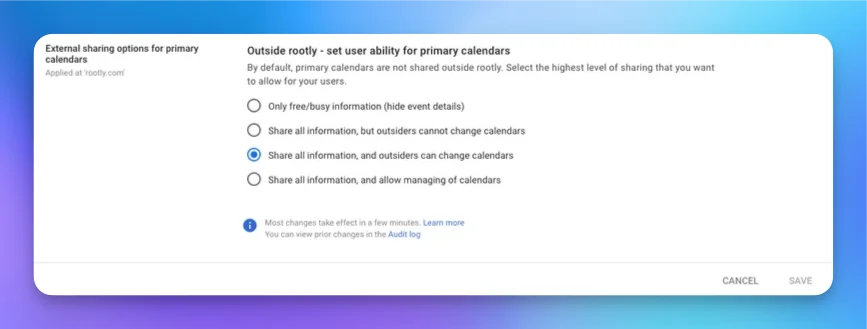
* Configure External sharing options for primary calendar like below:
Now in [https://admin.google.com](https://admin.google.com/ "https://admin.google.com") > Google Workspace > [Core Google Workspace.](https://admin.google.com/ac/appslist/core "Core Google Workspace.")
Select Google Calendar.
* Configure External sharing options for primary calendar like below:
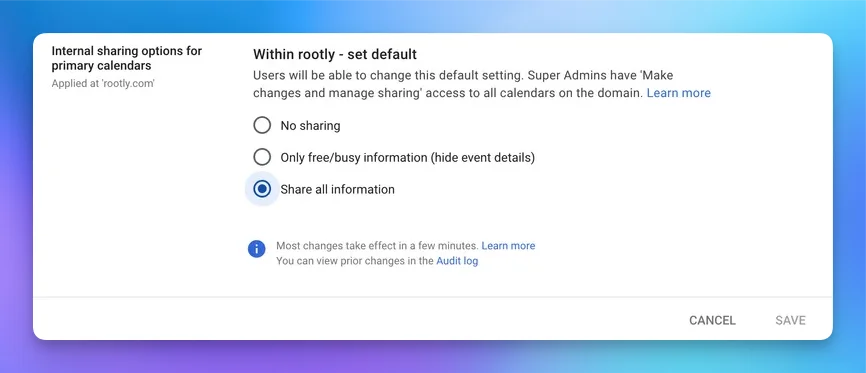
 * Configure Internal sharing options for primary calendar like below:
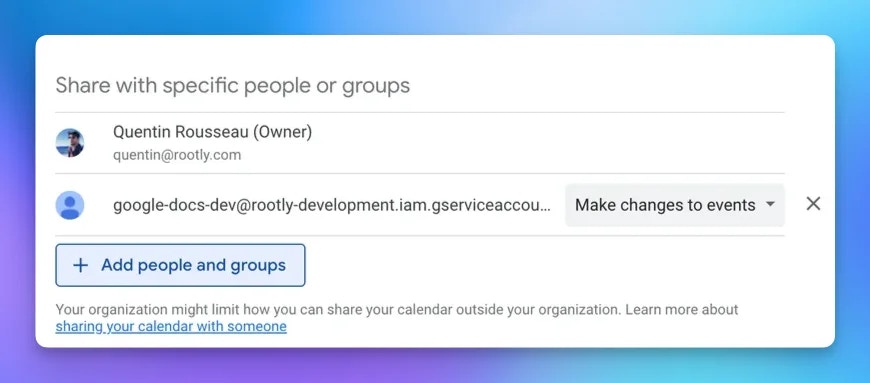
 Now go in your own calendar > Settings and share your calendar with the service account email with **make changes to events** permission.
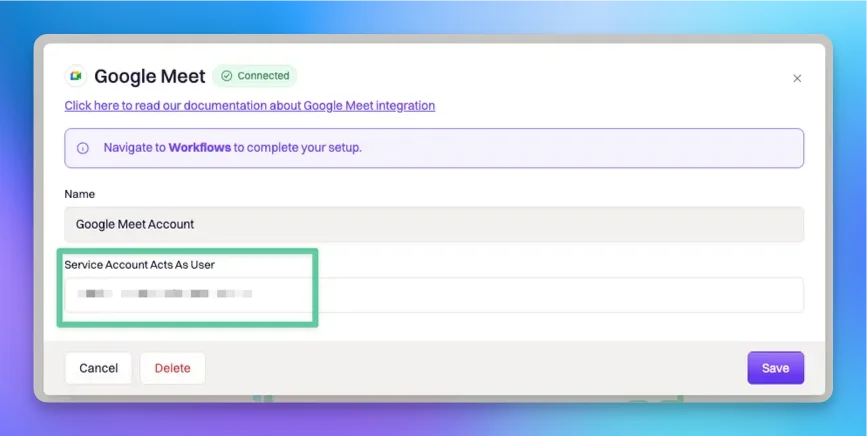
 Make sure to enter the email of the user you want to schedule meetings as in the Rootly integration:
 Click `Save` and you should be all set!
## Uninstall
You can **uninstall** this integration in the integrations panel by clicking **Configure > Delete.**
***
## Importing a Google Calendar as a PTO Feed
The OAuth integration above is for event-based workflow actions. If your goal is instead to **overlay** holidays on your Rootly on-call schedules — for example, a shared team calendar tracking company holidays — no OAuth is required. Rootly accepts a Google Calendar's iCal URL as a holiday calendar feed.
Use the calendar's **Secret address in iCal format** for any calendar containing HR or PTO data. The secret address works without making the calendar publicly readable on the internet. Reserve the **Public address** for calendars that are already meant to be shareable, such as a company-wide holidays calendar.
In Google Calendar, hover over the calendar in the left sidebar, click the overflow menu, and choose **Settings and sharing**.
Scroll to the **Integrate calendar** section and copy the URL that fits your use case:
* For private or sensitive calendars, copy the URL under **Secret address in iCal format**. Treat this URL as a credential — anyone with it can subscribe to the calendar.
* For calendars already intended to be public (like company holidays), copy the URL under **Public address in iCal format**. This option requires the calendar to be set as public under **Access permissions**.
Do not use the **Embed code** or the **Public URL to this calendar**. Those are for embedding the calendar on a webpage and will not work as a feed. Only the iCal URLs end in `.ics`.
In the Rootly dashboard, go to **On-Call → Schedules**, open the **Holiday calendars** dropdown, and select **Add a holiday calendar**. Paste the iCal URL, give the calendar a descriptive name, and save.
For the full behavior of holiday calendars in Rootly — conflict highlighting, recurring events, multi-region setups — see [Adding a Holiday Calendar](/on-call/holiday-calendar).
Click `Save` and you should be all set!
## Uninstall
You can **uninstall** this integration in the integrations panel by clicking **Configure > Delete.**
***
## Importing a Google Calendar as a PTO Feed
The OAuth integration above is for event-based workflow actions. If your goal is instead to **overlay** holidays on your Rootly on-call schedules — for example, a shared team calendar tracking company holidays — no OAuth is required. Rootly accepts a Google Calendar's iCal URL as a holiday calendar feed.
Use the calendar's **Secret address in iCal format** for any calendar containing HR or PTO data. The secret address works without making the calendar publicly readable on the internet. Reserve the **Public address** for calendars that are already meant to be shareable, such as a company-wide holidays calendar.
In Google Calendar, hover over the calendar in the left sidebar, click the overflow menu, and choose **Settings and sharing**.
Scroll to the **Integrate calendar** section and copy the URL that fits your use case:
* For private or sensitive calendars, copy the URL under **Secret address in iCal format**. Treat this URL as a credential — anyone with it can subscribe to the calendar.
* For calendars already intended to be public (like company holidays), copy the URL under **Public address in iCal format**. This option requires the calendar to be set as public under **Access permissions**.
Do not use the **Embed code** or the **Public URL to this calendar**. Those are for embedding the calendar on a webpage and will not work as a feed. Only the iCal URLs end in `.ics`.
In the Rootly dashboard, go to **On-Call → Schedules**, open the **Holiday calendars** dropdown, and select **Add a holiday calendar**. Paste the iCal URL, give the calendar a descriptive name, and save.
For the full behavior of holiday calendars in Rootly — conflict highlighting, recurring events, multi-region setups — see [Adding a Holiday Calendar](/on-call/holiday-calendar).