> ## Documentation Index
> Fetch the complete documentation index at: https://docs.rootly.com/llms.txt
> Use this file to discover all available pages before exploring further.
# Install the Google Chat integration
> Connect Google Chat to Rootly using a service account with domain-wide delegation or OAuth to enable incident spaces, notifications, and slash commands.
**Closed Beta** — The Google Chat integration is currently in closed beta. Contact [support@rootly.com](mailto:support@rootly.com) to request access.
There are two ways to connect Google Chat to Rootly. The recommended path uses a **service account with domain-wide delegation**, which gives Rootly full capabilities including Cards v2 and bot identity messaging. The alternative **OAuth** path is simpler to set up but has significant limitations.
## Service Account + Domain-Wide Delegation
This is the recommended setup. A Google Cloud service account with domain-wide delegation gives Rootly full access to Google Chat capabilities, including creating spaces, posting Cards v2, and managing members with bot identity.
### Prerequisites
**Before you start:**
* Rootly account with Admin permissions
* A Google Cloud project where you can create a service account
* Google Workspace admin access to configure domain-wide delegation
* A delegated user email in your workspace (e.g., `rootly-bot@company.com`) for the service account to impersonate
***
### Step 1: Create a Service Account
In your Google Cloud project, go to **IAM & Admin > Service Accounts** and click **Create Service Account**.
Give it a descriptive name (e.g., `rootly-chat-bot`) and click **Create and Continue**.
Click on the newly created service account, go to the **Keys** tab, and click **Add Key > Create new key**. Select **JSON** and download the key file.
Store this key file securely. You'll upload it to Rootly in the next step and should not commit it to version control.
***
### Step 2: Configure Domain-Wide Delegation
Domain-wide delegation allows the service account to impersonate a user in your workspace, which is required for creating spaces and managing members.
In your service account details, find the **Unique ID** (also called OAuth 2 Client ID). You'll need this for the admin console.
Go to [admin.google.com](https://admin.google.com) and navigate to **Security > Access and data control > API Controls > Domain-wide delegation**.
Click **Add new** and enter:
* **Client ID**: The service account's OAuth 2 Client ID
* **OAuth Scopes** (comma-separated):
```
https://www.googleapis.com/auth/chat.spaces.create,https://www.googleapis.com/auth/chat.spaces,https://www.googleapis.com/auth/chat.memberships,https://www.googleapis.com/auth/chat.memberships.app,https://www.googleapis.com/auth/chat.messages.create,https://www.googleapis.com/auth/chat.messages
```
The delegated user email should be a dedicated workspace user (e.g., `rootly-bot@company.com`), not a personal account. This ensures the integration stays active if team members leave.
***
### Step 3: Connect in Rootly
In Rootly, go to **Configuration > Integrations** and search for **Google Chat**.
Click **Setup** on the Google Chat integration. Upload the JSON key file you downloaded earlier.
Enter the email of the workspace user the service account will impersonate (e.g., `rootly-bot@company.com`).
Click **Connect**. Rootly will verify the credentials and establish the connection.
Google Chat is now connected to Rootly with full capabilities.
### Required Scopes
| Scope | Purpose |
| ---------------------- | -------------------------------- |
| `chat.spaces.create` | Create dedicated incident spaces |
| `chat.spaces` | Read and manage space settings |
| `chat.memberships` | Manage space members |
| `chat.memberships.app` | Add the bot to spaces |
| `chat.messages.create` | Send messages to spaces |
| `chat.messages` | Read and manage messages |
## OAuth Connection
OAuth provides a quick way to connect Google Chat for evaluation, but has significant limitations compared to the service account path.
**OAuth limitations:**
* **No Cards v2** — Google restricts rich card messages to bot identity. OAuth can only send plain text.
* **No slash command dialogs** — Form dialogs for `/rootly declare` and `/rootly update` require bot identity.
* **No emoji reactions** — Workspace Events API (required for reaction processing) is not available via OAuth.
* **Single user token** — The connection is tied to one user. If that user leaves your organization, the integration breaks.
For production use, we strongly recommend the service account path.
### Setup
In Rootly, go to **Configuration > Integrations** and search for **Google Chat**.
Click **Setup**, then click **Connect with Google**.
Sign in with your Google Workspace account and approve the requested Chat permissions.
After approving, you'll be redirected back to Rootly. A success message confirms the integration is connected.
Google Chat is connected via OAuth.
Rootly automatically refreshes the OAuth token, but the connection is still tied to the authorizing user's account.
***
## After Connecting
Once connected (via either method), Rootly automatically creates default workflows:
* **Auto Create Incident Google Chat Space** — Creates a dedicated space when an incident starts (enabled by default)
* **Default Announcement Space** — Posts to a shared announcement space (disabled until you configure a target space)
You can customize these workflows or create new ones from **Workflows** in the Rootly dashboard.
### Configure Settings
Go to **Configuration > Integrations > Google Chat > Settings** to configure:
* **Incident space** — Toggle auto-creation of incident spaces and announcements
* **Emoji shortcuts** — Customize which emoji reactions trigger timeline events, follow-ups, or tasks
* **Interactions** — Enable or disable slash command responses and link previews
***
## Authentication Model
Google Chat uses a hybrid authentication model where different operations require different identities:
| Operation | Auth Method | Notes |
| -------------------- | ----------------------- | ------------------------------------------- |
| Create/delete spaces | Delegated user (SA) | Requires domain-wide delegation |
| Add bot to space | Delegated user (SA) | Uses `chat.memberships.app` scope |
| Send Cards v2 | Bot identity | Google requires bot identity for rich cards |
| Send text messages | Delegated user or OAuth | Both methods work |
| Manage members | Delegated user (SA) | Requires delegation scopes |
| Webhook responses | Bot identity | Synchronous responses to Google |
OAuth connections can create spaces and send text messages but **cannot send Cards v2**. If you need rich incident cards, use the service account setup.
***
## Uninstall
To remove the Google Chat integration from Rootly:
1. Go to **Configuration > Integrations** and find **Google Chat**
2. Click **Connected** to reveal the disconnect option
3. Click **Disconnect**
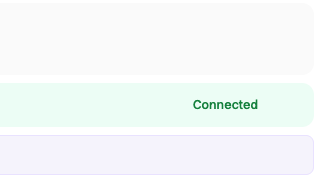 Disconnecting from Rootly does not remove the service account or domain-wide delegation from your Google Cloud project. To fully uninstall, revoke the domain-wide delegation in the Google Workspace admin console and delete the service account if no longer needed.
***
## Troubleshooting
Workflows run successfully but no Google Chat spaces appear.
**Solutions:**
* Verify domain-wide delegation is configured with the correct Client ID and all required scopes
* Confirm the delegated user email exists as an active user in your Google Workspace
* Check workflow run logs for errors: **Workflows > Your Workflow > ... > View Runs**
Messages appear as plain text instead of rich Cards v2.
**Solutions:**
* Cards v2 require the **service account** connection — OAuth cannot send cards
* Confirm the Rootly bot has been added to the target space
* Check workflow run logs for specific error messages
Service account operations fail with permission errors.
**Solutions:**
* Double-check the Client ID in the admin console matches the service account's OAuth 2 Client ID (not the service account email)
* Ensure all six scopes are entered exactly as shown, comma-separated with no spaces
* Domain-wide delegation changes can take up to 24 hours to propagate — wait and retry
* Verify the delegated user email is a valid, active user in the same Google Workspace domain
The integration stops working after the OAuth user's token expires.
**Solutions:**
* Rootly auto-refreshes tokens, but if the user revoked access or left the organization, you'll need to reconnect
* Go to **Configuration > Integrations > Google Chat**, disconnect, and reconnect with a new user
* Consider migrating to the service account setup to avoid token issues
Typing `/rootly` or `/incident` in Google Chat does nothing.
**Solutions:**
* Confirm the Rootly bot has been added to the space where you're running commands
* Verify the service account connection is active in **Configuration > Integrations > Google Chat**
* Check that domain-wide delegation is correctly configured — slash command dialogs require bot identity
Disconnecting from Rootly does not remove the service account or domain-wide delegation from your Google Cloud project. To fully uninstall, revoke the domain-wide delegation in the Google Workspace admin console and delete the service account if no longer needed.
***
## Troubleshooting
Workflows run successfully but no Google Chat spaces appear.
**Solutions:**
* Verify domain-wide delegation is configured with the correct Client ID and all required scopes
* Confirm the delegated user email exists as an active user in your Google Workspace
* Check workflow run logs for errors: **Workflows > Your Workflow > ... > View Runs**
Messages appear as plain text instead of rich Cards v2.
**Solutions:**
* Cards v2 require the **service account** connection — OAuth cannot send cards
* Confirm the Rootly bot has been added to the target space
* Check workflow run logs for specific error messages
Service account operations fail with permission errors.
**Solutions:**
* Double-check the Client ID in the admin console matches the service account's OAuth 2 Client ID (not the service account email)
* Ensure all six scopes are entered exactly as shown, comma-separated with no spaces
* Domain-wide delegation changes can take up to 24 hours to propagate — wait and retry
* Verify the delegated user email is a valid, active user in the same Google Workspace domain
The integration stops working after the OAuth user's token expires.
**Solutions:**
* Rootly auto-refreshes tokens, but if the user revoked access or left the organization, you'll need to reconnect
* Go to **Configuration > Integrations > Google Chat**, disconnect, and reconnect with a new user
* Consider migrating to the service account setup to avoid token issues
Typing `/rootly` or `/incident` in Google Chat does nothing.
**Solutions:**
* Confirm the Rootly bot has been added to the space where you're running commands
* Verify the service account connection is active in **Configuration > Integrations > Google Chat**
* Check that domain-wide delegation is correctly configured — slash command dialogs require bot identity