> ## Documentation Index
> Fetch the complete documentation index at: https://docs.rootly.com/llms.txt
> Use this file to discover all available pages before exploring further.
# Google Directory Sync
> Automatically sync users and groups from Google Workspace to Rootly using the Google Admin Directory API to keep team membership and roles up to date.
 ## Introduction
Google Directory Sync provides automatic user and group provisioning from Google Workspace into Rootly. Unlike [SCIM](/integrations/scim) (which relies on push events from an identity provider), Google Directory Sync periodically polls the Google Admin Directory API — approximately every 30 minutes — to keep your Rootly organization in sync with your Google Workspace directory.
Google Directory Sync and SCIM are **mutually exclusive**. You cannot enable both on the same organization. If SCIM provisioning is currently active on your team, you must disable it before enabling Google Directory Sync.
With Google Directory Sync, Rootly automatically:
* **Provisions users** — New Google Workspace users are added as Rootly members with first name, last name, email, phone numbers, profile photo, and timezone
* **Updates users** — Name and contact changes in Google Workspace are reflected in Rootly
* **Deprovisions users** — Users suspended or deleted in Google Workspace are soft-deleted in Rootly
* **Syncs groups** — Google Groups are mapped to Rootly Groups, with membership kept up to date
* **Assigns roles** — Rootly roles and on-call roles are assigned based on Google Group membership and Google role (Owner, Manager, Member)
* **Protects against mass deletion** — A configurable safeguard (default: 20%) prevents accidental bulk deprovisioning if the API returns partial results
## Before You Begin
Before setting up Google Directory Sync, make sure you have:
* A Google Workspace account with **super admin** access
* One of the following authentication methods:
* **OAuth** — Recommended for smaller organizations. Uses a familiar Google sign-in flow.
* **Service account with domain-wide delegation** — Recommended for enterprises with strict admin policies.
## Installation
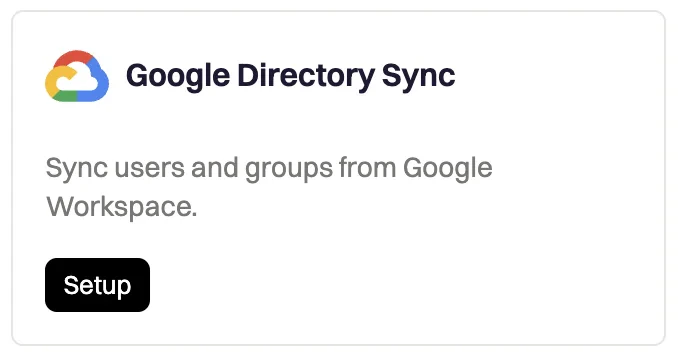
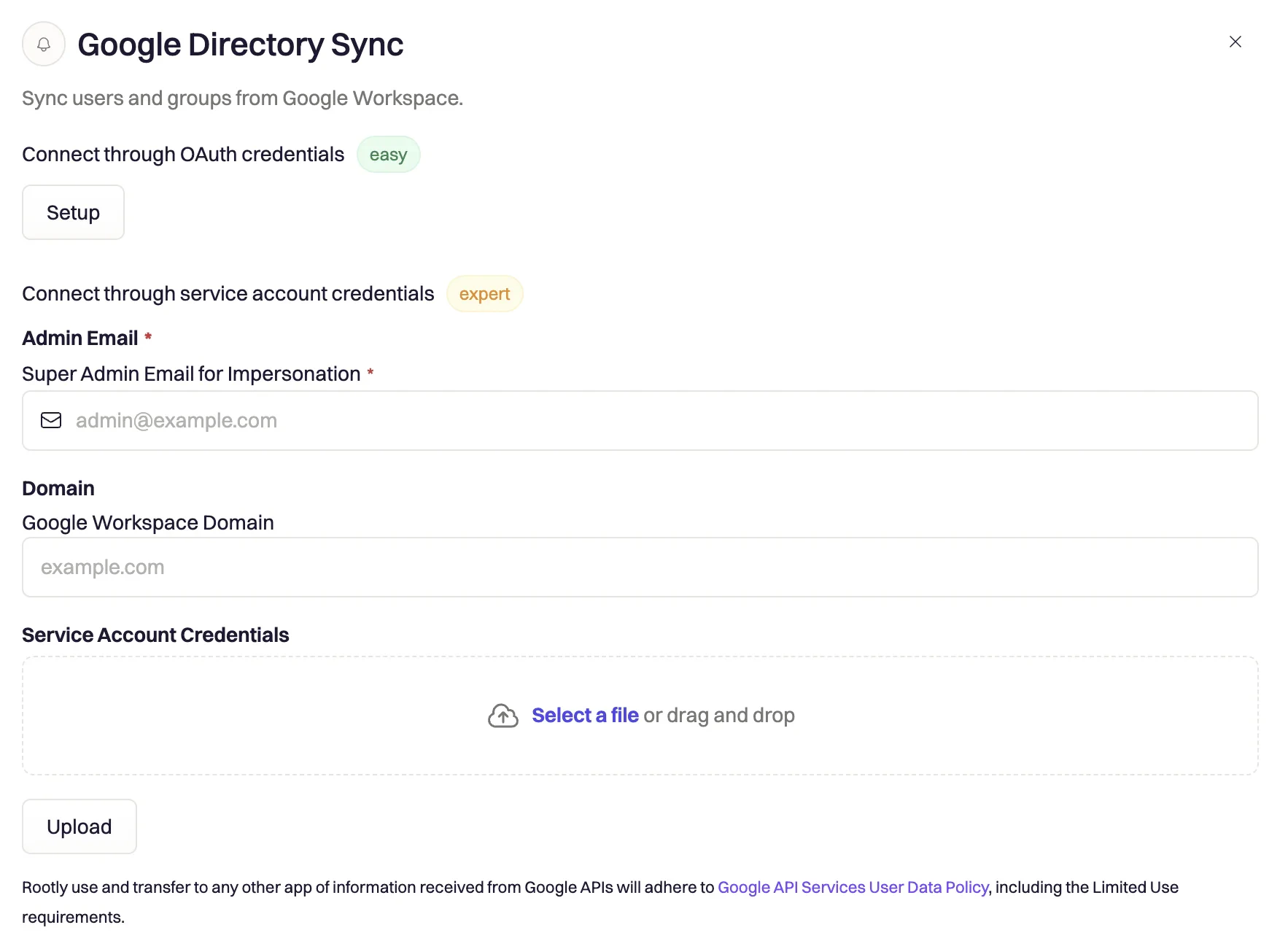
Navigate to **Integrations** in your Rootly dashboard, find **Google Directory Sync**, and click **Setup**.
## Introduction
Google Directory Sync provides automatic user and group provisioning from Google Workspace into Rootly. Unlike [SCIM](/integrations/scim) (which relies on push events from an identity provider), Google Directory Sync periodically polls the Google Admin Directory API — approximately every 30 minutes — to keep your Rootly organization in sync with your Google Workspace directory.
Google Directory Sync and SCIM are **mutually exclusive**. You cannot enable both on the same organization. If SCIM provisioning is currently active on your team, you must disable it before enabling Google Directory Sync.
With Google Directory Sync, Rootly automatically:
* **Provisions users** — New Google Workspace users are added as Rootly members with first name, last name, email, phone numbers, profile photo, and timezone
* **Updates users** — Name and contact changes in Google Workspace are reflected in Rootly
* **Deprovisions users** — Users suspended or deleted in Google Workspace are soft-deleted in Rootly
* **Syncs groups** — Google Groups are mapped to Rootly Groups, with membership kept up to date
* **Assigns roles** — Rootly roles and on-call roles are assigned based on Google Group membership and Google role (Owner, Manager, Member)
* **Protects against mass deletion** — A configurable safeguard (default: 20%) prevents accidental bulk deprovisioning if the API returns partial results
## Before You Begin
Before setting up Google Directory Sync, make sure you have:
* A Google Workspace account with **super admin** access
* One of the following authentication methods:
* **OAuth** — Recommended for smaller organizations. Uses a familiar Google sign-in flow.
* **Service account with domain-wide delegation** — Recommended for enterprises with strict admin policies.
## Installation
Navigate to **Integrations** in your Rootly dashboard, find **Google Directory Sync**, and click **Setup**.
 ### Option A: OAuth Authentication
Click **Sign in with Google** and authenticate with a Google Workspace **super admin** account. Grant the following permissions when prompted:
* `admin.directory.user.readonly`
* `admin.directory.group.readonly`
* `admin.directory.group.member.readonly`
You'll be redirected back to Rootly with the integration active. The first sync will run within 30 minutes, or you can click **Sync Now** to trigger it immediately.
### Option B: Service Account Authentication
Use this method if your organization requires service accounts or restricts OAuth consent flows.
In [Google Cloud Console](https://console.cloud.google.com/), go to **IAM & Admin > Service Accounts**. Click **Create Service Account**, name it (e.g., `rootly-directory-sync`), and click **Done**. Then open the service account, go to **Keys > Add Key > Create new key > JSON**, and download the key file.
In the service account details page, expand **Advanced Settings** and copy the **Client ID**. In [Google Admin Console](https://admin.google.com/), navigate to **Security > Access and data control > API controls > Domain-wide delegation**, click **Add new**, and enter the Client ID with the following scopes:
```
https://www.googleapis.com/auth/admin.directory.user.readonly
https://www.googleapis.com/auth/admin.directory.group.readonly
https://www.googleapis.com/auth/admin.directory.group.member.readonly
```
Click **Authorize**.
In Rootly, select **Service Account** as the authentication method, upload the JSON key file, and enter the **impersonation email** — the email address of a Google Workspace super admin.
The impersonation email must belong to an **active super admin**. The service account technically impersonates this user when calling the Google Directory API. If this user is suspended or deleted, syncing will fail. Use a dedicated service account admin that won't be deactivated.
You must also provide the **domain** — your Google Workspace primary domain (e.g., `yourcompany.com`). Click **Save** to validate the connection.
## What Gets Synced
### User Field Mappings
When Rootly provisions or updates a user, it maps the following fields from the Google Directory:
| Google Field | Rootly Field | Notes |
| --------------------- | ----------------- | ------------------------------------------------------------------ |
| `primary_email` | `user.email` | Used for matching — case-insensitive |
| `name.given_name` | `user.first_name` | |
| `name.family_name` | `user.last_name` | |
| `phones[*].value` | Phone numbers | Normalized with US as default country code; all marked as verified |
| `thumbnail_photo_url` | Profile photo | Downloaded and attached; skipped if user already has an avatar |
| N/A | Timezone | Set from the team's timezone for newly created users |
| N/A | Membership role | Set to the team's default SSO role on first provision |
| N/A | On-call role | Set to the team's default SSO on-call role on first provision |
New users provisioned by Google Directory Sync receive the organization's configured **default SSO role** and **default SSO on-call role**. You can adjust these under your team's SSO settings.
### User Deprovisioning
When a Google Workspace user is suspended, archived, or deleted, their Rootly membership is soft-deleted. If the user has no other Rootly team memberships, the user record itself is also soft-deleted. This is reversible — if the user is reactivated in Google Workspace, they will be re-provisioned on the next sync cycle.
## Configuring Group Sync
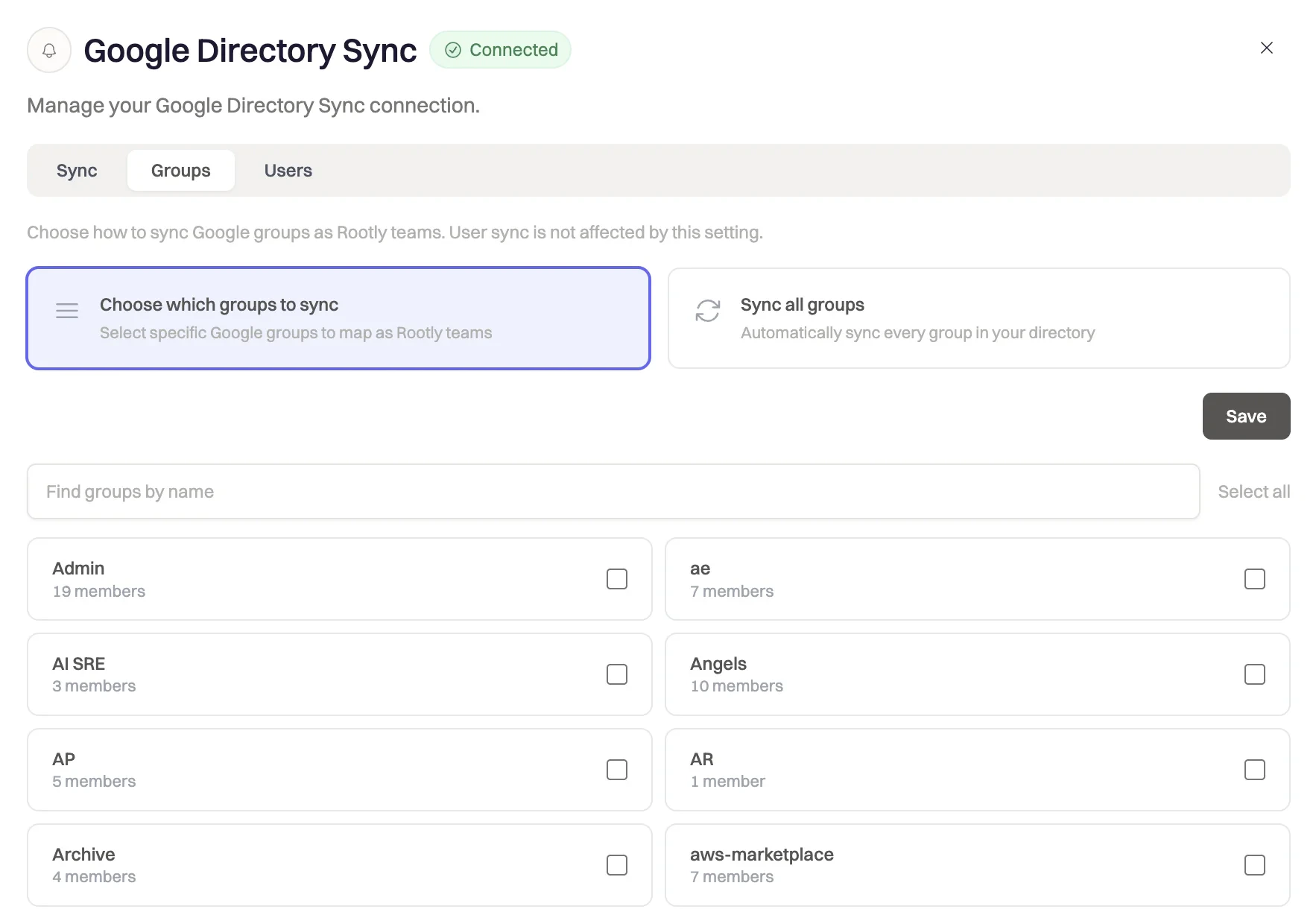
Navigate to **Integrations > Google Directory Sync** and click the **Groups** tab.
Select one of two modes:
* **Sync all groups** — All Google Groups in your directory are automatically mapped to Rootly Groups. Mappings are kept up to date as groups are added or removed in Google Workspace.
* **Sync selected groups** — Only the groups you explicitly select are synced. Use the search box to find groups by name.
### Option A: OAuth Authentication
Click **Sign in with Google** and authenticate with a Google Workspace **super admin** account. Grant the following permissions when prompted:
* `admin.directory.user.readonly`
* `admin.directory.group.readonly`
* `admin.directory.group.member.readonly`
You'll be redirected back to Rootly with the integration active. The first sync will run within 30 minutes, or you can click **Sync Now** to trigger it immediately.
### Option B: Service Account Authentication
Use this method if your organization requires service accounts or restricts OAuth consent flows.
In [Google Cloud Console](https://console.cloud.google.com/), go to **IAM & Admin > Service Accounts**. Click **Create Service Account**, name it (e.g., `rootly-directory-sync`), and click **Done**. Then open the service account, go to **Keys > Add Key > Create new key > JSON**, and download the key file.
In the service account details page, expand **Advanced Settings** and copy the **Client ID**. In [Google Admin Console](https://admin.google.com/), navigate to **Security > Access and data control > API controls > Domain-wide delegation**, click **Add new**, and enter the Client ID with the following scopes:
```
https://www.googleapis.com/auth/admin.directory.user.readonly
https://www.googleapis.com/auth/admin.directory.group.readonly
https://www.googleapis.com/auth/admin.directory.group.member.readonly
```
Click **Authorize**.
In Rootly, select **Service Account** as the authentication method, upload the JSON key file, and enter the **impersonation email** — the email address of a Google Workspace super admin.
The impersonation email must belong to an **active super admin**. The service account technically impersonates this user when calling the Google Directory API. If this user is suspended or deleted, syncing will fail. Use a dedicated service account admin that won't be deactivated.
You must also provide the **domain** — your Google Workspace primary domain (e.g., `yourcompany.com`). Click **Save** to validate the connection.
## What Gets Synced
### User Field Mappings
When Rootly provisions or updates a user, it maps the following fields from the Google Directory:
| Google Field | Rootly Field | Notes |
| --------------------- | ----------------- | ------------------------------------------------------------------ |
| `primary_email` | `user.email` | Used for matching — case-insensitive |
| `name.given_name` | `user.first_name` | |
| `name.family_name` | `user.last_name` | |
| `phones[*].value` | Phone numbers | Normalized with US as default country code; all marked as verified |
| `thumbnail_photo_url` | Profile photo | Downloaded and attached; skipped if user already has an avatar |
| N/A | Timezone | Set from the team's timezone for newly created users |
| N/A | Membership role | Set to the team's default SSO role on first provision |
| N/A | On-call role | Set to the team's default SSO on-call role on first provision |
New users provisioned by Google Directory Sync receive the organization's configured **default SSO role** and **default SSO on-call role**. You can adjust these under your team's SSO settings.
### User Deprovisioning
When a Google Workspace user is suspended, archived, or deleted, their Rootly membership is soft-deleted. If the user has no other Rootly team memberships, the user record itself is also soft-deleted. This is reversible — if the user is reactivated in Google Workspace, they will be re-provisioned on the next sync cycle.
## Configuring Group Sync
Navigate to **Integrations > Google Directory Sync** and click the **Groups** tab.
Select one of two modes:
* **Sync all groups** — All Google Groups in your directory are automatically mapped to Rootly Groups. Mappings are kept up to date as groups are added or removed in Google Workspace.
* **Sync selected groups** — Only the groups you explicitly select are synced. Use the search box to find groups by name.
 For each synced group, you can configure how Google Group roles map to Rootly group admin status:
* **Map Owners as admins** (default: on) — Google group OWNER role → Rootly group admin
* **Map Managers as admins** (default: on) — Google group MANAGER role → Rootly group admin
* Google group MEMBER role always maps to a regular group member
You can also assign a **Rootly Role** and **On-Call Role** to be applied to all members of a specific group.
When using "sync all" mode, Rootly automatically creates group mappings for every Google Group in your directory and removes mappings for groups that no longer exist. When a Google Group is renamed, the linked Rootly Group name is updated to match.
Group members are resolved with nested group flattening — members of sub-groups are included. If a user appears via multiple paths with different roles, the highest role takes precedence (Owner > Manager > Member).
## Sync Status & Monitoring
The **Sync** tab shows the current status for both user and group sync, including last sync time, counts of users created/updated/deprovisioned, and any per-user or per-group errors.
For each synced group, you can configure how Google Group roles map to Rootly group admin status:
* **Map Owners as admins** (default: on) — Google group OWNER role → Rootly group admin
* **Map Managers as admins** (default: on) — Google group MANAGER role → Rootly group admin
* Google group MEMBER role always maps to a regular group member
You can also assign a **Rootly Role** and **On-Call Role** to be applied to all members of a specific group.
When using "sync all" mode, Rootly automatically creates group mappings for every Google Group in your directory and removes mappings for groups that no longer exist. When a Google Group is renamed, the linked Rootly Group name is updated to match.
Group members are resolved with nested group flattening — members of sub-groups are included. If a user appears via multiple paths with different roles, the highest role takes precedence (Owner > Manager > Member).
## Sync Status & Monitoring
The **Sync** tab shows the current status for both user and group sync, including last sync time, counts of users created/updated/deprovisioned, and any per-user or per-group errors.
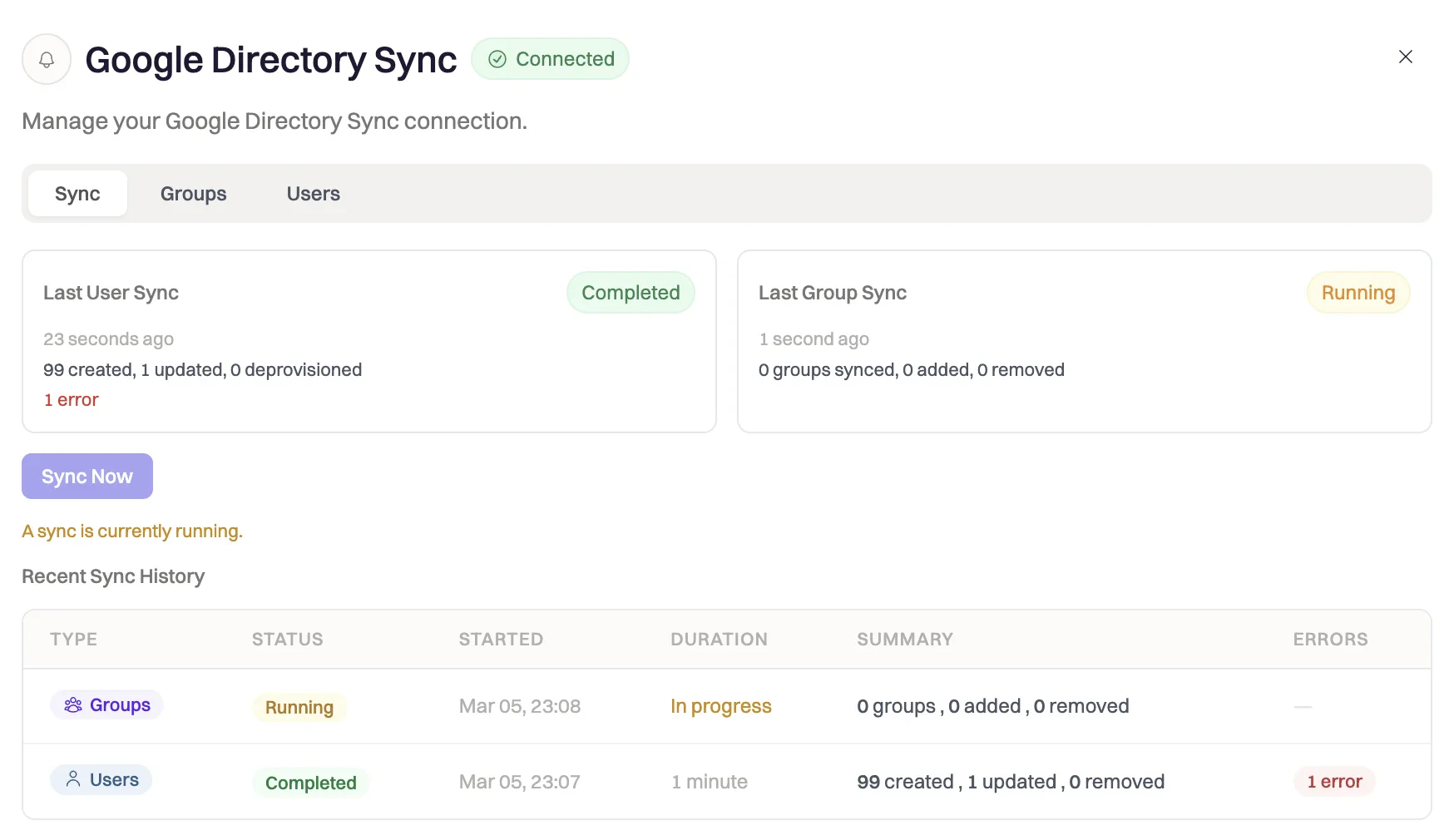 Click **Sync Now** to trigger an immediate sync without waiting for the next scheduled run. Rootly prevents concurrent sync executions — if a sync is already running, a new one will not start.
Each sync produces a log entry with:
* Start and completion timestamps
* Counts: users created, updated, deprovisioned; group members added, updated, removed
* Per-item error details for any failures (individual failures do not abort the overall sync)
## Mass Deletion Safeguard
Rootly includes a configurable safeguard to prevent accidental bulk deprovisioning. By default, if a single sync cycle would deprovision more than **20%** of your current Rootly members, or remove more than 20% of a group's members, the deletions are skipped and logged as errors rather than executed.
All sync operations are logged and visible under the sync history section. Each log entry includes:
* Timestamp
* Operation type (user created, user removed, group updated, etc.)
* Affected user or group
* Success or error status
The threshold is always bypassed if the number of deletions is **5 or fewer**, regardless of percentage.
| Issue | Cause | Resolution |
| ---------------------------------------- | ----------------------------------------------------------------------------- | ------------------------------------------------------------------------------------------------- |
| "403 Forbidden" during setup | Impersonation email doesn't have admin privileges | Ensure the impersonation email belongs to a Google Workspace admin |
| Users from secondary domains not syncing | Integration is using `domain` filter instead of `customer` parameter | Contact Rootly support to verify configuration |
| Sync shows 0 users | Service account scopes not properly delegated | Re-check domain-wide delegation settings in Google Admin Console |
| "Mass deletion safeguard triggered" | Google API returned partial results that would remove a large number of users | This is a safety feature. Check Google Workspace status and retry. Contact support if persistent. |
| Phone numbers not syncing | Phone fields not populated in Google Workspace | Ensure users have phone numbers set in their Google Workspace profile |
## Troubleshooting
For service account auth, the impersonation email must belong to an active super admin with Google Directory access. For OAuth, confirm you authenticated with a super admin account. Also verify that domain-wide delegation is configured with all three required scopes in Google Admin Console.
The service account scopes may not be properly delegated. Re-check the domain-wide delegation settings in Google Admin Console and confirm all three required scopes are authorized for the service account's Client ID. Also ensure the `domain` field in Rootly matches your primary Google Workspace domain exactly.
By default the integration queries by primary domain. If your organization has multiple domains, contact Rootly support — the integration may need to be configured to query by `customer` parameter instead of domain.
A single sync cycle attempted to remove more than 20% of your members or group membership, which exceeded the safety threshold. Check Google Workspace API status and verify the sync results are complete. If the removals are intentional (e.g., after a large offboarding), contact Rootly support to bypass the threshold for your organization.
Confirm that users have phone numbers set in their Google Workspace profiles. Rootly reads from the `phones` array in the Google Directory response — if this field is empty, no phone number will be synced. Phone numbers are normalized with US as the default country code; numbers in other formats may need to include a country code prefix.
The group list is fetched via the Google Directory API. Confirm the connected account (OAuth user or service account impersonation target) has permission to view groups in your directory. Groups are paginated at 200 per request — all pages are fetched automatically.
For service account auth, syncing stops if the impersonation email belongs to a user who is suspended, deleted, or had their admin role removed. Update the impersonation email in the integration settings to a current active super admin.
If you encounter any issues not covered above, contact Rootly support at [support@rootly.com](mailto:support@rootly.com).
## Related Pages
Push-based provisioning from Okta, Entra, and other SCIM-compatible identity providers.
Configure SAML 2.0 single sign-on — required before enabling SCIM provisioning.
Manage on-call schedules once users and groups are synced from Google Workspace.
Click **Sync Now** to trigger an immediate sync without waiting for the next scheduled run. Rootly prevents concurrent sync executions — if a sync is already running, a new one will not start.
Each sync produces a log entry with:
* Start and completion timestamps
* Counts: users created, updated, deprovisioned; group members added, updated, removed
* Per-item error details for any failures (individual failures do not abort the overall sync)
## Mass Deletion Safeguard
Rootly includes a configurable safeguard to prevent accidental bulk deprovisioning. By default, if a single sync cycle would deprovision more than **20%** of your current Rootly members, or remove more than 20% of a group's members, the deletions are skipped and logged as errors rather than executed.
All sync operations are logged and visible under the sync history section. Each log entry includes:
* Timestamp
* Operation type (user created, user removed, group updated, etc.)
* Affected user or group
* Success or error status
The threshold is always bypassed if the number of deletions is **5 or fewer**, regardless of percentage.
| Issue | Cause | Resolution |
| ---------------------------------------- | ----------------------------------------------------------------------------- | ------------------------------------------------------------------------------------------------- |
| "403 Forbidden" during setup | Impersonation email doesn't have admin privileges | Ensure the impersonation email belongs to a Google Workspace admin |
| Users from secondary domains not syncing | Integration is using `domain` filter instead of `customer` parameter | Contact Rootly support to verify configuration |
| Sync shows 0 users | Service account scopes not properly delegated | Re-check domain-wide delegation settings in Google Admin Console |
| "Mass deletion safeguard triggered" | Google API returned partial results that would remove a large number of users | This is a safety feature. Check Google Workspace status and retry. Contact support if persistent. |
| Phone numbers not syncing | Phone fields not populated in Google Workspace | Ensure users have phone numbers set in their Google Workspace profile |
## Troubleshooting
For service account auth, the impersonation email must belong to an active super admin with Google Directory access. For OAuth, confirm you authenticated with a super admin account. Also verify that domain-wide delegation is configured with all three required scopes in Google Admin Console.
The service account scopes may not be properly delegated. Re-check the domain-wide delegation settings in Google Admin Console and confirm all three required scopes are authorized for the service account's Client ID. Also ensure the `domain` field in Rootly matches your primary Google Workspace domain exactly.
By default the integration queries by primary domain. If your organization has multiple domains, contact Rootly support — the integration may need to be configured to query by `customer` parameter instead of domain.
A single sync cycle attempted to remove more than 20% of your members or group membership, which exceeded the safety threshold. Check Google Workspace API status and verify the sync results are complete. If the removals are intentional (e.g., after a large offboarding), contact Rootly support to bypass the threshold for your organization.
Confirm that users have phone numbers set in their Google Workspace profiles. Rootly reads from the `phones` array in the Google Directory response — if this field is empty, no phone number will be synced. Phone numbers are normalized with US as the default country code; numbers in other formats may need to include a country code prefix.
The group list is fetched via the Google Directory API. Confirm the connected account (OAuth user or service account impersonation target) has permission to view groups in your directory. Groups are paginated at 200 per request — all pages are fetched automatically.
For service account auth, syncing stops if the impersonation email belongs to a user who is suspended, deleted, or had their admin role removed. Update the impersonation email in the integration settings to a current active super admin.
If you encounter any issues not covered above, contact Rootly support at [support@rootly.com](mailto:support@rootly.com).
## Related Pages
Push-based provisioning from Okta, Entra, and other SCIM-compatible identity providers.
Configure SAML 2.0 single sign-on — required before enabling SCIM provisioning.
Manage on-call schedules once users and groups are synced from Google Workspace.