> ## Documentation Index
> Fetch the complete documentation index at: https://docs.rootly.com/llms.txt
> Use this file to discover all available pages before exploring further.
# Workflows
> Use workflow actions in Rootly to create and manage Google Docs for incident retrospectives with Liquid templates, folder placement, and permission controls.
Rootly can automatically generate Google Docs from your templates when incidents are created, updated, or resolved. This page walks through creating a template, sharing it with Rootly, and wiring it up in a workflow.
## Step 1: Create Your Template Document
You create **one template document** with Liquid variable placeholders. Each time the workflow fires, Rootly copies that template and replaces the variables with real incident data — so you never manually copy-paste incident details again.
### Create the Document
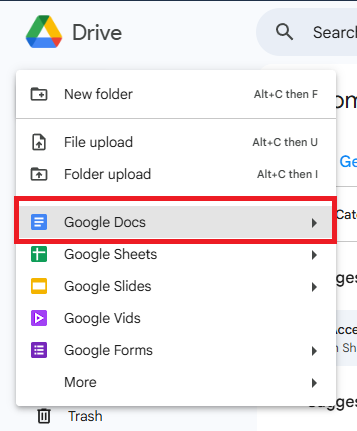
Go to **New → Google Docs**. Give it a clear, descriptive name so it's easy to find later — for example:
* "Rootly Retrospective Template"
* "Executive Summary Template"
* "Incident Runbook Template"
 Design your document the way you'd want every generated doc to look. Use Liquid variables anywhere you want incident data to appear. See the template examples below for a starting point.
### Template Examples
```liquid theme={null}
# Retrospective: {{ incident.title }}
**Date:** {{ incident.started_at | date: "%B %d, %Y" }}
**Severity:** {{ incident.severity }}
**Status:** {{ incident.status }}
## What Happened
{{ incident.summary }}
## Timeline
- Started: {{ incident.started_at | date: "%I:%M %p" }}
- Mitigated: {{ incident.mitigated_at | date: "%I:%M %p" | default: "In progress" }}
- Resolved: {{ incident.resolved_at | date: "%I:%M %p" | default: "In progress" }}
- Total Duration: {{ incident.duration | divided_by: 60 }} minutes
## Services Affected
{{ incident.services | join: ", " }}
## Team
- Created By: {{ incident.creator.name }}
## Communication
Slack Channel: #{{ incident.slack_channel_name }}
```
```liquid theme={null}
# Retrospective: {{ incident.title }}
## Incident Overview
- **ID:** #{{ incident.id }}
- **Date:** {{ incident.started_at | date: "%B %d, %Y" }}
- **Duration:** {{ incident.duration | divided_by: 3600 }} hours {{ incident.duration | modulo: 3600 | divided_by: 60 }} minutes
- **Severity:** {{ incident.severity }}
## Summary
{{ incident.summary }}
## Impact
- **Services:** {{ incident.services | join: ", " }}
- **Groups:** {% for group in incident.groups %}{{ group.name }}{% unless forloop.last %}, {% endunless %}{% endfor %}
- **Environments:** {{ incident.environments | join: ", " }}
## Timeline of Events
{{ incident.timeline_table_markdown }}
## Root Cause Analysis
[To be completed during review]
## What Went Well
- [Add items]
## What Could Be Improved
- [Add items]
## Action Items
[To be added during review]
## Participants
{% for role in incident.roles %}
{%- if role.user -%}
- {{ role.incident_role.name }}: {{ role.user.full_name }}
{%- else -%}
- {{ role.incident_role.name }}: Unassigned
{%- endif -%}
{% endfor %}
```
```liquid theme={null}
# Executive Brief: {{ incident.title }}
**Incident Duration:** {{ incident.duration | divided_by: 60 }} minutes
**Customer Impact:** [To be assessed]
## What Happened
{{ incident.summary }}
## Current Status
{{ incident.status }} as of {{ "now" | date: "%I:%M %p" }}
## Services Affected
{{ incident.services | join: ", " }}
## Next Steps
1. [Add next steps]
2. [Add next steps]
**Created By:** {{ incident.creator.name }}
**Full Report:** {{ incident.url }}
```
### Common Liquid Variables
For the full variable reference, see [Rootly's Liquid documentation](https://docs.rootly.com/liquid/incident-variables). Use the [Liquid Variable Explorer](https://rootly.com/account/help/liquid-explorer) to test variables against real incident data before committing them to your template.
```liquid theme={null}
# Basic Info
{{ incident.id }} # Incident ID
{{ incident.title }} # Title
{{ incident.summary }} # Description
{{ incident.severity }} # SEV1, SEV2, etc.
{{ incident.status }} # Current status
# Timestamps
{{ incident.started_at }} # Start time
{{ incident.mitigated_at }} # Mitigation time
{{ incident.resolved_at }} # Resolution time
{{ incident.duration }} # Duration in seconds
# People
{{ incident.creator.name }} # Creator name
{{ incident.creator.email }} # Creator email
# Services & Groups
{{ incident.services }} # Array of services
{{ incident.groups }} # Array of groups (teams)
{{ incident.environments }} # Array of environments
# Communication
{{ incident.slack_channel_name }} # Slack channel
{{ incident.url }} # Rootly incident URL
```
## Step 2: Share Your Template with Rootly
Before Rootly can use your template, it needs read access to the document.
Nothing to do here — the Google account you connected in the installation step already has access to documents you own.
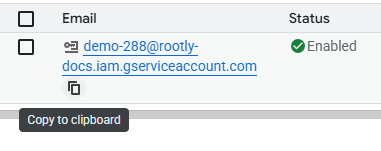
You need to explicitly share the template with the service account email.
The email follows the pattern `name@project.iam.gserviceaccount.com`. You can find it in Google Cloud Console under **IAM & Admin → Service Accounts**.
Design your document the way you'd want every generated doc to look. Use Liquid variables anywhere you want incident data to appear. See the template examples below for a starting point.
### Template Examples
```liquid theme={null}
# Retrospective: {{ incident.title }}
**Date:** {{ incident.started_at | date: "%B %d, %Y" }}
**Severity:** {{ incident.severity }}
**Status:** {{ incident.status }}
## What Happened
{{ incident.summary }}
## Timeline
- Started: {{ incident.started_at | date: "%I:%M %p" }}
- Mitigated: {{ incident.mitigated_at | date: "%I:%M %p" | default: "In progress" }}
- Resolved: {{ incident.resolved_at | date: "%I:%M %p" | default: "In progress" }}
- Total Duration: {{ incident.duration | divided_by: 60 }} minutes
## Services Affected
{{ incident.services | join: ", " }}
## Team
- Created By: {{ incident.creator.name }}
## Communication
Slack Channel: #{{ incident.slack_channel_name }}
```
```liquid theme={null}
# Retrospective: {{ incident.title }}
## Incident Overview
- **ID:** #{{ incident.id }}
- **Date:** {{ incident.started_at | date: "%B %d, %Y" }}
- **Duration:** {{ incident.duration | divided_by: 3600 }} hours {{ incident.duration | modulo: 3600 | divided_by: 60 }} minutes
- **Severity:** {{ incident.severity }}
## Summary
{{ incident.summary }}
## Impact
- **Services:** {{ incident.services | join: ", " }}
- **Groups:** {% for group in incident.groups %}{{ group.name }}{% unless forloop.last %}, {% endunless %}{% endfor %}
- **Environments:** {{ incident.environments | join: ", " }}
## Timeline of Events
{{ incident.timeline_table_markdown }}
## Root Cause Analysis
[To be completed during review]
## What Went Well
- [Add items]
## What Could Be Improved
- [Add items]
## Action Items
[To be added during review]
## Participants
{% for role in incident.roles %}
{%- if role.user -%}
- {{ role.incident_role.name }}: {{ role.user.full_name }}
{%- else -%}
- {{ role.incident_role.name }}: Unassigned
{%- endif -%}
{% endfor %}
```
```liquid theme={null}
# Executive Brief: {{ incident.title }}
**Incident Duration:** {{ incident.duration | divided_by: 60 }} minutes
**Customer Impact:** [To be assessed]
## What Happened
{{ incident.summary }}
## Current Status
{{ incident.status }} as of {{ "now" | date: "%I:%M %p" }}
## Services Affected
{{ incident.services | join: ", " }}
## Next Steps
1. [Add next steps]
2. [Add next steps]
**Created By:** {{ incident.creator.name }}
**Full Report:** {{ incident.url }}
```
### Common Liquid Variables
For the full variable reference, see [Rootly's Liquid documentation](https://docs.rootly.com/liquid/incident-variables). Use the [Liquid Variable Explorer](https://rootly.com/account/help/liquid-explorer) to test variables against real incident data before committing them to your template.
```liquid theme={null}
# Basic Info
{{ incident.id }} # Incident ID
{{ incident.title }} # Title
{{ incident.summary }} # Description
{{ incident.severity }} # SEV1, SEV2, etc.
{{ incident.status }} # Current status
# Timestamps
{{ incident.started_at }} # Start time
{{ incident.mitigated_at }} # Mitigation time
{{ incident.resolved_at }} # Resolution time
{{ incident.duration }} # Duration in seconds
# People
{{ incident.creator.name }} # Creator name
{{ incident.creator.email }} # Creator email
# Services & Groups
{{ incident.services }} # Array of services
{{ incident.groups }} # Array of groups (teams)
{{ incident.environments }} # Array of environments
# Communication
{{ incident.slack_channel_name }} # Slack channel
{{ incident.url }} # Rootly incident URL
```
## Step 2: Share Your Template with Rootly
Before Rootly can use your template, it needs read access to the document.
Nothing to do here — the Google account you connected in the installation step already has access to documents you own.
You need to explicitly share the template with the service account email.
The email follows the pattern `name@project.iam.gserviceaccount.com`. You can find it in Google Cloud Console under **IAM & Admin → Service Accounts**.
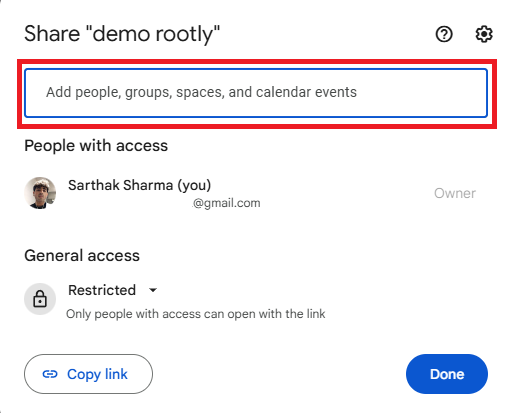
 Open your template document, click **Share**, add the service account email, and set the permission to **Editor**.

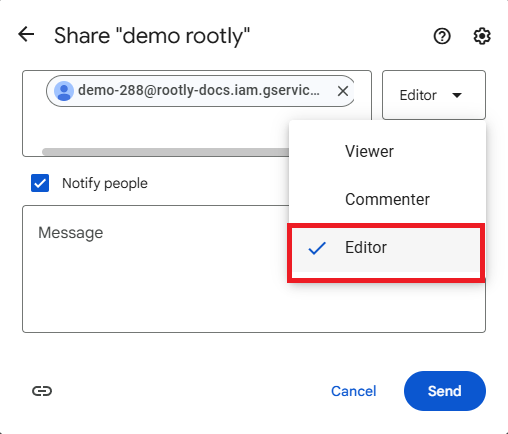 The permission must be **Editor**, not Viewer or Commenter. Rootly needs write access to copy and populate the template — anything less will cause workflow failures.
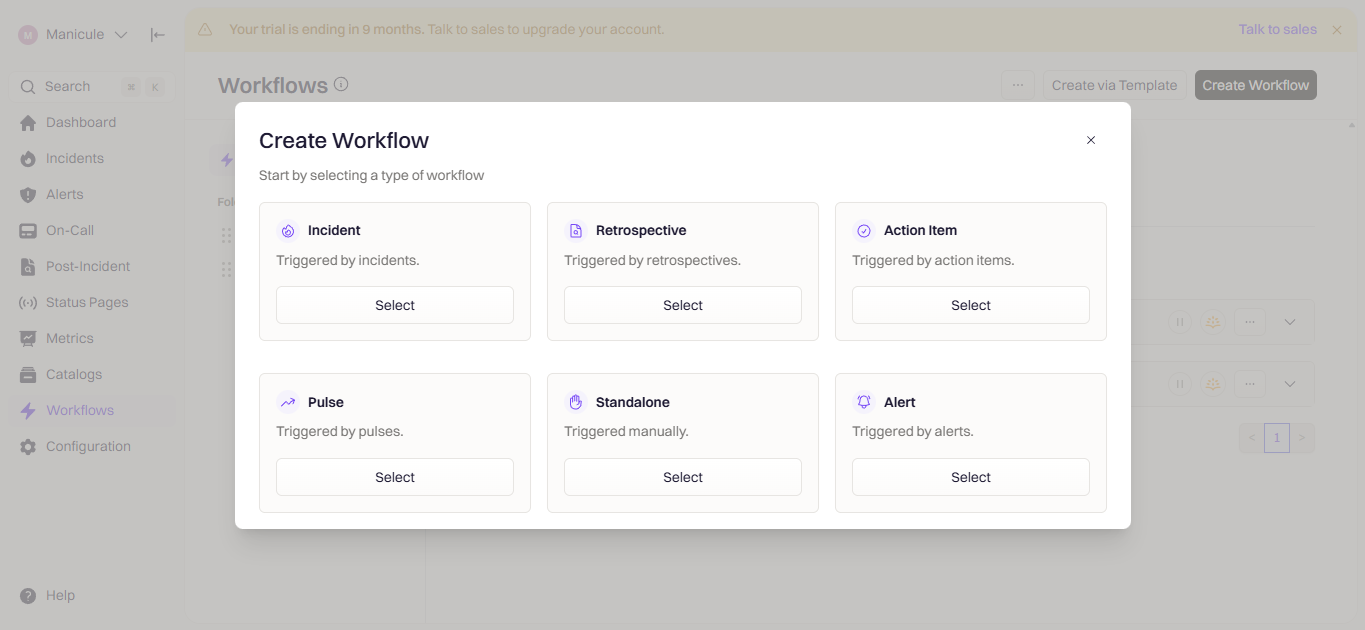
## Step 3: Create a Workflow
With the template ready and shared, create a workflow that triggers document generation automatically.
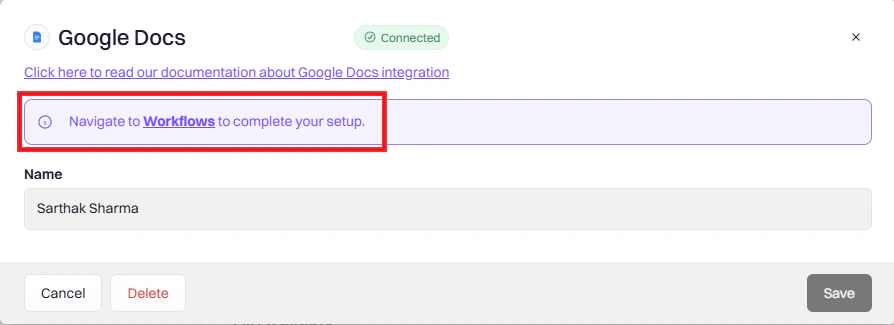
Go to **Rootly → Workflows → Create Workflow**.
The permission must be **Editor**, not Viewer or Commenter. Rootly needs write access to copy and populate the template — anything less will cause workflow failures.
## Step 3: Create a Workflow
With the template ready and shared, create a workflow that triggers document generation automatically.
Go to **Rootly → Workflows → Create Workflow**.
 Choose the event that should kick off document creation:
* **Incident** — triggers on incident events like creation or resolution
* **Retrospective** — triggers when retrospective status changes
* **Action Item** — for follow-up documentation
Choose the event that should kick off document creation:
* **Incident** — triggers on incident events like creation or resolution
* **Retrospective** — triggers when retrospective status changes
* **Action Item** — for follow-up documentation
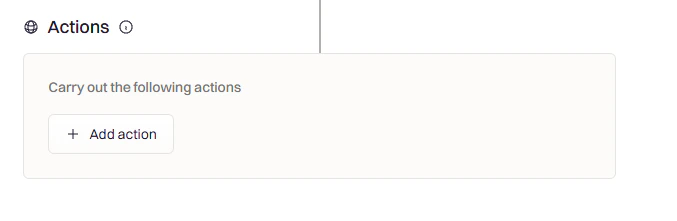
 Click **Add Action → Google Docs → Create Doc**.
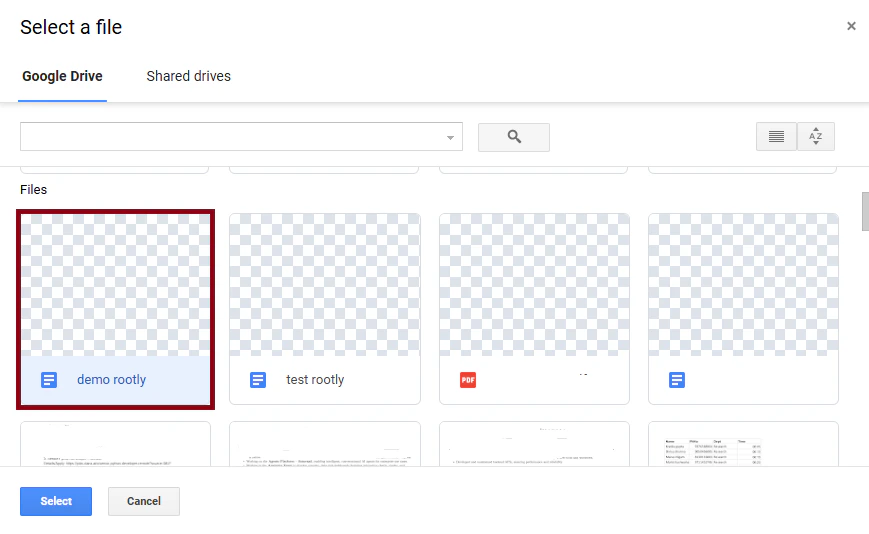
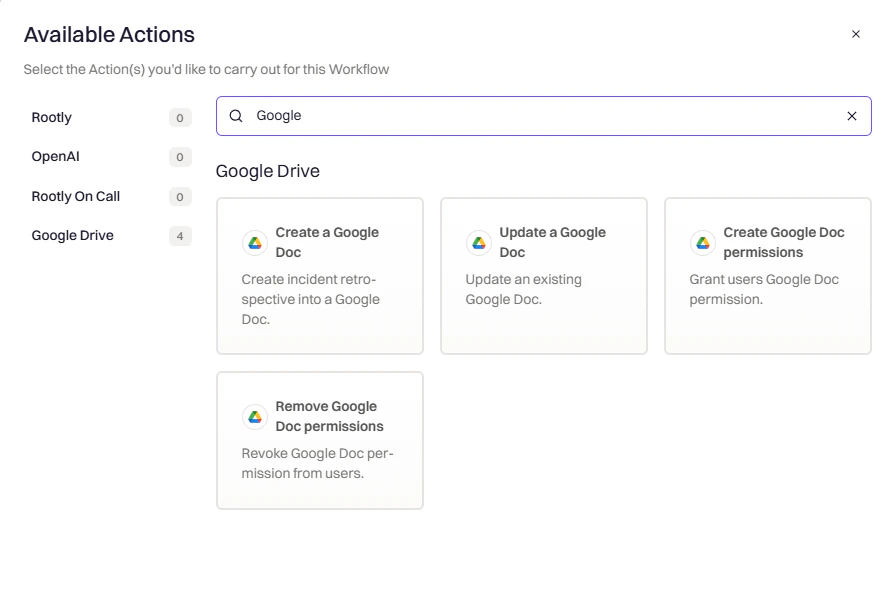 Choose the template document you created in Step 1 from the dropdown.
 Set any additional options — a descriptive name, conditions to filter which incidents trigger the workflow, and a destination folder in Google Drive.
 Save and toggle the workflow to active. It will fire on the next matching event.
## Configuration Reference
| Setting | Description | Example |
| --------------- | ------------------------------------------------ | -------------------------------------- |
| **Template** | The Google Doc to use as the source template | Select from dropdown |
| **Trigger** | When to generate a document | Incident Created, Incident Resolved |
| **Conditions** | Optional filters to narrow which incidents apply | `Severity = SEV1`, `Duration > 30 min` |
| **Folder** | Where to save the generated doc in Drive | `/Incidents/2024` |
| **Permissions** | Who can access the generated doc | Domain, Team, Private |
| **Delay** | Wait before generating | 24 hours (useful for retrospectives) |
## Troubleshooting
* Is the workflow toggled to active?
* Does the incident meet all the workflow conditions?
* Is your template shared with Rootly? (Service Account only)
* Check the workflow execution log for errors
* Double-check variable spelling — Liquid is case-sensitive
* Test the variable in the [Liquid Explorer](https://rootly.com/account/help/liquid-explorer)
* Make sure the field has data on the incident (e.g., `mitigated_at` won't exist on an unmitigated incident)
* Use `| default: "N/A"` to handle missing values gracefully
* OAuth: Re-authenticate if your access token has expired
* Service Account: Confirm the template is shared with the service account as **Editor**
* Confirm domain-wide delegation is still active in Google Admin
* Folder paths use forward slashes — confirm the path is correct
* Parent folders must already exist in Drive; Rootly won't create them
* Test any Liquid expressions in the folder path separately
## Best Practices
* **Test with a real incident** before relying on the workflow in production
* **One template per document type** — keep retrospective, runbook, and executive summary templates separate
* **Use `| default:` for optional fields** so missing data doesn't leave blank placeholders in your docs
* **Version your templates** by keeping a dated copy before making significant changes
## Next Steps
Create a test incident to confirm the workflow fires and the document generates correctly
Test Liquid variables against real incident data before adding them to your template
Save and toggle the workflow to active. It will fire on the next matching event.
## Configuration Reference
| Setting | Description | Example |
| --------------- | ------------------------------------------------ | -------------------------------------- |
| **Template** | The Google Doc to use as the source template | Select from dropdown |
| **Trigger** | When to generate a document | Incident Created, Incident Resolved |
| **Conditions** | Optional filters to narrow which incidents apply | `Severity = SEV1`, `Duration > 30 min` |
| **Folder** | Where to save the generated doc in Drive | `/Incidents/2024` |
| **Permissions** | Who can access the generated doc | Domain, Team, Private |
| **Delay** | Wait before generating | 24 hours (useful for retrospectives) |
## Troubleshooting
* Is the workflow toggled to active?
* Does the incident meet all the workflow conditions?
* Is your template shared with Rootly? (Service Account only)
* Check the workflow execution log for errors
* Double-check variable spelling — Liquid is case-sensitive
* Test the variable in the [Liquid Explorer](https://rootly.com/account/help/liquid-explorer)
* Make sure the field has data on the incident (e.g., `mitigated_at` won't exist on an unmitigated incident)
* Use `| default: "N/A"` to handle missing values gracefully
* OAuth: Re-authenticate if your access token has expired
* Service Account: Confirm the template is shared with the service account as **Editor**
* Confirm domain-wide delegation is still active in Google Admin
* Folder paths use forward slashes — confirm the path is correct
* Parent folders must already exist in Drive; Rootly won't create them
* Test any Liquid expressions in the folder path separately
## Best Practices
* **Test with a real incident** before relying on the workflow in production
* **One template per document type** — keep retrospective, runbook, and executive summary templates separate
* **Use `| default:` for optional fields** so missing data doesn't leave blank placeholders in your docs
* **Version your templates** by keeping a dated copy before making significant changes
## Next Steps
Create a test incident to confirm the workflow fires and the document generates correctly
Test Liquid variables against real incident data before adding them to your template