> ## Documentation Index
> Fetch the complete documentation index at: https://docs.rootly.com/llms.txt
> Use this file to discover all available pages before exploring further.
# Installation
> Connect your Google Meet account to Rootly via OAuth to create meetings automatically during incidents and share links in Slack and Teams channels.
You can use OAuth for quick setup with a personal account, or a Google Cloud Service Account for production environments that need domain-wide access. After completing these steps, you can configure workflows to automatically create Google Meet rooms when incidents are declared.
## Before You Begin
**Before you start, you'll need:**
* A Rootly account with Admin permissions to manage integrations
* **For OAuth:** A Google account with Google Meet enabled
* **For Service Account:** Access to Google Cloud Console and Google Admin Console
We recommend integrating with a **service account** rather than a personal account. This ensures the integration continues to work even if a user leaves your organization.
## OAuth Setup
Best for quick testing or evaluating Rootly before a full organizational rollout.
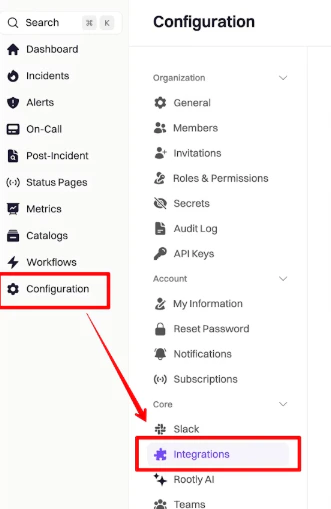
Navigate to **Configuration → Integrations** in the Rootly sidebar.
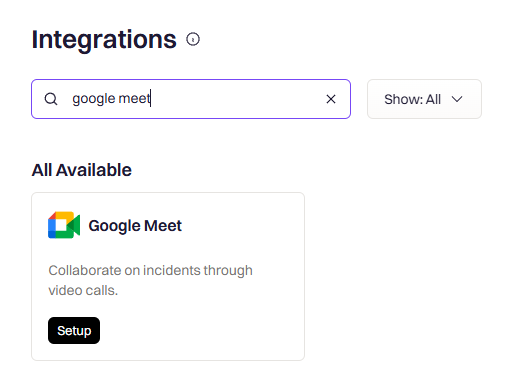
 Search for **Google Meet** and click **Setup**.
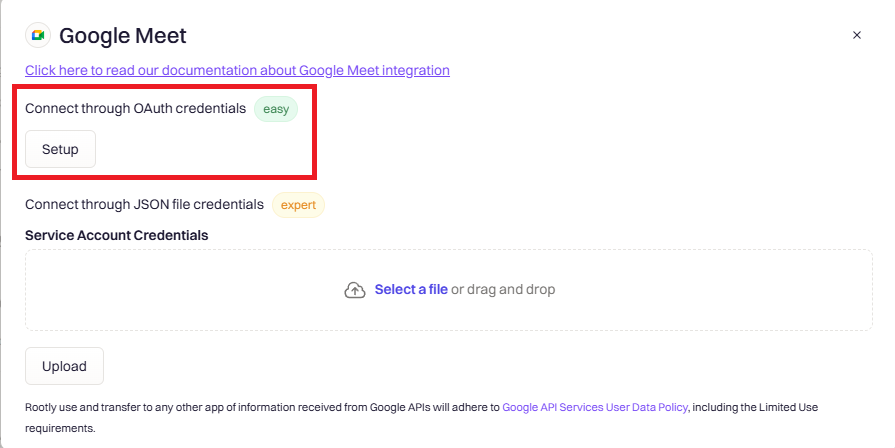
 Select **OAuth** as your connection method, then choose the Google account you want to connect.
 Approve the requested permissions. You'll be redirected back to Rootly once the connection is established.
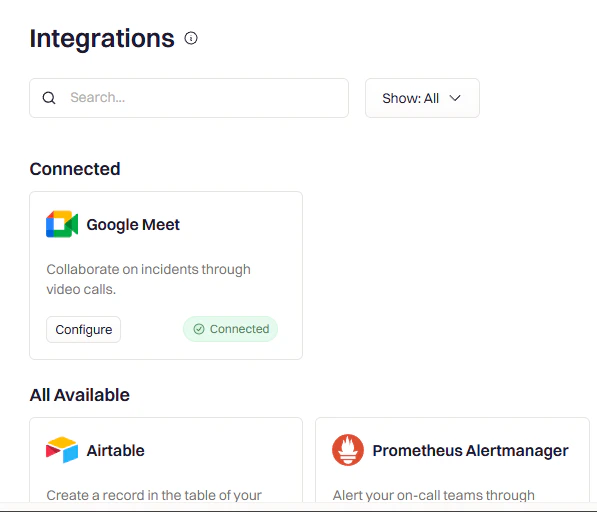
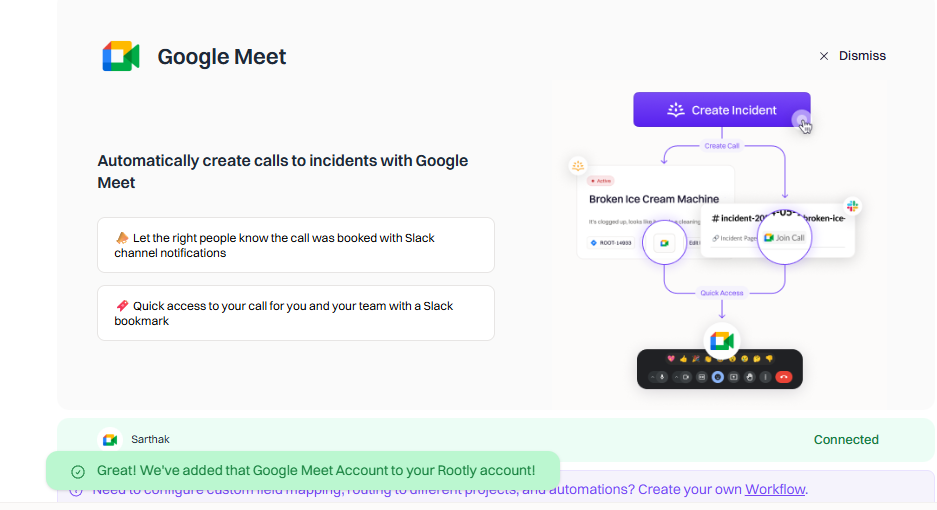 Your Google Meet account is now connected. Head to the [Workflows page](/integrations/google-meet/workflows) to configure automated meeting creation.
## Service Account Setup
Use a [Google Cloud Service Account](https://cloud.google.com/iam/docs/service-account-overview) if you're connecting on behalf of your entire organization. This method ensures the integration keeps running even if a user leaves the company.
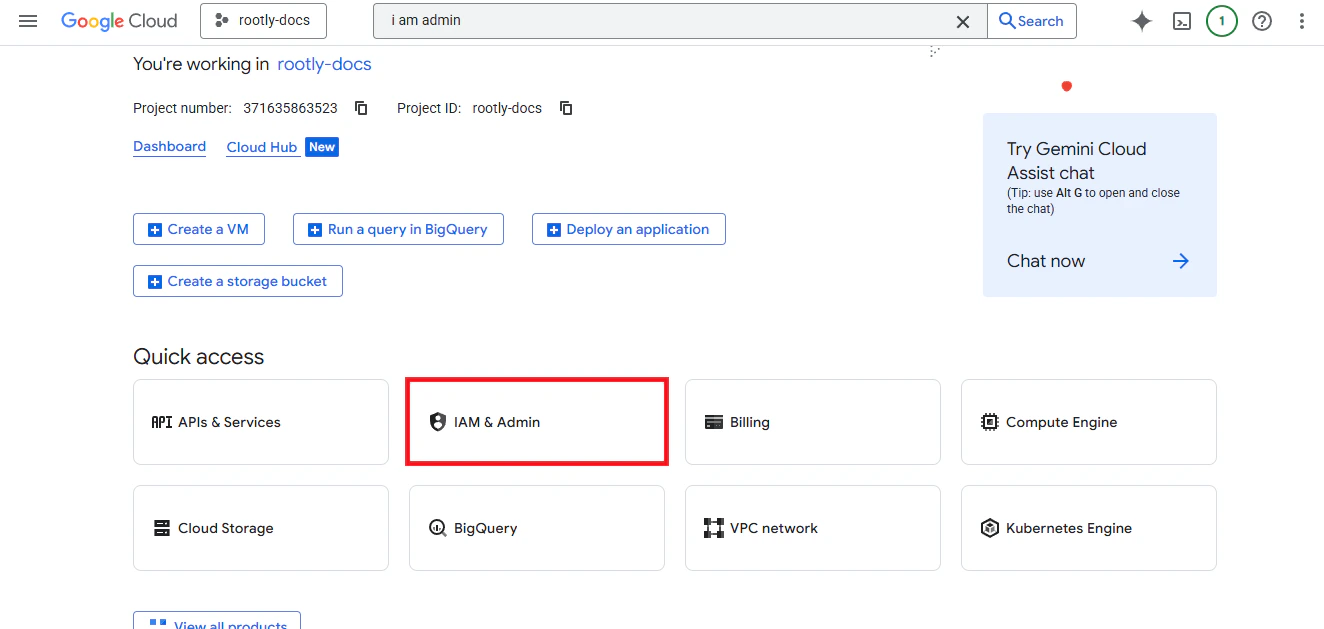
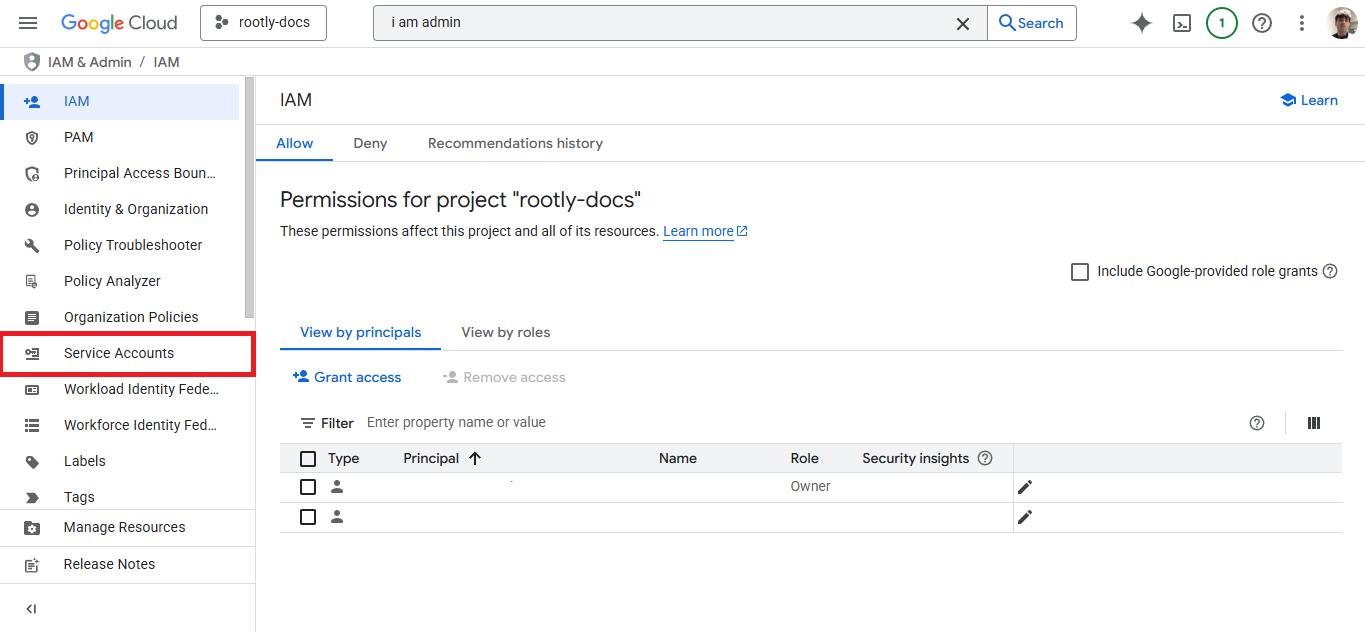
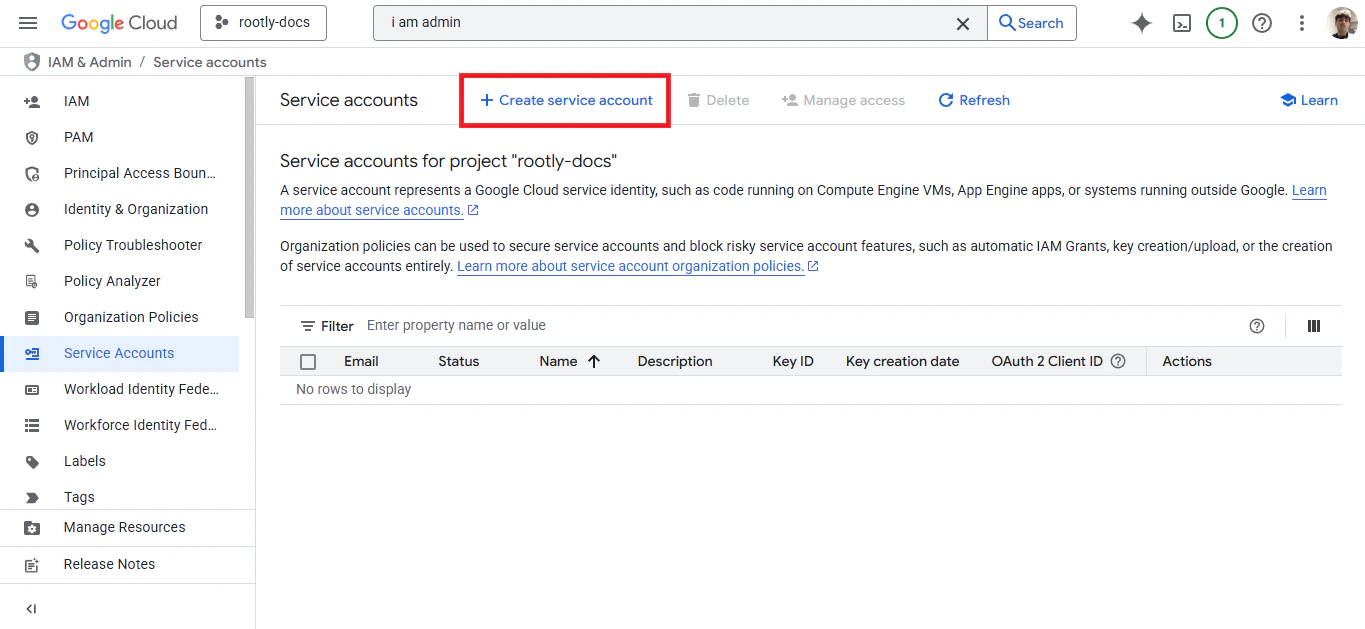
In Google Cloud Console, navigate to **IAM & Admin → Service Accounts** and click **Create Service Account**.
Your Google Meet account is now connected. Head to the [Workflows page](/integrations/google-meet/workflows) to configure automated meeting creation.
## Service Account Setup
Use a [Google Cloud Service Account](https://cloud.google.com/iam/docs/service-account-overview) if you're connecting on behalf of your entire organization. This method ensures the integration keeps running even if a user leaves the company.
In Google Cloud Console, navigate to **IAM & Admin → Service Accounts** and click **Create Service Account**.
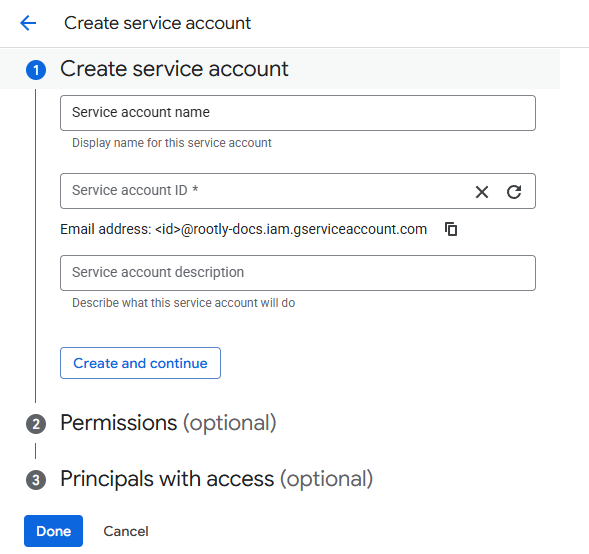
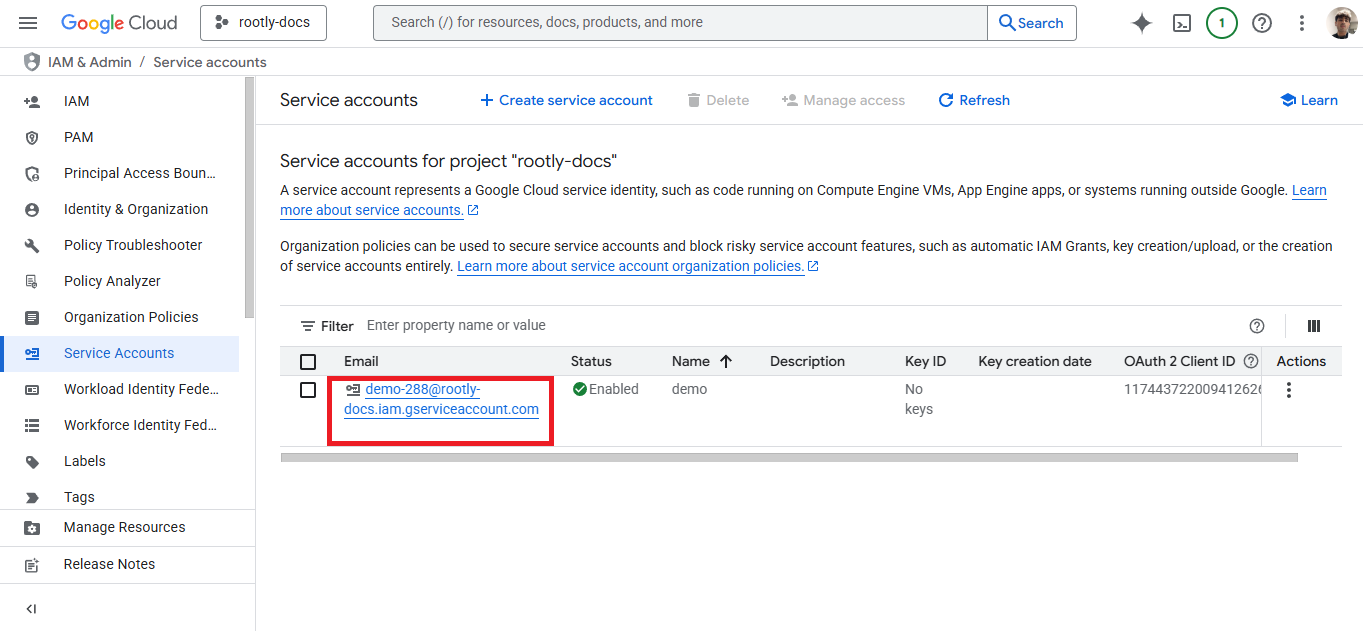
 Enter the service account name and ID. Click **Done** to create the account, then click on the new account's email to open its details.
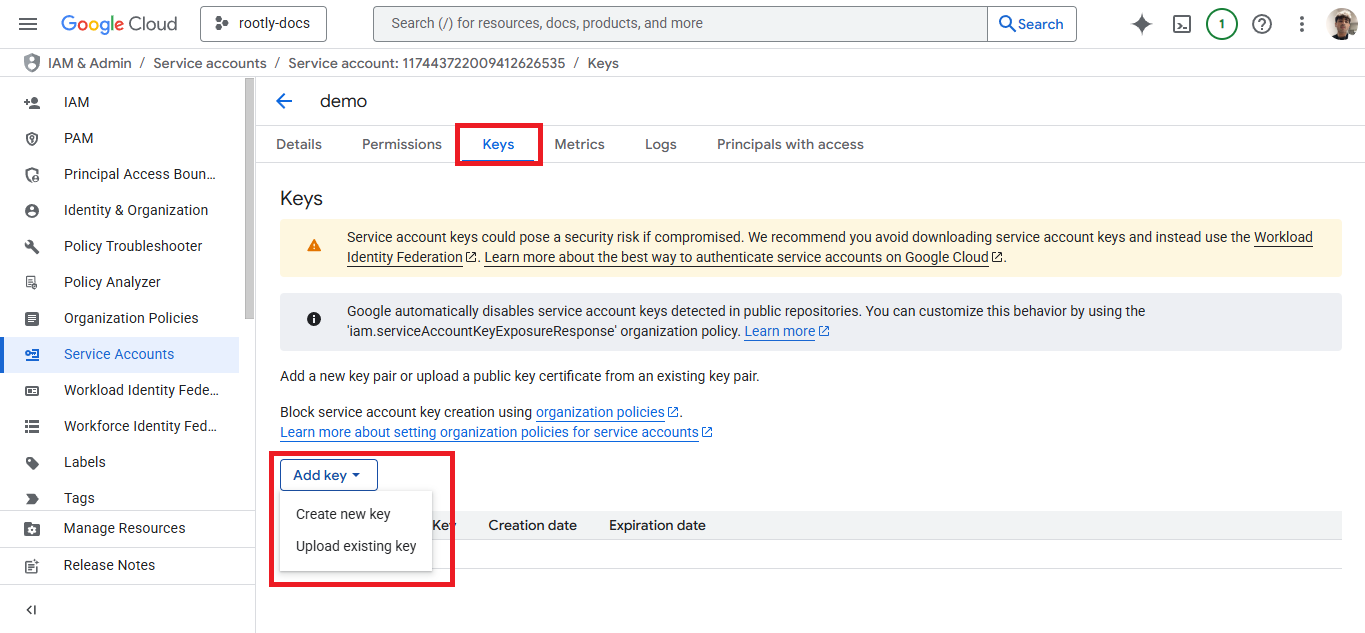
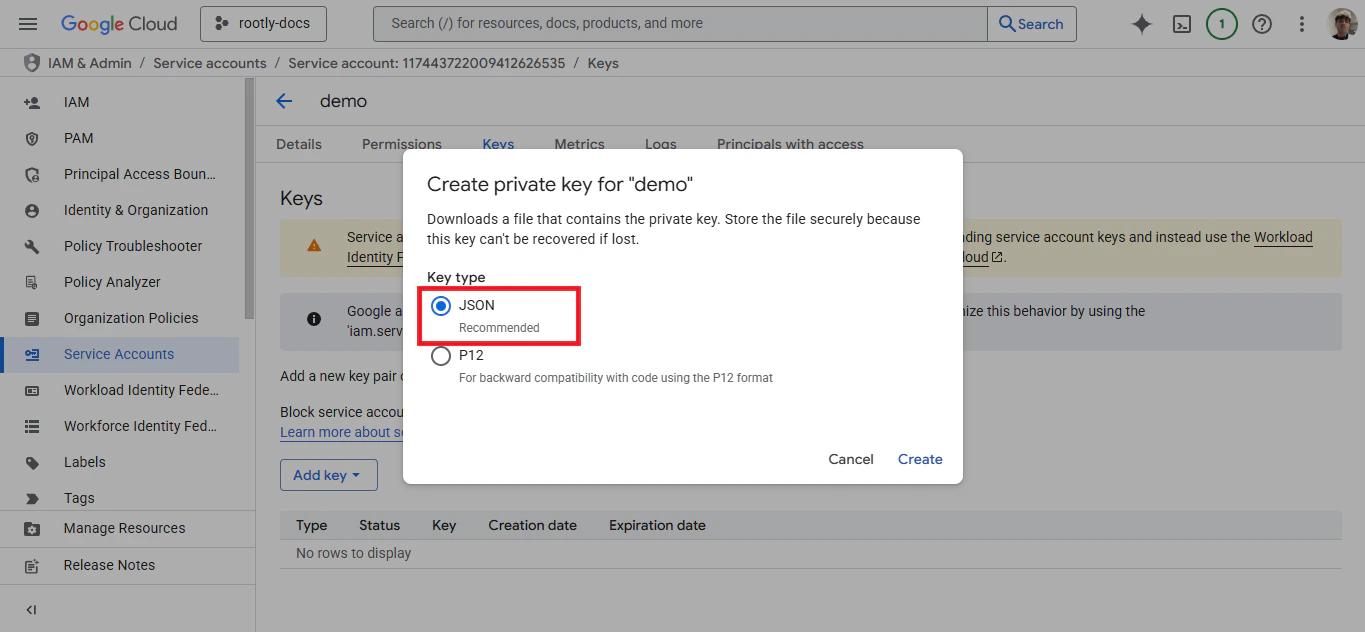
 Navigate to the **Keys** tab and click **Add Key → Create New Key**. Select **JSON** as the key type and click **Create**. A `.json` file will be downloaded — keep this safe.
 Return to Rootly's Google Meet setup screen and upload the `.json` file you just downloaded.
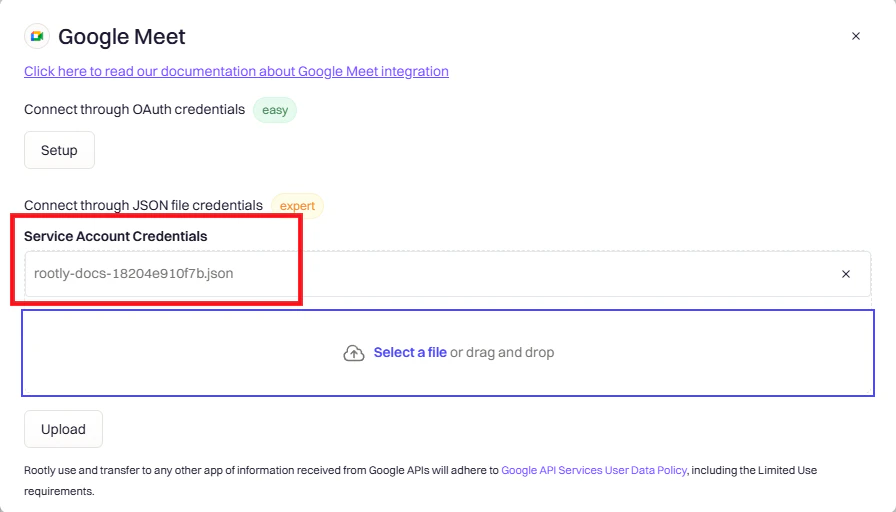 Once uploaded, you'll see a confirmation that your Google Meet account has been connected.
 Domain-wide delegation of authority has not yet been configured. Without granting the necessary domain-wide access, API requests will fail with a **403 Forbidden** error.
In [Google Admin Console](https://admin.google.com), go to **Security → API Controls → Domain-wide Delegation**. Select your service account and add a new API client.
Enter your service account's **Client ID** (found in GCP Console under the service account's details) and add the following OAuth scopes:
```
https://www.googleapis.com/auth/meetings.space.created
https://www.googleapis.com/auth/calendar.events
https://www.googleapis.com/auth/calendar
```
The calendar scopes are required for creating calendar events with Meet links attached.
Click **Authorize** to save the configuration. Changes may take 10–15 minutes to propagate through Google's systems.
Your Google Meet integration is now fully configured. Head to the [Workflows page](/integrations/google-meet/workflows) to set up automated meeting creation.
## Troubleshooting
**Error:** "Failed to authenticate with Google"
* Verify you're using the correct Google account
* Check that your account has Google Meet enabled
* For OAuth: Try incognito mode to avoid account conflicts
* For Service Account: Verify the JSON key file is valid and not expired
**Error:** "API requests fail with 403 error"
1. Verify domain-wide delegation is enabled in Google Admin Console
2. Confirm all three OAuth scopes are added exactly as shown
3. Check the Client ID matches your service account
4. Ensure the subject email belongs to your domain
5. Wait 10–15 minutes for Google to propagate changes
**Error:** "Invalid JSON key file"
* Ensure you downloaded the JSON (not P12) format
* Check the file hasn't been modified or corrupted
* Verify the service account still exists in GCP Console
* Generate a new key if the current one is older than 90 days
**Error:** "Where to find Client ID for domain delegation"
1. Go to Google Cloud Console
2. Select your project
3. Navigate to **IAM & Admin → Service Accounts**
4. Click on your service account
5. Find **Unique ID** or **Client ID** in the details section
**Error:** "Setup complete but workflows fail"
* For Service Account: Domain delegation is likely missing or incomplete
* For OAuth: Re-authenticate and ensure all permissions were granted
* Check that Google Meet is enabled in your Google Workspace
* Verify the integration shows **Active** status in Rootly
## Uninstall
To remove the Google Meet integration:
1. Go to **Configuration → Integrations** and find **Google Meet**
2. Click the **Connected** button to reveal the disconnect option
3. Click **Disconnect**
Domain-wide delegation of authority has not yet been configured. Without granting the necessary domain-wide access, API requests will fail with a **403 Forbidden** error.
In [Google Admin Console](https://admin.google.com), go to **Security → API Controls → Domain-wide Delegation**. Select your service account and add a new API client.
Enter your service account's **Client ID** (found in GCP Console under the service account's details) and add the following OAuth scopes:
```
https://www.googleapis.com/auth/meetings.space.created
https://www.googleapis.com/auth/calendar.events
https://www.googleapis.com/auth/calendar
```
The calendar scopes are required for creating calendar events with Meet links attached.
Click **Authorize** to save the configuration. Changes may take 10–15 minutes to propagate through Google's systems.
Your Google Meet integration is now fully configured. Head to the [Workflows page](/integrations/google-meet/workflows) to set up automated meeting creation.
## Troubleshooting
**Error:** "Failed to authenticate with Google"
* Verify you're using the correct Google account
* Check that your account has Google Meet enabled
* For OAuth: Try incognito mode to avoid account conflicts
* For Service Account: Verify the JSON key file is valid and not expired
**Error:** "API requests fail with 403 error"
1. Verify domain-wide delegation is enabled in Google Admin Console
2. Confirm all three OAuth scopes are added exactly as shown
3. Check the Client ID matches your service account
4. Ensure the subject email belongs to your domain
5. Wait 10–15 minutes for Google to propagate changes
**Error:** "Invalid JSON key file"
* Ensure you downloaded the JSON (not P12) format
* Check the file hasn't been modified or corrupted
* Verify the service account still exists in GCP Console
* Generate a new key if the current one is older than 90 days
**Error:** "Where to find Client ID for domain delegation"
1. Go to Google Cloud Console
2. Select your project
3. Navigate to **IAM & Admin → Service Accounts**
4. Click on your service account
5. Find **Unique ID** or **Client ID** in the details section
**Error:** "Setup complete but workflows fail"
* For Service Account: Domain delegation is likely missing or incomplete
* For OAuth: Re-authenticate and ensure all permissions were granted
* Check that Google Meet is enabled in your Google Workspace
* Verify the integration shows **Active** status in Rootly
## Uninstall
To remove the Google Meet integration:
1. Go to **Configuration → Integrations** and find **Google Meet**
2. Click the **Connected** button to reveal the disconnect option
3. Click **Disconnect**
 Disconnecting will prevent Rootly from creating new Google Meet rooms. Existing meetings and calendar events are not affected.