> ## Documentation Index
> Fetch the complete documentation index at: https://docs.rootly.com/llms.txt
> Use this file to discover all available pages before exploring further.
# Workflows
> Automate Google Meet room and calendar event creation for incident collaboration using Rootly workflow actions with attendees, calendars, and time zones.
Rootly's Google Meet integration leverages workflows to automatically create meeting rooms when incidents occur. If you are unfamiliar with how Workflows function, please visit our [Workflows](/workflows) documentation first.
## Automation Options
You can automate Google Meet room creation in two ways:
Automatically create a Google Meet room at incident start using built-in settings — no workflow required.
Use workflows for conditional or advanced meeting automation with full control over triggers and actions.
## Option 1: Auto-Create Incident Call
The Auto-Create Incident Call panel lets you automatically generate a Google Meet room whenever an incident begins, without building a workflow from scratch.
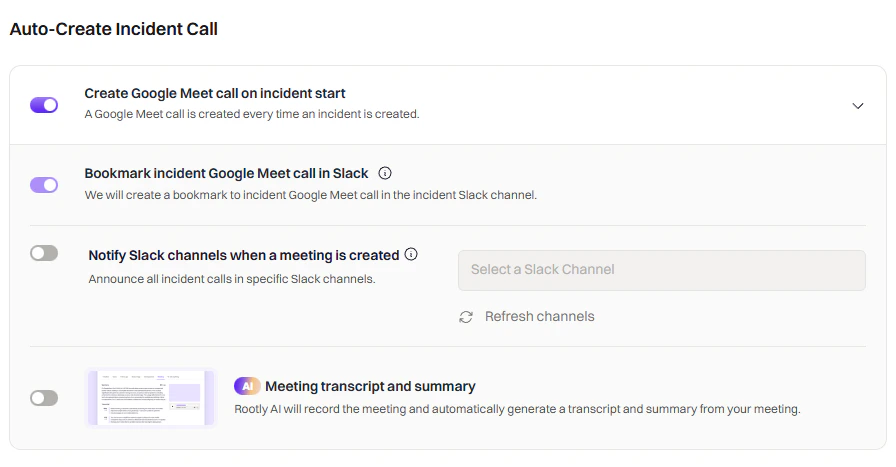 It includes a full set of configuration options so you can control how the room is created, where it's shared, and what Google Meet features are enabled.
These settings let you control exactly how Google Meet call meetings behave during incidents.
Automatically spin up a meeting the moment an incident opens.
It includes a full set of configuration options so you can control how the room is created, where it's shared, and what Google Meet features are enabled.
These settings let you control exactly how Google Meet call meetings behave during incidents.
Automatically spin up a meeting the moment an incident opens.
 Add the meeting link as a bookmark in the incident's Slack channel.
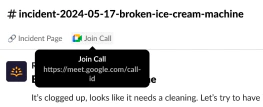 Announce new incident calls in specific Slack channels.
 Enable AI-powered recording, transcription, and summary generation.
 Use Auto-Create when you want instant, zero-configuration Google Meet automation. Build a custom workflow when you need conditions, multiple actions, or advanced routing logic.
## Option 2: Creating a Custom Workflow
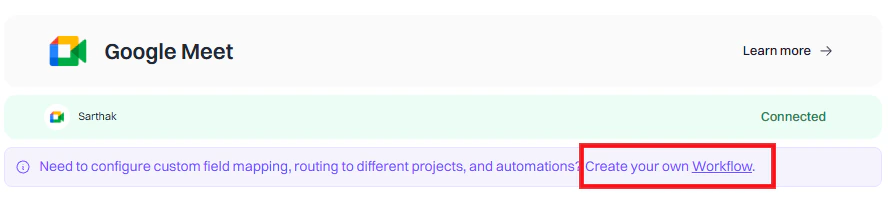
For teams that need conditional logic — such as only creating calls for SEV-1 incidents or specific teams — a custom workflow gives you full control.
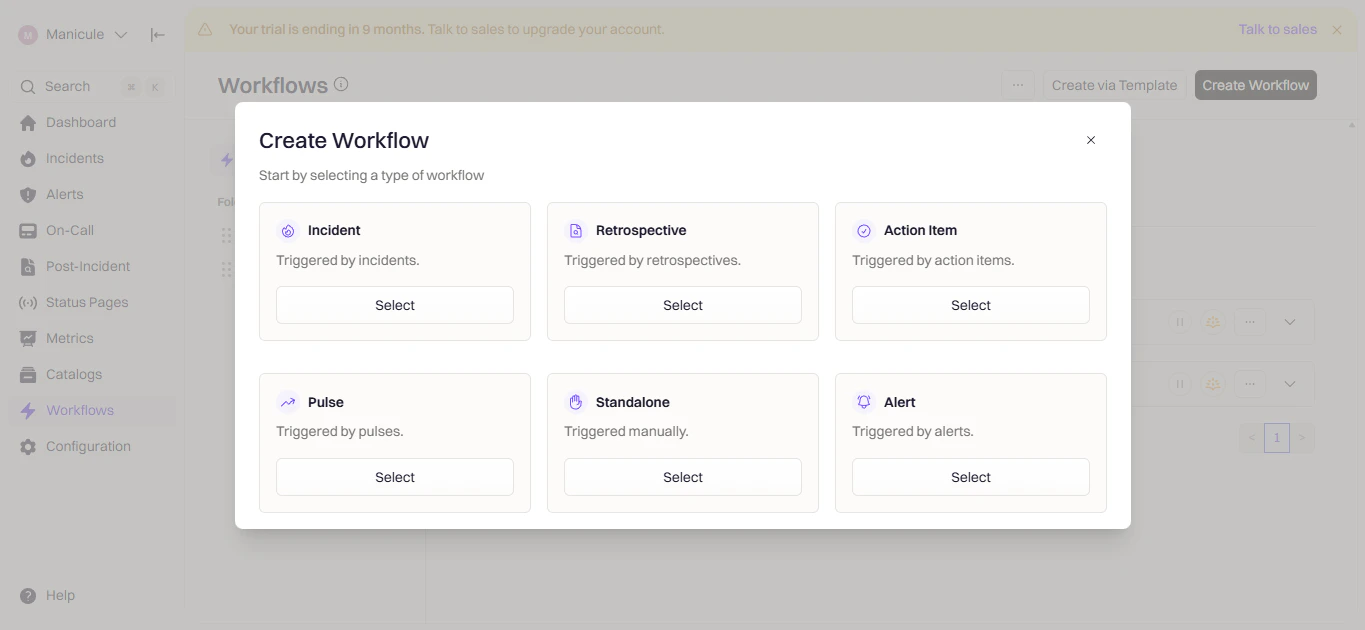
Go to **Rootly → Workflows → Create Workflow**.
Use Auto-Create when you want instant, zero-configuration Google Meet automation. Build a custom workflow when you need conditions, multiple actions, or advanced routing logic.
## Option 2: Creating a Custom Workflow
For teams that need conditional logic — such as only creating calls for SEV-1 incidents or specific teams — a custom workflow gives you full control.
Go to **Rootly → Workflows → Create Workflow**.
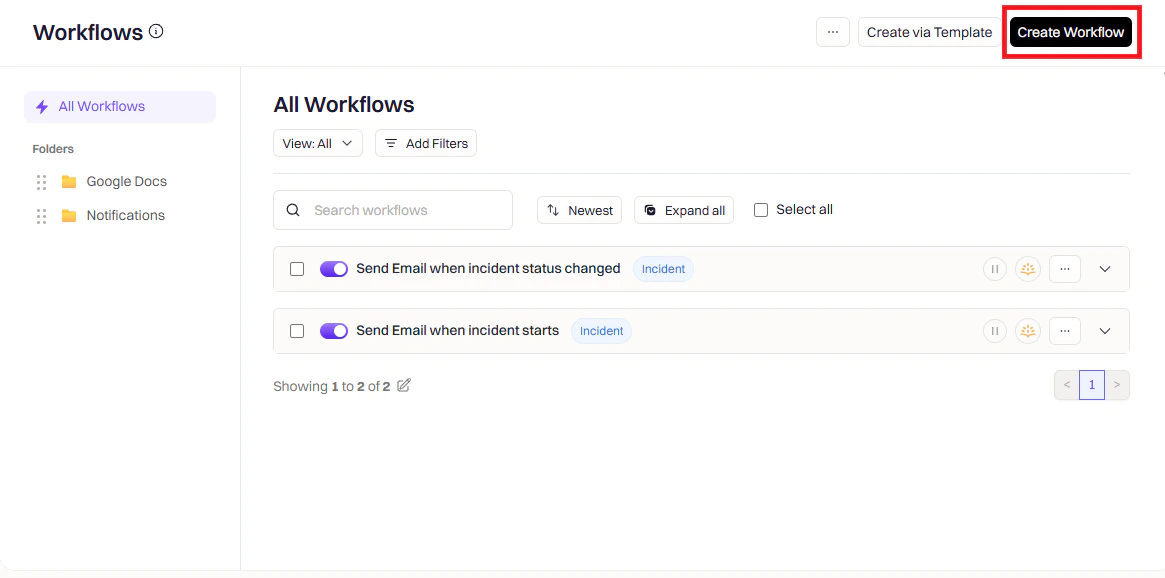 Select your workflow type — typically **Incident** for meeting automation.
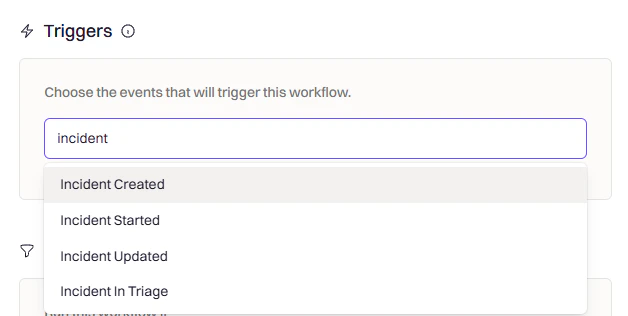
 Triggers define when this workflow should run. Choose the event that should kick off your Google Meet room creation.
 | Trigger | What It Does |
| --------------------------- | -------------------------------------------------------------- |
| Incident Created | Creates a Google Meet room as soon as a new incident is opened |
| Incident Updated | Fires when fields like severity or status change |
| Incident Status Changed | Starts a call when the incident moves into a specific status |
| Incident Commander Assigned | Creates a meeting once someone takes ownership |
| Manual Trigger | Run the workflow manually from the incident UI |
Conditions control when the workflow should or shouldn't run after being triggered. Use conditions to narrow the scope of your automation.
| Trigger | What It Does |
| --------------------------- | -------------------------------------------------------------- |
| Incident Created | Creates a Google Meet room as soon as a new incident is opened |
| Incident Updated | Fires when fields like severity or status change |
| Incident Status Changed | Starts a call when the incident moves into a specific status |
| Incident Commander Assigned | Creates a meeting once someone takes ownership |
| Manual Trigger | Run the workflow manually from the incident UI |
Conditions control when the workflow should or shouldn't run after being triggered. Use conditions to narrow the scope of your automation.
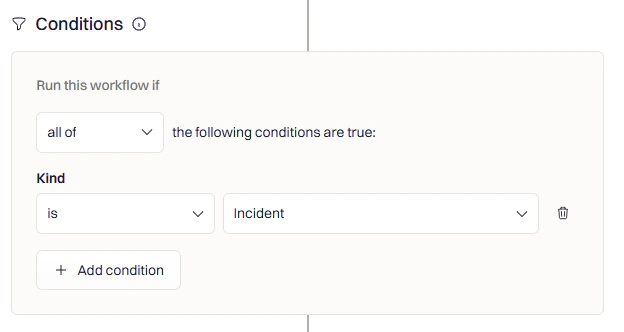 Examples:
* **Severity-based** — Only create calls for SEV-1 or SEV-2 incidents
* **Team or service filters** — Only for incidents impacting specific teams
* **Incident type filtering** — Only when the incident kind is set to Incident (not Maintenance)
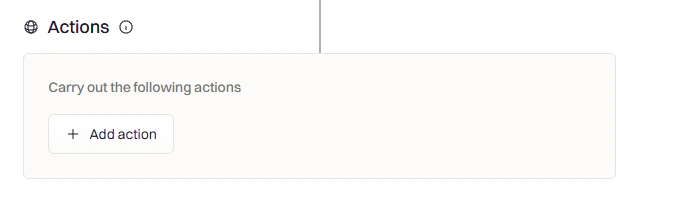
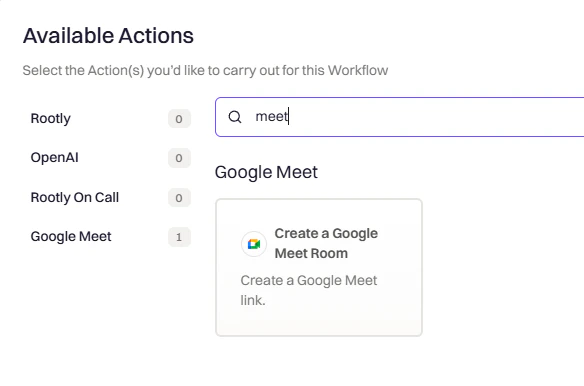
Click **Add Action → Google Meet → Create Room**. Configure the action settings that appear.
Examples:
* **Severity-based** — Only create calls for SEV-1 or SEV-2 incidents
* **Team or service filters** — Only for incidents impacting specific teams
* **Incident type filtering** — Only when the incident kind is set to Incident (not Maintenance)
Click **Add Action → Google Meet → Create Room**. Configure the action settings that appear.
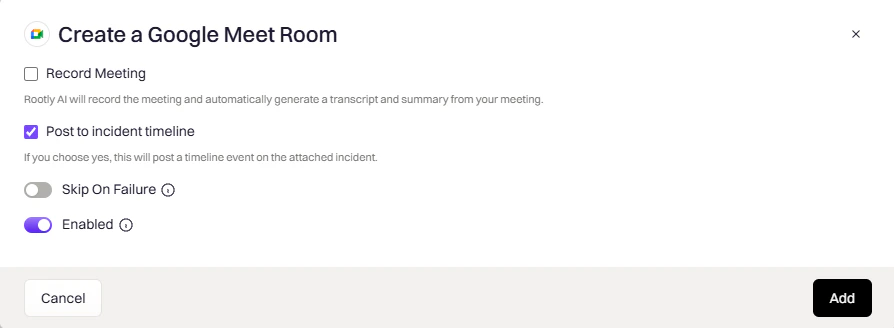 Enable **AI Meeting Capture** to have Rootly AI automatically capture and summarize the meeting.
Click **Add**, give your workflow a descriptive name, and click **Create Workflow**.
## Variable Reference
Use these variables in workflow notifications, Slack messages, and calendar event templates.
### Google Meet Variables
| Variable | Description | Available |
| ----------------------------- | ------------------------------------- | ------------------------ |
| incident.google\_meeting\_url | The link to join the Google Meet room | After meeting is created |
| incident.google\_meeting\_id | The unique ID of the Google Meet | After meeting is created |
### Incident Variables
| Variable | Description |
| ----------------------------- | ------------------------------------------- |
| incident.title | Incident title |
| incident.summary | Incident summary or description |
| incident.severity | Severity level (e.g., SEV1) |
| incident.status | Current incident status |
| incident.started\_at | Timestamp when the incident started |
| incident.creator.name | Name of the person who created the incident |
| incident.creator.email | Email of the incident creator |
| incident.slack\_channel\_name | Name of the incident's Slack channel |
| incident.url | Link to the incident in Rootly |
Use the [Liquid Variable Explorer](https://rootly.com/account/help/liquid-explorer) to test variables with real incident data before using them in production.
## Example Templates
Include the Google Meet link in a Slack message automatically when an incident is created:
```liquid theme={null}
Incident {{ incident.title }} started
Join Google Meet: {{ incident.google_meeting_url }}
Severity: {{ incident.severity }}
Please confirm when you've joined.
```
Use Google Meet variables to automatically populate calendar event details for your team:
```liquid theme={null}
Title: Incident {{ incident.title }}
Started: {{ incident.started_at | date: "%Y-%m-%d %H:%M" }}
Join Google Meet: {{ incident.google_meeting_url }}
Description: {{ incident.summary }}
Please join the meeting on time.
```
## Frequently Asked Questions
Each incident is associated with one Google Meet room by default. If you need additional rooms, you can create sub-incidents and configure workflows to create separate rooms for each sub-incident.
Rootly does not automatically end or delete the Google Meet room when an incident is resolved. The room remains accessible through the meeting link until it expires naturally per Google Meet's settings.
Yes. The workflow actions work the same regardless of which connection method you used during installation. The integration handles authentication transparently.
Ensure the **Slack Channels** field is configured in your workflow action and that the channel reference is correct. You can use `{{ incident.slack_channel_id }}` to target the incident's dedicated channel automatically.
Enable **AI Meeting Capture** to have Rootly AI automatically capture and summarize the meeting.
Click **Add**, give your workflow a descriptive name, and click **Create Workflow**.
## Variable Reference
Use these variables in workflow notifications, Slack messages, and calendar event templates.
### Google Meet Variables
| Variable | Description | Available |
| ----------------------------- | ------------------------------------- | ------------------------ |
| incident.google\_meeting\_url | The link to join the Google Meet room | After meeting is created |
| incident.google\_meeting\_id | The unique ID of the Google Meet | After meeting is created |
### Incident Variables
| Variable | Description |
| ----------------------------- | ------------------------------------------- |
| incident.title | Incident title |
| incident.summary | Incident summary or description |
| incident.severity | Severity level (e.g., SEV1) |
| incident.status | Current incident status |
| incident.started\_at | Timestamp when the incident started |
| incident.creator.name | Name of the person who created the incident |
| incident.creator.email | Email of the incident creator |
| incident.slack\_channel\_name | Name of the incident's Slack channel |
| incident.url | Link to the incident in Rootly |
Use the [Liquid Variable Explorer](https://rootly.com/account/help/liquid-explorer) to test variables with real incident data before using them in production.
## Example Templates
Include the Google Meet link in a Slack message automatically when an incident is created:
```liquid theme={null}
Incident {{ incident.title }} started
Join Google Meet: {{ incident.google_meeting_url }}
Severity: {{ incident.severity }}
Please confirm when you've joined.
```
Use Google Meet variables to automatically populate calendar event details for your team:
```liquid theme={null}
Title: Incident {{ incident.title }}
Started: {{ incident.started_at | date: "%Y-%m-%d %H:%M" }}
Join Google Meet: {{ incident.google_meeting_url }}
Description: {{ incident.summary }}
Please join the meeting on time.
```
## Frequently Asked Questions
Each incident is associated with one Google Meet room by default. If you need additional rooms, you can create sub-incidents and configure workflows to create separate rooms for each sub-incident.
Rootly does not automatically end or delete the Google Meet room when an incident is resolved. The room remains accessible through the meeting link until it expires naturally per Google Meet's settings.
Yes. The workflow actions work the same regardless of which connection method you used during installation. The integration handles authentication transparently.
Ensure the **Slack Channels** field is configured in your workflow action and that the channel reference is correct. You can use `{{ incident.slack_channel_id }}` to target the incident's dedicated channel automatically.