> ## Documentation Index
> Fetch the complete documentation index at: https://docs.rootly.com/llms.txt
> Use this file to discover all available pages before exploring further.
# Alerts
> Configure Grafana webhook contact points to send alert events into Rootly for general alert ingestion and on-call paging workflows across dashboards.
## Introduction
Grafana can send alert events into Rootly as alerts using a webhook contact point. Once alerts are flowing into Rootly, you can use alert workflows to create incidents, notify Slack channels, or page on-call targets.
With Grafana alerts in Rootly, you can:
* Receive Grafana alert events as Rootly alerts
* Route alerts to services, teams, or escalation policies
* Page Rootly on-call targets directly from Grafana alert rules
* Use alert workflows to automate incident creation and follow-up actions
## Before You Begin
Before configuring alert ingestion, make sure you have:
* The Grafana integration already installed in Rootly — see the [Installation](/integrations/grafana/grafana) page
* Access to configure contact points and alert rules in Grafana
You must install the Grafana integration in Rootly before configuring webhook contact points. The webhook secret is generated during installation and is required for authentication.
## Configure a Webhook Contact Point in Grafana
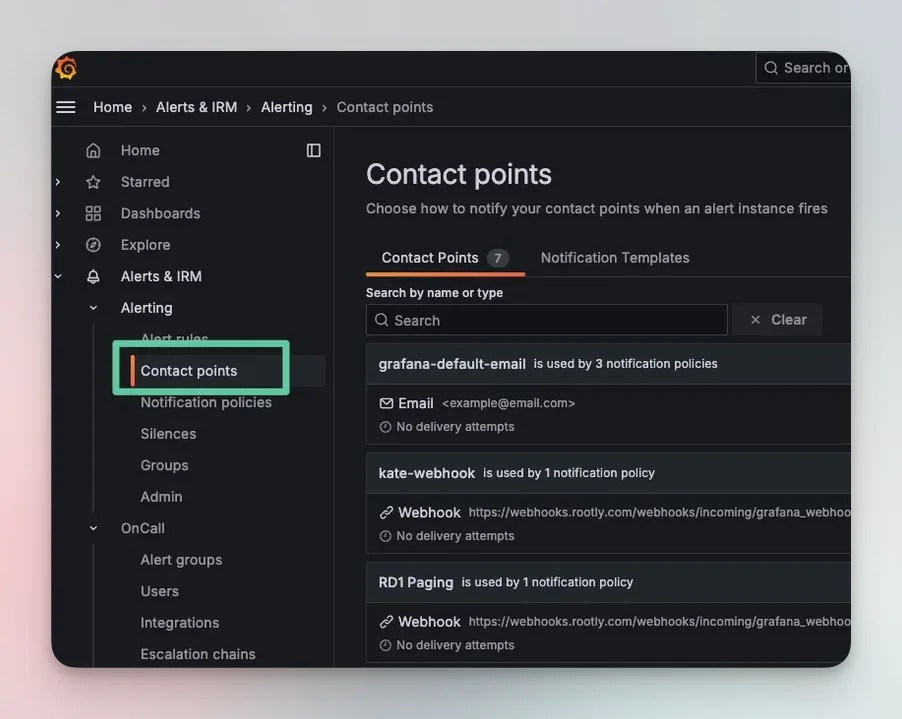
Log into your Grafana instance and navigate to **Alerting > Contact points**.
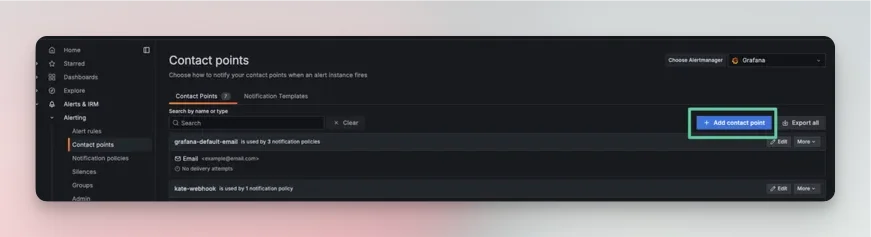
 Select **+ Add contact point**.
 Fill in the contact point details:
* **Name** — give the contact point a descriptive name
* **Integration** — select **Webhook**
* **HTTP Method** — select **POST**
Fill in the contact point details:
* **Name** — give the contact point a descriptive name
* **Integration** — select **Webhook**
* **HTTP Method** — select **POST**
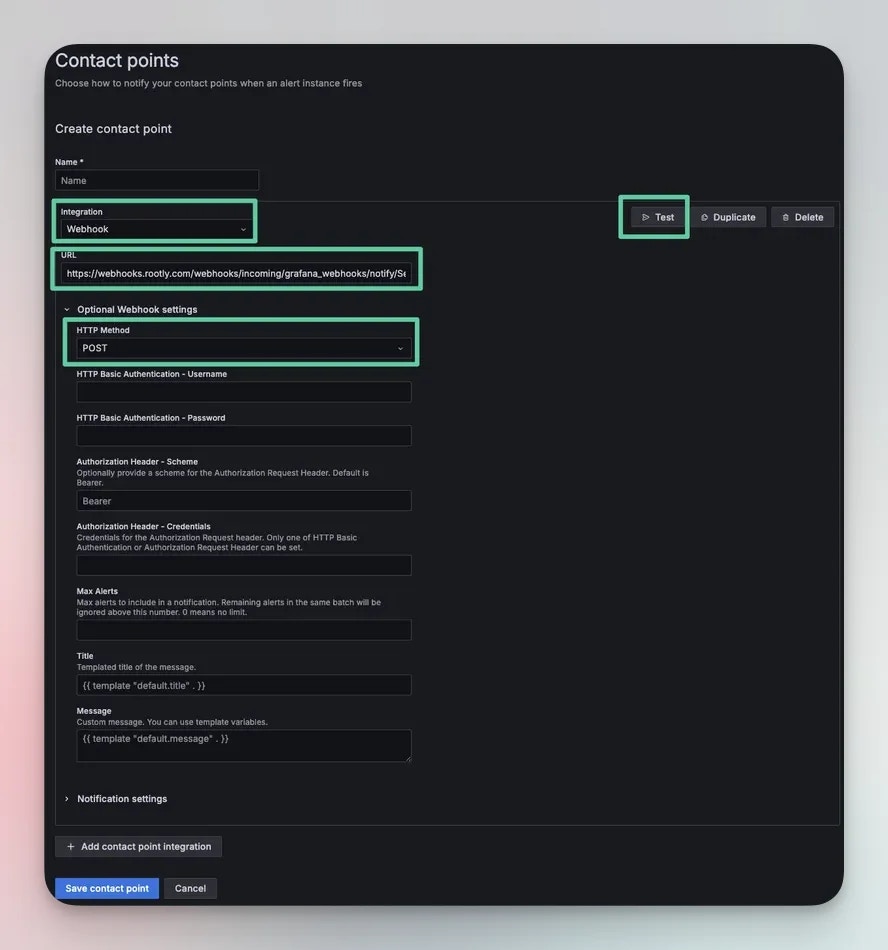 The URL format depends on whether you want a general alert or want to page an on-call target.
**For a general alert** (appears in Rootly Alerts, does not page anyone):
```
https://webhooks.rootly.com/webhooks/incoming/grafana_webhooks/?secret=
```
The URL format depends on whether you want a general alert or want to page an on-call target.
**For a general alert** (appears in Rootly Alerts, does not page anyone):
```
https://webhooks.rootly.com/webhooks/incoming/grafana_webhooks/?secret=
```
 **To page a Rootly on-call target**, append a notification target to the URL:
```
https://webhooks.rootly.com/webhooks/incoming/grafana_webhooks/notify//?secret=
```
Supported resource types are `User`, `Group` (team), `EscalationPolicy`, and `Service`. The resource ID can be found by editing the resource in Rootly.
**To page a Rootly on-call target**, append a notification target to the URL:
```
https://webhooks.rootly.com/webhooks/incoming/grafana_webhooks/notify//?secret=
```
Supported resource types are `User`, `Group` (team), `EscalationPolicy`, and `Service`. The resource ID can be found by editing the resource in Rootly.
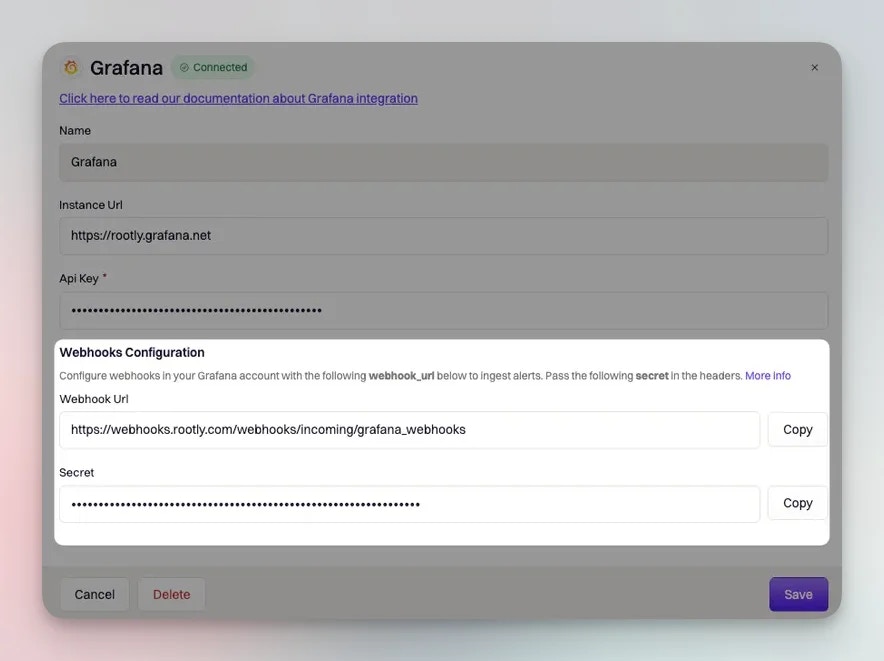
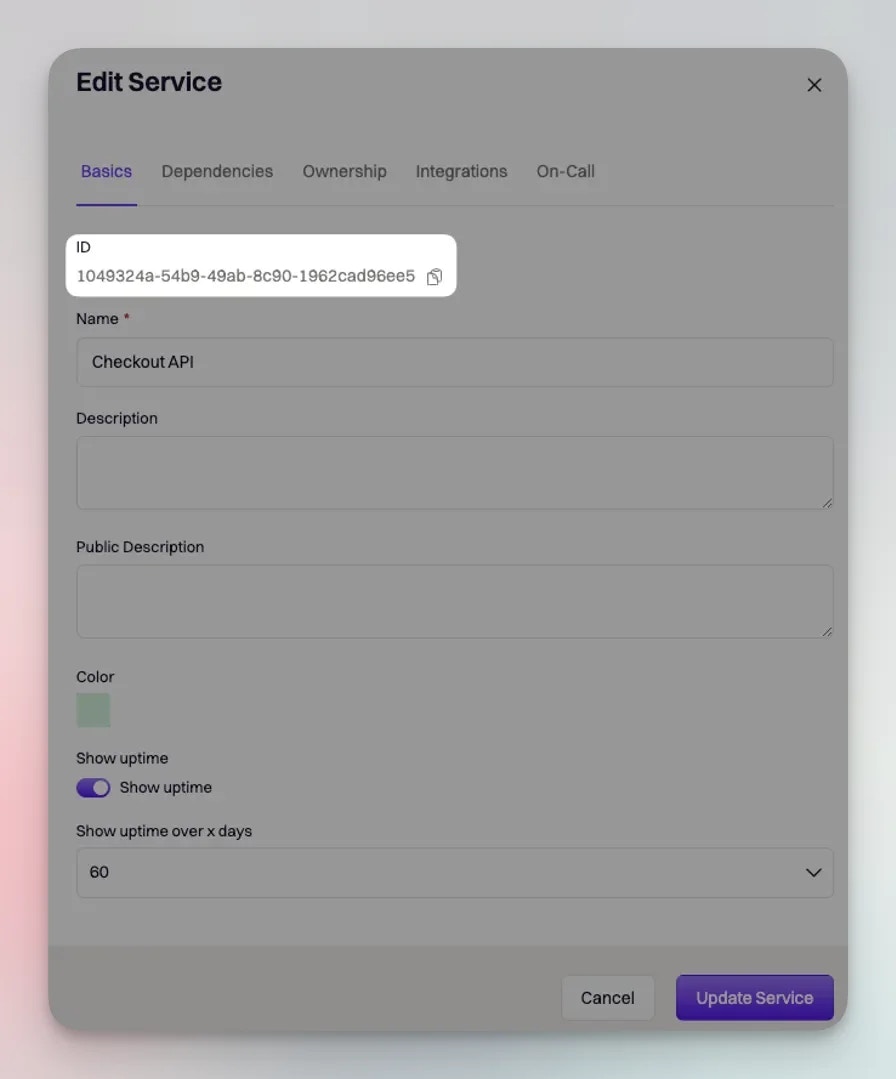 Your webhook URL and secret are available in Rootly under **Integrations > Grafana > Configure**.
Select **Test** to send a test alert to Rootly. A test alert should appear on your [Rootly Alerts page](https://rootly.com/account/alerts).
Your webhook URL and secret are available in Rootly under **Integrations > Grafana > Configure**.
Select **Test** to send a test alert to Rootly. A test alert should appear on your [Rootly Alerts page](https://rootly.com/account/alerts).
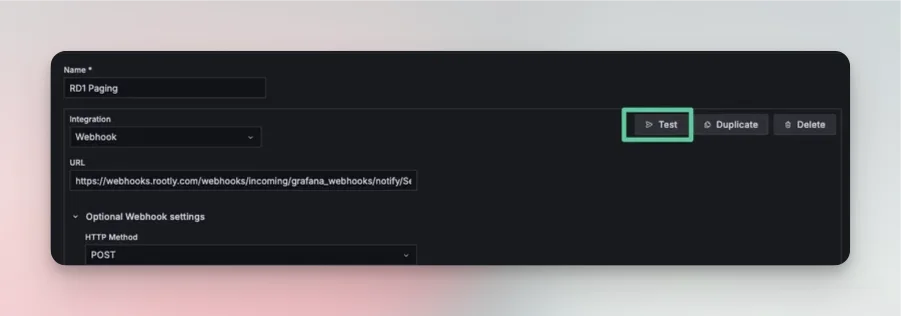 Once the test succeeds, select **Save contact point**.
## Attach the Contact Point to Alert Rules
A contact point only receives alerts when it is attached to an active alert rule.
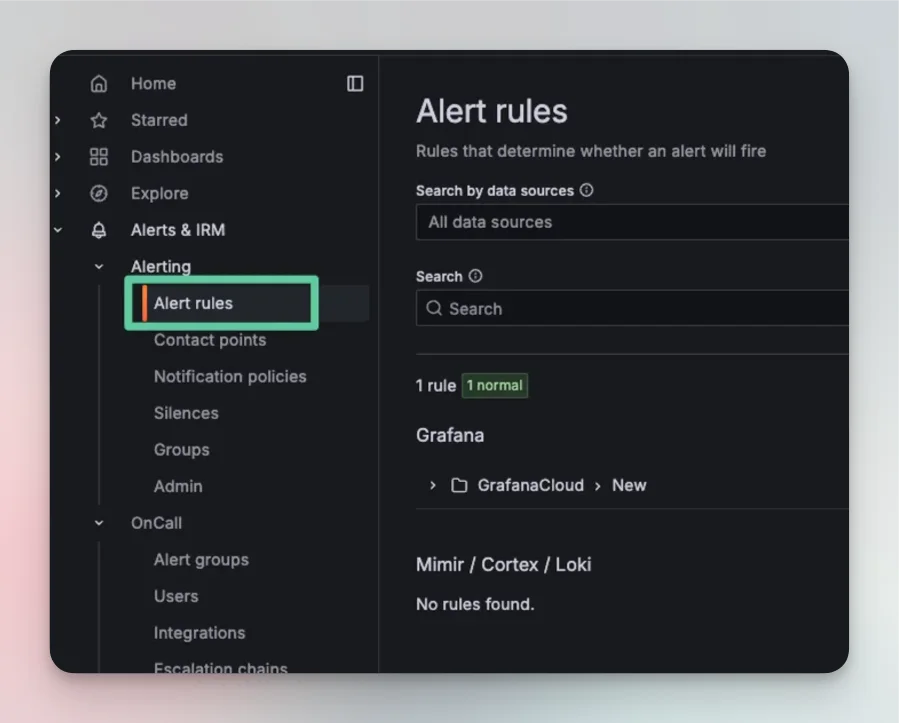
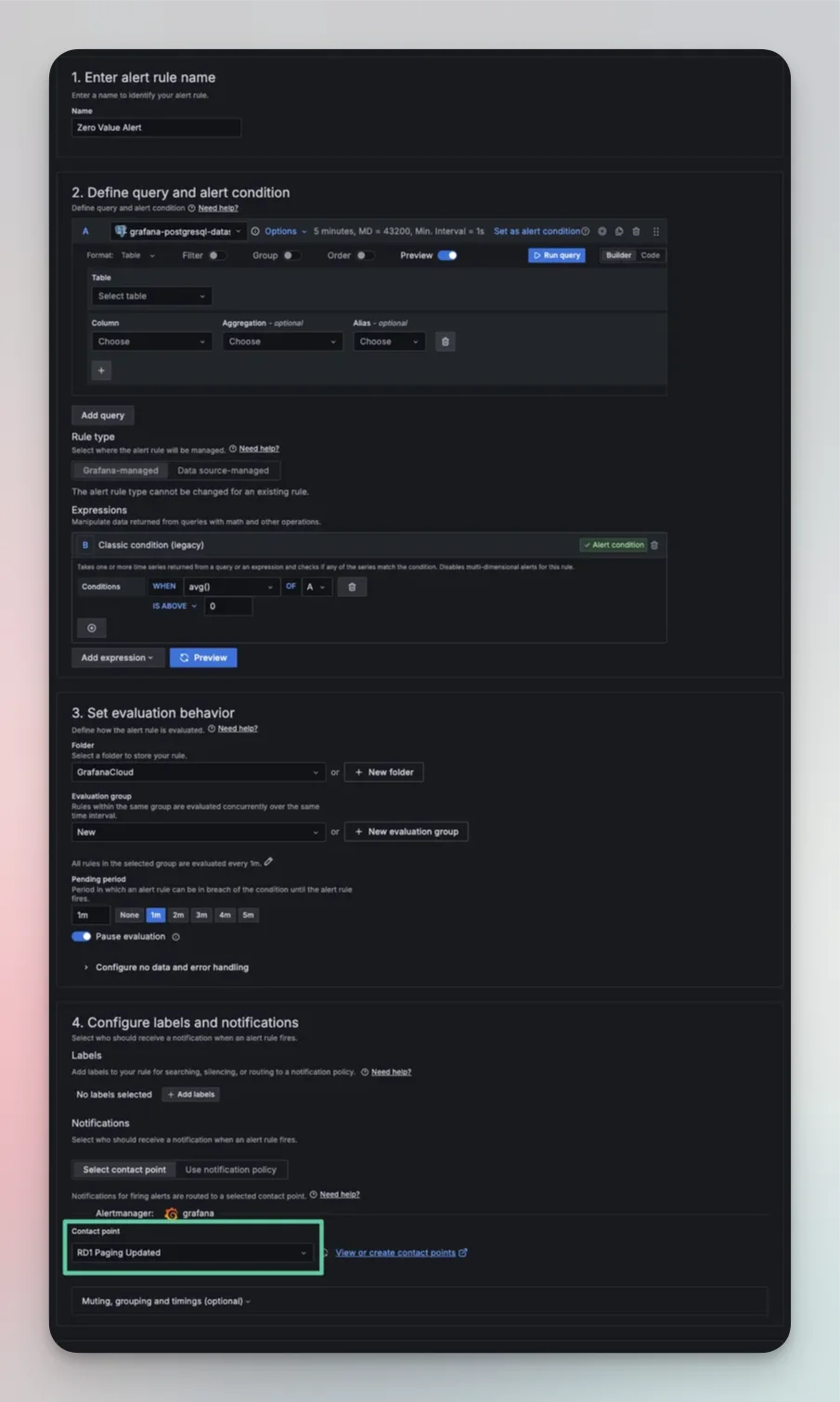
Navigate to **Alerting > Alert rules** and select **+ New alert rule**, or edit an existing rule. In the rule configuration, set the **Contact point** to the one you just created.
Once the test succeeds, select **Save contact point**.
## Attach the Contact Point to Alert Rules
A contact point only receives alerts when it is attached to an active alert rule.
Navigate to **Alerting > Alert rules** and select **+ New alert rule**, or edit an existing rule. In the rule configuration, set the **Contact point** to the one you just created.
 You can attach the same Rootly contact point to multiple alert rules. Use different contact point URLs (with different notification targets) to route different rules to different on-call targets.
 ## How Alerts Are Mapped
Rootly extracts the following fields from each Grafana webhook payload:
* **Summary** — the `title` field from the Grafana alert payload
* **External ID** — the `ruleId`, used to deduplicate alerts from the same rule
* **External URL** — the `ruleUrl`, linking back to the Grafana alert rule
* **Labels** — all key-value pairs from `commonLabels` are attached as Rootly alert labels, making them available for routing and filtering
Grafana `commonLabels` map directly to Rootly alert labels. You can use these labels in alert routing rules and workflow conditions to control how different Grafana alerts are handled.
## Troubleshooting
Confirm the contact point is correctly attached to the alert rule that fired. Verify the webhook URL is correct and the secret matches what is shown in your Rootly Grafana integration settings. Use the **Test** button in the contact point configuration to confirm delivery.
Check that the alert rule is in a firing state and that the contact point is set as the notification destination for that rule. Grafana alert rules that use notification policies rather than direct contact point assignment may route differently than expected.
Verify that the `resource_type` and `resource_id` in the notification target URL are correct and that the resource exists in Rootly. Ensure the resource type is one of `User`, `Group`, `EscalationPolicy`, or `Service`.
## How Alerts Are Mapped
Rootly extracts the following fields from each Grafana webhook payload:
* **Summary** — the `title` field from the Grafana alert payload
* **External ID** — the `ruleId`, used to deduplicate alerts from the same rule
* **External URL** — the `ruleUrl`, linking back to the Grafana alert rule
* **Labels** — all key-value pairs from `commonLabels` are attached as Rootly alert labels, making them available for routing and filtering
Grafana `commonLabels` map directly to Rootly alert labels. You can use these labels in alert routing rules and workflow conditions to control how different Grafana alerts are handled.
## Troubleshooting
Confirm the contact point is correctly attached to the alert rule that fired. Verify the webhook URL is correct and the secret matches what is shown in your Rootly Grafana integration settings. Use the **Test** button in the contact point configuration to confirm delivery.
Check that the alert rule is in a firing state and that the contact point is set as the notification destination for that rule. Grafana alert rules that use notification policies rather than direct contact point assignment may route differently than expected.
Verify that the `resource_type` and `resource_id` in the notification target URL are correct and that the resource exists in Rootly. Ensure the resource type is one of `User`, `Group`, `EscalationPolicy`, or `Service`.