> ## Documentation Index
> Fetch the complete documentation index at: https://docs.rootly.com/llms.txt
> Use this file to discover all available pages before exploring further.
# HashiCorp Vault
> Securely read secrets from HashiCorp Vault and inject them into Rootly workflow actions using Liquid templates with KV v1, KV v2, and namespace support.
## Introduction
The HashiCorp Vault integration lets Rootly securely read secrets from your Vault cluster and make them available in workflow actions via Liquid templating. Instead of hardcoding sensitive values — API keys, tokens, passwords — in your workflow configurations, you define named secret references that are resolved at runtime from Vault.
Rootly only supports the **KV Secrets Engine version 2**. KV v1 and other secret engines (AWS, PKI, Transit, etc.) are not currently supported.
## Before You Begin
Before setting up the HashiCorp Vault integration, make sure you have:
* A Rootly account with owner or admin permissions
* A running HashiCorp Vault cluster accessible over HTTPS (or HTTP for internal deployments)
* An **AppRole** configured in Vault with a `role_id` and `secret_id` — Rootly authenticates exclusively via the AppRole auth method
* The **namespace** your AppRole is configured in (enterprise Vault deployments)
* The **mount path** and **path** of the KV v2 secrets you want to expose to Rootly
Only the AppRole auth method is supported. If you need another auth method (token, Kubernetes, AWS IAM, etc.), contact [support@rootly.com](mailto:support@rootly.com).
## Installation
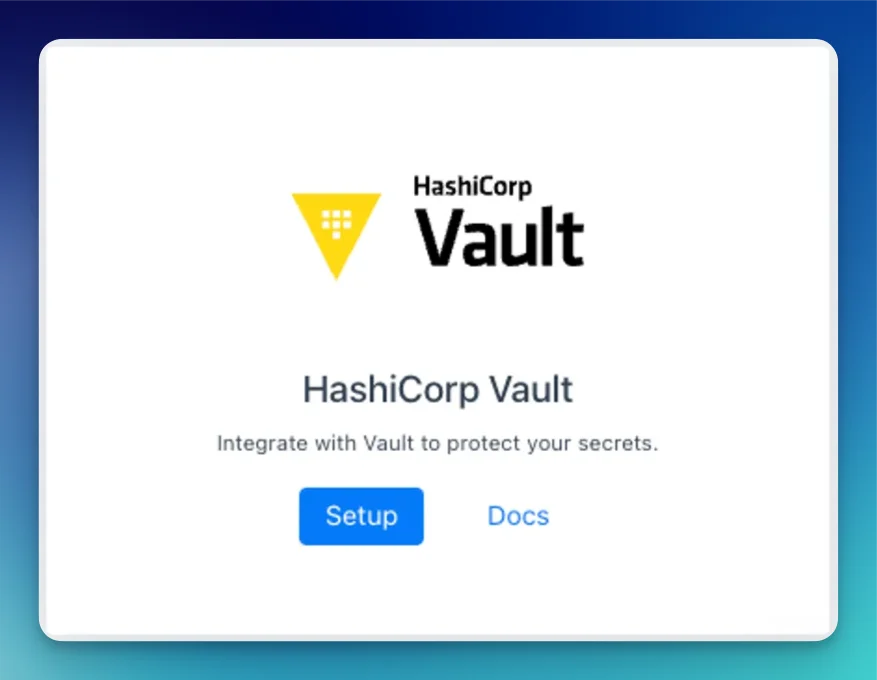
Navigate to the integrations page in your Rootly workspace and select **HashiCorp Vault**.
 Fill in the following fields:
| Field | Description |
| ---------------- | ----------------------------------------------------------------------------------------------------------- |
| **Instance URL** | Your Vault server URL — e.g., `https://vault.yourcompany.com`. Trailing slashes are stripped automatically. |
| **Namespace** | Your Vault namespace. For Vault Enterprise, this is typically `admin` or a child namespace. Required. |
| **Role ID** | The `role_id` from your AppRole configuration in Vault. Encrypted at rest in Rootly. |
| **Secret ID** | The `secret_id` from your AppRole configuration in Vault. Encrypted at rest in Rootly. |
Fill in the following fields:
| Field | Description |
| ---------------- | ----------------------------------------------------------------------------------------------------------- |
| **Instance URL** | Your Vault server URL — e.g., `https://vault.yourcompany.com`. Trailing slashes are stripped automatically. |
| **Namespace** | Your Vault namespace. For Vault Enterprise, this is typically `admin` or a child namespace. Required. |
| **Role ID** | The `role_id` from your AppRole configuration in Vault. Encrypted at rest in Rootly. |
| **Secret ID** | The `secret_id` from your AppRole configuration in Vault. Encrypted at rest in Rootly. |
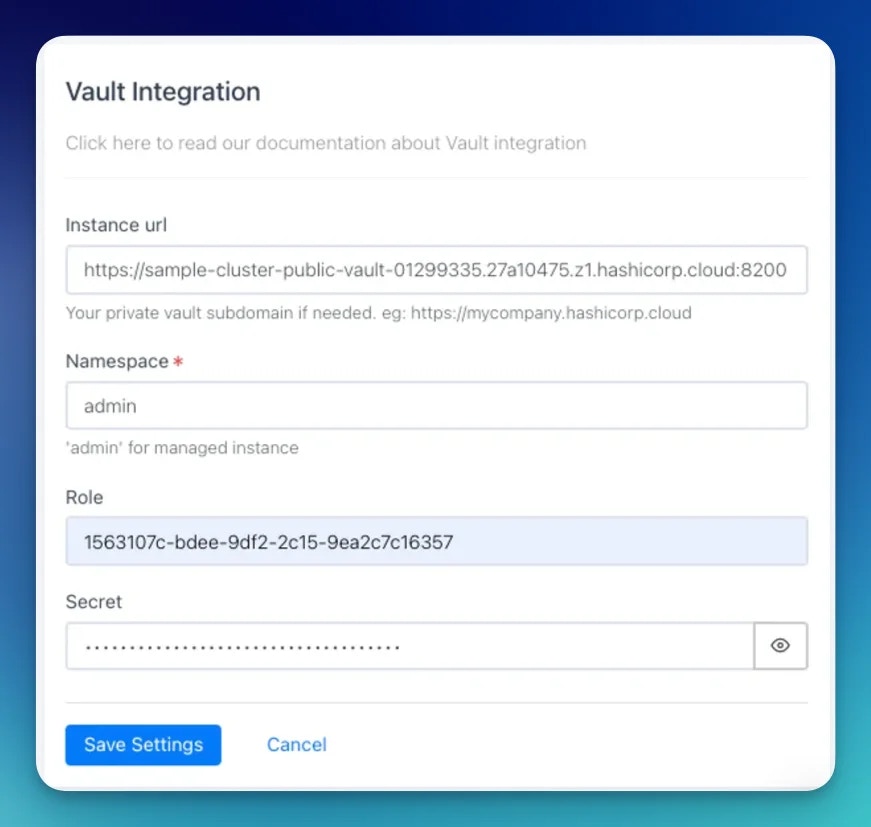 Rootly validates the credentials by attempting an AppRole login against your Vault instance before saving. If the login fails, you'll see: *"cannot access Vault service. Please check your credentials."*
Your HashiCorp Vault integration is active. You can now define named secrets under **Account > Secrets** and reference them in any workflow action.
## Defining Secrets
Once the Vault integration is connected, you create named **secret references** in Rootly that point to specific paths in your Vault KV store. These references are what you use in Liquid templates — Rootly fetches the actual secret value from Vault at workflow runtime.
By default, only Rootly **owners and admins** can create and manage secret definitions. You can adjust this via Rootly's RBAC settings.
Navigate to **Account > Secrets** and define a new HashiCorp Vault secret:
Rootly validates the credentials by attempting an AppRole login against your Vault instance before saving. If the login fails, you'll see: *"cannot access Vault service. Please check your credentials."*
Your HashiCorp Vault integration is active. You can now define named secrets under **Account > Secrets** and reference them in any workflow action.
## Defining Secrets
Once the Vault integration is connected, you create named **secret references** in Rootly that point to specific paths in your Vault KV store. These references are what you use in Liquid templates — Rootly fetches the actual secret value from Vault at workflow runtime.
By default, only Rootly **owners and admins** can create and manage secret definitions. You can adjust this via Rootly's RBAC settings.
Navigate to **Account > Secrets** and define a new HashiCorp Vault secret:
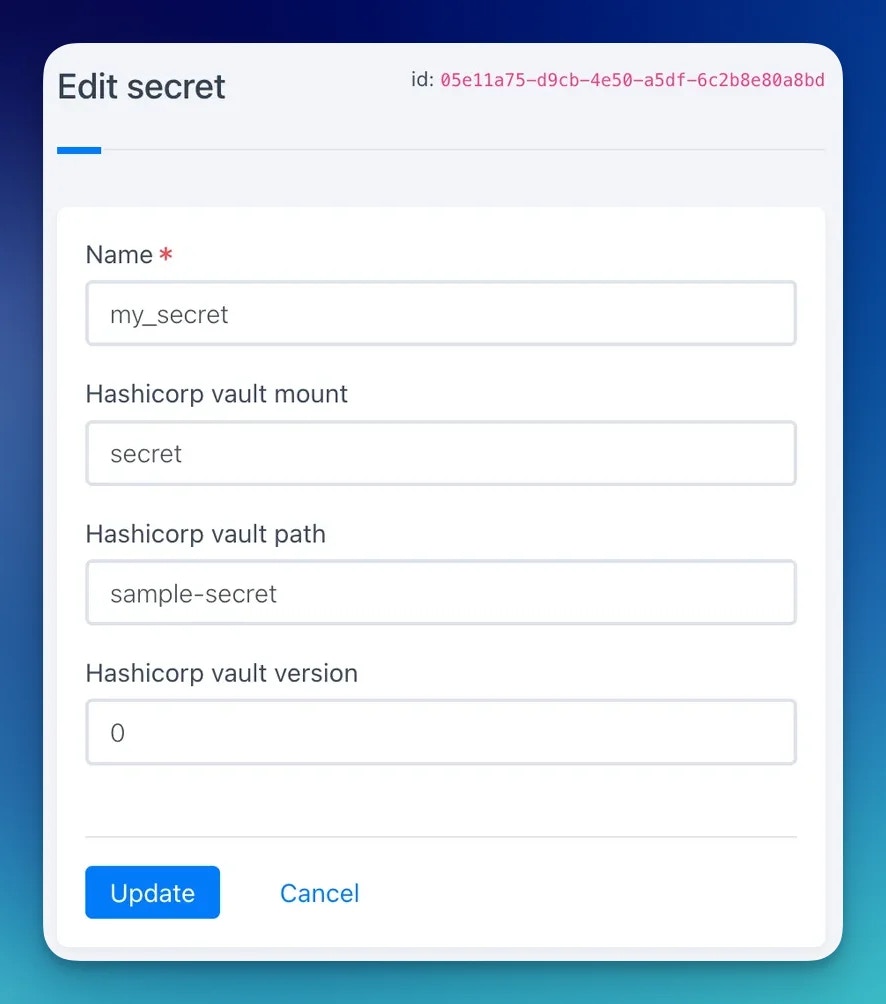 | Field | Description |
| ----------- | ------------------------------------------------------------------------------------------------------------------------ |
| **Name** | A unique name for this secret reference in Rootly (e.g., `pagerduty_key`). This is the name you use in Liquid templates. |
| **Mount** | The KV v2 mount path in Vault (default: `secret`). |
| **Path** | The path to the secret within the mount (e.g., `integrations/pagerduty`). |
| **Version** | The KV v2 version number to read. Set to `0` to always read the latest version. |
## Using Secrets in Workflows
Once a secret is defined, you can reference it in any workflow action that supports Liquid templating using the following syntax:
```liquid theme={null}
{{ secrets.SECRET_NAME.KEY_NAME }}
```
Where `SECRET_NAME` is the name you gave the secret in Rootly, and `KEY_NAME` is the key within the Vault secret JSON.
For example, given a Vault secret at `integrations/pagerduty` containing:
```json theme={null}
{
"api_key": "pd_key_abc123",
"webhook_token": {
"value": "wh_secret_xyz789"
}
}
```
You can reference it in a workflow action as:
```liquid theme={null}
{{ secrets.pagerduty_key.api_key }}
{{ secrets.pagerduty_key.webhook_token.value }}
```
Nested secret keys are supported — use dot notation to traverse the JSON structure.
## Troubleshooting
Rootly validates credentials by attempting an AppRole login at `{instance_url}/v1/auth/AppRole/login`. Confirm that:
* The instance URL is reachable from Rootly's servers (check any firewall or allowlist rules)
* The namespace is correct — for HCP Vault, this is typically `admin`
* The `role_id` and `secret_id` are both valid and haven't expired or been rotated
* The AppRole auth method is enabled at the path `auth/AppRole` in Vault
Check that:
* The **mount** and **path** in the Rootly secret definition match the actual path in Vault
* The **version** is set to `0` (latest) or a specific version that exists
* The AppRole has a policy granting `read` access to the secret path in KV v2 format: `secret/data/your/path`
* The KV engine is version 2 — KV v1 paths have a different structure and are not supported
Rootly uses dot notation to traverse JSON secret values. Ensure the key path in your Liquid template matches the JSON structure exactly, including case. For example, `{{ secrets.my_secret.nested.foo }}` requires a JSON structure of `{"nested": {"foo": "value"}}`.
The AppRole's attached Vault policy must explicitly grant `read` capability on the KV v2 data path. KV v2 paths follow the pattern `secret/data/` (not `secret/`). A minimal policy granting read access looks like:
```hcl theme={null}
path "secret/data/integrations/*" {
capabilities = ["read"]
}
```
Secret definitions are restricted to Rootly owners and admins by default. If you have a lower permission level, ask an admin to create the secret reference for you, or ask an admin to adjust the RBAC settings to allow your role to manage secrets.
## Uninstall
To disconnect the integration, navigate to the integrations panel, open the Vault integration, and click **Configure > Delete**.
## Related Pages
Use Vault secrets in workflow actions to authenticate with external systems during incidents.
Reference for all Liquid variables available in workflow actions alongside secrets.
Manage Rootly resources as infrastructure as code with the Rootly Terraform provider.
| Field | Description |
| ----------- | ------------------------------------------------------------------------------------------------------------------------ |
| **Name** | A unique name for this secret reference in Rootly (e.g., `pagerduty_key`). This is the name you use in Liquid templates. |
| **Mount** | The KV v2 mount path in Vault (default: `secret`). |
| **Path** | The path to the secret within the mount (e.g., `integrations/pagerduty`). |
| **Version** | The KV v2 version number to read. Set to `0` to always read the latest version. |
## Using Secrets in Workflows
Once a secret is defined, you can reference it in any workflow action that supports Liquid templating using the following syntax:
```liquid theme={null}
{{ secrets.SECRET_NAME.KEY_NAME }}
```
Where `SECRET_NAME` is the name you gave the secret in Rootly, and `KEY_NAME` is the key within the Vault secret JSON.
For example, given a Vault secret at `integrations/pagerduty` containing:
```json theme={null}
{
"api_key": "pd_key_abc123",
"webhook_token": {
"value": "wh_secret_xyz789"
}
}
```
You can reference it in a workflow action as:
```liquid theme={null}
{{ secrets.pagerduty_key.api_key }}
{{ secrets.pagerduty_key.webhook_token.value }}
```
Nested secret keys are supported — use dot notation to traverse the JSON structure.
## Troubleshooting
Rootly validates credentials by attempting an AppRole login at `{instance_url}/v1/auth/AppRole/login`. Confirm that:
* The instance URL is reachable from Rootly's servers (check any firewall or allowlist rules)
* The namespace is correct — for HCP Vault, this is typically `admin`
* The `role_id` and `secret_id` are both valid and haven't expired or been rotated
* The AppRole auth method is enabled at the path `auth/AppRole` in Vault
Check that:
* The **mount** and **path** in the Rootly secret definition match the actual path in Vault
* The **version** is set to `0` (latest) or a specific version that exists
* The AppRole has a policy granting `read` access to the secret path in KV v2 format: `secret/data/your/path`
* The KV engine is version 2 — KV v1 paths have a different structure and are not supported
Rootly uses dot notation to traverse JSON secret values. Ensure the key path in your Liquid template matches the JSON structure exactly, including case. For example, `{{ secrets.my_secret.nested.foo }}` requires a JSON structure of `{"nested": {"foo": "value"}}`.
The AppRole's attached Vault policy must explicitly grant `read` capability on the KV v2 data path. KV v2 paths follow the pattern `secret/data/` (not `secret/`). A minimal policy granting read access looks like:
```hcl theme={null}
path "secret/data/integrations/*" {
capabilities = ["read"]
}
```
Secret definitions are restricted to Rootly owners and admins by default. If you have a lower permission level, ask an admin to create the secret reference for you, or ask an admin to adjust the RBAC settings to allow your role to manage secrets.
## Uninstall
To disconnect the integration, navigate to the integrations panel, open the Vault integration, and click **Configure > Delete**.
## Related Pages
Use Vault secrets in workflow actions to authenticate with external systems during incidents.
Reference for all Liquid variables available in workflow actions alongside secrets.
Manage Rootly resources as infrastructure as code with the Rootly Terraform provider.