> ## Documentation Index
> Fetch the complete documentation index at: https://docs.rootly.com/llms.txt
> Use this file to discover all available pages before exploring further.
# Automating Jira Issues with Rootly Workflows
> Automate Jira issue creation and updates from Rootly incidents using Smart Defaults or custom workflow automation with project, fields, and label support.
Rootly gives you two ways to automate Jira issue creation and updates. Smart Defaults provides instant, zero-configuration automation. Custom Workflows let you add conditions, multiple actions, and advanced routing logic.
## Automation Options
**Setup fast and effortless**
Automatically create and manage Jira issues at incident start using pre-configured settings
Use workflows for conditional or advanced Jira issue automation
***
## Smart Defaults
Smart Defaults let you automatically generate a Jira issue whenever an incident begins — without building a workflow. New Rootly accounts have Smart Defaults enabled automatically. Existing accounts have it off by default to avoid conflicting with existing workflows.
To configure Smart Defaults, go to **Integrations → Jira → Configure**.
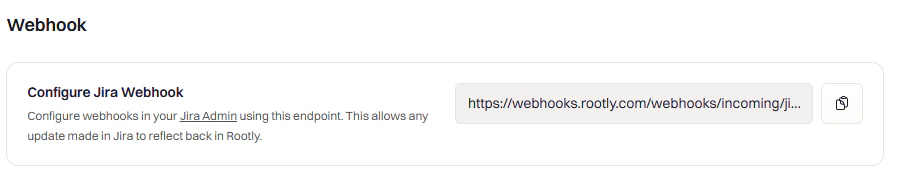
Configure webhooks in your Jira Admin using this endpoint to allow updates made in Jira to reflect back in Rootly.
See [Setting Up Jira Webhook](/integrations/jira/installation#setting-up-the-jira-webhook) for detailed steps.
 This section controls how Jira tickets are created from Rootly incidents.
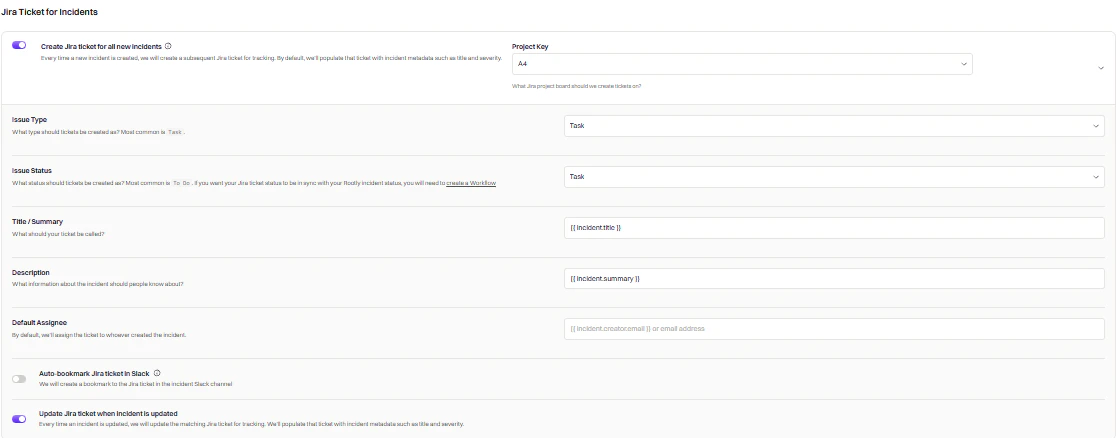 Automatically create a Jira ticket in the specified project as soon as an incident is declared in Rootly.
The Jira project where tickets will be created. If you need to route tickets to different projects based on conditions, disable this and use custom workflows instead.
The type of Jira issue to create. Options are pulled from the project specified in Project Key.
The initial status of the new ticket. Options are pulled from the selected project and issue type.
The Summary field of the Jira ticket. Defaults to `{{ incident.title }}`. Supports Liquid syntax.
The Description field of the Jira ticket. Defaults to `{{ incident.summary }}`. Supports Liquid syntax.
Assign the Jira ticket to a user by email address. If blank, the ticket is assigned to the incident creator. Supports Liquid syntax.
Automatically create a bookmark to the Jira ticket in the incident's Slack channel for quick access.
Automatically update the matching Jira ticket whenever the incident is updated. This is one-way: changes flow from Rootly to Jira only.
This section controls how Jira subtasks are created from Rootly action items.
Automatically create a Jira ticket in the specified project as soon as an incident is declared in Rootly.
The Jira project where tickets will be created. If you need to route tickets to different projects based on conditions, disable this and use custom workflows instead.
The type of Jira issue to create. Options are pulled from the project specified in Project Key.
The initial status of the new ticket. Options are pulled from the selected project and issue type.
The Summary field of the Jira ticket. Defaults to `{{ incident.title }}`. Supports Liquid syntax.
The Description field of the Jira ticket. Defaults to `{{ incident.summary }}`. Supports Liquid syntax.
Assign the Jira ticket to a user by email address. If blank, the ticket is assigned to the incident creator. Supports Liquid syntax.
Automatically create a bookmark to the Jira ticket in the incident's Slack channel for quick access.
Automatically update the matching Jira ticket whenever the incident is updated. This is one-way: changes flow from Rootly to Jira only.
This section controls how Jira subtasks are created from Rootly action items.
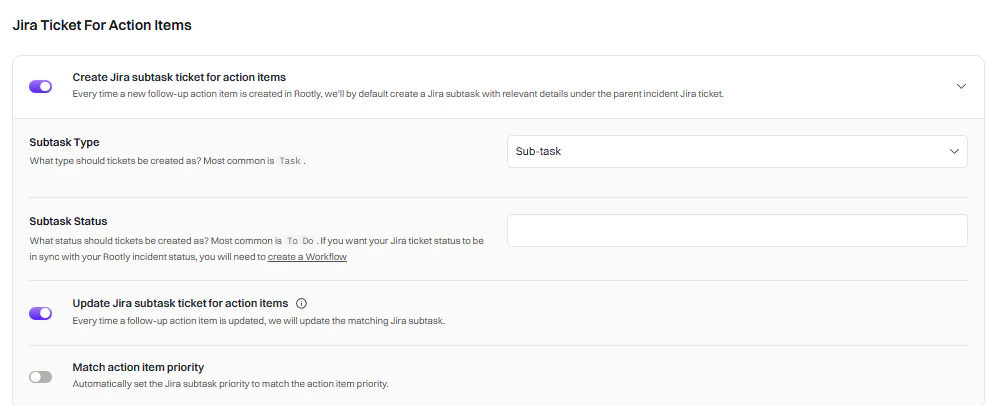 Automatically create a Jira subtask under the parent Jira ticket every time a new action item is created in Rootly.
Leave this field **blank**. Jira subtasks can only be one type. This field will be expanded in a future release.
The initial status of the new subtask. Options are pulled from the project specified in Project Key.
Automatically update the matching Jira subtask whenever an action item is updated. This is one-way: changes flow from Rootly to Jira only.
Automatically set the Jira subtask priority to match the action item priority in Rootly.
Use Smart Defaults when you want instant, built-in Jira issue automation without touching workflows. Build a workflow when you need conditions, custom triggers, multiple actions, or more advanced issue routing.
***
## Custom Workflows
Custom workflows give you full control over when and how Jira issues are created or updated. You can filter by severity, service, environment, and more — or chain multiple Jira actions together in a single workflow.
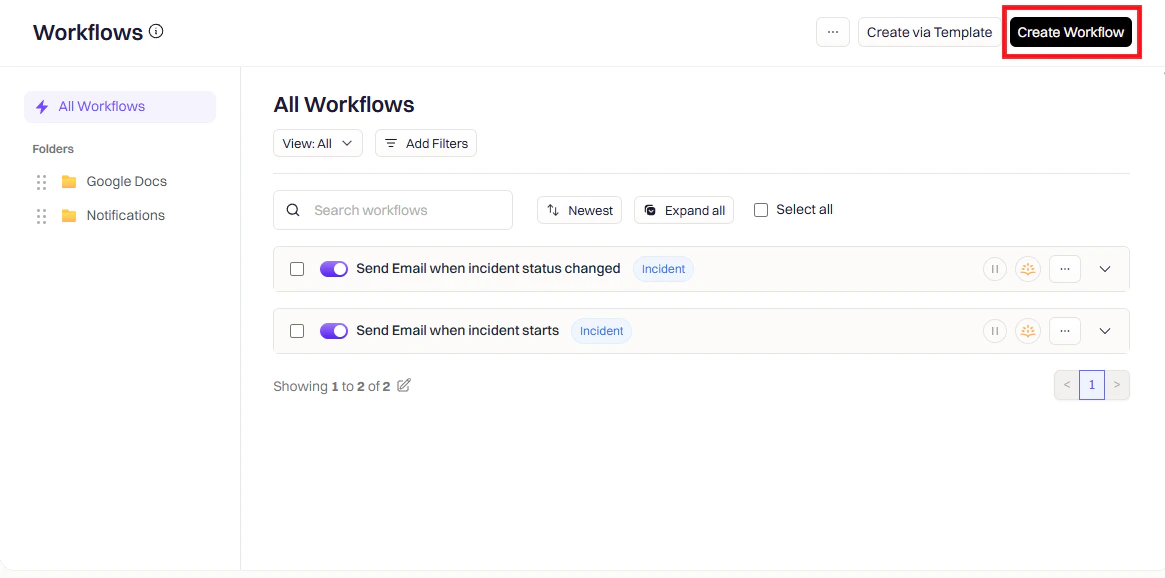
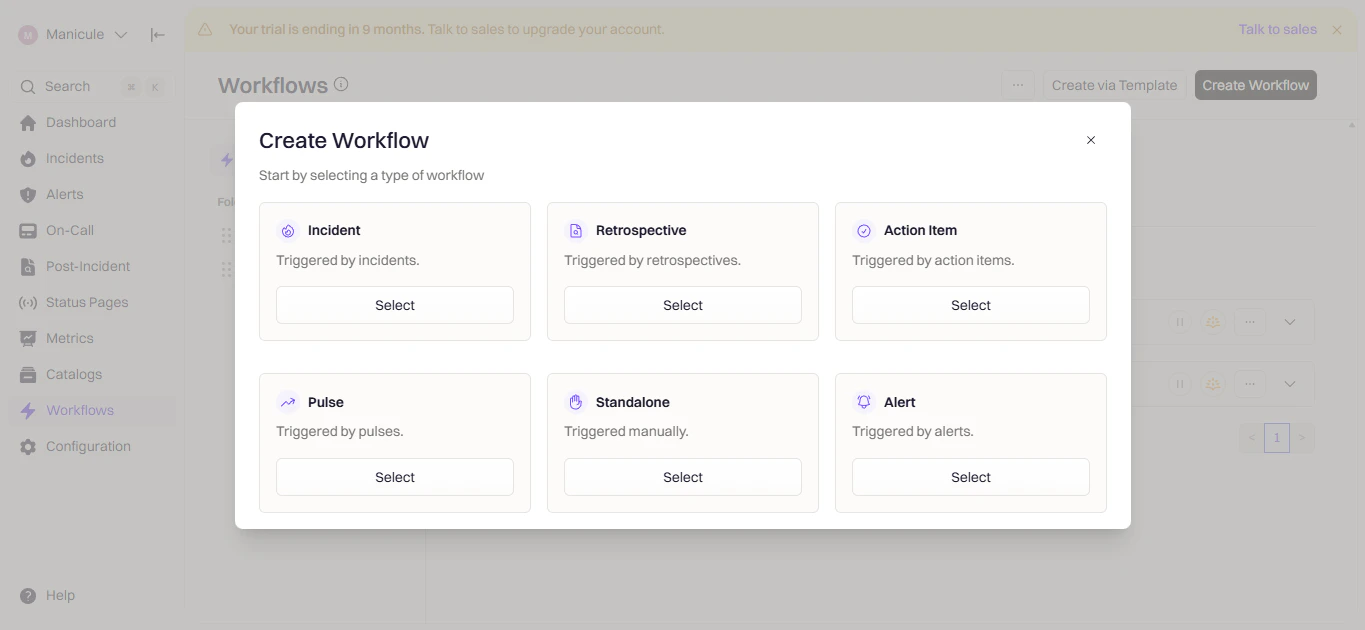
Open **Rootly → Workflows → Create Workflow** and choose the workflow type that matches your use case.
Automatically create a Jira subtask under the parent Jira ticket every time a new action item is created in Rootly.
Leave this field **blank**. Jira subtasks can only be one type. This field will be expanded in a future release.
The initial status of the new subtask. Options are pulled from the project specified in Project Key.
Automatically update the matching Jira subtask whenever an action item is updated. This is one-way: changes flow from Rootly to Jira only.
Automatically set the Jira subtask priority to match the action item priority in Rootly.
Use Smart Defaults when you want instant, built-in Jira issue automation without touching workflows. Build a workflow when you need conditions, custom triggers, multiple actions, or more advanced issue routing.
***
## Custom Workflows
Custom workflows give you full control over when and how Jira issues are created or updated. You can filter by severity, service, environment, and more — or chain multiple Jira actions together in a single workflow.
Open **Rootly → Workflows → Create Workflow** and choose the workflow type that matches your use case.

 Triggers define when the workflow runs. Choose the event that should create or update a Jira issue.
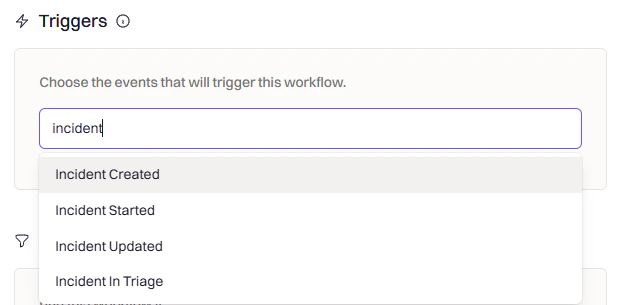 | Trigger | What it does |
| ------------------------------- | -------------------------------------------------------- |
| **Incident Created** | Creates a Jira issue as soon as a new incident is opened |
| **Incident Updated** | Fires when fields like severity or status change |
| **Incident Status Changed** | Triggers when the incident moves to a specific status |
| **Incident Commander Assigned** | Fires once someone takes ownership |
| **Manual Trigger** | Run manually from the UI when needed |
Choose the trigger that fires only when you actually need a Jira issue. Avoid creating issues earlier than necessary.
Conditions let you control when the workflow should run after it's been triggered. This keeps your Jira project clean by limiting automation to the incidents that matter.
| Trigger | What it does |
| ------------------------------- | -------------------------------------------------------- |
| **Incident Created** | Creates a Jira issue as soon as a new incident is opened |
| **Incident Updated** | Fires when fields like severity or status change |
| **Incident Status Changed** | Triggers when the incident moves to a specific status |
| **Incident Commander Assigned** | Fires once someone takes ownership |
| **Manual Trigger** | Run manually from the UI when needed |
Choose the trigger that fires only when you actually need a Jira issue. Avoid creating issues earlier than necessary.
Conditions let you control when the workflow should run after it's been triggered. This keeps your Jira project clean by limiting automation to the incidents that matter.
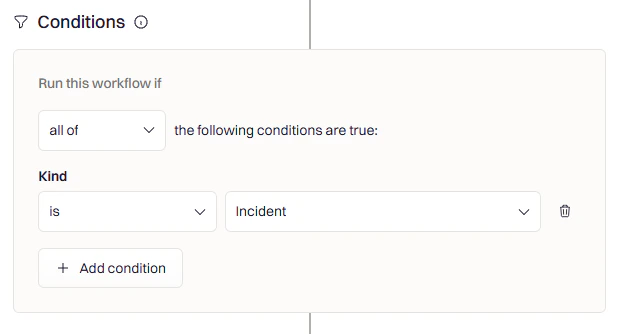 Common condition setups:
* **Severity-based** — Only create Jira issues for SEV-1 or SEV-2 incidents
* **Team or service filters** — Only fire for incidents impacting specific teams or services
* **Incident type** — Ensure the workflow only runs when the Kind is set to Incident
* **Environment** — Trigger only for customer-facing or production-impacting incidents
Use conditions to avoid unnecessary Jira issues and keep the workflow focused.
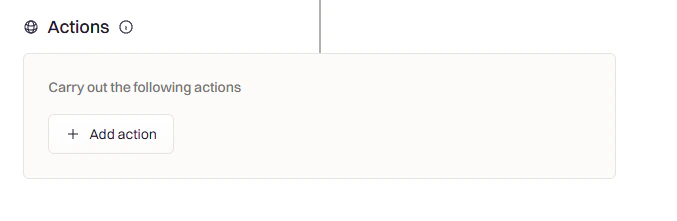
Actions are the steps that run when the workflow fires. Click **Add Action**, then search for **Jira** to see the available actions.
Common condition setups:
* **Severity-based** — Only create Jira issues for SEV-1 or SEV-2 incidents
* **Team or service filters** — Only fire for incidents impacting specific teams or services
* **Incident type** — Ensure the workflow only runs when the Kind is set to Incident
* **Environment** — Trigger only for customer-facing or production-impacting incidents
Use conditions to avoid unnecessary Jira issues and keep the workflow focused.
Actions are the steps that run when the workflow fires. Click **Add Action**, then search for **Jira** to see the available actions.
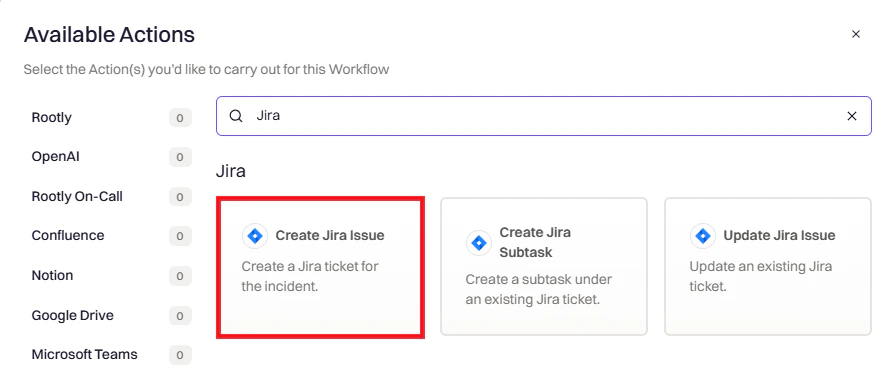 #### Create Jira Issue
Creates a new Jira issue for an incident or retrospective.
#### Create Jira Issue
Creates a new Jira issue for an incident or retrospective.
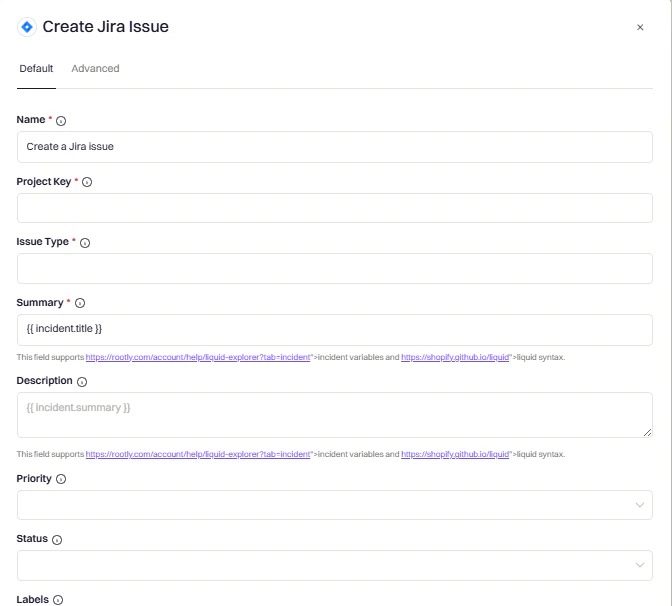 Optional label for this action. Does not affect behavior.
The Jira project where the issue will be created.
The type of Jira issue to create (e.g., Bug, Task, Story). Options are pulled from the selected project.
Title of the Jira issue. Supports Liquid syntax (e.g., `{{ incident.title }}`).
Detailed description. Supports Liquid syntax (e.g., `{{ incident.summary }}`).
Priority of the Jira issue (e.g., High, Medium, Low).
Initial status of the issue. Options are pulled from the selected project and issue type.
Jira labels to categorize the issue. Supports multiple values.
Optional due date. Supports Liquid syntax or fixed dates.
The reporter for the Jira issue. Defaults to the incident creator. Supports Liquid syntax.
The assignee for the Jira issue. Supports Liquid syntax.
Prevents the workflow from stopping if this action fails.
Toggle this action on or off, useful when testing.
Use Rootly's [Liquid Variable Explorer](https://rootly.com/account/help/liquid-explorer) to test variables before using them in your workflow.
#### Update Jira Issue
Updates an existing Jira issue. You must reference the issue using `{{ incident.jira_issue_id }}` in the **Jira Issue to Update** field.
This action only works if a Jira issue has already been created and linked to the incident.
The Update Jira Issue action also works inside [Action Item Workflows](/workflows/action-item-workflows). When paired with the `Action Item Updated` trigger, it's the canonical way to enrich Jira tickets created via **Export to ticketing** with incident context (Rootly URL, severity, services, etc.) — see [Linking Exported Tasks Back to the Incident](/incidents/action-items/adding-action-items-via-web-ui#linking-exported-tasks-back-to-the-incident). In an action item workflow, use `{{ action_item.jira_issue_id }}` instead of the incident-side variable.
#### Create Jira Subtask
Creates a subtask under an existing Jira issue. Reference the parent issue using `{{ incident.jira_issue_id }}` in the **Parent Jira Issue** field. The **Project Key** must match the one used to create the parent issue.
This action is intended for action items or sub-incidents.
Give your workflow a descriptive name (e.g., "Create Jira Issue on SEV-1 Incident"), then click **Create Workflow**.
***
## Jira Native Field Mapping
Some Jira fields behave differently than standard custom fields. This section explains how to correctly map Rootly fields to Jira's **native** fields.
These mappings go in the **Custom Fields Mapping** section of the Jira action, not the API Payload section.
Jira's native Labels field uses a different syntax than custom label-type fields.
**Map Rootly services to Jira Labels:**
```json theme={null}
"customfield_12345": {{ incident.service_slugs | join: ","}}
```
**Map a Rootly custom multi-select to Jira Labels:**
```json theme={null}
"customfield_10033": {{ incident.custom_fields | find: 'custom_field.slug', 'your_custom_field_slug' | get: 'selected_options' | map: 'value' | join: "," }}
```
Replace `customfield_12345` with your actual Jira field ID. Find field IDs in **Jira Settings → Issues → Custom Fields**.
Jira's native Team field is stored as a custom field but only allows a single team selection.
**Map a static Jira Team ID:**
```json theme={null}
"customfield_10001": ""
```
**Map Rootly's first team dynamically:**
```json theme={null}
"customfield_10001": "{{ incident.raw_groups[0] | get: 'description' }}"
```
This example assumes you store the corresponding Jira Team ID in the Rootly team's description field. Adjust based on how your teams are configured.
***
## Custom Fields Mapping
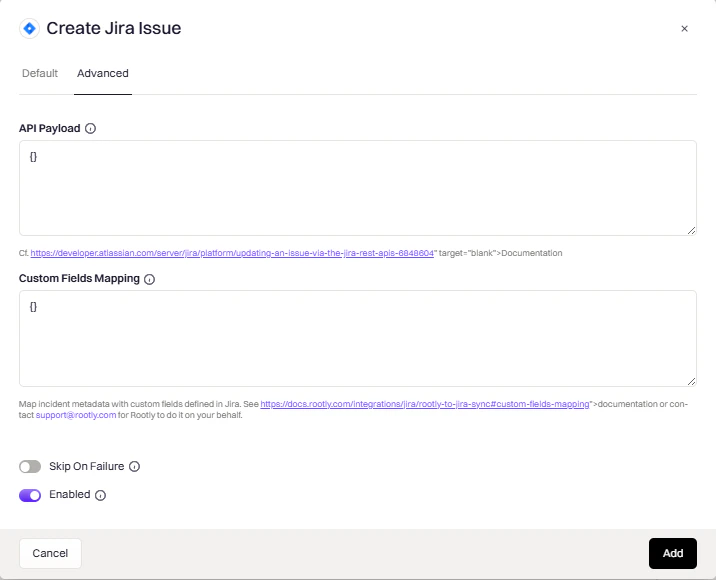
The **Custom Fields Mapping** section lets you map Rootly incident data to Jira custom fields dynamically.
Optional label for this action. Does not affect behavior.
The Jira project where the issue will be created.
The type of Jira issue to create (e.g., Bug, Task, Story). Options are pulled from the selected project.
Title of the Jira issue. Supports Liquid syntax (e.g., `{{ incident.title }}`).
Detailed description. Supports Liquid syntax (e.g., `{{ incident.summary }}`).
Priority of the Jira issue (e.g., High, Medium, Low).
Initial status of the issue. Options are pulled from the selected project and issue type.
Jira labels to categorize the issue. Supports multiple values.
Optional due date. Supports Liquid syntax or fixed dates.
The reporter for the Jira issue. Defaults to the incident creator. Supports Liquid syntax.
The assignee for the Jira issue. Supports Liquid syntax.
Prevents the workflow from stopping if this action fails.
Toggle this action on or off, useful when testing.
Use Rootly's [Liquid Variable Explorer](https://rootly.com/account/help/liquid-explorer) to test variables before using them in your workflow.
#### Update Jira Issue
Updates an existing Jira issue. You must reference the issue using `{{ incident.jira_issue_id }}` in the **Jira Issue to Update** field.
This action only works if a Jira issue has already been created and linked to the incident.
The Update Jira Issue action also works inside [Action Item Workflows](/workflows/action-item-workflows). When paired with the `Action Item Updated` trigger, it's the canonical way to enrich Jira tickets created via **Export to ticketing** with incident context (Rootly URL, severity, services, etc.) — see [Linking Exported Tasks Back to the Incident](/incidents/action-items/adding-action-items-via-web-ui#linking-exported-tasks-back-to-the-incident). In an action item workflow, use `{{ action_item.jira_issue_id }}` instead of the incident-side variable.
#### Create Jira Subtask
Creates a subtask under an existing Jira issue. Reference the parent issue using `{{ incident.jira_issue_id }}` in the **Parent Jira Issue** field. The **Project Key** must match the one used to create the parent issue.
This action is intended for action items or sub-incidents.
Give your workflow a descriptive name (e.g., "Create Jira Issue on SEV-1 Incident"), then click **Create Workflow**.
***
## Jira Native Field Mapping
Some Jira fields behave differently than standard custom fields. This section explains how to correctly map Rootly fields to Jira's **native** fields.
These mappings go in the **Custom Fields Mapping** section of the Jira action, not the API Payload section.
Jira's native Labels field uses a different syntax than custom label-type fields.
**Map Rootly services to Jira Labels:**
```json theme={null}
"customfield_12345": {{ incident.service_slugs | join: ","}}
```
**Map a Rootly custom multi-select to Jira Labels:**
```json theme={null}
"customfield_10033": {{ incident.custom_fields | find: 'custom_field.slug', 'your_custom_field_slug' | get: 'selected_options' | map: 'value' | join: "," }}
```
Replace `customfield_12345` with your actual Jira field ID. Find field IDs in **Jira Settings → Issues → Custom Fields**.
Jira's native Team field is stored as a custom field but only allows a single team selection.
**Map a static Jira Team ID:**
```json theme={null}
"customfield_10001": ""
```
**Map Rootly's first team dynamically:**
```json theme={null}
"customfield_10001": "{{ incident.raw_groups[0] | get: 'description' }}"
```
This example assumes you store the corresponding Jira Team ID in the Rootly team's description field. Adjust based on how your teams are configured.
***
## Custom Fields Mapping
The **Custom Fields Mapping** section lets you map Rootly incident data to Jira custom fields dynamically.
 ### What You Need
| Item | Where to Find It |
| ------------------- | -------------------------------------------------------------------------------------------- |
| **Jira Field ID** | Jira Settings → Issues → Custom Fields → Click field → ID in URL (e.g., `customfield_12345`) |
| **Field Type** | Same location, check the field type (text, select, multi-select, etc.) |
| **Rootly Property** | Use the [Liquid Variable Explorer](https://rootly.com/account/help/liquid-explorer) |
For detailed instructions on finding Jira field IDs, see [Atlassian's documentation](https://confluence.atlassian.com/jirakb/how-to-find-id-for-custom-field-s-744522503.html).
### Field Type Mappings
```json theme={null}
// Rootly native field → Jira text
"customfield_12345": "{{ incident.functionalities }}"
// Rootly custom field → Jira text
"customfield_12345": "{{ incident.custom_fields | find: 'custom_field.slug', 'your-slug' | get: 'selected_options' | map: 'value' }}"
```
Note the `{ "value": ... }` wrapper required by Jira:
```json theme={null}
// Rootly team name → Jira single select
"customfield_12345": { "value": "{{ incident.raw_groups | first | get: 'name' }}" }
// Rootly custom field → Jira single select
"customfield_12345": { "value": "{{ incident.custom_fields | find: 'custom_field.slug', 'your_slug' | get: 'selected_options' | map: 'value' }}" }
```
**Simple approach (Rootly custom multi-select):**
```json theme={null}
"customfield_12345": {{ incident.custom_fields | find: 'custom_field.slug', 'your_slug' | get: 'selected_options' | to_values }}
```
**Manual array building (Rootly native fields):**
```liquid theme={null}
{% assign functions = incident.functionalities %}
{% assign array = "" %}
{% for function in functions %}
{% assign item = '{"value":"' | append: function | append: '"}' %}
{% assign array = array | append: item | append: "," %}
{% endfor %}
{% capture final_array %}[{{ array | remove_last: ',' }}]{% endcapture %}
"customfield_12345": {{ final_array }}
```
For Jira custom fields of type "Labels" (different from the native Labels field):
```json theme={null}
// Rootly services → Jira custom labels
"customfield_12345": {{ incident.service_slugs | to_json }}
// Rootly custom multi-select → Jira custom labels
"customfield_10033": {{ incident.custom_fields | find: 'custom_field.slug', 'your_slug' | get: 'selected_options' | map: 'value' | to_json }}
```
```json theme={null}
"customfield_26117": {{ incident.custom_fields | find: 'custom_field.slug', 'your_slug' | get: 'selected_options.value' }}
```
Must use ISO 8601 format:
```json theme={null}
// Rootly incident start time → Jira datetime
"customfield_10030": "{{ incident.started_at | date: '%FT%T%:z' }}"
// Rootly custom datetime → Jira datetime
"customfield_26218": "{{ incident.custom_fields | find: 'custom_field.slug', 'your_slug' | get: 'selected_options.value' | date: '%Y-%m-%dT%H:%M:%S.%d%z' }}"
```
**Single user:**
```json theme={null}
{% assign jira_email = incident.roles | find: 'incident_role.slug', 'incident-commander' | get: 'user.email' %}
"customfield_20825": { "id": "{{ team.jira_users | where: 'email', jira_email | first | get: 'account_id' }}" }
```
**Multiple users:**
```json theme={null}
{% assign jira_email = incident.roles | find: 'incident_role.slug', 'incident-commander' | get: 'user.email' %}
"customfield_20825": [{ "id": "{{ team.jira_users | where: 'email', jira_email | first | get: 'account_id' }}" }]
```
### How to Test Your Mapping
1. Create a test incident in Rootly
2. Run your workflow manually
3. Check the Jira issue to verify fields are populated correctly
4. If errors occur, go to **Workflows → Your Workflow → ... → View Runs** to see the error details
***
## API Payload
The **API Payload** section provides direct access to Jira's REST API for advanced field updates not available through Custom Fields Mapping.
API Payload uses Jira's [update issue REST API](https://developer.atlassian.com/server/jira/platform/updating-an-issue-via-the-jira-rest-apis-6848604/). Fields use verb-based operations: `set`, `add`, and `remove`.
### When to Use API Payload
| Use Case | Use API Payload |
| ------------------------ | ----------------------------------- |
| Set priority dynamically | Yes |
| Add comments | Yes (Update Jira Issue action only) |
| Link issues together | Yes |
| Set native Labels field | Yes |
| Set Components field | Yes |
| Map custom fields | No, use Custom Fields Mapping |
### API Payload Examples
```liquid theme={null}
{% if incident.severity_slug == 'sev0' %}
{ "priority": [ { "set": { "name" : "High" } } ] }
{% elsif incident.severity_slug == 'sev1' %}
{ "priority": [ { "set": { "name" : "Medium" } } ] }
{% elsif incident.severity_slug == 'sev2' %}
{ "priority": [ { "set": { "name" : "Low" } } ] }
{% endif %}
```
Add a comment to an existing Jira issue. Only works with the **Update Jira Issue** action.
```json theme={null}
{
"comment": [
{
"add": {
"body": "Incident {{ incident.title }} has been updated. Current status: {{ incident.status }}"
}
}
]
}
```
Comments can only be added to existing issues. Use this with the Update Jira Issue action, not Create.
**"Relates to" link:**
```json theme={null}
{
"issuelinks": [
{
"add": {
"type": { "name": "Relates", "outward": "relates to" },
"outwardIssue": { "id": "{{ incident.jira_issue_id }}" }
}
}
]
}
```
**Custom "Action item for" link:**
```json theme={null}
{
"issuelinks": [
{
"add": {
"type": { "name": "Action", "outward": "action item for" },
"outwardIssue": { "id": "{{ incident.jira_issue_id }}" }
}
}
]
}
```
```json theme={null}
{
"labels": [{ "set": ["incident", "production", "{{ incident.severity }}"] }]
}
```
```liquid theme={null}
{% assign components = incident.services %}
{
"components": [
{
"set": [
{% for component in components %}
{ "name": "{{ component }}" }{% unless forloop.last %},{% endunless %}
{% endfor %}
]
}
]
}
```
Component names must match exactly between Rootly and Jira. If a component doesn't exist in Jira, the update will fail.
### API Payload Verbs
| Verb | Description | Example |
| -------- | ------------------------- | ------------------------------------------------ |
| `set` | Replace the current value | `{ "labels": [{ "set": ["label1"] }] }` |
| `add` | Add to current values | `{ "comment": [{ "add": { "body": "text" } }] }` |
| `remove` | Remove specific values | `{ "labels": [{ "remove": "old-label" }] }` |
***
## Debugging
To view error details, locate the workflow in Rootly, then select **... → View Runs → View**.
| Error | Cause | Fix |
| -------------------------------------------------- | ------------------------------------------------------------- | --------------------------------------------------------- |
| `issue_id cannot be null.` | The Jira issue you're trying to update doesn't exist yet | Ensure the Create action runs before the Update action |
| `"customfield_12345": "Custom Field is required."` | A required Jira custom field isn't being populated | Add a mapping for the field, or make it optional in Jira |
| `unexpected token at '{ "customfield_10032": }'` | Custom mapping syntax is invalid | Fix your JSON syntax |
| `Specify a valid project ID or key` | The selected Project Key isn't available in the Jira instance | Reselect the Jira instance, then reselect the Project Key |
| `The issue type selected is invalid.` | The selected issue type doesn't exist in the project | Reselect the Project Key, then reselect the Issue Type |
***
## Best Practices
* **Name workflows clearly.** Use names like `Create Bug on High-Priority Incident` or `Update Jira Issue on Resolution` so the intent is obvious.
* **Keep logic simple.** Avoid overly complex conditions or chained automations — simpler workflows are easier to debug.
* **Test in a sandbox project.** Before applying to production, trigger test incidents to verify issues are created and updated as expected.
### What You Need
| Item | Where to Find It |
| ------------------- | -------------------------------------------------------------------------------------------- |
| **Jira Field ID** | Jira Settings → Issues → Custom Fields → Click field → ID in URL (e.g., `customfield_12345`) |
| **Field Type** | Same location, check the field type (text, select, multi-select, etc.) |
| **Rootly Property** | Use the [Liquid Variable Explorer](https://rootly.com/account/help/liquid-explorer) |
For detailed instructions on finding Jira field IDs, see [Atlassian's documentation](https://confluence.atlassian.com/jirakb/how-to-find-id-for-custom-field-s-744522503.html).
### Field Type Mappings
```json theme={null}
// Rootly native field → Jira text
"customfield_12345": "{{ incident.functionalities }}"
// Rootly custom field → Jira text
"customfield_12345": "{{ incident.custom_fields | find: 'custom_field.slug', 'your-slug' | get: 'selected_options' | map: 'value' }}"
```
Note the `{ "value": ... }` wrapper required by Jira:
```json theme={null}
// Rootly team name → Jira single select
"customfield_12345": { "value": "{{ incident.raw_groups | first | get: 'name' }}" }
// Rootly custom field → Jira single select
"customfield_12345": { "value": "{{ incident.custom_fields | find: 'custom_field.slug', 'your_slug' | get: 'selected_options' | map: 'value' }}" }
```
**Simple approach (Rootly custom multi-select):**
```json theme={null}
"customfield_12345": {{ incident.custom_fields | find: 'custom_field.slug', 'your_slug' | get: 'selected_options' | to_values }}
```
**Manual array building (Rootly native fields):**
```liquid theme={null}
{% assign functions = incident.functionalities %}
{% assign array = "" %}
{% for function in functions %}
{% assign item = '{"value":"' | append: function | append: '"}' %}
{% assign array = array | append: item | append: "," %}
{% endfor %}
{% capture final_array %}[{{ array | remove_last: ',' }}]{% endcapture %}
"customfield_12345": {{ final_array }}
```
For Jira custom fields of type "Labels" (different from the native Labels field):
```json theme={null}
// Rootly services → Jira custom labels
"customfield_12345": {{ incident.service_slugs | to_json }}
// Rootly custom multi-select → Jira custom labels
"customfield_10033": {{ incident.custom_fields | find: 'custom_field.slug', 'your_slug' | get: 'selected_options' | map: 'value' | to_json }}
```
```json theme={null}
"customfield_26117": {{ incident.custom_fields | find: 'custom_field.slug', 'your_slug' | get: 'selected_options.value' }}
```
Must use ISO 8601 format:
```json theme={null}
// Rootly incident start time → Jira datetime
"customfield_10030": "{{ incident.started_at | date: '%FT%T%:z' }}"
// Rootly custom datetime → Jira datetime
"customfield_26218": "{{ incident.custom_fields | find: 'custom_field.slug', 'your_slug' | get: 'selected_options.value' | date: '%Y-%m-%dT%H:%M:%S.%d%z' }}"
```
**Single user:**
```json theme={null}
{% assign jira_email = incident.roles | find: 'incident_role.slug', 'incident-commander' | get: 'user.email' %}
"customfield_20825": { "id": "{{ team.jira_users | where: 'email', jira_email | first | get: 'account_id' }}" }
```
**Multiple users:**
```json theme={null}
{% assign jira_email = incident.roles | find: 'incident_role.slug', 'incident-commander' | get: 'user.email' %}
"customfield_20825": [{ "id": "{{ team.jira_users | where: 'email', jira_email | first | get: 'account_id' }}" }]
```
### How to Test Your Mapping
1. Create a test incident in Rootly
2. Run your workflow manually
3. Check the Jira issue to verify fields are populated correctly
4. If errors occur, go to **Workflows → Your Workflow → ... → View Runs** to see the error details
***
## API Payload
The **API Payload** section provides direct access to Jira's REST API for advanced field updates not available through Custom Fields Mapping.
API Payload uses Jira's [update issue REST API](https://developer.atlassian.com/server/jira/platform/updating-an-issue-via-the-jira-rest-apis-6848604/). Fields use verb-based operations: `set`, `add`, and `remove`.
### When to Use API Payload
| Use Case | Use API Payload |
| ------------------------ | ----------------------------------- |
| Set priority dynamically | Yes |
| Add comments | Yes (Update Jira Issue action only) |
| Link issues together | Yes |
| Set native Labels field | Yes |
| Set Components field | Yes |
| Map custom fields | No, use Custom Fields Mapping |
### API Payload Examples
```liquid theme={null}
{% if incident.severity_slug == 'sev0' %}
{ "priority": [ { "set": { "name" : "High" } } ] }
{% elsif incident.severity_slug == 'sev1' %}
{ "priority": [ { "set": { "name" : "Medium" } } ] }
{% elsif incident.severity_slug == 'sev2' %}
{ "priority": [ { "set": { "name" : "Low" } } ] }
{% endif %}
```
Add a comment to an existing Jira issue. Only works with the **Update Jira Issue** action.
```json theme={null}
{
"comment": [
{
"add": {
"body": "Incident {{ incident.title }} has been updated. Current status: {{ incident.status }}"
}
}
]
}
```
Comments can only be added to existing issues. Use this with the Update Jira Issue action, not Create.
**"Relates to" link:**
```json theme={null}
{
"issuelinks": [
{
"add": {
"type": { "name": "Relates", "outward": "relates to" },
"outwardIssue": { "id": "{{ incident.jira_issue_id }}" }
}
}
]
}
```
**Custom "Action item for" link:**
```json theme={null}
{
"issuelinks": [
{
"add": {
"type": { "name": "Action", "outward": "action item for" },
"outwardIssue": { "id": "{{ incident.jira_issue_id }}" }
}
}
]
}
```
```json theme={null}
{
"labels": [{ "set": ["incident", "production", "{{ incident.severity }}"] }]
}
```
```liquid theme={null}
{% assign components = incident.services %}
{
"components": [
{
"set": [
{% for component in components %}
{ "name": "{{ component }}" }{% unless forloop.last %},{% endunless %}
{% endfor %}
]
}
]
}
```
Component names must match exactly between Rootly and Jira. If a component doesn't exist in Jira, the update will fail.
### API Payload Verbs
| Verb | Description | Example |
| -------- | ------------------------- | ------------------------------------------------ |
| `set` | Replace the current value | `{ "labels": [{ "set": ["label1"] }] }` |
| `add` | Add to current values | `{ "comment": [{ "add": { "body": "text" } }] }` |
| `remove` | Remove specific values | `{ "labels": [{ "remove": "old-label" }] }` |
***
## Debugging
To view error details, locate the workflow in Rootly, then select **... → View Runs → View**.
| Error | Cause | Fix |
| -------------------------------------------------- | ------------------------------------------------------------- | --------------------------------------------------------- |
| `issue_id cannot be null.` | The Jira issue you're trying to update doesn't exist yet | Ensure the Create action runs before the Update action |
| `"customfield_12345": "Custom Field is required."` | A required Jira custom field isn't being populated | Add a mapping for the field, or make it optional in Jira |
| `unexpected token at '{ "customfield_10032": }'` | Custom mapping syntax is invalid | Fix your JSON syntax |
| `Specify a valid project ID or key` | The selected Project Key isn't available in the Jira instance | Reselect the Jira instance, then reselect the Project Key |
| `The issue type selected is invalid.` | The selected issue type doesn't exist in the project | Reselect the Project Key, then reselect the Issue Type |
***
## Best Practices
* **Name workflows clearly.** Use names like `Create Bug on High-Priority Incident` or `Update Jira Issue on Resolution` so the intent is obvious.
* **Keep logic simple.** Avoid overly complex conditions or chained automations — simpler workflows are easier to debug.
* **Test in a sandbox project.** Before applying to production, trigger test incidents to verify issues are created and updated as expected.