> ## Documentation Index
> Fetch the complete documentation index at: https://docs.rootly.com/llms.txt
> Use this file to discover all available pages before exploring further.
# Installation
> Connect your Linear workspace to Rootly via OAuth to enable automated issue creation, label management, and team-based routing from incidents.
Connecting Linear to Rootly is a one-time OAuth setup that takes a few minutes. Once complete, Rootly can create and update Linear issues on your behalf as incidents move through their lifecycle — no manual copy-pasting between tools.
## Before You Begin
This setup involves authorizing Rootly inside your Linear workspace. Make sure you have the right access in both systems before starting — the OAuth flow will fail silently if your Linear account doesn't have the correct permissions.
You need:
* **Rootly:** Admin or Owner role to create and manage integrations
* **Linear:** Membership in at least one team with write permissions — read-only roles cannot create issues
## Connect Your Linear Account
The connection is established through Linear's OAuth flow — Rootly redirects you to Linear, you approve access, and you're brought back to Rootly with the integration active. You won't need to handle any API keys or tokens manually.
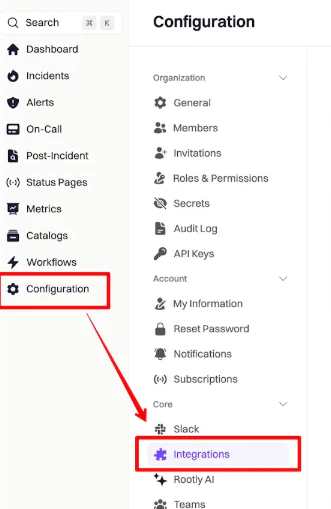
Navigate to **Configuration → Integrations** in your Rootly dashboard. This is where all third-party integrations are managed.
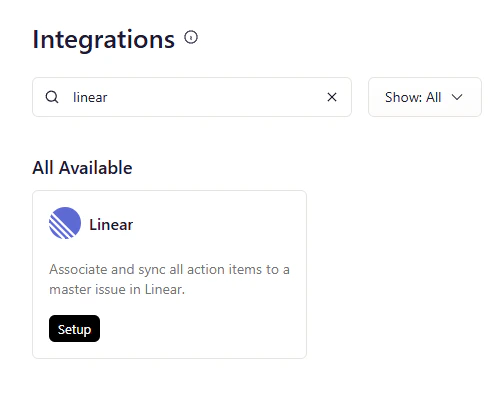
 Search for **Linear** in the integrations catalog and click **Setup** to begin the OAuth authorization flow.
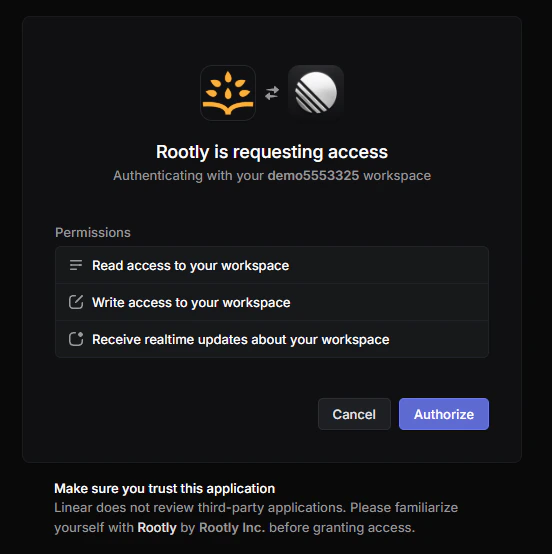
 You'll be redirected to Linear's authorization page. Review the requested permissions — Rootly needs write access to create and update issues on your behalf. Click **Allow Access** to proceed.
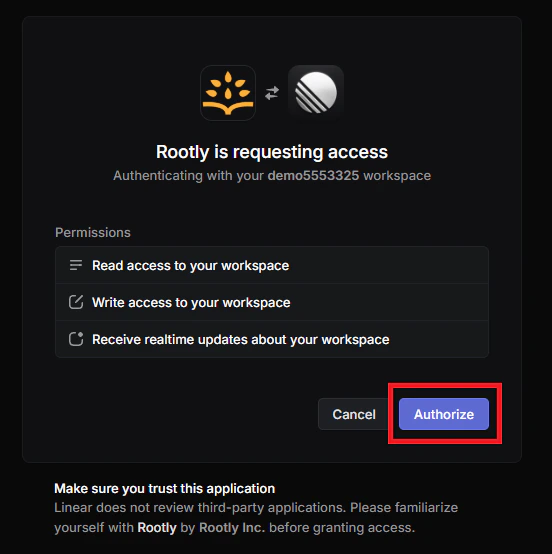
 If you belong to multiple Linear workspaces, choose the one you want to connect to Rootly and click **Authorize**. You can only connect one workspace per Rootly account.
 You'll be redirected back to Rootly and see a confirmation: *"Great! We've added that Linear account to your Rootly account!"* The integration is now active.
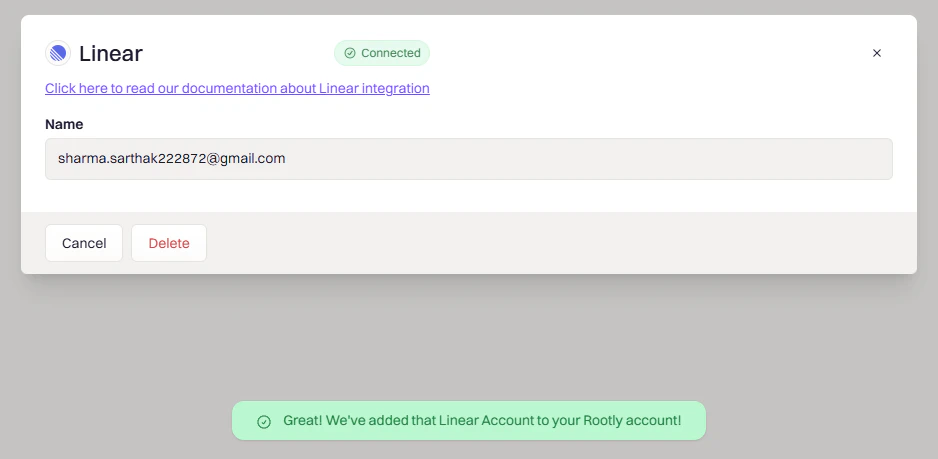 Linear is now connected. Head to the [Workflows page](/integrations/linear/workflows) to configure automated issue creation for your incidents.
## Verify the Connection
Once connected, it's worth confirming the integration is active on both sides before building workflows.
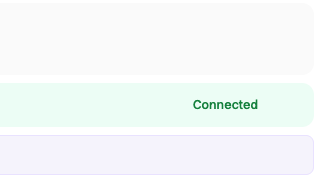
**In Rootly:** The integration should show **Connected** status on the Integrations page.
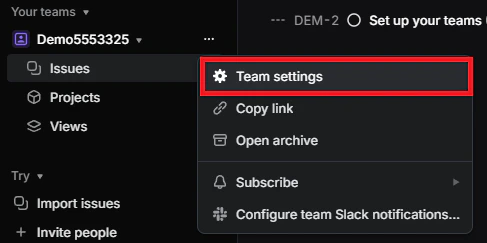
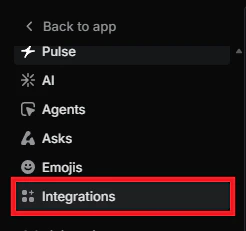
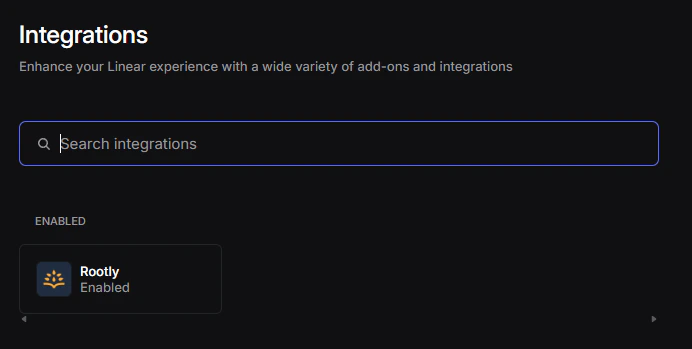
**In Linear:** Open your workspace menu, go to **Settings → Integrations**, and confirm Rootly appears in your connected apps list. If it's missing, the OAuth flow may not have completed successfully — try reconnecting.
Linear is now connected. Head to the [Workflows page](/integrations/linear/workflows) to configure automated issue creation for your incidents.
## Verify the Connection
Once connected, it's worth confirming the integration is active on both sides before building workflows.
**In Rootly:** The integration should show **Connected** status on the Integrations page.
**In Linear:** Open your workspace menu, go to **Settings → Integrations**, and confirm Rootly appears in your connected apps list. If it's missing, the OAuth flow may not have completed successfully — try reconnecting.
 ## Troubleshooting
Confirm you completed the OAuth flow and granted Rootly access to your workspace. In Linear, go to **Settings → Integrations** and verify Rootly is listed and enabled. If it's missing or showing an error, disconnect the integration in Rootly and reconnect from scratch — the OAuth token may have expired or been revoked.
You must be a member of at least one Linear team with write permissions — read-only roles won't allow issue creation. If your workspace uses restricted teams, a Linear admin needs to add you before you can proceed. After your permissions are updated, restart the authorization flow so Linear returns the correct team list.
***
## Uninstall
To remove the Linear integration, go to **Configuration → Integrations**, find **Linear**, and click the **Connected** button to reveal the disconnect option.
## Troubleshooting
Confirm you completed the OAuth flow and granted Rootly access to your workspace. In Linear, go to **Settings → Integrations** and verify Rootly is listed and enabled. If it's missing or showing an error, disconnect the integration in Rootly and reconnect from scratch — the OAuth token may have expired or been revoked.
You must be a member of at least one Linear team with write permissions — read-only roles won't allow issue creation. If your workspace uses restricted teams, a Linear admin needs to add you before you can proceed. After your permissions are updated, restart the authorization flow so Linear returns the correct team list.
***
## Uninstall
To remove the Linear integration, go to **Configuration → Integrations**, find **Linear**, and click the **Connected** button to reveal the disconnect option.
 Disconnecting stops all Linear-related workflows from running. Existing Linear issues created by Rootly are not affected.