> ## Documentation Index
> Fetch the complete documentation index at: https://docs.rootly.com/llms.txt
> Use this file to discover all available pages before exploring further.
# Workflows
> Automate Linear issue creation, updates, and sub-issues based on incident events in Rootly using workflow actions with team, label, and assignee controls.
Once Linear is connected, you configure workflows that automatically create and update Linear issues as incidents move through their lifecycle. This page covers the three main workflow actions — creating issues, updating them, and creating sub-issues for action items — as well as setting up Triage Responsibility to keep your Linear queue synced with whoever is on call.
## Create a Linear Issue Workflow
This is the core workflow: whenever an incident is declared in Rootly, a corresponding Linear issue is created automatically with incident data populated into the fields you configure.
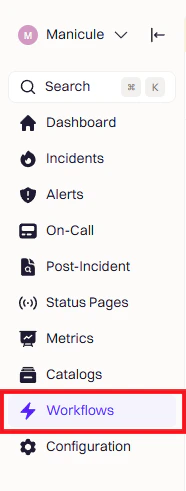
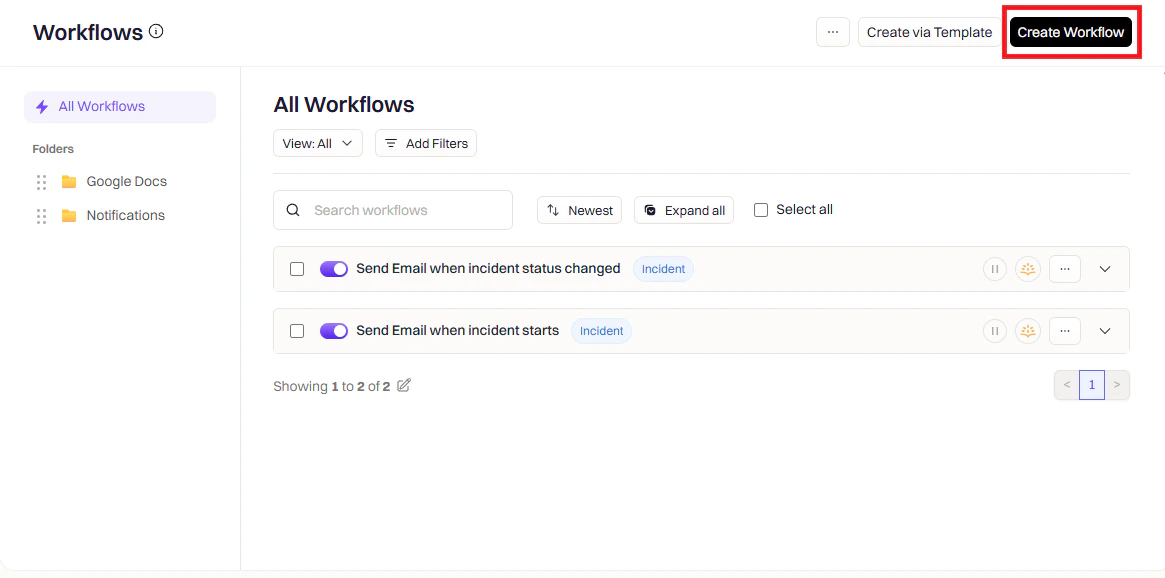
Go to **Rootly → Workflows → Create Workflow**.
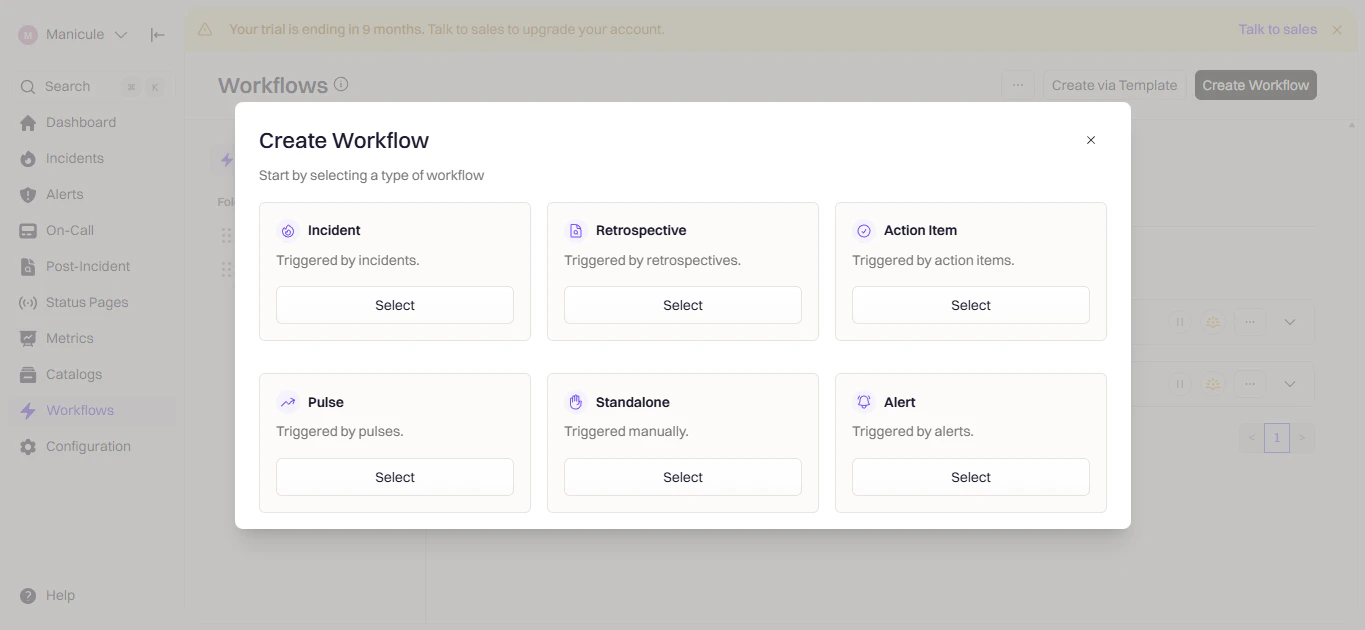
 Select the event type that should trigger this workflow — for example, **Incident**, **Retrospective**, or **Pulse**.
 Triggers define when this workflow fires. Choose the event that should kick off Linear issue creation.
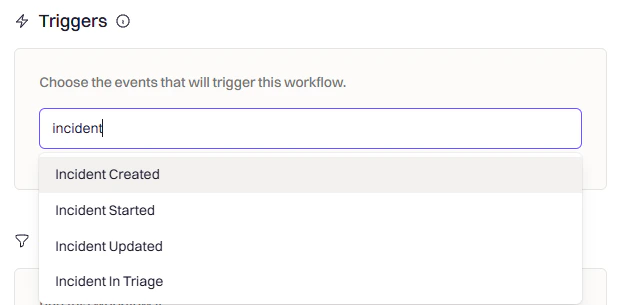 | Trigger | When It Fires |
| ------------------------------- | ---------------------------------------- |
| **Incident Created** | A new incident opens |
| **Incident Updated** | Severity, status, or other fields change |
| **Incident Commander Assigned** | Someone takes ownership of the incident |
| **Manual Trigger** | Run on demand from the Rootly UI |
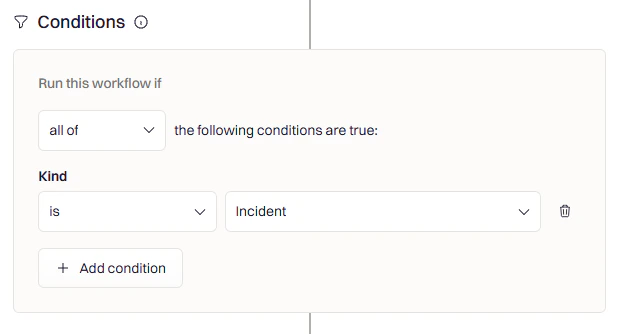
Conditions let you filter which incidents trigger the workflow — for example, only SEV-1 incidents, only specific teams, or only production environments.
| Trigger | When It Fires |
| ------------------------------- | ---------------------------------------- |
| **Incident Created** | A new incident opens |
| **Incident Updated** | Severity, status, or other fields change |
| **Incident Commander Assigned** | Someone takes ownership of the incident |
| **Manual Trigger** | Run on demand from the Rootly UI |
Conditions let you filter which incidents trigger the workflow — for example, only SEV-1 incidents, only specific teams, or only production environments.
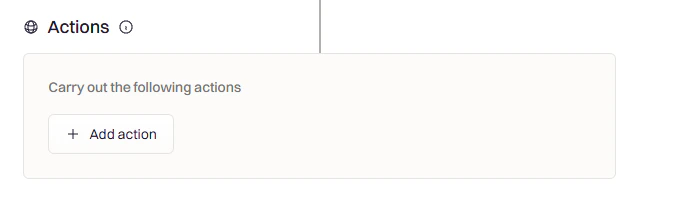
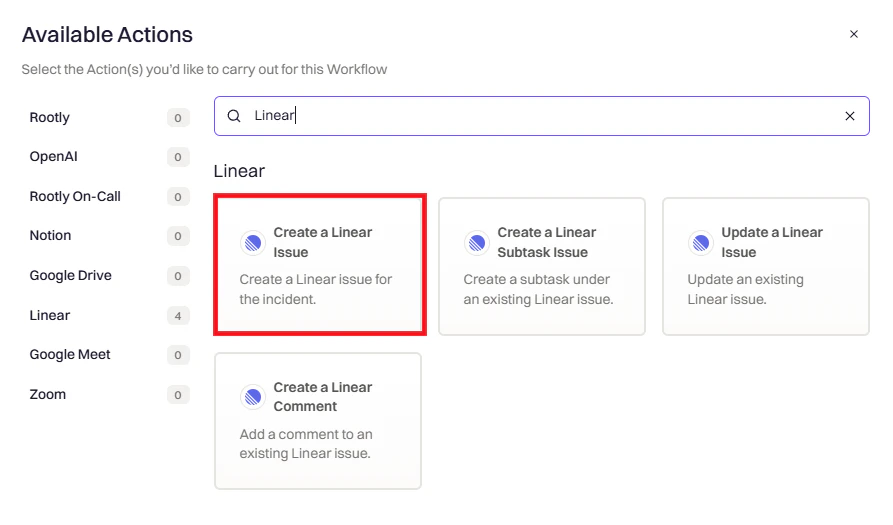
 Click **Add Action**, search for **Linear**, and select **Create Linear Issue**.
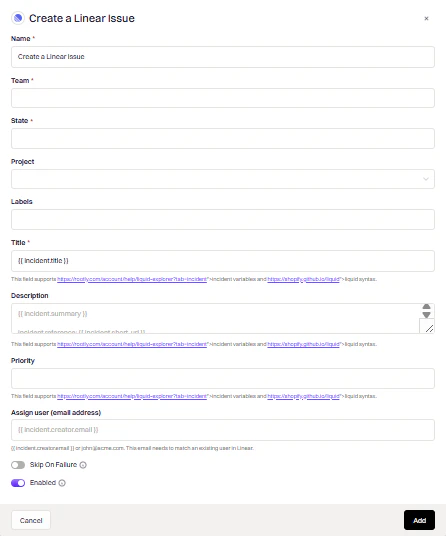 Fill in the fields to control how the Linear issue is created:
The Linear team where the issue will be created.
The initial workflow state for the issue — for example, **Todo** or **In Progress**.
Optional. Associate the issue with a specific Linear project.
Add labels to the issue for filtering and triage.
The issue title. Supports Liquid — use `{{ incident.title }}` to default to the incident title.
The issue body. Supports Liquid — use `{{ incident.summary }}` to populate with the incident summary.
The issue priority. Select **Auto** to automatically map incident severity to a corresponding Linear priority, or choose **Urgent**, **High**, **Medium**, or **Low** manually.
Email address of the Linear user to assign the issue to.
Click **Add**, give your workflow a name, and click **Create Workflow**.
## Update a Linear Issue
Use the **Update Linear Issue** action to keep the Linear issue in sync as the incident progresses — for example, moving it to Done when the incident resolves, or updating priority when severity changes.
Create a **separate workflow** for updates. Do not add the Update action to your Create workflow — they need to trigger on different events.
Configure the action with:
Use `{{ incident.linear_issue_id }}` to reference the issue that was created when the incident was declared.
Common use cases:
* Move to **Done** when the incident is resolved
* Update **priority** when severity escalates
* Change **assignee** as ownership transfers
## Create Linear Sub-Issues
To track action items as Linear sub-issues, create a separate workflow triggered by **Action Item Created** and use the **Create Linear Sub-Issue** action.
Use `{{ incident.linear_issue_id }}` to nest the sub-issue under the parent incident issue.
Use `{{ action_item.summary }}` to populate the sub-issue title from the action item.
This keeps all follow-up work organized under the parent incident issue in Linear.
***
## Triage Responsibility
Connect Linear's [Triage Responsibility](https://linear.app/docs/triage#triage-responsibility) feature to your Rootly on-call schedules so new Linear issues are automatically assigned to whoever is currently on call. This keeps your triage queue aligned with your incident response rotation.
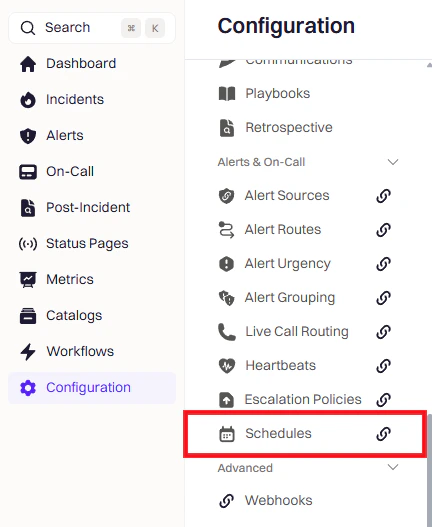
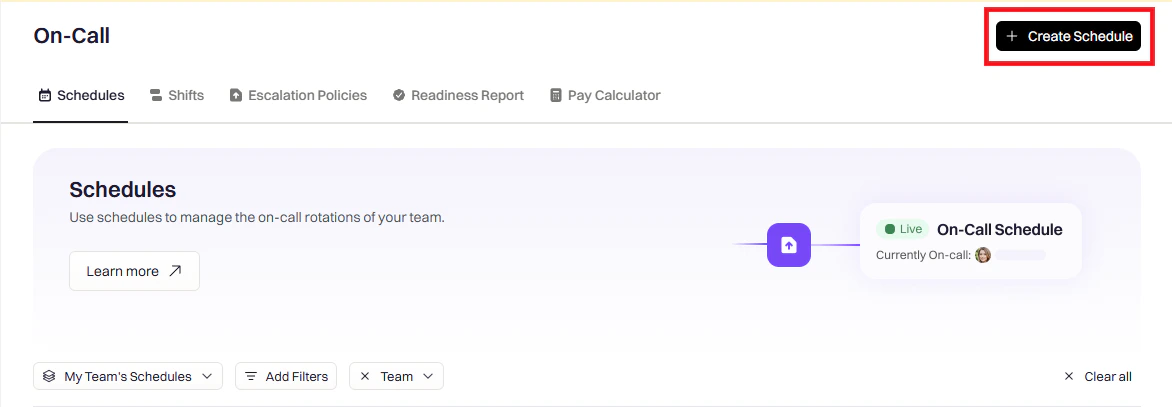
Go to **Schedules** and click **Create Schedule**.
Fill in the fields to control how the Linear issue is created:
The Linear team where the issue will be created.
The initial workflow state for the issue — for example, **Todo** or **In Progress**.
Optional. Associate the issue with a specific Linear project.
Add labels to the issue for filtering and triage.
The issue title. Supports Liquid — use `{{ incident.title }}` to default to the incident title.
The issue body. Supports Liquid — use `{{ incident.summary }}` to populate with the incident summary.
The issue priority. Select **Auto** to automatically map incident severity to a corresponding Linear priority, or choose **Urgent**, **High**, **Medium**, or **Low** manually.
Email address of the Linear user to assign the issue to.
Click **Add**, give your workflow a name, and click **Create Workflow**.
## Update a Linear Issue
Use the **Update Linear Issue** action to keep the Linear issue in sync as the incident progresses — for example, moving it to Done when the incident resolves, or updating priority when severity changes.
Create a **separate workflow** for updates. Do not add the Update action to your Create workflow — they need to trigger on different events.
Configure the action with:
Use `{{ incident.linear_issue_id }}` to reference the issue that was created when the incident was declared.
Common use cases:
* Move to **Done** when the incident is resolved
* Update **priority** when severity escalates
* Change **assignee** as ownership transfers
## Create Linear Sub-Issues
To track action items as Linear sub-issues, create a separate workflow triggered by **Action Item Created** and use the **Create Linear Sub-Issue** action.
Use `{{ incident.linear_issue_id }}` to nest the sub-issue under the parent incident issue.
Use `{{ action_item.summary }}` to populate the sub-issue title from the action item.
This keeps all follow-up work organized under the parent incident issue in Linear.
***
## Triage Responsibility
Connect Linear's [Triage Responsibility](https://linear.app/docs/triage#triage-responsibility) feature to your Rootly on-call schedules so new Linear issues are automatically assigned to whoever is currently on call. This keeps your triage queue aligned with your incident response rotation.
Go to **Schedules** and click **Create Schedule**.
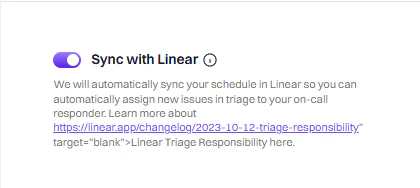
 In the **Integrations** tab, toggle on **Sync with Linear**.
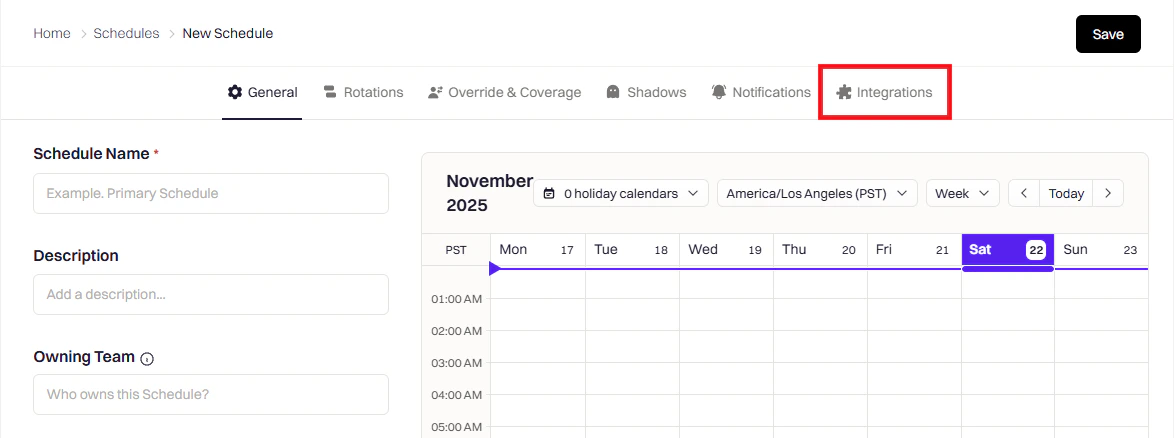
 Give the schedule a name, add members, and click **Save**.
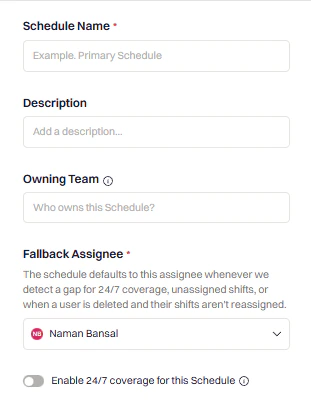
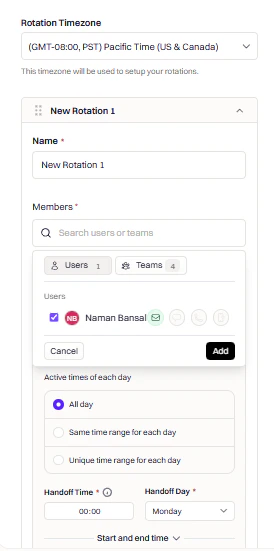 In Linear, navigate to **Settings → Teams** and select the team you want to configure.
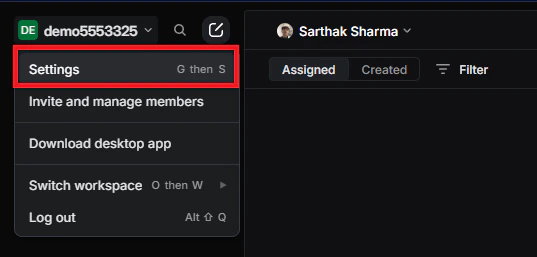
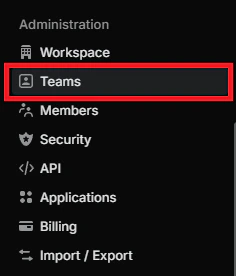
 Under **Workflow → Triage**, find **Triage responsibility** and select **Use schedule**. Choose the Rootly schedule you just created.
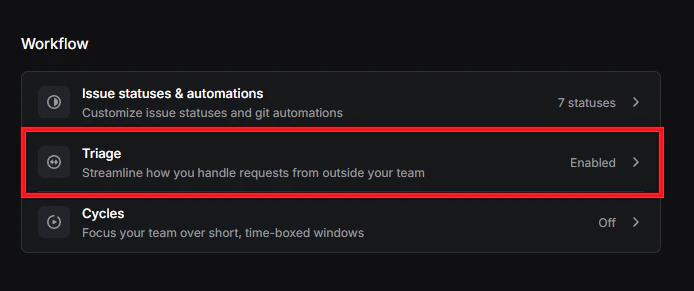
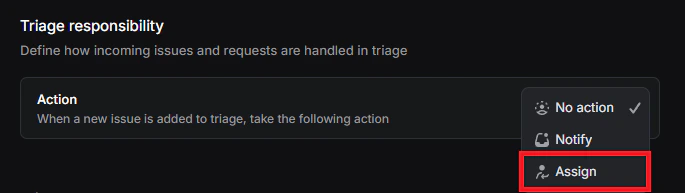
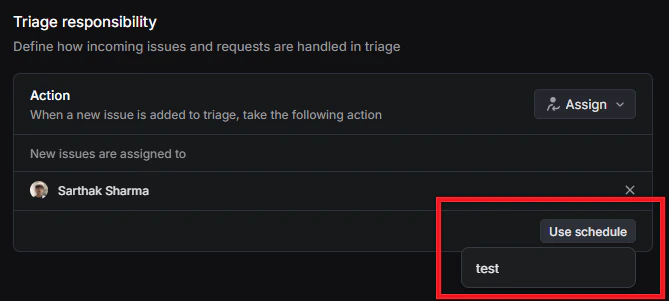 New Linear issues in triage will now be automatically assigned to whoever is on call in Rootly — no manual triage queue management needed.