> ## Documentation Index
> Fetch the complete documentation index at: https://docs.rootly.com/llms.txt
> Use this file to discover all available pages before exploring further.
# Looker
> Capture and share Looker dashboard snapshots directly in Rootly incident workflows and Slack channels to give responders fast access to business context.
## Overview
Rootly's Looker integration lets you capture snapshots of Looker dashboards during an incident and share them directly to the incident timeline or Slack channels. This keeps your team grounded in data during the response without leaving their incident workflow.
Capture a point-in-time snapshot of any Looker dashboard and attach it to the incident.
Automatically share dashboard snapshots to incident Slack channels so responders have the data they need instantly.
Post snapshots directly to the incident timeline to create a visual record of system state during the incident.
Trigger snapshot capture automatically via workflows — on incident creation, severity change, or any other event.
## Before You Begin
* You must be a Rootly admin to set up the integration
* You need a Looker instance URL and API credentials (Client ID and Client Secret)
* Use a **service account** in Looker rather than a personal account to prevent the integration from breaking if a user leaves
## Installation
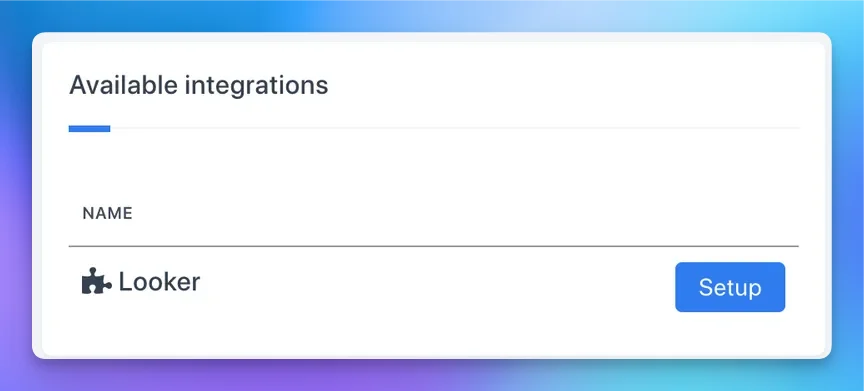
In Rootly, go to **Configuration → Integrations** and find **Looker**. Click **Connect**.
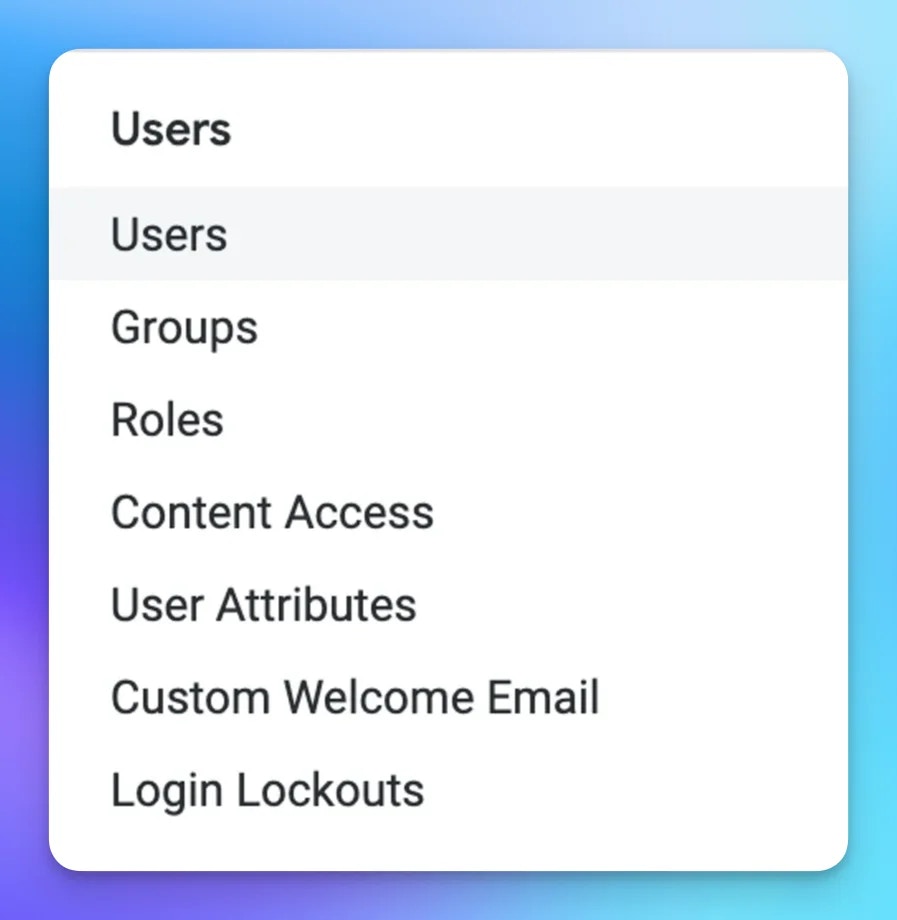
 In your Looker instance, navigate to **Admin → Users** and select the user (or service account) you want to use for the integration.
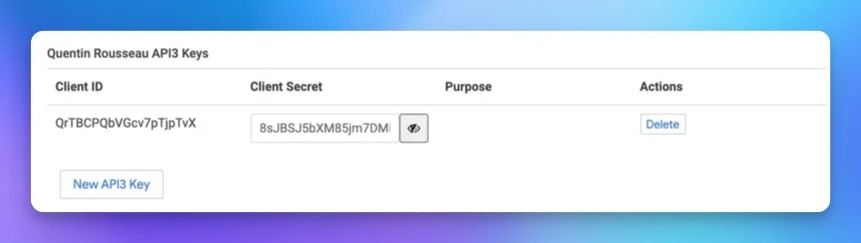
 Scroll down to **API Keys** and click **New API Key** to generate a Client ID and Client Secret.
 We recommend using a **service account** rather than a personal user account to ensure the integration stays active if someone leaves your team.
Back in Rootly, enter your **Instance URL**, **Client ID**, and **Client Secret**, then click **Connect**.
We recommend using a **service account** rather than a personal user account to ensure the integration stays active if someone leaves your team.
Back in Rootly, enter your **Instance URL**, **Client ID**, and **Client Secret**, then click **Connect**.
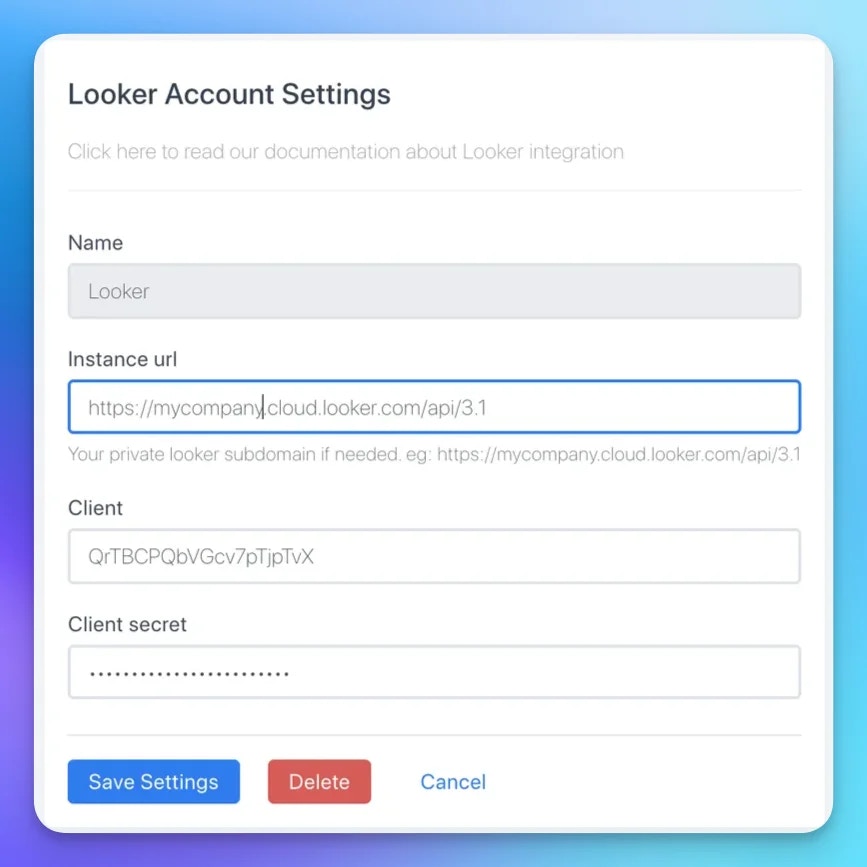 Rootly will validate the credentials against your Looker instance before saving.
## Workflow Action
### Snapshot Looker Dashboard
Captures a snapshot of one or more Looker dashboards and optionally posts them to Slack or the incident timeline.
Rootly will validate the credentials against your Looker instance before saving.
## Workflow Action
### Snapshot Looker Dashboard
Captures a snapshot of one or more Looker dashboards and optionally posts them to Slack or the incident timeline.
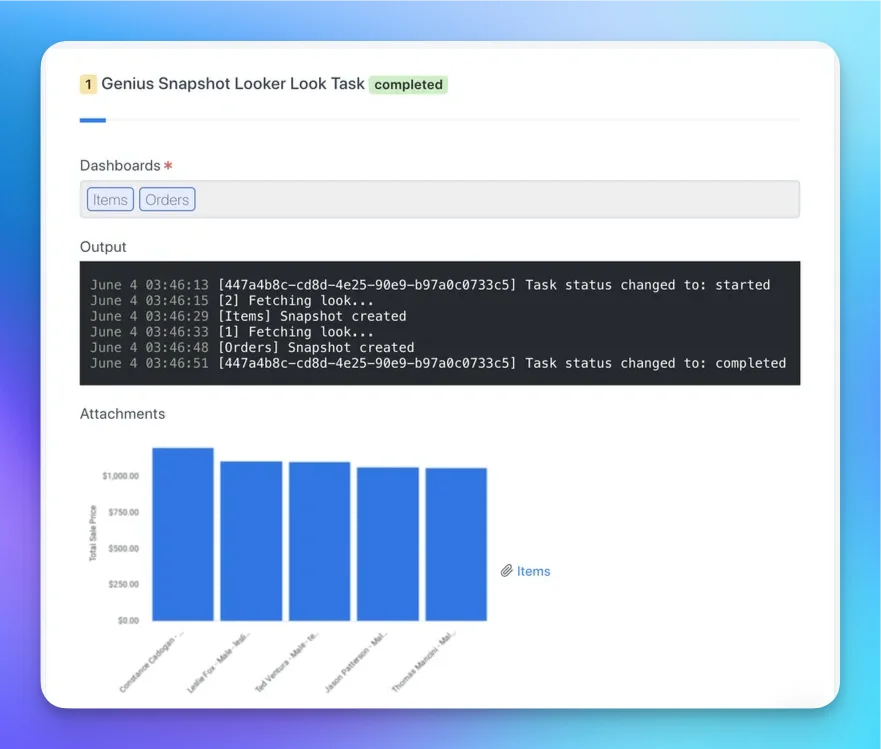 Select one or more Looker dashboards to snapshot. Populated from your connected Looker instance.
When enabled, attaches the snapshot to the incident timeline for a visual record of system state at the time of the snapshot.
Select one or more Slack channels to share the snapshot to. Use `{{ incident.slack_channel_id }}` to target the incident's dedicated channel.
## Uninstall
To remove the Looker integration:
1. Go to **Configuration → Integrations** and find **Looker**
2. Click **Connected** to reveal the disconnect option
3. Click **Disconnect**
Select one or more Looker dashboards to snapshot. Populated from your connected Looker instance.
When enabled, attaches the snapshot to the incident timeline for a visual record of system state at the time of the snapshot.
Select one or more Slack channels to share the snapshot to. Use `{{ incident.slack_channel_id }}` to target the incident's dedicated channel.
## Uninstall
To remove the Looker integration:
1. Go to **Configuration → Integrations** and find **Looker**
2. Click **Connected** to reveal the disconnect option
3. Click **Disconnect**
 ## Frequently Asked Questions
Your instance URL is the base URL you use to access Looker, for example `https://yourcompany.looker.com`. Remove any trailing slashes before entering it in Rootly.
The API user needs at minimum **see\_looks\_and\_dashboards** and **access\_data** permissions to allow Rootly to list and snapshot dashboards. For user-defined dashboards, **see\_user\_dashboards** is also required.
Yes. The **Dashboards** field supports selecting multiple dashboards. Each selected dashboard will be snapshotted and shared.
The dropdown is populated from your Looker instance at the time the workflow is configured. If a dashboard was recently created, try reconnecting the integration or refreshing the page. Also confirm the API user has access to view the dashboard.
## Frequently Asked Questions
Your instance URL is the base URL you use to access Looker, for example `https://yourcompany.looker.com`. Remove any trailing slashes before entering it in Rootly.
The API user needs at minimum **see\_looks\_and\_dashboards** and **access\_data** permissions to allow Rootly to list and snapshot dashboards. For user-defined dashboards, **see\_user\_dashboards** is also required.
Yes. The **Dashboards** field supports selecting multiple dashboards. Each selected dashboard will be snapshotted and shared.
The dropdown is populated from your Looker instance at the time the workflow is configured. If a dashboard was recently created, try reconnecting the integration or refreshing the page. Also confirm the API user has access to view the dashboard.