> ## Documentation Index
> Fetch the complete documentation index at: https://docs.rootly.com/llms.txt
> Use this file to discover all available pages before exploring further.
# Mattermost
> Connect Mattermost to Rootly so responders can declare, manage, and coordinate incidents directly from Mattermost with channels and slash commands.
## Introduction
The Mattermost integration connects Rootly with your Mattermost workspace so responders can work from chat while Rootly keeps the incident record up to date.
This integration is best for teams that use Mattermost as a primary collaboration tool and want to manage incidents without constantly switching between Mattermost and the Rootly web app.
With the Mattermost integration, you can:
* Declare incidents directly from Mattermost with slash commands
* Automatically create a dedicated Mattermost channel for each incident
* Mitigate and resolve incidents from the incident channel
* Guide responders through a consistent incident workflow from chat
* Keep Rootly and Mattermost in sync during the incident lifecycle
## Before You Begin
Before setting up the integration, make sure you have:
* A Rootly account with permission to manage integrations
* Access to your Mattermost workspace
* Permission to create and configure an OAuth 2.0 application in Mattermost
You will need to register **both** of the following redirect URLs in Mattermost:
* `https://rootly.com/auth/mattermost/callback`\
Used when an admin installs the Mattermost integration in Rootly
* `https://rootly.com/auth/sign_in_mattermost/callback`\
Used when individual users connect their Mattermost account with `/incident connect`
## Installation
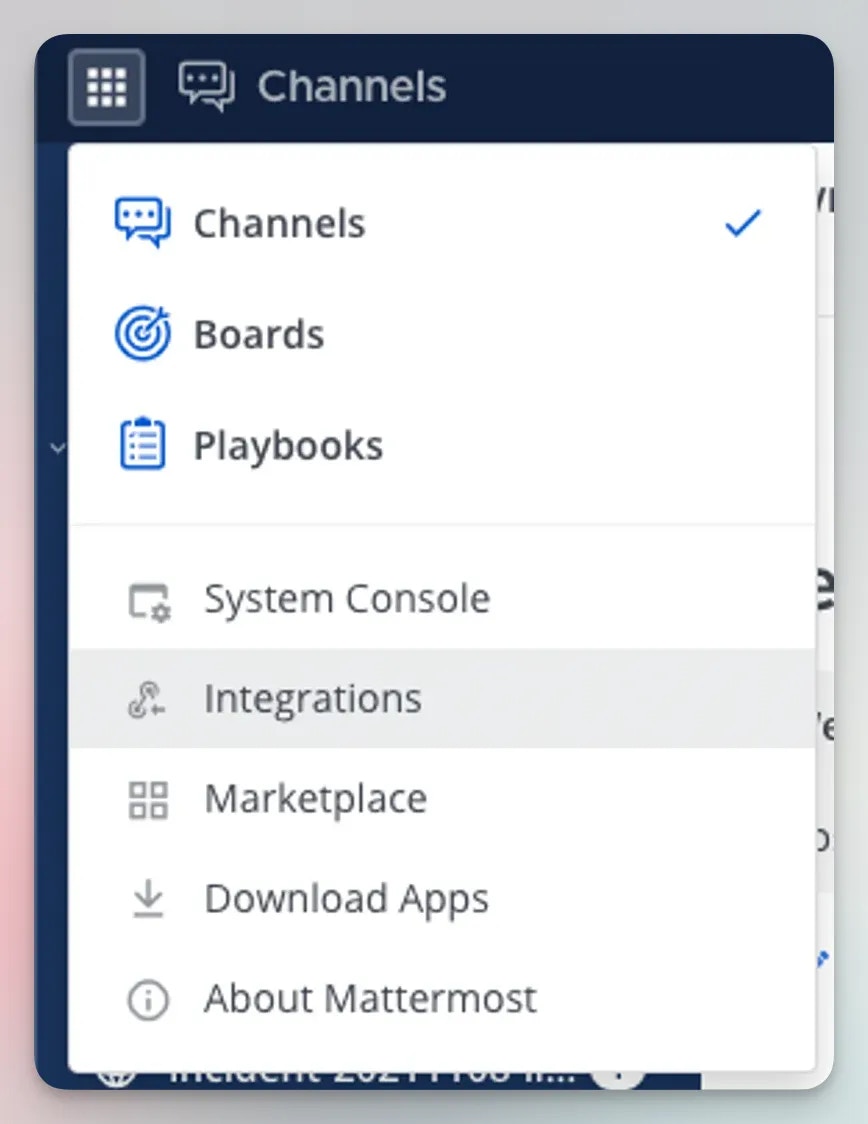
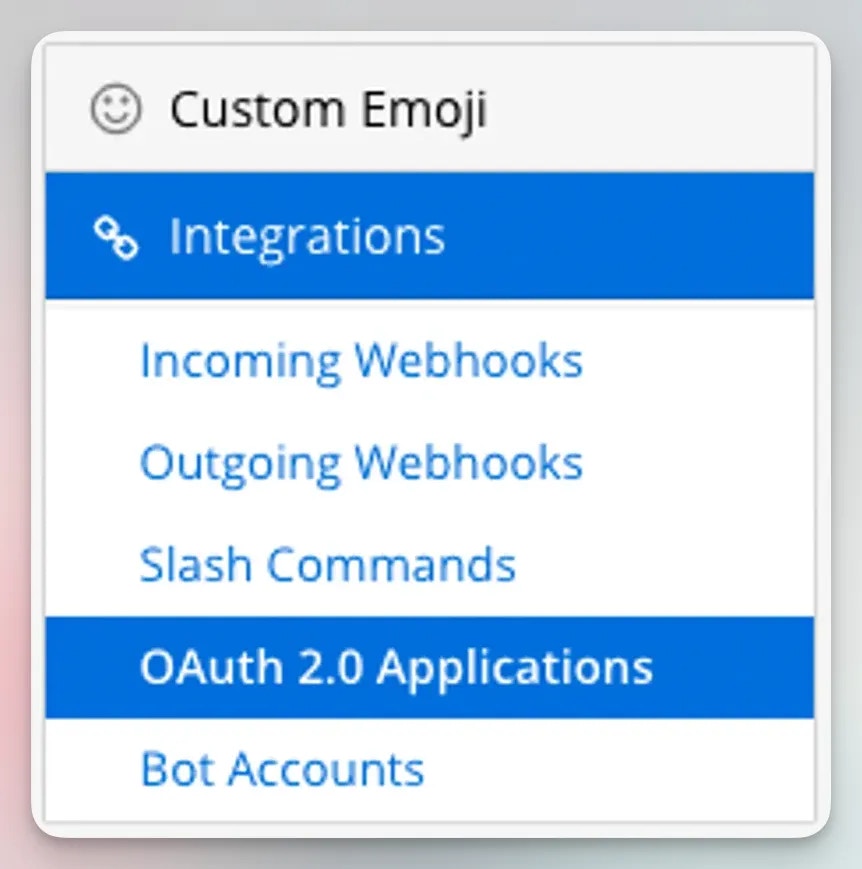
In Mattermost, navigate to **Menu > Integrations**, then open **OAuth 2.0** and create a new OAuth application.
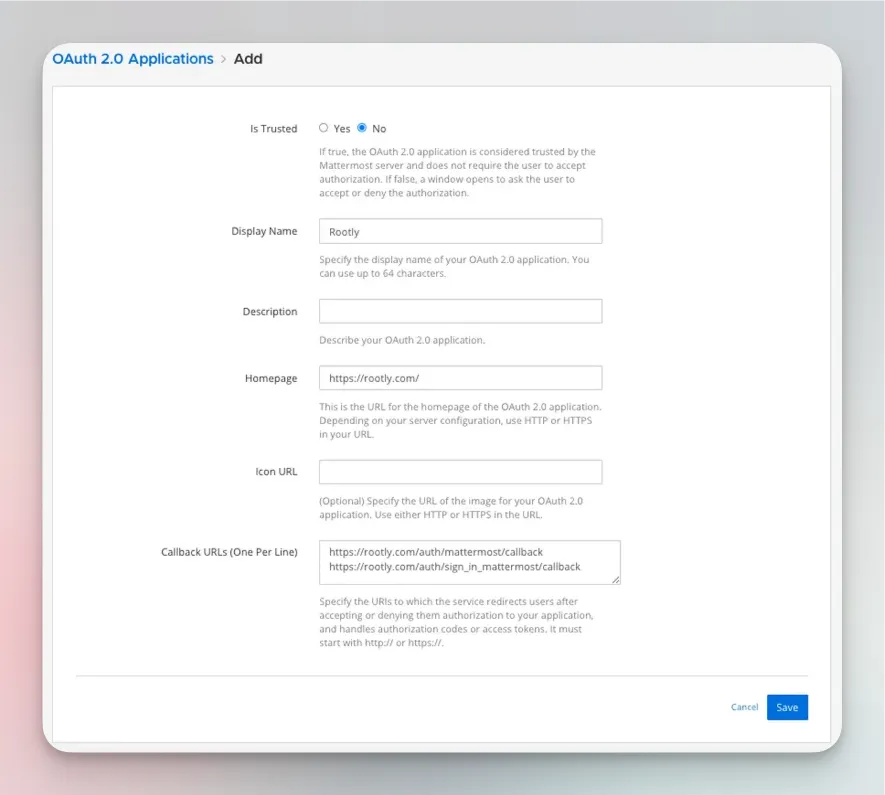 In the Mattermost OAuth application, add both of the following redirect URLs:
`https://rootly.com/auth/mattermost/callback`
`https://rootly.com/auth/sign_in_mattermost/callback`
The first URL is used when an admin installs the Mattermost integration in Rootly. The second is used when individual users connect their Mattermost account with `/incident connect`.
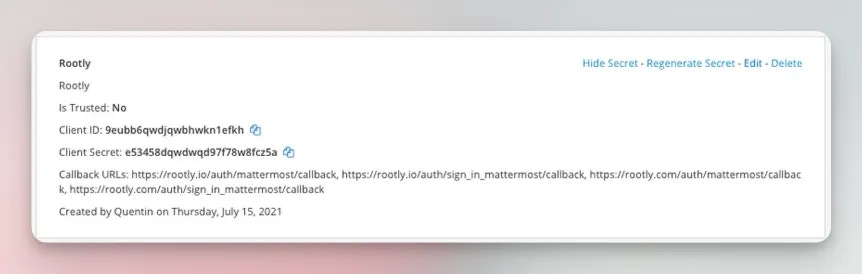
After saving the OAuth application in Mattermost, copy the **client\_id** and **client\_secret** into the Mattermost integration settings in Rootly.
In the Mattermost OAuth application, add both of the following redirect URLs:
`https://rootly.com/auth/mattermost/callback`
`https://rootly.com/auth/sign_in_mattermost/callback`
The first URL is used when an admin installs the Mattermost integration in Rootly. The second is used when individual users connect their Mattermost account with `/incident connect`.
After saving the OAuth application in Mattermost, copy the **client\_id** and **client\_secret** into the Mattermost integration settings in Rootly.
 ## Configuration
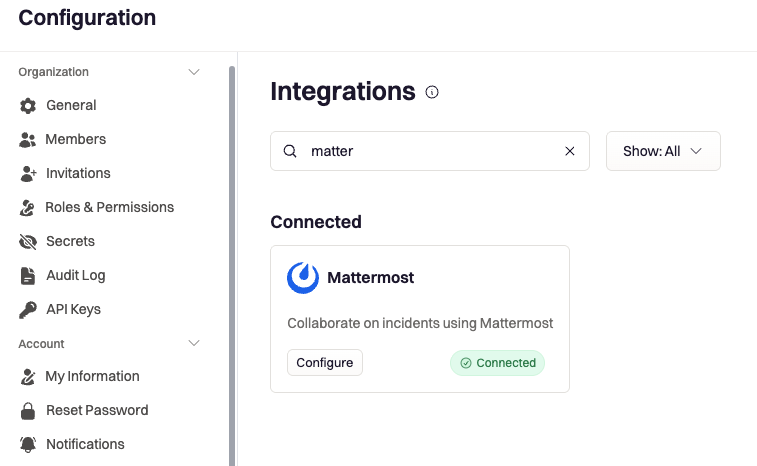
In Rootly, navigate to **Configuration** > **Integrations** > **Mattermost** > **Configure**.
## Configuration
In Rootly, navigate to **Configuration** > **Integrations** > **Mattermost** > **Configure**.
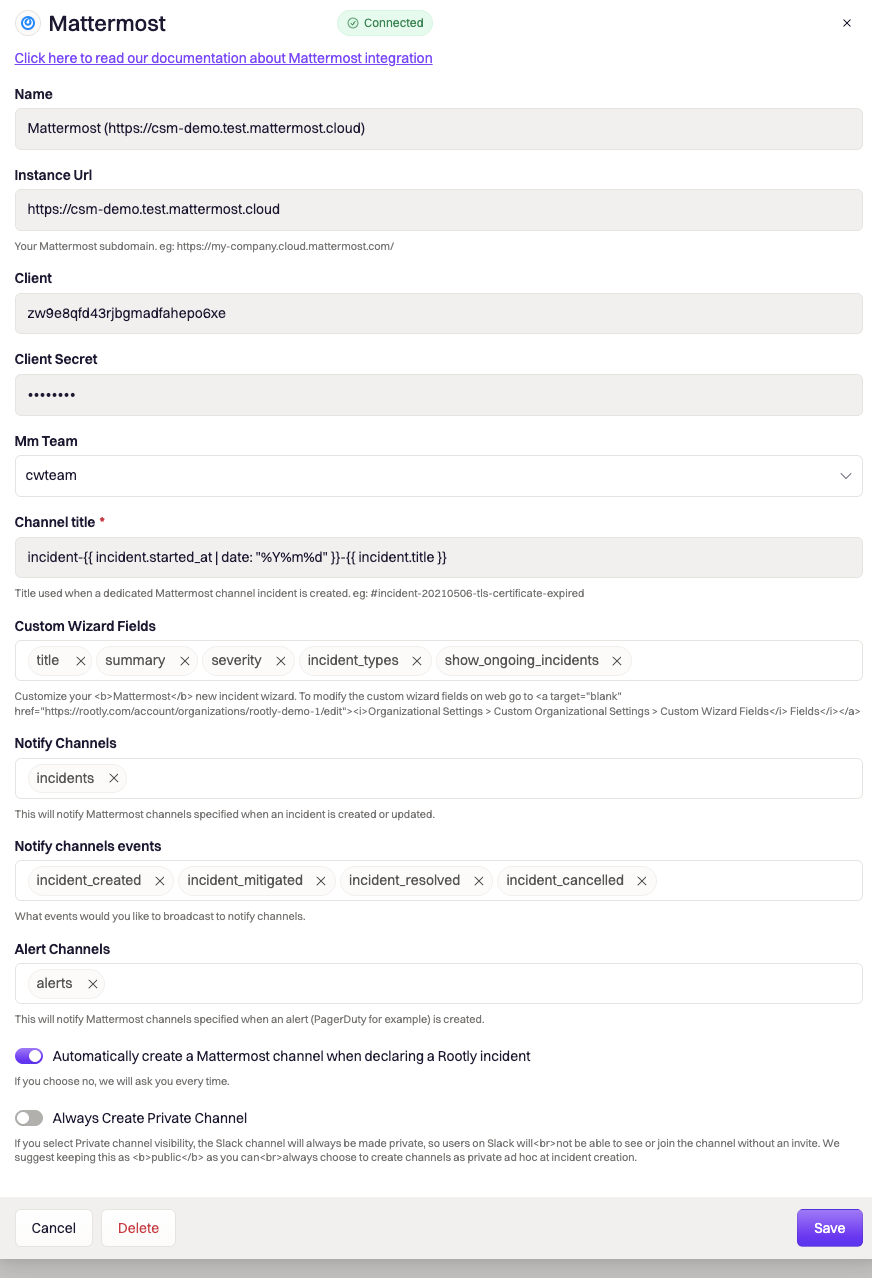
 In the configuration panel, you can define how Rootly works with Mattermost during incident creation and response.
Available options include:
* **Channel title** for incident channels
* Whether to **automatically create a Mattermost channel** when an incident is declared
* Whether incident channels should always be **private**
* Which fields appear in the **incident creation wizard**
* Which incident events should be posted into the Mattermost channel, including:
* Incident created
* Incident mitigated
* Incident resolved
* Incident cancelled
You can also control what data responders are asked to provide during incident creation so the Mattermost experience matches your team’s incident process.
In the configuration panel, you can define how Rootly works with Mattermost during incident creation and response.
Available options include:
* **Channel title** for incident channels
* Whether to **automatically create a Mattermost channel** when an incident is declared
* Whether incident channels should always be **private**
* Which fields appear in the **incident creation wizard**
* Which incident events should be posted into the Mattermost channel, including:
* Incident created
* Incident mitigated
* Incident resolved
* Incident cancelled
You can also control what data responders are asked to provide during incident creation so the Mattermost experience matches your team’s incident process.
 ## Connect Your Mattermost Account
Each user who wants to manage incidents from Mattermost must complete this step.
After the integration is installed, run `/incident connect` in Mattermost to start linking your Mattermost account to Rootly.
Rootly will respond with a bot message that includes a **Connect now** action.
## Connect Your Mattermost Account
Each user who wants to manage incidents from Mattermost must complete this step.
After the integration is installed, run `/incident connect` in Mattermost to start linking your Mattermost account to Rootly.
Rootly will respond with a bot message that includes a **Connect now** action.
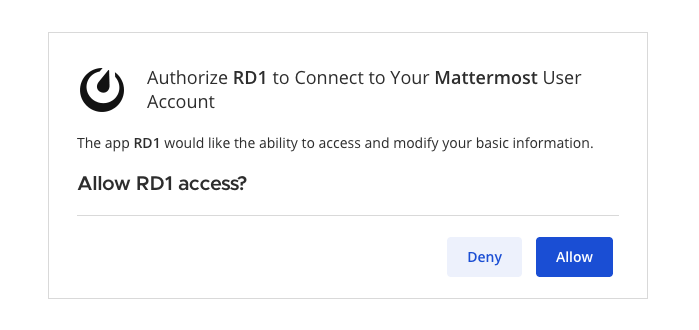
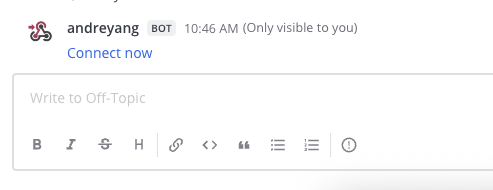 Click **Connect now**, then click **Allow** to authorize access and finish linking your Mattermost account.
 Once connected, you are ready to manage incidents in Rootly through Mattermost.
## Managing Incidents from Mattermost
Once your Mattermost account is connected, you can use slash commands to declare incidents, update incident status, and move through the incident workflow directly from Mattermost.
### Declare an Incident
To declare a new incident from Mattermost, use one of the following commands:
* `/incident new`
* `/incident create`
* `/incident declare`
You can run these commands in any Mattermost channel.
Mattermost prompts you to enter the incident details.
Once connected, you are ready to manage incidents in Rootly through Mattermost.
## Managing Incidents from Mattermost
Once your Mattermost account is connected, you can use slash commands to declare incidents, update incident status, and move through the incident workflow directly from Mattermost.
### Declare an Incident
To declare a new incident from Mattermost, use one of the following commands:
* `/incident new`
* `/incident create`
* `/incident declare`
You can run these commands in any Mattermost channel.
Mattermost prompts you to enter the incident details.
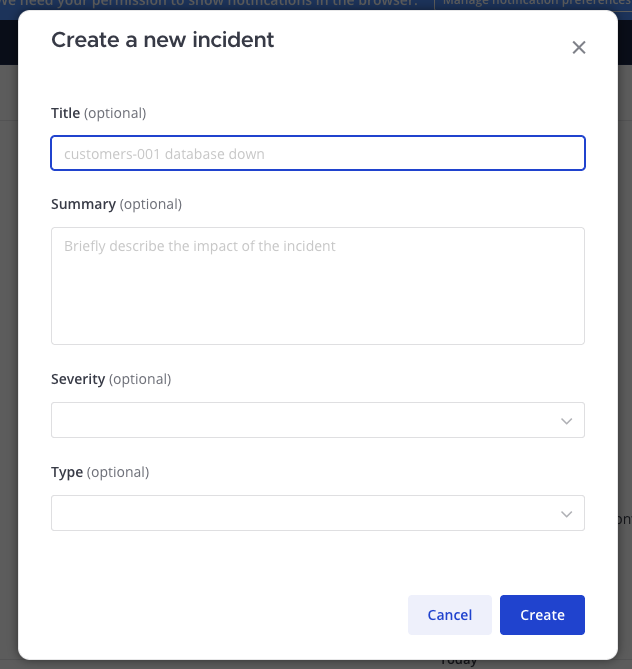 When the incident is created:
* A new incident is created in Rootly
* A dedicated Mattermost channel can be created automatically, depending on your configuration
### Mitigate an Incident
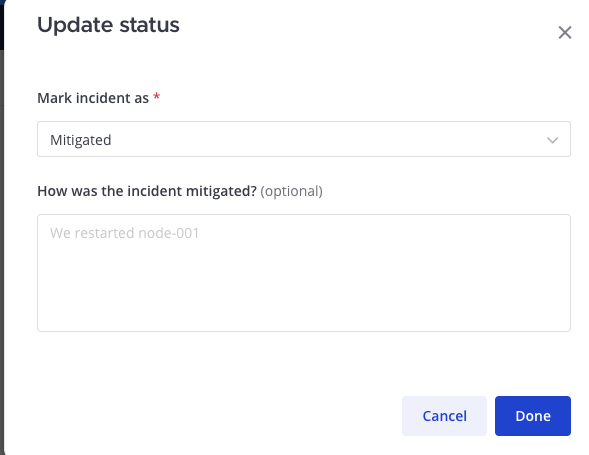
To mark an incident as mitigated, run either of the following commands in the incident-specific Mattermost channel:
* `/incident mitigate`
* `/incident mitigated`
These commands must be run from the Mattermost channel created for that incident.
When the incident is created:
* A new incident is created in Rootly
* A dedicated Mattermost channel can be created automatically, depending on your configuration
### Mitigate an Incident
To mark an incident as mitigated, run either of the following commands in the incident-specific Mattermost channel:
* `/incident mitigate`
* `/incident mitigated`
These commands must be run from the Mattermost channel created for that incident.
 ### Resolve an Incident
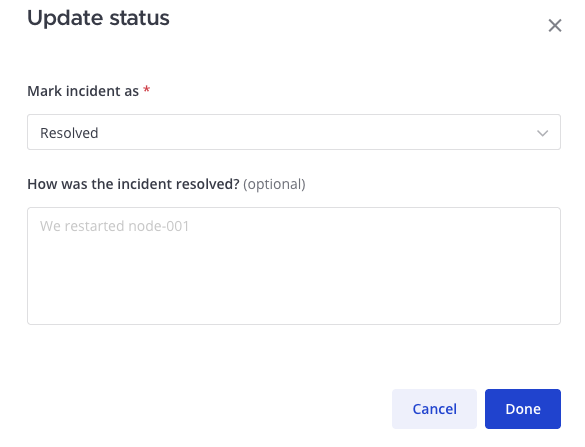
To resolve an incident, run either of the following commands in the incident-specific Mattermost channel:
* `/incident resolve`
* `/incident resolved`
These commands must be run from the Mattermost channel created for that incident.
### Resolve an Incident
To resolve an incident, run either of the following commands in the incident-specific Mattermost channel:
* `/incident resolve`
* `/incident resolved`
These commands must be run from the Mattermost channel created for that incident.
 ### View Available Commands
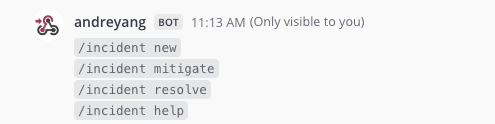
If you need a reminder of the available Mattermost commands, run:
* `/incident help`
This shows the current list of supported commands.
### View Available Commands
If you need a reminder of the available Mattermost commands, run:
* `/incident help`
This shows the current list of supported commands.
 ## Uninstall
To remove the Mattermost integration, go to the integrations panel and select **Configure** > **Delete**.
## Uninstall
To remove the Mattermost integration, go to the integrations panel and select **Configure** > **Delete**.